

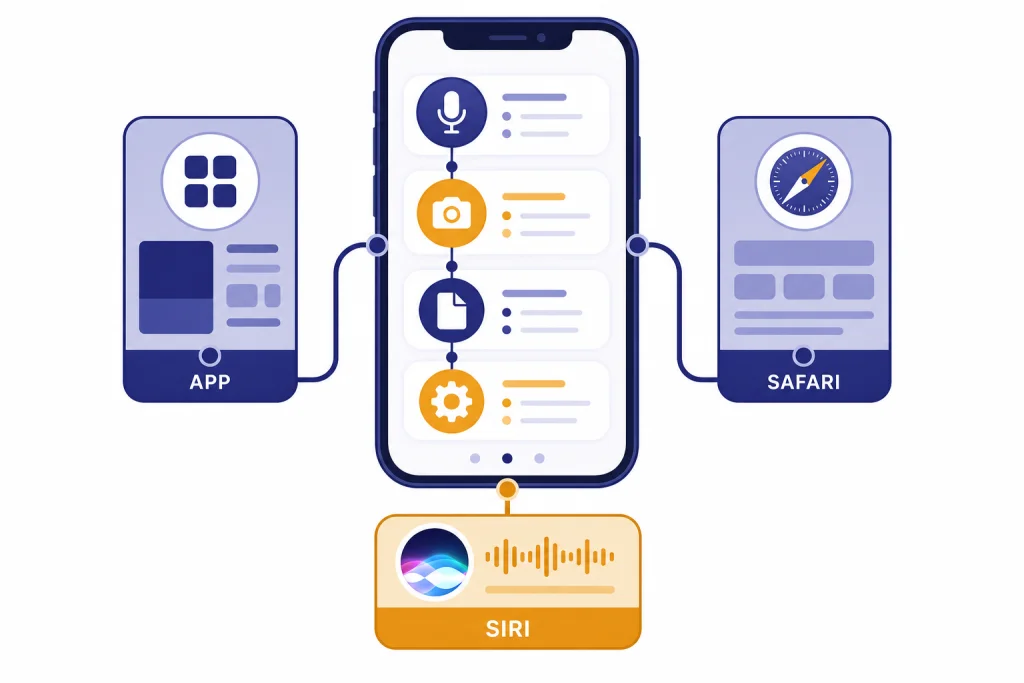
The best way to use ChatGPT on iPhone is to install the official ChatGPT app, sign in with the same account you use on the web, and build a few habits around voice, photos, file questions, and saved workflows. The App Store listing identifies the official app as published by OpenAI OpCo, LLC, says it is free with in-app purchases, and lists iPhone support with iOS 17.0 or later.[1] You can also use ChatGPT through Safari or through Apple Intelligence features such as Siri, Writing Tools, and visual intelligence on supported iPhones.[7]
Set up the official app safely
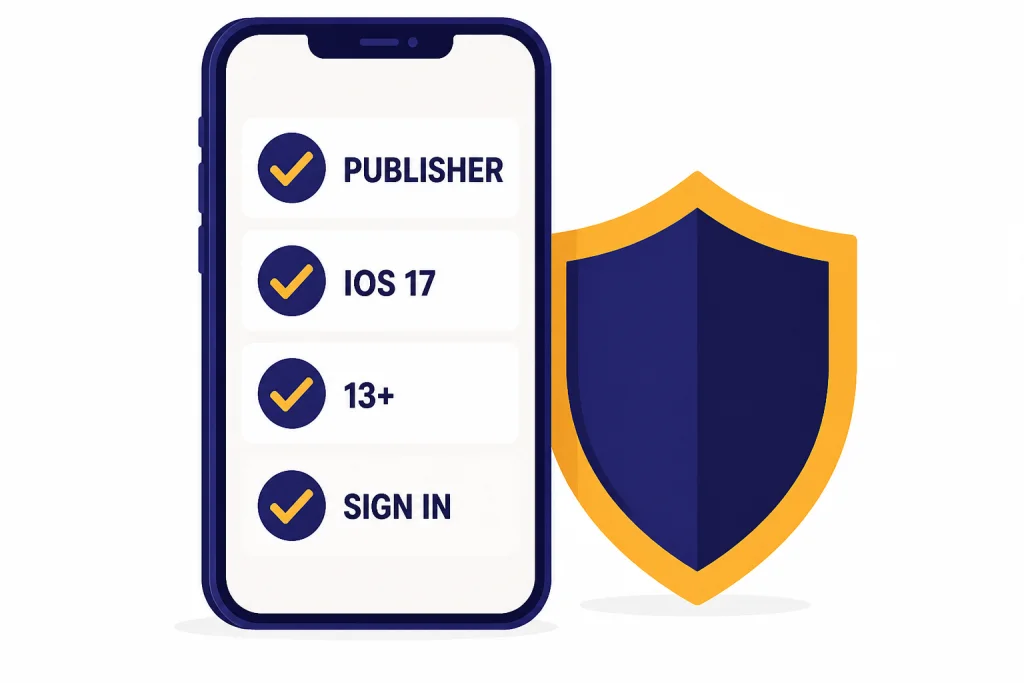
Start in the App Store. Search for openai chatgpt, then confirm that the publisher is OpenAI before you install. OpenAI’s own download guidance says to search that phrase and make sure the app is published by OpenAI.[2] This matters because copycat AI apps often use similar names, icons, and subscriptions.
The App Store listing says the ChatGPT app supports iPhone and iPad, is in the Productivity category, and has an age rating of 13+.[1] It also says iPhone compatibility requires iOS 17.0 or later.[1] If your iPhone cannot install the app, use Safari at chatgpt.com instead or see our reality check on how to use ChatGPT offline, which explains what does and does not work without a live connection.
- Open the App Store.
- Search for openai chatgpt.
- Check that the developer is OpenAI.
- Install the app.
- Open it and sign in, or create an account if prompted.
- Allow microphone, camera, or photo permissions only when you plan to use those features.
If you are new, follow our separate guide on how to log in to ChatGPT. If you do not yet have an account, start with signing up for ChatGPT. You can also read how to download the ChatGPT app if you want a device-by-device install checklist.
Choose the best way to use ChatGPT on iPhone
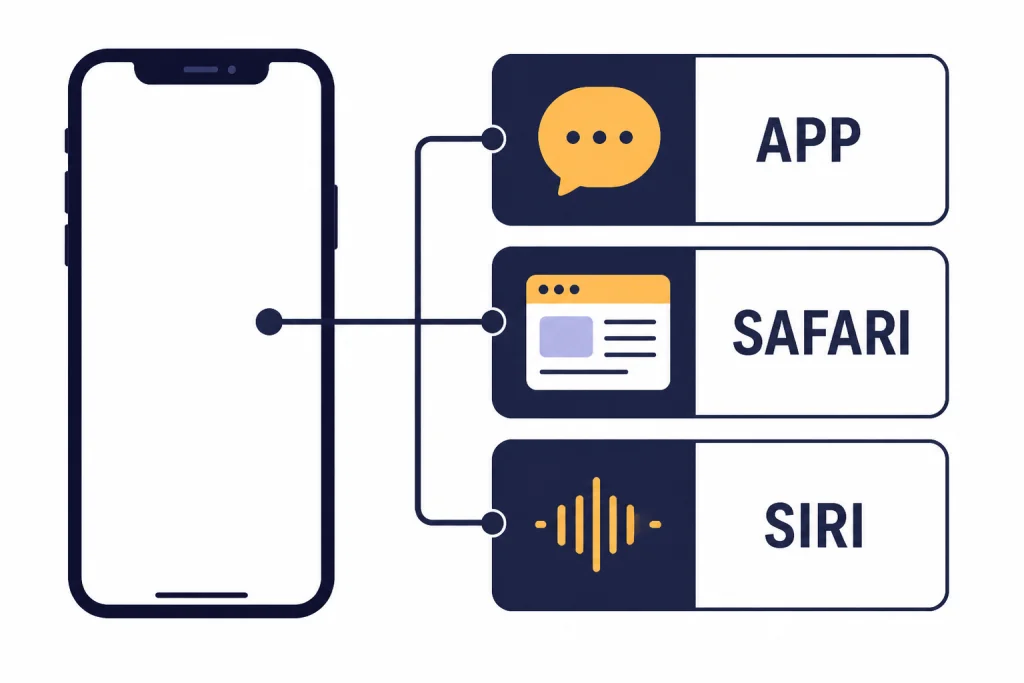
You have three practical access paths on iPhone: the ChatGPT app, ChatGPT in Safari, and Apple Intelligence integrations. Use the app for most work. Use Safari when you cannot install the app or want a browser session. Use Apple Intelligence when you want Siri, Writing Tools, or visual intelligence to hand a request to ChatGPT without switching apps.[7]
| Method | Best for | Tradeoff | Source-backed facts |
|---|---|---|---|
| ChatGPT app | Daily chat, voice, photos, history, saved workflows | Requires installation and supported iOS | The App Store lists iOS 17.0 or later for iPhone.[1] |
| Safari | Quick access, shared devices, older workflows | Less native than the app | OpenAI says app subscriptions bought on the web must be managed at chatgpt.com.[3] |
| Apple Intelligence | Siri questions, Writing Tools, visual intelligence, Shortcuts | Requires supported Apple Intelligence setup and availability | Apple says ChatGPT can help Siri, Writing Tools, Image Playground, visual intelligence, and Shortcuts on supported iPhones.[7] |
For most readers, the pro setup is simple: keep the app on your Home Screen, sign in on the web with the same account, and enable Apple Intelligence integration only if you want it. If you use other devices, keep the same account across iPhone, Mac, Windows, and Android. We have separate guides for ChatGPT on Mac, ChatGPT on Windows, and ChatGPT on Android.
Write better prompts on a small screen
Good iPhone prompting is about reducing typing. Do not write long, vague messages with your thumbs. Use a compact structure that tells ChatGPT the task, context, constraints, and output format.
The fast mobile prompt formula
Use this pattern:
Task: [what you want]
Context: [what ChatGPT needs to know]
Constraints: [tone, length, audience, limits]
Output: [bullets, table, message, checklist, draft]
Example:
Task: Rewrite this text.
Context: It is a reply to my landlord about a repair delay.
Constraints: Calm, firm, under 120 words.
Output: One polished text message.
That format works well on iPhone because it is easy to dictate and easy to reuse. Save it in Notes, Text Replacement, or a pinned chat. If your main goal is better writing, read how to make ChatGPT write like a human and how to make ChatGPT sound more human.
Use follow-ups instead of one huge prompt
On iPhone, short follow-ups beat giant prompts. Ask for a draft, then ask ChatGPT to tighten it, change the tone, make it shorter, add missing details, or turn it into bullets. This keeps the conversation readable and reduces editing on a small screen.
Use voice, camera, and files
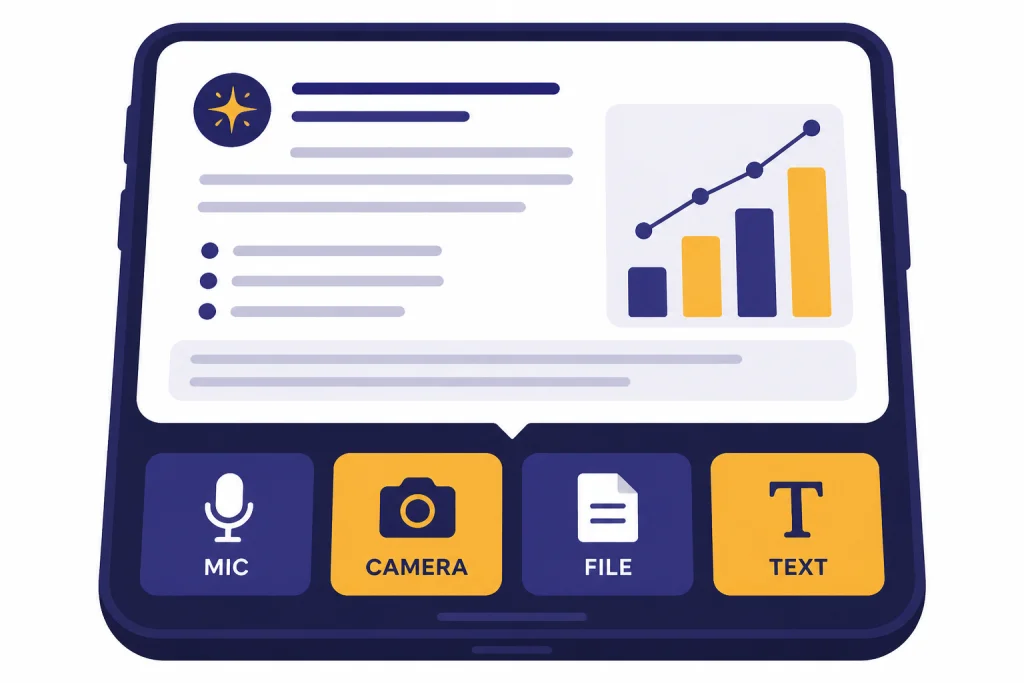
The iPhone app is strongest when you stop treating it like a plain text box. OpenAI’s capabilities overview says ChatGPT can answer questions, draft and summarize content, translate, analyze uploaded images, work with files, use data analysis, and support voice conversations depending on plan and settings.[5]
Voice mode
Use voice when you are walking, cooking, commuting as a passenger, or brainstorming. OpenAI says mobile users start a voice conversation from the voice icon, and the app needs microphone permission for this feature.[4] During a voice conversation, you can mute or unmute the microphone, change the voice, and enable captions from inside voice mode.[4] OpenAI also says only one voice chat can run at a time.[4]
For cleaner voice sessions, use headphones or a quiet room. OpenAI specifically recommends Voice Isolation on iPhone to reduce unintended interruptions during voice conversations.[4] For a fuller setup, use our guide to ChatGPT voice mode.
Photos and screenshots
Use images when the question is visual. Upload a screenshot of an error, a photo of a worksheet, a chart, a product label, or a handwritten note. OpenAI says ChatGPT can analyze uploaded images, diagrams, screenshots, and charts, and can help extract or interpret what is shown.[5] If you need a dedicated walkthrough, read how to upload a photo to ChatGPT or how to upload images to ChatGPT.
Files and documents
Use files for long documents that are painful to paste into a phone. OpenAI says ChatGPT can upload files such as PDFs, presentations, and plain text documents, then summarize, extract information, or answer questions based on them.[5] Good first prompts include “summarize this for a busy reader,” “find the action items,” and “make a table of deadlines, owners, and risks.”
Connect Siri and Apple Intelligence
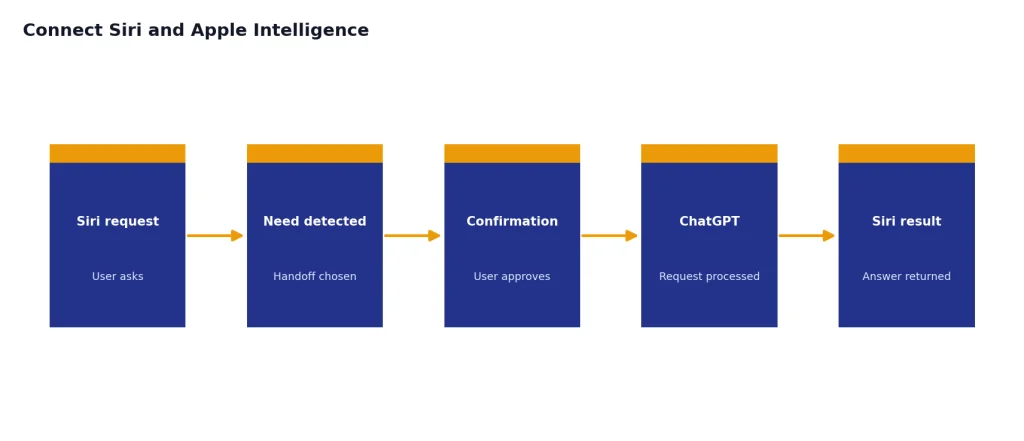
Apple Intelligence gives iPhone users another way to reach ChatGPT. Apple says ChatGPT can help Siri provide deeper answers, compose text in Writing Tools, expand visual styles in Image Playground, answer questions through visual intelligence, and handle more complex requests in Shortcuts.[7]
To set it up, open Settings, tap Apple Intelligence & Siri, tap ChatGPT, then tap Set Up. Apple says you can use ChatGPT without an account or connect an existing account; it also says you must be signed in if you want requests saved to your ChatGPT history.[7]
Keep confirmations on at first. Apple says Siri asks if you want to use ChatGPT when Siri decides ChatGPT would help, and it always asks before sending photos or files to ChatGPT.[7] You can later turn off some confirmations in Settings, but Apple says you are always asked before photos or files are sent.[7]
Best Siri prompts for ChatGPT
- “Ask ChatGPT to turn this rough note into a polite email.”
- “Ask ChatGPT for three dinner ideas using chicken, rice, and spinach.”
- “Ask ChatGPT to summarize this document for a nontechnical reader.”
- “Ask ChatGPT to make this message shorter and warmer.”
- “Ask ChatGPT what questions I should ask before buying this.”
Use Siri for quick handoffs. Use the ChatGPT app for longer threads, files, project work, and chats you want to organize.
Manage history, privacy, and subscriptions
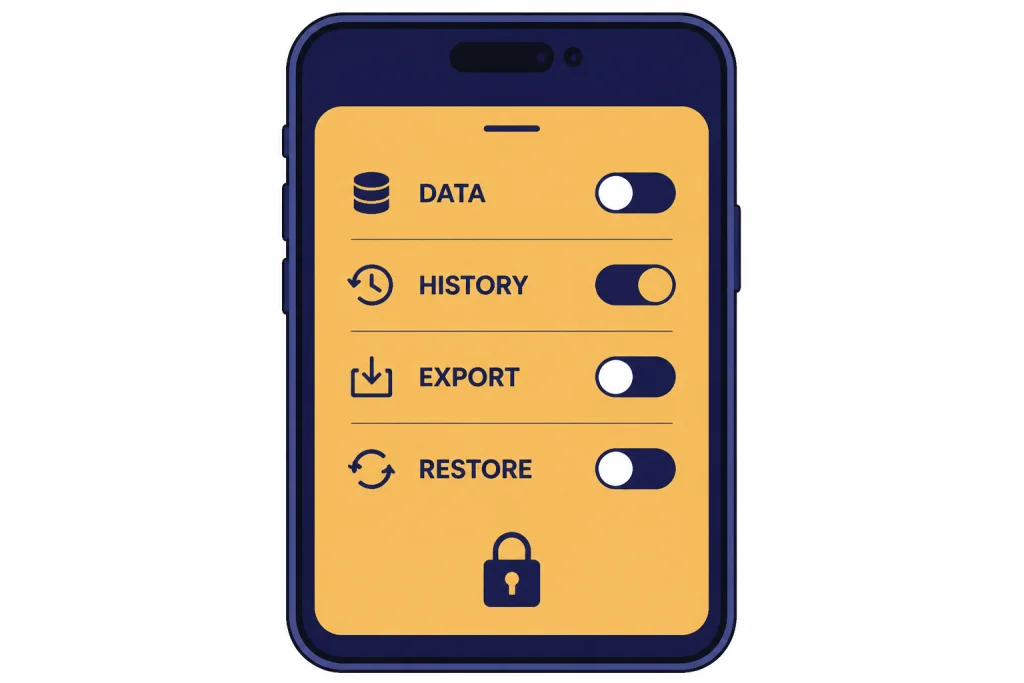
A pro iPhone setup includes privacy settings, not just shortcuts. OpenAI’s iOS FAQ says the app can show conversation history, delete chats, turn off haptic feedback, check app version, restore App Store purchases, and manage some account-related settings.[3] It also says OpenAI does not support changing the email address linked to a ChatGPT account through iOS or web settings.[3]
History and saving
Use separate chats for separate topics. Put trip planning in one chat, work drafts in another, and personal admin in another. That makes search and cleanup easier. For long-term records, see how to save a ChatGPT conversation, how to save ChatGPT as PDF, and how to share a ChatGPT conversation.
Data controls
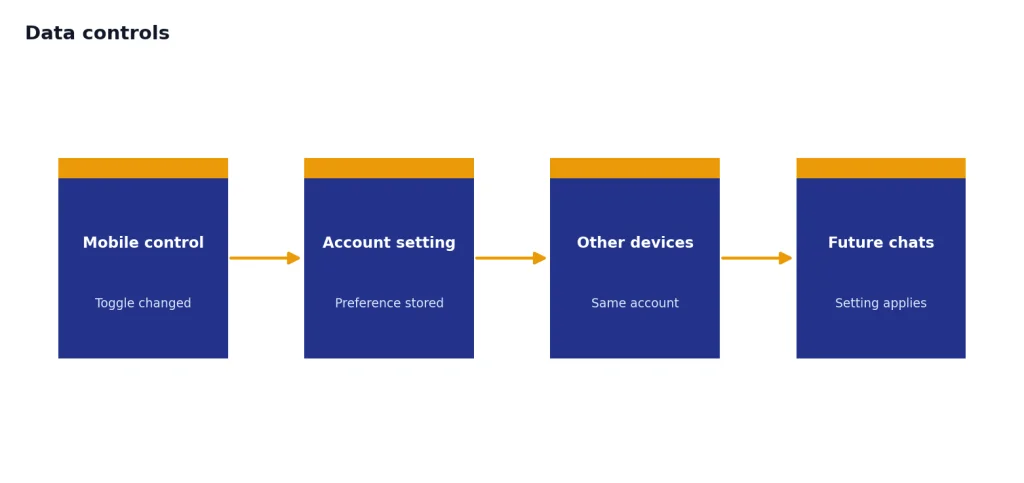
OpenAI says Data Controls let you choose whether your conversations and interactions help improve its models.[8] On mobile, OpenAI says to open the sidebar, tap your profile icon, choose Data Controls, and turn off “Improve the model for everyone” if you do not want chats used for training.[8] OpenAI also says that once you turn off model training, the setting applies across your account and does not depend on which device you use.[8]
Voice privacy
Voice has separate details. OpenAI says audio and video clips from voice chats are retained for 30 days, and that deleting a chat also deletes the associated audio or video clip within 30 days unless OpenAI needs to retain it for legal or security reasons or it was already shared for training and disassociated from the account.[4] OpenAI also says it does not train on audio or video clips from voice chats unless you choose to share those clips for training.[4]
Subscriptions
If you bought a ChatGPT subscription through Apple, OpenAI says you can use Restore purchases in the iOS app.[3] If you subscribed on the web, OpenAI says you must manage that subscription at chatgpt.com.[3] If you hit usage caps, read how to bypass ChatGPT message limits legitimately before you try risky workarounds.
Pro workflows for everyday iPhone tasks
The best iPhone workflows are repeatable. Keep them short enough to run in a taxi, in a grocery aisle, or between meetings.
Inbox triage
Paste a messy message and ask: “Summarize the request, identify the deadline, draft a short reply, and list anything I should not agree to yet.” This works for email, texts, school messages, and customer support threads.
Screenshot diagnosis
Upload a screenshot and ask: “Explain what is happening, what I should try first, and what information I should save before contacting support.” This is useful for app errors, subscription pages, settings screens, and strange alerts.
Voice brain dump
Start voice mode and talk through an idea. Then ask ChatGPT to turn the transcript into a checklist, outline, email, or plan. OpenAI says voice transcripts are added to the current text conversation after you exit voice mode.[4]
Custom GPTs on iPhone
Use GPTs when you want a specialized assistant. OpenAI says GPTs are available to all ChatGPT users, but users must be signed in to start a conversation with one.[6] OpenAI also says users can access GPTs from Explore GPTs, a direct link, or a workspace share, and can type @ in a conversation to bring in a GPT without starting over.[6]
Good GPT use cases on iPhone include a recipe helper, a travel planner, a study quizzer, a tone editor, and a meeting-note formatter. Do not send sensitive work data to a GPT connected to third-party apps unless you understand where the data goes. OpenAI says relevant parts of your input may be sent to third-party services when a GPT uses apps or external APIs, and it says to use only GPTs with APIs or apps you trust.[6]
Fix common iPhone problems
The app will not install
Check iOS compatibility first. The App Store listing requires iOS 17.0 or later for iPhone.[1] If your iPhone is older, use ChatGPT in Safari instead. Also confirm that the app is available in your country or region, since OpenAI says availability varies by country.[2]
You cannot find the official app
Search the App Store for openai chatgpt and confirm the publisher. OpenAI says to make sure you are downloading the app published by OpenAI.[2] Avoid apps that ask for payment before you can verify what they are.
Voice mode is not working
Check microphone permission in iPhone Settings. OpenAI says the ChatGPT app needs microphone permission for voice conversations.[4] If voice keeps interrupting you, try headphones, move to a quieter space, and enable Voice Isolation during the voice conversation.[4]
Apple Intelligence does not show ChatGPT
Confirm that your iPhone supports Apple Intelligence, that Apple Intelligence is turned on, and that ChatGPT is available in your region. Apple says Apple Intelligence is not available on all iPhone models or in all languages or regions, and that the ChatGPT extension is available only where the ChatGPT app and service are available.[7]
Your purchase is missing
If you subscribed through Apple, open the ChatGPT app settings and use Restore purchases. OpenAI says this feature restores subscriptions bought through the Apple App Store.[3] If you bought through the web, manage the subscription on chatgpt.com instead.[3]
Frequently asked questions
Is the ChatGPT iPhone app free?
The App Store listing says the official ChatGPT app is free with in-app purchases.[1] Paid plans may add access or capacity, but you do not need to start with a paid plan to learn the app.
Can I use ChatGPT on iPhone without logging in?
You can use some ChatGPT experiences without a full app workflow, especially through Apple Intelligence if it is available on your device. Apple says you can enable ChatGPT without an account in Apple Intelligence settings, but you must sign in if you want requests saved to your ChatGPT history.[7] For the broader account question, see our guide to using ChatGPT without logging in.
Can ChatGPT see my iPhone photos?
ChatGPT can analyze images you choose to upload or share. Apple says you are always asked before photos or files are sent to ChatGPT through Apple Intelligence.[7] In the standalone app, only grant photo or camera access when you plan to use those features.
Does ChatGPT work on iPad too?
Yes. The App Store listing shows support for iPhone and iPad, and lists iPadOS 17.0 or later for iPad compatibility.[1] The same general habits apply: use the app for longer work, voice for hands-free sessions, and files or images when visual context matters.
Should I use the app or Siri with ChatGPT?
Use the app for full conversations, uploads, project work, and chats you want in history. Use Siri with ChatGPT for quick questions, composing text, or asking about a visible item through Apple Intelligence features.[7] Keep confirmations enabled until you understand what is being sent.
How do I export my ChatGPT data from iPhone?
OpenAI’s iOS FAQ points users to ChatGPT on the web for exporting data.[3] For a complete step-by-step version, read our guide on how to export ChatGPT data.