

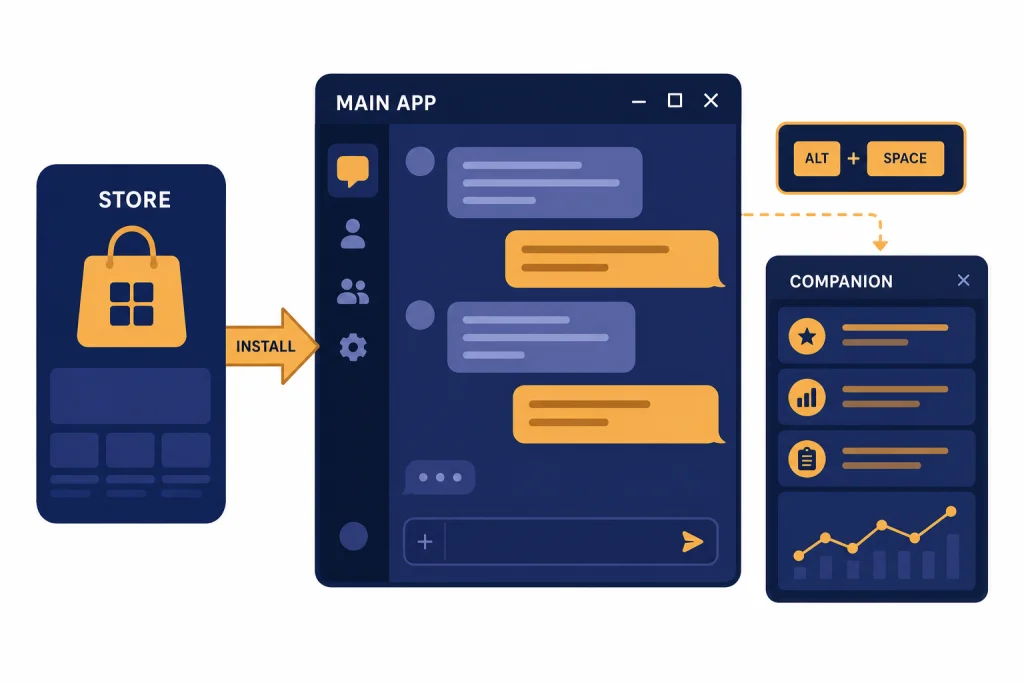
You can use ChatGPT on Windows through the official desktop app, through ChatGPT in a browser, or through related OpenAI tools if your plan includes them. For most people, the Windows desktop app is the best place to start because it gives you a normal ChatGPT window plus a quick companion window you can open while working in another app. This tutorial walks through installation, sign-in, daily use, file and screenshot workflows, privacy settings, and fixes for common problems. It also explains when the web version is simpler, when the Windows app is worth installing, and what to check before using ChatGPT on a work-managed PC.
Quick setup
The fastest way to use ChatGPT on Windows is to open the official download page, choose the Windows desktop app, install it from the Microsoft Store, and sign in with the same account you use on the web or mobile app. OpenAI’s download page lists a Windows desktop download for ChatGPT, alongside macOS and mobile options.[1]
Before you install anything, check that your PC can run it. OpenAI lists the ChatGPT Windows app system requirement as Windows 10, x64 or Arm64, version 17763.0 or higher.[2] If your PC is older, locked down by an employer, or missing the Microsoft Store, use ChatGPT in a browser instead.
- Go to the official ChatGPT download page or the Microsoft Store listing linked from OpenAI.
- Install the app and open it from the Start menu.
- Sign in, choose the correct personal or work workspace, and start a new chat.
- Press Alt + Space while the app is running to open the quick companion window.[2]
- Use the attachment and screenshot tools when you want ChatGPT to analyze local material.
If you are still deciding whether to install the app, see our broader guide to how to download the ChatGPT app on any device. If you only need a quick answer and do not want an account, read how to use ChatGPT without logging in before installing anything.
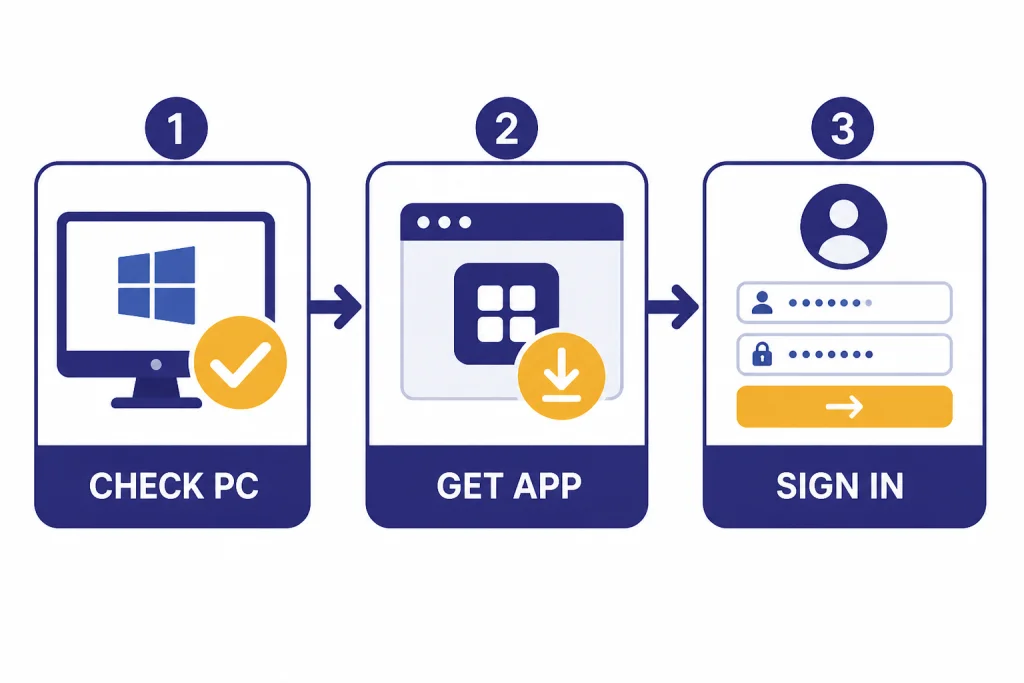
Install ChatGPT on Windows
Use official sources. Do not search the web and click a random “ChatGPT for Windows” installer. OpenAI says the Windows app is downloaded from the Microsoft Store.[2] That matters because unofficial installers can package malware, browser hijackers, or unrelated AI wrappers that ask for your OpenAI password.
Install from OpenAI’s download page
- Open the official ChatGPT download page.
- Choose the Windows desktop option.
- Allow the link to open the Microsoft Store.
- Select Get or Install.
- After installation, open ChatGPT from the Start menu or pinned taskbar icon.
If the Store button does nothing, open the Microsoft Store app directly and search for ChatGPT by OpenAI. Check the publisher before installing. A similar icon or name is not enough.
Install with winget for managed PCs
OpenAI also documents winget as an installation option for IT departments managing ChatGPT Enterprise workspaces.[2] The Windows app release notes say winget became a supported installation method on January 30, 2025.[3]
winget.exe install --id=9NT1R1C2HH7J --source=msstore --accept-package-agreements --accept-source-agreements --silentUse that command only if you understand Windows package management or your IT team gave it to you. If your workplace blocks Microsoft Store apps, OpenAI says access to the Windows app follows your organization’s Store policies.[2] In that case, ask IT before trying workarounds.
Sign in and check your account
After you open the app, sign in with the same method you used when you created your account. If you originally used Continue with Google, Continue with Microsoft, or Continue with Apple, use that same provider again. OpenAI’s login guidance warns that different sign-in methods can create separate accounts, which can make your subscription or chat history look missing.[9]
If you are new, you can create an account from the sign-in flow. If you need step-by-step account help, use our guides on how to sign up for ChatGPT and how to log in to ChatGPT.
When the app opens, confirm which workspace you are using. Personal and work accounts can have different chat histories, data settings, file permissions, and available tools. If you use ChatGPT for a company or school, keep sensitive work in the approved workspace instead of your personal account.
You can also use ChatGPT without creating an account in supported regions through the ChatGPT home page, but logged-out chats have fewer account features. OpenAI says chats can only be saved by logging in or creating an account.[5] For regular Windows use, signing in is usually worth it because your history, settings, and subscription features follow your account.
Learn the Windows app layout
The Windows app feels much like ChatGPT on the web. The center of the app is the message area. The sidebar holds previous chats. The message box is where you type prompts, attach files, start voice if available, and send your request.
Start with a simple prompt. For example: “Summarize this email in three bullet points and suggest a polite reply.” Then paste the email text. After the first answer, ask follow-ups such as “make it warmer,” “shorten it,” or “turn it into a reply I can send to my manager.” ChatGPT works best when you revise in conversation rather than trying to write a perfect first prompt.
For writing tasks, give ChatGPT your audience, format, and constraints. A better prompt is “Draft a 150-word project update for a nontechnical client. Mention that the design review is complete, the next step is QA, and the timeline is unchanged.” If you care about natural wording, use the techniques in how to make ChatGPT write like a human and how to make ChatGPT sound more human.
For research or decisions, ask ChatGPT to separate facts from assumptions. For example: “List what you know from the text below, what you are inferring, and what I should verify manually.” This habit reduces overconfidence and makes the output easier to check.
Use the companion window
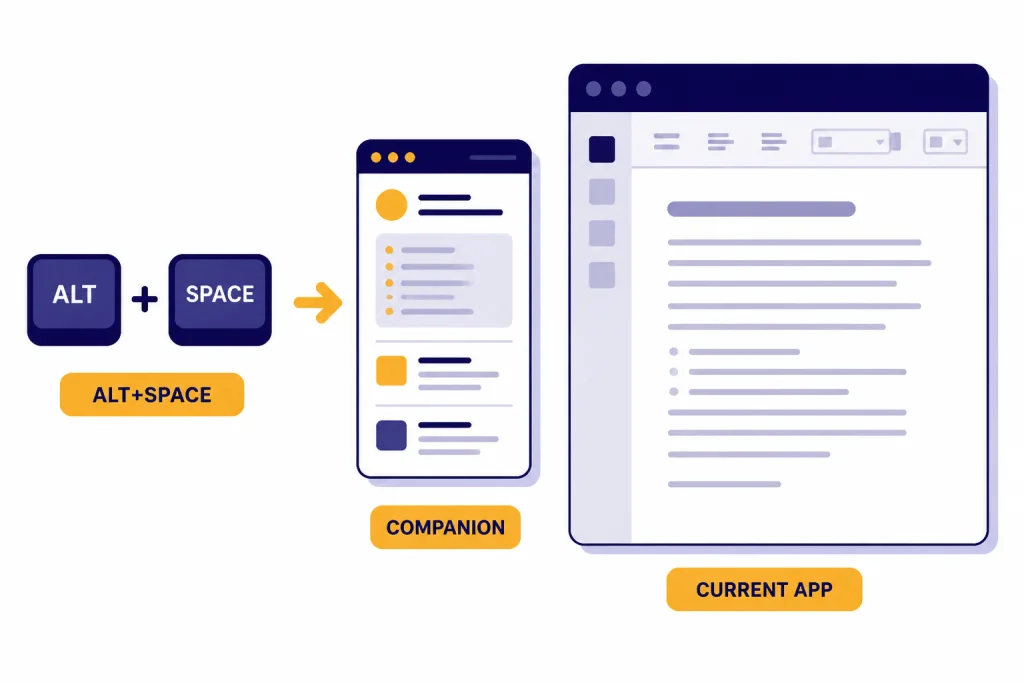
The companion window is the main reason to install the Windows app instead of using only the browser. It opens a smaller ChatGPT window over your current work so you can ask a question without changing tabs. OpenAI says you can open the companion chat with Alt + Space when the ChatGPT app is open.[2]
A practical workflow looks like this. Keep Word, Excel, Outlook, Visual Studio Code, or your browser open. Press Alt + Space. Ask ChatGPT to rewrite a paragraph, explain an error message, generate a formula, or summarize the text you paste. Then copy the answer back into your working app.
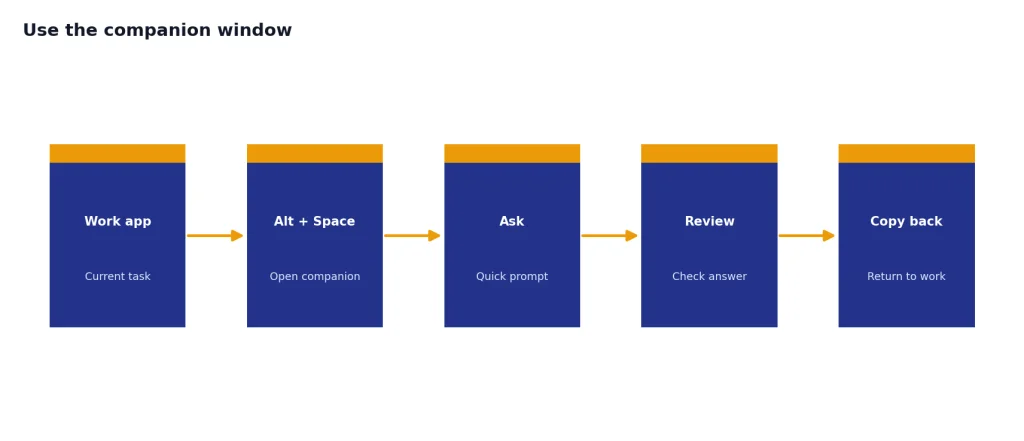
The companion window can start a new conversation, upload files, generate a new image, or continue work in the main ChatGPT window.[2] If Alt + Space does not work, another Windows app may already use that shortcut. OpenAI says you can change the companion window hotkey under Settings > App > Companion window hotkey.[2]
Use the companion window for small, fast questions. Use the main window for long conversations, file-heavy work, or anything you want to revisit from the sidebar. If you hit usage limits, read how to bypass ChatGPT message limits legitimately rather than trying risky extensions or shared accounts.
Files, screenshots, photos, and voice
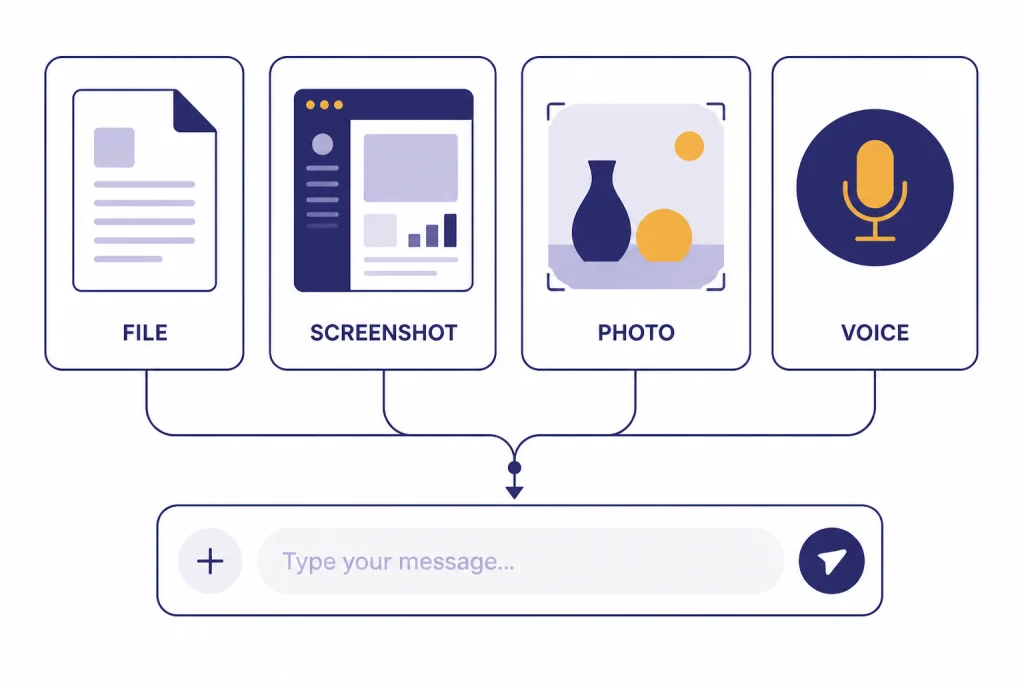
The Windows app is useful when your question depends on something visible or stored on your PC. You can attach a document, paste text, take a screenshot, or use voice features if your account and settings support them. OpenAI’s Windows app help says the companion window can upload files and start new image generation.[2]
Use screenshots for visual context
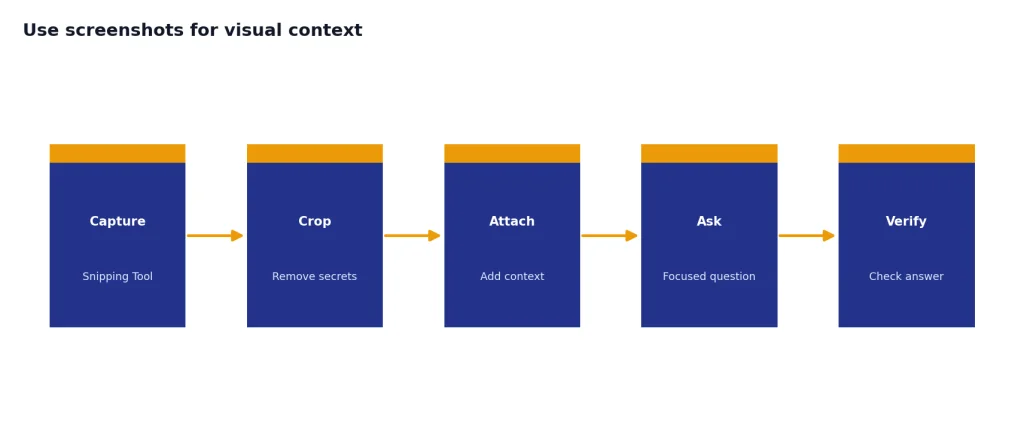
OpenAI added screenshot attachment support to the Windows app in its November 14, 2024 release notes, using the Windows Snipping Tool to capture a window, full screen, or custom region.[3] This is helpful for error messages, confusing settings screens, charts, dashboards, and UI feedback.
Do not send a full desktop screenshot if it contains passwords, private messages, customer data, or unrelated tabs. Crop first. Then ask a focused question, such as “What does this error mean?” or “Tell me which fields I need to fill out.”
Use file uploads for documents and data
For files, explain the task before attaching or immediately after attaching. Good prompts include “summarize the risks in this contract,” “turn this meeting transcript into action items,” or “find inconsistencies between these two drafts.” For image-specific help, see how to upload images to ChatGPT and how to upload a photo to ChatGPT.
Use voice when typing slows you down
Voice is best for brainstorming, practicing explanations, or talking through a problem while your hands are busy. OpenAI describes voice conversations as spoken interactions with ChatGPT and notes that voice can make mistakes, so important information should be checked.[4] For a deeper walkthrough, use our guide to ChatGPT voice mode on any device.
Keep chats organized and private
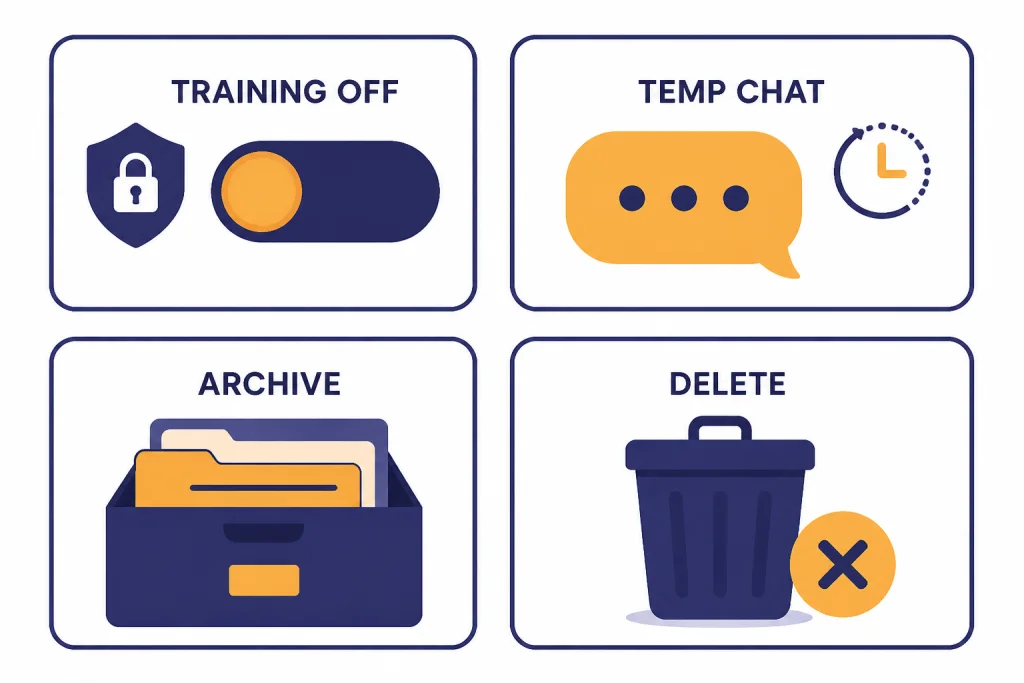
Good Windows workflows depend on clean chat habits. Start a new chat when the topic changes. Rename important conversations so they are searchable. Archive finished chats you may need later. Delete chats that should not remain in your account.
OpenAI says deleting a chat removes it from your history view immediately and schedules it for permanent deletion from OpenAI’s systems within 30 days, unless exceptions apply.[8] Archived chats remain in your account and do not get deleted just because they are hidden from the main list.[8] If you need a separate preservation workflow, see how to save a ChatGPT conversation and how to save ChatGPT conversations as PDF.
Review your data controls before using ChatGPT for sensitive work. OpenAI says Data Controls let you choose whether your conversations help improve models, and signed-in users also get options such as exporting data or deleting an account.[6] If you need a copy of your account data, follow how to export your ChatGPT data.
Temporary Chat is useful when you want a blank slate. OpenAI says Temporary Chats do not appear in history, do not use memory, and are not used to improve models; OpenAI may still keep a copy for safety purposes for up to 30 days.[7] Use Temporary Chat for throwaway questions, but do not treat it as a secure vault for secrets.
Fix common Windows problems
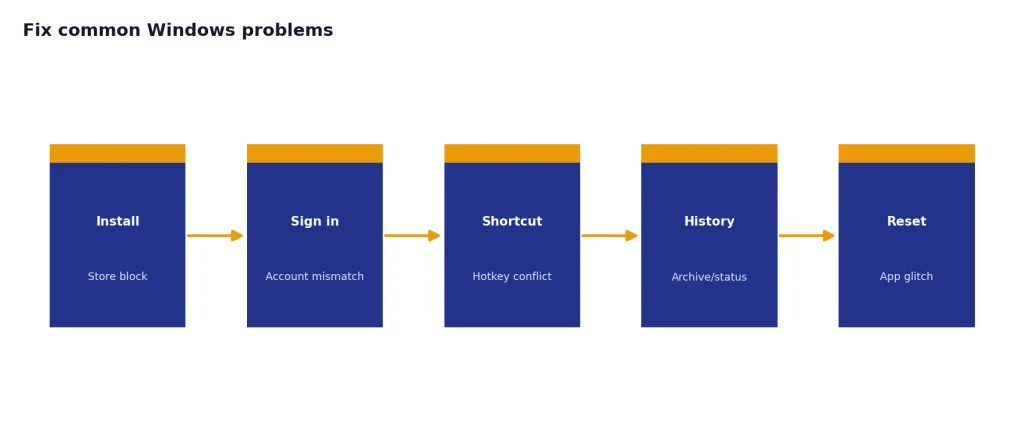
Most Windows issues fall into a few categories: installation blocks, sign-in confusion, shortcut conflicts, missing history, and app glitches. Work through them in that order.
The app will not install
- Confirm your PC meets OpenAI’s Windows requirement.
- Update Windows and the Microsoft Store app.
- Check whether your organization blocks Store apps.
- Use the browser version at ChatGPT.com if installation is blocked.
You signed in but your chats are missing
First, confirm you used the right sign-in method and workspace. OpenAI’s login troubleshooting says accounts are not automatically merged, so the account with your subscription or data may be different from the one you just opened.[9] Then check archived chats and refresh the app. OpenAI also recommends checking service status if history appears empty or conversations are missing.[8]
Alt + Space does not open ChatGPT
Make sure the ChatGPT app is running. If it still fails, another app may own the same shortcut. Change the companion window hotkey in ChatGPT settings, or close the other shortcut manager and try again.[2]
The app is frozen or behaving strangely
Restart the app. If that fails, reset it from Windows Settings. OpenAI’s Windows app help gives this path: Settings app > Apps > Installed Apps > ChatGPT > three-dot menu > Advanced Options > Reset.[2] A reset may require you to sign in again.
Windows app, browser, or mobile
You do not have to choose only one. Many people use the Windows app at work, the browser on shared computers, and the mobile app away from their desk. The best option depends on the task.
| Option | Best for | Main advantage | Main limitation |
|---|---|---|---|
| Windows desktop app | Daily PC work, screenshots, quick prompts over another app | Companion window with Alt + Space and Windows-specific app features[2] | May be blocked by Microsoft Store or workplace policy[2] |
| ChatGPT in a browser | Simple access on any PC | No Windows installation required; ChatGPT can also be tried before creating an account in supported regions[5] | Less integrated with your desktop workflow |
| Mobile app | Voice, camera, photos, and use away from your desk | Convenient for on-the-go questions and phone-based inputs | Less comfortable for long documents and desktop files |
If you switch devices often, keep your account consistent. For Mac setup, use how to use ChatGPT on Mac. For phones, see how to use ChatGPT on iPhone and how to use ChatGPT on Android.
If you are hoping to use ChatGPT without an internet connection, expectations matter. The official ChatGPT app depends on OpenAI’s service. Read how to use ChatGPT offline for the practical limits and alternatives.
Frequently asked questions
Is there an official ChatGPT app for Windows?
Yes. OpenAI provides a Windows desktop download from its official ChatGPT download page, and OpenAI’s help article says the Windows app is downloaded from the Microsoft Store.[1][2] Use those routes instead of third-party installer sites.
Can I use ChatGPT on Windows without installing the app?
Yes. You can use ChatGPT in a browser at ChatGPT.com. OpenAI says ChatGPT can be accessed before creating an account in supported regions, although saving chats requires logging in or creating an account.[5]
What is the ChatGPT Windows shortcut?
The default companion window shortcut is Alt + Space when the ChatGPT app is open.[2] If another app already uses that shortcut, change it under Settings > App > Companion window hotkey.
Why does the Microsoft Store block the app on my work computer?
Your organization may restrict Store apps. OpenAI says access to the Windows app follows the policies set by your IT administrator for Microsoft Store apps.[2] Ask IT whether they can deploy it or approve browser access instead.
Can ChatGPT read files from my Windows PC automatically?
No. You generally need to paste content, upload a file, or attach a screenshot for ChatGPT to use it in a conversation. Share only the material needed for the task, and remove private information first.
How do I remove a ChatGPT conversation from Windows?
Deleting or archiving happens in your ChatGPT account, not only on the Windows device. OpenAI says deleted chats are removed from your history view immediately and scheduled for permanent deletion within 30 days, subject to exceptions.[8] Archiving hides a chat without deleting it.