

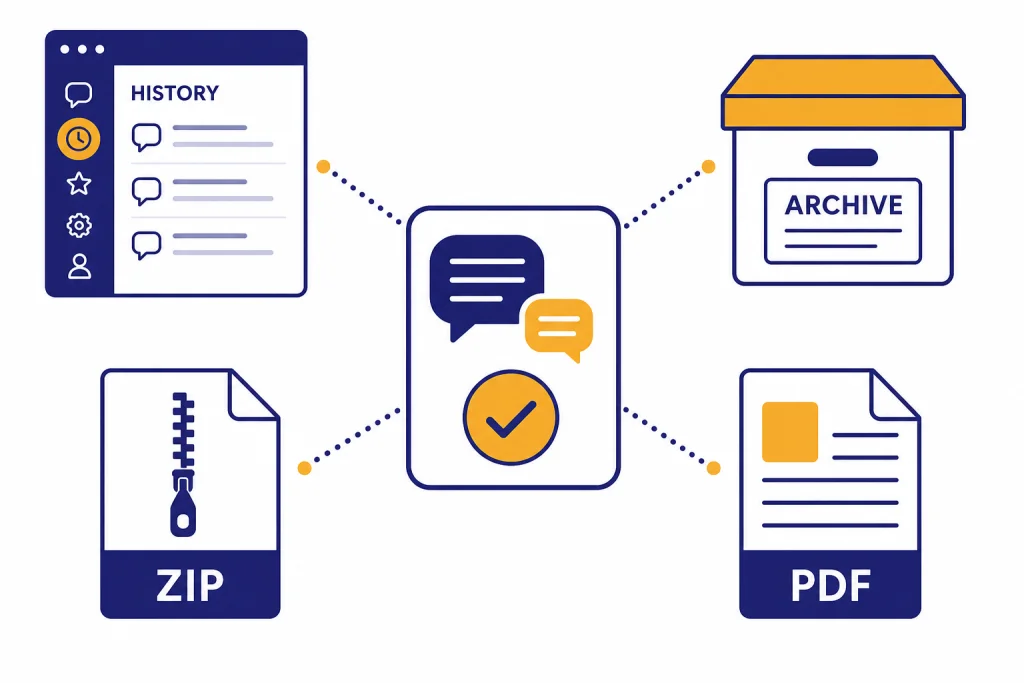
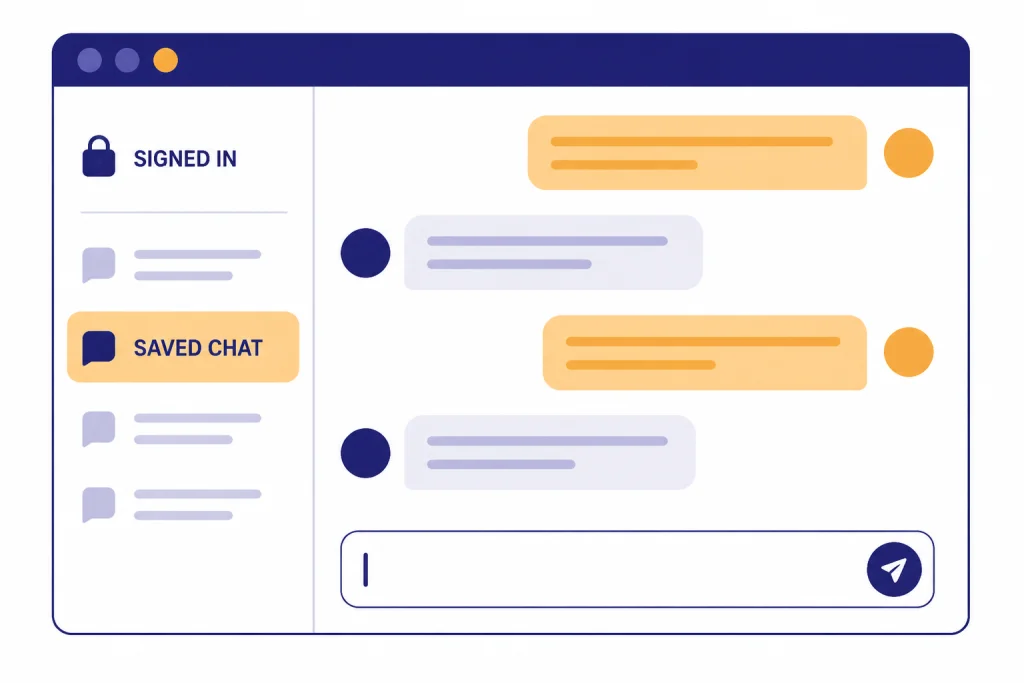
To save a ChatGPT conversation, sign in before or during the chat so it appears in your conversation history. If you are logged out, ChatGPT can keep only the current session in that browser, and you need an account to preserve the latest thread. For a more durable copy, use ChatGPT’s export tool, create a shared link, print the chat to PDF, or copy the conversation into your own notes. The right method depends on whether you want private storage, a backup file, a shareable reference, or a clean document. This guide explains each option and the privacy tradeoffs before you save anything sensitive.
Quick answer
The simplest way to save a ChatGPT conversation is to use ChatGPT while signed in. OpenAI says chats can only be saved by logging in or creating an account, and the latest logged-in conversation appears in the sidebar after account creation.[3] If you use ChatGPT without logging in, treat the conversation as temporary. Copy anything important before you start a new chat, close the browser, clear cookies, or change devices.
For a permanent record outside ChatGPT, use one of three methods. Export your data if you want a full account backup. Print or save the page as a PDF if you want a readable copy of one conversation. Create a shared link if you want someone else to view the thread. If you specifically need a PDF walkthrough, use our separate guide to save ChatGPT conversations as PDF.
Best ways to save a ChatGPT conversation
There is no single best save method for every case. A student citing a research chat, a manager documenting a prompt workflow, and a developer preserving a debugging session need different formats. Use this table to pick the safest option.
| Method | Best for | Where it lives | Main limitation |
|---|---|---|---|
| Chat history | Returning to the conversation later | Your ChatGPT account | Requires signing in |
| Archive | Keeping a chat without sidebar clutter | Your ChatGPT account settings | Not an offline backup |
| Data export | Backing up many chats at once | Downloadable ZIP file | Email download link expires after 24 hours[1] |
| PDF or print | Clean record of one conversation | Your device or cloud drive | Formatting can vary by browser |
| Shared link | Letting someone view a chat | ChatGPT shared URL | Anyone with the link can view it[4] |
| Copy and paste | Saving selected messages | Your notes app or document | Manual and easy to miss context |
For most people, the best routine is simple: stay signed in, rename important chats, archive finished work you may need later, and export your data occasionally. If the conversation contains final copy, code, citations, recipes, scripts, or client notes, also save a local copy in a format you control. ChatGPT history is useful, but it is not a substitute for your own filing system.
Save a conversation in ChatGPT history
ChatGPT automatically saves ordinary conversations to your account history when you are signed in and history is available. You do not need to click a separate save button. The key step is making sure you are using the correct account before the conversation matters.
- Go to ChatGPT and sign in.
- Start or continue the conversation.
- Look for the chat in the sidebar or recent history list.
- Rename the chat if the automatic title is vague.
- Return to the sidebar later to reopen it.
If you are not signed in, do not rely on the browser session. OpenAI says logged-out users can have only one conversation at a time, and logged-out chat history is not saved beyond the current session in the same browser.[3] If you want to keep a useful logged-out answer, copy it before moving on. If you often use ChatGPT from shared or public computers, read our guide to using ChatGPT without logging in so you understand what is and is not preserved.
A practical habit is to rename important conversations as soon as they become useful. Use a title such as “Q2 budget email draft,” “Python CSV parser bug,” or “Meal plan April 2026.” Clear names make saved chats easier to find later and reduce the chance that you delete the wrong thread.
Archive important chats instead of deleting them
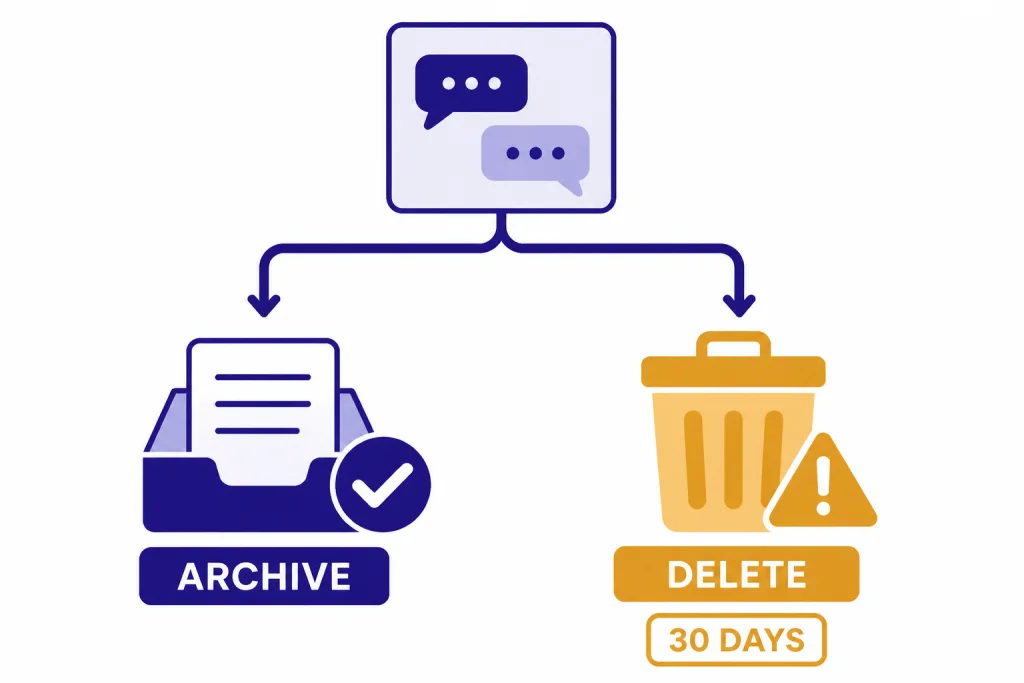
Archive is the best option when you want to clean up your sidebar but keep the conversation. OpenAI states that archived chats remain in your account under your standard retention settings, and archiving does not delete them.[2] That makes archive useful for finished projects, old drafts, reference chats, and conversations you do not want to see every day.
- Open the ChatGPT sidebar.
- Find the conversation you want to keep.
- Open the three-dot menu next to the chat title.
- Select Archive.
- To find it later, go to Settings, then Data controls, then manage archived chats.
Do not confuse archive with delete. OpenAI says deleted chats are removed from the visible history immediately and scheduled for permanent deletion from OpenAI systems within 30 days, unless certain de-identification, security, or legal exceptions apply.[2] OpenAI also says deleted chats cannot be recovered through the UI, APIs, or support.[2] If you are unsure whether you need a conversation, archive it first.
Export your ChatGPT data
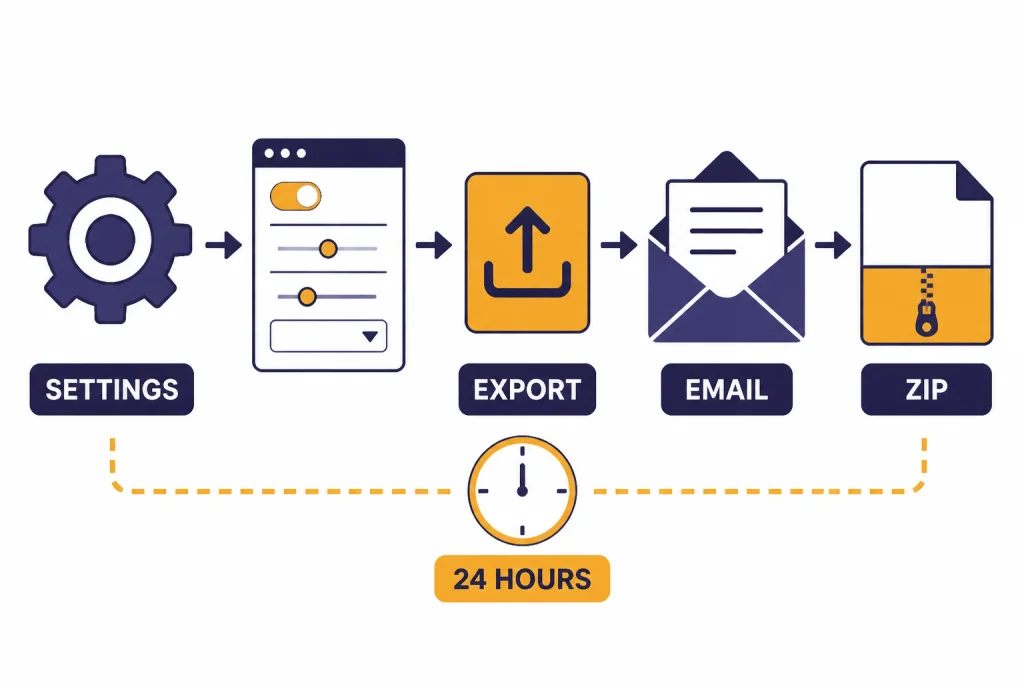
Use a data export when you want a broader backup, not just one visible thread. OpenAI’s export tool downloads your ChatGPT data as a ZIP file that includes your chat history and other relevant account data.[1] OpenAI says this functionality is available on Free, Plus, and Pro plans, but not for logged-out users.[1]
- Sign in to ChatGPT.
- Open your profile menu.
- Choose Settings.
- Open Data Controls.
- Under Export Data, select Export.
- Confirm the export.
- Check your account email for the download link.
- Download the ZIP file before the link expires.
The email download link expires after 24 hours, so request the export when you have time to retrieve it.[1] OpenAI also says data exports can take up to 7 days to arrive, and only the most recent export request will be fulfilled if you submit multiple requests.[1] If your goal is a complete backup for your records, see our dedicated walkthrough on how to export your ChatGPT data.
An export is not the fastest way to save one answer. It is better for periodic backups, compliance records, account migration planning, or confirming which chats are still stored in your account. For one conversation that you need to email or file, a PDF or copied document is usually easier to manage.
Save a local copy
A local copy is best when you need your own record outside ChatGPT. This can be a PDF, text file, Markdown file, Word document, Google Doc, note, or project folder. Local copies are especially useful for final outputs that you may edit later, such as resumes, emails, lesson plans, code snippets, meeting summaries, or recipes. If you are using ChatGPT for writing, pair this with making ChatGPT write like a human so the saved version is easier to reuse.
Copy the conversation into a document
- Select the messages you need.
- Copy them.
- Paste them into a document or notes app.
- Add the date, topic, and any model or tool context you need for your own records.
- Save the file with a descriptive name.
Print or save as PDF
Most desktop browsers can print a page to PDF. Open the chat, use the browser print command, choose “Save as PDF,” and review the preview before saving. This keeps the exchange readable, but very long chats may split awkwardly across pages. For a cleaner file, copy only the final answer and the prompt that produced it into a document before exporting to PDF.
For academic work, save enough context to support your citation. You may need the prompt, response, date accessed, and the citation style your instructor requires. We have separate citation guides for MLA format, Chicago style, and Harvard style.
Save or share a conversation link
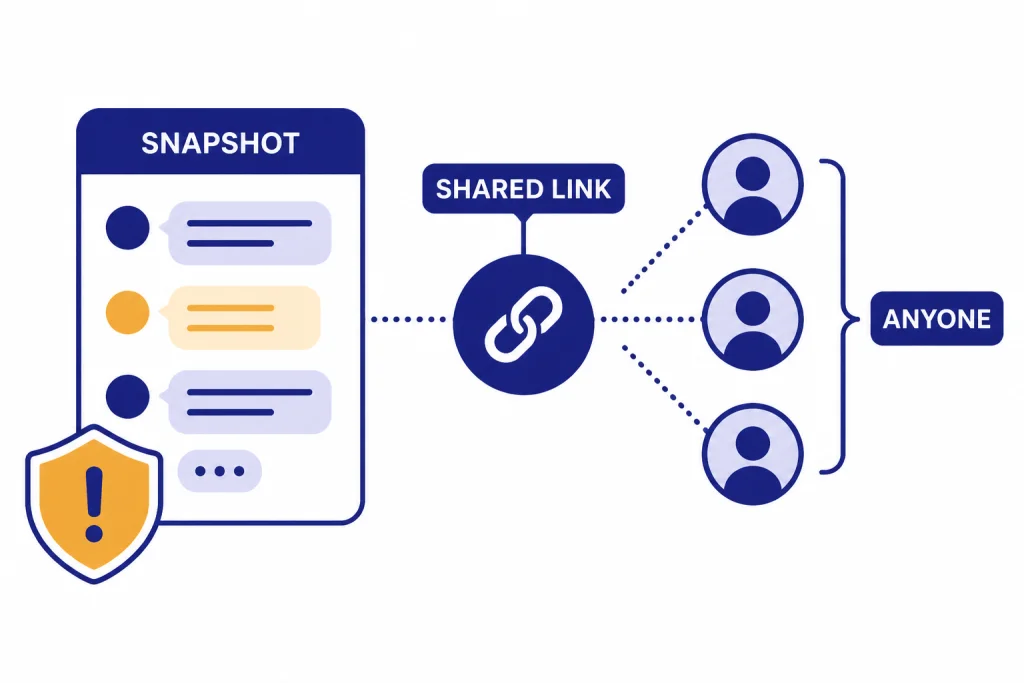
A shared link is useful when you want someone else to view a ChatGPT conversation without sending screenshots. OpenAI says shared links are available on chatgpt.com and in the iOS and Android apps.[4] A shared link is a snapshot of the conversation up to the point when you create the link, so later messages are not automatically included unless you update or recreate the shared view.[4]
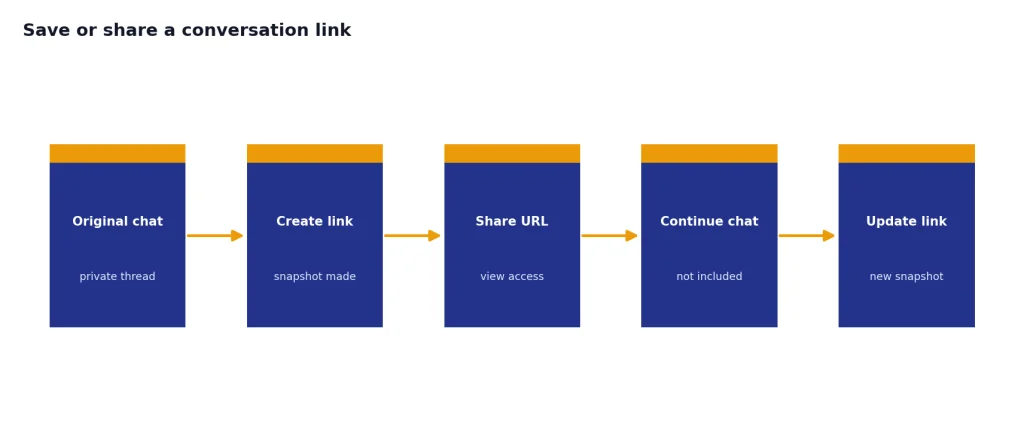
- Open the conversation.
- Select the share button or the chat’s share option.
- Preview the conversation snapshot.
- Copy the link.
- Paste it where you want to store or send it.
Use shared links carefully. OpenAI says anyone with access to a shared link can view the linked conversation, and shared links do not currently offer granular permissions or expiration dates.[4] Do not create a shared link for passwords, private health details, confidential work, client data, unreleased financial information, or anything you would not want forwarded. For the full sharing workflow, see how to share a ChatGPT conversation.
Save chats on iPhone and Android
The basic rule is the same on mobile: sign in if you want the conversation to appear in your account history. In the iOS app, OpenAI says you can view past chats from the sidebar, with chats listed under Recents.[6] If you are setting up mobile access for the first time, start with our guides to ChatGPT on iPhone or ChatGPT on Android.
On phones, the easiest local-save method is usually copy and paste into Notes, Google Docs, Notion, or your email drafts. For long conversations, share the text to a document app if your device supports it. If the chat includes images or screenshots, you may also want our guide to uploading images to ChatGPT, because saved conversations often lose the practical context of what was uploaded unless you describe it in the file name or notes.
Mobile exports can vary by app and platform. OpenAI’s iOS FAQ currently points users to ChatGPT web for data export instructions.[6] If you need a full backup, use the web export process from a desktop browser or mobile browser and download the file promptly.
Privacy and retention notes
Saving a ChatGPT conversation is also a privacy decision. A saved chat may remain in your account until you delete it. OpenAI says chats you keep, whether archived or unarchived, are saved in your account until deletion.[2] If a conversation includes sensitive information, decide whether you need it in ChatGPT history, in a local encrypted file, or not saved at all.
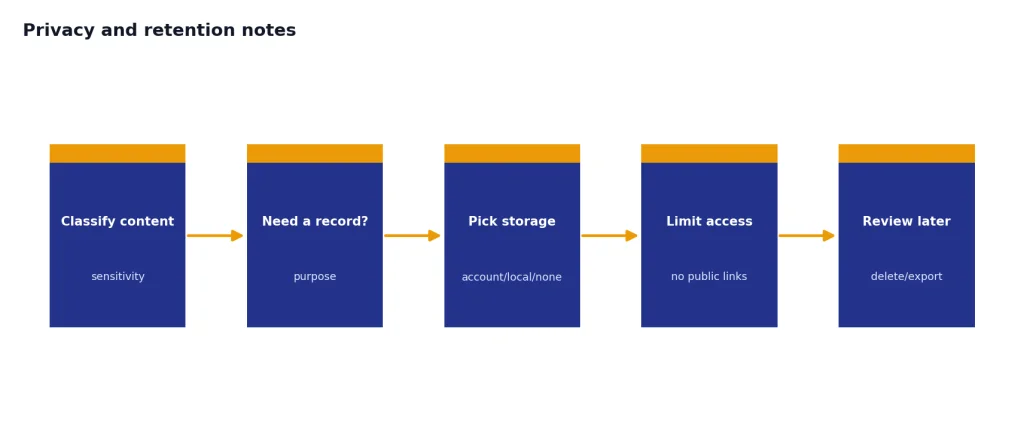
Temporary Chat is not a save method. OpenAI says Temporary Chats do not appear in history, ChatGPT will not remember what you discuss there, and OpenAI may still keep a copy for safety purposes for up to 30 days.[5] OpenAI also says Temporary Chats are not used to improve its models.[5] Use Temporary Chat when you want less persistence, not when you want a record.
You can also adjust model-training controls. OpenAI says that when signed-in users turn off “Improve the model for everyone,” conversations still appear in chat history but are not used to train ChatGPT.[7] That setting is separate from saving. Turning off training does not automatically export, archive, delete, or download your conversations.
Troubleshooting missing saved chats
If a saved conversation is missing, check the simple causes first. You may be in the wrong account, workspace, browser profile, or mobile app session. You may also have archived the chat instead of leaving it in the sidebar.
- Confirm you are signed in with the same account that created the chat.
- Check archived chats in Settings and Data Controls.
- Refresh ChatGPT, then sign out and back in.
- Check whether you started the conversation while logged out.
- Request a data export to confirm which chats are still stored in the account.
- Do not delete a chat unless you are sure you no longer need it.
OpenAI recommends checking archived chats, confirming chat history settings, refreshing or signing back in, checking service status, and requesting a data export when chat history appears empty or conversations are missing.[2] If you were logged out, the chat may not be recoverable. If you are unsure how you signed in, review how to log in to ChatGPT before assuming the conversation is gone.
Frequently asked questions
Does ChatGPT save conversations automatically?
Yes, ordinary conversations are saved to your ChatGPT history when you are signed in and using a mode that saves history. If you are logged out, OpenAI says you cannot save chat history beyond the current session in the same browser.[3] Sign in before starting important work.
Can I save a ChatGPT conversation without an account?
You can manually copy text or use your browser’s print-to-PDF feature, but you cannot rely on ChatGPT account history without an account. OpenAI says chats can only be saved by logging in or creating an account.[3] For important answers, copy them immediately.
What is the safest way to keep a private ChatGPT conversation?
For private storage, avoid shared links and save a local copy in a location you control. If you want the chat out of your sidebar but still in your account, archive it instead of deleting it. If the content is highly sensitive, consider whether you should save it at all.
Does exporting ChatGPT data include my conversations?
Yes. OpenAI says the downloadable ZIP file includes your chat history and other relevant account data.[1] The email download link expires after 24 hours, so download it soon after it arrives.[1]
Is archiving the same as saving?
Archiving keeps a chat in your account while removing it from the main sidebar. It is a good way to save important conversations without clutter. It is not an offline backup, so export or save a local copy if you need independent access.
Can other people see a saved ChatGPT conversation?
They cannot see a private chat in your account unless they have account access or you share it. If you create a shared link, OpenAI says anyone with the link can view the linked conversation.[4] Do not use shared links for sensitive material.