

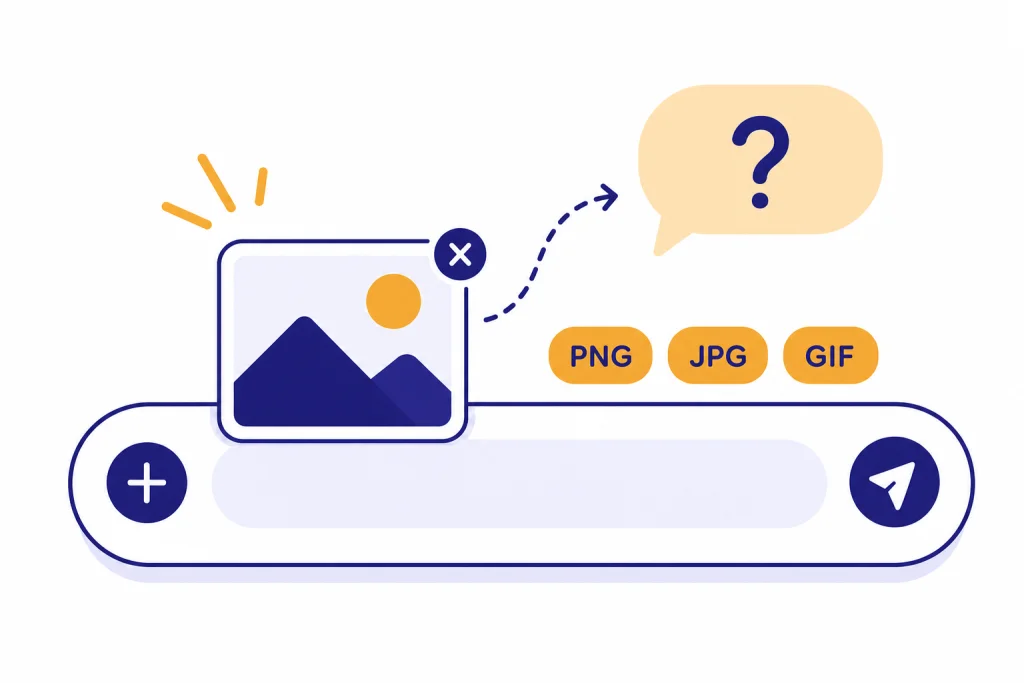
To upload images to ChatGPT, start a chat, select the plus button or tools menu in the message box, choose Add photos & files, pick your image, then send it with a clear question or instruction. On desktop, you can also drag an image into the chat or paste one from your clipboard. ChatGPT can analyze photos, screenshots, diagrams, charts, receipts, and other static images, but it is not a replacement for professional medical, legal, or safety advice. The best results come from a sharp image, a focused prompt, and one task at a time.
Quick steps to upload an image
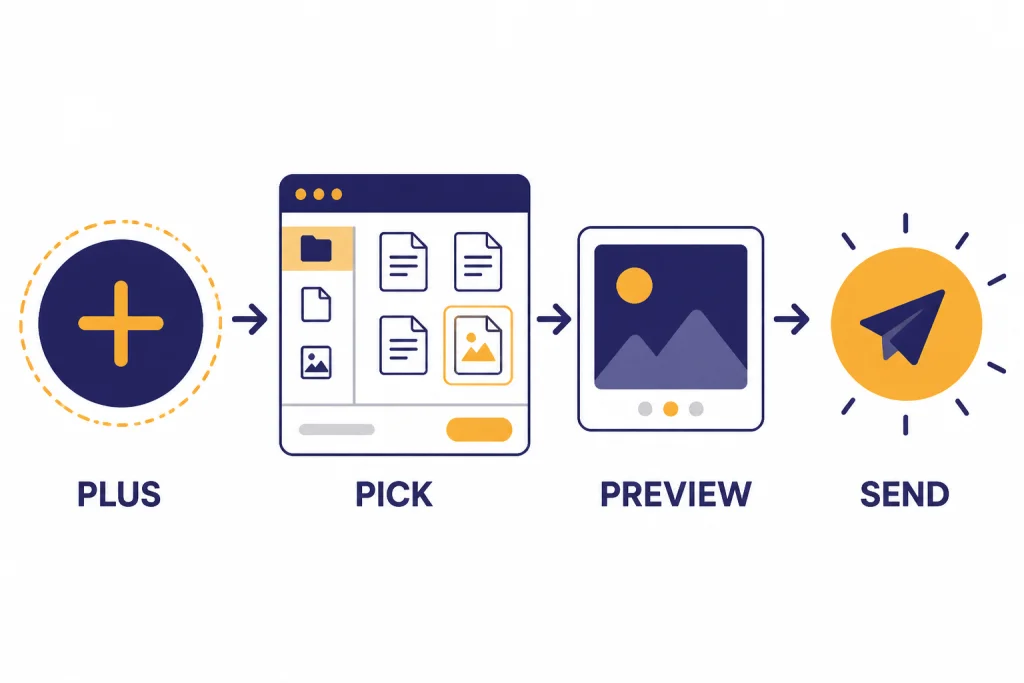
OpenAI’s image input instructions are simple: use the plus icon in the prompt area, select Add photos & files, or drag an image into the text area. You can also paste an image copied to your clipboard on supported platforms.[1]
- Open ChatGPT in your browser or the official app.
- Start a new chat or open an existing one.
- Select the plus button or tools menu near the message box.
- Choose Add photos & files.
- Select the image from your device.
- Wait for the thumbnail or file card to appear in the composer.
- Type what you want ChatGPT to do with the image.
- Send the message.
A good first prompt is direct: “Explain what is happening in this screenshot,” “Extract the text from this receipt,” or “Tell me what looks wrong in this chart.” If you are uploading a personal photo rather than a screenshot, see our related guide on how to upload a photo to ChatGPT.
On a phone, the flow is nearly the same. Open the ChatGPT app, tap the plus button, choose your photo source or file picker, attach the image, and add your instruction before sending. If you do not have the app yet, start with how to download the ChatGPT app, then follow the platform-specific setup guides for ChatGPT on iPhone or ChatGPT on Android.
What ChatGPT can do with uploaded images
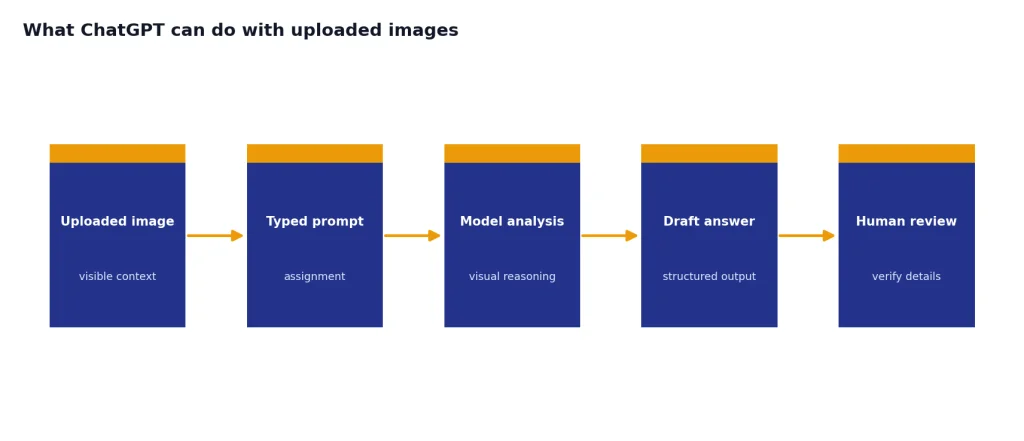
ChatGPT can analyze uploaded images, diagrams, screenshots, and charts. OpenAI says you can ask questions about what is shown, extract content, or get help interpreting visuals.[4] Treat the image as context and your typed prompt as the assignment.
| Uploaded image | Useful prompt | What to check |
|---|---|---|
| Screenshot of an error message | “Explain this error and list the safest fixes in order.” | Make sure the error text is readable. |
| Chart or dashboard | “Summarize the trend and point out anything misleading.” | Confirm the axis labels and values yourself. |
| Receipt or invoice | “Extract the vendor, date, line items, tax, and total into a table.” | Review all numbers before using them. |
| Handwritten notes | “Transcribe this and flag any uncertain words.” | Ask ChatGPT to mark guesses instead of hiding uncertainty. |
| Product photo | “Describe visible damage and list what details I should photograph next.” | Do not rely on it for safety-critical inspections. |
| Design mockup | “Give usability feedback and suggest three layout improvements.” | Separate visual critique from brand or legal review. |
Image upload is strongest when the question has visible evidence. It can help you read a confusing screenshot, compare two visual options, or turn a messy photo into structured notes. It is weaker when the task requires exact measurement, hidden metadata, or expert diagnosis.
If you want ChatGPT to produce polished writing after looking at an image, ask for the format you need. For example, upload a whiteboard photo and say, “Turn this into a concise project brief with owners, deadlines, risks, and next actions.” For style help after the analysis, use how to make ChatGPT write like a human.
Supported formats, limits, and plan access
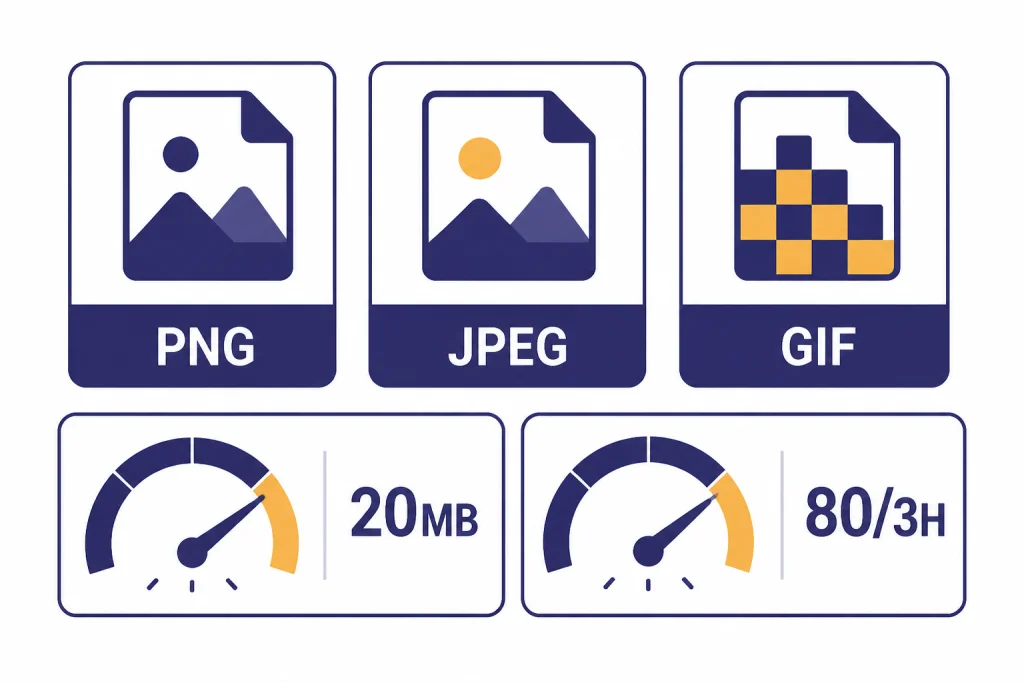
OpenAI’s image-input FAQ lists PNG, JPEG, JPG, and non-animated GIF as supported image formats.[1] Its file-upload FAQ says images have a 20MB per-image limit.[2] A third-party Zapier support article also lists a 20 MB image-size ceiling for ChatGPT/OpenAI image errors, which supports the same practical troubleshooting rule.[8]
OpenAI’s file-upload FAQ says users can upload up to 80 files every 3 hours, while free users are limited to 3 file uploads per day; it also says OpenAI may lower these limits during peak hours.[2] Because limits can vary by plan, demand, region, workspace, and product changes, treat the app’s current message as the final authority.
| Rule | Current OpenAI guidance | What it means for image uploads |
|---|---|---|
| Image formats | PNG, JPEG, JPG, and non-animated GIF.[1] | Convert HEIC, WebP, TIFF, or animated GIF files if the upload fails. |
| Image size | 20MB per image.[2] | Resize, crop, or compress large phone photos before uploading. |
| Video | Image inputs support static images only, not video.[1] | Upload a still frame or screenshot instead of a video file. |
| Upload rate | Up to 80 files every 3 hours; free users are limited to 3 file uploads per day.[2] | If you hit a cap, wait and retry later rather than repeatedly resending. |
| Quota visibility | ChatGPT does not currently show users how much upload quota remains.[2] | You may need to infer limits from the error message and timing. |
| Platforms | Image inputs are available on web and mobile, including iOS and Android.[1] | Try another device if one app or browser is failing. |
Plan access is more complicated than a single yes-or-no rule. OpenAI’s image-input FAQ lists Plus and ChatGPT Enterprise for image inputs.[1] OpenAI’s file-upload FAQ separately says file uploads are available to ChatGPT Plus, Pro, and ChatGPT Enterprise users on web and iOS/Android mobile apps.[2] If your account shows the upload button, you can usually use the feature until you hit a format, size, plan, or rate limit.
How to get better answers from image uploads
Most weak image-upload results come from vague prompts or hard-to-read images. Before uploading, crop out irrelevant background, straighten rotated text, and make the key area large enough to read. OpenAI warns that image inputs can perform worse with rotated or upside-down text, non-Latin text, panoramic or fisheye images, fine spatial tasks, and exact counting.[1]
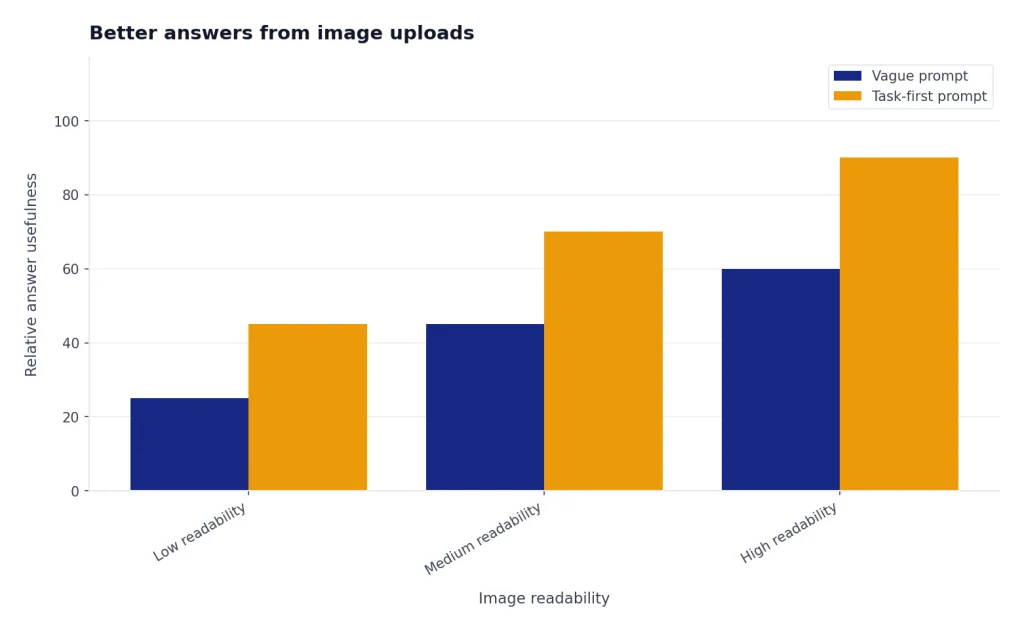
Use a task-first prompt
Do not just upload an image and type “What is this?” unless you truly want a broad description. Tell ChatGPT the job, the output format, and the level of detail.
- For screenshots: “Find the likely cause of this error. Give me beginner-safe steps first.”
- For receipts: “Extract the purchase details into a table. Mark any uncertain values.”
- For charts: “Explain the main trend in plain English. Then list any chart design problems.”
- For homework or study notes: “Explain the concept shown here, but do not just give the final answer.”
- For design review: “Give usability feedback for a small mobile screen. Prioritize the top five changes.”
Add context that is not visible
ChatGPT can only reason from the visible image and your message. If a screenshot came from a specific app, name the app. If a chart has missing context, explain what the data represents. If you want a certain audience, say who will read the answer.
Example: “This is a screenshot from a WordPress checkout page. I am the store owner. Explain what looks broken, what I should test first, and what I should send to my developer.” That prompt gives ChatGPT a role, a goal, and a useful output structure.
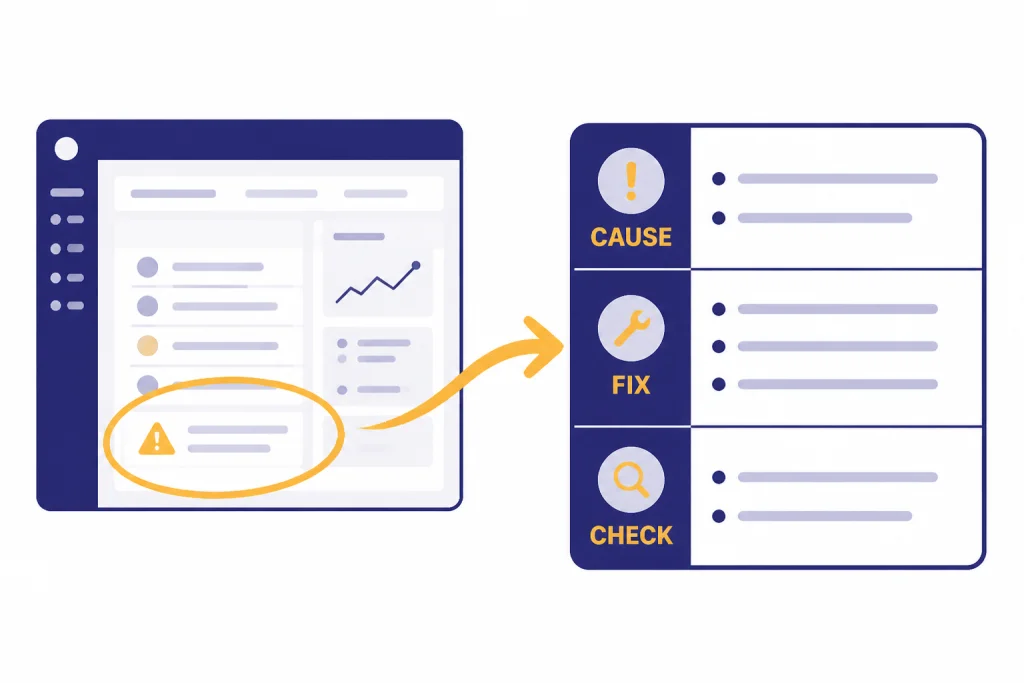
Mark up the important area
OpenAI recommends using markup before uploading when you want ChatGPT to focus on a specific part of an image.[1] Use a circle, arrow, highlight, or crop. Keep the original context if it matters, but remove clutter that distracts from the question.
For ongoing work, keep related images in the same conversation. If the chat becomes important, save it using how to save a ChatGPT conversation or share it with a teammate using how to share a ChatGPT conversation.
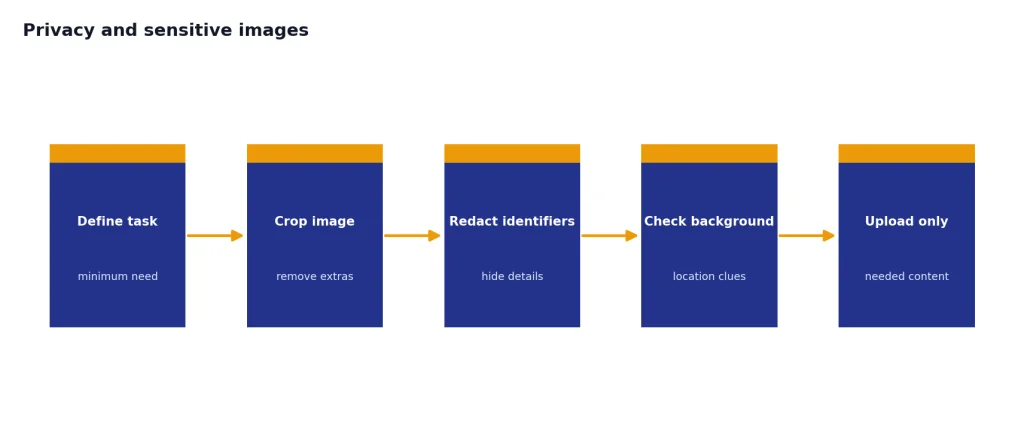
Privacy and sensitive images
Do not upload images that contain sensitive information unless you are comfortable with how they will be processed under your plan and settings. Images can contain faces, home addresses, license plates, patient information, financial records, private messages, workplace documents, or location clues in the background.
OpenAI says content from services for individuals such as ChatGPT may be used to train its models, and that users can opt out so new conversations are not used for training.[5] OpenAI also says business products such as ChatGPT Business, ChatGPT Enterprise, and the API are not used for training by default unless an organization explicitly opts in.[5]
For image uploads, use this rule: remove anything the task does not need. Blur faces, crop out addresses, hide account numbers, redact QR codes, and avoid uploading documents that belong to someone else. If you are working in a company account, follow your company’s AI and data-handling policy, not just the tool’s technical limits.
OpenAI’s file-upload FAQ says files uploaded to ChatGPT are saved in your account up to the retention period of the corresponding chat, and that associated files are deleted from OpenAI systems within 30 days after you delete a chat, account, or custom GPT, unless an exception applies.[2] If you need a copy of your account data, use how to export your ChatGPT data.
Be especially careful with medical images. OpenAI states that the model is not suitable for interpreting specialized medical images such as CT scans and should not be used for medical advice.[1] You can use ChatGPT to draft questions for a clinician, but not to replace one.
Why image uploads fail and how to fix them
Image uploads usually fail for one of six reasons: the file is too large, the format is unsupported, your account hit a usage cap, the browser or app is stale, the network is blocking the upload, or ChatGPT is having a service issue.
- Check the file size. If the image is over 20MB, resize or compress it.[2]
- Check the format. Use PNG, JPEG, JPG, or non-animated GIF.[1]
- Try fewer images. OpenAI says the number of images you can add depends on factors such as image size and accompanying text.[1]
- Wait if you hit a limit. OpenAI says users can upload up to 80 files every 3 hours, and failed upload attempts can sometimes count toward the rate cap.[2]
- Update the app or browser. OpenAI recommends a supported, fully updated browser for file uploads.[4]
- Try another platform. If mobile fails, try web. If web fails, try the mobile app.
- Check OpenAI Status. OpenAI’s file-upload FAQ points users to status.openai.com for incidents that may affect uploads.[2]
If you use ChatGPT on a computer every day, platform setup can matter. See ChatGPT on Windows or ChatGPT on Mac for device-specific setup and app notes.
If the upload button is missing entirely, confirm that you are signed in to the right account and workspace. Some features depend on subscription level and settings.[4] If you cannot sign in, start with how to log in to ChatGPT.
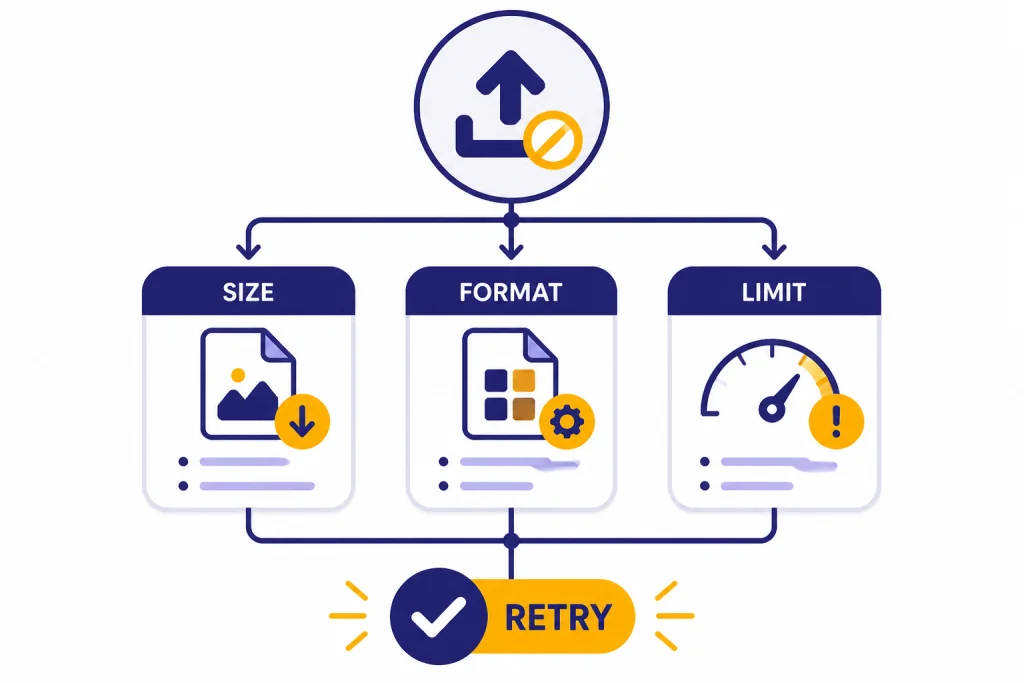
Image upload vs. file upload vs. image editing
People use “upload an image” to mean several different tasks. The right workflow depends on whether you want ChatGPT to analyze a picture, read a document, or edit an image.
| Goal | Use this ChatGPT feature | Best example |
|---|---|---|
| Ask questions about a screenshot, photo, chart, or diagram | Image input | “What does this dashboard show?” |
| Summarize or extract from a PDF, spreadsheet, presentation, or text file | File upload | “Summarize this PDF and list the deadlines.” |
| Change an existing image | ChatGPT Images editor | “Remove the background and make the object centered.” |
| Create a new picture from a text prompt | Image generation | “Create a clean icon set for these three app features.” |
OpenAI’s ChatGPT Images help page says you can upload an existing image and describe the changes you want ChatGPT to make.[3] It also says ChatGPT Images is available on web, iOS, and Android.[3] That is different from asking ChatGPT to analyze an image and answer questions about it.
For document work, OpenAI’s file guide says to start a chat, open the tools menu, select Add photos or files, then ask a question or give a task.[7] That same button can support image and document workflows, but your prompt should tell ChatGPT which job you want done.
Do not use image upload when a plain text paste is better. If the content is already selectable text, paste the text directly. ChatGPT will usually handle clean text more reliably than a screenshot of text, especially when you need exact wording, citations, or editing.
Frequently asked questions
Can I upload images to ChatGPT for free?
OpenAI’s file-upload FAQ says free users are limited to 3 file uploads per day.[2] Feature access can change and may vary by account, plan, region, and demand. If your free account shows the upload button, you can use it until you hit the current limit shown in the app.
What image formats work in ChatGPT?
OpenAI lists PNG, JPEG, JPG, and non-animated GIF for ChatGPT image inputs.[1] If your image is HEIC, WebP, TIFF, SVG, or an animated GIF, convert it to a supported static format before uploading.
How large can an uploaded image be?
OpenAI’s file-upload FAQ gives a 20MB limit per image.[2] If a phone photo fails, crop it, lower the resolution, or export it as a compressed JPEG before trying again.
Can ChatGPT read text from an image?
Yes, ChatGPT can often extract text from screenshots, signs, receipts, and photos of documents. It can still make mistakes, especially with blurry images, small text, rotated text, handwriting, or non-Latin scripts. Ask it to mark uncertain words and verify important text yourself.
Can I upload a video to ChatGPT?
OpenAI’s image-input FAQ says image inputs support static images only and do not process videos.[1] Use a screenshot or exported frame if you want ChatGPT to analyze something visible in a video.
Will ChatGPT use my uploaded images for training?
For individual services such as ChatGPT, OpenAI says it may use content to train models, and users can opt out so new conversations are not used for training.[5] For business products such as ChatGPT Business, ChatGPT Enterprise, and the API, OpenAI says it does not train on inputs or outputs by default unless an organization opts in.[5]