

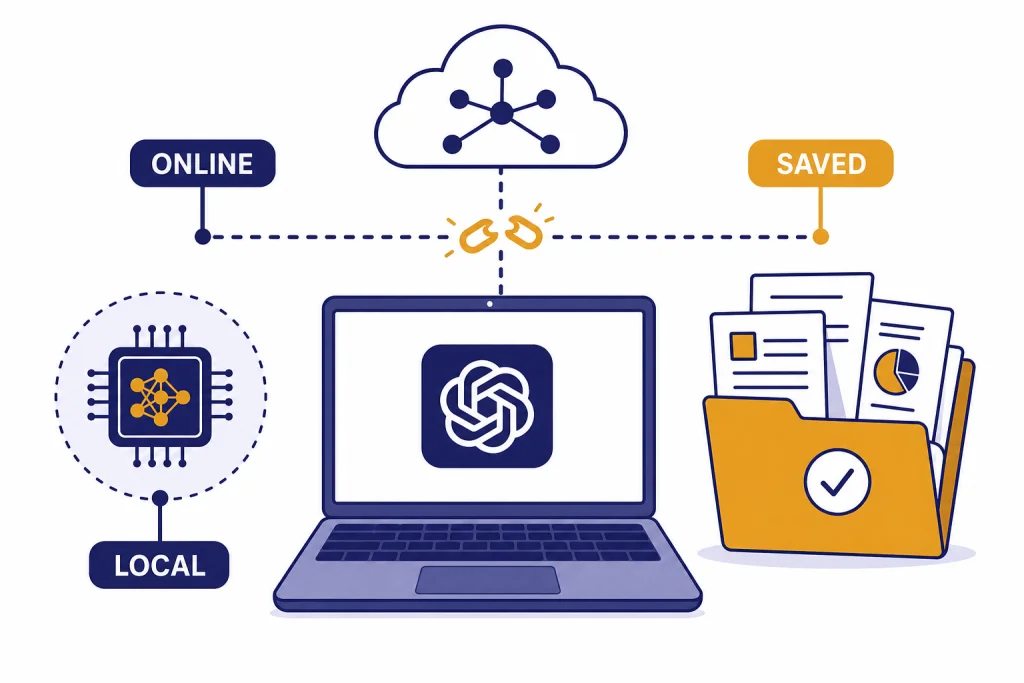
You cannot use ChatGPT offline in the normal sense. ChatGPT runs through OpenAI’s cloud service, so the web app, mobile apps, and desktop apps need a working connection to send prompts and receive answers. The practical workaround is to prepare while you are online: save key conversations, export your data, download PDFs or notes, and keep prompts ready for the next time you reconnect. If you need a chatbot that runs fully offline, you need a local language model app, not ChatGPT. This guide explains the line between “using ChatGPT offline” and “using ChatGPT material offline,” then gives a realistic workflow for travel, outages, school, and privacy-sensitive work.
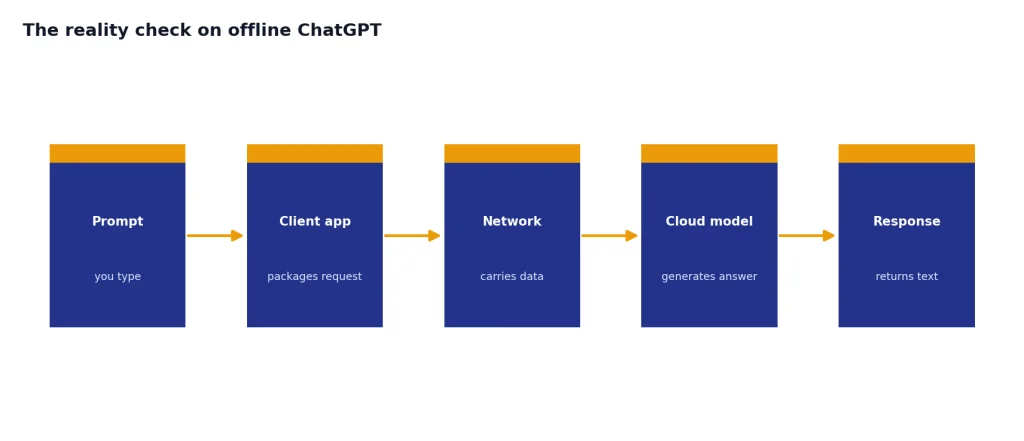
The reality check on offline ChatGPT
The short answer is simple: there is no official offline ChatGPT mode. OpenAI’s public desktop page describes ChatGPT as a desktop app for chatting about code, email, screenshots, files, and screen content, with downloads for macOS and Windows, but it does not describe a downloadable ChatGPT model that runs locally without a connection.[1] OpenAI has not published an official offline figure or offline feature list for ChatGPT because it has not published an official offline ChatGPT product.
This matters because “offline” can mean different things. You may want to read an old answer on a plane. You may want to draft prompts without service. You may want a private model that never sends text to a server. Only the first two are practical ChatGPT workflows. The third is a different category: local AI software.
Think of ChatGPT as a service, not a file. The official apps give you faster access, device integration, voice features, file uploads, and chat history. They do not turn your phone or laptop into a self-contained ChatGPT server. If your device cannot reach the service, ChatGPT cannot generate a new answer.
If you are new to the product itself, start with what ChatGPT is and how it works. If your main issue is access rather than offline use, see how to use ChatGPT without logging in or how to log in to ChatGPT.
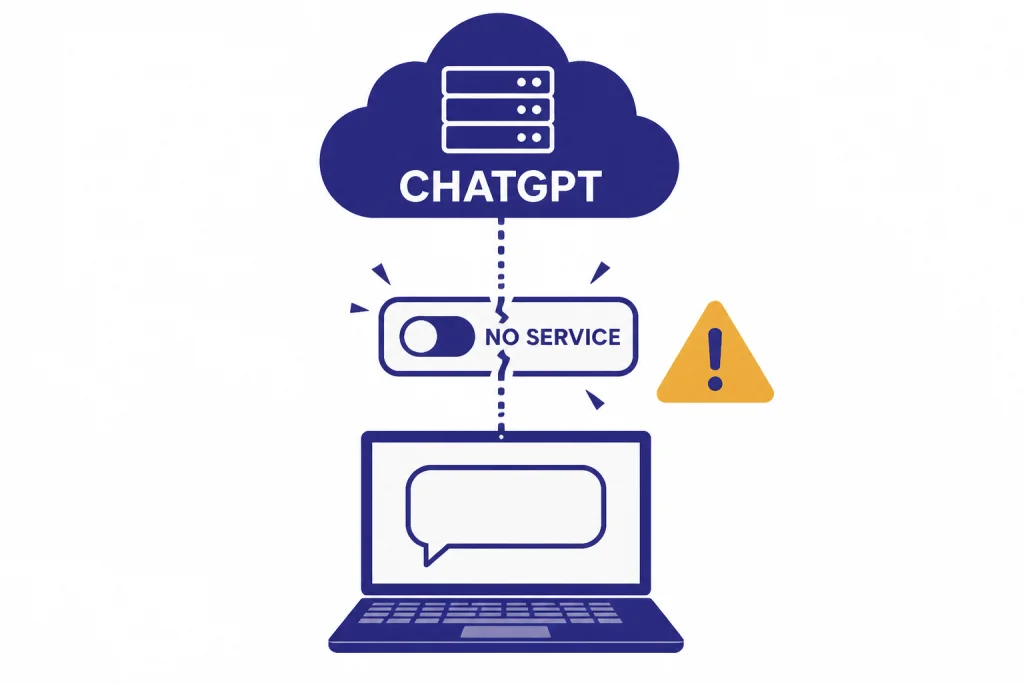
What still works when you lose connection
Some ChatGPT-related material can still be useful offline. The key is that it must already be on your device. A saved PDF, copied answer, exported archive, screenshot, or note file can be read without service. A new prompt that requires a fresh model response cannot.
The desktop and mobile apps may show parts of the interface or previously loaded content after a connection drops, but you should not rely on that as storage. Cache behavior can change, and it is not the same as a deliberate backup. If a chat matters, save it in a format you control.
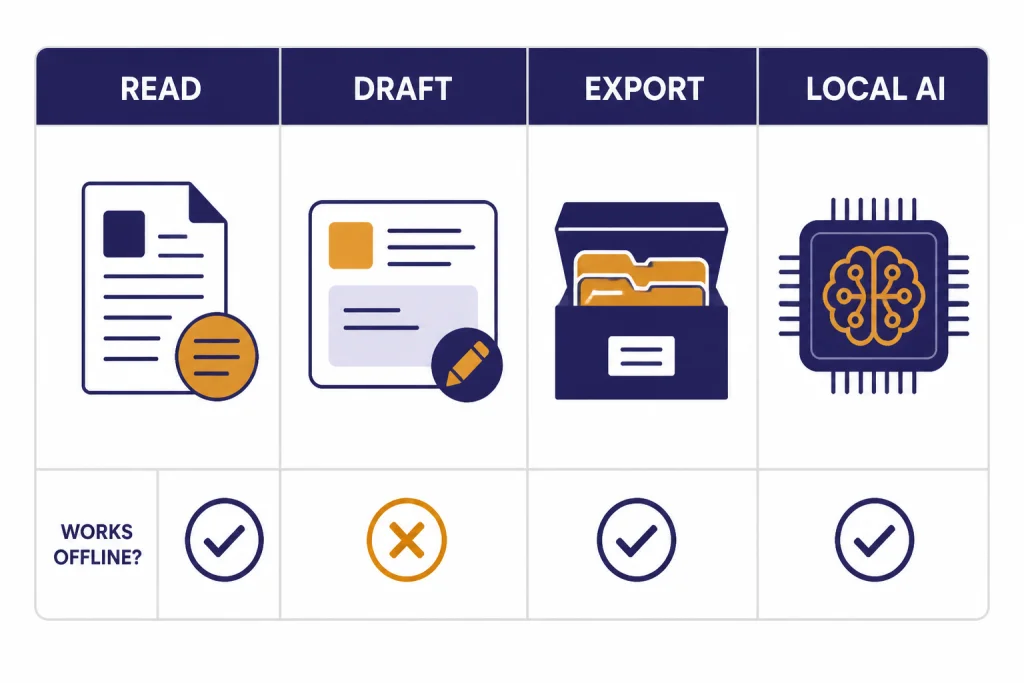
| Goal | Works offline? | Best method | Reality check |
|---|---|---|---|
| Read a previous answer | Yes, if saved first | Copy it into notes or save the page as a PDF | Do not depend on app cache |
| Continue a conversation | No | Write the next prompt offline, then paste it when online | ChatGPT must reconnect to answer |
| Search old chats | Sometimes, if loaded; not reliable | Export data or keep local notes | History is account-based |
| Use voice | No for new responses | Record ideas in a separate voice memo app | Voice conversations are a ChatGPT feature available through supported apps and web, with microphone permission required.[9] |
| Run an AI assistant fully offline | Not with ChatGPT | Use local AI software such as GPT4All or Ollama | That is not the same service or model family as ChatGPT.[10][11] |
The best offline habit is to treat ChatGPT like a research assistant whose work needs to be filed. If it produces a plan, checklist, code explanation, recipe, study guide, or travel note you will need later, move that output into a local document before you leave the connection.
For one-off conversations, a manual save is usually faster than a full account export. We have separate guides on saving a ChatGPT conversation and saving ChatGPT conversations as PDF if you want a more detailed walkthrough.
How to prepare ChatGPT work before you go offline
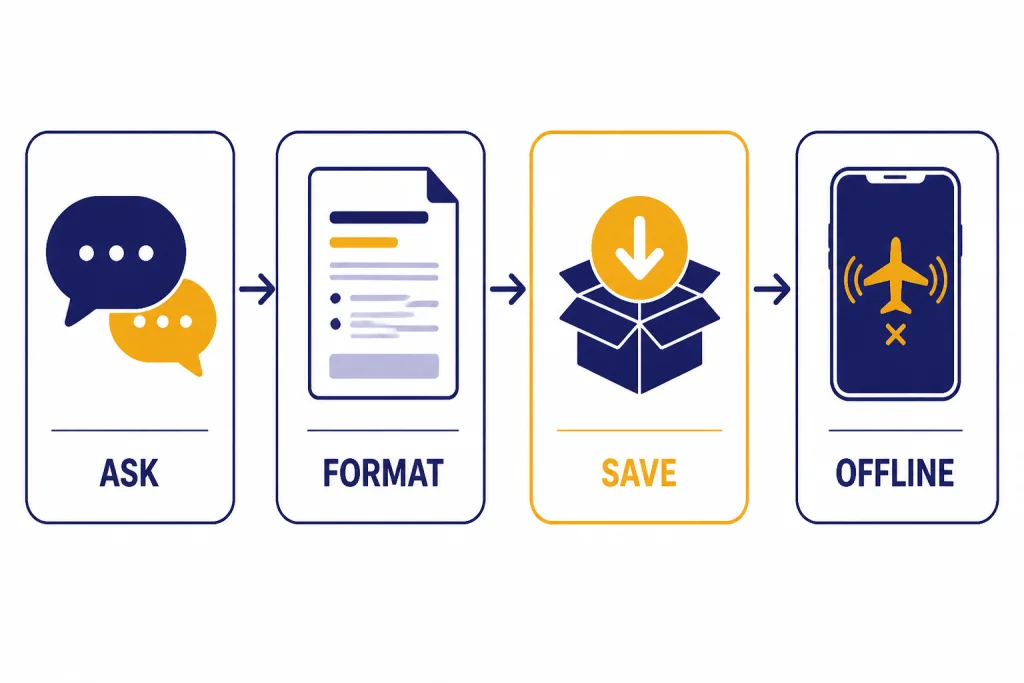
The reliable method is not to make ChatGPT offline. It is to make your ChatGPT output portable. Use this workflow before a flight, commute, field visit, campus dead zone, or planned internet outage.
Save the answer you actually need
Open the conversation while you still have service. Ask ChatGPT to turn the answer into the format you will use offline: a checklist, table, outline, study sheet, packing list, code comments, or step-by-step instructions. Then copy the final version into a local notes app, document, or PDF.
Do not save only the chat title. Save the full useful answer. A title may remind you what the conversation was about, but it will not help if the app cannot refresh the thread later.
Export important account history
For a broader backup, use ChatGPT’s data export. OpenAI says logged-in users can go to Settings, open Data Controls, choose Export Data, confirm the export, and download a zip file that includes chat history and other relevant account data.[6] The download email link expires after 24 hours, and OpenAI says exports can take up to 7 days to arrive.[6]
That export is useful for archiving. It is not a smooth offline ChatGPT app. You are downloading records, not a model that can keep answering questions. For a full walkthrough, use our guide on how to export your ChatGPT data.
Save prompts for later
If you know you will be offline and need to keep working, write prompts in a local note. Include context, constraints, and the output format you want. When you reconnect, paste them into ChatGPT in batches. This is especially useful for long planning work because you can think clearly while offline and use ChatGPT only for the generation step.
Offline prompt template:
Task: Summarize these meeting notes.
Context: I need a concise recap for my manager.
Output: Bullet list with decisions, risks, and next actions.
Tone: Plain, direct, professional.
Notes: [paste notes here]
Download source files separately
If ChatGPT helped you analyze a document, image, spreadsheet, or code file, keep the original file offline too. A saved answer may not include enough detail to reconstruct the work. Put the source file and the ChatGPT output in the same folder so you can review both without reconnecting.
Device notes for iPhone, Android, Mac, and Windows
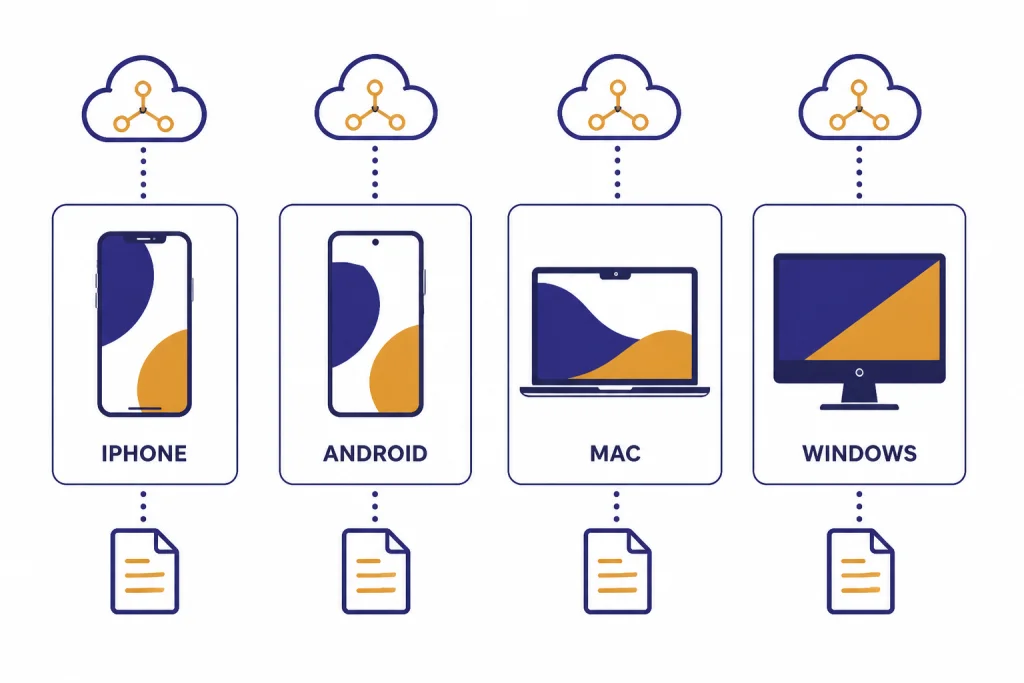
The offline limitation applies across devices. The interface changes, but the basic rule does not: the official apps are clients for ChatGPT, not offline model runtimes.
iPhone and iPad
OpenAI’s iOS app FAQ says past chats are available from the sidebar and that chat data export is handled through ChatGPT on the web.[5] That means the safest offline workflow on iPhone is to save the specific answer you need into Apple Notes, Files, a PDF, or another local app before you leave service.
If you use ChatGPT heavily on mobile, see our separate guide to using ChatGPT on iPhone. It covers app setup and everyday use, while this article focuses only on the offline boundary.
Android
OpenAI’s Android FAQ says the official app is available through Google Play and requires an Android device with Google Play running Android 7.0 or newer.[4] The same FAQ describes chat history access through the app sidebar, but that should not be treated as an offline archive.[4] For setup details, use our guide to using ChatGPT on Android.
Mac
OpenAI lists the ChatGPT macOS app requirement as macOS 14 with Apple Silicon, M1 or better.[2] The desktop app is convenient for fast access, but it does not change the service model. Save important answers to local files if you expect to work without internet. Our ChatGPT on Mac guide covers installation and daily use.
Windows
OpenAI’s Windows app help page lists the system requirement as Windows 10, x64 or arm64, version 17763.0 or higher.[3] It also describes a companion window that can start a new conversation, upload files, generate images, or ask questions from the desktop.[3] Those are online ChatGPT actions. They are not an offline mode. For more, see how to use ChatGPT on Windows or our ChatGPT Windows app setup guide.
Local AI alternatives are not ChatGPT
If you need an assistant that can answer while your device is fully offline, look at local AI tools. GPT4All says its desktop application lets you download and run large language models locally and privately on your device.[10] Ollama’s documentation describes tooling to get large language models running on macOS, Windows, or Linux.[11] Ollama’s FAQ also says Ollama runs locally and that it does not see prompts or data when you run locally.[12]
The trade-off is that local tools are not ChatGPT. They may be slower, less capable, less polished, or harder to configure. They also depend on the model you download and your hardware. A small model on an old laptop may be fine for brainstorming but weak for reasoning, coding, or factual work.
| Option | Best for | Connection needed after setup? | Main limitation |
|---|---|---|---|
| ChatGPT web or app | Best overall ChatGPT experience | Yes | No official offline mode |
| Saved ChatGPT PDFs or notes | Reading prior answers | No | Cannot generate new answers |
| ChatGPT data export | Archiving account history | No, after download | Archive format, not a chat interface |
| GPT4All | Local private chat with downloaded models | No, after model download | Model quality varies by download and hardware[10] |
| Ollama | Local model running and developer workflows | No, if using local-only setup | More technical setup for many users[12] |
A good rule: use ChatGPT when you have internet and want the official service. Use saved ChatGPT outputs when you only need to read or follow prior work. Use a local model when the requirement is truly “no network.”
If you are comparing costs for online development instead of offline use, see our OpenAI API pricing guide. API pricing is a separate topic from ChatGPT offline access.
Privacy, data, and offline misunderstandings
Offline use is often mixed up with privacy. They are related, but not identical. A saved PDF is offline, but it may still contain sensitive information. A local model may keep prompts on your machine, but you still need to manage files, backups, device encryption, and access controls.
For ChatGPT, OpenAI’s Data Controls FAQ says signed-in users can turn off “Improve the model for everyone,” and that conversations will still appear in history but will not be used to train ChatGPT after that control is off.[7] The same FAQ says Temporary Chats are deleted from OpenAI systems after 30 days, are not used to train models, may be reviewed only for abuse monitoring, and do not get saved in history or create memories.[7]
Temporary Chat is useful, but it is not an offline feature. OpenAI’s separate Temporary Chat FAQ says Temporary Chats will not appear in history and that ChatGPT will not remember what you talk about; it also says a copy may still be kept for safety purposes for up to 30 days.[8] Use Temporary Chat for a clean session, not for offline access.
If your concern is account data, use the export and data-control settings. If your concern is no network transmission at all, use a local model and keep cloud features disabled where the tool provides that option. Ollama, for example, documents a local-only mode that disables its cloud features.[12]
Troubleshooting when ChatGPT looks offline
Sometimes ChatGPT appears offline even when your internet works. Before assuming the service is unusable, run through a basic checklist.
- Try another website or app to confirm the device has internet.
- Switch between Wi-Fi and cellular data if you are on mobile.
- Reload ChatGPT or close and reopen the app.
- Sign out and sign back in if the app is stuck on an old session.
- Disable VPN, firewall, or content-filtering tools temporarily if your network allows it.
- Try the web version if the desktop app fails, or the app if the browser fails.
- Save work outside ChatGPT before repeated refreshes.
On Android, OpenAI notes that some login errors can happen when Google Play Store is out of date and recommends updating Google Play Store before trying again.[4] If the issue is installation rather than connectivity, start with how to download the ChatGPT app.
If your goal is to avoid future interruption, make saving part of your normal routine. Copy final answers into a durable note. Export data periodically if you need records. Save PDFs for long guides. Do not wait until you are boarding a flight or entering a dead zone.
Frequently asked questions
Can I use ChatGPT offline?
No. You can read material you saved from ChatGPT while offline, but you cannot generate new ChatGPT replies without a connection. OpenAI has not published an official offline ChatGPT mode.
Can I download ChatGPT to my computer?
You can download official ChatGPT apps for supported devices, including desktop options described by OpenAI for macOS and Windows.[1] Downloading the app does not download the ChatGPT model for offline use.
Can I read old ChatGPT chats on a plane?
Only if the content is already saved or loaded in a way your device can display. Do not rely on app cache for important work. Save the answer as a PDF, note, document, or exported archive before you leave service.
Does exporting my ChatGPT data make it usable offline?
It makes your records available offline after you download the zip file, but it does not create an offline chatbot. OpenAI says the export includes chat history and other relevant account data, and the email download link expires after 24 hours.[6]
What is the closest offline alternative to ChatGPT?
A local language model app is the closest category, but it is not ChatGPT. GPT4All and Ollama both document ways to run downloaded models locally on your device.[10][11] Expect different quality, speed, setup, and privacy behavior depending on the tool and model.
Is Temporary Chat the same as offline ChatGPT?
No. Temporary Chat changes memory, history, and training behavior; it does not make ChatGPT run without internet. OpenAI says Temporary Chats do not appear in history and may be kept for safety purposes for up to 30 days.[8]