

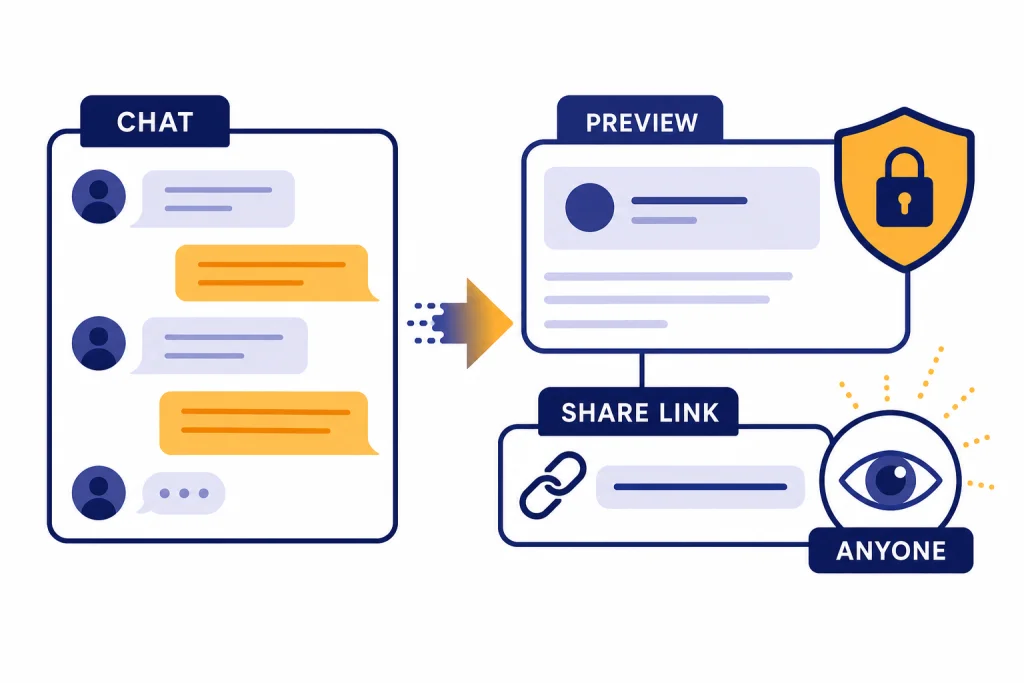
To share a ChatGPT conversation, open the chat, use the share button or the conversation menu, preview what will be included, then copy the shared link and send it to the person who needs it. A shared link is not a private invitation. Anyone who gets the URL can view the conversation, and the link includes the conversation snapshot up to the point when you created it.[1] Before you share, remove personal details, client data, private documents, and anything you would not want forwarded. This guide explains how to share a ChatGPT conversation on web and mobile, how to manage or delete shared links, and when a PDF, screenshot, or copied excerpt is safer.
Quick answer
The fastest way to share a ChatGPT conversation is to open the conversation, click or tap Share, review the preview, and copy the link. OpenAI says shared links are available on chatgpt.com and in the iOS and Android apps.[1] If you do not see the share option, update the app, sign in again, or check whether your workspace has disabled sharing.
The important part is not the button. It is the preview. The link can expose more than the final answer. It can include earlier prompts, rough drafts, pasted source material, and follow-up questions. Treat a shared link like a public URL, not like a private email attachment.
Use a shared link when you want someone to read the full context. Use a copied excerpt, screenshot, or PDF when you only want to share part of the exchange. If you mainly need a permanent local copy, read our guide on how to save a ChatGPT conversation. If you need a polished document, use how to save ChatGPT conversations as PDF instead.
What a shared ChatGPT link includes
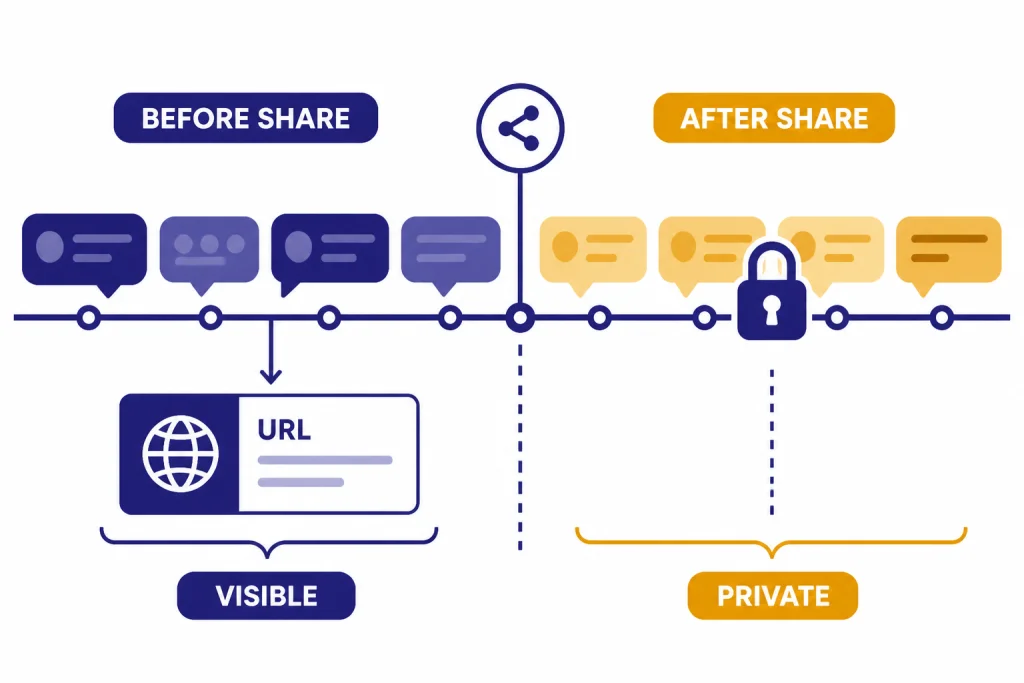
A shared link is a snapshot of the conversation up to the moment you create the link. OpenAI says the shared link includes the entire conversation history up to that point, not only the most recent prompt and response.[1] Messages added after you create a normal consumer shared link are not automatically added to that earlier snapshot unless you update the share.
OpenAI also says shared links do not include your name or other personal account information in the link view.[1] That does not mean the conversation is anonymous in practice. If your prompts contain your name, email address, employer, resume details, medical notes, legal facts, addresses, screenshots of private data, or client material, the recipient may still identify you or someone else.
OpenAI states that anyone with access to the shared link can view the linked conversation, and that there are no granular permissions or expiration dates for standard shared links.[1] That means you cannot create a standard ChatGPT share link that only one personal email address can open, and you cannot set it to expire after a deadline. The practical permission model is simple: if someone has the link, they can view it.
Before creating a link, scan the whole conversation from top to bottom. Look for pasted files, customer names, unpublished work, passwords, API keys, school records, health details, financial information, and private instructions. If the conversation includes material you would redact from an email, redact it before sharing or use a different sharing method.
| Sharing method | Best for | Main risk | Better choice when |
|---|---|---|---|
| Shared link | Full context and easy collaboration | Anyone with the URL can view it | The whole thread is safe to forward |
| Copied excerpt | One answer or a short quote | Can lose context | You only need a few lines |
| Screenshot | Visual proof of a short exchange | Hard to edit or search | The layout matters |
| Records, approvals, and archives | May preserve sensitive text | You need a stable offline copy | |
| Data export | Personal backup | Not designed for casual sharing | You want account-level records |
There was also a short-lived search-indexing issue in 2025. On July 31, 2025, TechCrunch reported that some public ChatGPT share links could be found through search engines when users enabled discoverability.[6] Search Engine Journal later reported that OpenAI removed the feature that allowed shared ChatGPT links to be searchable and was working to remove already indexed content.[5] The lesson still applies: do not put sensitive information in a share link just because the interface feels casual.
How to share a ChatGPT conversation on the web
Use the web method when you are on chatgpt.com in a desktop or mobile browser. It is the easiest place to review a conversation before sending it.
- Open chatgpt.com and sign in if needed. If sign-in is the problem, use our ChatGPT login troubleshooting guide.
- Open the conversation you want to share from the sidebar.
- Click the share button near the top of the chat, or open the conversation menu from the sidebar and choose the share option. OpenAI says web users can share from the sidebar or from the share button at the top right of the chat screen.[1]
- Review the preview. Confirm that the visible messages are safe to share.
- Copy the link.
- Paste the link into email, Slack, Teams, a document, or wherever the recipient expects it.
Do not share first and review later. The preview is your last chance to catch private information. If the conversation is too long to audit quickly, create a cleaner version. Start a new chat, ask ChatGPT to summarize only the safe parts, remove names and confidential facts, and share that shorter conversation instead.
If you are sharing work with a client or colleague, add a short note with the link. Tell the recipient what they are looking at, which answer matters, and whether the conversation is a draft or a final version. A shared ChatGPT link can be confusing without context because it often includes brainstorming, false starts, and instructions that were not meant for the recipient.

How to share a ChatGPT conversation on iPhone or Android
OpenAI says shared links are available to users in the iOS and Android apps.[1] The exact icon placement can change as the app interface changes, but the flow is the same: open the conversation, find the share action, preview the content, and copy or send the link.
Share from the ChatGPT app
- Open the ChatGPT app.
- Open the conversation you want to share.
- Tap the conversation menu or share icon.
- Choose the share-link option.
- Review the conversation preview.
- Copy the link or send it through your phone’s share sheet.
If the app does not show the option, update it from the App Store or Google Play, close and reopen it, and confirm you are signed in to the right account. If you are setting up a new device, start with how to download the ChatGPT app on any device, then follow our device guides for ChatGPT on iPhone or ChatGPT on Android.
Check mobile shares before sending
Mobile sharing is convenient, but it is also easy to send the wrong thing. Do not rely on the thread title alone. Open the preview and read the first messages, any pasted material, and the final answer. If the thread contains images, file analysis, or private work notes, consider sharing a PDF or a cleaned-up excerpt instead.
How to update, manage, or delete shared links
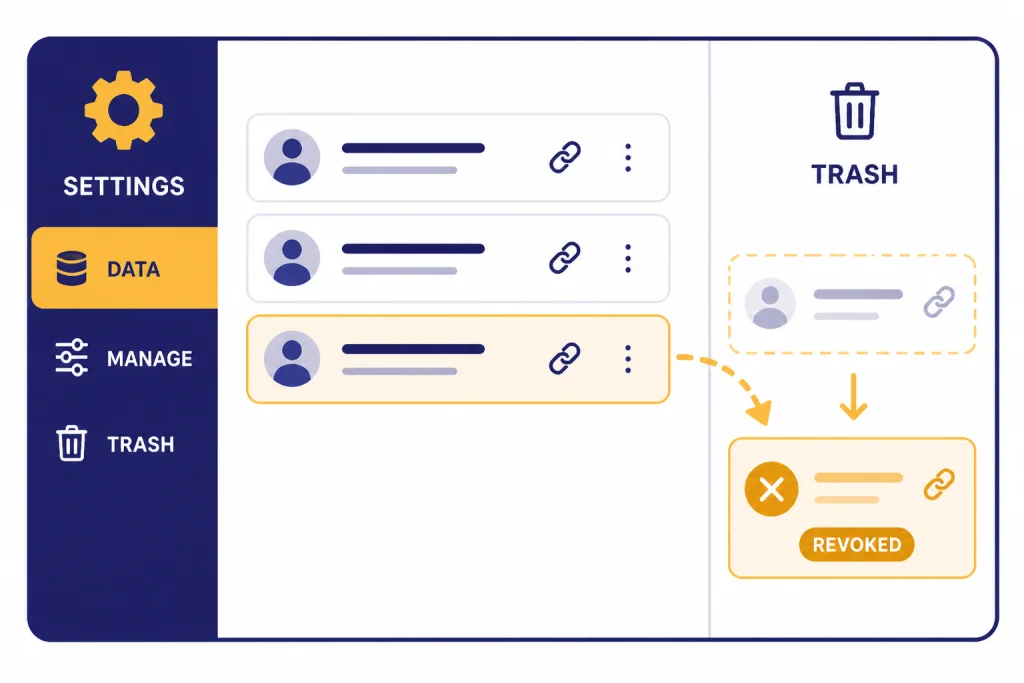
You can manage shared links from ChatGPT’s data controls. OpenAI says to go to Settings, then Data controls, then the Shared links setting to view shared links.[1] From there, you can delete individual links or delete all shared links.[1]
- Open chatgpt.com.
- Open Settings from your profile or account menu.
- Go to Data controls.
- Find Shared links and choose Manage.
- Review the list of shared conversations.
- Delete the links you no longer want available.
Deleting the original conversation also deletes its shared link, according to OpenAI.[1] But there is an important limit. If another user imported or copied the conversation into their own history, deleting your link does not remove that separate copy.[1] Assume that anything already opened by a recipient may have been copied, screenshotted, downloaded, or forwarded.
OpenAI says the option to continue a conversation from a shared link has been deprecated across all ChatGPT plans. If a recipient replies to a shared conversation, ChatGPT creates a copy in that recipient’s history, and that copy is not deleted when you delete your shared conversation.[1] This is another reason to share only material you are comfortable losing control over.
Shared link data also appears in ChatGPT data exports. OpenAI says exports include a shared_conversations file containing the shared link ID, conversation ID, title, and anonymity setting.[4] If you need to audit your account history or keep a personal record, start with how to export your ChatGPT data.
Business and Enterprise sharing rules
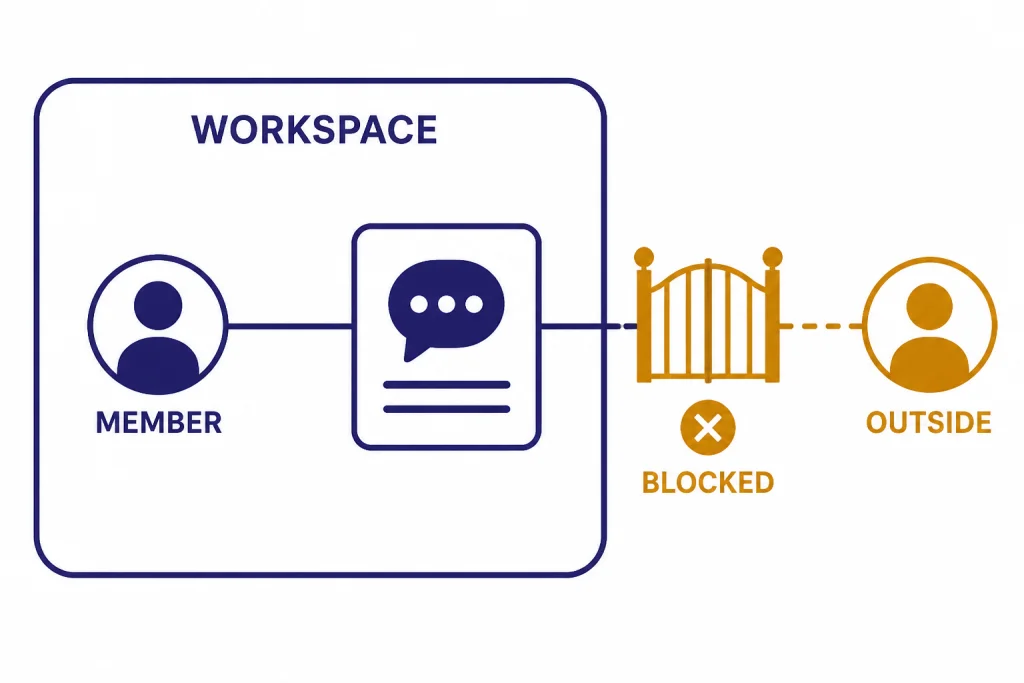
ChatGPT Business and ChatGPT Enterprise can behave differently from a personal ChatGPT account. In ChatGPT Business, OpenAI says shared links let users generate a unique URL for a conversation and share it with other members of the same workspace.[2] OpenAI also says people outside the Business workspace cannot see the shared chat and are redirected with a no-access message.[2]
Business workspaces have content limits. OpenAI says most Business conversations can be shared with teammates, but chats containing image files uploaded by users are not currently supported; chats containing images created by ChatGPT can be shared.[2] If your workflow depends on image uploads, see how to upload images to ChatGPT and confirm whether sharing is supported in your workspace before relying on a link.
Enterprise sharing is also workspace-bound. OpenAI says Enterprise shared links can be shared with members in the user’s workspace, and users outside the workspace cannot access or read the conversation.[3] OpenAI also says Enterprise shared chats continue to show future messages after the original chat has been shared, unlike non-Enterprise shared chats.[3] That difference matters. In an Enterprise workspace, do not assume a shared thread is frozen unless your admin or current product interface confirms it.
| Account type | Who can open the link | Does the link act like a snapshot? | Admin or workspace limits |
|---|---|---|---|
| Personal ChatGPT | Anyone with the URL | Yes, for the conversation up to the share point | No granular permissions or expiration for standard links |
| ChatGPT Business | Members of the same workspace | Viewer interaction creates a new private conversation | Workspace sharing rules apply |
| ChatGPT Enterprise | Members of the same workspace | OpenAI says future messages continue to show | Admins may disable or restrict sharing |
If you are using ChatGPT at work, follow your company policy before sharing. Some organizations treat ChatGPT outputs as work product. Others restrict sharing customer data, internal strategy, code, or uploaded files. When in doubt, create a sanitized version of the conversation and share that instead.
When not to use a shared link
A shared link is not always the right answer. It is best when the recipient needs the full thread and the full thread is safe to show. It is a poor fit when the conversation includes sensitive material, when you need a formal record, or when you only want to share one result.
Use a copied excerpt for one answer
If a teammate only needs a paragraph, copy the paragraph. Add a note that says it came from ChatGPT and include any context needed to understand it. This avoids exposing earlier prompts and unrelated material.
Use a PDF for records
A PDF works better for approvals, invoices, class notes, research logs, and permanent records. It is easier to store in a folder, attach to a ticket, or archive with other documents. If you need this format, use our PDF walkthrough.
Use a new sanitized chat for sensitive topics
For legal, medical, HR, school, or client work, start a new chat and remove identifying details. Ask ChatGPT to restate the useful output without names, dates, account numbers, private facts, or confidential documents. Then share the sanitized thread if you still need a link.
Use citation formats for academic work
If you are sharing a ChatGPT exchange for a paper, do not assume a share link is enough. Style guides often require a specific citation format or a description of how AI was used. See our guides to cite ChatGPT in MLA format, cite ChatGPT in Chicago style, or cite ChatGPT in Harvard style.
Troubleshooting sharing problems
The share button is missing
First, confirm you are signed in. Then update the app or try chatgpt.com in a browser. If you are in a Business or Enterprise workspace, your organization may restrict sharing. OpenAI says some Enterprise workspaces may have shared links disabled by default and unable to be enabled by the user.[3]
The recipient cannot open the link
Check whether the chat came from a workspace. Business and Enterprise links may only work for members of the same workspace.[2][3] If the recipient is outside the workspace, send a sanitized excerpt or PDF instead.
The link shows too much of the conversation
Delete the shared link, create a new clean conversation, and share the clean version. A shared link is not a tool for selecting one message from a messy thread. It is better to build a share-ready thread from the start.
The conversation contains uploaded files or images
Sharing support can depend on account type and content type. OpenAI says Business chats with image files uploaded by users are not currently supported for sharing, while chats with images created by ChatGPT can be shared.[2] For Enterprise, OpenAI says chats using Advanced Data Analysis can be shared, but the uploaded file itself is not accessible through the shared chat.[3]
You need to share but you are near a usage limit
Sharing an existing conversation does not require you to regenerate the answer. If you need to create a cleaned-up version and hit a limit, wait for your limit to reset or use a shorter prompt. For practical options, see how to bypass ChatGPT message limits legitimately.
Frequently asked questions
Can anyone see my shared ChatGPT conversation?
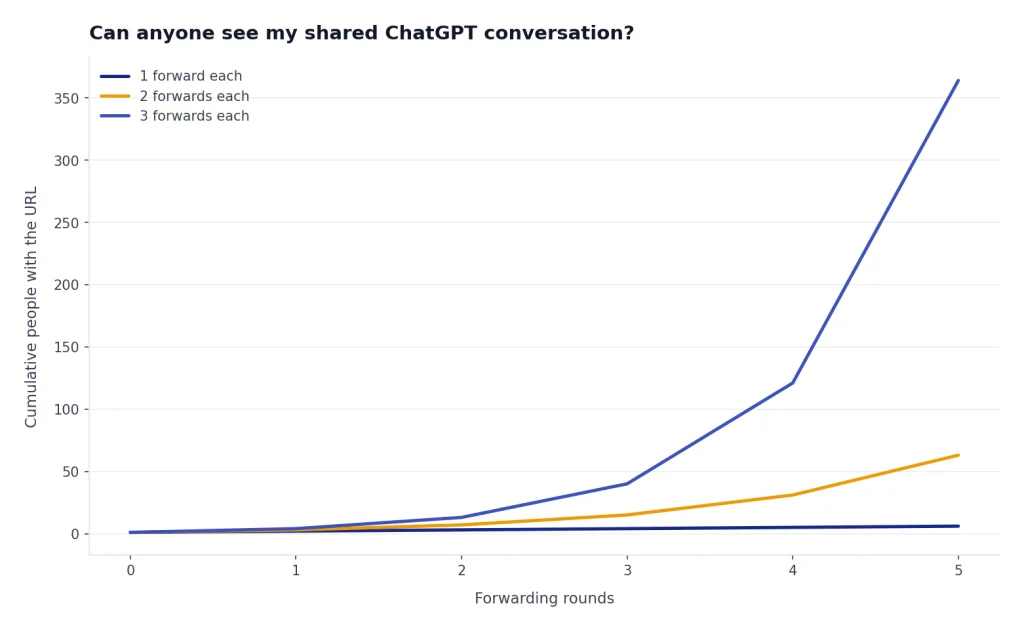
Anyone with the shared URL can view a standard personal ChatGPT shared conversation.[1] Do not treat the link like a private permissioned document. If someone forwards it, the next recipient may be able to open it too.
Does a shared ChatGPT link include my name?
OpenAI says shared links do not include your name or other personal information from your account.[1] The conversation text may still identify you if you typed personal details into the chat. Review the prompts as carefully as the answers.
Can I share only one ChatGPT answer?
Not cleanly with a normal shared link. OpenAI says the shared link is a snapshot of the entire conversation up to the point of sharing.[1] If you only want to share one answer, copy that answer into a message or create a new chat containing only the shareable material.
Can I set a ChatGPT shared link to expire?
OpenAI says standard shared links do not currently offer an expiration-date feature.[1] You can delete or invalidate a shared link later, but that does not erase copies someone already made. Share accordingly.
Will deleting the chat delete the shared link?
Yes. OpenAI says deleting the original ChatGPT conversation also deletes the shared link, so the content will no longer be accessible through that link.[1] If a recipient imported or copied the conversation, your deletion will not remove that separate copy.
Can someone continue my shared ChatGPT conversation?
OpenAI says the option to continue a conversation from a shared link has been deprecated across all ChatGPT plans.[1] If a recipient replies from a shared conversation, ChatGPT creates a copy in that person’s history. That copy is private to them and is not deleted when you delete your original shared conversation.