

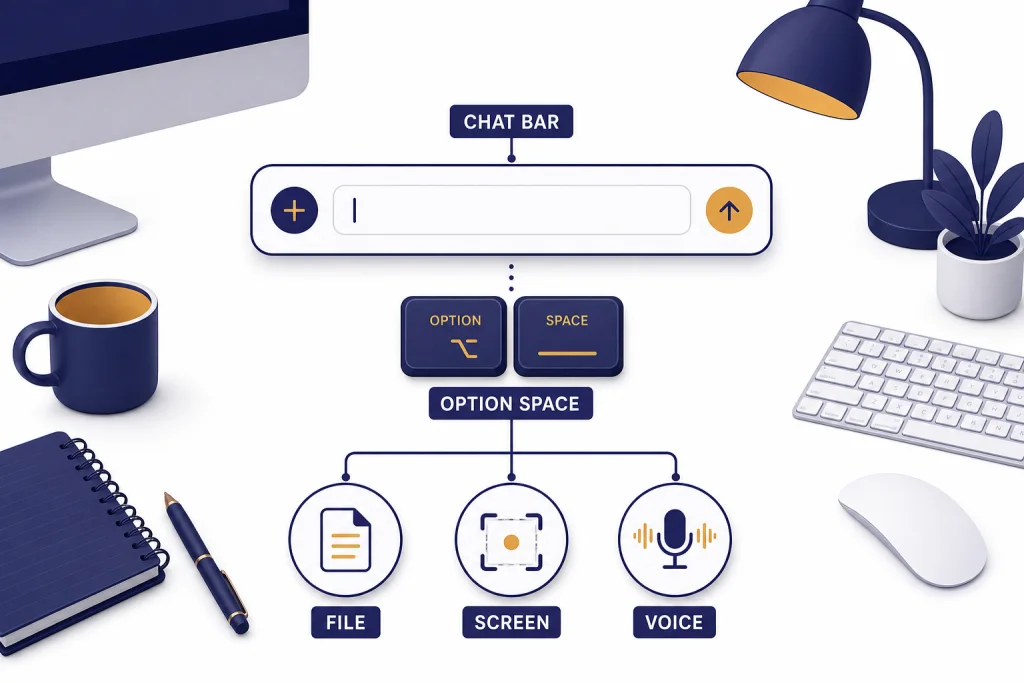
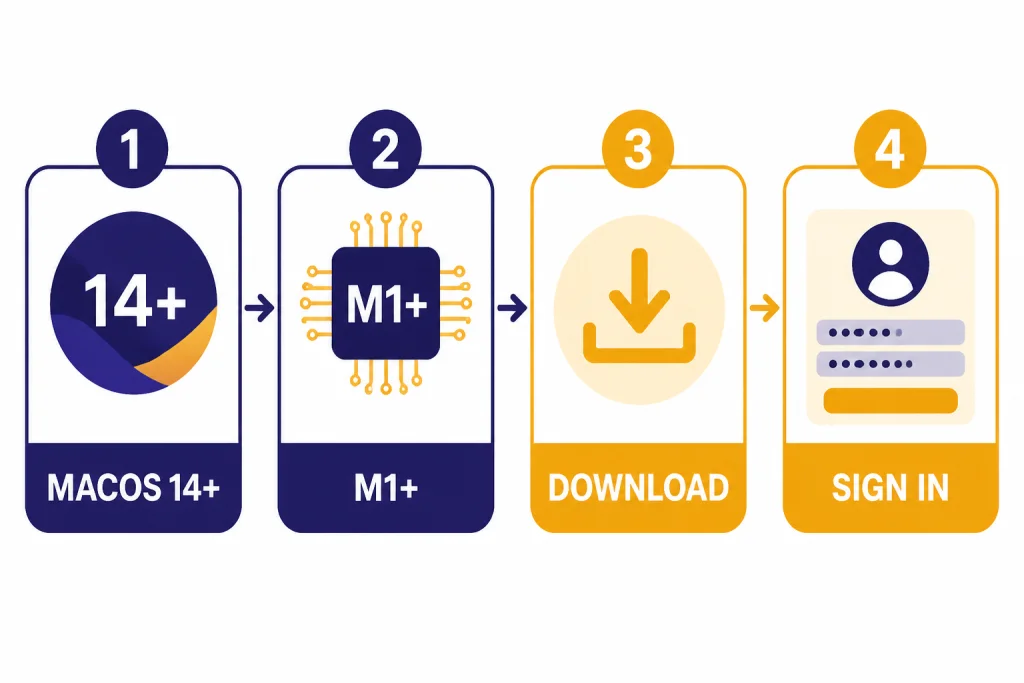
To use ChatGPT on Mac, install the official ChatGPT desktop app from OpenAI, sign in, and use either the main app window or the Chat Bar shortcut. OpenAI lists the Mac app requirement as macOS 14 with Apple Silicon, meaning an M1 Mac or better.[1][2] The fastest daily workflow is to press Option + Space, type a request, attach a file or screenshot when useful, and continue the chat in the full window if the answer needs more space.[3] This guide covers setup, shortcuts, uploads, screenshots, app permissions, privacy, and common Mac-specific fixes.
Check your Mac and install the app
Start by confirming that your Mac can run the official desktop app. OpenAI’s desktop page says the macOS app is available for macOS 14 or later on Apple Silicon, M1 or better.[1] OpenAI’s Help Center repeats the same system requirement for the ChatGPT macOS app.[2] If your Mac is older or Intel-based, use ChatGPT in your browser instead.
To check your Mac, choose the Apple menu, select About This Mac, and look for the macOS version and chip. A Mac that shows M1, M2, M3, M4, or later meets the Apple Silicon side of the requirement. If the chip says Intel, the desktop app is not the right path.
Download the app from OpenAI’s official desktop page. OpenAI’s Help Center points users to the official desktop download page for the macOS app.[2] If you want a broader device-by-device overview before installing, see our guide to downloading the ChatGPT app on any device.
- Go to OpenAI’s official ChatGPT desktop download page.
- Choose the macOS download.
- Open the downloaded file from your Downloads folder.
- Move or open the ChatGPT app as macOS prompts you.
- Launch ChatGPT from Applications, Spotlight, or the menu bar after setup.
Do not search the App Store or the web for random Mac installers. Look for the official OpenAI source. This matters because unofficial wrappers can add tracking, subscriptions, or weaker security around your ChatGPT session.
Set up the app for the first run
When you open ChatGPT on Mac for the first time, sign in with the same account you use on the web or mobile app. If you are new to ChatGPT, create an account from the sign-in flow. For help with account access, use our step-by-step guide to logging in to ChatGPT. If you are still deciding whether to create an account, read how to use ChatGPT without logging in first.
After sign-in, check three settings before you depend on the app for daily work. First, decide whether ChatGPT should launch when your Mac starts. Second, confirm the keyboard shortcut. Third, review permissions only when you need them. You do not need to grant every permission on day one.
- Launch behavior: Keep the app available if you want quick access throughout the day.
- Keyboard shortcut: Use the default unless it conflicts with another Mac utility.
- Notifications: Keep them quiet unless you use long-running tasks.
- Permissions: Grant camera, microphone, photo, screen, and accessibility access only for features you actually use.
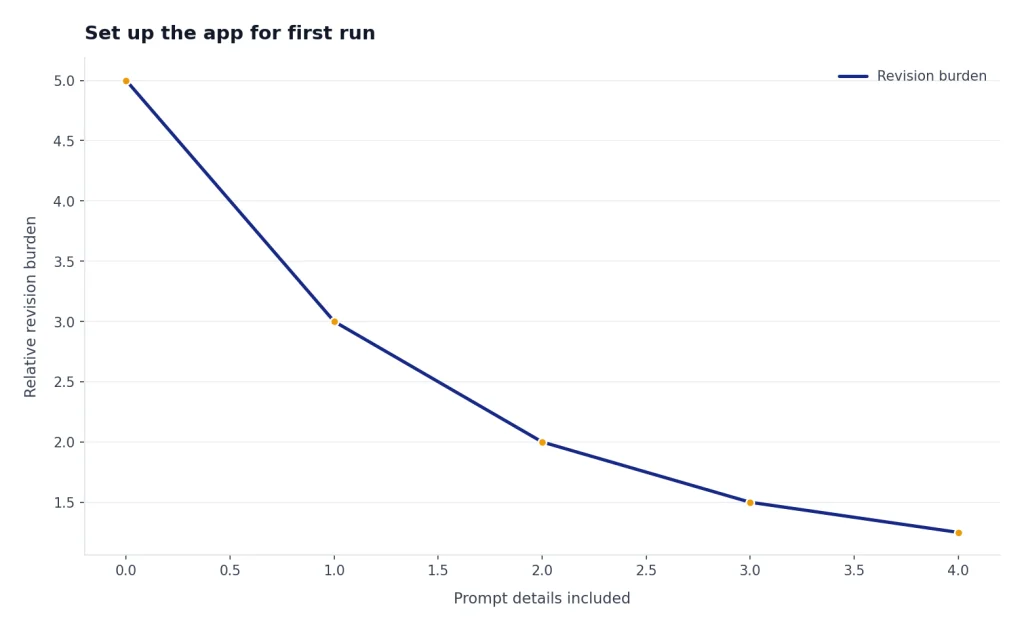
The simplest first prompt is small and concrete. Ask ChatGPT to summarize a pasted paragraph, draft a short email, explain an error message, or turn notes into a checklist. For writing tasks, you will get better results if you provide the audience, tone, length, and constraints. Our guides on making ChatGPT write like a human and making ChatGPT sound more human cover that workflow in more detail.
Use the Chat Bar from anywhere
The Chat Bar is the Mac app’s main advantage over using ChatGPT in a browser tab. OpenAI says you can open it with Option + Space by default, ask a question, upload files, take a screenshot, or take a photo.[3] You can also open it from the ChatGPT menu bar icon.[3]
Use the Chat Bar when you want a quick answer without switching windows. Press Option + Space, type the request, and press Return. If the answer becomes a longer thread, open it in the main window and continue there. If the shortcut conflicts with Spotlight, Raycast, Alfred, or another launcher, change the Chat Bar shortcut in ChatGPT settings; OpenAI says the shortcut can be changed in the Settings menu.[3]
Good Chat Bar requests are short but specific. Instead of typing “fix this,” write “Rewrite this email to sound concise and polite, under 120 words.” Instead of “explain,” write “Explain this terminal error in plain English and give me the next three commands to try.” The app is quick, but prompt clarity still matters.
- For reading: “Summarize this pasted text in five bullets.”
- For writing: “Draft a reply that says no without sounding harsh.”
- For planning: “Turn these notes into a prioritized task list.”
- For troubleshooting: “Explain this error and ask me for any missing details.”
- For comparison: “Create a table comparing these two options.”
If you prefer speaking instead of typing, use voice mode where available. OpenAI’s Voice Mode FAQ describes voice conversations as spoken conversations with ChatGPT and notes that microphone permission may be required.[10] For a device-wide walkthrough, see how to use ChatGPT voice mode.
Use files, photos, and screenshots
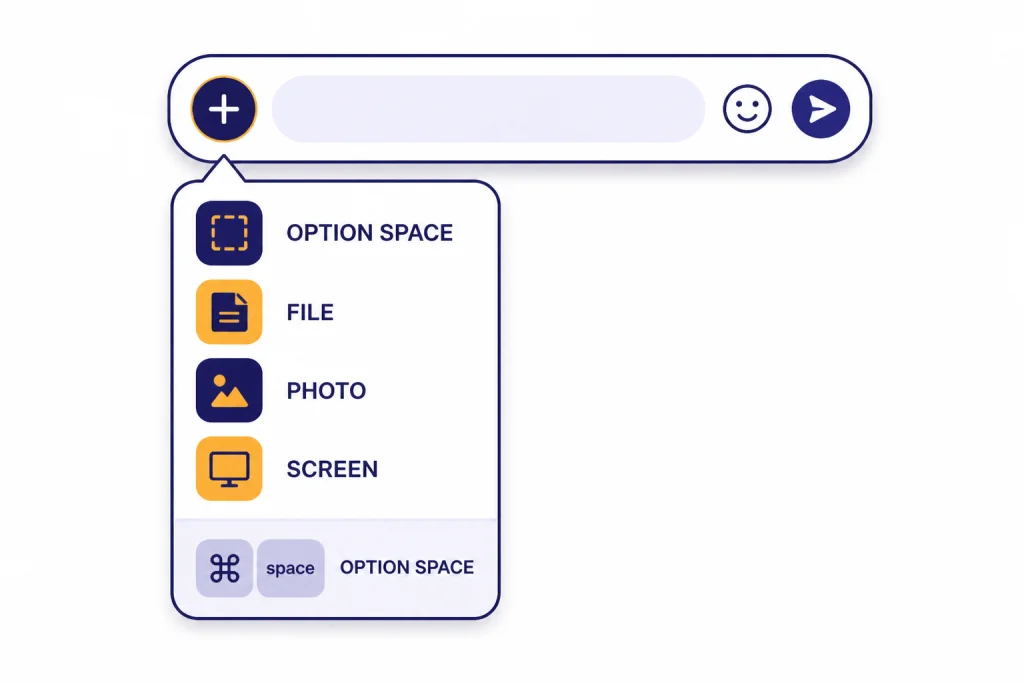
The Mac app can start or continue conversations with uploaded files, photos, and screenshots. OpenAI’s Chat Bar article says the plus button lets you attach a file, photo, screenshot, or new photo.[3] OpenAI’s file and photo guide says the macOS app can start new conversations with photos from your computer or photos you take, and that you may need to grant access to your photo library or camera.[5]
Use uploads when ChatGPT needs context that is hard to paste. A PDF, spreadsheet, screenshot, or image can make the request clearer. For example, you can attach a confusing settings panel and ask, “Which option should I change to stop these notifications?” You can attach a spreadsheet and ask for a summary of trends, outliers, or missing values.
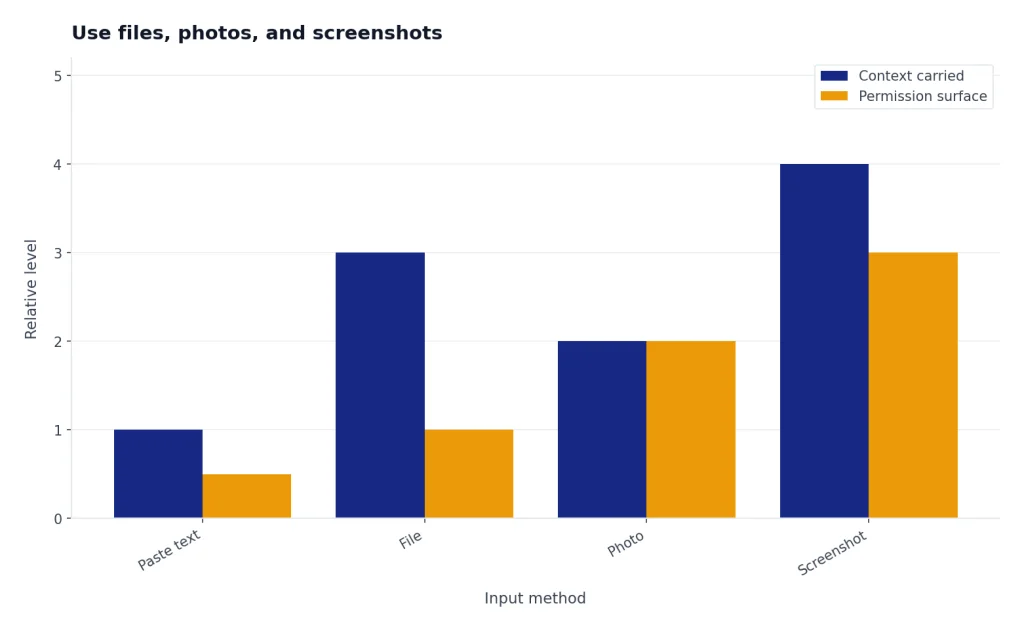
The screenshot tool is especially useful on Mac. OpenAI says you can open the prompt window or launcher, click the plus icon, choose the screenshot tool, and select from open app windows.[4] OpenAI also says ChatGPT needs access to record the computer’s screen and audio to use this feature, and that you may need to restart the app after enabling the permission in System Settings.[4]
| Input type | Best use | Mac permission to expect |
|---|---|---|
| File upload | Summarize, extract, compare, or analyze a document. | File picker access when you choose the file. |
| Photo library | Ask about an existing image from Photos. | Photo Library access may be required.[5] |
| Camera photo | Capture a physical object, whiteboard, label, or printed page. | Camera access may be required.[5] |
| Screenshot | Ask about a visible app window, error dialog, chart, or layout. | Screen and system audio recording permission may be required.[4] |
For image-specific tasks, see our separate guides on uploading a photo to ChatGPT and uploading images to ChatGPT. The Mac app uses the same basic idea, but the desktop shortcut makes it faster to attach what is already on your screen.

Use ChatGPT with Mac apps
For some workflows, the Mac app can work with other applications instead of waiting for you to copy and paste everything. OpenAI says ChatGPT for macOS can work with apps, starting with coding tools, terminals, and Notes.[6] OpenAI also says you can work with the active app by opening the Chat Bar with Option + Space or by clicking the ChatGPT menu bar icon.[6]
This is most useful when the context lives in another window. A developer can ask about code in an editor. A writer can ask for a rewrite of selected notes. A terminal user can ask what a command output means. The core habit is simple: bring the relevant app to the front, open the Chat Bar, and ask a question that names what you want done.
OpenAI says the Work with Apps feature can read and edit content in coding apps, and that edits can be reviewed as a diff before you apply them.[6] OpenAI also says compatible apps and requirements can be reviewed under ChatGPT settings for Work with Apps.[6] If the feature does not appear on a work or school account, it may be controlled by your organization’s settings.
- Open the file, note, terminal, or editor you want ChatGPT to reference.
- Bring that app to the front.
- Open ChatGPT with the menu bar icon or Option + Space.
- Ask a direct question, such as “Explain the selected function” or “Rewrite this note as a client update.”
- Review any proposed edits before applying them.
Do not treat Work with Apps as permission to share confidential material casually. If the content is private, regulated, or owned by your employer, follow your organization’s AI policy before connecting it to ChatGPT.
Mac app vs browser: which should you use?
The Mac app is best when ChatGPT is part of your daily desktop workflow. The browser is best when you are on an unsupported Mac, using a shared computer, or want the least possible app access. Both can reach ChatGPT, but they feel different in daily use.
| Situation | Use the Mac app | Use ChatGPT in a browser |
|---|---|---|
| You want fast access from any app | Yes. The Chat Bar opens with Option + Space by default.[3] | Less ideal. You need to switch to a tab or window. |
| You use an Intel Mac | No. OpenAI lists Apple Silicon, M1 or better, as a requirement.[1] | Yes. Use the web version instead. |
| You analyze visible screen content | Yes. The screenshot tool can attach an open window after permission is granted.[4] | Possible, but usually requires a manual screenshot upload. |
| You work with supported editors or terminals | Yes. Work with Apps supports app-aware workflows for coding tools, terminals, and Notes.[6] | Less direct. You usually paste context manually. |
| You use a locked-down company Mac | Maybe. OpenAI notes app access may depend on company IT policies.[1] | Maybe. Browser access may also be controlled by IT. |
If you also use a PC, our ChatGPT on Windows guide explains the Windows workflow. If you want the same account on mobile, see ChatGPT on iPhone or ChatGPT on Android.
Privacy, storage, and cleanup
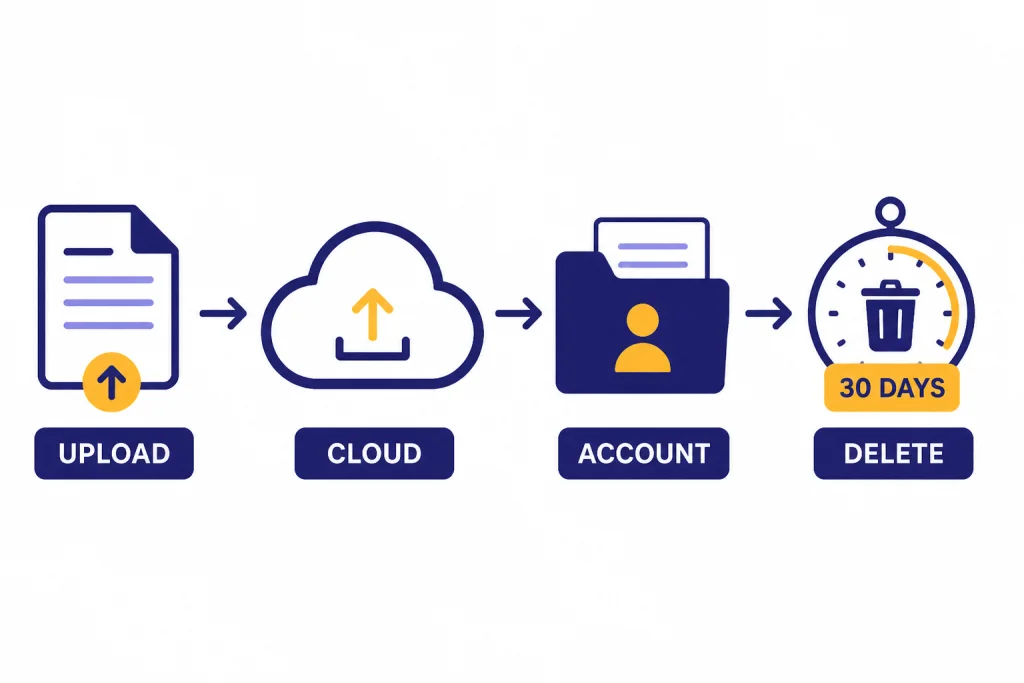
The Mac app is not a separate private vault. OpenAI says conversations, screenshots, and files in the ChatGPT macOS app follow the same data retention policies as the web version.[7] OpenAI also says files uploaded through the macOS app are stored in the cloud, not locally, and are tied to your OpenAI account.[7]
That means you should treat uploaded files and screenshots with the same care you use on the web. Do not upload passwords, private keys, medical records, client secrets, unpublished financials, or workplace material unless your policy allows it. If you need to preserve a useful answer outside ChatGPT, save it deliberately. We cover practical options in how to save a ChatGPT conversation and how to save ChatGPT as a PDF.
OpenAI says files uploaded in a conversation are retained until the associated chat is deleted or the account is deleted, and that deleted chats and files are fully removed from its systems within 30 days, with exceptions for cases such as legal or security obligations.[7] A separate OpenAI retention article also says a deleted chat is removed from the account immediately and scheduled for permanent deletion from OpenAI systems within 30 days, unless exceptions apply.[8]
Review model training settings as well. OpenAI’s Data Controls FAQ says Data Controls let users choose whether conversations help improve OpenAI’s models, and explains how to turn off “Improve the model for everyone.”[9] OpenAI says that after you turn this off, conversations still appear in chat history but are not used to train ChatGPT.[9]
- Delete chats you no longer need.
- Use temporary or low-sensitivity prompts for quick questions.
- Export important records before deleting your account or clearing large projects.
- Review Data Controls if you do not want future chats used for model improvement.
- Revoke Mac permissions you no longer use in System Settings.
If you need an archive of your account data, follow our guide to exporting your ChatGPT data. If you need to send a useful conversation to someone else, use our ChatGPT sharing guide instead of copying sensitive account details.
Troubleshooting common Mac issues
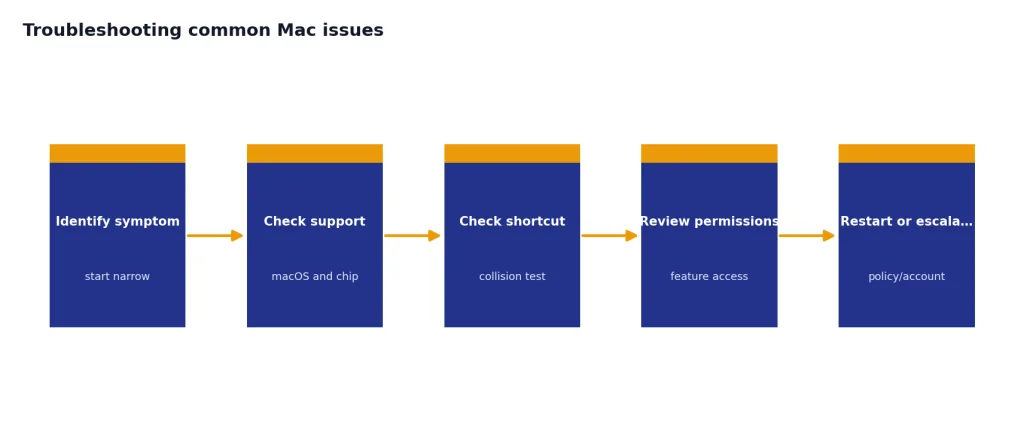
Most Mac app problems fall into a few categories: the Mac is unsupported, the shortcut is taken, a permission is missing, the app needs a restart, or a company policy blocks the feature. Work through the issue from the symptom, not by reinstalling immediately.
The app will not install
Check the Mac model first. OpenAI lists macOS 14 or later and Apple Silicon, M1 or better, as the requirement.[1] If your Mac does not meet that requirement, use ChatGPT in a browser.
Option + Space does not open ChatGPT
Make sure ChatGPT is running. Then check whether another launcher already uses the shortcut. OpenAI says the Chat Bar shortcut can be changed in settings.[3] Pick a shortcut that does not collide with Spotlight or your preferred launcher.
Screenshots do not work
Open System Settings and review screen recording permissions for ChatGPT. OpenAI says screen and audio recording access is required for the screenshot tool and that the app may need to restart after the setting changes.[4]
Photos or camera uploads fail
Check Photos and Camera permissions in macOS System Settings. OpenAI says photo library access may be needed for photo uploads and camera access may be needed for taking a new photo.[5]
Work with Apps is missing
Confirm the target app is supported and that the feature is enabled in ChatGPT settings. OpenAI says compatible apps and requirements can be viewed under Work with Apps settings.[6] If you use a company or school account, ask your administrator whether the feature is disabled.
If none of those steps work, quit ChatGPT completely, reopen it, and try again. If the problem affects sign-in, use the browser to verify your account first. That separates account problems from Mac app problems.
Frequently asked questions
Can I use ChatGPT on an Intel Mac?
You can use ChatGPT in a browser on an Intel Mac, but the official macOS desktop app is for Apple Silicon Macs. OpenAI lists the Mac app requirement as macOS 14 or later with M1 or better.[1] If your Mac does not qualify, use ChatGPT on the web.
What is the fastest way to open ChatGPT on Mac?
Use the Chat Bar shortcut. OpenAI says the default keyboard shortcut is Option + Space.[3] You can also open the Chat Bar from the menu bar icon.
Does the Mac app store my files locally?
OpenAI says files uploaded through the macOS app are stored in the cloud, not locally, and tied to your OpenAI account.[7] Treat uploaded files as account data, not as files that stay only on your Mac. Delete chats and files you no longer need.
Can ChatGPT see my whole screen on Mac?
Not by default. For the screenshot tool, you choose a screenshot or app window to attach, and macOS may require screen recording permission.[4] Only grant that permission if you want to use screenshot-based prompts.
Can I use the Mac app offline?
The desktop app is a client for ChatGPT, not a local offline model. Expect to need an internet connection for normal use. For a fuller explanation of what is and is not possible, read our ChatGPT offline reality check.
Is the Mac app better than ChatGPT in a browser?
It is better if you want desktop shortcuts, screenshots, file attachments, and app-aware workflows. The browser is better on unsupported Macs or shared devices. If your Mac supports the app, the Chat Bar is the main reason to install it.