

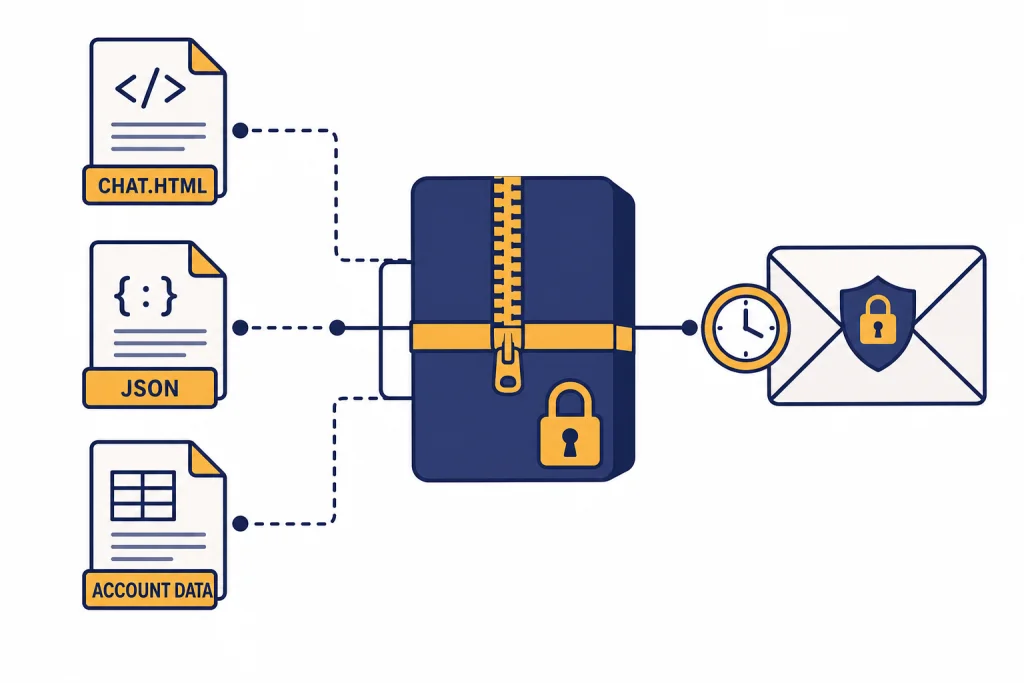
To export your ChatGPT data, sign in, open your profile menu, go to Settings, choose Data Controls, select Export Data, and confirm the export. OpenAI then sends a download link to the email address or phone number tied to your account. The file arrives as a ZIP archive and includes your chat history plus other relevant account data. OpenAI says the export link expires after 24 hours, exports can take up to 7 days to arrive, and the feature is available on Free, Plus, and Pro plans but not when you are logged out.[1] This guide explains the exact steps, the Privacy Portal option, what to expect in the ZIP, and safer alternatives for single conversations.
Quick steps to export your ChatGPT data
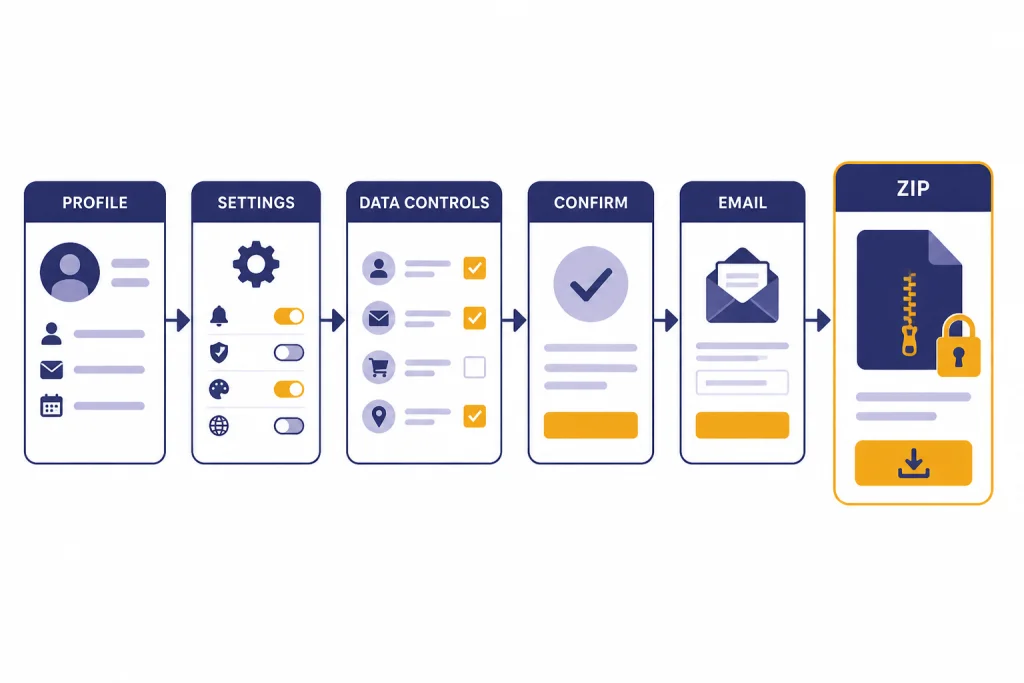
The fastest way to export your ChatGPT data is through the Data Controls panel in your account settings. Use this method when you can sign in normally and can access the email inbox or phone number associated with your account.
- Sign in to ChatGPT.
- Open your profile menu.
- Choose Settings.
- Open Data Controls.
- Find Export Data and choose Export.
- Confirm the export request.
- Wait for the email from OpenAI.
- Use the download link before it expires.
OpenAI’s help article says you should receive an email with your data after you confirm the request, and that the link in that email expires after 24 hours.[1] It also says exports can take up to 7 days to arrive and that only the most recent export request will be fulfilled, so repeated requests can cancel earlier ones.[1]
If you only need one conversation, a full account export is usually more than you need. Use how to save a ChatGPT conversation for a lightweight archive, or use how to save ChatGPT conversations as PDF if you need a readable file for school, work, or records.
How to export from ChatGPT on the web
The web method is the cleanest default. It works best from a desktop browser because settings are easier to inspect, but the same account-level export is what matters. Before you begin, make sure you are signed in to the right account. If you use multiple sign-in methods, such as email, Google, Microsoft, Apple, or a workspace login, check the email shown in the profile menu.
Step 1: Sign in to the correct account
Go to ChatGPT and sign in. If you cannot get into your account, fix sign-in first. The export is tied to the account you are currently using, so exporting from the wrong account will produce the wrong archive. Our ChatGPT login troubleshooting guide covers common sign-in loops, verification problems, and account mix-ups.
Step 2: Open Data Controls
Open your profile menu, choose Settings, then open Data Controls. OpenAI’s export instructions place the export control under the Data Controls menu in ChatGPT settings.[1] If the settings panel looks different, look for the same labels rather than the exact screen position. OpenAI has changed profile menu placement over time.
Step 3: Confirm the export
Under Export Data, choose Export, then confirm. OpenAI says you need access to the email inbox or phone number associated with the account because you may need to verify ownership before receiving the export.[1] Do not start this process if you cannot access that inbox or number.
Step 4: Download the ZIP file
When the email arrives, use the download button to save the ZIP file. Store it somewhere private. The export can contain sensitive prompts, personal notes, uploaded-file references, and other account information. If your browser blocks the download, try a different browser or use the Privacy Portal method below.
When to use the OpenAI Privacy Portal instead
OpenAI also lets users request a copy of their data through the Privacy Portal. OpenAI’s help article says the portal can be used to obtain a copy of your data and exercise other privacy rights.[1] This route is useful when the in-product export button is missing, the export email is not arriving, or you need a formal privacy request path rather than a quick settings action.
In the Privacy Portal flow, OpenAI says to make a privacy request, select that you have a consumer ChatGPT account, choose Download my data, and follow the on-screen steps.[1] You still need to verify ownership. If your ChatGPT account uses an email alias, a phone number, or a single sign-on provider, use the same identity that is tied to the account you want to export.
| Export path | Best for | What to expect |
|---|---|---|
| ChatGPT Settings > Data Controls | Normal account access | OpenAI emails a ZIP file link after you confirm the export.[1] |
| OpenAI Privacy Portal | Privacy requests, missing export button, or login-related friction | You verify account ownership and choose Download my data in the request flow.[1] |
| Manual save or PDF | One conversation or a human-readable record | You save only the chat you need instead of downloading your full account archive. |
Use the Privacy Portal when accuracy and identity matching matter more than speed. Use the in-product Data Controls export when you are already signed in and only need the standard archive.
How exporting works on iPhone and Android
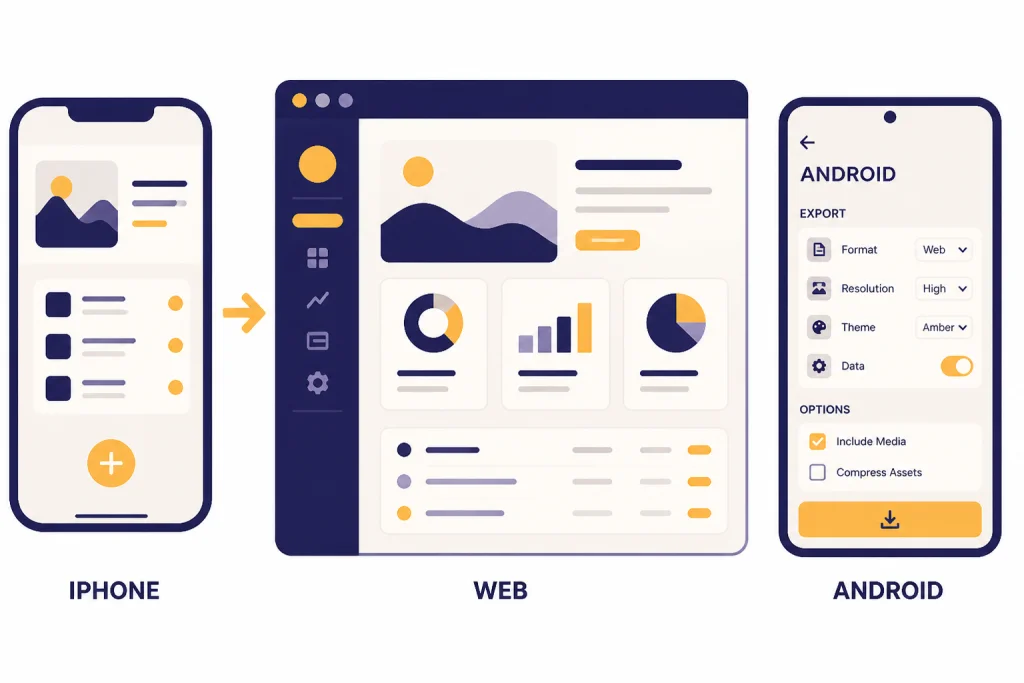
Mobile export instructions differ by platform. OpenAI’s current iOS app FAQ directs users to export data from ChatGPT on the web and refers them to the web export help page.[2] OpenAI’s Android export article says Android users can navigate to Data Controls and click Export Data, after which the ZIP file is sent to the registered email address and the link expires after 24 hours.[3]
If you use an iPhone, the most reliable path is to open a browser, sign in to your ChatGPT account, and use the web steps above. If you use Android, check the app’s Data Controls screen first. If the button is not there, use the web path or the Privacy Portal. If you are still setting up the app, see how to download the ChatGPT app, how to use ChatGPT on iPhone, or how to use ChatGPT on Android.
The export itself is account-based. That means a ZIP requested on the web can include account data tied to conversations you created from mobile, and a mobile export request should go to the same registered account email. The device is only the doorway to the account setting.
What the ChatGPT data export contains
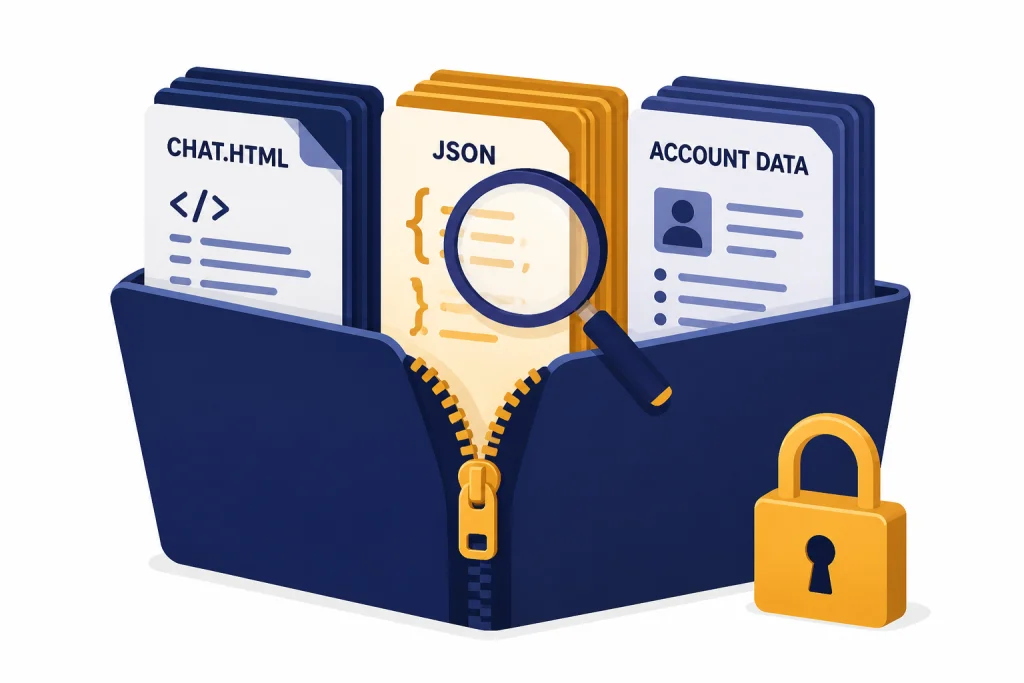
OpenAI describes the export as a ZIP file that includes your chat history and other relevant account data.[1] An OpenAI account-transfer article also describes the exported ZIP as containing conversations.json among other files.[5] Older OpenAI export wording has also referred to a readable chat.html file, but the exact structure can change, so treat the export as an account archive rather than a polished document.
Expect the archive to be useful for searching, recordkeeping, and personal backup. Do not expect it to recreate your ChatGPT sidebar exactly. OpenAI’s account-transfer guidance says uploading conversations.json into another account will not recreate the conversations in chat history; it only gives you a record that can be used in a new conversation for historical context.[5]
- Chat history: exported conversations associated with the account.
- Structured data: JSON files that software tools can parse.
- Readable data: files that may be easier to inspect in a browser or text editor.
- Account data: other relevant account information OpenAI includes in the archive.[1]
Do not upload the full ZIP to random “ChatGPT export viewer” sites. It may contain private work, health details, student information, client data, code, personal plans, or identifying details. If you want to reuse part of an old chat inside ChatGPT, extract only the specific text or JSON file you need. For large files, the account-transfer article notes that you may need to split the JSON into smaller files before uploading.[5] If your export includes image-related work, keep it separate from any files you use with ChatGPT image upload workflows.
Exporting data vs saving, sharing, or deleting chats
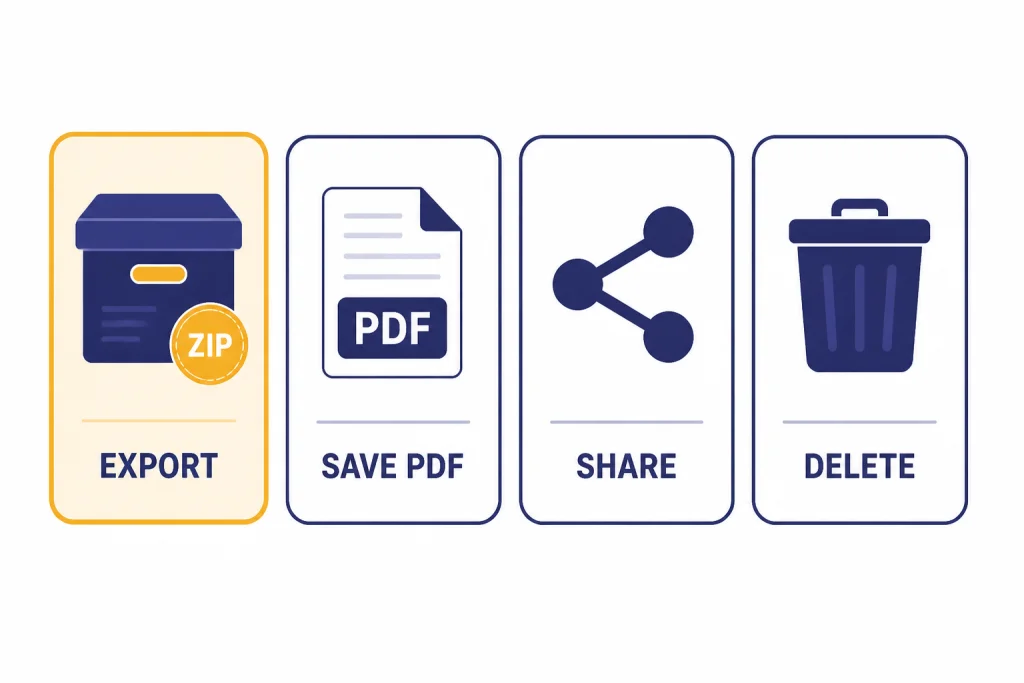
A full data export is not the right tool for every job. It is best for a complete backup or a privacy review. If you need a readable record for one chat, save or print that conversation instead. If you want someone else to read a chat, use sharing. If you want a conversation removed from your account, deleting is the relevant action.
| Task | Use this action | Why |
|---|---|---|
| Back up your account history | Export data | Downloads a ZIP archive with chat history and other relevant account data.[1] |
| Keep one chat for later | Save the conversation | Cleaner than searching through a full archive. |
| Create a readable document | Save as PDF | Better for school, legal, HR, or project records. |
| Let someone view a chat | Share the conversation | Creates a shareable view without sending your full export. |
| Remove a chat from your account | Delete the chat | OpenAI says deleted chats are removed from view immediately and scheduled for permanent deletion within 30 days, unless exceptions apply.[4] |
If your goal is collaboration, read how to share a ChatGPT conversation. If your goal is a personal record, use this guide to saving ChatGPT conversations. If your goal is privacy cleanup, export first, inspect what you need, then decide what to delete.
Troubleshooting missing or expired exports
If your export does not arrive, do not immediately submit several new requests. OpenAI says data exports can take up to 7 days, that users should check inbox, spam, and promotions folders for an email from [email protected], and that only the most recent export request will be fulfilled while earlier requests are canceled.[1]
The email never arrived
Check the email address or phone number tied to the account. Then check spam, promotions, quarantine, and corporate security filters. If you use a work email, your organization may block automated ZIP download messages. If the wait has reached OpenAI’s stated upper window, submit a new export request or use the Privacy Portal.[1]
The link expired
OpenAI says the email link expires after 24 hours.[1] If you miss that window, request another export. Do not forward the old link to another address or try to bypass the expiration. A fresh request is cleaner and safer.
The export looks incomplete
First confirm that you exported the correct account. Then check whether the missing chats were archived, deleted, created in a different workspace, or created while signed into another account. OpenAI’s missing-chat troubleshooting also suggests checking archived chats, confirming the right account or workspace, and requesting a data export to confirm which chats are still stored in the account.[4]
You cannot find the export button
OpenAI says the export feature is available on Free, Plus, and Pro plans and is not available to logged-out users.[1] OpenAI’s transfer article also states that users cannot export from a ChatGPT Business account in that account-migration workflow.[5] If you are in a business workspace, ask your workspace administrator what data access and retention options apply.
Privacy checklist before and after exporting
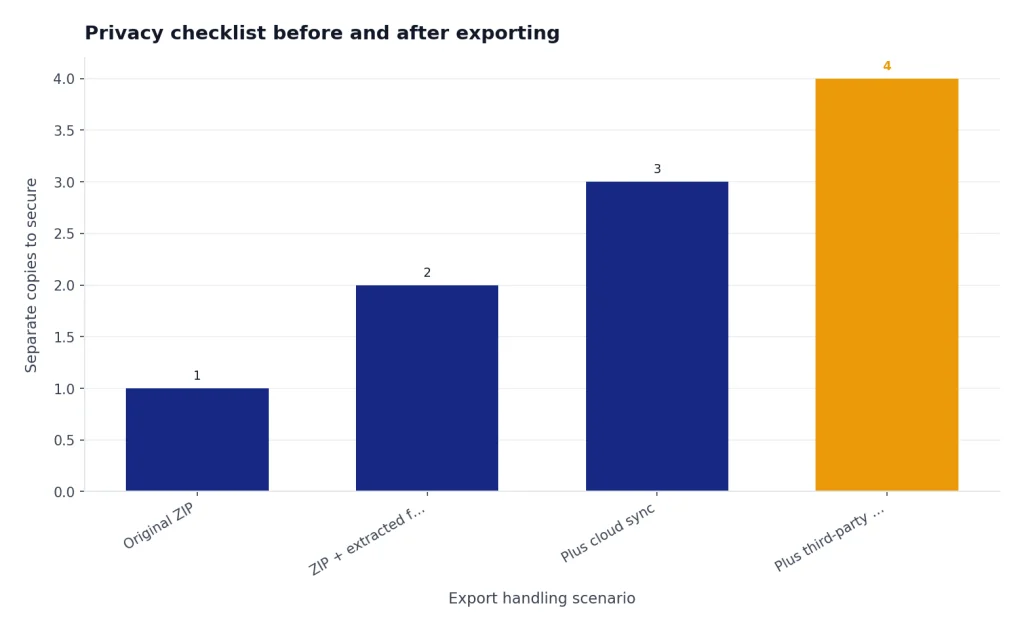
A ChatGPT export can be more sensitive than it looks. Many people use ChatGPT for drafts, medical questions, relationship notes, work plans, code, client emails, school assignments, and brainstorming. Treat the ZIP like a private document archive.
- Export before deleting. If you might need a record, download and inspect the archive before removing chats.
- Store it locally or in a trusted cloud drive. Avoid shared folders unless you intend others to read it.
- Rename the ZIP clearly. Use a date and account label so you know what it contains later.
- Do not upload the full archive to third-party tools. Extract only the pieces you need.
- Remove sensitive copies. If you unzip the archive, remember that the extracted folder is a second copy.
- Review training settings separately. Exporting data does not change whether future chats may be used to improve models.
OpenAI’s consumer data FAQ says content submitted to ChatGPT and other individual services may be used to improve model performance depending on user settings, while business offerings such as the API, ChatGPT Business, and ChatGPT Enterprise are not used to improve model performance by default unless the customer opts in.[6] If privacy is the reason you are exporting, also review your Data Controls settings after the download.
Finally, secure the account itself. If someone else can access your inbox or ChatGPT account, they may be able to request another export. If you suspect account access problems, update your credentials with how to change your ChatGPT password.
Frequently asked questions
Can I export ChatGPT data without logging in?
No. OpenAI says the export feature is not available to logged-out users.[1] You need to sign in or verify account ownership through the Privacy Portal flow.
How long does a ChatGPT export take?
OpenAI says data exports can take up to 7 days to arrive.[1] In many cases the email may arrive sooner, but you should not rely on instant delivery if you need the archive for a deadline.
How long does the download link last?
OpenAI says the export email link expires after 24 hours.[1] If the link expires, submit a new export request or use the Privacy Portal.
Can I import the export into a new ChatGPT account?
Not as a true sidebar restore. OpenAI says uploading conversations.json into a new conversation can preserve a record for historical context, but it will not recreate the old conversations as separate chats in your history.[5]
Does exporting delete my chats?
No. Exporting creates a copy of your account data; it does not remove conversations. To remove a chat, delete it separately. OpenAI says deleted chats are removed from view immediately and scheduled for permanent deletion within 30 days unless exceptions apply.[4]
Is a full export better than saving a PDF?
Use a full export when you want an account-level backup or a privacy review. Use a PDF when you need one conversation in a readable format. A PDF is easier to share, but it is not a complete account archive.