

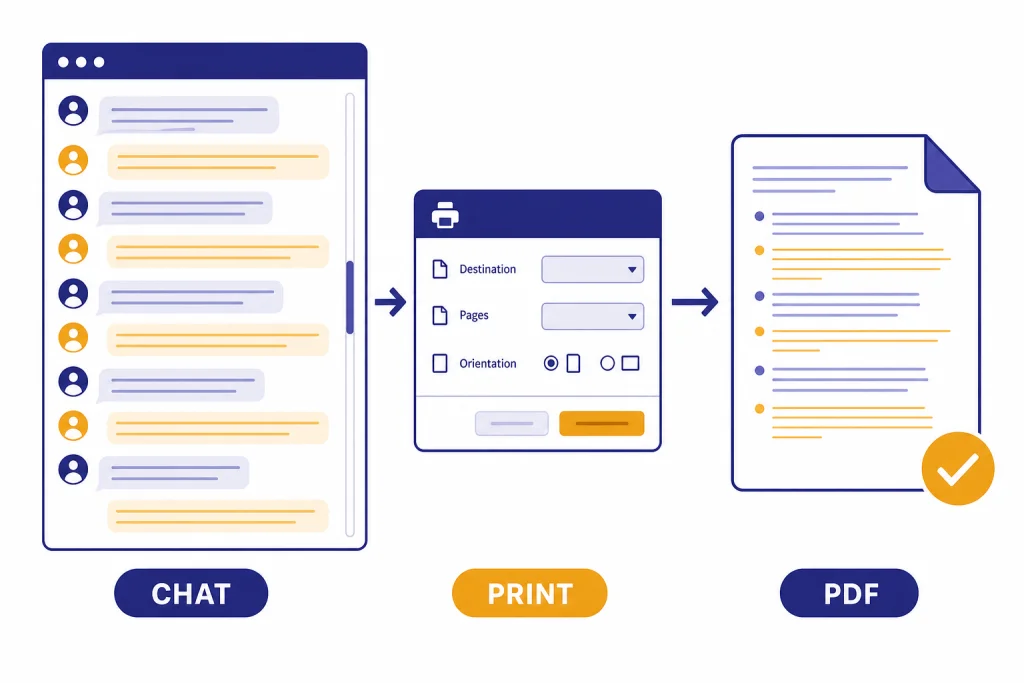
The fastest way to save ChatGPT as PDF is to open the conversation in a desktop browser, press Ctrl+P on Windows or Command+P on Mac, choose Save as PDF or the system PDF option, and save the file. This works best after you scroll through the whole chat so older messages load into the page. On iPhone, use Safari’s share and Markup flow. On Android, the browser print or share menu is usually the simplest route. If you need your full account history instead of one conversation, use OpenAI’s data export, which downloads your chat history in a zip file rather than a single ready-made PDF.[1]
Quick answer
ChatGPT does not need a special PDF export button for most everyday saves. Use your browser’s print feature. Open the chat, scroll until the part you need is visible and loaded, then print the web page to a PDF file.
In Chrome on a computer, Google says you can open the page, choose File > Print or use Ctrl+P on Windows and Linux or Command+P on Mac, then choose the destination and print settings. Chrome’s help page also refers to the Save as PDF option in the print preview flow.[3] In Microsoft Edge, Microsoft lists Ctrl+P on Windows and Command+P on Mac as print shortcuts, and also lets you open Print from the browser menu or right-click menu.[4]
For a one-off record, PDF is usually enough. If you want to preserve a working chat in your sidebar, read our separate guide on how to save a ChatGPT conversation. If you want a portable backup of your account data, use how to export your ChatGPT data instead.
Before you save the conversation
Do three quick checks before you create the PDF. They prevent most incomplete or messy exports.
- Open the exact conversation. Make sure you are not viewing the wrong thread, an archived copy, or a shared-link copy.
- Scroll through the conversation. Long ChatGPT conversations may not render every older message until you scroll up. If the browser has not loaded a message, it may not appear in the PDF.
- Decide what should be included. PDF captures visible page content. It is not the same as a full account data export, and it may not preserve hidden alternatives, app-only interface states, or files attached elsewhere.
If the conversation includes a document, image, code output, or other attachment, save those files separately when possible. A PDF of the chat can show the surrounding discussion, but it may not contain the original attachment in a reusable form.
Also consider whether you need the conversation for evidence, school, work, or personal reference. For formal citation, a PDF may be useful as your private record, but you still need the citation style your institution requires. We have separate guides for citing ChatGPT in MLA format, citing ChatGPT in Chicago style, and citing ChatGPT in Harvard style.
Save a ChatGPT conversation as PDF on Windows or Mac
The desktop browser method is the most reliable way to save ChatGPT as PDF. It gives you a print preview, page range controls, paper size settings, and a file name prompt.
Chrome on Windows, Mac, or Chromebook
- Open ChatGPT in Chrome and open the conversation you want to save.
- Scroll from the top to the bottom of the part you want in the PDF.
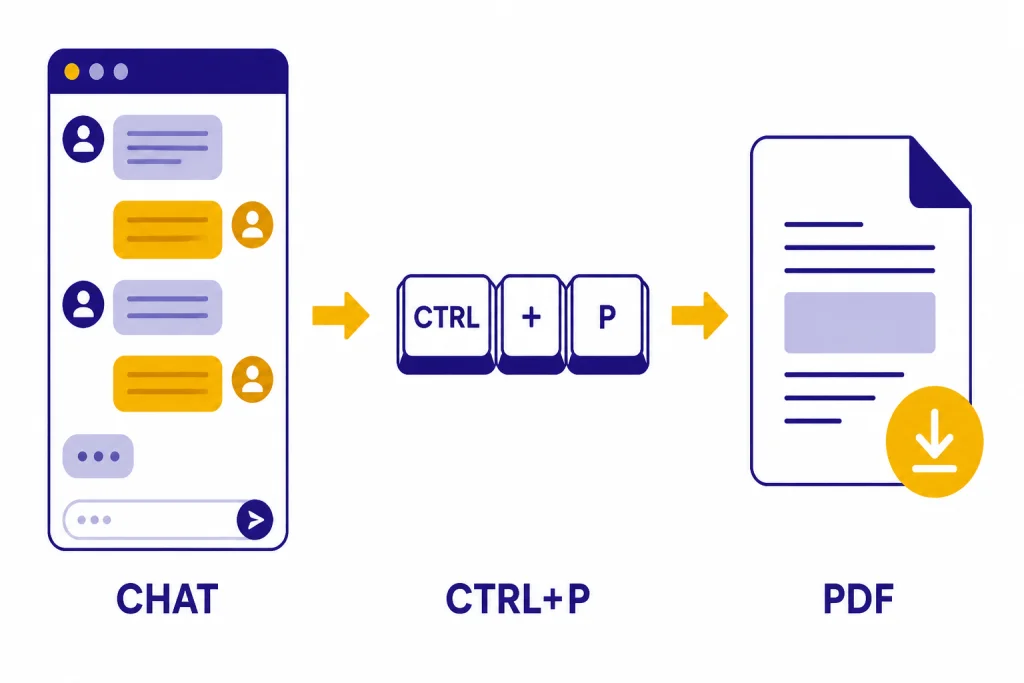
- Press Ctrl+P on Windows, Linux, or Chromebook. Press Command+P on Mac.
- Choose Save as PDF as the destination.
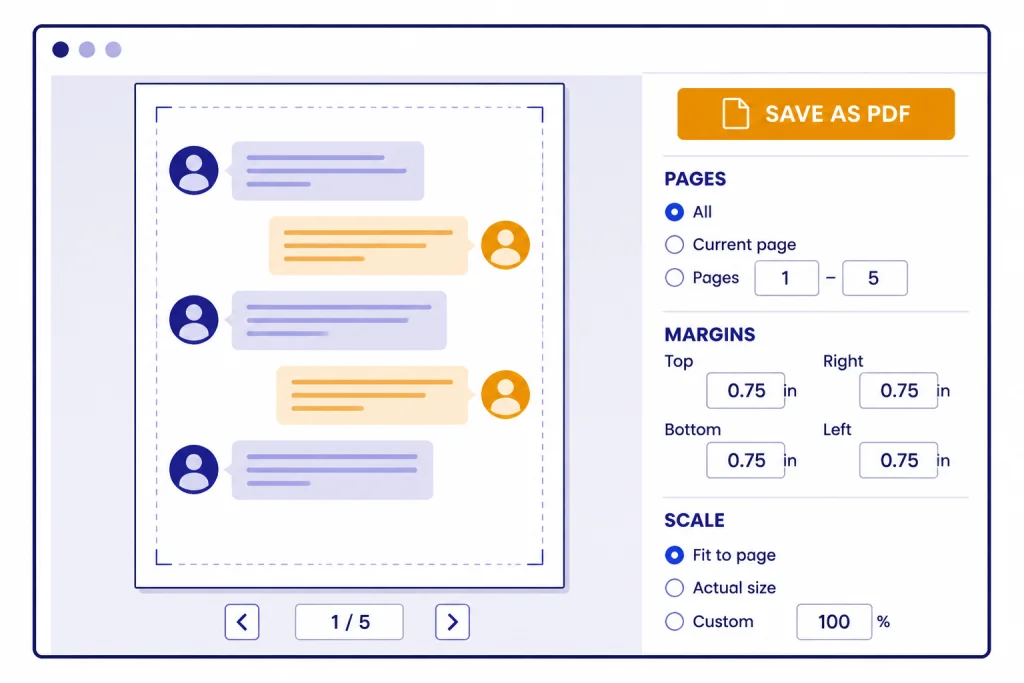
- Open more settings if you need to change paper size, margins, scale, or background graphics.
- Click Save, choose a folder, and give the file a useful name.
Chrome’s official help confirms the File > Print path and the Ctrl+P or Command+P shortcuts for printing from the browser.[3] For ChatGPT conversations, use a file name that includes the topic and date, such as meal-plan-chatgpt-2026-04-05.pdf. That makes the PDF easier to find later.
Microsoft Edge on Windows or Mac
- Open the conversation in Edge.
- Scroll through the conversation so the messages load.
- Press Ctrl+P on Windows or Command+P on Mac.
- Choose a PDF destination, such as Save as PDF or the system PDF printer available on your device.
- Review the preview before saving.
- Save the PDF in your documents folder, cloud drive, or project folder.
Microsoft’s Edge help lists the print dialog shortcuts and also says you can open Print from the browser menu or by right-clicking the page.[4] Edge also has options for background graphics and page layout. If your ChatGPT formatting looks too plain, try enabling background graphics. If the PDF looks too crowded, lower the scale or use narrower margins.
Safari on Mac
- Open ChatGPT in Safari.
- Open the conversation and scroll through the messages you want to keep.
- Choose File > Print.
- Use the PDF menu at the bottom of the print dialog.
- Choose the option to save the web page as a PDF.
- Name the file and save it.
Apple’s Safari guide says to choose File > Print for a web page and use the PDF control at the bottom of the dialog to create a PDF.[5] Safari is a good choice on Mac when you want the system PDF workflow rather than a browser-specific print preview.
Save a ChatGPT conversation as PDF on iPhone or Android
Mobile PDF saving works, but it is less comfortable for long conversations. If the chat is important or very long, use a computer when you can. If you only have a phone, use the browser version of ChatGPT rather than relying only on the app interface.
iPhone or iPad
- Open Safari and go to ChatGPT.
- Open the conversation you want to save.
- Scroll through the chat so the relevant messages load.
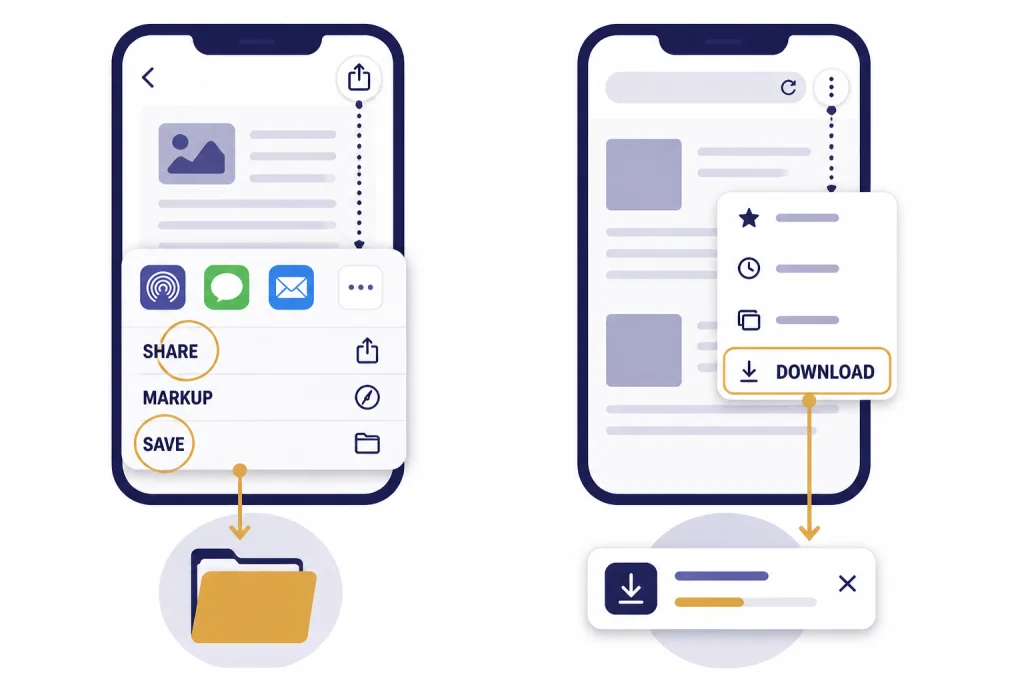
- Tap the Share button or More button, depending on your Safari layout.
- Use Markup or the PDF save flow available in Safari.
- Save the file to the Files app.
Apple’s iPhone guide says Safari can mark up a webpage and share it as a PDF, then save it to Files after you choose Save File To.[6] This method is practical for short chats, receipts, quick instructions, and travel notes. For a long thread, the preview may be hard to inspect on a small screen.
If you often use ChatGPT on mobile, our device guides for ChatGPT on iPhone and ChatGPT on Android can help you decide whether to use the browser or the app for different tasks.
Android
On Android, the cleanest path depends on your browser and device. Many Android browsers expose PDF saving through Share, Print, or a browser menu. Firefox for Android has a direct Save as PDF flow: open the page, tap the menu, tap the share icon, tap Save as PDF, and download the file.[7]
- Open ChatGPT in your Android browser.
- Open the conversation and load the messages you need.
- Open the browser menu or share sheet.
- Choose Print or Save as PDF if your browser offers it.
- Save the PDF to Downloads, Files, or your preferred cloud storage folder.
If your Android browser only saves a partial page, try a different browser or use a desktop computer. Long dynamic pages can be inconsistent on mobile.
Which saving method should you use?
PDF is only one way to preserve a ChatGPT conversation. The best method depends on whether you want a polished document, an editable text file, a backup, or a shareable link.
| Method | Best for | Main advantage | Main limitation |
|---|---|---|---|
| Browser print to PDF | Saving one visible conversation | Fast, searchable in many PDF viewers, easy to email | May miss unloaded parts of very long chats |
| Copy and paste into a document | Editing before saving | Lets you remove clutter and add headings | Manual formatting takes time |
| OpenAI data export | Backing up account history | Includes chat history and relevant account data in a zip file | Not a single polished PDF; download link expires after 24 hours[1] |
| Shared link | Letting someone view a conversation online | No file attachment needed | Anyone with access to the link can view it, and OpenAI says granular permissions are not available[2] |
| Screenshots | Capturing a short visual snippet | Preserves what you saw on screen | Poor for long chats and text search |
Use PDF when you need a stable, portable copy. Use copy-paste when you plan to revise the text. Use data export when you want a broader backup. Use a shared link only when you are comfortable with link-based access. For the link workflow, see our guide on how to share a ChatGPT conversation.
How to make the PDF cleaner and more useful
A raw browser PDF can be good enough, but a few small changes make it easier to read later.
Use a descriptive title
Before printing, rename the conversation in ChatGPT if you want a clearer title in the browser tab and file name. Use the topic, project, or client name. Avoid vague names such as chat.pdf or conversation.pdf.
Remove private details first
If you plan to send the PDF to someone else, do not include private prompts, personal data, file names, account details, or sensitive answers that were only relevant to you. It is usually safer to copy the useful parts into a new document and export that document as PDF.
Use page ranges for long chats
If the print preview creates dozens of pages, save only the pages you need. You can also make several smaller PDFs: one for the prompt, one for the final answer, and one for any code or table output. Smaller files are easier to search, attach, and review.
Copy important code separately
PDF is not ideal for code reuse. Line wrapping, page breaks, and hidden formatting can introduce mistakes. If your ChatGPT conversation contains code, copy the final code into a plain text file or code editor as well as saving the PDF. For data-heavy workflows, our ChatGPT Code Interpreter tutorial may be more useful than a PDF-only archive.
How OpenAI data export fits in
OpenAI’s data export is different from saving one conversation as a PDF. The export is for account data. OpenAI’s help article says to sign in, open Settings, go to Data Controls, use Export Data, confirm the export, and download a zip file from the email when it arrives.[1]
The same OpenAI help article says the email link expires after 24 hours and that exports can take up to 7 days to arrive.[1] It also says this functionality is available on Free, Plus, and Pro plans, and is not available to logged-out users.[1] If you are trying to save ChatGPT without signing in, see how to use ChatGPT without logging in, but expect fewer account-level options.
Use data export when you want a backup, not a polished document. The exported files are better for archiving and migration than for handing a neat transcript to a teacher, client, coworker, or lawyer. If you need both, export your data for backup and create a PDF of the specific conversation for reading.
Privacy and sharing cautions
A PDF copy is a new file. It may live outside ChatGPT, outside OpenAI’s settings, and outside your normal chat controls. Deleting the original conversation later does not automatically delete PDFs you saved, emailed, uploaded, or synced to cloud storage.
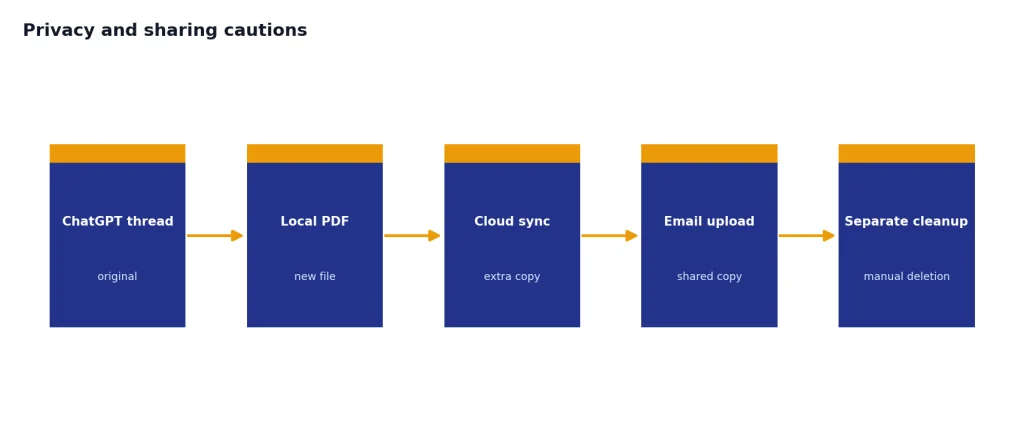
Shared links need separate caution. OpenAI’s shared links FAQ says anyone with access to a shared link can view the linked conversation and says granular permissions are not currently available.[2] It also says shared conversations are included in ChatGPT data export.[2]
For sensitive material, PDF is often safer than a public or semi-public link because you control the file distribution. But that control only works if you store the file carefully. Use a private folder, remove unneeded personal details, and avoid uploading the PDF to tools or services you do not trust.
If you are creating PDFs from the desktop app, the exact print behavior can differ by operating system. When in doubt, open the same chat in a browser and use the browser print workflow. If you still need the official app, see how to download the ChatGPT app, how to use ChatGPT on Windows, or how to use ChatGPT on Mac.
Troubleshooting common PDF problems
The PDF only includes part of the chat
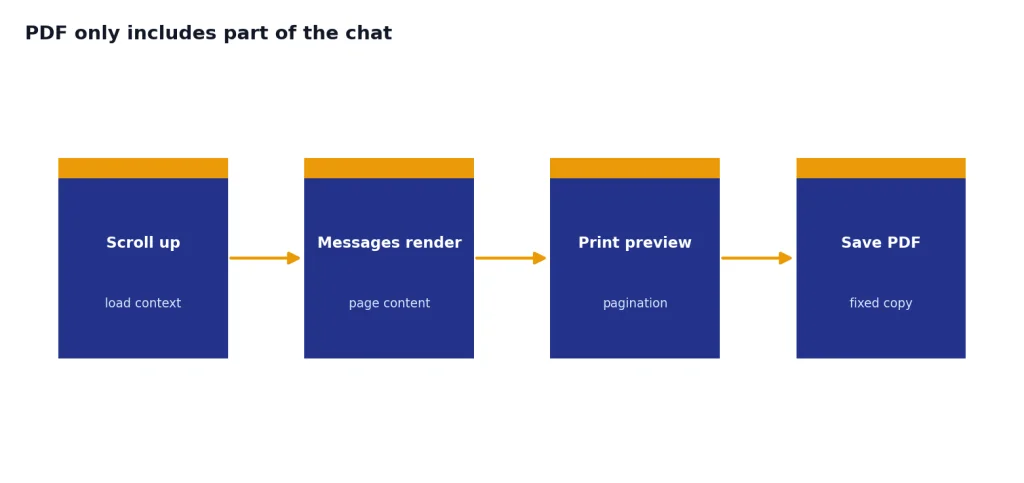
Scroll through the conversation before printing. If the first messages are not loaded in the page, the browser cannot reliably include them in the PDF. For very long chats, save several PDFs by section.
The file is too many pages
Use page ranges in the print preview. You can also reduce scale, switch orientation, or copy the final answer into a document and save that shorter document as PDF. Do not shrink the text so much that the PDF becomes unreadable.
The formatting looks wrong
Try another browser. Chrome, Edge, and Safari render web pages differently. Edge also documents a background graphics option that can help when the print preview looks different from the web page.[4]
The PDF is not searchable
Use the browser’s built-in Save as PDF option rather than taking screenshots. Screenshots create image-based records unless optical character recognition is applied later. If search matters, test the finished PDF by opening it and searching for a phrase from the chat.
You cannot find the saved file
Check Downloads, Desktop, Documents, Files, or your browser’s last-used save folder. On Android, Mozilla says Firefox saves the downloaded PDF to the Downloads folder.[7] On iPhone, Apple’s Safari flow ends by saving through Files when you choose Save File To.[6]
Frequently asked questions
Can ChatGPT export a conversation directly as PDF?
OpenAI’s help documentation describes a data export that downloads account data as a zip file, not a one-click per-conversation PDF.[1] For a normal PDF, use your browser’s print-to-PDF feature.
What is the easiest way to save ChatGPT as PDF?
Use a desktop browser. Open the conversation, scroll through it, press Ctrl+P on Windows or Command+P on Mac, choose Save as PDF, and save the file. This gives you a preview before you create the PDF.
Can I save a ChatGPT PDF from the mobile app?
You may be able to use your device’s share or print features, but the browser is usually more predictable. On iPhone, Safari has a webpage-to-PDF workflow through Share, Markup, and Files.[6] On Android, try the browser menu, share menu, or a browser with a direct Save as PDF option.
Will the PDF include the whole conversation?
It should include the parts that are loaded and included in the browser’s print preview. Long conversations can be incomplete if older messages have not loaded. Scroll through the full chat before printing and check the preview.
Is a PDF better than a shared link?
A PDF is better when you need a fixed file or private archive. A shared link is better when you want someone to view the conversation online without sending an attachment. OpenAI says anyone with access to a shared link can view the linked conversation, so do not use shared links for sensitive content.[2]
Does OpenAI data export replace saving PDFs?
No. Data export is a backup-style download of your chat history and relevant account data in a zip file.[1] A PDF is better for reading, sharing, printing, or attaching one specific conversation.