

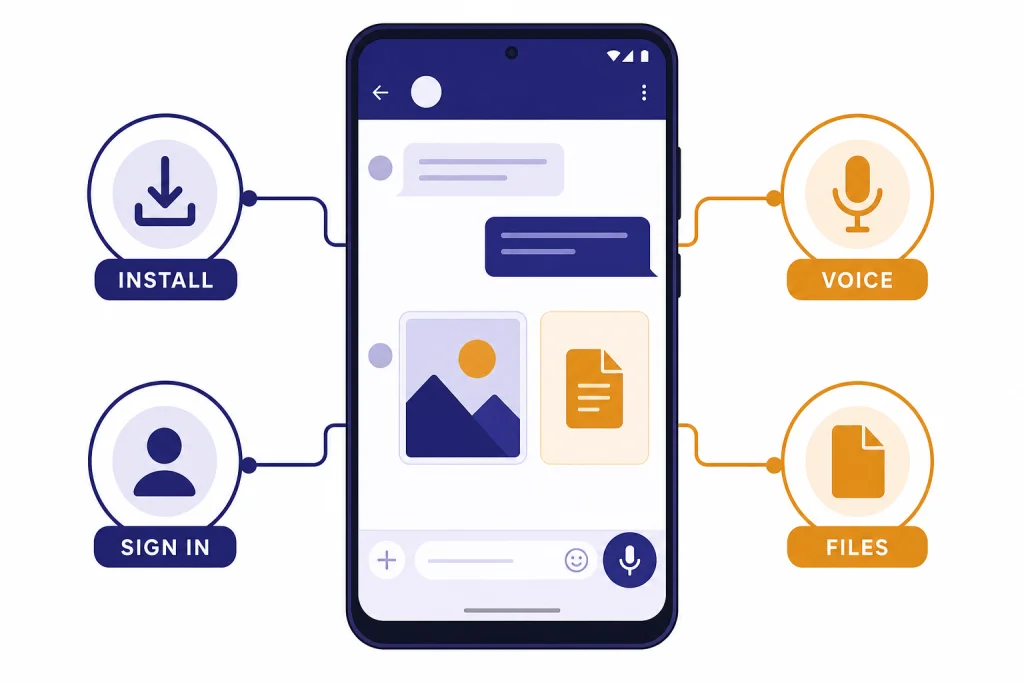
To use ChatGPT on Android, install the official ChatGPT app from Google Play, sign in with your OpenAI account, then start a new chat from the message bar. The Android app supports regular text prompts, voice conversations, chat history, image generation, file uploads on eligible plans, data controls, and subscription management through Google Play when you subscribe there. The key setup step is verification: download the app published by OpenAI, not a look-alike app. After that, the Android experience is close to ChatGPT on the web, but with mobile-specific controls for voice, photos, notifications, sharing, and Google Play billing.
What you need before you start
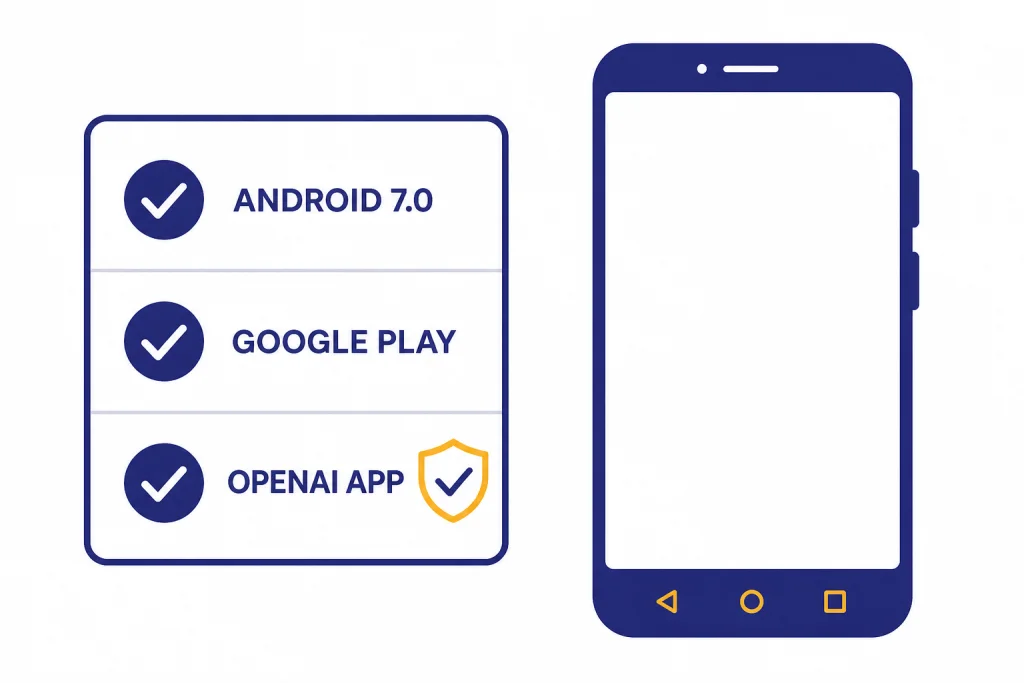
You need an Android phone or tablet with Google Play and Android 7.0 or newer to run the official ChatGPT Android app.[1] If your phone cannot install the app, check the Android version, Play Store availability, and whether your country is supported before assuming the app is broken.
You also need either a ChatGPT account or a supported way to use ChatGPT without one. The Android app is designed around a signed-in account because that is how chat history, settings, subscriptions, and cross-device syncing work. If you are not ready to create an account, read our guide to how to use ChatGPT without logging in first, because the browser flow may fit you better than the Android app.
The safest path is simple. Use Google Play, search for “openai chatgpt,” and confirm that OpenAI is the publisher. OpenAI’s own Android install guidance tells users to make sure they are downloading the official app published by OpenAI.[2] The Google Play listing also describes the app as the official ChatGPT app for Android and says it syncs history across devices.[3]
If you use ChatGPT across several devices, the same account can connect your Android phone, desktop browser, and other apps. OpenAI’s download page lists ChatGPT for Android alongside iOS, macOS, Windows, and the web.[4] For a broader device overview, see our guide to downloading the ChatGPT app on any device.
Install the official ChatGPT Android app
Start in the Google Play Store, not a random search result. Search for “openai chatgpt,” open the app page, check the publisher, and install it. OpenAI says the Android app can be found either by searching Google Play for “openai chatgpt” or by using the direct Google Play link from its Help Center.[2]
- Open the Google Play Store on your Android device.
- Search for openai chatgpt.
- Open the listing for ChatGPT published by OpenAI.
- Tap Install.
- Open the app after installation finishes.
Do not install apps that imply they are ChatGPT but list a different publisher. Some third-party apps may use OpenAI’s API, but that does not make them the official ChatGPT app. The official app matters because it uses OpenAI’s normal ChatGPT account flow, syncs your history, and connects to ChatGPT settings and subscription status through your account.
If the app does not appear in Google Play, try these checks before sideloading anything: update Google Play, confirm your Android version, verify that you are using a supported Google account region, and open OpenAI’s official download page from a browser. OpenAI says Android availability depends on supported countries.[2]
Sign in and set up the basics
Open the app and sign in with the same method you normally use for ChatGPT. That might be Google, Apple, Microsoft, or email and password, depending on how you created the account. If you are stuck at this step, use our ChatGPT login troubleshooting guide before resetting anything.
On Android, browser setup can affect login. OpenAI says the ChatGPT Android app attempts to log in with Chrome or Brave when those browsers are installed, and recommends Google Chrome as the default browser to resolve many common login issues.[1] If sign-in fails, update Chrome, update Google Play, and try again on a stable network.
After you sign in, open the sidebar and tap your profile icon. This is where you can find account settings, data controls, app information, and the Android app version. OpenAI’s Android FAQ says the app version appears under About after opening the sidebar and tapping the profile icon.[1]
Set up the basics before you rely on the app for work or school:
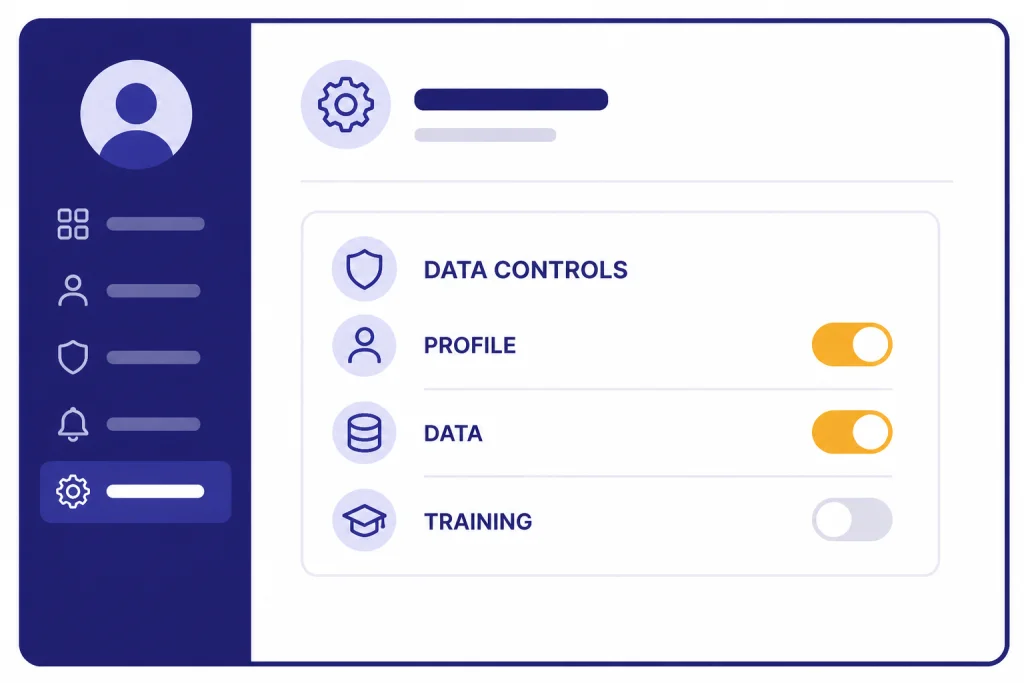
- Check Data Controls. Decide whether your chats can help improve OpenAI’s models.
- Review memory and personalization. Ask ChatGPT what it remembers about you if memory is available on your account.
- Turn on notifications only if useful. They can help for long tasks, but they are not required.
- Confirm your plan. Some features and usage limits vary by plan.
- Check app permissions. Android may ask for microphone, camera, files, or photo access when you use those features.
OpenAI’s Data Controls FAQ says signed-in users can open the mobile sidebar, tap the profile icon, select Data Controls, and turn off “Improve the model for everyone.” The same FAQ says that once model training is turned off, the setting applies to the entire account across devices.[6]
Send your first prompt on Android
The fastest way to start is to type one clear request into the message bar. Keep the first prompt specific. ChatGPT works better when you provide the task, context, constraints, and preferred output format.
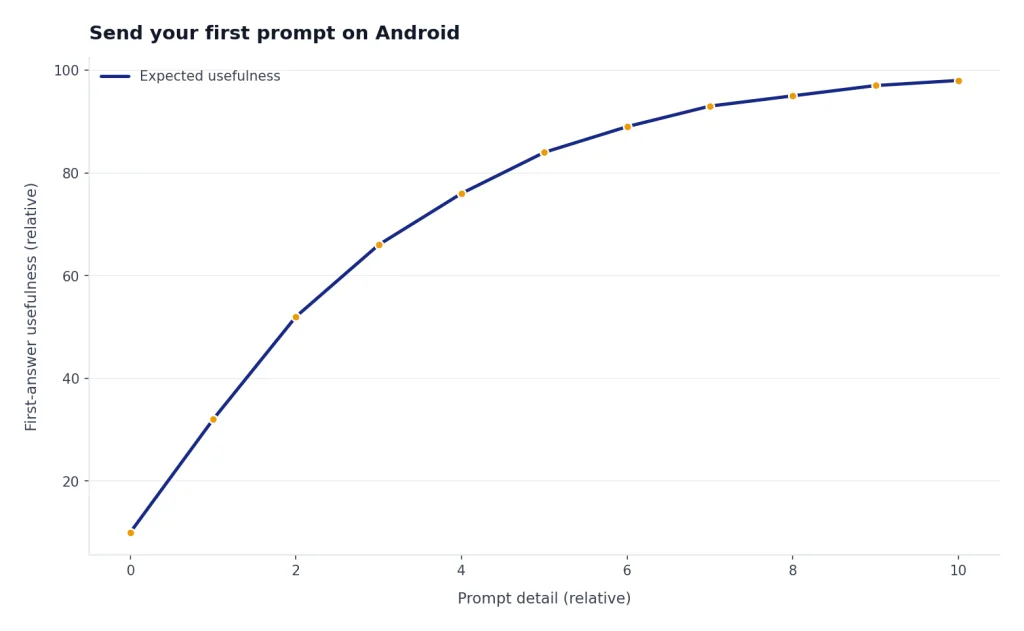
A weak Android prompt is: “Help with dinner.” A stronger prompt is: “Suggest 3 quick vegetarian dinners using rice, eggs, spinach, and canned beans. Keep each recipe under 30 minutes and write a grocery list for missing items.” That version gives ChatGPT enough detail to produce a useful answer on the first try.
For everyday use, think in four parts:
- Task: Tell ChatGPT what to do.
- Context: Add the facts it needs.
- Constraints: Set length, tone, budget, time, reading level, or format.
- Follow-up: Ask it to revise, shorten, compare, or explain.
On Android, the long-press menu is useful after ChatGPT answers. OpenAI says long pressing an answer can show options such as Copy, Select Text, Good Response, Bad Response, Read aloud, Search the web, Regenerate Response, and Change model.[1] Use Copy when you want to paste the answer into another app. Use Regenerate Response when the answer is close but not good enough. Use Change model when your plan gives you model choices and the task needs a different balance of speed and depth.
If your goal is natural-sounding writing, do not ask ChatGPT to “make it human” and stop there. Give it a sample, audience, and constraints. We cover that workflow in more detail in how to make ChatGPT write like a human and how to make ChatGPT sound more human.
Use voice, photos, files, and images
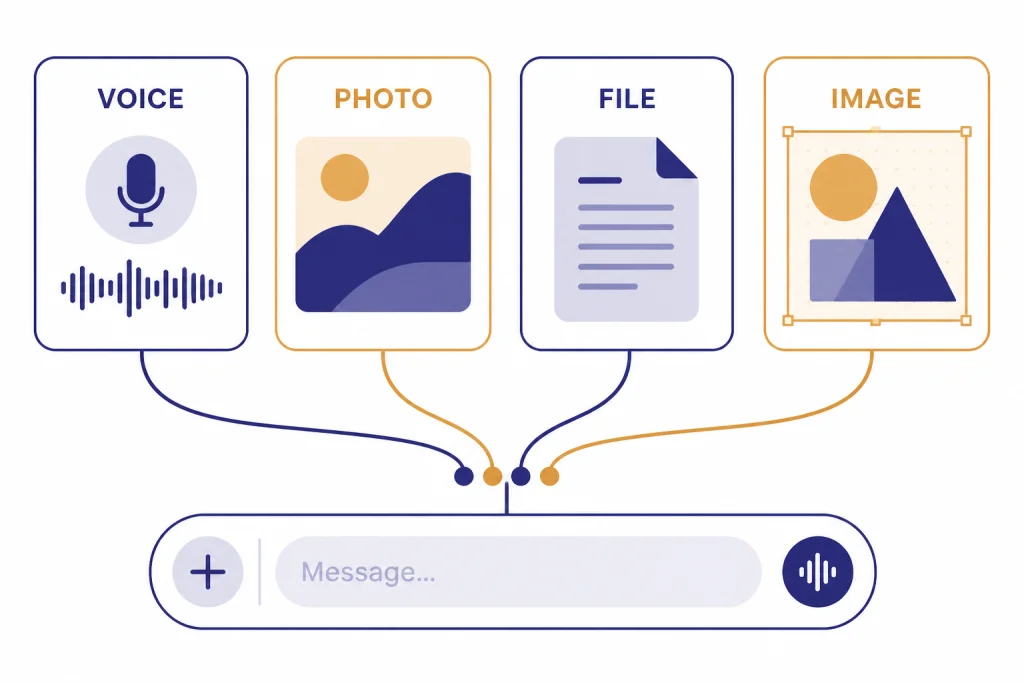
The Android app is not limited to typing. It can handle voice conversations, photo questions, document uploads on eligible plans, image creation, and mobile sharing workflows. The exact features you see can depend on account, region, app version, plan, and rollout status.
Voice mode lets you speak with ChatGPT instead of typing. OpenAI says voice conversations are available to all logged-in users in the ChatGPT mobile apps and on desktop web, and that mobile users can start by selecting the voice icon near the bottom-right of the screen.[5] For a device-neutral walkthrough, use our guide to ChatGPT voice mode on any device.
Photos are useful when the problem is visual. You can ask about a receipt, a plant, a handwritten note, a whiteboard, a damaged object, or a screenshot. OpenAI’s image input guidance says users can add images to ChatGPT conversations and, on mobile, tap the plus icon in the prompt area to add photos and files.[11] For step-by-step photo help, see how to upload a photo to ChatGPT or our broader guide to uploading images to ChatGPT.
File uploads are better for documents, spreadsheets, slides, and PDFs. OpenAI says file uploads are available on ChatGPT web and iOS/Android mobile apps for eligible paid and enterprise users, and that uploaded files can support tasks such as comparing documents, analyzing spreadsheets, and summarizing text-heavy files.[7] OpenAI lists a 512MB hard limit per uploaded file and a 20MB limit per image; its connected-apps file guidance repeats those same limits for files added from cloud storage services.[7][8]
| Feature | Best Android use | Where to start | Watch out for |
|---|---|---|---|
| Text chat | Drafting, planning, explanations, summaries | Type in the message bar | Vague prompts create vague answers |
| Voice mode | Hands-free brainstorming, language practice, quick questions | Tap the voice icon | Check important facts before acting |
| Photo input | Ask about screenshots, objects, notes, receipts, or visual layouts | Tap the plus icon and add a photo | Crop or mark up the key area first |
| File upload | Analyze PDFs, spreadsheets, presentations, and documents | Attach a file from the prompt area | Plan and file-size limits may apply |
| Image generation | Create or edit images from a prompt | Ask ChatGPT to create an image | Review outputs carefully before publishing |
ChatGPT Images is available on web and on iOS and Android, and OpenAI says users can create new images or upload an existing image and describe edits they want.[9] If you do not see the newest image features on Android, update the app first, then check whether your plan and region support the feature.
Android app vs mobile browser
You can use ChatGPT from the Android app or from a mobile browser. The app is usually better for daily use because it integrates more naturally with voice, photos, sharing, and notifications. The browser is still useful when you are on a borrowed device, cannot install apps, or want a quick signed-out session.
| Use case | Android app | Mobile browser |
|---|---|---|
| Daily personal use | Best choice. Faster access and better mobile controls. | Works, but feels less integrated. |
| Voice conversations | Best choice. Voice is built into the mobile app experience. | Available in supported web experiences, but less phone-native. |
| Photo questions | Best choice for camera and gallery access. | Works when browser permissions cooperate. |
| Shared or temporary device | Not ideal unless you sign out carefully. | Better for short sessions. |
| No app install allowed | Not available. | Best choice. |
| Cross-device history | Available when signed in. | Available when signed in. |
If you also use Apple devices, the concepts are similar but the operating-system details differ. See how to use ChatGPT on iPhone like a pro for the iOS version of this setup.
Manage chats, exports, deletion, and billing
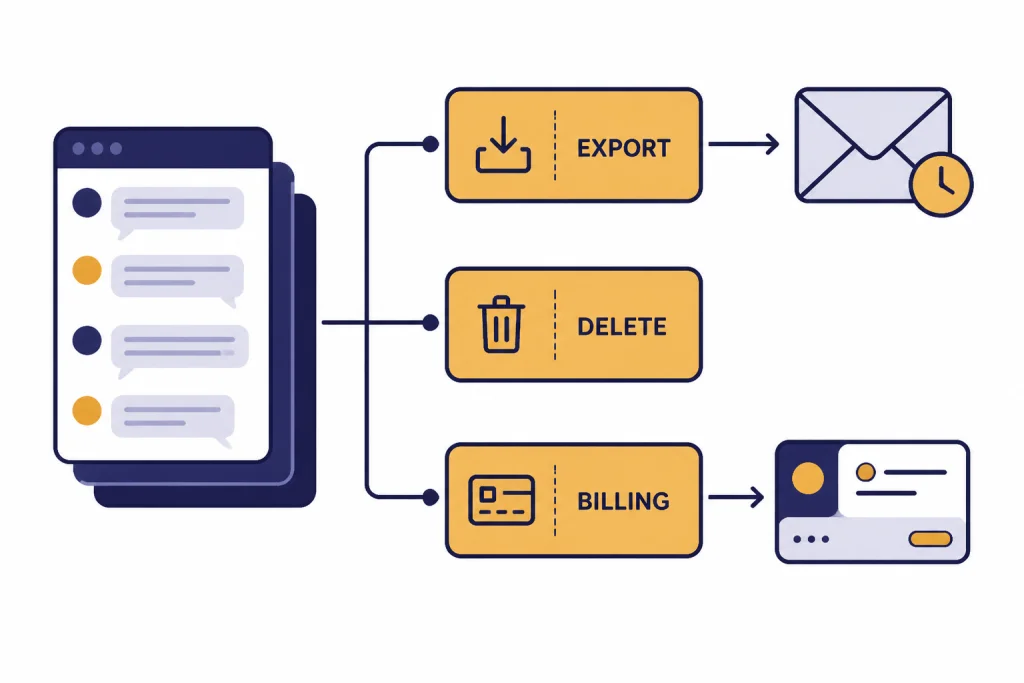
The sidebar is your main control center on Android. OpenAI says you can access past chats by opening the sidebar, and you can search for specific words or conversations from there.[1] If you want a practical archiving workflow, read how to save a ChatGPT conversation or how to share a ChatGPT conversation.
To delete a single chat on Android, open the conversation, tap the three vertical dots, and choose Delete. OpenAI documents that flow in its Android FAQ.[1] Deleting a conversation is different from deleting your account. Account deletion is permanent and affects access to OpenAI services tied to that account.
You can export your ChatGPT data from the Android app by opening the sidebar, tapping your profile icon, selecting Data Controls, and choosing Export Data. OpenAI says the export zip is sent to your registered email address and the download link expires after 24 hours.[1] For a full export workflow, see our guide to exporting your ChatGPT data.
Temporary Chat is useful when you do not want a conversation to appear in history or affect memory. OpenAI says Temporary Chats do not appear in history, do not create memories, are not used to improve models, and may be kept for safety purposes for up to 30 days.[12] Use it for one-off questions, sensitive brainstorming, or tests that should not shape future personalization.
Billing depends on where you subscribed. If you subscribe through Google Play, manage that subscription in Google Play. OpenAI says uninstalling the Android app does not cancel a ChatGPT subscription, and subscriptions created through Google Subscriptions can be cancelled from the Google Play Store app or Google Play website while signed in with the same Google account.[10]
Troubleshoot common Android problems
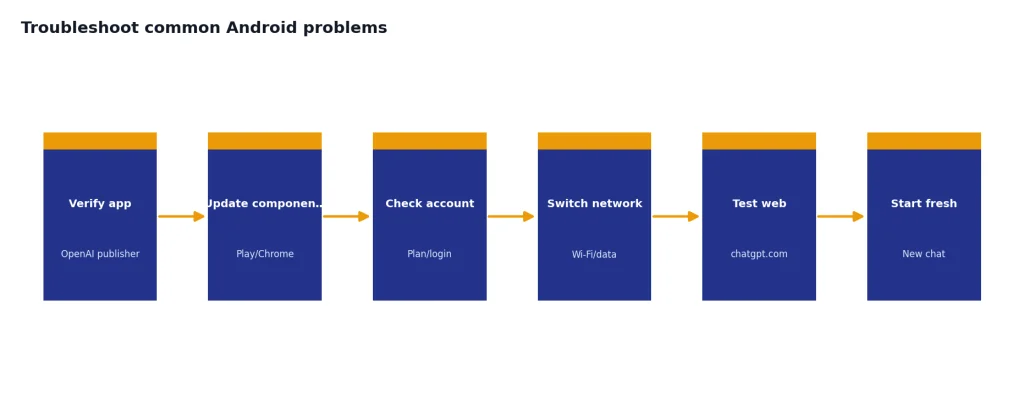
Most Android problems fall into a few categories: wrong app, old Google Play components, login browser issues, account mismatch, plan mismatch, or temporary service problems. Work through the simple checks first.
| Problem | Likely cause | What to try |
|---|---|---|
| Cannot find the app | Unsupported device, region, or Play Store issue | Confirm Android 7.0 or newer, update Google Play, and use OpenAI’s official download page.[1] |
| “Something went wrong” during login | Outdated Google Play Store or browser handoff issue | Update Google Play, update Chrome, set Chrome as default, then retry.[1] |
| Subscription not showing | Wrong account or purchase sync issue | Confirm the same login method and use Settings > Restore purchases if available.[13] |
| Uploads failing | Plan limit, file limit, network issue, or service incident | Try a smaller file, check your plan, and retry on Wi-Fi. OpenAI says users cannot currently check remaining file upload quota.[7] |
| Voice is not working | Microphone permission, audio route, or feature availability | Allow microphone permission, check Bluetooth, and restart the app. |
| Answers seem stale or wrong | Prompt too vague or answer needs verification | Ask for sources when needed, give more context, and verify important claims. |
If the Android app is slow, close it fully and reopen it. If that fails, update the app, restart the phone, switch networks, and check whether the same account works at chatgpt.com. If only one conversation is broken, start a new chat and paste the last useful context into it.
If you need ChatGPT where you have no connection, plan ahead. ChatGPT itself is not a fully offline Android app. Our ChatGPT offline reality check explains what you can and cannot do without internet access.
Use ChatGPT on Android safely
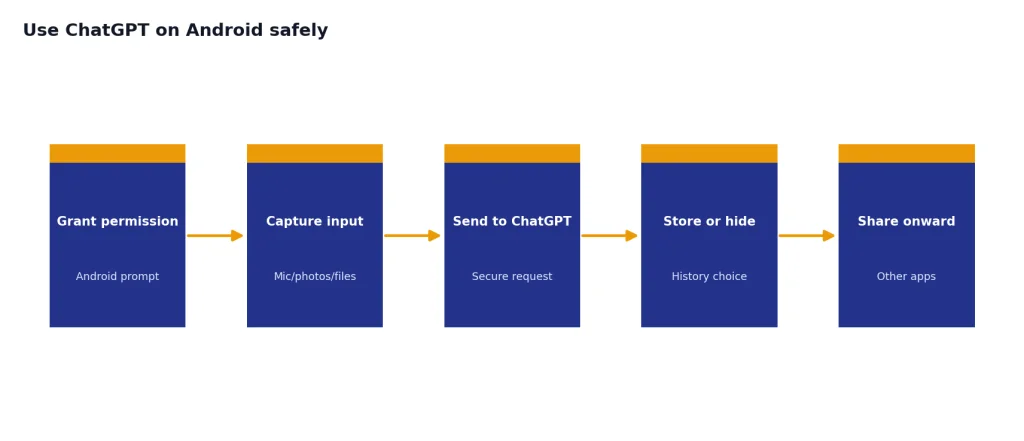
Treat ChatGPT on Android like a powerful assistant, not a private diary or a professional authority. Do not paste passwords, private keys, confidential client files, medical records, legal documents, or sensitive workplace information unless your organization has approved that use.
OpenAI’s Android FAQ says audio clips from the speech-to-text feature are sent to OpenAI servers for transcription using the Whisper API, are not retained beyond what is needed to complete transcription, and are not used to improve models; the resulting transcriptions can appear in conversation history and may be used depending on user settings.[1] That distinction matters. Your raw audio and your transcribed text are handled differently.
OpenAI’s Data Controls FAQ says you can turn off “Improve the model for everyone” from mobile settings, and that chats remain in history even when training is off unless you delete them or use Temporary Chat.[6] If privacy is the priority for a specific question, use Temporary Chat and avoid uploading unnecessary files or photos.
Use Android permissions deliberately. Grant microphone access for voice. Grant photos or files access only when you need uploads. If you no longer use a permission, revoke it in Android system settings. Also remember that sharing a ChatGPT answer to another app moves that text into the other app’s privacy environment.
Finally, verify high-stakes answers. ChatGPT can summarize, draft, explain, and compare, but it can still make mistakes. For medical, legal, financial, academic, or safety-critical work, use ChatGPT to organize questions and prepare drafts, then check the result against authoritative sources or a qualified professional.
Frequently asked questions
Is ChatGPT free on Android?
The official Android app is free to install from Google Play, and the Google Play listing describes it as a free official app.[3] Some ChatGPT features, higher limits, or models may require a paid plan, depending on what OpenAI offers to your account at the time.
How do I know I installed the real ChatGPT app?
Install it from Google Play and confirm that the publisher is OpenAI. OpenAI’s install guidance specifically tells Android users to search for “openai chatgpt” and make sure the app is published by OpenAI.[2]
Can I use ChatGPT voice on Android?
Yes. OpenAI says voice conversations are available to logged-in users in the ChatGPT mobile apps, and Android users can start from the voice icon near the bottom-right of the screen.[5] You may need to grant microphone permission the first time you use it.
Can ChatGPT on Android read photos?
Yes, when image input is available on your account. OpenAI says users can add images to ChatGPT conversations, and mobile users can tap the plus icon in the prompt area to add photos and files.[11] Crop or mark up the important part of the image if you want a more focused answer.
Does deleting the Android app cancel ChatGPT Plus?
No. OpenAI says uninstalling the Android app does not cancel a ChatGPT subscription.[10] If you subscribed through Google Play, cancel from Google Play while signed in with the Google account used for the subscription.
Can I export my ChatGPT chats from Android?
Yes. OpenAI says Android users can open the sidebar, tap the profile icon, select Data Controls, and choose Export Data; the download link is emailed and expires after 24 hours.[1] Use this before deleting an account if you need a copy of your history.