

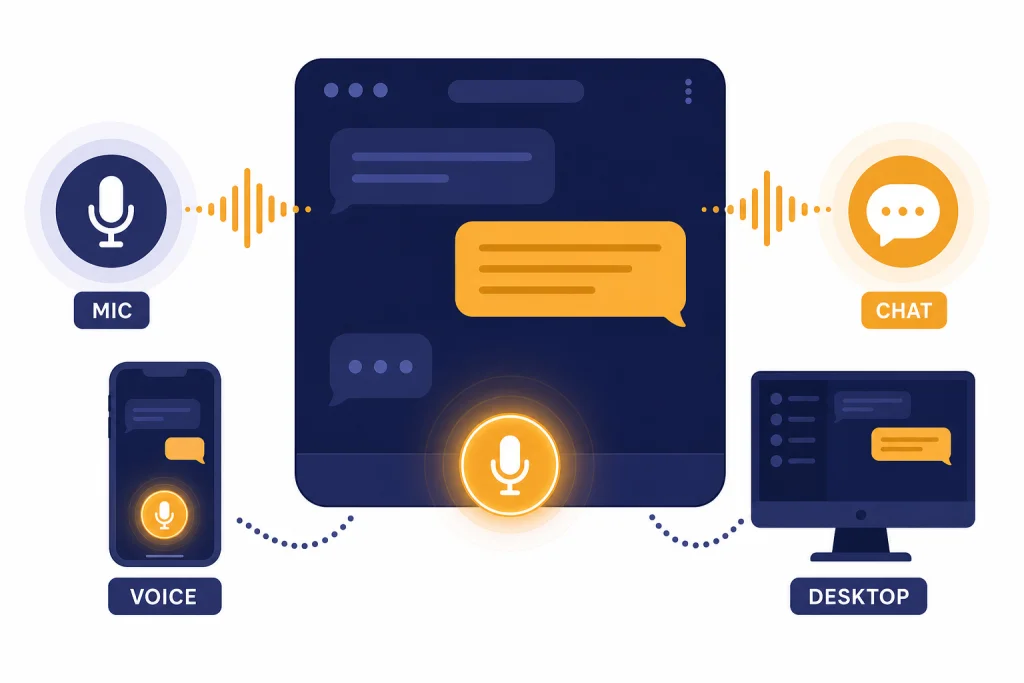
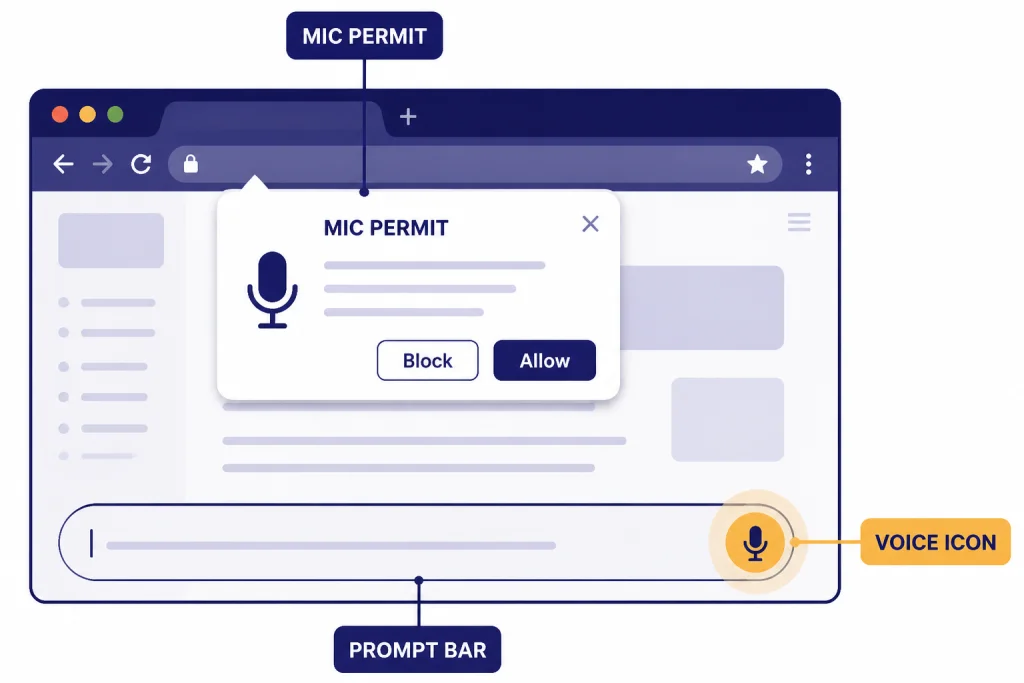
To use ChatGPT Voice Mode, sign in to ChatGPT, open a new or existing chat, and select the Voice icon near the message box. On iPhone and Android, the icon appears at the bottom-right of the ChatGPT app. On desktop, use ChatGPT.com in a supported browser and select the Voice icon on the right side of the prompt window. OpenAI says voice conversations are available to logged-in users in the ChatGPT mobile apps and on desktop web, and the first session may ask you to grant microphone access and choose a voice.[1]
What ChatGPT Voice Mode does
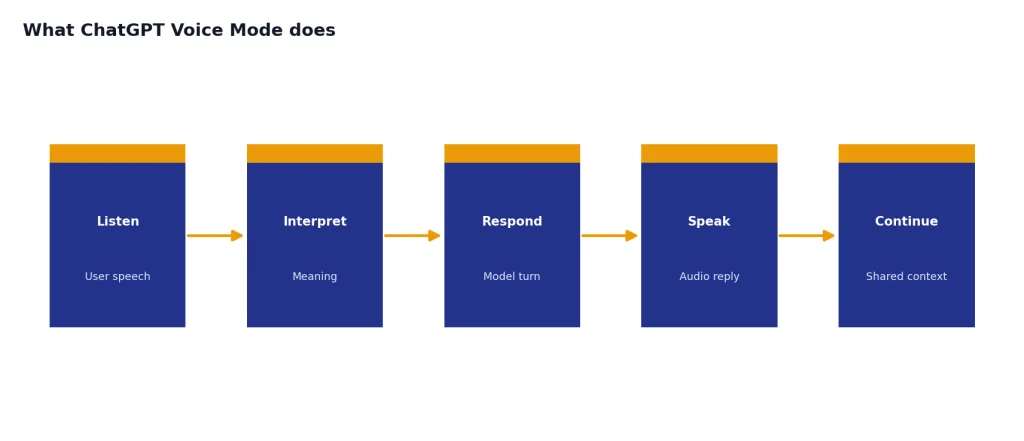
ChatGPT Voice Mode lets you talk to ChatGPT and hear spoken replies instead of typing every message. It is best for back-and-forth work: practicing a language, brainstorming aloud, preparing for an interview, talking through a recipe, or asking for step-by-step help while your hands are busy.
Voice Mode is different from simple speech-to-text. In Voice Mode, ChatGPT listens, responds out loud, and keeps the conversation moving like a live assistant. OpenAI describes voice conversations as powered by natively multimodal models and warns that they can still make mistakes, so you should verify important information before relying on it.[1]
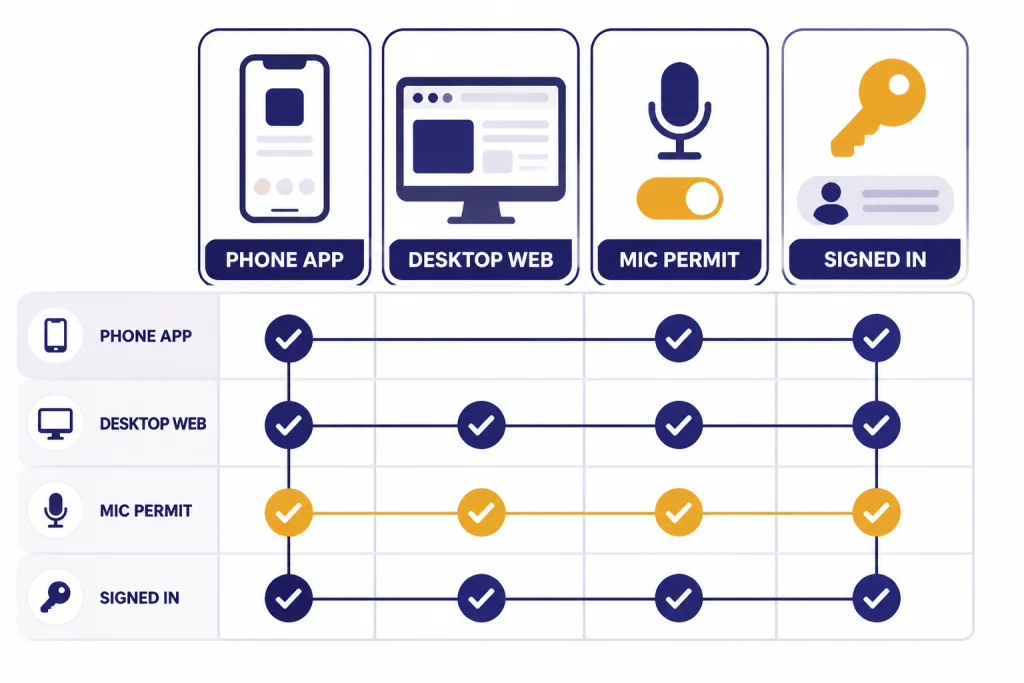
You need to be logged in. If you are trying to use ChatGPT without an account, read our separate guide to how to use ChatGPT without logging in, but expect Voice Mode to require a signed-in session because OpenAI lists it for logged-in users.[1]
Before you start
Install the official ChatGPT app on your phone or open ChatGPT.com on a desktop browser. If you are setting up from scratch, start with our guide to how to download the ChatGPT app on any device. OpenAI’s download page points users to ChatGPT for Windows and macOS, and OpenAI notes that the macOS desktop app requires macOS 14 or later with Apple Silicon.[4][5]
- Sign in first. Voice Mode is tied to logged-in ChatGPT use.[1]
- Allow microphone access. Your phone, browser, or operating system may block Voice Mode until you grant permission.[1]
- Use headphones when possible. They reduce echo and accidental interruptions.
- Pick a quiet place. Voice Mode can misunderstand background speech, music, or another person talking nearby.
- Update the app. Voice features change often, and older app builds may not show the same controls.
If you cannot sign in, fix that before troubleshooting Voice Mode. Our ChatGPT login guide covers common account and browser issues.
How to use Voice Mode on iPhone and Android
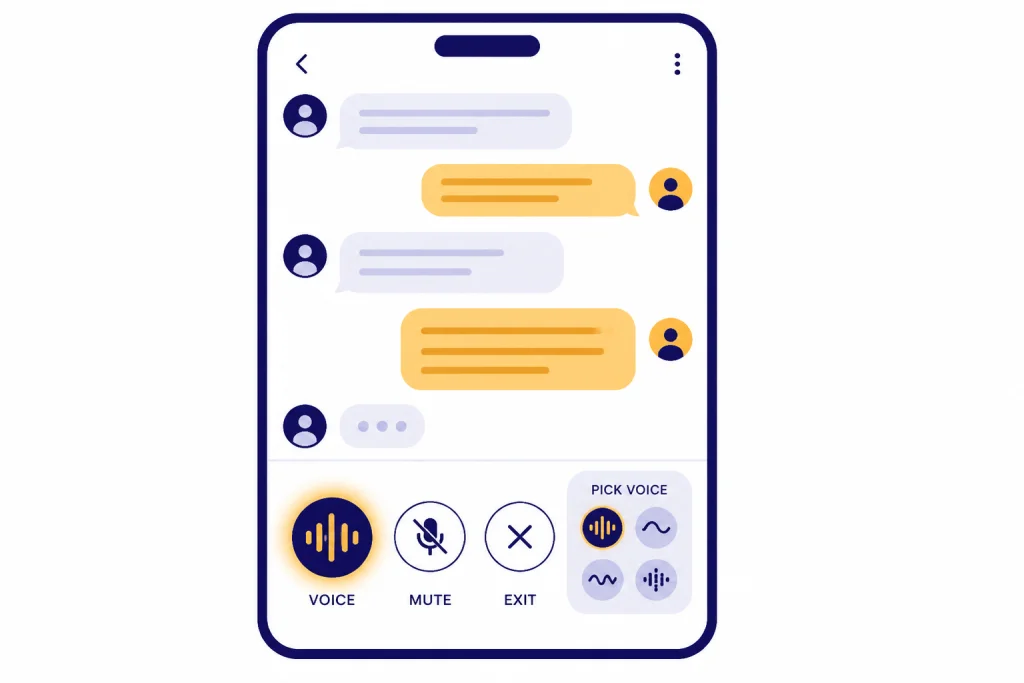
The iPhone and Android steps are almost identical. Open the ChatGPT app, sign in, then open a chat. Tap the Voice icon near the lower-right corner of the message area. If this is your first voice session, choose a voice and approve microphone permission when your device asks.[1]
- Start: tap the Voice icon at the bottom-right of the chat screen.[1]
- Speak naturally: ask one clear question, then pause so ChatGPT can respond.
- Mute: tap the microphone icon at the bottom-left during the conversation.[1]
- End: tap the exit icon at the bottom-right when you are finished.[1]
- Change voices: use Settings or the customization menu inside Voice Mode.[1]
Some mobile accounts see Voice Mode inside the normal chat screen. Others may still see the separate blue orb view. OpenAI says users can switch separate mode on or off in Settings → Voice → Separate Mode when that setting is available.[1]
For iPhone-specific setup details, see our guide to using ChatGPT on iPhone like a pro. For Android permissions, app updates, and account setup, use our ChatGPT on Android setup guide.
How to use Voice Mode on desktop web, Mac, and Windows
The most reliable desktop method is ChatGPT.com in a desktop browser. Open ChatGPT.com, sign in, open a chat, and select the Voice icon on the right side of the prompt window. If the browser asks for microphone access, allow it for ChatGPT.com.[1]
If you use a Mac or Windows computer, the desktop app can still be useful for normal ChatGPT work, but check the current interface on your device. If the app does not show Voice Mode, use desktop web instead. For broader desktop setup, see how to use ChatGPT on Mac or How to Use ChatGPT on Windows.
- Chrome, Edge, Safari, or Firefox: check the browser’s site settings if the microphone prompt never appears.
- External microphone: confirm your operating system has selected the right input device.
- Corporate computer: your employer may block microphone access or app installation.
- Browser tabs: close other tabs that may be using the microphone.
Desktop web is also the simplest backup when the phone app is misbehaving. Start the same chat on ChatGPT.com, tap or click the Voice icon, and continue from there.
Voice Mode vs. dictation vs. read aloud
ChatGPT has several voice-adjacent features. They feel similar, but they solve different problems. Use Voice Mode when you want a live conversation. Use dictation when you want to speak a message, edit it as text, and send it. Use read aloud when you want ChatGPT to speak an existing answer.
| Feature | What you do | What ChatGPT does | Best for |
|---|---|---|---|
| Voice Mode | Talk in a live session | Replies out loud and keeps the conversation moving | Coaching, brainstorming, practice conversations |
| Dictation | Press the microphone and record a message | Transcribes your speech into editable text | Long prompts, hands-free typing, quick notes |
| Read aloud | Open an existing answer | Speaks the written response | Listening to summaries, instructions, or drafts |
OpenAI’s Voice Dictation FAQ says the microphone dictation feature sends recorded audio to models for transcription, then returns text you can edit before sending.[2] That is not the same workflow as a live Voice Mode conversation.
If your goal is more natural output, Voice Mode helps with tone and pacing. If your goal is better written responses, pair it with our guide on how to make ChatGPT write like a human or our advice on how to make ChatGPT sound more human.
How to use camera, screen sharing, and photos in Voice Mode
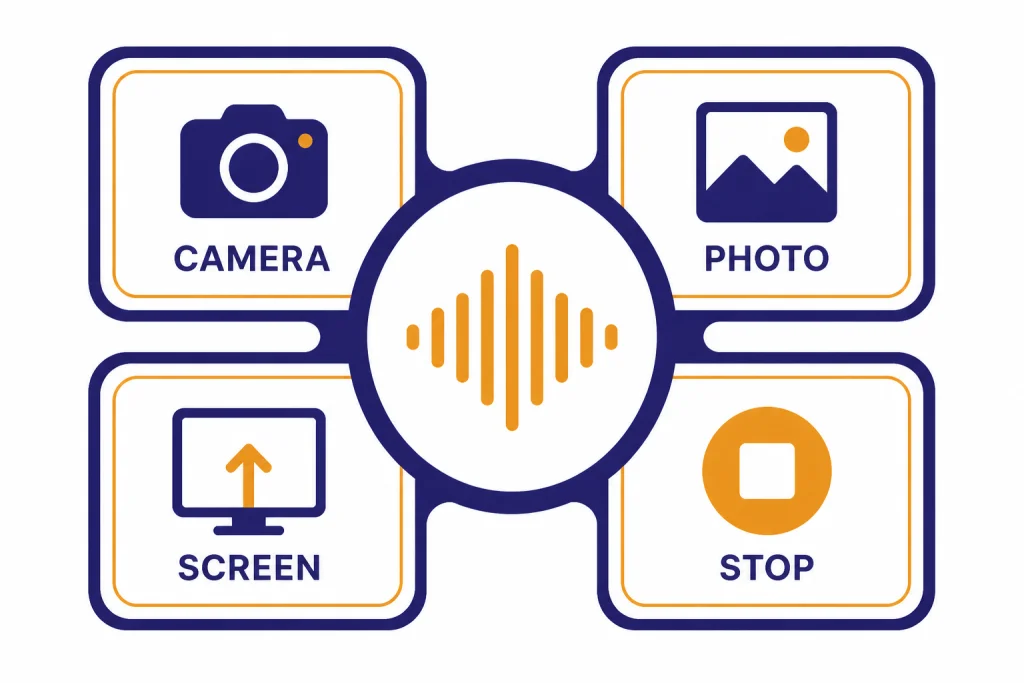
Voice Mode can do more than audio on eligible mobile plans. OpenAI says video is enabled in the iOS and Android mobile apps for subscribers, and users can share video by selecting the camera button during a voice chat.[1]
OpenAI also says screen sharing and image uploads in Voice Mode are available on the iOS and Android mobile apps for subscribers. During a voice conversation, tap the three-dot menu, then choose Share Screen, Upload Photo, or Take Photo when those options appear.[1]
- Camera: show ChatGPT what you are looking at and ask for help describing, comparing, or troubleshooting it.
- Take Photo: capture a fresh image and add it to the voice conversation.
- Upload Photo: choose an existing image from your phone.
- Share Screen: broadcast your phone screen so ChatGPT can respond to what is visible.
Use these features carefully. Do not share passwords, private messages, medical records, financial dashboards, or other sensitive information unless you understand the privacy tradeoffs. For a non-voice workflow, see how to upload a photo to ChatGPT or how to upload images to ChatGPT.
Limits, privacy, and chat history
Voice Mode has usage limits, and OpenAI says access and limits can change.[1] As of the source checked for this guide, logged-in Free users use ChatGPT voice with GPT-4o mini and are subject to a limit of 2 hours each day. Subscribers start voice sessions with GPT-4o and can continue with GPT-4o mini after using their daily GPT-4o minutes. Pro subscribers have unlimited GPT-4o voice use, subject to abuse guardrails.[1]
OpenAI lists nine output voices for ChatGPT Voice Mode: Arbor, Breeze, Cove, Ember, Juniper, Maple, Sol, Spruce, and Vale.[1] You can change voices in settings or from the Voice Mode customization menu.[1]
After you exit a voice conversation, OpenAI says the transcription is added to the current text-based conversation. You can refer back to that transcript in chat history.[1] If you need to preserve a useful session, read how to save a ChatGPT conversation or how to export your ChatGPT data.
For privacy, OpenAI says audio and video clips from voice chats are stored with the transcript for as long as the chat remains in your chat history. When you delete the chat, OpenAI says it will also delete the associated audio and video clip within 30 days, unless it must retain it for security or legal reasons or the clip was previously shared for model training and disassociated from your account.[1]
OpenAI says it does not train on audio or video clips from voice chats unless you choose to share those clips. If “Improve the model for everyone” is enabled, OpenAI may use transcripts and other files from voice chats to train models depending on your choices and plan, even if you do not share the associated audio or video clips.[1] You can manage model training choices in ChatGPT Data Controls, and OpenAI says turning off “Improve the model for everyone” applies across your account.[3]
Fixes when Voice Mode is not working
Most Voice Mode problems come from permissions, app version, audio routing, or account rollout differences. Work through the simple fixes first.
- Check microphone permission. On mobile, open your device settings and allow microphone access for ChatGPT. On desktop, check browser permissions for ChatGPT.com.[1]
- Update the app. Install the latest official ChatGPT app from the App Store or Google Play.
- Try desktop web. If the mobile app fails, open ChatGPT.com on a computer and use the Voice icon there.[1]
- Change audio devices. Disconnect Bluetooth headphones, reconnect them, or choose a different microphone.
- Restart the app or browser. This clears stuck microphone sessions.
- Move somewhere quieter. OpenAI recommends headphones and a quieter environment if interruptions continue.[1]
- Check limits. If you hit a usage limit, wait for it to reset or switch to another available mode. Our guide to ChatGPT message limits explains legitimate ways to work around general limits without breaking rules.
On iPhone, OpenAI recommends Voice Isolation mic mode to reduce unintentional interruptions. You can enable it from Control Center during a voice conversation by opening Mic Mode and switching to Voice Isolation.[1]
Best ways to use ChatGPT Voice Mode
Voice Mode works best when you ask ChatGPT to take a role and keep the exchange structured. Do not start with a vague command like “help me.” Tell it what you want, how long the exchange should be, and what kind of feedback you expect.
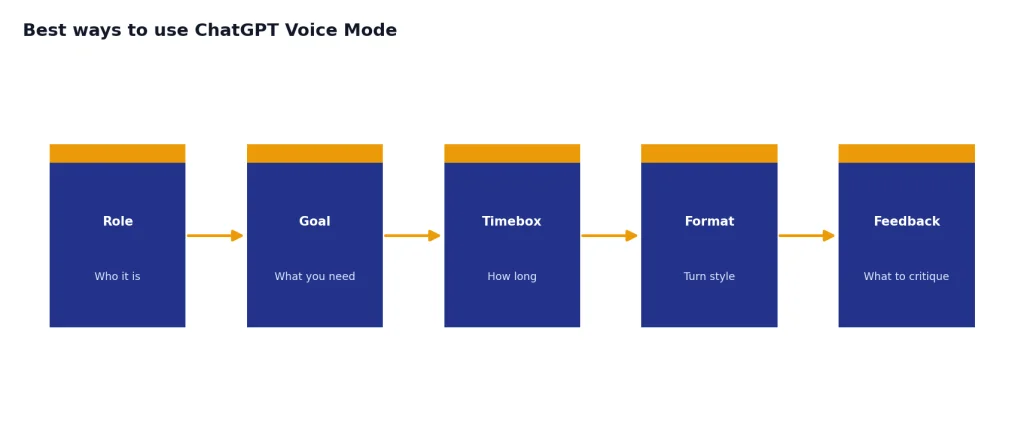
- Interview practice: “Act as a hiring manager. Ask one question at a time for a product manager interview. After each answer, give concise feedback.”
- Language practice: “Hold a beginner Spanish conversation with me. Correct only the biggest mistakes and keep the pace slow.”
- Meeting prep: “Help me rehearse a two-minute update for my manager. Stop me if I ramble.”
- Cooking help: “I have eggs, spinach, rice, and soy sauce. Talk me through a simple dinner one step at a time.”
- Fitness planning: “Ask about my equipment and time, then suggest a safe beginner workout.”
- Writing aloud: “Listen to my rough idea, then summarize it as a clean outline.”
Voice Mode is useful, but it is not a substitute for professional advice. For workouts, nutrition, health, legal, or financial decisions, treat it as a brainstorming tool and verify the result. If you want use-case ideas, compare our guides to ChatGPT for cooking and ChatGPT for fitness.
Frequently asked questions
Can I use ChatGPT Voice Mode for free?
Yes, if you are logged in and Voice Mode is available on your account. OpenAI says Free users use voice with GPT-4o mini and are subject to a daily limit that can change.[1]
Why do I see a blue orb instead of voice inside the chat?
OpenAI says ChatGPT voice can appear either inside the main chat page or as a separate blue orb screen. If the Separate Mode setting is available, you can change it in Settings → Voice → Separate Mode.[1]
Can I use Voice Mode in a mobile browser?
For phones, use the ChatGPT app rather than relying on a mobile browser. OpenAI’s Voice Mode instructions describe mobile use in the iOS and Android apps and desktop use on ChatGPT.com.[1]
Does ChatGPT save voice conversations?
OpenAI says the transcript appears in chat history after you exit a voice conversation. It also says audio and video clips from voice chats are stored with that transcript while the chat remains in your history.[1]
How do I stop ChatGPT from training on my voice chats?
OpenAI says it does not train on voice chat audio or video clips unless you choose to share them, but transcripts may be used if “Improve the model for everyone” is enabled depending on your settings and plan.[1] To turn off model training, open Settings, go to Data Controls, and disable “Improve the model for everyone.”[3]
What should I do if Voice Mode keeps interrupting me?
Use headphones, move to a quieter place, and restart the app if needed. On iPhone, OpenAI recommends enabling Voice Isolation from Control Center during the conversation.[1]