

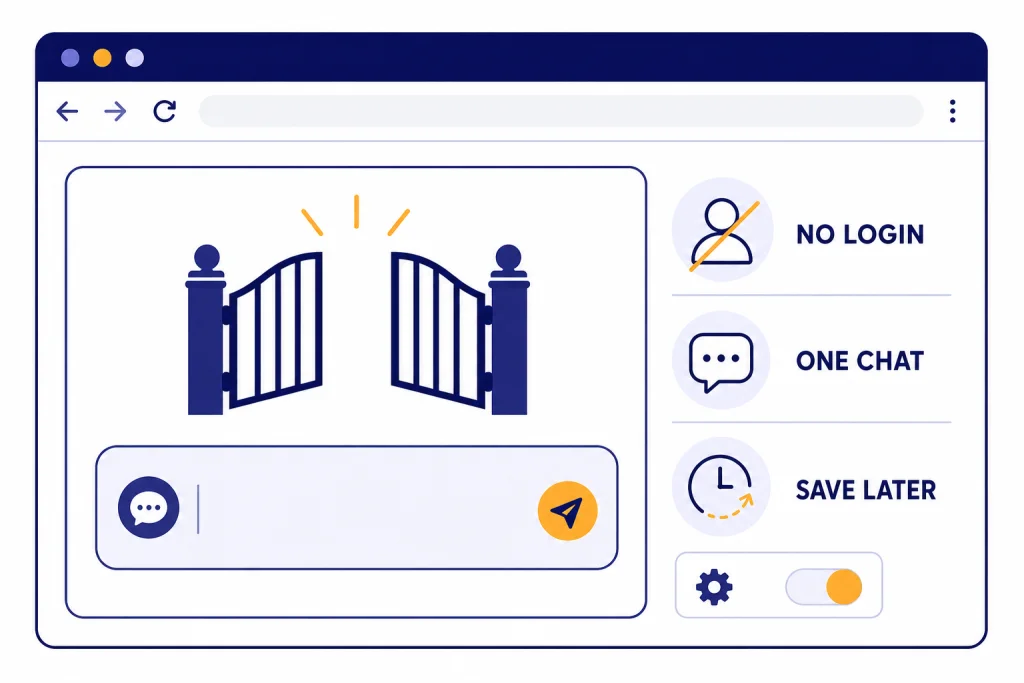
You can use ChatGPT without logging in by opening ChatGPT on the web and typing a prompt in the message box, if the no-login experience is available in your region. OpenAI says ChatGPT can be accessed before creating an account, but logged-out use has limits: you get only the current browser session, only one conversation at a time, and no saved chat history unless you sign in or create an account.[2] This guide explains the fastest no-login path, what you can and cannot do, how to protect your privacy, and when signing in is worth it.
Quick answer
The short version is simple. Open ChatGPT in a supported browser, stay signed out, enter a prompt, and continue the conversation while that browser session remains available. OpenAI first announced instant ChatGPT access without signing up on April 1, 2024, and its Help Center now describes the ChatGPT home page as a place to try ChatGPT before creating an account.[1][2]
This is best for quick, low-stakes tasks. Ask for a summary, brainstorm titles, draft a short email, explain a concept, or rewrite a paragraph. If you need saved history, shared links, data export, custom instructions, voice conversations, or more continuity across devices, you should sign in. OpenAI says creating an account unlocks tools for saving chat history, exporting data, sharing chats, and personalizing ChatGPT with custom instructions.[2]
Use no-login mode when convenience matters more than permanence. Use an account when the conversation matters enough to keep. If you are new to the product itself, start with our beginner explainer on what ChatGPT is, then return to this guide for the no-login workflow.
Steps to use ChatGPT without logging in
Follow these steps on the web. This is the most direct path because OpenAI’s no-account wording is tied to ChatGPT on the web at chatgpt.com.[2]
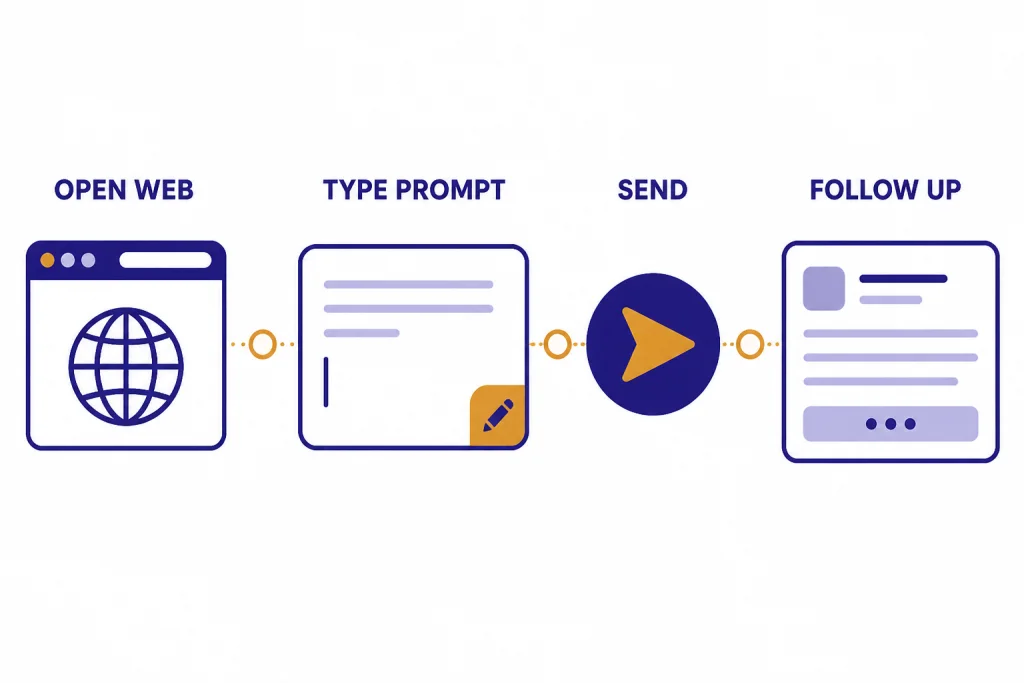
- Open a current browser such as Chrome, Safari, Edge, or Firefox.
- Go to ChatGPT on the web.
- If you see a prompt box before signing in, type your question or request.
- Press Enter or select the send button.
- Ask follow-up questions in the same thread while the session remains open.
- If you want to keep the latest conversation, sign in or create an account before you close the session.
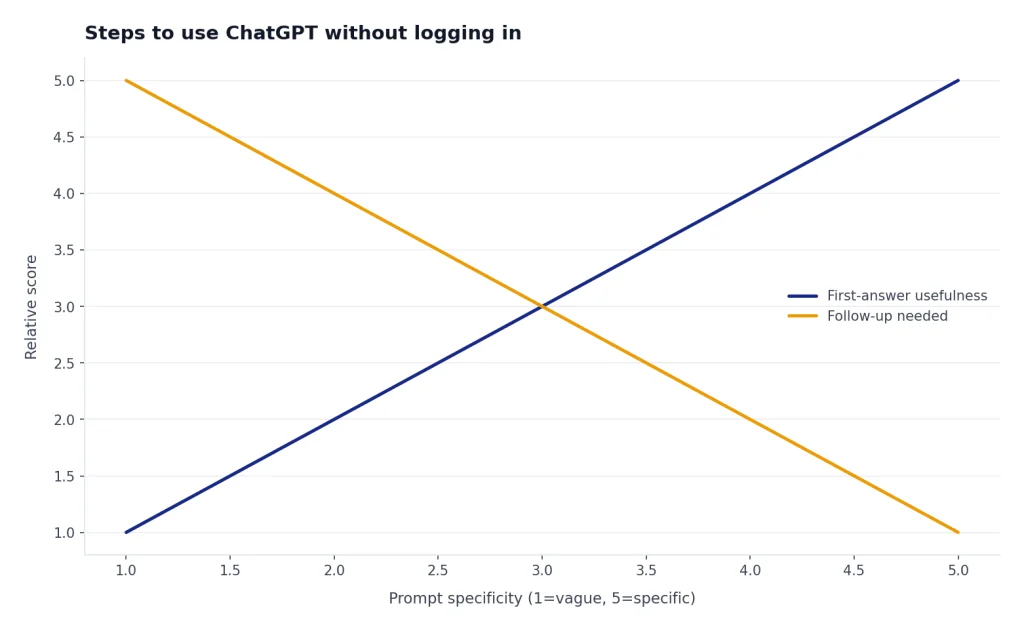
Keep the prompt specific. Instead of typing “help with resume,” write “Rewrite this resume bullet for a customer support role and keep it under 22 words.” Instead of typing “meal plan,” write “Create a 3-day vegetarian dinner plan using lentils, rice, eggs, and frozen vegetables.” Clear instructions matter more when you cannot rely on saved preferences.
Do not assume you can return to the same chat later. OpenAI says logged-out chats remain accessible only for the current session on the same browser.[2] If you need a durable copy, paste the answer into a document, print it, or use one of our saving guides such as how to save a ChatGPT conversation or how to save ChatGPT conversations as PDF.
What works without an account
No-login ChatGPT is useful for a narrow but common set of tasks. You can start a conversation, ask follow-up questions, and use the current thread as short-term context. OpenAI’s FAQ says ChatGPT remembers context within a chat, which means you can refer to earlier messages in that same active conversation.[8]
Good no-login tasks include:
- Fast explanations: “Explain compound interest to a high school student.”
- Short rewrites: “Make this email clearer but keep it polite.”
- Brainstorming: “Give me 12 names for a neighborhood cleanup event.”
- Study help: “Quiz me on the causes of the American Revolution.”
- Simple formatting: “Turn these notes into a bulleted checklist.”
- First drafts: “Draft a short apology note for missing a meeting.”
No-login mode is also useful when you are on a shared computer and do not want to sign in. Treat it like a scratchpad. It can help you get an answer quickly, but it is not a personal workspace.
If your goal is better writing, no-login mode is enough for many everyday edits. You can ask for a plain-English rewrite, a more natural tone, or a tighter version of a paragraph. For more detailed prompting patterns, see how to make ChatGPT write like a human and how to make ChatGPT sound more human.
What you lose when you stay signed out
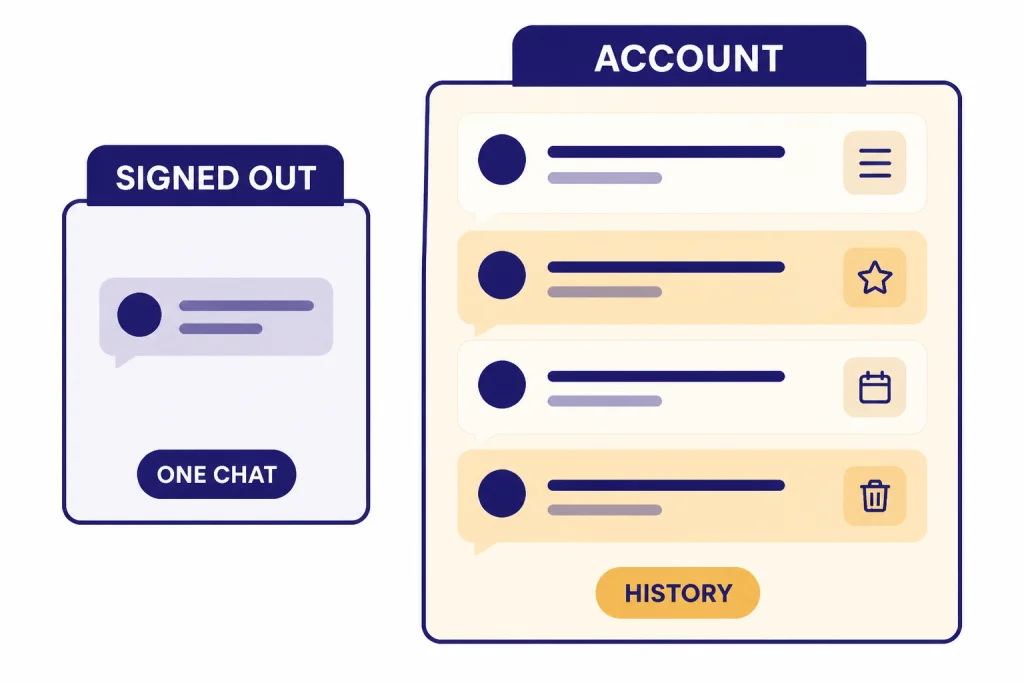
The main tradeoff is that ChatGPT cannot act like your account workspace. OpenAI says logged-out users can only have one conversation at a time.[2] It also says chats can only be saved by logging in or creating an account, and that once you create an account the latest thread can appear in the sidebar, while other previous conversations cannot be saved.[2]
| Feature | Without logging in | With an account |
|---|---|---|
| Start a quick chat | Yes, where no-login access is available | Yes |
| Saved chat history | No persistent history | Available for account chats |
| More than one conversation | One active conversation at a time | Multiple saved conversations |
| Share a conversation | Not the main workflow | Shared links are available on web and in iOS and Android apps |
| Export your data | Not available because there is no account export | Available through account data controls |
| Custom instructions | Not available as a saved personalization layer | Available as an account feature |
| Cross-device continuity | No reliable continuity | Available when signed in on devices |
Shared links are one reason to sign in. OpenAI describes shared links as unique URLs for ChatGPT conversations and says they are available on chatgpt.com and in the iOS and Android apps.[6] If you plan to send a conversation to a coworker, classmate, or client, use an account and read our guide on how to share a ChatGPT conversation.
Data export is another reason to sign in. OpenAI’s data controls articles describe export and account deletion as signed-in options, while signed-out users mainly get the choice of whether chats help train ChatGPT.[3] If you already have important chats in an account, use how to export your ChatGPT data before deleting or moving anything.
Privacy settings for no-login ChatGPT
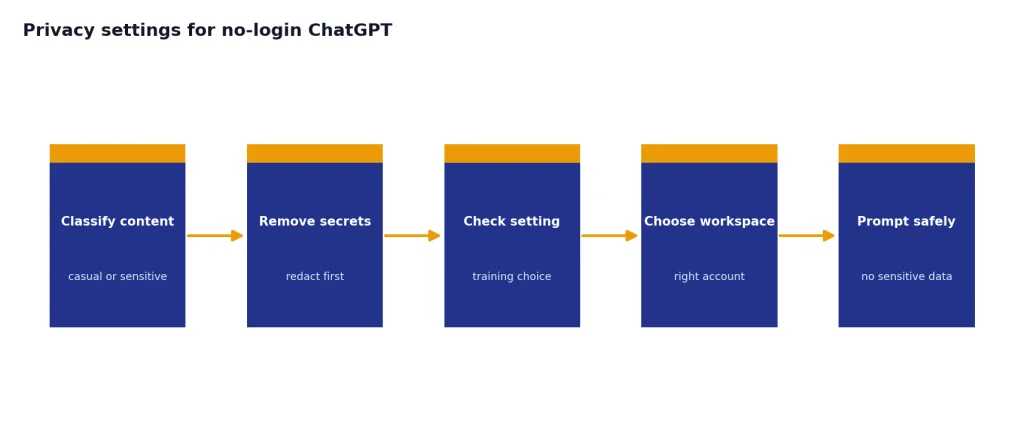
No-login does not mean “private by default.” OpenAI says logged-out chats may be used to train its models by default, and recommends not sharing sensitive information.[2] You should not paste passwords, Social Security numbers, private medical records, confidential business data, unreleased legal documents, or anything you would not want stored or reviewed under the service’s policies.
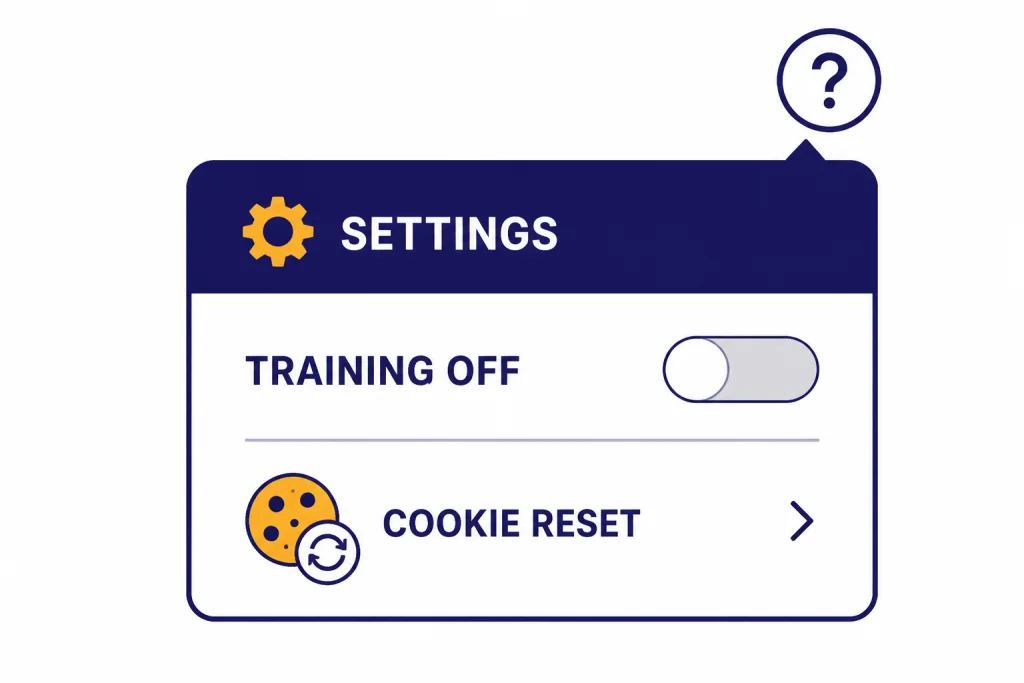
You can turn off model training for signed-out web use. OpenAI says that when you are signed out, you can choose whether your chats are used to help train ChatGPT.[3] On the web, click the question-mark icon in the bottom-right corner, select Settings, and turn off “Improve the model for everyone.”[3]
That setting is more fragile when you are not signed in. OpenAI says the signed-out training setting is tied to your browser and resets if you clear cookies or change browser or device.[2] If you care about this setting, check it before each sensitive session. Better yet, avoid entering sensitive material at all.
For privacy-minded work, use a simple rule. If the conversation is casual, no-login mode is fine. If the conversation contains personal, regulated, or work-confidential information, do not use no-login mode as a privacy shortcut. Use the right account, the right workspace, and your organization’s policy.
Troubleshooting no-login access
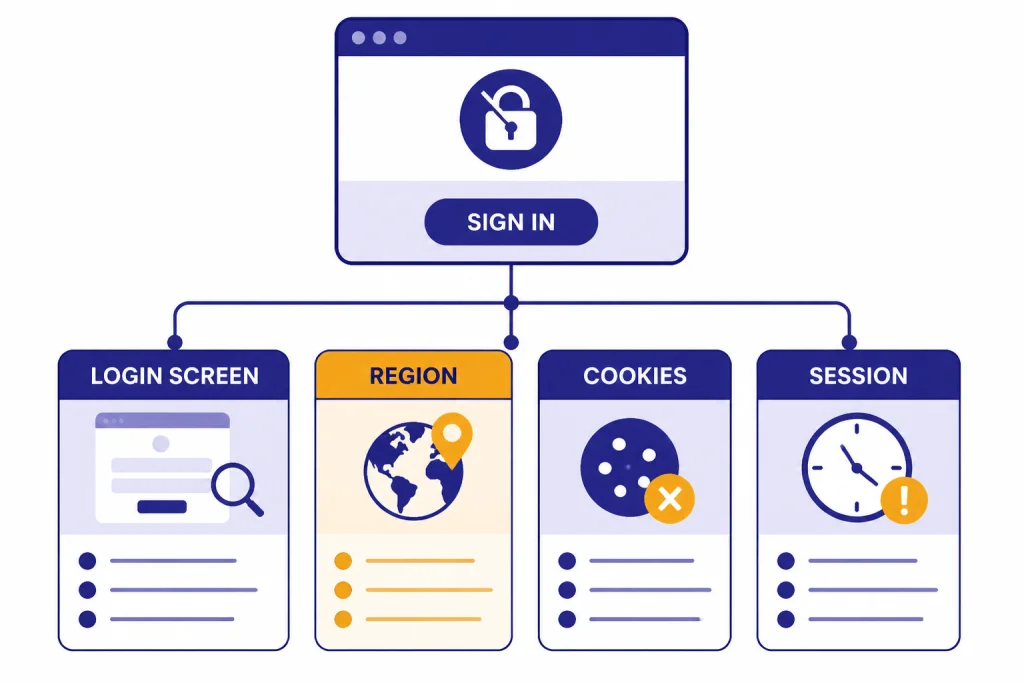
If you open ChatGPT and get pushed to a login screen, the no-login experience may not be available for your location, browser state, or current session. OpenAI says it is rolling the feature out in supported countries and that it is not yet available for users in Europe except for users in the UK.[2] OpenAI also maintains a supported countries and regions list for ChatGPT access on web and mobile.[4]
Try a clean browser session
Open a private or incognito window and try again. This helps rule out browser extensions, old cookies, or a half-signed-in state. If the prompt box appears in the clean window, your normal browser profile is likely the issue.
Check your region
If you are outside a supported area, do not try to route around the restriction. OpenAI says accessing or offering access to its services outside listed supported countries and territories may result in an account being blocked or suspended.[4] If you travel often, expect availability to change with your location.
Do not rely on no-login mode for important drafts
If a conversation disappears, there may be no recovery path. OpenAI says logged-out chat history is not saved and remains accessible only for the current session on the same browser.[2] Copy important answers into your own notes as you go.
Use another official access path if it fits
OpenAI also describes 1-800-ChatGPT as an experimental feature that lets users interact with ChatGPT by phone call without needing an account, from a U.S. or Canadian number in supported countries.[5] That is not a replacement for the web app, but it can help when you want spoken access and do not need saved history. For normal voice features inside ChatGPT, OpenAI says voice conversations are available to logged-in users in the mobile apps and on desktop web.[7]
When you should log in instead
Create or use an account when the output has value beyond the next few minutes. That includes work drafts, school notes, research threads, recipes you want to reuse, code explanations, and anything you might want to share or export later.
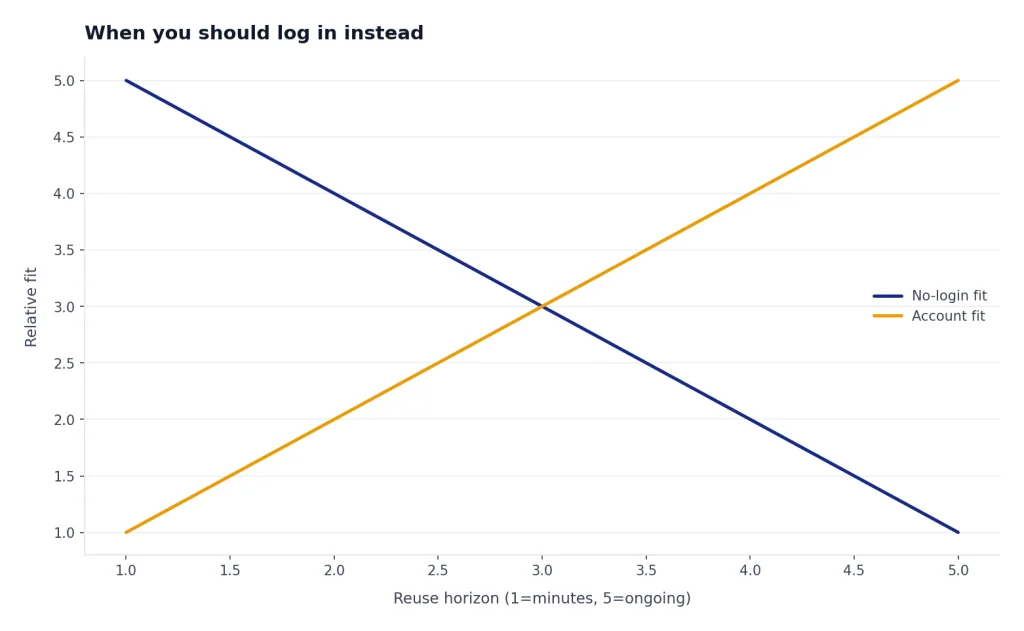
You should also log in when you want a consistent setup across devices. For example, if you start on your phone and finish on a laptop, signed-out mode is the wrong tool. Use the official app or desktop flow instead. We have setup guides for using ChatGPT on iPhone, using ChatGPT on Android, using ChatGPT on Mac, and using ChatGPT on Windows.
Log in if you are hitting repeated interruptions or limits. OpenAI has not published an official fixed message limit for the logged-out ChatGPT experience, and limits can vary. If the session asks you to sign in before continuing, the practical answer is to sign in or wait. For legitimate options, read how to bypass ChatGPT message limits legitimately.
Finally, log in if you need support. OpenAI’s ChatGPT home page article says users should contact support by creating an account or logging in to an existing account and starting a new conversation through the Help Center on-site chat.[2] If your issue is really an account issue, our ChatGPT login guide is the better next step.
Frequently asked questions
Can I use ChatGPT without an account?
Yes, in supported regions you can try ChatGPT on the web without creating an account. OpenAI says ChatGPT can be accessed before creating an account at chatgpt.com.[2] Availability can vary by region.
Will my no-login ChatGPT conversation be saved?
No, not as normal account history. OpenAI says logged-out chats remain accessible only for the current session on the same browser.[2] Copy anything important before closing the tab or starting over.
Can I have more than one ChatGPT conversation while logged out?
No. OpenAI says logged-out users can only have one conversation at a time.[2] If you need multiple threads, sign in and use saved chat history.
Can I turn off training for logged-out chats?
Yes. OpenAI says signed-out users can choose whether their chats are used to help train ChatGPT.[3] On web, use the question-mark icon, open Settings, and turn off “Improve the model for everyone.”
Why is ChatGPT asking me to log in?
The no-login feature may not be available in your region, your browser session may be stale, or you may have reached a limit. OpenAI says the feature is rolling out in supported countries and is not yet available for users in Europe except the UK.[2] Try a clean browser session, then sign in if you need to continue.
Is using ChatGPT without logging in the same as using ChatGPT offline?
No. No-login ChatGPT still requires access to OpenAI’s service through the web. If you want the practical limits of offline use, read how to use ChatGPT offline.