

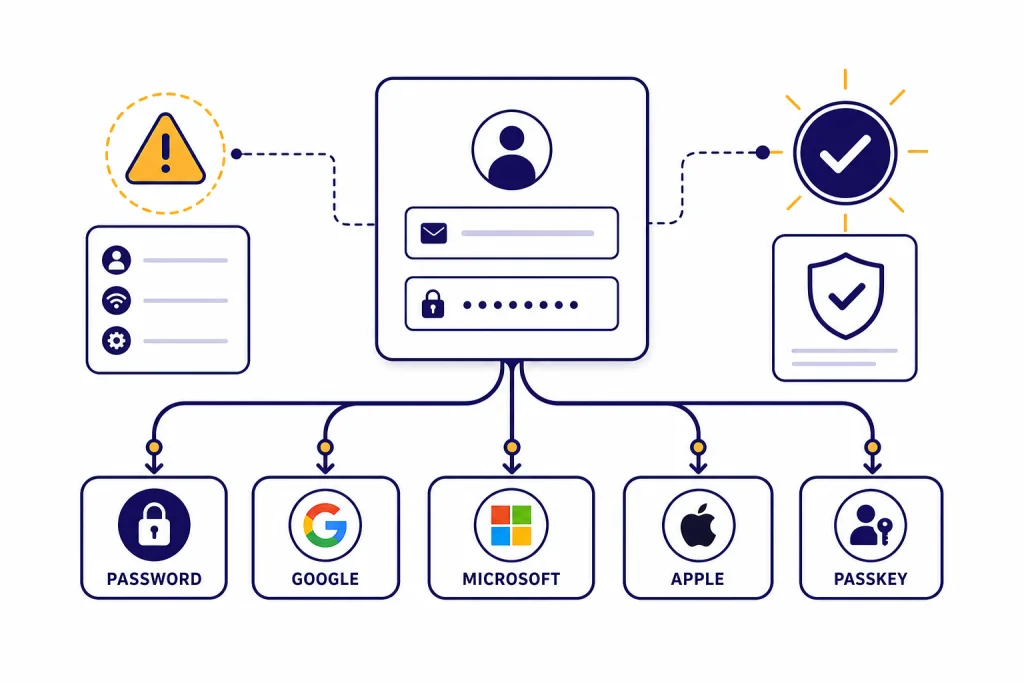
To log in to ChatGPT, open the ChatGPT website or the official ChatGPT app, choose Log in, enter the email address or phone number tied to your OpenAI account, and continue with the same sign-in method you used when you created the account. That may be a password, Google, Microsoft, Apple, or a passkey, depending on your setup. Most login issues come from using the wrong sign-in method, blocked cookies, browser extensions, VPNs, app browser problems, or temporary OpenAI service incidents. This guide walks through the normal login flow first, then gives a practical troubleshooting checklist for the most common errors.
Quick login steps
The fastest way to log in is to use the same path you used when you signed up. If you created the account with an email and password, use that email and password. If you used Continue with Google, Continue with Microsoft, or Continue with Apple, choose that same button again. OpenAI says using a different sign-in method can create separate accounts and subscriptions, so this detail matters if you expect to see your chat history, plan, memory, or saved settings after login.[1]
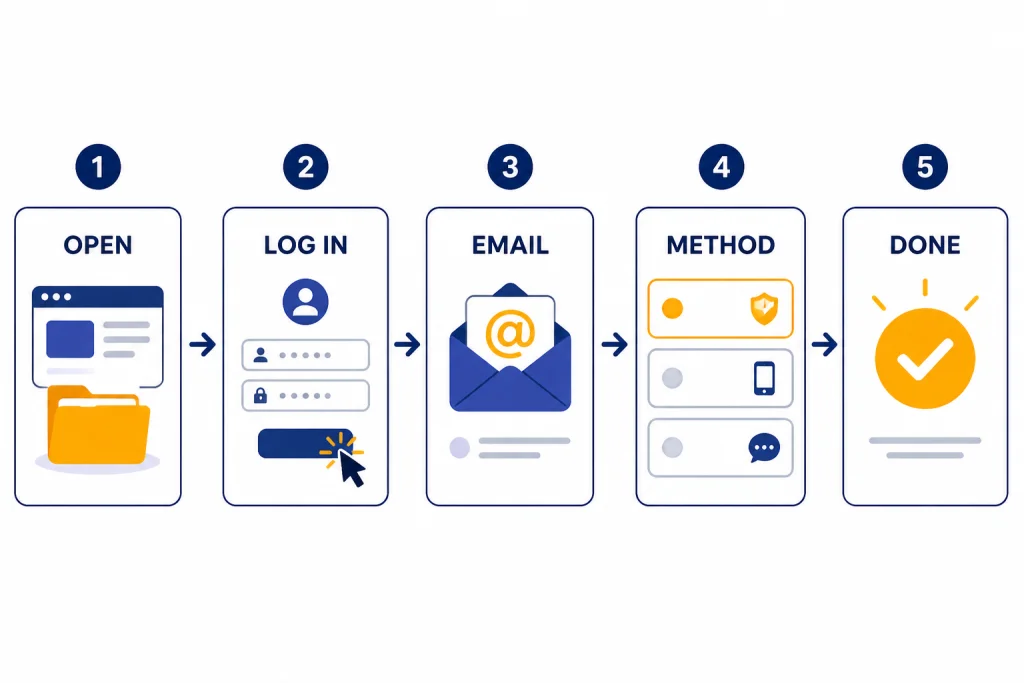
- Open ChatGPT in a supported browser or launch the official ChatGPT app.
- Select Log in, not sign up.
- Enter the email address or phone number associated with your OpenAI account.
- Continue with your original sign-in method: password, Google, Microsoft, Apple, or passkey.
- Complete any verification prompt shown by OpenAI or your identity provider.
- Confirm you landed in the correct account by checking your profile menu, plan, and recent chats.
If you are new to ChatGPT and do not have an account yet, start with how to sign up for ChatGPT without phone number before using this login guide. If you only need a quick one-off chat, see how to use ChatGPT without logging in so you understand what you can and cannot do without an account.
Choose the right login method
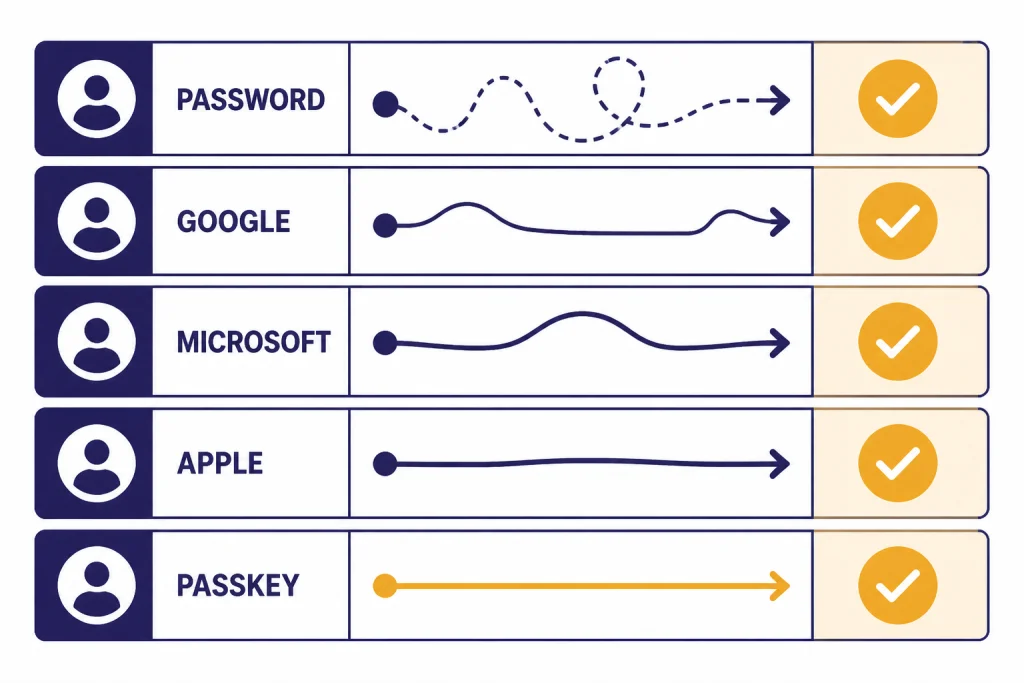
ChatGPT login problems often look like password problems when they are really sign-in method problems. OpenAI’s help center says that if you originally signed up with Google, Microsoft, or Apple, you must continue using that same method for that account.[1] If you try to enter a password for an account that was created through a social sign-in, there may be no OpenAI password to reset.[2]
OpenAI also says that users who created an account with an email and password can later log in with a social login method, as long as the email address matches. Users who initially signed up through single sign-on or a social login generally cannot switch to email and password later, except in certain Enterprise cases.[3]
| How you created the account | What to choose at login | Common mistake | Best fix |
|---|---|---|---|
| Email and password | Enter the same email, then use your OpenAI password | Using the wrong email or an old saved password | Use Forgot password if the email is correct |
| Continue with Google | Typing the Gmail address into the password flow | Return to the login screen and choose Google | |
| Microsoft | Continue with Microsoft | Using a work email in the wrong provider flow | Use the Microsoft button tied to that account |
| Apple | Continue with Apple | Forgetting that Apple Hide My Email may use a private relay address | Use Apple again and check the Apple ID involved |
| Passkey | Enter your email, then complete the passkey prompt | Trying on a device that does not have the passkey available | Choose Try another method if it appears |
Apple accounts deserve special attention. OpenAI says that if you used Continue with Apple and enabled Apple’s Hide My Email, your ChatGPT account may be tied to an Apple private relay address rather than the personal email address you expected.[1] In that case, logging in with your regular email can produce confusing account or authentication errors.
Log in on each device
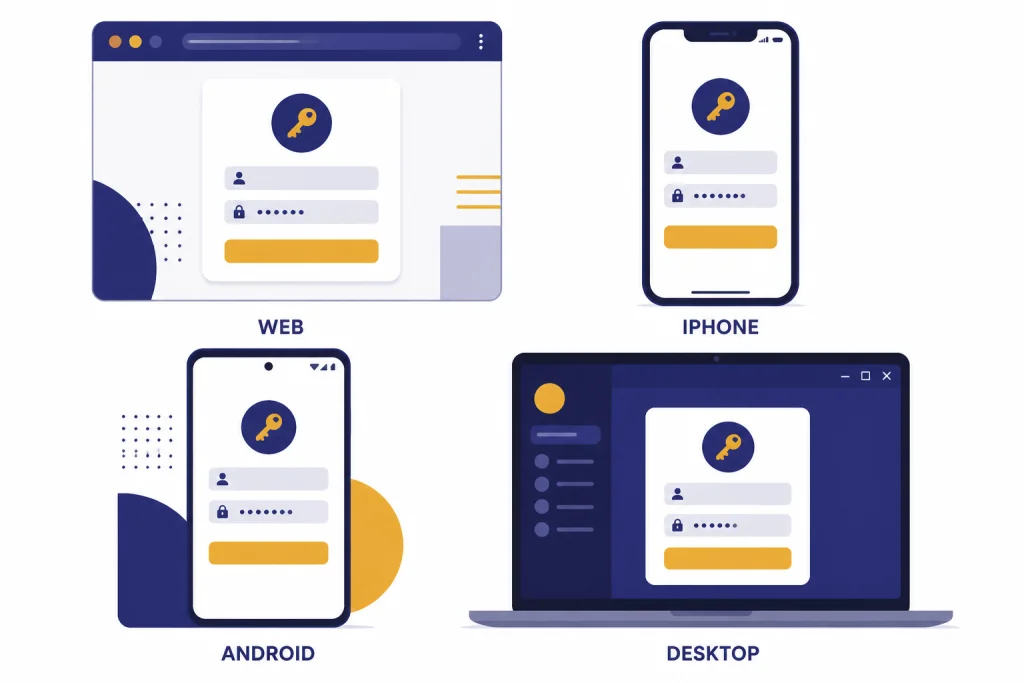
The login steps are similar across devices, but the source of the app matters. OpenAI’s Download ChatGPT page links to the official iOS, Android, macOS, and Windows downloads, and it notes that the macOS desktop app requires macOS 14 or later on Apple Silicon.[7] If you are not sure where you installed your app from, use OpenAI’s own download page rather than searching an app store and guessing.
Web browser
On a browser, open ChatGPT, choose Log in, and complete the identity flow. If the page loops, freezes, or shows a generic error, use a private window to test whether cached data or an extension is interfering. OpenAI recommends clearing cache and cookies, trying an incognito window, trying another browser or device, and allowing cookies and JavaScript for ChatGPT, OpenAI, and OpenAI’s authentication domain when login fails.[1]
iPhone and iPad
Install the official ChatGPT app from OpenAI’s download page or the App Store listing for ChatGPT by OpenAI. Then tap Log in and use the same provider you use on the web. If you use Apple sign-in, keep using Apple sign-in rather than switching to a password or another provider.
Android
OpenAI says the ChatGPT Android app is available from the Google Play Store, and its Android FAQ advises searching for “openai chatgpt” to confirm the app is published by OpenAI.[10] If the Android app cannot complete login, update your default browser, then try again. OpenAI notes that the Android app attempts login with Chrome or Brave if those browsers are installed and may show an error if those browsers are not available.[10]
Mac and Windows
For desktop, download ChatGPT from OpenAI’s download page and then log in with your normal account. If you are setting up a computer for the first time, how to use ChatGPT on Mac and How to Use ChatGPT on Windows cover the platform-specific setup details. If you mainly use a phone, we also have separate guides for ChatGPT on iPhone and ChatGPT on Android.
Fix common login issues
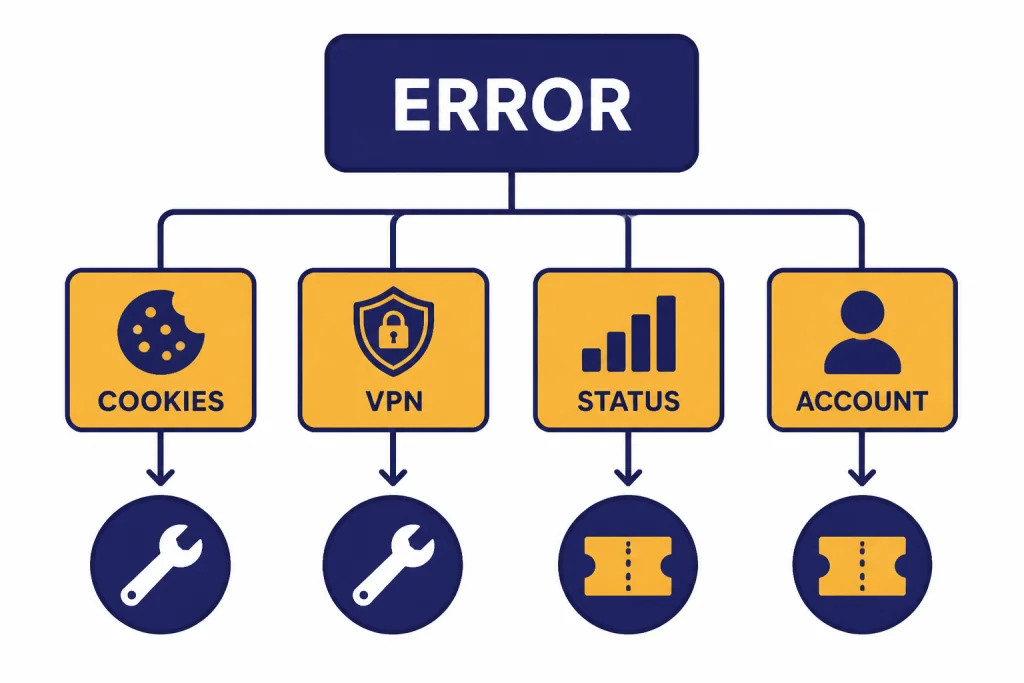
Start with the simplest test. OpenAI recommends checking your authentication method, using an incognito window, trying another browser or device, turning off a VPN, and waiting up to 1 hour after repeated failed login attempts because multiple failures can trigger temporary restrictions.[1] This sequence avoids changing your account before you know whether the problem is local, temporary, or account-specific.
| Symptom | Likely cause | What to try first | When to contact support |
|---|---|---|---|
| Wrong authentication method | You are using password login instead of Google, Microsoft, or Apple | Return to the login screen and choose the original provider | If every provider fails and you cannot identify the account email |
| Login button does nothing | Blocked cookies, JavaScript, extension, or cookie banner issue | Disable blockers, allow cookies, or use a private window | If the issue appears on several devices and networks |
| Something went wrong | Browser issue, network issue, or OpenAI service incident | Wait at least 60 seconds, retry, then check OpenAI Status | If OpenAI Status is normal and the error persists |
| Looping login screen | Stale session data or cookie conflict | Clear site data and try a different browser | If you can log in elsewhere but not on one managed device |
| Deleted or deactivated account message | The account was deleted by you or deactivated by OpenAI | Check your email, including spam or junk | Immediately, if you believe the deactivation is wrong |
For generic errors such as “Something went wrong” or “Oops,” OpenAI recommends waiting at least 60 seconds, checking OpenAI Status, clearing cache and cookies, using an incognito window, trying another device or network, and temporarily disabling browser extensions.[1] OpenAI Status is the official place to check whether ChatGPT, login, or related OpenAI services are experiencing an active incident.[8]
If you see a deleted or deactivated account message, treat it differently from a normal password problem. OpenAI says that message means the account was either deleted by the user or deactivated by OpenAI’s team.[9] If the account was deleted, OpenAI says it cannot be reactivated; after 30 days, you may be able to create a new account with the same email if the prior account was fully deleted and not deactivated.[9]
Location can also block access. OpenAI publishes a supported countries and territories list for ChatGPT on web and mobile, and it says accessing or offering access outside the listed locations may result in an account being blocked or suspended.[6] If login fails while traveling, test again from a supported location before assuming your password is wrong.
Reset your password and recover access
Use password reset only when your account actually uses an OpenAI password. OpenAI’s password reset instructions are to log out or open a private browser window, go to the ChatGPT home page, select Log in, enter your email address or phone number, select Forgot password?, and follow the email instructions.[2] If you originally signed up with Google, Microsoft, or Apple, OpenAI says you will not have an OpenAI password to reset and should log in with that provider instead.[2]
If the reset email does not arrive, check spam or junk, confirm you are checking the correct inbox, and look for typos in the address you entered. Do not repeatedly request resets from several addresses unless you are unsure which account contains your ChatGPT data. That can make it harder to identify the account that has your subscription or saved chats.
Changing your ChatGPT password changes the password for the full OpenAI account, including other OpenAI services that use the same account.[2] After you regain access, update your password manager and remove any old saved ChatGPT passwords from your browser. If you plan to keep important chats, read how to export your ChatGPT data and how to save a ChatGPT conversation so you are not relying only on browser history.
Secure your account after login
Once you are back in, take a minute to harden the account. OpenAI supports passkeys for eligible accounts. A passkey stores a cryptographic credential on your device or security key and can be protected by device security such as biometrics, a device PIN, or a hardware key touch.[4] OpenAI says passkeys can be used to sign in and may also be used as a multi-factor authentication method, depending on the account and configuration.[4]
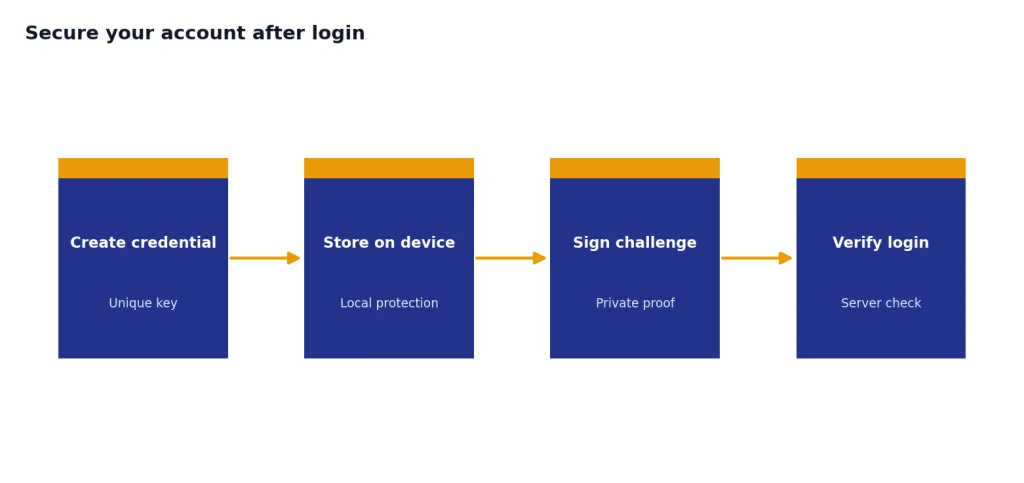
To enable a passkey, OpenAI says to sign in through the website, open ChatGPT Security Settings, find Passkeys, select Add passkey, and follow the prompts.[4] Passkey availability can vary by account, device, browser, and sign-in method, so do not assume something is broken if the option does not appear for you.
If you suspect someone else accessed your account, use the sign-out-all-devices option. OpenAI says ChatGPT users can open the profile menu, go to Settings, select Security, and click Log out all. The current session ends immediately, while other active ChatGPT sessions may take up to 30 minutes to be logged out.[5] Then change your password if your account uses one and review your email account security as well.
Security also affects what you can do after login. For example, if you are saving work, sharing conversations, or downloading app versions, use official paths and avoid look-alike services. Our guides to sharing a ChatGPT conversation, saving ChatGPT conversations as PDF, and downloading the ChatGPT app cover those next steps.
When you may not need to log in
Logging in is best when you want your chat history, plan features, saved preferences, memory, file tools, images, voice features, or cross-device continuity. It also makes sense when you need to manage billing, security, data export, or account settings. If you are using ChatGPT for work or school, logging in with the correct organization account may be required to access workspace features.
You may not need to log in for a quick public test if ChatGPT offers access without an account in your region and use case. The tradeoff is that account-based features may be limited or unavailable. If your goal is mobile use, voice input, image uploads, or saving a long-running project, login is usually the cleaner path. For related setup tasks, see how to use ChatGPT voice mode on any device and how to upload images to ChatGPT.
Do not confuse “not logged in” with “offline.” ChatGPT is an online service, and sign-in issues are not fixed by looking for an offline copy of your account. If you need the practical limits of offline use, read how to use ChatGPT offline before building a workflow around it.
Frequently asked questions
Why can’t I log in to ChatGPT even though my password is correct?
You may be using the wrong authentication method. If you signed up with Google, Microsoft, or Apple, use that same button instead of the email-and-password flow. Browser extensions, blocked cookies, VPNs, and temporary OpenAI incidents can also prevent a correct login from completing.[1]
How do I log in if I used Apple Hide My Email?
Choose Continue with Apple again. OpenAI says accounts created with Apple Hide My Email may be tied to an Apple private relay address, so your normal personal email may not work in the regular password flow.[1] Check your Apple ID settings if you are not sure which relay address was used.
Can I reset my ChatGPT password?
Yes, if your account uses an OpenAI password. OpenAI says to select Forgot password during login and follow the reset email instructions.[2] If you signed up with Google, Microsoft, or Apple, reset the password with that provider instead.
Why did my chats disappear after logging in?
You are probably in a different account. This can happen when you use a different email address or switch between password login and a social login provider. Log out, then sign in with the exact method and email you used when the chats were created.
Is the ChatGPT login the same on web and mobile?
The account is the same, but the app and browser flow can differ. Use the official ChatGPT app from OpenAI’s download page, then choose the same sign-in method you use on the web.[7] On Android, make sure the browser used for authentication is available and up to date.[10]
What should I do if ChatGPT says my account was deleted or deactivated?
Check your email inbox and spam folder for messages from OpenAI. OpenAI says deleted accounts cannot be reactivated, while deactivated accounts may require following the instructions in the relevant OpenAI email or contacting support.[9] Do not create multiple new accounts until you know which status applies.