

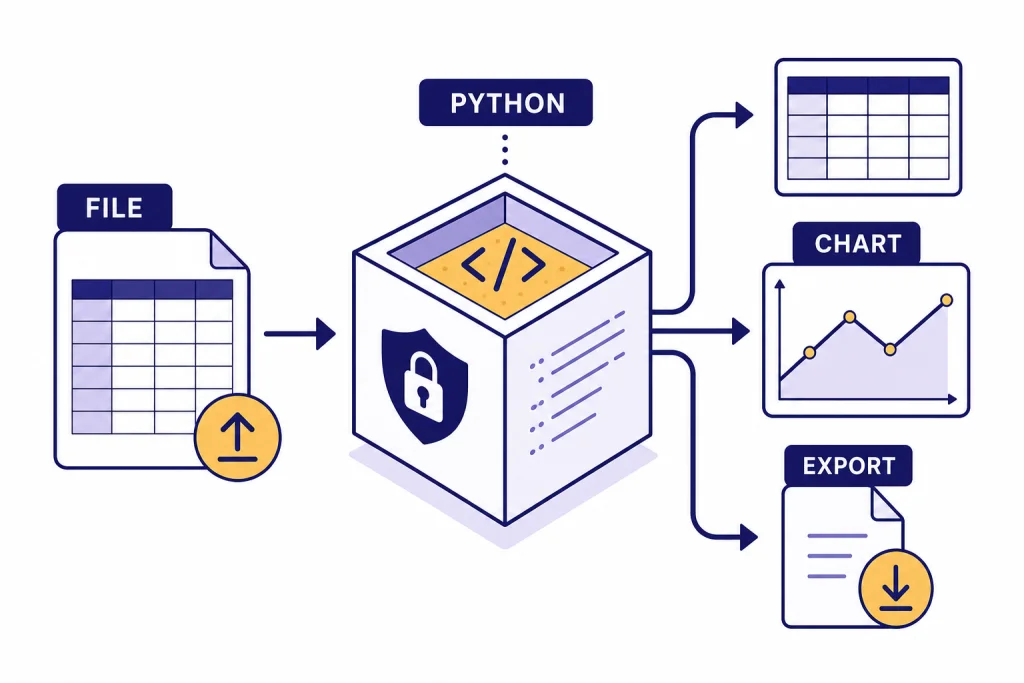
Code Interpreter is the part of ChatGPT that can write and run Python against files you upload, then return tables, charts, cleaned data, calculations, and downloadable files. OpenAI now describes this experience inside ChatGPT as data analysis or Advanced Data Analysis, but many users still call it Code Interpreter. This tutorial shows how to use it like a careful analyst: prepare clean files, ask for an inspection first, verify assumptions, run analysis in stages, review the generated code, and export results you can reuse. The goal is not to make ChatGPT guess faster. The goal is to make it show its work.
What Code Interpreter is in ChatGPT
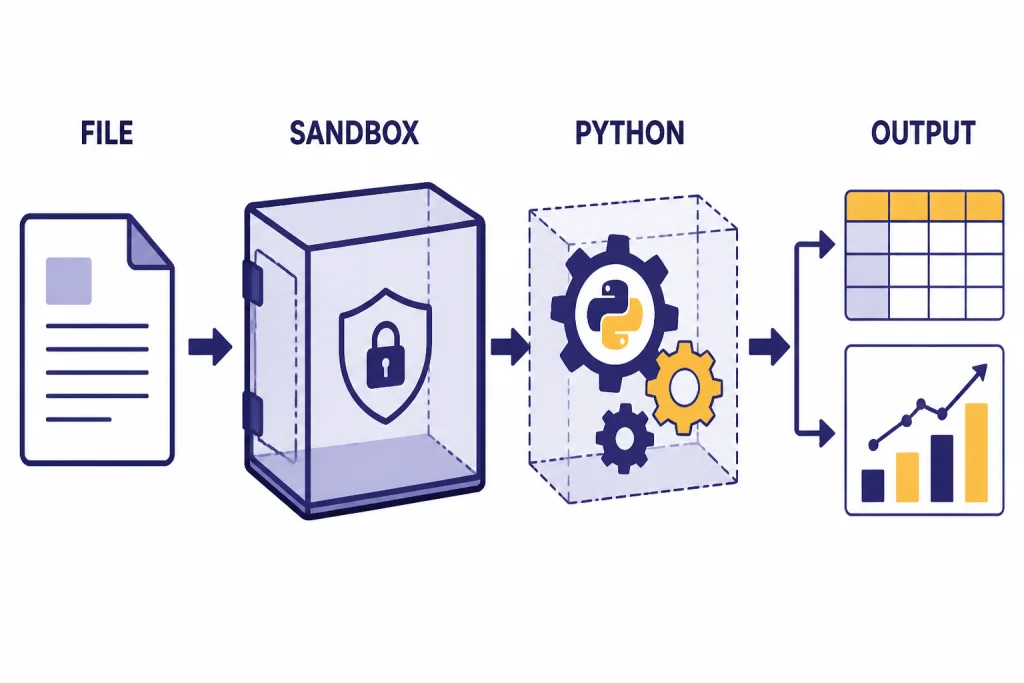
Code Interpreter is ChatGPT’s code execution workspace. In ChatGPT’s data analysis mode, OpenAI says ChatGPT can access uploaded files in a secure code execution environment, write Python code, run that code, inspect the output, and fold the result back into the chat answer.[1] That is different from ordinary chat. A normal answer may reason about a spreadsheet from a pasted sample. Code Interpreter can actually load the spreadsheet, calculate totals, find missing values, generate a chart, and create a new file.
The name can be confusing. OpenAI’s File Uploads FAQ says the current document workflow builds on Advanced Data Analysis, formerly known as Code Interpreter.[2] OpenAI’s older ChatGPT release notes also describe the July 6, 2023 beta rollout of Code Interpreter for ChatGPT Plus users on the web.[4] In this tutorial, “Code Interpreter” means the practical ChatGPT workflow where you upload data or files and ask ChatGPT to run code against them.
OpenAI says ChatGPT uses pandas for analysis and Matplotlib for charts in this workflow.[1] You do not need to know pandas to benefit, but you should think like a data reviewer. Ask ChatGPT to inspect the schema, list assumptions, show calculations, and explain why it chose a method. If you already use Python, ask it to expose the code through View Analysis and copy the code into your local editor when the result matters.
When to use Code Interpreter
Use Code Interpreter when the task needs computation, file handling, or repeatable transformation. It is useful for spreadsheets, CSV files, JSON exports, logs, survey results, finance exports, product catalogs, text collections, and generated reports. OpenAI lists Excel, CSV, PDF, and JSON among supported formats for ChatGPT data analysis, and it also supports direct uploads from Google Drive, Microsoft OneDrive Personal, and Microsoft OneDrive including SharePoint.[1]
For pure writing, use ordinary ChatGPT. For long document drafting, combine this workflow with ChatGPT Canvas. For larger research projects, use Deep Research before you run calculations. For spreadsheets specifically, the companion Excel formulas and pivot tables tutorial is a better starting point if you mostly need formulas rather than Python-backed analysis.
| Task | Use Code Interpreter | Use regular chat | Use local tools |
|---|---|---|---|
| Find duplicate customer rows | Best choice. It can inspect the full file and return a cleaned copy. | Weak choice unless you paste a tiny sample. | Good if you already have a script or database query. |
| Explain what a metric means | Useful if the metric is in a dataset. | Good for definitions and plain-English explanations. | Usually unnecessary. |
| Create a chart from CSV data | Best choice for fast charting and iteration. | Not enough if the data is only in a file. | Good for production charts with strict styling. |
| Summarize a policy PDF | Useful if you need extraction plus counts or tables. | Good for a short document pasted into chat. | Better for regulated document review systems. |
| Build an app or package | Useful for prototypes and file generation. | Good for planning. | Best for testing, version control, and deployment. |
Step 1: Prepare your files
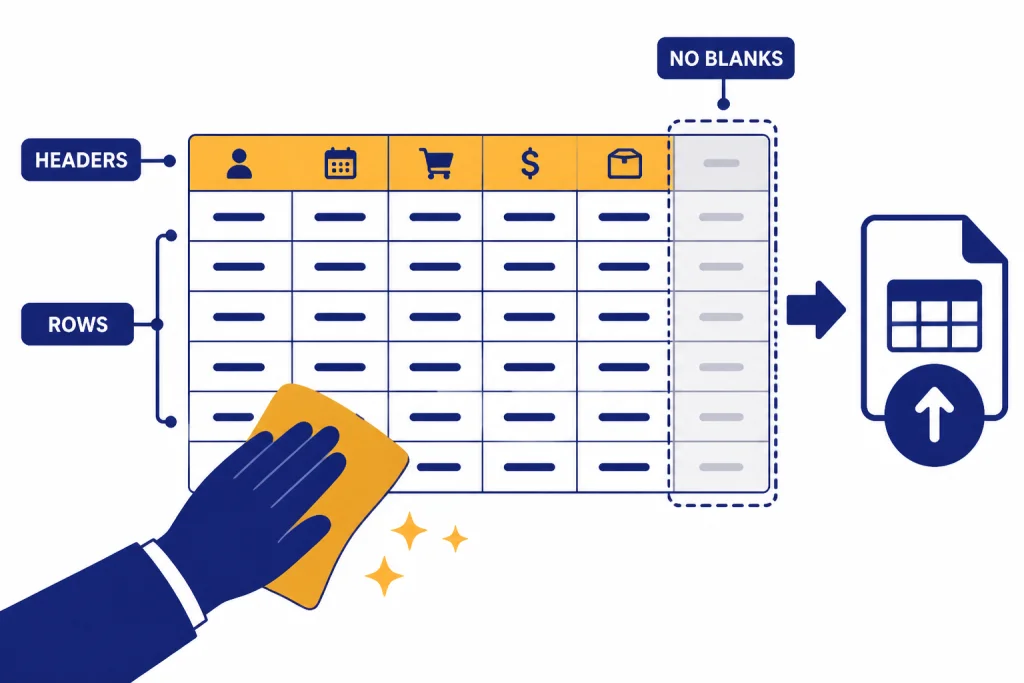
Good Code Interpreter work starts before you upload anything. For spreadsheets, use one row per record, put descriptive headers in the first row, avoid empty rows and columns, and do not hide important information inside images. OpenAI recommends those same spreadsheet hygiene rules for ChatGPT data analysis.[1]
Rename files before uploading. Use names like orders-2025-q4.csv, customers-master.xlsx, or survey-raw-responses.json. Do not upload final_FINAL_v7.xlsx and expect ChatGPT to infer what matters. If you upload related files, include the join key in your prompt: customer ID, order ID, SKU, date, region, or whatever connects the tables.
Respect the limits. OpenAI says a given ChatGPT conversation can analyze up to 10 uploaded files, while a custom GPT can have up to 20 files attached as Knowledge if Code Interpreter is enabled for that GPT.[1] OpenAI also lists a 512 MB hard limit per uploaded file, an approximate 50 MB limit for CSV files or spreadsheets depending on row size, and a 2M-token cap for text and document files uploaded to a GPT or ChatGPT conversation.[2]
If a file is close to those limits, split it deliberately. For example, divide a sales export by quarter, product line, or region. Then ask ChatGPT to analyze one slice first, confirm the method, and repeat the same method across the remaining files. This keeps the conversation easier to audit.
Step 2: Start with inspection
Do not start with “analyze this.” Start with inspection. A strong first prompt asks ChatGPT to identify tables, columns, data types, missing values, row counts, date ranges, and obvious risks. OpenAI says ChatGPT begins structured-data work by examining the first few rows to understand schema and value types.[1] You should make that step explicit.
I uploaded a sales export. Do not answer the business question yet.
First inspect the file.
Return:
- file name detected
- row and column count
- column names and inferred data types
- date range if any date columns exist
- missing values by column
- duplicate row count
- any columns that look like IDs, money, dates, or categories
- questions you need answered before analysis
After that, ask for a plan. The plan should name the calculations, filters, joins, and chart types ChatGPT intends to use. This prevents a common failure mode: a polished answer built on the wrong assumption. If ChatGPT says it will use “revenue,” ask which column maps to revenue. If it says it will group by “customer,” ask whether that means customer name, customer ID, account ID, or email.
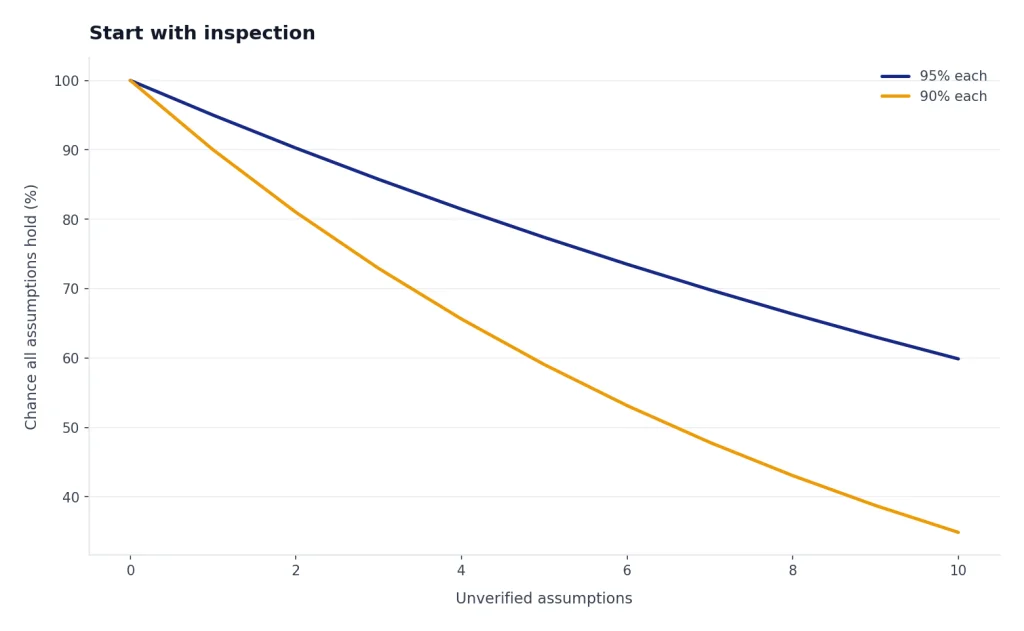
This is also where prompt engineering techniques matter. Tell ChatGPT what not to do. For example: “Do not drop rows without showing me how many would be removed,” or “Do not infer churn unless the dataset contains a cancellation date.” Constraints make Code Interpreter safer.
Step 3: Clean and validate the data
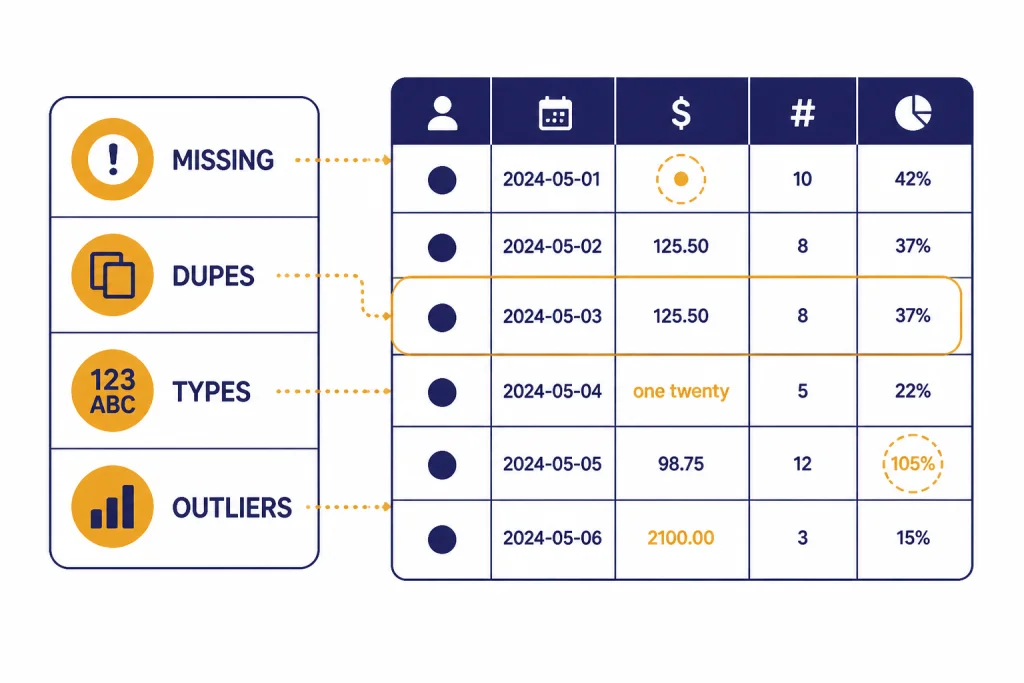
Cleaning is where Code Interpreter starts to feel powerful. OpenAI’s data analysis guide says ChatGPT can identify issues such as missing values, outliers, duplicate rows, and incorrect data types.[3] That does not mean you should accept every automatic fix. Ask it to separate findings from actions.
Create a data quality report before changing anything.
For each issue, show:
- issue type
- affected column
- affected row count
- percent of file affected
- recommended fix
- risk of the fix
Do not modify the file until I approve the fixes.
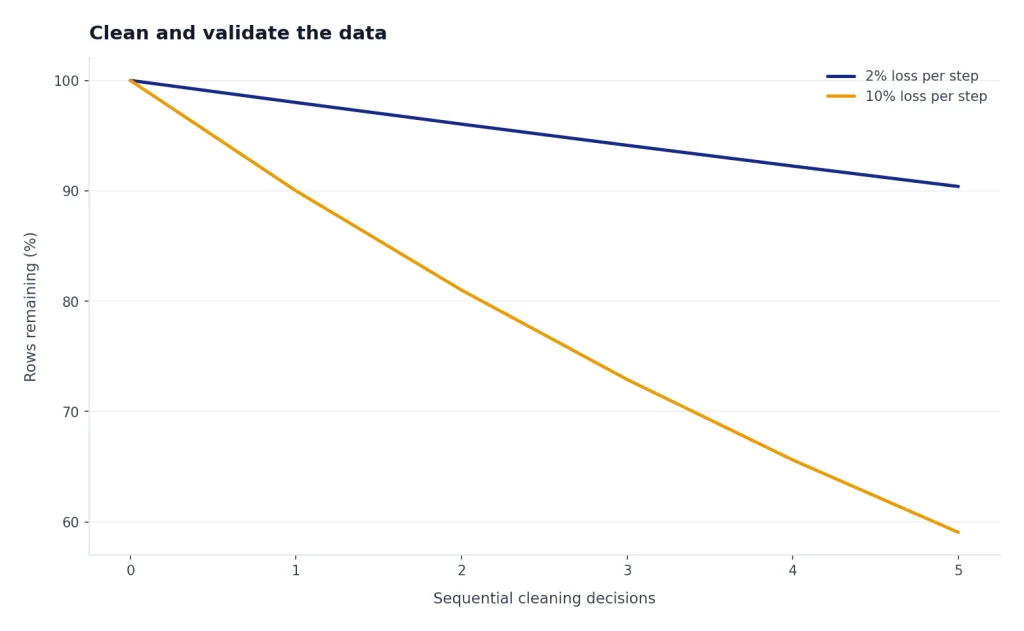
Then approve fixes one by one. Normalize date formats. Convert currency strings to numeric values. Trim whitespace from category labels. Standardize obvious duplicates such as “United States,” “USA,” and “U.S.” only after you review the mapping. For missing values, ask ChatGPT to explain whether it will drop rows, fill with a median, create an “Unknown” category, or leave the data unchanged.
When the cleaned file matters, ask for a reconciliation table. It should compare row count, column count, total revenue, unique IDs, and date range before and after cleaning. This step catches accidental row loss. If you are working with business-critical data, export the cleaned file and review it in Excel, a database, or your own Python environment.
Step 4: Analyze and visualize
Once the data is clean, move from broad questions to specific ones. “What happened to revenue?” is vague. “Compare monthly net revenue by product line, flag months more than two standard deviations below the product-line average, and explain likely drivers using available columns” is testable. OpenAI lists sums, averages, minimum and maximum values, distinct counts, standard deviation, and dataset merging as examples of analysis ChatGPT can perform.[3]
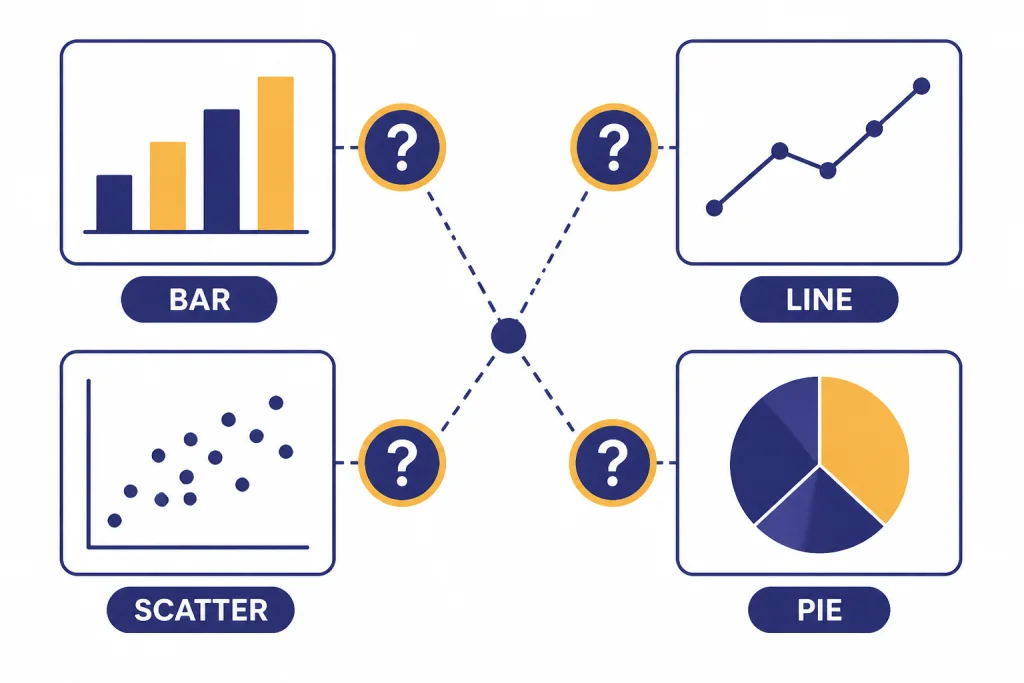
For charts, ask for the chart and the rationale. OpenAI says ChatGPT can create line graphs, bar charts, pie charts, histograms, scatter plots, box plots, heat maps, area charts, radar charts, treemaps, bubble charts, and waterfall charts; it also notes that bar, pie, scatter, and line charts are interactive in most cases.[3] Use that range, but avoid decorative charts. The chart should answer one question.
Use the cleaned dataset.
Create three outputs:
1. A summary table by month and product line.
2. A line chart showing monthly net revenue by product line.
3. A short interpretation with only claims supported by the table.
Also explain why you chose the chart type.
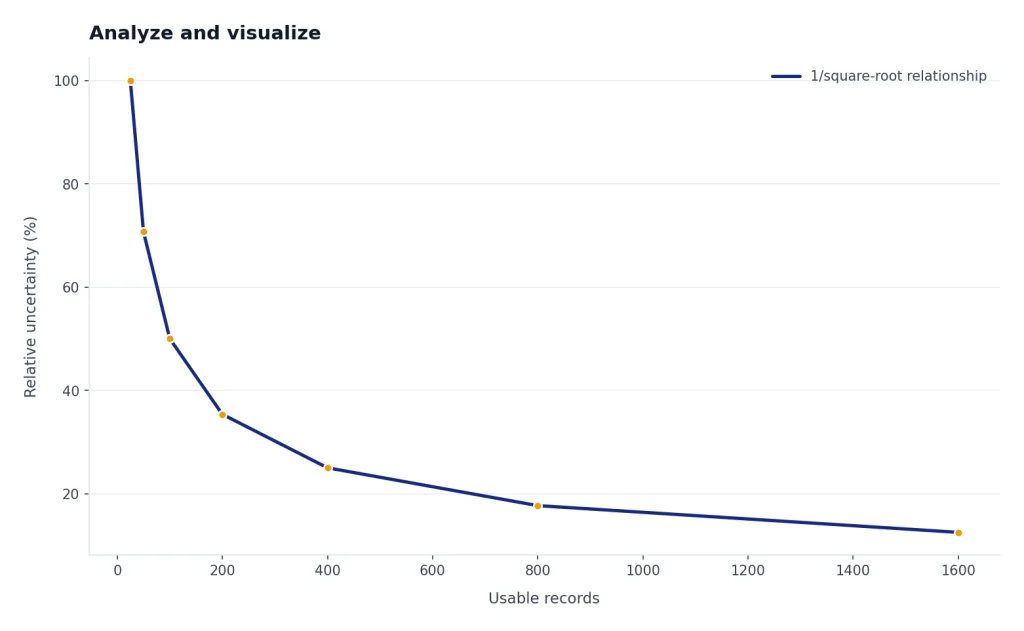
Ask for uncertainty. If the dataset is incomplete, tell ChatGPT to say so. If it uses a proxy variable, make it label the proxy. If it excludes outliers, make it run the analysis both with and without them. For more advanced workflows, combine this article with the broader data analysis step-by-step guide and the academic research workflow when your dataset comes from studies or papers.
Step 5: Export and reuse the work
A good Code Interpreter session ends with artifacts. Ask for a cleaned CSV, a chart image, a brief report, and the Python code used to create them. OpenAI says ChatGPT users can click View Analysis to see how the tools were used, toggle details on by default, and copy code locally.[1] That code is valuable because it lets you reproduce the work outside ChatGPT.
Use a final packaging prompt. Ask ChatGPT to produce a file list and explain what each file contains. If it created a cleaned dataset, require a data dictionary. If it created charts, require the chart title, input data, filtering rules, and any transformations. If it wrote code, ask for comments that explain each section.
Package the result for handoff.
Create:
- cleaned CSV
- data quality report
- chart PNG files
- README explaining methods and assumptions
- reusable Python script
Before creating files, list the proposed filenames and what each file will contain.
If you need a polished written deliverable, move the exported findings into a writing workflow or Canvas. If you need a repeatable assistant for the same file format each week, consider building a custom GPT with clear instructions and test files.
Limits, privacy, and failure modes
Code Interpreter is powerful, but it is not a permanent compute environment. OpenAI says the ChatGPT code execution environment cannot generate outbound network requests directly, is isolated from the rest of the ChatGPT hosting platform, and is destroyed within 13 hours after the conversation becomes inactive.[1] Treat each session as temporary. Download important outputs before you leave.
File limits can also interrupt work. OpenAI says users can upload up to 80 files every 3 hours, while free users are limited to 3 file uploads per day, and OpenAI may lower limits during peak hours.[2] OpenAI also says ChatGPT does not currently provide a way for users to check how much file upload quota has been used or remains.[2] If you hit a cap, consolidate small files, wait, or move the workflow into fewer uploads.
Be careful with sensitive data. OpenAI’s File Uploads FAQ says files uploaded to ChatGPT are saved up to the retention period of the corresponding chat, while files uploaded as custom GPT knowledge are retained until the custom GPT is deleted.[2] The same FAQ says associated files are deleted from OpenAI systems within 30 days after deleting a chat, account, or custom GPT, unless exceptions apply.[2] Do not upload confidential, regulated, or client data unless your account, contract, and data controls allow it.
The most common failure is false confidence. ChatGPT can write code, recover from errors, and produce convincing explanations, but it can still choose the wrong column, filter the wrong rows, or explain a correlation as if it were a cause. Use a verification loop: inspect, plan, run, reconcile, export, and review.
Prompt templates for Code Interpreter
Use these templates as reusable starting points. Adapt the bracketed parts. The strongest prompts specify the file, the business question, the output format, and the verification standard.
Inspection template
I uploaded [file name]. Inspect it before analysis.
Return schema, row count, column count, inferred data types, missing values, duplicates, date range, and possible key fields.
End with questions you need answered before you analyze it.
Cleaning template
Build a cleaning plan for this dataset.
Separate required fixes from optional fixes.
For each fix, show the affected rows and the risk.
Do not change the data until I approve the plan.
Analysis template
Answer this question using only the uploaded data: [question].
Show the calculation method, the fields used, and any filters applied.
Return a summary table, one chart, and a plain-English interpretation.
Flag any limitations.
Audit template
Audit your previous answer.
List every assumption, every column used, every row filter, and every transformation.
Then identify the top risks that could make the conclusion wrong.
If you want a broader learning path, start with Master ChatGPT in 7 Days, then add this tutorial, the coding workflow, and advanced prompt engineering techniques.
Frequently asked questions
Is Code Interpreter the same as Advanced Data Analysis?
For most ChatGPT users, yes. OpenAI says Advanced Data Analysis was formerly known as Code Interpreter.[2] The interface wording may change, but the practical idea is the same: ChatGPT can use code to work with uploaded files.
Do I need to know Python?
No. You can prompt in plain English. Knowing Python helps you review the code, reproduce the work locally, and catch mistakes, but it is not required for basic analysis.
Can Code Interpreter access the internet?
OpenAI says the ChatGPT code execution environment cannot generate outbound network requests directly.[1] If your task needs fresh web data, gather the data separately or use a browsing or research workflow first, then upload the resulting file.
What file types work best?
Structured files work best, especially CSV, Excel, and JSON. PDFs can work, but scanned pages and image-heavy documents are less reliable unless your plan supports the needed visual retrieval features. Clean headers and one-record-per-row structure matter more than file format.
Can ChatGPT create downloadable files?
Yes. Code Interpreter can generate cleaned datasets, charts, reports, and scripts. Always ask for a file list and a short README so you know what each output contains.
Should I trust the answer if the chart looks right?
No. A good-looking chart can still be based on a bad filter, a wrong join, or a misunderstood column. Ask ChatGPT to show the code, list assumptions, reconcile totals, and explain any excluded rows before you rely on the conclusion.