

The best ChatGPT productivity prompts turn vague work into a clear next action. They give ChatGPT a role, context, constraints, source material, and a usable output format. Use them to plan your day, triage email, summarize meetings, rewrite rough notes, prepare decisions, and create repeatable check-ins. This guide gives you a practical prompt library for a daily workflow, plus a simple system for saving and improving the prompts that actually help. Copy the prompts as written, replace the bracketed details, and keep the ones that consistently reduce friction in your workday.
What makes a productivity prompt work
A productivity prompt works when it reduces ambiguity. Do not ask ChatGPT to help you be productive in general. Ask it to act as a workflow editor, use a specific input, honor real constraints, and return a format you can use immediately. OpenAI’s prompt guidance recommends clear, specific instructions, enough context, and iterative refinement when the first answer misses the mark.[1]
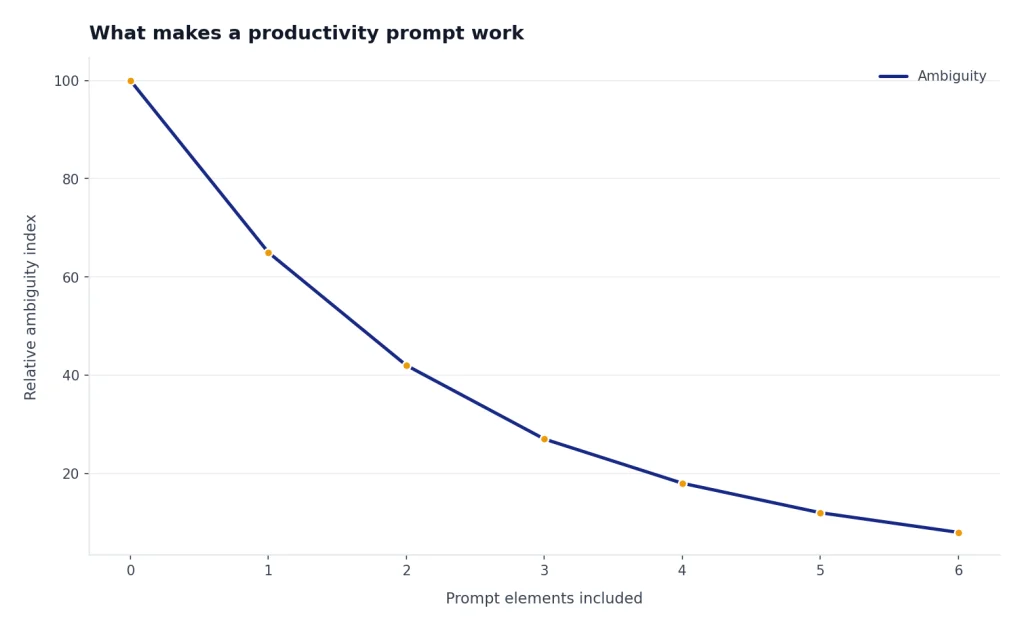
The most reliable structure is simple: role, goal, context, constraints, source material, and output format. Put the instruction before the raw material. If you paste notes, emails, or meeting transcripts, separate them with a visible divider so ChatGPT can tell the task from the content. OpenAI’s API prompt guidance also recommends putting instructions first and using separators such as triple quotes to distinguish instructions from source text.[2]
Use this base pattern when you create your own prompts. The edge case to watch for is a prompt that sounds precise but hides missing context. For example, ‘prioritize my tasks’ is weak if the model cannot see deadlines, dependencies, or what happens if an item slips.
Act as [role].
My goal is [specific outcome].
Context: [who, audience, project, deadline, constraints].
Use this source material only when relevant:
'''
[paste notes, email, transcript, task list, or draft]
'''
Return the answer as [format].
Before finalizing, flag missing information or assumptions.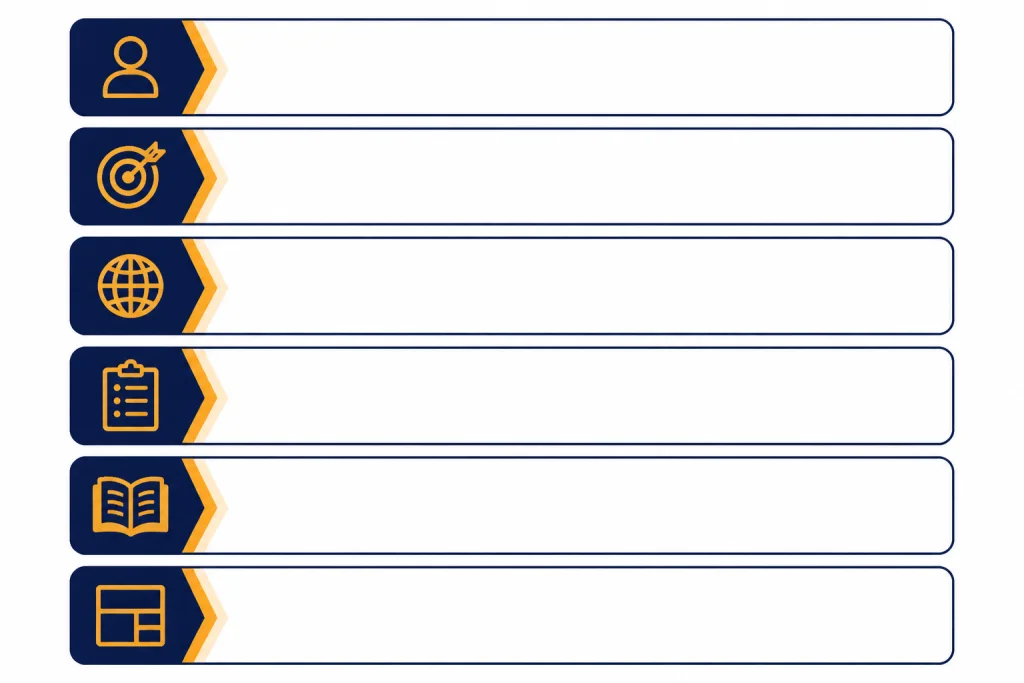
Daily workflow prompt library
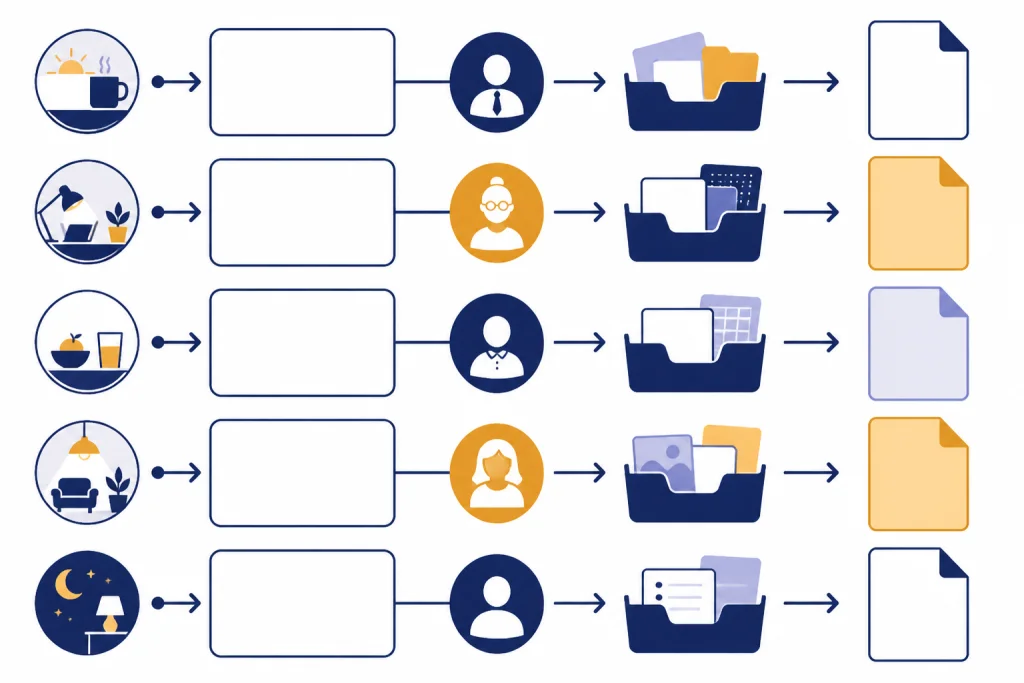
Productivity prompts should match the moment in the day. A morning planning prompt should not look like a meeting-summary prompt. A decision prompt should not look like a writing prompt. Use the table below as a quick map, then copy the detailed prompts in the next sections.
| Workflow moment | Best ChatGPT role | What to paste | Best output |
|---|---|---|---|
| Start of day | Prioritization coach | Calendar, task list, constraints | Agenda with tradeoffs |
| Email triage | Executive assistant | Unread messages or summaries | Reply queue and next actions |
| Meeting follow-up | Project coordinator | Transcript, notes, decisions | Action list with owners |
| Deep work | Focus planner | Project goal and blockers | Work block plan |
| End of day | Reflection editor | Completed work and loose ends | Shutdown checklist |
A good library also records when not to use a prompt. Do not use a meeting-summary prompt when the transcript is incomplete, a decision prompt when the source material is one-sided, or an email-reply prompt when tone and relationship history matter more than speed. In those cases, ask for a draft and a verification checklist, not a final answer.
Plan your day with ChatGPT
Start with reality, not aspiration. Paste the tasks that are already on your plate. Add calendar constraints, energy limits, deadlines, and obligations. Ask ChatGPT to make tradeoffs explicit instead of giving you a perfect schedule that cannot survive contact with your day.
Morning prioritization prompt
Act as a practical workday planner.
Build a realistic plan for today.

My available work windows are: [time windows].
My fixed meetings are: [meetings].
My energy pattern today is: [high, medium, low, or details].
My task list is:
'''
[paste tasks]
'''

Return:
- the top priority for the day
- a time-blocked agenda
- tasks to defer
- tasks to delegate or simplify
- one risk that could derail the plan
- a fallback plan if I lose a work block
Illustrative filled-in example:
Input:
Available work windows: 9:00-10:30, 1:00-3:00, 4:00-4:45.
Fixed meetings: client call 11:00, team standup 3:15.
Energy: highest before lunch.
Tasks: finish proposal draft due today, reply to vendor, review design mockups, file expenses, prepare client-call questions.

Example ChatGPT output:
Top priority: finish the proposal draft, because it is due today and needs your highest-energy window.
Agenda:
- 9:00-10:25: proposal draft; stop after a complete version, not a perfect one
- 10:25-10:30: write client-call questions
- 1:00-1:25: send vendor reply
- 1:25-2:30: revise proposal after call notes
- 2:30-3:00: review design mockups only for blockers
- 4:00-4:20: file expenses if energy allows
- 4:20-4:45: send proposal or list final gaps
Defer: non-blocking design polish.
Risk: the client call may create new proposal changes.
Fallback: if the 1:00 block disappears, send a rough proposal with clearly marked assumptions.
Verify that the output did not invent a deadline, meeting detail, or dependency. If the plan is too tight, ask ChatGPT to remove one low-value item and rebuild the day with buffer time.
Overloaded task list prompt
Act as a calm operations manager.
My list is too large for today. Sort it into:
- must finish today
- should progress today
- can wait
- should be clarified
- should be deleted or delegated

Use this task list:
'''
[paste list]
'''

For each must-finish item, give the smallest useful next action.
Failure mode: if ChatGPT marks everything as important, add consequences. Tell it what breaks if each task slips, which people are waiting, and which items are reversible. Prioritization improves when the prompt includes cost of delay.
Deep work setup prompt
Act as a focus coach.
Help me prepare for one deep work block.

Project: [project]
Desired outcome by the end of the block: [outcome]
Time available: [duration]
Known blockers: [blockers]
Materials I have: [files, notes, links, or none]

Return:
- a clear definition of done
- a short setup checklist
- the first action to take
- likely distractions
- a closing ritual so I can resume later
For long documents or drafts that need back-and-forth editing, ChatGPT’s canvas feature is designed for writing and coding work that requires revisions rather than a single chat response.[8] You can also use our ChatGPT canvas tutorial when your productivity workflow depends on revising a document over several passes.
Turn messy input into action
Most daily productivity gains come from converting unstructured material into usable outputs. ChatGPT is strongest when you paste the messy source and ask for a constrained result. Use these prompts for meeting notes, email threads, research dumps, and rough drafts.
Meeting notes to action plan
Act as a project coordinator.
Convert these meeting notes into an action plan.

Source notes:
'''
[paste notes or transcript]
'''

Return a table with:
- decision made
- action item
- owner if stated
- deadline if stated
- dependency
- unclear item to confirm

Do not invent owners or deadlines. Mark missing details as 'not stated.'
Illustrative filled-in example:
Input notes:
Launch page is approved if legal signs off. Maya will send final screenshots. We still need a launch email subject line. Tom asked whether pricing language changed. Target is next Wednesday, but no one confirmed the exact publish time.

Example ChatGPT output:
| Decision made | Action item | Owner if stated | Deadline if stated | Dependency | Unclear item to confirm |
|---|---|---|---|---|---|
| Launch page approved pending legal signoff | Get legal approval | not stated | before next Wednesday | legal review | who owns legal follow-up |
| Screenshots still needed | Send final screenshots | Maya | not stated | final product images | exact delivery date |
| Launch email needs subject line | Draft subject-line options | not stated | not stated | launch positioning | owner and approval process |
| Pricing language may have changed | Confirm pricing wording | Tom raised question; owner not stated | before page publish | pricing source of truth | whether pricing changed |
| Target launch is next Wednesday | Confirm publish time | not stated | next Wednesday | legal and assets | exact publish time |
Verification step: compare every owner and deadline against the original notes. If the notes say ‘Maya will send screenshots,’ that is supported. If the output assigns legal follow-up to Maya, that would be an invention and should be corrected.
Email thread summary prompt
Act as an executive assistant.
Summarize this email thread for action.

Email thread:
'''
[paste thread]
'''

Return:
- one-sentence summary
- what the sender wants from me
- deadline or urgency signal
- suggested reply in my voice
- any risk, disagreement, or missing detail
For sensitive threads, paste a redacted version first. Replace names, customer identifiers, contract values, and private dates with placeholders. Then ask for structure, not final wording, until you are ready to verify details.
Rough notes to polished brief
Act as a concise business writer.
Turn these rough notes into a brief for [audience].

Notes:
'''
[paste notes]
'''

Use this structure:
- context
- recommendation
- evidence
- risks
- next step

Keep the language plain. Preserve important caveats. Ask me for clarification if the recommendation is not supported by the notes.
A strong brief prompt includes the audience and the decision the audience needs to make. Without that, ChatGPT may produce a polished but unfocused summary. If you see filler such as ‘it is important to consider,’ ask for a rewrite with only claims supported by the notes.
Automate routine check-ins
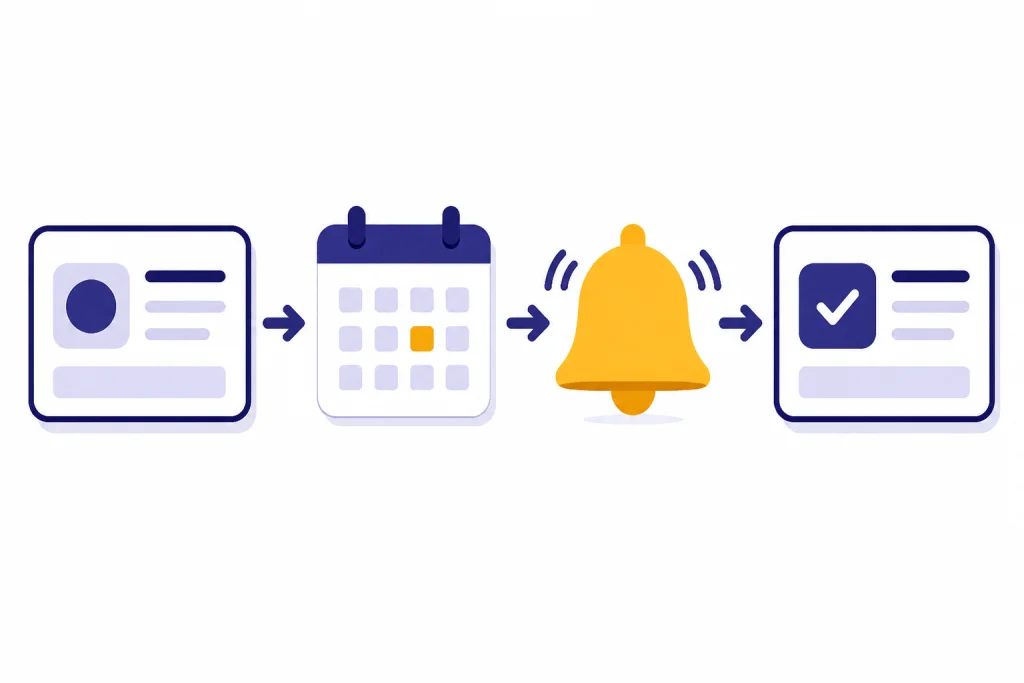
Some productivity prompts are worth running on a schedule. ChatGPT Tasks can run automated prompts and proactively reach out, and OpenAI says tasks are supported on ChatGPT Web, iOS, Android, and MacOS.[4] Use scheduled prompts for recurring reviews, reminders, planning rituals, and light research checks. Do not use them for tasks that require confidential data, judgment you have not reviewed, or actions outside your approved tools.
Daily shutdown task prompt
Create a recurring weekday task called 'workday shutdown.'
At [time], ask me to paste what I finished, what is still open, and what I am worried about.
Then return:
- tomorrow's likely top priority
- loose ends to capture
- messages I may need to send
- one thing to stop thinking about tonight
Keep shutdown prompts short. If the task asks for too much, you will stop using it. The useful version is the one you can answer in two minutes at the end of a tired day.
Weekly review task prompt
Create a recurring weekly review task for [day and time].
When it runs, ask me for wins, unfinished work, blockers, and upcoming deadlines.
Then produce:
- a short weekly summary
- important unfinished items
- risks for next week
- decisions I need to make
- a draft message to my manager or team if useful
If your work lives in files or internal systems, connectors can make prompts more useful. OpenAI describes ChatGPT connectors as a way to connect to third-party applications such as Google Drive, GitHub, or SharePoint so ChatGPT can search files, pull live data, and reference content in chat.[5] Check your organization’s policy before connecting work accounts, and test with low-risk material before relying on connected data for a decision.
Protect privacy and quality
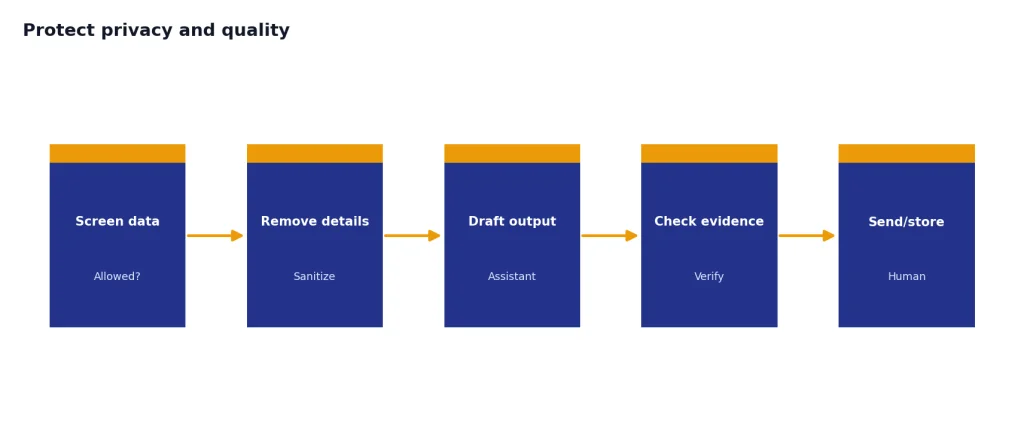
Productivity prompts often involve sensitive material: calendars, names, customer details, contracts, internal plans, or unreleased work. Before pasting anything, decide whether the information is allowed in your ChatGPT plan and workspace. OpenAI’s Data Controls FAQ says signed-in users can turn off Improve the model for everyone, and Temporary Chats do not appear in chat history or create memories.[6] For business plans, OpenAI says it does not use data from ChatGPT Enterprise, ChatGPT Business, ChatGPT Edu, ChatGPT for Healthcare, ChatGPT for Teachers, or the API platform for training by default.[7]
Quality control matters as much as privacy. Treat ChatGPT as a drafting and structuring assistant, not as the final authority. Ask it to show assumptions, mark missing information, and separate facts from suggestions. When a prompt creates a reply, brief, or decision memo, read the source material yourself before sending the output.
Verification prompt
Review your previous answer as a skeptical editor.
Separate the output into:
- claims directly supported by my source material
- reasonable inferences
- unsupported assumptions
- items that need human verification

Do not add new facts. Focus only on checking the answer against the material I provided.
Use this prompt after summaries, recommendations, and customer-facing drafts. It is especially helpful when the source material contains ambiguous phrases like ‘soon,’ ‘probably,’ ‘approved,’ or ‘we should.’ Those words often need a human owner, deadline, or decision record.
Confidentiality rewrite prompt
Rewrite this text to remove sensitive details before I share it more widely.
Remove or generalize names, customer details, internal project names, exact dates, financial figures, and private identifiers.
Preserve the useful business meaning.

Text:
'''
[paste text]
'''

Return the sanitized version and a short list of what you removed or generalized.
Memory can improve repeated workflows, but it should be managed deliberately. OpenAI says users can review, delete, or turn off saved memories, and can ask ChatGPT what it remembers.[9] If you want a deeper setup process, use our ChatGPT memory power-user tips after you decide what details are safe to store.
Build a personal prompt system
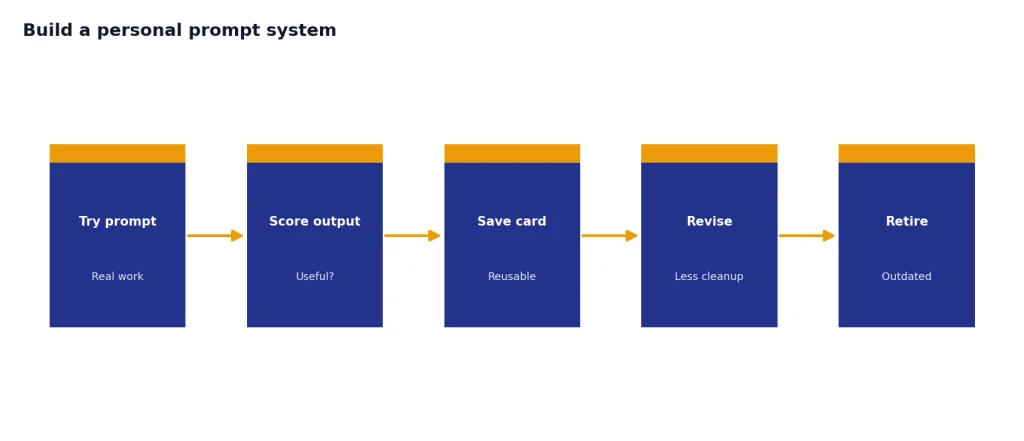
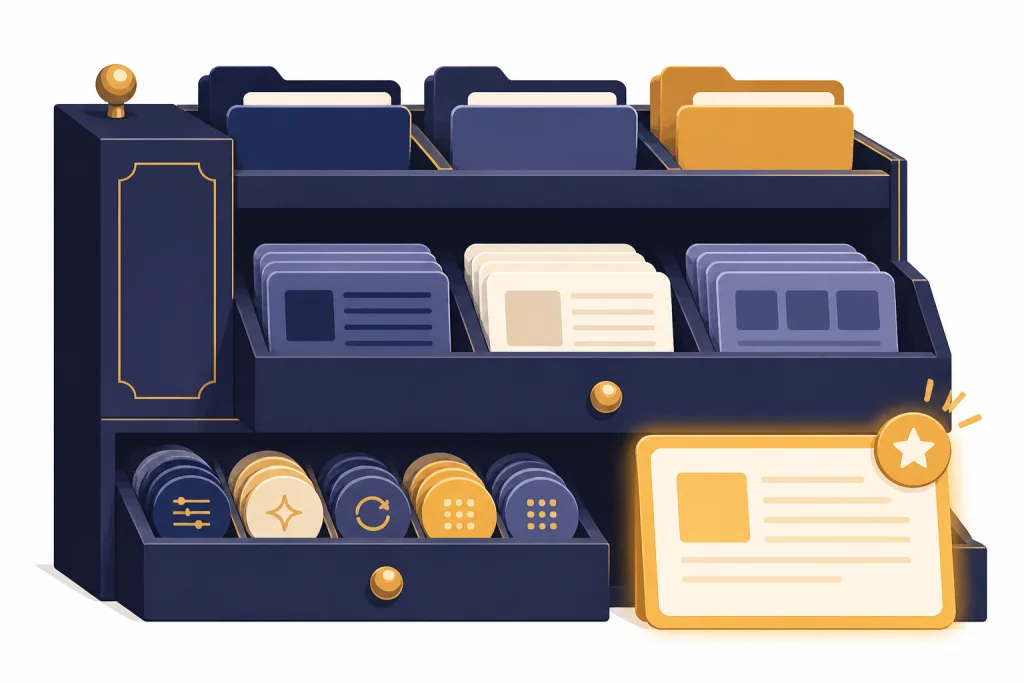
A prompt library beats a pile of one-off chats. Save only prompts that repeatedly produce useful work. Give each prompt a name, a use case, required inputs, preferred output format, and a note about when not to use it. Revisit your library when your role, projects, or tools change.
ChatGPT Projects can help organize long-running work. OpenAI describes Projects as workspaces that keep related chats, uploaded files, and custom instructions together for ongoing efforts.[3] Use a project for recurring contexts such as quarterly planning, content operations, hiring, sales enablement, or personal administration.
Reusable prompt card template
Prompt name: [name]
Best used for: [workflow moment]
Required inputs: [what I must paste or provide]
Do not use when: [privacy, quality, or context limits]
Prompt:
[paste reusable prompt]
Good output looks like: [format and quality bar]
Revision note: [what to improve next time]
A useful prompt card is specific enough that future you knows when to use it. Add a small failure note such as ‘does not work well without the full thread’ or ‘always verify owners before sending.’ These notes prevent a good template from being used in the wrong situation.
Prompt improvement prompt
Act as a prompt editor.
Improve this prompt so it produces a more useful output for my workflow.

Current prompt:
'''
[paste prompt]
'''

My problem with the output is: [too long, vague, wrong format, misses context, etc.]
My ideal output is: [describe ideal result]

Return:
- revised prompt
- what changed
- what input I still need to provide for best results
Before-and-after prompt example:
Weak prompt:
Summarize my notes.

Better prompt:
Act as a chief of staff. Turn these notes into a decision brief for my director. Use only the notes below. Return: context, decision needed, options, risks, recommendation, and open questions. If the notes do not support a recommendation, say so.

Why it is better:
It names the role, audience, decision, source boundary, output structure, and failure condition.
When you review your saved prompts, delete duplicates before adding new ones. A small library of dependable prompts is easier to maintain than a large collection of similar templates.
Frequently asked questions
What are the best ChatGPT productivity prompts?
The best prompts are the ones tied to a real workflow: planning the day, summarizing meetings, drafting replies, cleaning up notes, and reviewing progress. A strong prompt states the role, goal, context, source material, constraints, and output format. Avoid vague requests like ‘make me productive.’
Can ChatGPT replace a task manager?
ChatGPT can help sort, rewrite, prioritize, and review tasks, but it should not be your only system of record unless your workflow is built that way. A task manager is better for durable reminders, ownership, due dates, and team visibility. Use ChatGPT to clarify the work, then store commitments where you actually track them.
How do I make productivity prompts less generic?
Add real constraints. Include your deadline, audience, energy level, available work windows, preferred format, and examples of good output. If ChatGPT gives a generic answer, ask it to revise using only the facts you supplied and to flag anything missing.
Should I paste meeting transcripts into ChatGPT?
Only paste transcripts if your organization allows it and the content is appropriate for your ChatGPT plan. Remove sensitive details when possible. Ask ChatGPT to identify decisions, action items, owners, deadlines, and unclear points, then verify the result before sharing it.
How often should I update my prompt library?
Update it when a prompt starts producing cleanup work instead of saving time. Keep the prompts that produce useful outputs with minimal revision. Delete duplicates, add notes about required inputs, and revise prompts when your role or recurring projects change.
Can I use these prompts with other AI tools?
Yes. The structure works in most chat-style AI tools because it relies on clear instructions and useful context. You may need to adjust tool-specific features such as memory, projects, file access, connectors, or scheduled tasks.