

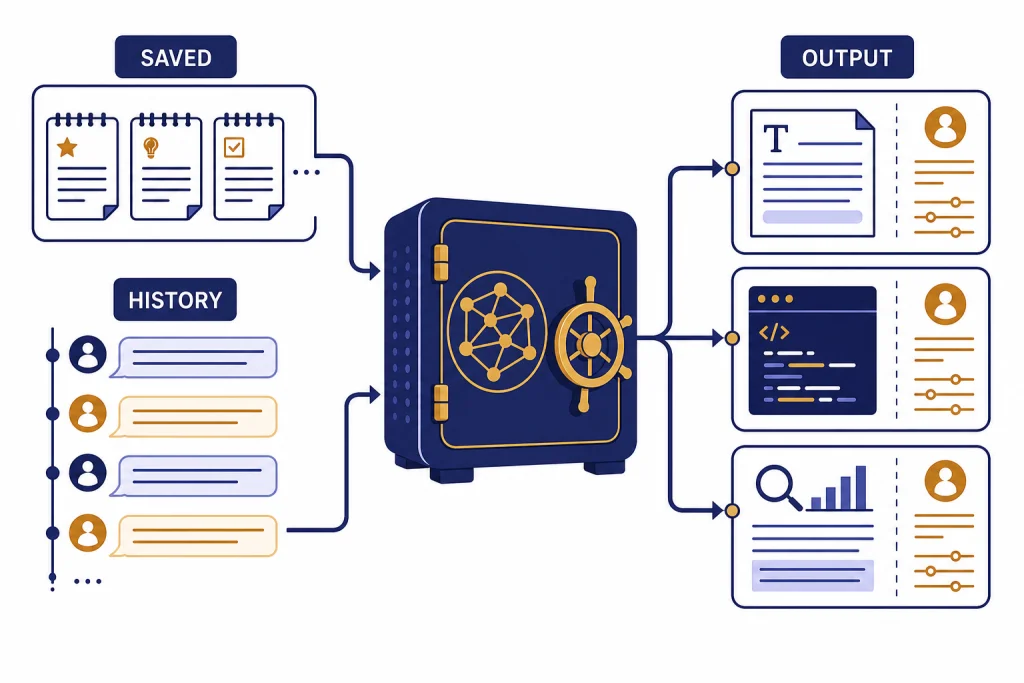
ChatGPT Memory is most useful when you treat it like a small operating manual for how you work, not like a dumping ground for every fact you might need later. As of this guide’s publication date, OpenAI describes ChatGPT Memory as two related controls: saved memories and chat history reference.[1] Saved memories are best for durable preferences, roles, goals, constraints, and recurring context. Chat history reference is better for softer continuity across past conversations. This chatgpt tutorial memory guide shows how to set up Memory, write useful memory entries, audit what ChatGPT has stored, and decide when to use Temporary Chat, Projects, Custom Instructions, or a normal chat instead.
What ChatGPT Memory does
ChatGPT Memory gives future chats access to selected context from your account. OpenAI says Memory works in two ways: saved memories and chat history.[1] The distinction matters because a power user should not rely on one feature for every kind of context.
Saved memories are durable facts or preferences that ChatGPT can use in future responses. You can ask ChatGPT to remember something directly, and OpenAI says ChatGPT may also save important information automatically.[1] A good saved memory is short, stable, and broadly useful: your preferred writing tone, your role, a standing constraint, a recurring audience, or a personal preference that changes how answers should be shaped.
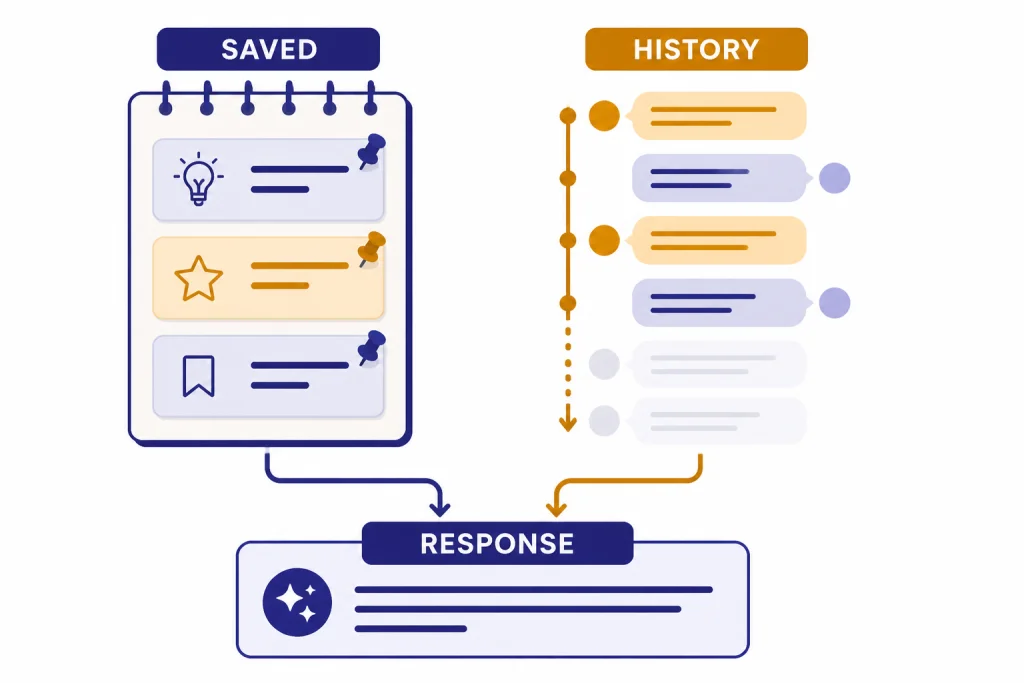
Chat history reference lets ChatGPT use relevant information from previous conversations even when that information is not stored as a saved memory.[1] It is useful for continuity, but OpenAI says ChatGPT does not retain every detail from past chats, so saved memories are the better place for anything you want it to keep top-of-mind.[1]
OpenAI first announced Memory and new controls for ChatGPT on February 13, 2024, then said on April 10, 2025 that Memory had become more comprehensive by referencing past conversations, and on June 3, 2025 that Memory improvements were starting to roll out to free users in a lighter form.[2] That history explains why older tutorials may describe Memory as only a small list of remembered facts. Current use is broader, but the power-user principle is the same: keep the permanent layer clean.
| Context layer | Best use | What to avoid | Power-user habit |
|---|---|---|---|
| Saved memories | Stable preferences, constraints, personal details, work defaults | Long templates, exact reusable documents, sensitive details you do not want retained | Write compact entries with clear scope |
| Chat history reference | Continuity from recent and past conversations | Assuming every detail will be recalled perfectly | Promote important details into saved memories |
| Custom Instructions | Explicit rules for how ChatGPT should respond | Frequently changing project facts | Use for global response style and standing instructions |
| Project memory | Long-running work inside a defined project space | Mixing unrelated clients, classes, or teams in one workspace | Create separate projects for separate contexts |
| Temporary Chat | One-off work that should not use or create Memory | Recurring workflows that need continuity | Use for sensitive drafts, experiments, and throwaway prompts |
The table shows the most practical division. Use Memory for identity and durable preferences. Use Projects for bounded work. Use Temporary Chat when you want a clean slate. Use Custom Instructions for explicit global behavior. If you are still learning the basics, start with our broader ChatGPT tutorial overview, then return to this guide once you know which workflows you repeat.
Set up Memory controls
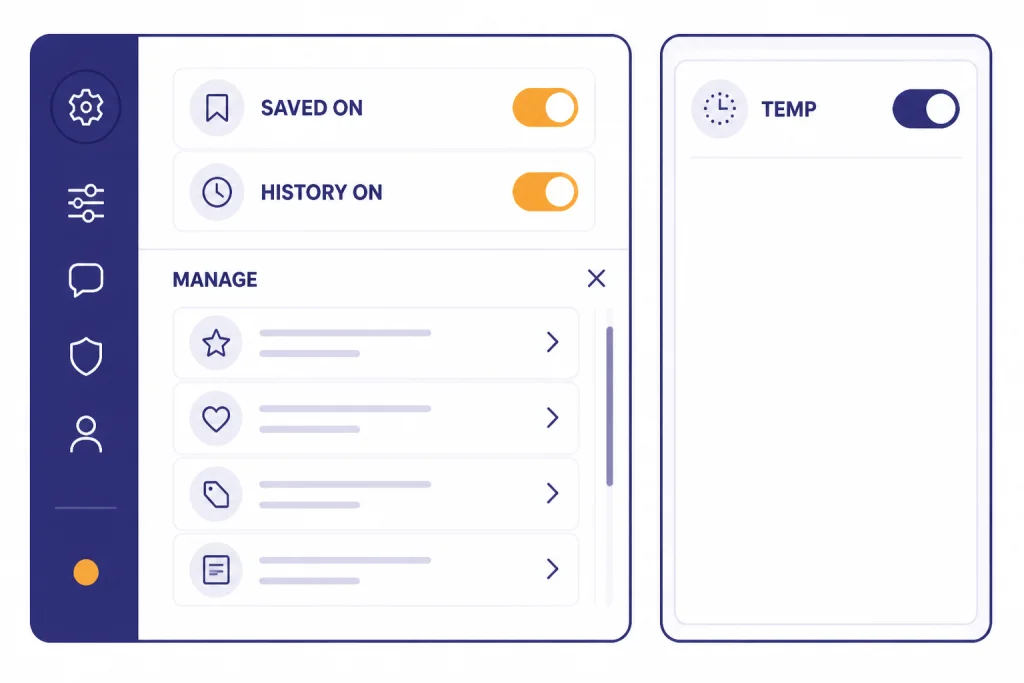
OpenAI says you can control Memory from Settings > Personalization, where the relevant controls include Reference saved memories and Reference chat history.[3] The exact wording and availability can vary by plan and product surface, so use the settings page in your own account as the source of truth.
Start with a simple configuration:
- Open ChatGPT settings.
- Go to Personalization.
- Turn on Reference saved memories if you want ChatGPT to use durable remembered details.
- Turn on Reference chat history if you want ChatGPT to draw useful context from previous chats.
- Open Manage memories and review what is already stored.
- Ask ChatGPT: “What do you currently remember about me?”
If you want Memory on but do not want a particular conversation to interact with it, use Temporary Chat. OpenAI says Temporary Chats do not appear in your history, ChatGPT will not remember what you discuss in them, and OpenAI may keep a copy for safety purposes for up to 30 days.[4] Temporary Chat can still follow enabled Custom Instructions, so it is not the same as a completely unmanaged session.[4]
For privacy, also review Data Controls. OpenAI says signed-in users can turn off “Improve the model for everyone” under Settings > Data Controls, and conversations will still appear in chat history but will not be used to train ChatGPT.[7] This is separate from whether Memory itself is enabled. A clean setup checks both Personalization and Data Controls.
Write better saved memories
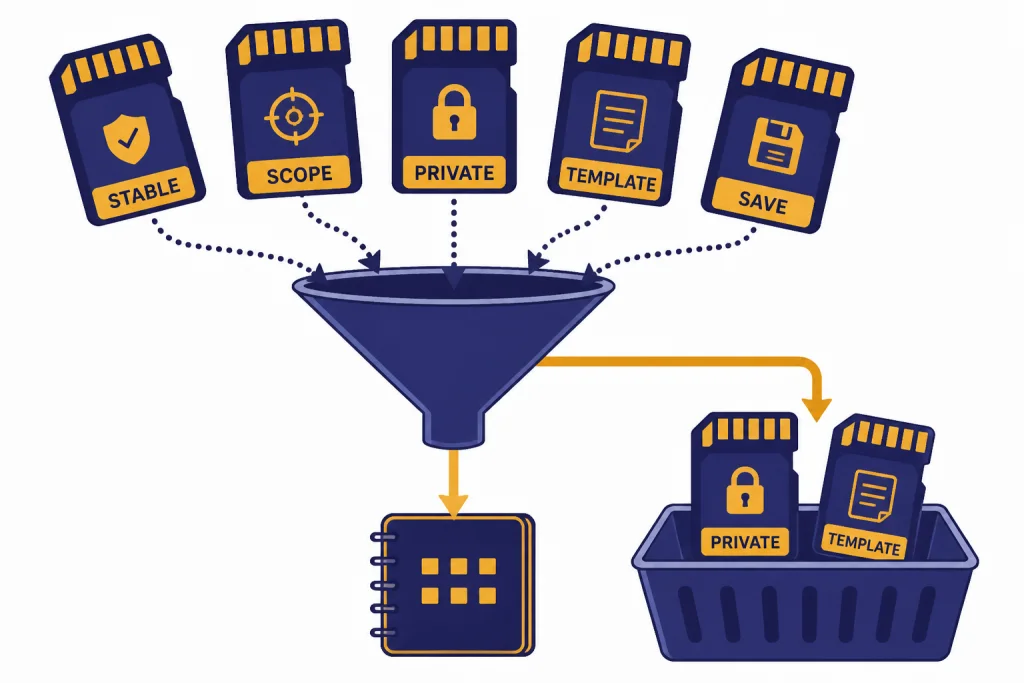
A saved memory should be short enough to survive compression and clear enough to guide future answers. Do not store a full prompt library in Memory. OpenAI says Memory is intended for high-level preferences and details, and should not be relied on for exact templates or large blocks of verbatim text.[3]
Use this pattern:
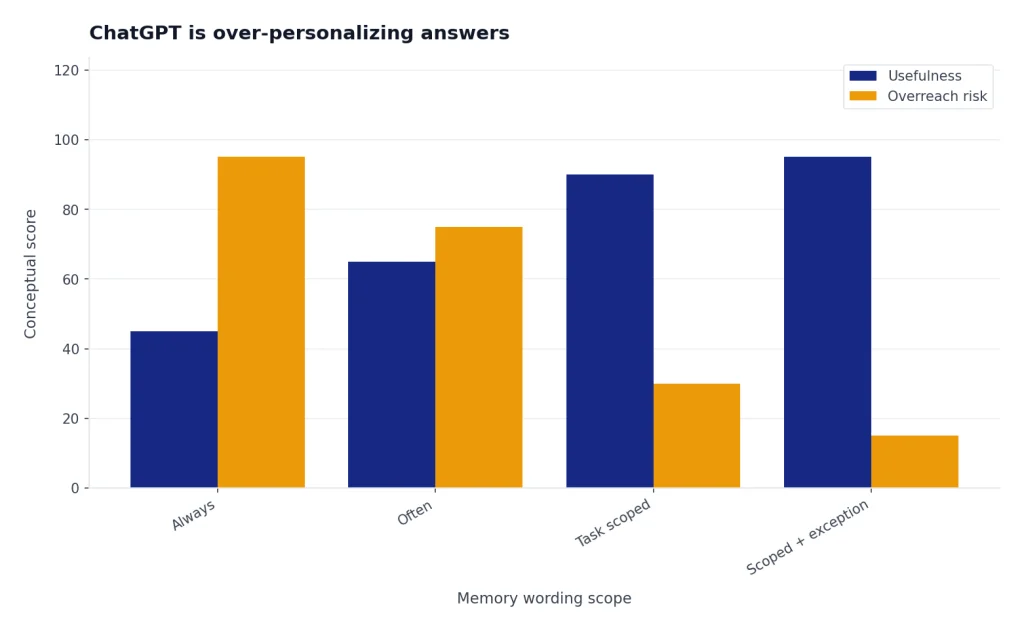
Remember this: [stable fact or preference]. Use it when [scope]. Do not apply it when [exception].Good memory entries include scope. Bad memory entries sound universal when they are really situational. For example, “I like concise writing” is useful, but “For work emails, default to concise, direct American English unless I ask for a warmer tone” is better. The second version tells ChatGPT where to apply the rule and when to stop applying it.
Examples of strong saved memories
- Remember that I write for technical founders. Use plain English and avoid motivational language.
- Remember that I prefer Python examples unless I ask for another language.
- Remember that my weekly planning format is: priorities, risks, decisions, next actions.
- Remember that when I ask for SEO drafts, I want a short meta title, a meta description, and an outline before prose.
- Remember that I am lactose intolerant when suggesting meals, but do not assume other dietary restrictions.
Examples to avoid
- Remember this entire article template: followed by a long document.
- Remember every client detail from this call transcript.
- Remember my password recovery process.
- Remember that I always want the same answer style for every task.
- Remember all facts about my medical history.
There is a better home for reusable prompt systems: save them in a document, note app, or prompt library. If you want to build that kind of library, pair Memory with a structured workflow from our ChatGPT prompt generator guide. Memory should point ChatGPT toward your preferences; it should not become the repository for every reusable artifact.
Use Memory in real workflows
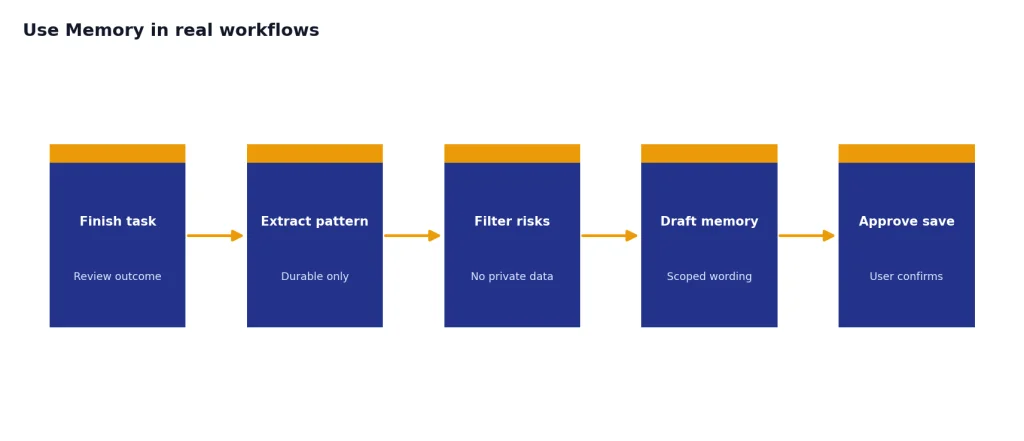
The best Memory setups come from repeated work. After a task goes well, ask yourself which parts should be remembered next time. You are looking for durable patterns, not the finished output.
Writing workflow
For writing, store your default audience, tone, formatting preferences, and review criteria. Then keep the article-specific brief in the current chat or a Project. A useful memory might say: “Remember that for blog drafts I prefer direct American English, short paragraphs, and examples before abstract explanation.” Then use our ChatGPT writing tutorial for the actual drafting process.
Research workflow
For research, store your quality bar. For example: “Remember that when I ask for research, I prefer primary sources first, then reputable secondary sources, with uncertainty labeled.” Do not store every source you find as a memory. Put source lists in the active chat, a research document, or a Project. For larger assignments, use a dedicated method like our Deep Research project walkthrough or academic research workflow.
Data and coding workflow
For data work, store your preferred tools and output style. For example: “Remember that I prefer pandas for data cleaning examples and that I want assumptions listed before calculations.” Keep the actual spreadsheet, codebase, or dataset inside the active conversation or tool workspace. If you analyze files often, combine Memory with the steps in our data analysis tutorial or Code Interpreter mastery guide.
Marketing and SEO workflow
For marketing, store brand-level preferences, not campaign details. A good memory might say: “Remember that our marketing copy avoids hype, uses proof before claims, and ends with a practical next step.” Campaign briefs, keyword lists, and competitive notes belong in the working chat or a Project. For structured execution, use our SEO workflow tutorial or marketing automation guide.
The power move is to end recurring sessions with a memory review prompt:
From this conversation, identify only the durable preferences or constraints worth saving as Memory. Do not save project-specific facts, private data, or temporary decisions. Show me the proposed memory entries first.This keeps ChatGPT from turning a productive conversation into a cluttered permanent profile.
Separate Memory from Projects, Custom GPTs, and private work
Memory is account-level personalization. Projects are bounded workspaces. Custom GPTs are specialized assistants. Temporary Chat is a blank-slate mode. A power user knows which boundary to use before starting the task.
OpenAI says Projects have built-in memory that remembers chats and files created or uploaded in a project.[6] Project memory can be project-only or default, and OpenAI describes project-only memory as a mode where chats can reference other conversations in the same project but not conversations outside that project.[6] Use this for client work, course work, product planning, legal-adjacent drafting, or any workflow where context bleed would be costly.
Custom Instructions are different. OpenAI says Custom Instructions let you share what you want ChatGPT to consider in responses, and the longer text fields have a 1,500-character limit.[5] Use Custom Instructions for explicit standing rules, such as “Ask clarifying questions when requirements are ambiguous” or “Prefer concise answers unless I ask for depth.” Use Memory for facts and preferences that emerge over time.
Custom GPTs need special caution. OpenAI says GPTs do not use saved memory, custom instructions, or previous conversations.[8] If you want a reusable assistant with fixed behavior, build or choose a Custom GPT. If you want ChatGPT to adapt to you across normal chats, use Memory. Our Custom GPT tutorial covers that separate workflow.
For web-heavy work, remember that OpenAI says ChatGPT may use relevant details from saved memories or recent chats to improve how it rewrites search queries.[7] That can be useful when your location, preferences, or role should shape results. It can also be undesirable when you want neutral exploration. In those cases, use Temporary Chat or state that the search should ignore your saved preferences. If browsing is central to the job, see our Atlas browsing tutorial.
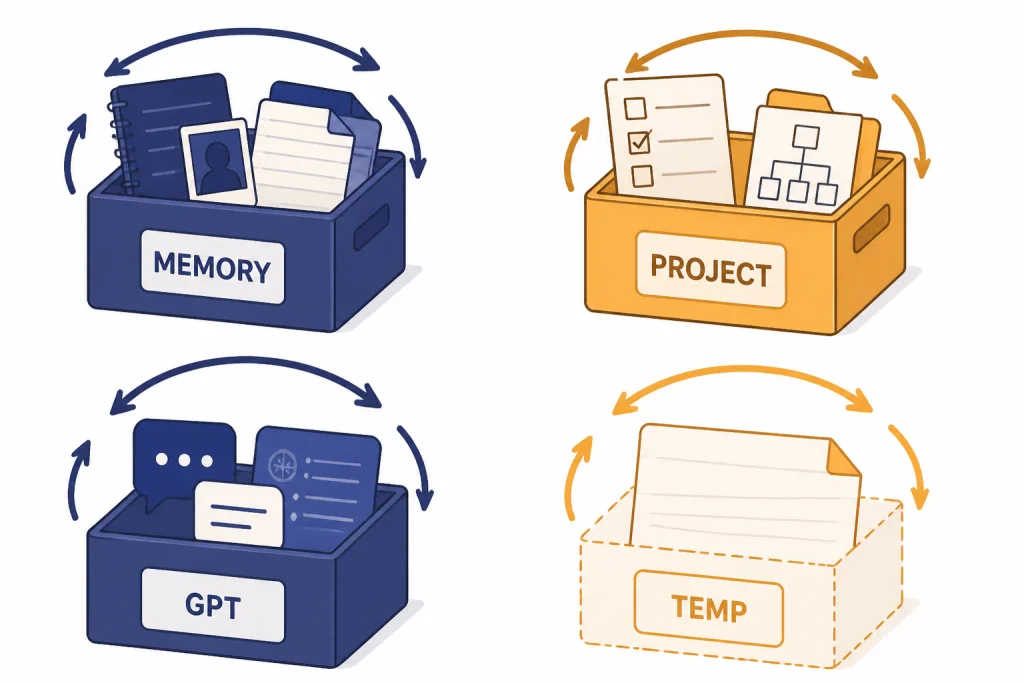
| Task | Best place for context | Reason |
|---|---|---|
| Your preferred answer format | Custom Instructions or saved memory | It applies across many chats |
| A client campaign brief | Project | It should stay bounded to one body of work |
| A one-off sensitive question | Temporary Chat | It should not use or create Memory |
| A reusable assistant for a narrow task | Custom GPT | It needs fixed instructions and a defined purpose |
| A durable personal preference | Saved memory | It should follow you into future chats |
Audit and clean Memory
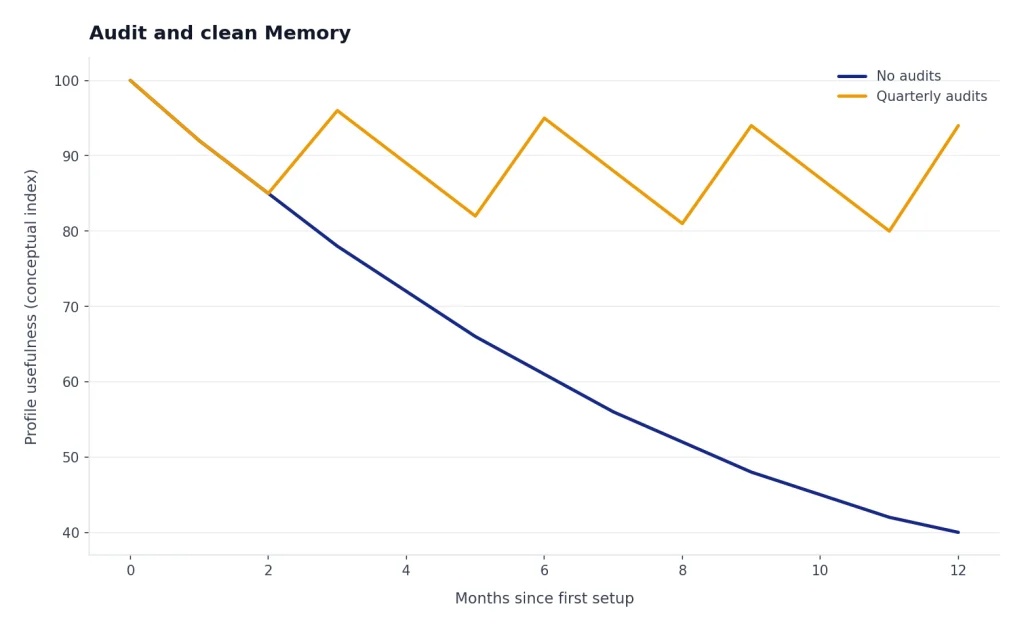
Memory gets worse when it becomes stale, contradictory, or too broad. Schedule a short audit whenever ChatGPT starts over-personalizing answers or applying old assumptions. You can also audit after a job change, course change, move, new project, new diet, or major workflow shift.
Use this audit prompt:
Tell me what you currently remember about me. Group it into: useful, outdated, too vague, too sensitive, and should be deleted. Do not change anything yet.Then choose what to remove. OpenAI says you can delete individual memories, clear all saved memories, or turn saved memory off in settings.[3] OpenAI also says turning saved memory off does not delete what has already been remembered, and deleting a chat does not remove saved memory from that conversation.[3] To fully remove something, OpenAI says to delete both the saved memory and the chat where you originally shared it.[3]
Use precise deletion prompts:
- Forget that I work at my previous company.
- Forget my old newsletter audience.
- Forget any memory about my dietary preferences.
- Forget the saved memory that says I prefer JavaScript examples.
- Show me the memory you are about to delete before deleting it.
If you turn off Reference chat history, OpenAI says information remembered from past chats will be deleted from its systems within 30 days.[3] That is different from editing one saved memory. Use the broad setting when you want to reset continuity, not when you only need to fix one wrong assumption.
A good audit leaves you with fewer memories, not more. The target is a compact profile that helps ChatGPT respond better without boxing you into old patterns.
Troubleshooting Memory
ChatGPT is not using a memory
First, check whether Reference saved memories is on. Then ask ChatGPT what it remembers. If the fact is missing, save it explicitly with scope: “Remember this for future coding help…” If the fact is present but not being used, restate the connection in your prompt: “Use my saved preference for concise code explanations.”
ChatGPT is using old information
Ask it to list the memory that caused the assumption. Then delete or rewrite that memory. If the old information came from chat history rather than saved memory, delete or archive the relevant chat if appropriate, or turn off Reference chat history for a larger reset.
ChatGPT is over-personalizing answers
Over-personalization usually means your memories are too broad. Replace “I always prefer short answers” with “For work status updates, I prefer short answers.” Replace “I like beginner explanations” with “When I ask about finance, assume I am a beginner; for coding, assume intermediate knowledge.” Scope solves many Memory problems.
You are hitting messy workflow boundaries
If ChatGPT mixes contexts, move the work into a Project or use Temporary Chat. If the task needs a specialized assistant, build a Custom GPT instead of relying on account Memory. If the task needs a visible draft surface, use Canvas and keep Memory limited to preferences; our Canvas document tutorial explains that workflow.
You use voice, images, or files
Memory can influence more than typed chats. OpenAI says ChatGPT can recall details and preferences whether you are typing, speaking, or generating images in ChatGPT.[1] That can improve continuity, but it also means you should be deliberate about what you allow it to remember. For specific modalities, see our Voice Mode use cases, image generation tutorial, and PDF reading workflow.
Frequently asked questions
Should I turn ChatGPT Memory on?
Turn it on if you repeatedly ask ChatGPT to adapt to the same role, tone, constraints, or preferences. Leave it off, or use Temporary Chat often, if you mostly ask unrelated questions or handle information you do not want personalized across sessions.
What should I ask ChatGPT to remember?
Ask it to remember stable preferences that improve many future answers. Good examples include your preferred coding language, writing style, audience, formatting defaults, dietary constraints, or recurring planning format. Avoid passwords, sensitive identifiers, long templates, and temporary project facts.
Is Memory the same as Custom Instructions?
No. OpenAI says Custom Instructions are for direct guidance about what ChatGPT should know about you and how it should respond, while Memory can remember relevant details from conversations.[5] In practice, use Custom Instructions for explicit global rules and Memory for durable facts or preferences that arise over time.
Can I delete one memory without deleting everything?
Yes. OpenAI says you can delete individual memories, clear all saved memories, or turn saved memory off in settings.[3] You can also ask ChatGPT to forget a specific memory, then verify by asking what it currently remembers.
Does deleting a chat delete memories from that chat?
Not necessarily. OpenAI says deleting a chat does not remove a saved memory from that conversation.[3] To fully remove something, delete the saved memory and the chat where you originally shared it.[3]
When should I use Temporary Chat instead of Memory?
Use Temporary Chat for one-off sensitive work, tests, private drafts, or conversations where past context would distort the answer. OpenAI says Temporary Chats do not appear in history, do not create memories, and are not used to improve models.[4]