

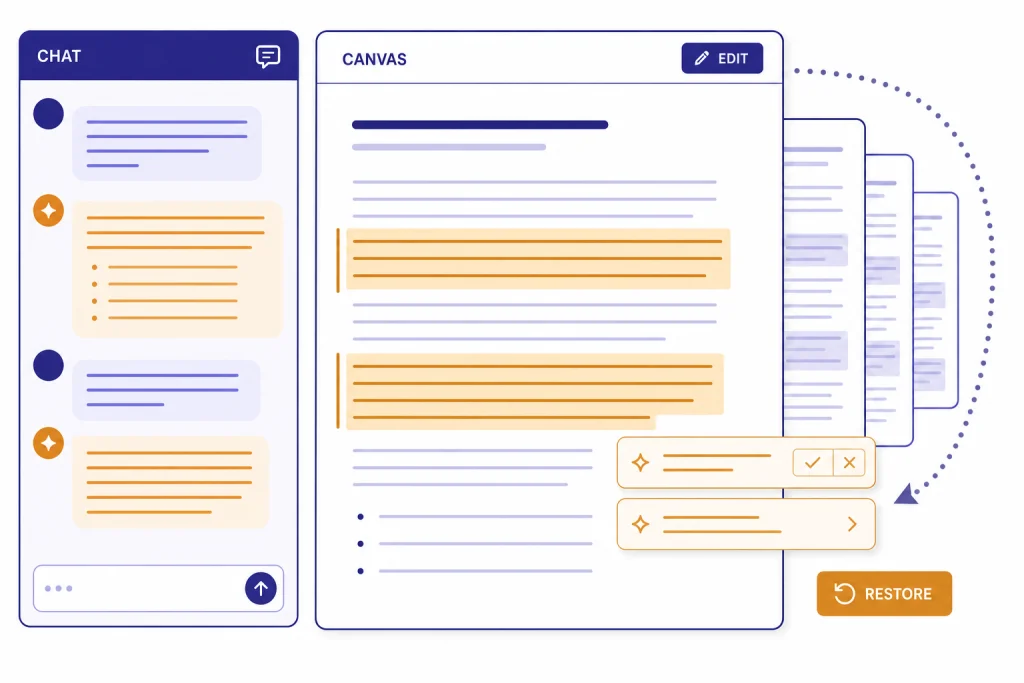
Canvas is the best ChatGPT workspace when a document needs more than one pass. It gives you an editable page beside the conversation, so you can draft, highlight sections, request targeted edits, accept or reject suggestions, and restore prior versions without rebuilding the whole piece. OpenAI describes canvas as a separate interface for writing and coding projects that need revisions, with support for inline feedback, direct editing, shortcuts, and version history.[1] This tutorial focuses on documents: briefs, articles, reports, proposals, policies, emails, scripts, and study notes. The goal is simple. Use chat for direction. Use canvas for the working draft.
What Canvas is best for
Canvas is for work that should stay visible while you revise it. A normal chat is good for asking questions, brainstorming, and getting short answers. Canvas is better when you need a document to survive several rounds of edits. You can keep the draft on the right, keep the conversation on the left, and ask ChatGPT to work on specific sections instead of rewriting everything.
OpenAI introduced canvas on October 3, 2024 as a new interface for writing and coding projects that go beyond simple chat.[2] OpenAI later made Canvas available in GPT-4o by default for Free and paid users on December 10, 2024, and added capabilities such as Canvas in GPTs, Python execution, a paste-to-canvas shortcut, and a toolbox entry.[3] A separate VentureBeat report also covered the October 3, 2024 launch, which corroborates the original rollout date.[6]
For documents, treat Canvas like a shared editor with an assistant built into the margin. You still own the argument, facts, tone, and final approval. ChatGPT can accelerate structure and revision, but it should not be the final authority for factual, legal, medical, financial, or compliance-sensitive text.
| Use Canvas when | Use normal chat when |
|---|---|
| You need a long draft that will change over time. | You need a quick answer or a short rewrite. |
| You want to highlight one paragraph and ask for a targeted edit. | You want general feedback on an idea. |
| You are comparing sections, moving headings, or polishing a full document. | You are brainstorming topics or angles. |
| You want to keep a visible working copy while you talk through changes. | You do not need to preserve formatting or structure. |
If you mostly write articles, start with our ChatGPT writing workflow. If your document depends on files, tables, or calculations, pair this tutorial with the Code Interpreter and analysis walkthrough.
Start a document in Canvas
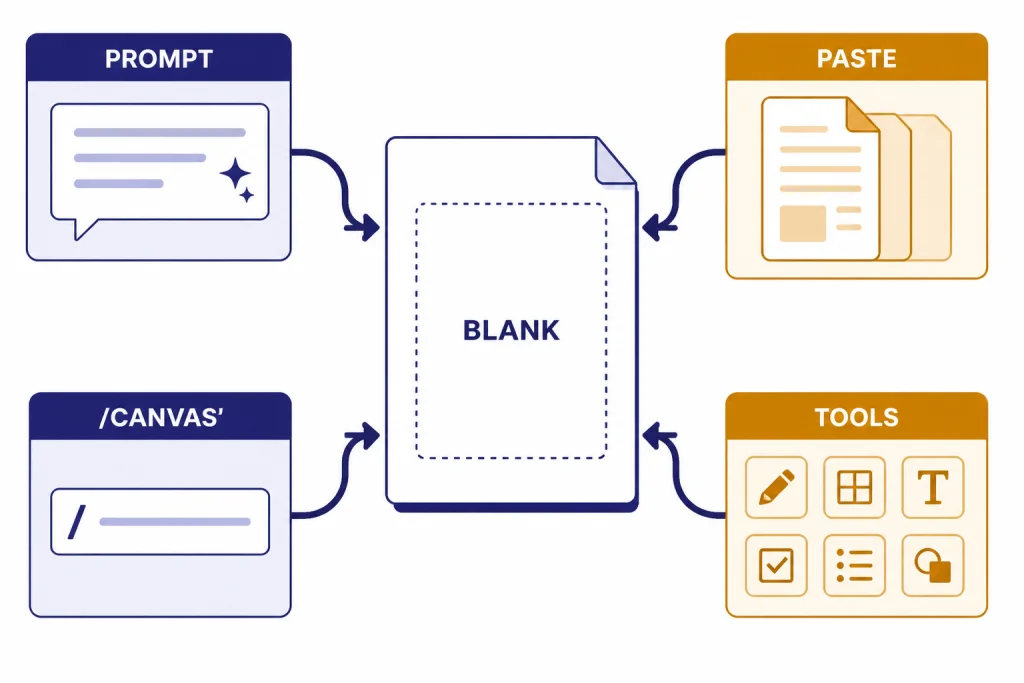
You can open Canvas in several ways. OpenAI’s help article says ChatGPT may open a canvas automatically when it generates content longer than 10 lines or detects that a writing or coding interface would help.[1] You can also ask directly with a phrase like “use canvas,” start a blank canvas, paste content and open it from the composer shortcut, use the toolbox, or type a backslash command for canvas.[1]
For a new document, begin with a direct instruction. Do not ask for “an article” or “a report” in vague terms. Ask for a specific document type, reader, purpose, length, tone, and source requirements. Canvas works best when ChatGPT knows what the document is supposed to do before it starts drafting.
Use canvas to create a first draft of a 900-word client onboarding guide.
Audience: new customers of a B2B software company.
Goal: reduce support tickets during the first week.
Tone: calm, practical, plain English.
Structure: short intro, setup checklist, first-login steps, common mistakes, support handoff.
Constraints: do not invent product features. Mark any missing details with [NEEDS INFO].
If you already have a messy draft, paste it first and ask ChatGPT to open it in Canvas without rewriting it yet. That instruction matters. It prevents ChatGPT from “helpfully” changing language before you have reviewed the original. Once the text is in Canvas, you can work section by section.
Open this in canvas exactly as written. Do not rewrite yet.
After it is open, give me a short diagnosis of the structure and the 3 highest-impact fixes.
Use a blank canvas when you want to paste several fragments manually. Use automatic generation when you want ChatGPT to create the first draft. Use the paste shortcut when you are migrating text from Google Docs, Word, Notion, email, or a prior ChatGPT response.
Draft the first version with a brief
The fastest way to get a usable Canvas draft is to provide a compact creative brief. A brief is better than a long prompt full of style adjectives because it gives ChatGPT operational constraints. It tells the model what to include, what to avoid, and how success will be judged.
OpenAI’s own writing guidance says ChatGPT works best when you provide context and constraints, and when you treat the output as a draft you will review rather than a final authority.[5] That advice is especially important in Canvas because the first draft becomes the object you keep editing.
Use this document brief template
Use canvas to draft this document.

Document type:
Audience:
Reader's current knowledge:
Reader's goal:
My goal:
Required sections:
Facts or source material to use:
Claims to avoid:
Tone:
Length:
Formatting:
Call to action:
Questions to ask before drafting:
The last line is the safety valve. If the document has business, academic, or technical stakes, ask ChatGPT to identify missing information before it writes. This keeps the first draft from filling gaps with plausible but unverified details. For research-heavy work, collect and verify source material first with our Deep Research project tutorial or the academic research workflow.
Ask for a structure pass before a prose pass
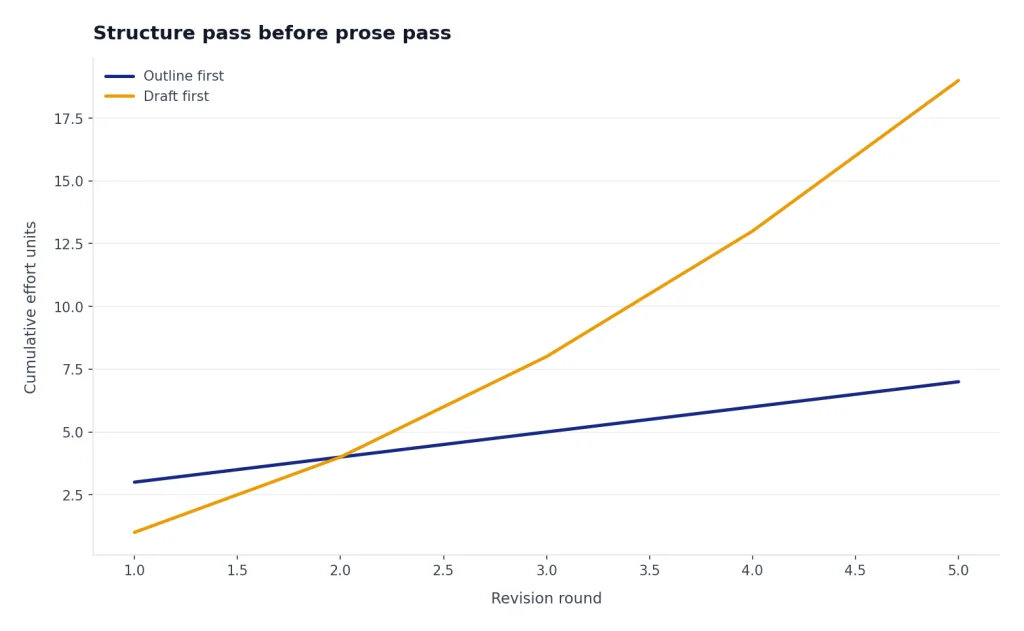
For high-value documents, do not generate the full draft immediately. Ask for an outline first. Then revise the outline. Then draft. This sequence is slower at the start and faster by the end because you avoid rewriting a polished document with the wrong skeleton.
Before drafting, create a canvas outline with H2 and H3 headings only.
For each section, add one sentence explaining what the reader should learn there.
Do not write body paragraphs yet.
Once the outline looks right, ask ChatGPT to expand one section at a time. This gives you more control over depth and prevents repetitive phrasing. It also makes factual review easier because each section has a clear job.
Edit with highlights, comments, and shortcuts
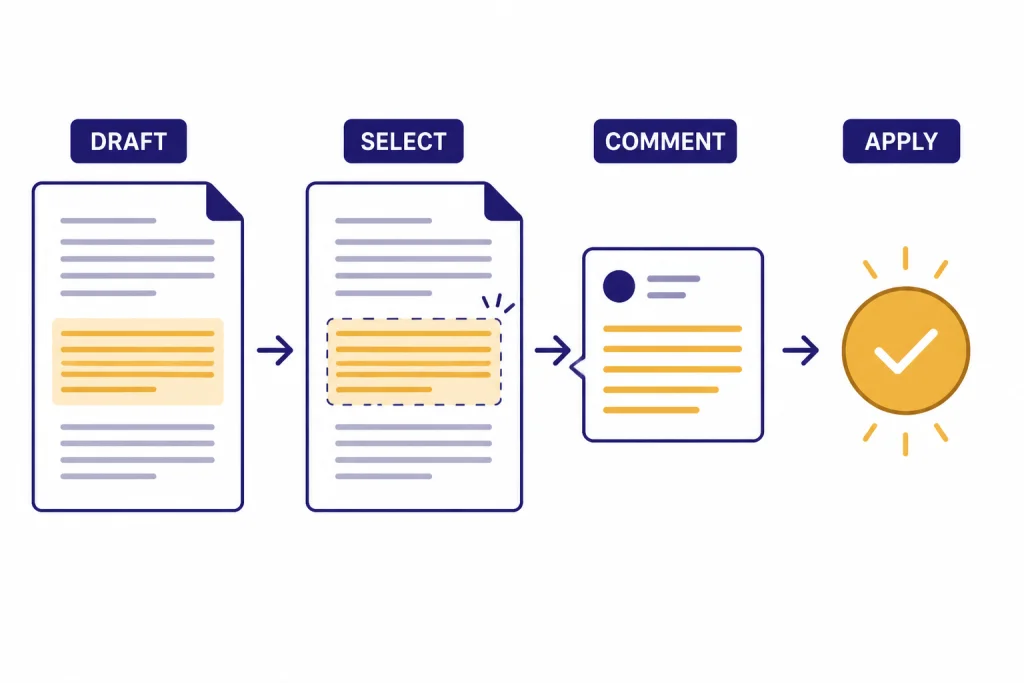
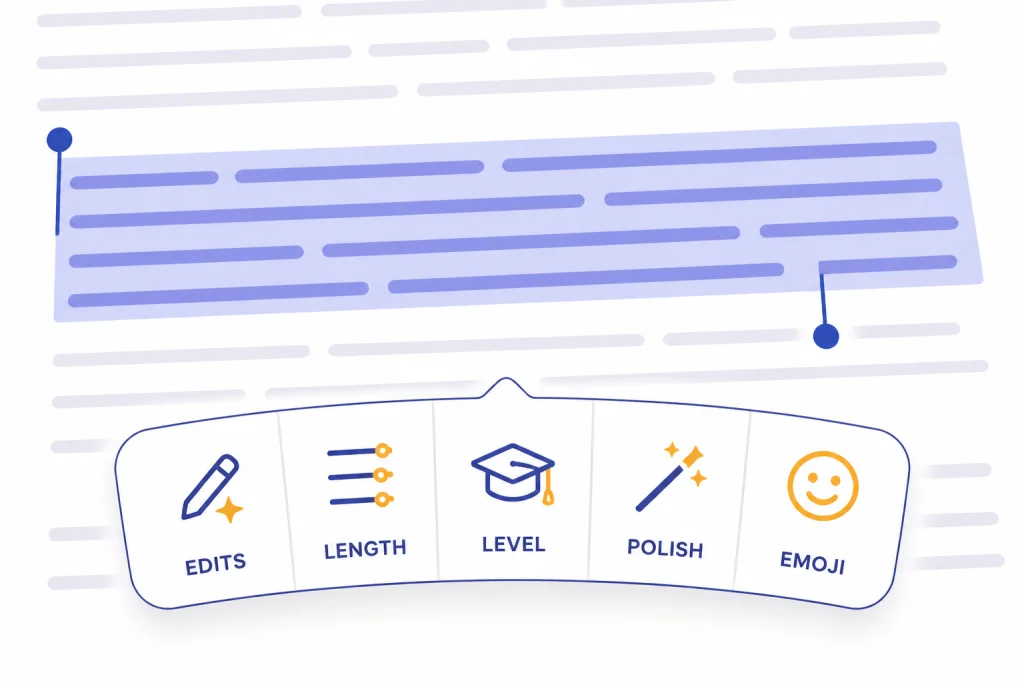
The main advantage of Canvas is targeted revision. You can highlight a sentence, paragraph, heading, or code block and ask ChatGPT to focus only on that selection. OpenAI says Canvas supports highlighting specific portions of text or code, asking ChatGPT questions about the selection, requesting edits, and receiving inline suggestions with the whole project in mind.[1]
Use narrow instructions. “Make this better” produces broad edits. “Shorten this paragraph by 30 percent while preserving the compliance warning” produces a more useful change. If the selected text contains a claim, ask ChatGPT to separate style edits from factual edits.
Revise only the highlighted paragraph.
Keep the same meaning.
Make it easier for a nontechnical executive to understand.
Do not add new claims.
After the edit, list anything you changed that could affect accuracy.
Canvas also includes writing shortcuts. OpenAI lists shortcuts for suggested edits, length adjustment, reading level changes from Kindergarten to Graduate School, final polish, and emojis.[1] For professional documents, the most useful shortcuts are suggested edits, length, reading level, and final polish. Emoji insertion is usually better for social posts, informal announcements, or internal culture notes.
| Canvas action | Best use | Prompt to pair with it |
|---|---|---|
| Suggest edits | Get margin-style improvement notes before rewriting. | “Prioritize clarity, logical flow, and unsupported claims.” |
| Adjust length | Fit a word budget or remove repetition. | “Cut examples before cutting requirements.” |
| Change reading level | Adapt a document for executives, beginners, students, or specialists. | “Keep technical terms, but define them on first use.” |
| Add final polish | Run a late-stage cleanup for grammar and consistency. | “Do not change section order or add new facts.” |
Do not accept every suggestion automatically. Read the edit, compare it with the original, and reject changes that flatten your voice or weaken precision. If you use ChatGPT Memory for recurring style preferences, review our Memory power-user tips so saved preferences help your documents without overriding project-specific instructions.
Build a document workflow
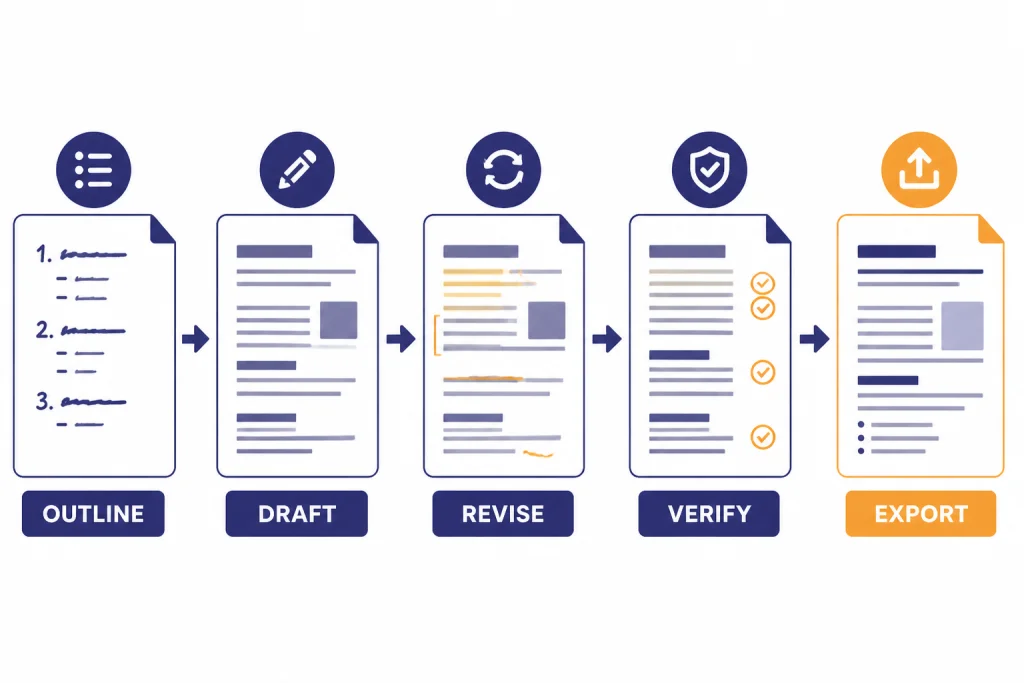
A good Canvas workflow has five stages: outline, draft, revise, verify, and export. Keep those stages separate. When you mix them, ChatGPT may polish text that still needs structural work or restructure text after you have already approved the prose.
Stage 1: Outline
Ask for a document map. Include headings, reader questions, and the reason each section exists. Delete weak sections before drafting. Add missing sections before the prose becomes expensive to change.
Stage 2: Draft
Draft from the approved outline. Ask ChatGPT to mark missing facts with placeholders. If you are writing SEO content, pair the outline with the SEO workflow that ranks, but keep keyword work subordinate to usefulness.
Stage 3: Revise
Run separate passes for structure, clarity, tone, and length. Do not ask for all of them at once. A structure pass may move sections. A clarity pass may rewrite sentences. A tone pass may change voice. A length pass may remove examples. Separate passes help you see what changed.
Stage 4: Verify
Ask ChatGPT to list claims that need evidence. Then check them yourself. Canvas can help you organize the verification list, but it does not replace source review. If the document comes from PDFs, use the PDF reading and summarizing tutorial before you put claims into the final draft.
Stage 5: Export
Before moving the document into your publishing system, run a final pass for formatting. Ask for clean headings, consistent bullets, and a short change log. If you need translation, do the final source-language review first, then use the translation workflow to localize the approved version.
Use Canvas with other ChatGPT tools
Canvas is strongest when it holds the draft while other tools supply material. You can use research chats to gather facts, file analysis to summarize documents, data analysis to inspect spreadsheets, and custom GPTs to enforce repeatable formats. OpenAI’s release notes say Canvas can be used with GPTs when enabled in the GPT creator.[3] If you build a repeatable document assistant, start with the Custom GPT tutorial.
For data-heavy documents, do not paste raw tables into Canvas and hope for the best. Analyze the data first, identify the finding, then bring only the conclusion and supporting figures into the draft. Our data analysis step-by-step tutorial is a better starting point for charts, CSV files, survey exports, and spreadsheet summaries.
For prompt design, create reusable edit commands. A good command names the operation, the scope, the constraints, and the output format. If you want a deeper prompt library, use our prompt engineering techniques guide after you finish this Canvas tutorial.
Run a clarity pass on the current canvas.
Scope: sentence-level edits only.
Do not change headings, facts, examples, citations, or formatting.
Flag any sentence that needs a fact check instead of rewriting it.
Return a short change log after applying edits.
Keep sensitive content out of casual experiments. OpenAI’s Data Controls FAQ says users can turn off “Improve the model for everyone,” and conversations will still appear in chat history but will not be used to train ChatGPT.[4] OpenAI also says Temporary Chats are deleted from its systems after 30 days and are not saved in history or used to create memories.[4] Those controls help, but they do not turn ChatGPT into a substitute for your organization’s approved document system.
Troubleshooting and limits
If Canvas does not open, ask for it directly. Use “open a canvas” or “use canvas for this draft.” OpenAI’s help article also says the toolbox and slash command can trigger Canvas.[1] If you pasted a long draft and nothing happened, look for the open-in-canvas shortcut in the composer or ask ChatGPT to create a blank canvas first.
If ChatGPT rewrites too much, narrow the scope. Highlight only the relevant paragraph. Say “edit only the selected text.” Add “do not change facts, headings, or examples.” If the revision still drifts, ask for comments instead of edits. Comments are safer early in a project because they let you decide what to apply.
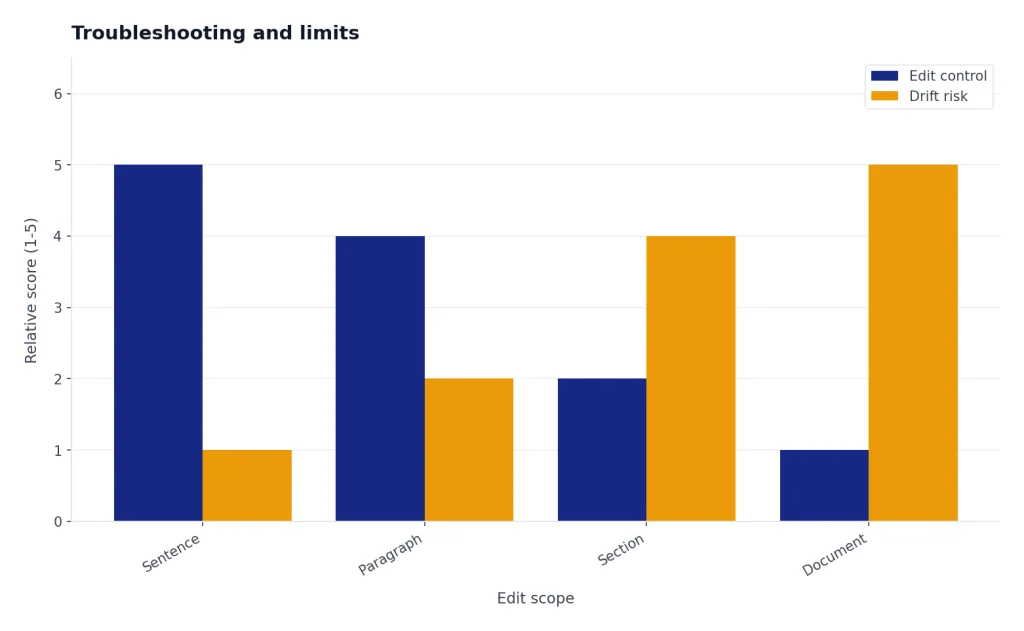
If the draft becomes repetitive, change the task from writing to diagnosis. Ask ChatGPT to identify repeated ideas, overlapping sections, and weak transitions. Then approve the fix list before applying changes. This avoids the common loop where each rewrite creates different wording but the same underlying problem.
If formatting is the problem, remember that Canvas supports basic markdown formatting such as bold, italic, headers, bullet points, and numbered lists, but OpenAI says it does not currently offer more advanced formatting options in canvas.[1] Do final layout work in your publishing tool, not in Canvas.
If you need offline access, Canvas is not the right tool by itself. Save important drafts outside ChatGPT before travel, review, or handoff. For the practical limits of offline work, see our ChatGPT offline reality check.
Frequently asked questions
Is Canvas better than Google Docs or Microsoft Word?
Canvas is better for AI-assisted drafting and revision inside ChatGPT. Google Docs and Word are better for final formatting, comments from human reviewers, track changes, permissions, and publishing workflows. Use Canvas to shape the draft, then move approved text into your document system.
Can I use Canvas for professional documents?
Yes, but use it as a drafting and editing assistant. Do not rely on it as the final reviewer for legal, medical, financial, or compliance-sensitive language. Ask it to flag claims, risks, and unclear sections, then route the document through your normal review process.
How do I stop ChatGPT from changing the whole document?
Highlight the exact text you want changed and state the scope in the prompt. Use instructions such as “edit only the highlighted paragraph” and “do not change headings or facts.” If you are still exploring, ask for comments or suggested edits instead of automatic rewriting.
Does Canvas support formatting?
Canvas supports basic markdown formatting, including headings, bold, italic, bullets, and numbered lists.[1] It is not a full page-layout tool. Do final typography, tables of contents, page breaks, and brand templates in your normal editor or CMS.
Can Canvas work with Custom GPTs?
Yes. OpenAI’s release notes say Canvas can be used with GPTs when enabled in the GPT creator.[3] This is useful when you want a repeatable document format, house style, checklist, or review workflow.
What is the best first prompt for Canvas?
The best first prompt names the document type, audience, goal, required sections, constraints, and missing-information policy. For example: “Use canvas to draft a client onboarding guide for nontechnical users. Mark unknown product details with [NEEDS INFO] and ask questions before inventing anything.” That prompt gives ChatGPT a job, a reader, and guardrails.