

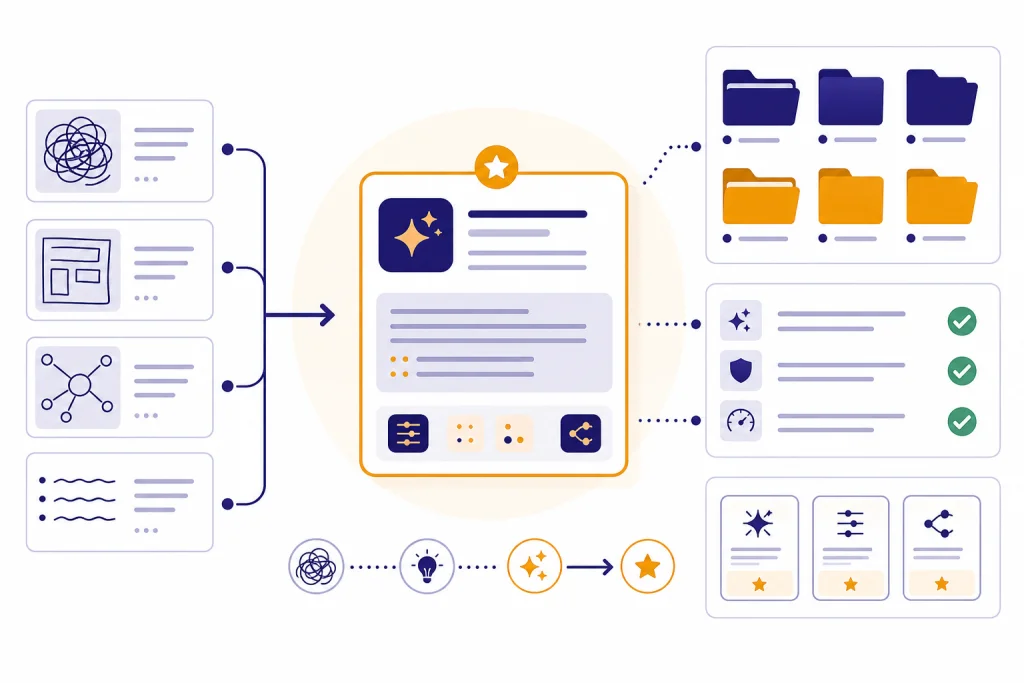
A ChatGPT prompt generator is useful only if it helps you build prompts you can reuse, test, and improve. Use the embedded generator immediately below this introduction: fill in the fields, copy the structured prompt it creates, then come back to the workflow in this guide to test and save the best version. The generator turns a rough goal into a prompt with a role, task, context, constraints, output format, and follow-up checks.
Start here: complete the prompt generator below with one real task you repeat. After it produces a draft, use the examples and checklist in this guide to turn that draft into a personal prompt library card.
ChatGPT Prompt Generator
Describe what you want in plain English. We'll generate a structured, role-based prompt you can paste into ChatGPT.
Powered by GPT-5.5. One generation per click; please be patient — it's free for you, but we still pay the model.
What this prompt generator does
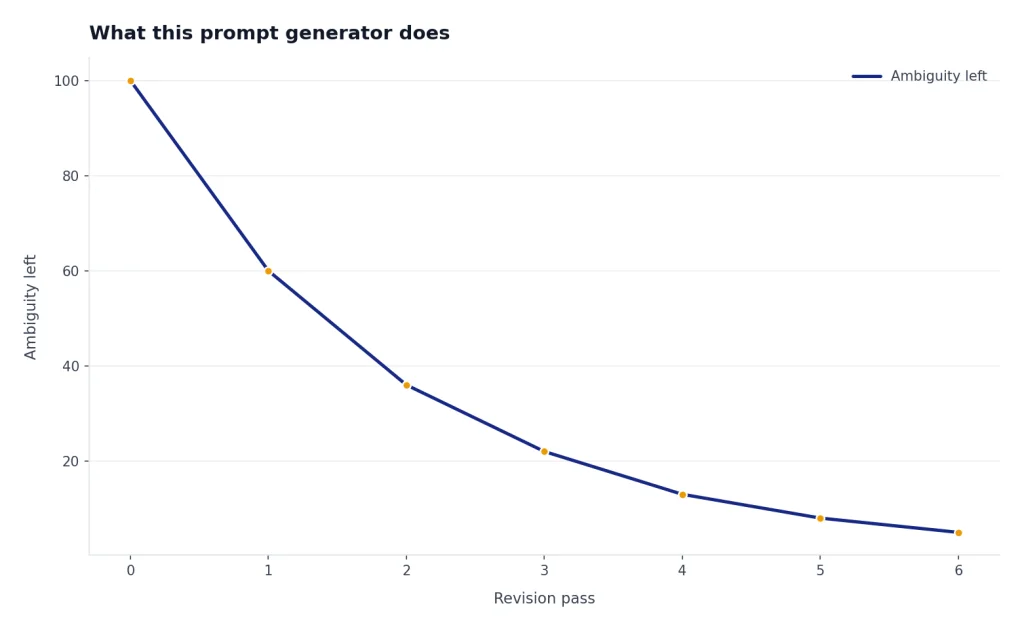
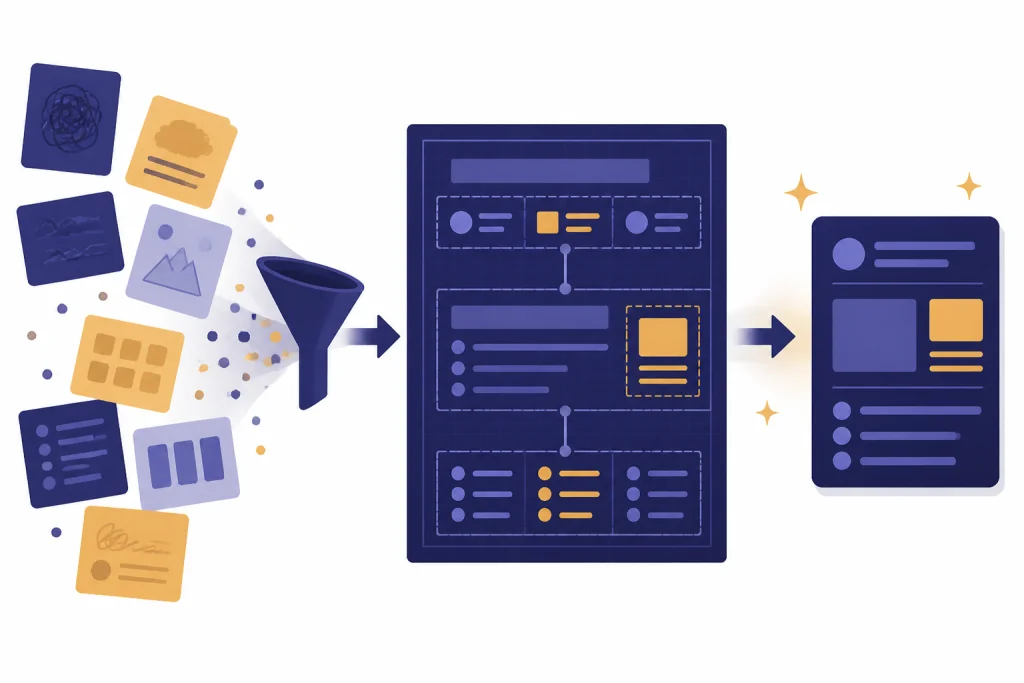
The generator takes your rough request and converts it into a prompt that ChatGPT can follow more reliably. It does not guarantee a perfect answer. OpenAI describes prompting as designing and refining the input so ChatGPT can give a better answer, and it emphasizes clear instructions plus iteration rather than a single perfect formula.[1]
The generator is built around the parts that most reusable prompts need: task, audience, role, context, source material, constraints, tone, and output format. Instead of asking, “write me a blog post,” you can generate a prompt that says who the post is for, what the reader already knows, what evidence to use, what structure to follow, what to avoid, and how the final answer should be formatted.
Use it as a drafting layer. You still decide whether the generated prompt is accurate, safe, and specific enough. The best workflow is simple: generate a prompt, test it in ChatGPT, edit the weak parts, then save the improved version in your library.
How to use the tool
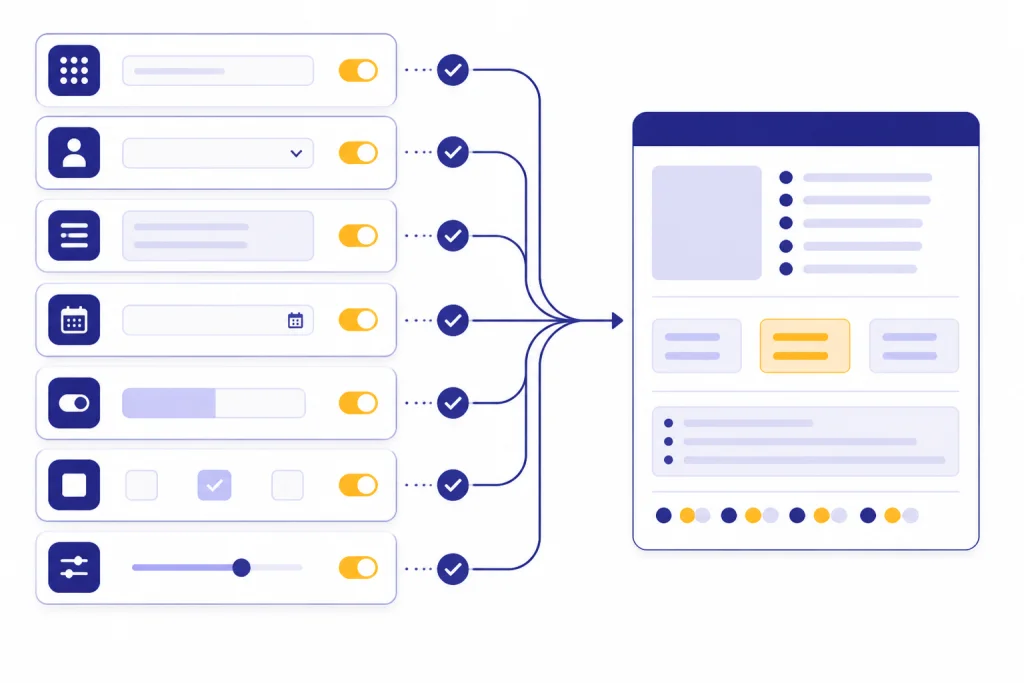
Start with one real task, not a vague category. “Create a weekly LinkedIn content plan for a solo CPA” will produce a better reusable prompt than “make social media prompts.” If you are building a library for a role, create one prompt per repeatable job: research, outline, draft, critique, rewrite, summarize, and format.
Step 1: Define the job
Write the action you want ChatGPT to perform. Use an active verb such as draft, summarize, compare, diagnose, rewrite, classify, plan, or critique. OpenAI’s prompting guidance also recommends making the task clear and describing what you want, who it is for, and why it matters.[1]
Step 2: Add the context
Give the generator the facts that should shape the answer. Context can include your audience, product, brand voice, industry, reading level, location, source text, deadline, or desired level of detail. If the output depends on private files or internal data, do not paste sensitive material into a public tool. Use a safer internal workflow instead.
Step 3: Set constraints
Constraints prevent generic answers. Add limits such as “avoid legal advice,” “ask clarifying questions if the brief is incomplete,” “use bullets only when useful,” “do not invent statistics,” or “return a table with columns for priority, task, owner, and next action.”
Step 4: Choose an output format
Tell ChatGPT what the final answer should look like. Good formats include a checklist, table, memo, email draft, JSON object, lesson plan, job description, creative brief, code comment, or revision plan. OpenAI’s API prompt guidance notes that different prompt formats can work better for different tasks, so treat format as a design choice rather than an afterthought.[2]
Step 5: Test and revise
Paste the generated prompt into ChatGPT with a realistic example. If the answer is too long, add a length constraint. If it makes unsupported claims, require it to separate facts from assumptions. If it asks too many questions, tell it when to proceed with stated assumptions. Save only the version that works under real conditions.
| Tool field | What to enter | Weak entry | Stronger entry |
|---|---|---|---|
| Task | The action ChatGPT should take | Help with email | Rewrite a renewal email for a hesitant B2B customer |
| Audience | Who the answer is for | Customers | Operations managers at mid-market logistics companies |
| Context | Facts that shape the answer | We have a new feature | The feature reduces manual invoice review and is already enabled for existing accounts |
| Constraints | Rules and boundaries | Make it good | Use a calm tone, avoid discounts, and ask for a 20-minute renewal call |
| Format | The desired structure | Paragraph | Subject line, preview text, email body, and three follow-up variants |
Build a prompt library
A prompt generator is most valuable when it feeds a library. A library gives you stable starting points for the work you repeat every week. It also helps you compare versions. If one prompt consistently produces better answers, keep it and retire the weaker one.
Start with folders based on work type, not model type. Good folder names include “marketing briefs,” “email replies,” “research summaries,” “teaching materials,” “spreadsheet help,” “image prompts,” and “customer support.” If you work across several roles, create a folder for each role and a second layer for the task.
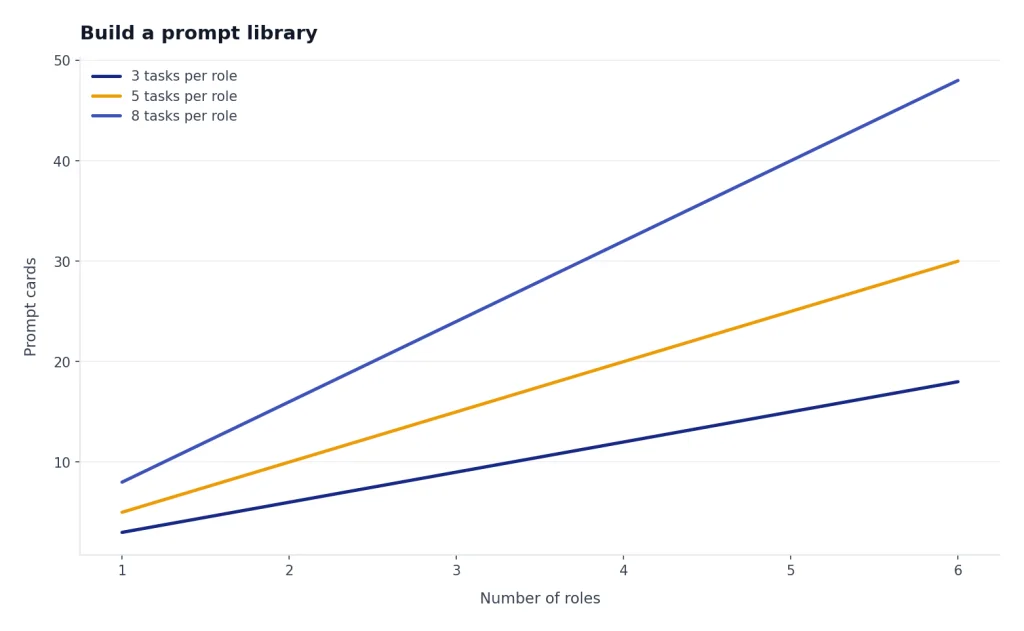
For example, a marketer might keep separate prompt cards for keyword clustering, content briefs, title testing, and meta descriptions. A teacher might store prompts for lesson planning, rubric design, reading-level adaptation, and parent emails. A support team might start with escalation summaries, apology drafts, troubleshooting scripts, and tone checks.
Give each saved prompt a short title, a task label, a sample input, a known-good output, and a last-tested note. Do not save prompts that only worked once. Save prompts that survive a realistic second test.
| Library folder | Prompt card to save | Best test case | Keep if it… |
|---|---|---|---|
| Renewal follow-up writer | A hesitant customer with no reply after the first renewal email | Stays concise and gives a clear next step | |
| Research | Source summary checker | A pasted article excerpt with claims and caveats | Separates facts, assumptions, and unanswered questions |
| Education | Lesson plan adapter | A lesson goal plus grade level and time limit | Returns activities that match the time available |
| Spreadsheets | Formula explainer | A broken formula and a sample row | Explains the fix without overcomplicating the answer |
| Images | Product scene prompt | A product, setting, lighting style, and composition goal | Specifies concrete visual details without copying a protected style |
Worked example: from rough request to saved prompt card. This example is illustrative, but it shows the full loop you should run before saving a prompt.
| Stage | Example | What changed |
|---|---|---|
| Rough request | “Help me write a follow-up email for customers who have not renewed.” | The request names the task, but it lacks audience, timing, tone, constraints, and success criteria. |
| Generated prompt draft | Act as a B2B customer success manager. Write a concise renewal follow-up email for an operations manager who has not replied after the first renewal notice. Use a calm, helpful tone. Do not offer a discount. Include a subject line, preview text, email body, and one clear call to schedule a 20-minute call. If key details are missing, use placeholders instead of inventing them. | The draft is reusable because it includes role, audience, constraints, and format. |
| Test output failure | The first test email sounded too urgent, used a vague subject line, and included an unsupported claim that the product “saves teams hours every week.” | The prompt did not define proof handling or tone tightly enough. |
| Revised saved version | Act as a B2B customer success manager. Write a renewal follow-up for an operations manager who has not replied after one prior renewal email. Keep the tone calm, specific, and non-alarmist. Do not use pressure tactics, discounts, fake metrics, or unsupported performance claims. Use only facts provided in the input. If a benefit is not supported, phrase it as a possible discussion topic, not a fact. Return: subject line, preview text, email body under 130 words, and two softer follow-up variants. | The saved card now prevents the failure pattern and includes a length limit plus fact-handling rules. |
Illustrative test input: “Customer: Northline Logistics. Product: invoice review automation. Renewal deadline: June 30. Known fact: feature is already enabled in their account. Goal: book a renewal call.”
Illustrative revised output: Subject: “Quick renewal check-in for Northline” Preview: “A short call to review the enabled invoice workflow.” Body: “Hi [Name], I wanted to follow up on Northline’s upcoming renewal. The invoice review feature is already enabled in your account, and I’d be glad to walk through how it fits your current workflow before the June 30 deadline. Would you be open to a 20-minute call next week to review questions and next steps? Best, [Sender].”
Copy this reusable template
The generator gives you a tailored draft, but it helps to understand the pattern. Use this template when you want to edit a generated prompt by hand.
Act as: [role or perspective]
Task: [specific action]
Audience: [who the output is for]
Context: [relevant background, facts, source material, or constraints]
Goal: [what a successful answer should accomplish]
Output format: [table, checklist, memo, email, JSON, outline, etc.]
Rules:
- Ask clarifying questions if required information is missing.
- Do not invent facts, quotes, sources, prices, or dates.
- Separate assumptions from confirmed information.
- Keep the tone [tone].
- Avoid [things to avoid].

Now complete the task using this input:
[insert task-specific input]
Do not treat the template as a law. Remove fields that do not help. Add fields that matter for your use case. A spreadsheet prompt may need sample rows. A legal intake prompt may need jurisdiction and a reminder to avoid legal conclusions. An image prompt may need composition, camera angle, lighting, and exclusions.
The most important rule is to test the prompt against the task you actually perform. If you are building a prompt for hiring, test it with a messy job brief. If you are building a prompt for sales, test it with a real objection. If you are building a prompt for creative work, test whether it generates usable variation rather than polished sameness.
Compare prompt generator alternatives
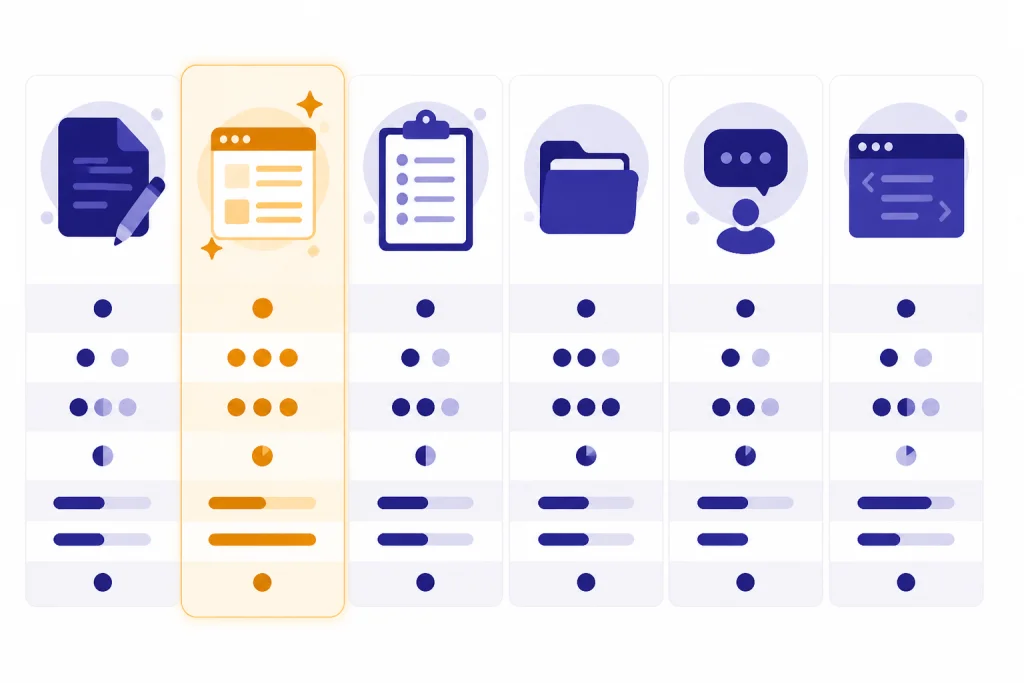
A prompt generator is one way to create reusable instructions. It is not the only way. ChatGPT also supports features that can carry standing context or package instructions for repeated use. OpenAI says custom GPTs are versions of ChatGPT configured for a specific purpose, and they can combine instructions, knowledge, selected capabilities, apps, or actions.[3]
Creating or editing GPTs requires a paid subscription, and OpenAI’s current help article says building and editing GPTs is limited to the web experience, while mobile apps support using GPTs but not building them.[4] If you need a reusable assistant for a team workflow, a GPT may be better than a prompt card. If you just need a fast reusable instruction, the generator is lighter.
| Option | Best use | Strength | Limitation |
|---|---|---|---|
| Prompt generator | Creating a reusable prompt from a rough idea | Fast, flexible, easy to save in a library | Still needs human review and testing |
| Manual prompting | One-off tasks or expert users | Maximum control | Slow if you repeat the same task often |
| Custom Instructions | Persistent personal preferences | Good for tone, background, and default behavior | Too broad for task-specific workflows |
| Projects | Long-running work with related files and chats | Keeps materials, instructions, and conversations together | Overkill for a small standalone prompt |
| Custom GPTs | Repeatable assistants for a role, team, or multi-step workflow | Can package instructions, knowledge, and capabilities | Requires setup and permission to build |
| API prompt templates | Product or developer workflows | Best for controlled software integrations | Requires technical implementation |
Use these decision rules instead of treating every reusable prompt the same way:
- Keep it as a prompt card when the task is short, the input changes each time, and one person can copy, paste, and review the result.
- Move it to Custom Instructions only when the instruction should apply broadly across future chats, such as preferred tone, background, or formatting defaults. OpenAI says users can modify or remove those instructions for future conversations.[5]
- Move it to a Project when the work has recurring files, related chats, project-specific instructions, or a context boundary you want to keep together. OpenAI describes Projects as a way to keep related materials together and notes that project-only memory can keep context inside the project boundary.[6]
- Move it to a custom GPT when other people need the same assistant, when the workflow has several steps, or when the assistant needs packaged instructions, knowledge, capabilities, apps, or actions.
- Move it to an API template when the prompt must run inside software, accept structured inputs, log outputs, or behave consistently across many users.
If you are comparing third-party prompt tools, use the same standard. A good tool should make the task clearer, produce editable output, avoid exaggerated claims, and help you save prompts by use case. For a broader tools comparison, see our Best ChatGPT Prompt Generator Tools guide.
When not to use it
Do not use a prompt generator when the task requires professional judgment that you are not qualified to review. A prompt can help organize questions for a lawyer, doctor, accountant, or compliance officer, but it should not replace the professional. Use it to prepare, not to decide.
Do not paste confidential client records, employee files, private contracts, unreleased financial data, passwords, or regulated personal information into a public prompt tool. OpenAI’s Data Controls FAQ says users can choose whether conversations help improve models, and signed-in users can turn off “Improve the model for everyone” in Data Controls.[7] That setting is useful, but it does not make every workflow appropriate for sensitive information.
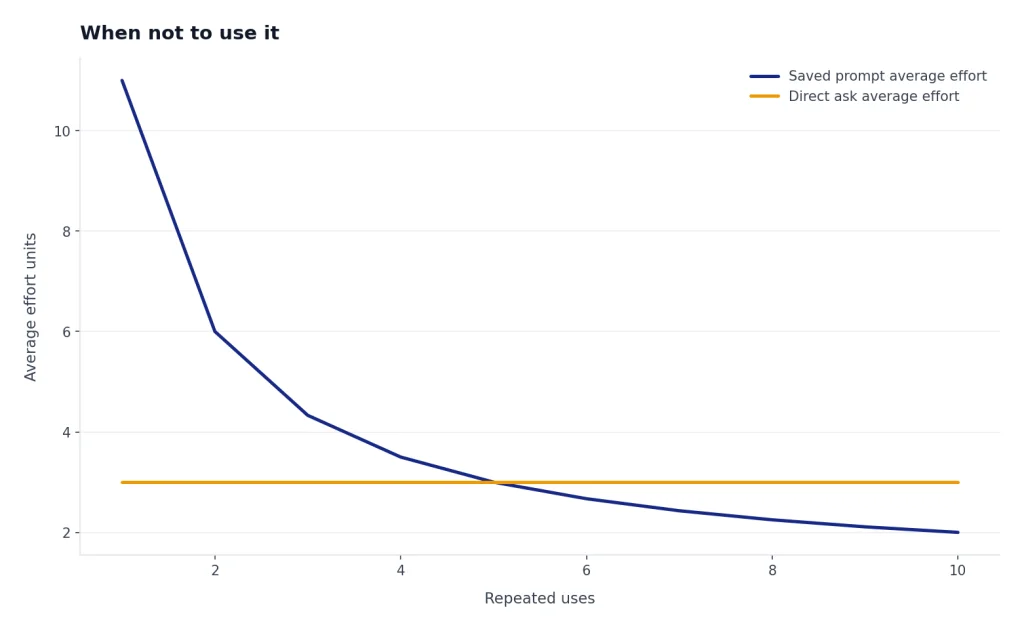
Do not use a generator when you need a final answer more than a better prompt. If your task is simple, ask ChatGPT directly. “Summarize this paragraph in plain English” does not need a library card. Save the generator for tasks you repeat or tasks where the first draft often misses your intent.
Do not use a prompt library as a substitute for source checking. If the output includes facts, laws, dates, prices, or product claims, verify them. A well-written prompt can reduce ambiguity, but it cannot make unsupported facts true.
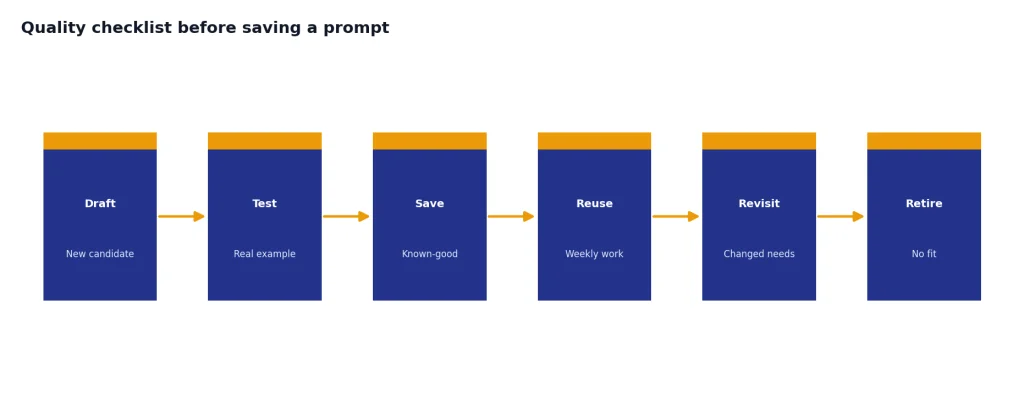
Quality checklist before saving a prompt
Before you add a generated prompt to your library, run it through a short quality check. The goal is not to make the prompt longer. The goal is to make it easier to reuse without surprises.
- Task clarity: The first line says exactly what ChatGPT should do.
- Audience fit: The prompt names who the answer is for and what they need.
- Context boundary: The prompt tells ChatGPT what information to use and what to ignore.
- Output format: The requested structure is visible before the task input.
- Fact handling: The prompt tells ChatGPT not to invent facts, sources, prices, dates, or quotes.
- Clarifying rule: The prompt says when to ask questions and when to proceed with assumptions.
- Test result: The prompt has worked on at least one realistic example.
- Version note: The saved card says what changed and why.
Keep prompts short enough to understand at a glance. If a prompt becomes a full operating manual, consider a Project or custom GPT instead. The right format depends on how often you use the workflow, how much context it needs, and whether other people need access to it.
Revisit your best prompts every few months. Your work changes. ChatGPT changes. A prompt that worked for a narrow task may become too rigid, while a broad prompt may need stronger boundaries. OpenAI’s own prompting guidance frames prompting as an iterative process, so treat your library as a living system rather than a finished document.[1]
Frequently asked questions
What is a ChatGPT prompt generator?
A ChatGPT prompt generator is a tool that turns a rough task into a structured prompt. A useful generator adds role, context, constraints, and output format so ChatGPT has clearer instructions. You still need to test and edit the prompt before saving it.
Is this better than writing prompts manually?
It is better when you are starting from a vague idea or building a repeatable workflow. Manual prompting is still better when you already know the exact wording you want or when the task is simple. Many users get the best result by generating a first draft, then editing it by hand.
Should I save every generated prompt?
No. Save only prompts that work on realistic examples. A prompt library should be a collection of tested shortcuts, not a pile of unused drafts. Delete or archive prompts that no longer match your workflow.
Can I use generated prompts inside Custom Instructions?
Sometimes. Custom Instructions are best for broad preferences that should apply across future chats, such as tone, background, or response style. Task-specific prompts usually work better as saved prompt cards, Projects, or custom GPT instructions.
Can this tool create prompts for images, code, or spreadsheets?
Yes, if you describe the task clearly. For images, include subject, composition, style boundaries, and exclusions. For code or spreadsheets, include sample input, expected output, error messages, and the environment where the answer must work.
What should I do if a generated prompt gives bad results?
Look at the failure pattern. If the answer is generic, add context and examples. If it is inaccurate, add fact-checking rules and require assumptions to be labeled. If it ignores the requested structure, move the output format higher in the prompt and make it more explicit.