

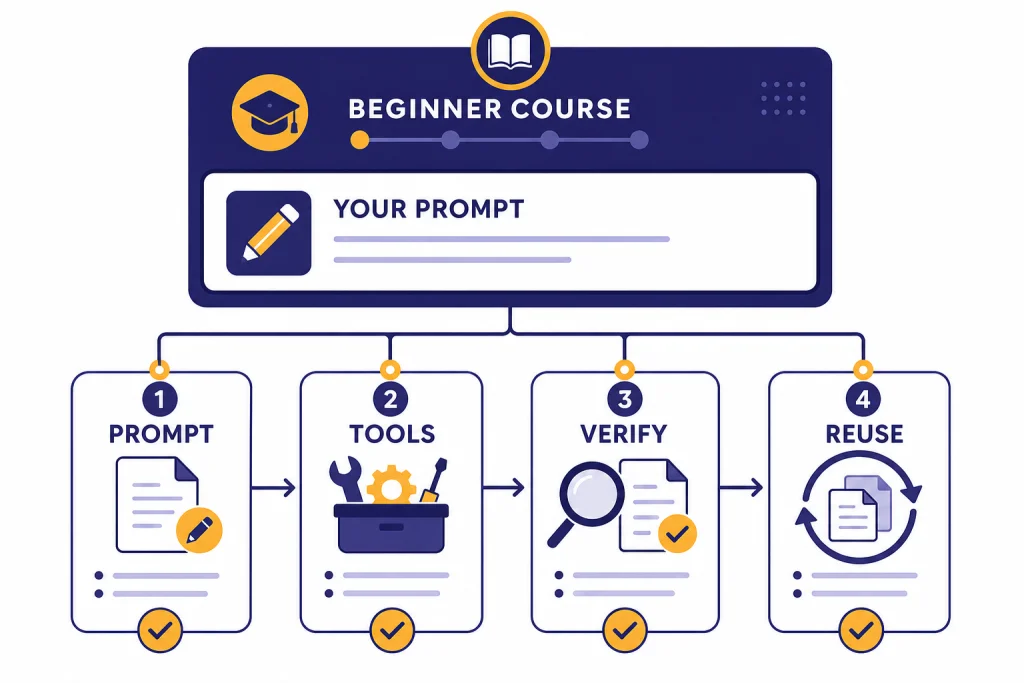
This ChatGPT tutorial is a beginner course for turning a blank chat box into useful work. You will learn how to set up ChatGPT, write clear prompts, choose the right tool, upload material, verify answers, and build reusable workflows. The goal is not to memorize magic phrases. The goal is to control the conversation: give context, request a format, inspect the result, and revise. By the end, you should be able to use ChatGPT for everyday writing, studying, research, planning, spreadsheet help, coding support, and image ideas while knowing when to slow down and check the answer.
What ChatGPT is
OpenAI introduced ChatGPT on November 30, 2022, as a research preview built around conversation, follow-up questions, corrections, and refusals for inappropriate requests.[1] OpenAI’s beginner FAQ describes ChatGPT as an AI assistant for everyday tasks such as brainstorming, writing, studying, planning, math, coding, and analyzing images or files.[2] If you want the plain-English background before the course, start with our plain-English ChatGPT overview.
The best mental model is simple. ChatGPT is not a magic answer box. It is a conversational workspace. You give it a goal, context, source material, constraints, and a desired output. It gives you a draft, explanation, plan, or analysis. Then you respond with corrections. Good users do not write one prompt and stop. They steer.
This ChatGPT tutorial focuses on that steering habit. You will learn how to ask for useful outputs, how to choose between plain chat and tools, and how to check results before you rely on them.
Set up ChatGPT safely
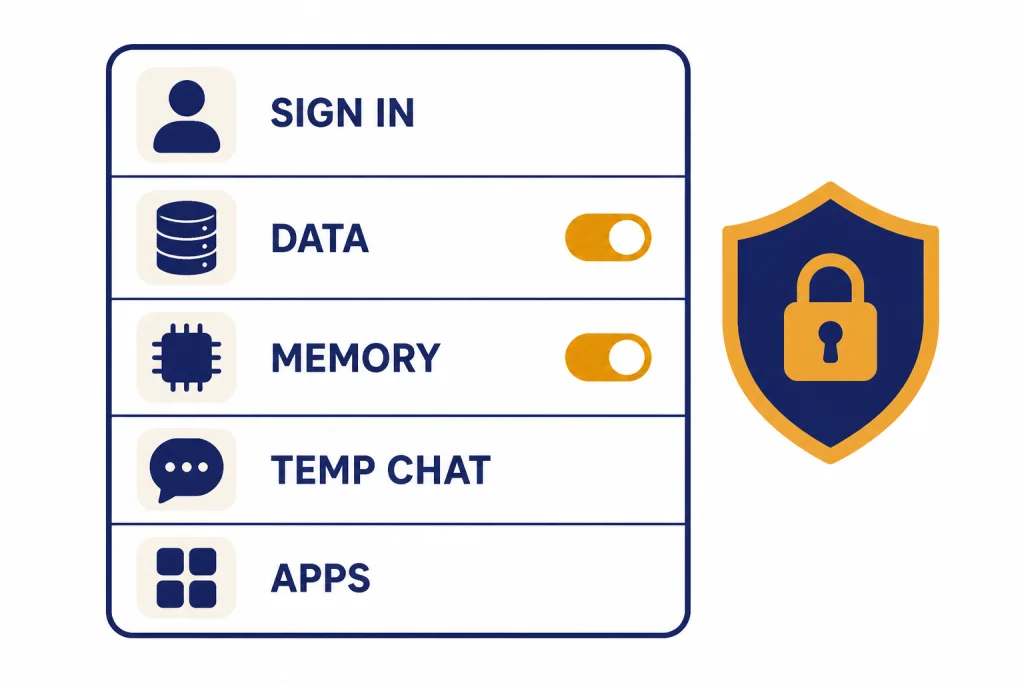
Use official entry points. OpenAI lists ChatGPT for the web and mobile apps in its FAQ, and its download page lists official apps for iOS, Android, macOS, and Windows.[2][4] OpenAI’s ChatGPT home page help also says people in supported regions can try ChatGPT before creating an account.[3] A signed-in account is still the better default for learning because it lets you keep useful chats, adjust settings, and build a repeatable workflow.
- Start on the web. Open ChatGPT in a browser so you can see the sidebar, settings, tools menu, and chat history clearly.
- Use the official app only. Avoid lookalike apps that ask for unnecessary permissions or payment details.
- Review Data Controls. OpenAI says Data Controls let you decide how ChatGPT uses your conversations and interactions, including whether they help improve models.[5]
- Decide how to use Memory. OpenAI says Memory can work through saved memories and chat history, and that users can manage or turn memory off in settings.[6] For a deeper setup, read our ChatGPT memory tips.
- Create a test chat. Ask a harmless question, then ask follow-ups until you see how the conversation changes the answer.
Do not begin by uploading sensitive files, private client data, medical records, legal documents, or passwords. Learn the interface first. Then decide what information belongs in ChatGPT under your own privacy, school, or workplace rules.
Use the beginner prompt formula
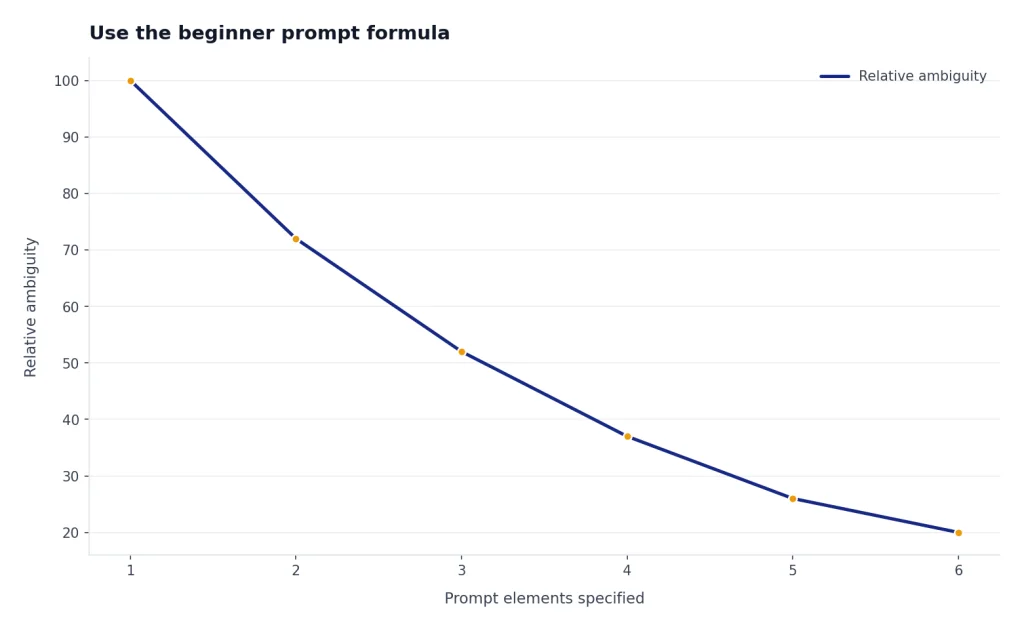
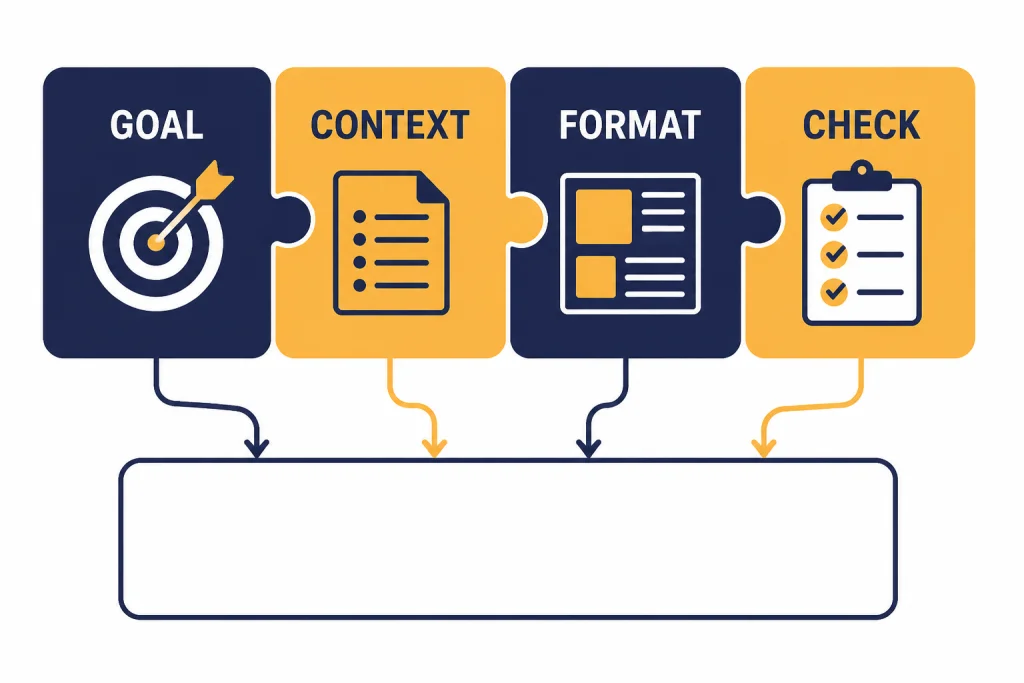
A strong prompt does not need to be long. It needs to be complete. Use this formula: goal, context, source material, constraints, output format, and check request. If one of those parts is missing, ChatGPT will often guess. Your job is to reduce guessing.
Goal: Help me prepare a clear answer.
Context: I am a beginner explaining this to a nontechnical audience.
Source material: Use only the notes I paste below.
Constraints: Keep it concise. Do not add unsupported facts.
Output format: Give me a short summary, then three bullet points.
Check request: List any assumptions you made.
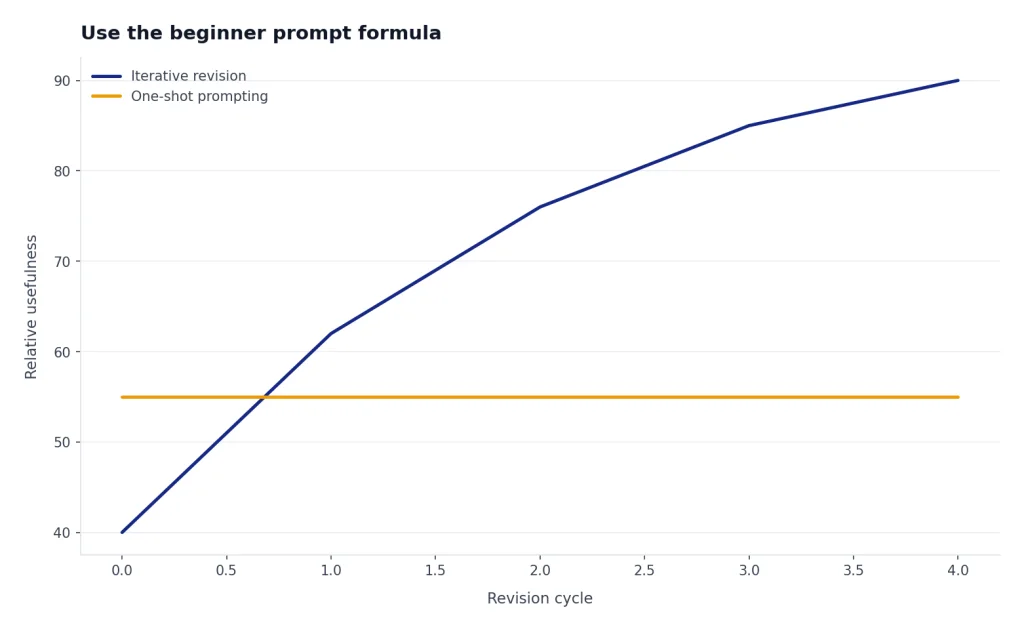
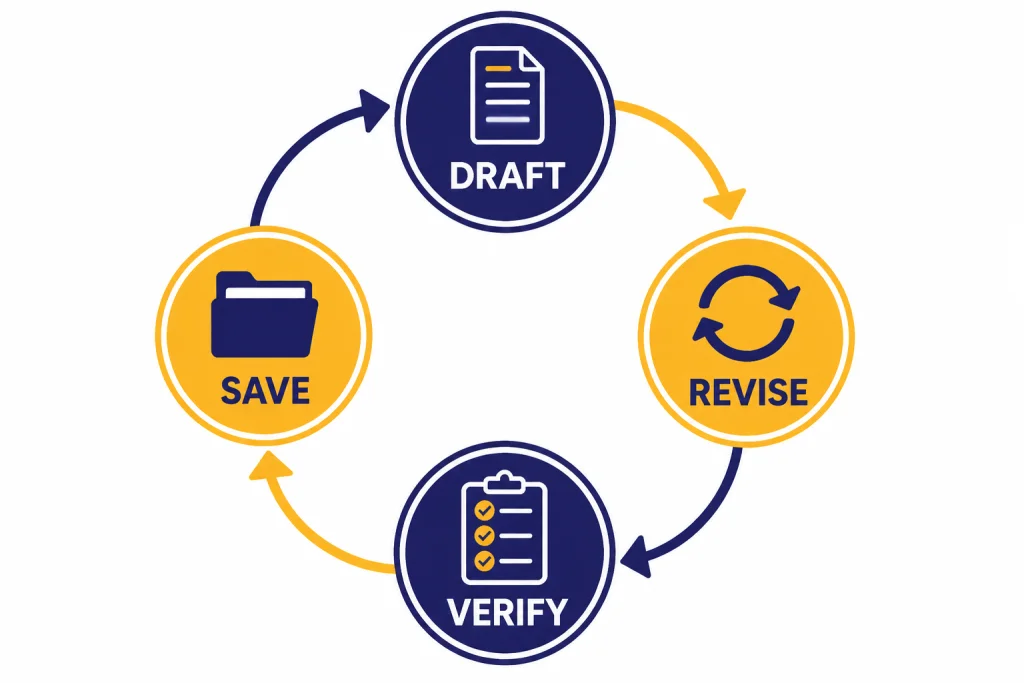
Here is the beginner loop. Ask for a draft. Read it. Tell ChatGPT what is wrong. Ask for a revision. Then ask it to explain the tradeoffs. This works better than trying to write the perfect first prompt.
A first prompt to copy
Try this: “Act as a patient tutor. I am new to this topic. Explain the idea in plain English, give a simple example, then ask me a short question to check whether I understood.” That prompt gives ChatGPT a role, a level, a format, and a next step. For more reusable structures, see our guide to prompt engineering techniques that actually work.
Choose the right tool
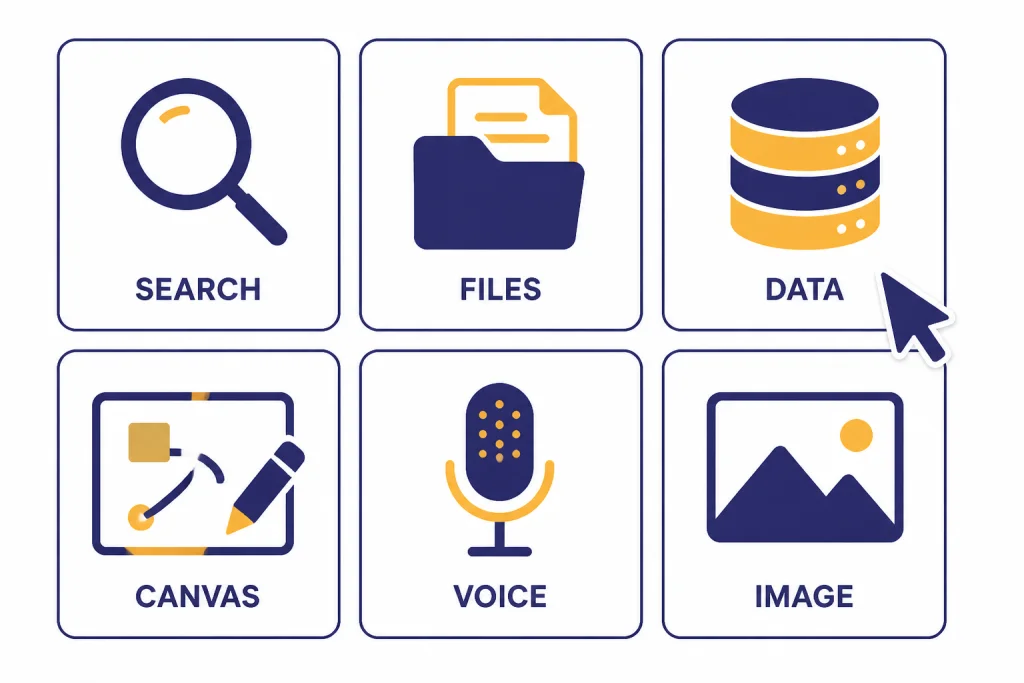
Beginners often treat every task like a plain text chat. That is a mistake. OpenAI’s capabilities overview lists ChatGPT tools and features such as search, file uploads, data analysis, voice, canvas, memory, deep research, and image features.[7] Pick the tool based on the job.
| Task | Best starting tool | Why it helps | Starter prompt |
|---|---|---|---|
| Current facts or local information | Search | Use it when the answer depends on recent web information or source links.[8] | Search the web and summarize the three most reliable sources. |
| PDFs, docs, or notes | File upload | Use it to summarize, compare, or extract information from uploaded documents.[9] | Summarize this file, then list questions I should ask next. |
| Spreadsheets or tables | Data analysis | Use it for tables, charts, and spreadsheet-style analysis.[10] | Find patterns in this spreadsheet and explain them in plain English. |
| Long drafts or code revisions | Canvas | Use it for writing and coding projects that need editing in a shared workspace.[11] | Open this in canvas and suggest edits section by section. |
| Speaking practice | Voice mode | Use it for spoken back-and-forth conversations with ChatGPT.[16] | Practice a job interview with me and give feedback after each answer. |
| Visual concepts | Create image | Use it to create or edit visuals from natural-language instructions.[12] | Create three visual directions for this presentation idea. |
| Multi-source research | Deep research | Use it when you need a documented report with citations or source links.[13] | Make a research plan first, then wait for my approval. |
| Supervised web actions | Agent mode | Use it for complex online tasks that require research and actions while you stay in control.[14] | Plan the task, ask before taking action, and stop at each decision point. |
If you want focused lessons, continue with our PDF reading and summarizing workflow, data analysis step-by-step guide, Canvas document tutorial, deep research project guide, and image generation tutorial.
Practice core workflows
Writing workflow
Ask for an outline before a draft. Then ask for a critique before a rewrite. Example: “Draft a clear email, then explain what tone it uses and where it could be misunderstood.” This teaches you to evaluate the output instead of accepting it automatically.
Learning workflow
Ask ChatGPT to teach one concept at a time. Good prompts include your current level, the examples you understand, and the kind of quiz you want. Ask it to wait for your answer before moving on. That turns the chat into active practice.
Document workflow
Upload a document only when you are allowed to share it. Then ask for a structured output: summary, key claims, open questions, action items, and exact sections to review. Do not ask only “summarize this.” Ask for the decision you need to make after reading it.
Spreadsheet workflow
For tables and spreadsheets, ask ChatGPT to explain the columns first. Then ask for cleaning steps, formulas, charts, or patterns. If you work heavily in spreadsheets, use our Excel formulas and pivot tables guide after you finish this beginner course.
Coding workflow
Paste the error, the smallest relevant code snippet, what you expected, and what happened instead. Ask for an explanation before a fix. This helps you learn instead of copying code you do not understand.
Verify and reuse your work
OpenAI warns that ChatGPT can produce incorrect or misleading outputs and may sound confident even when wrong.[15] Treat important answers as drafts. For facts, ask for sources and open them yourself. For calculations, ask ChatGPT to show its steps. For advice that affects money, health, law, safety, or employment, get qualified human review.
- Ask what could be wrong. “List the weak points in your answer.”
- Ask for assumptions. “What did you assume that I did not say?”
- Ask for a second format. “Turn this into a checklist so I can verify each item.”
- Ask for sources when facts matter. Use Search or Deep research instead of relying on memory.
- Keep your best prompts. Save prompts that worked and reuse them with new context.
As your work becomes repetitive, move from individual prompts to systems. OpenAI says Projects can group chats, files, and instructions in one place.[18] OpenAI also describes GPTs as custom versions of ChatGPT that combine instructions, knowledge, and capabilities for specific tasks.[17] When you are ready for that step, use our custom GPT builder tutorial.
Follow a practice plan
Move through these sessions in order. Do not skip straight to advanced tools. The beginner skill is learning how to describe the work clearly, inspect the result, and revise.
- Personal assistant session. Ask ChatGPT to turn a messy to-do list into priorities, deadlines, and a short plan.
- Writing session. Ask for an outline, draft, critique, and rewrite of a short email or article section.
- Learning session. Ask ChatGPT to teach a topic, quiz you, and adjust the explanation based on your answer.
- File session. Upload an allowed document and ask for a summary, risks, open questions, and action items.
- Research session. Use Search or Deep research for a question that needs current sources. Check the citations yourself.
- Data session. Use a small spreadsheet or table and ask for patterns, cleanup ideas, and a chart recommendation.
- System session. Save the prompts that worked. Rewrite them as templates with blanks for future use.
After each session, write down what improved the answer. Most beginners discover the same pattern: better context beats clever wording.
Avoid common beginner mistakes
- Do not ask vague questions. “Help with my resume” is weak. “Rewrite this bullet for a product manager role using measurable impact” is stronger.
- Do not hide the audience. Tell ChatGPT whether the reader is a child, customer, professor, executive, developer, or teammate.
- Do not trust fake precision. Verify important facts, quotes, sources, and calculations because ChatGPT can be wrong.[15]
- Do not use the wrong tool. Use Search for recent information, files for documents, data analysis for spreadsheets, and Canvas for long drafts.
- Do not ignore policy and ethics. OpenAI’s Usage Policies restrict uses such as deception, academic dishonesty, certain high-stakes decisions without human review, and professional advice that requires a license without appropriate qualified involvement.[19]
The right habit is simple: disclose the goal, provide the context, request a useful format, verify the result, and revise. That is the core skill behind every advanced ChatGPT workflow.
Frequently asked questions
What should I ask ChatGPT first?
Start with a low-risk task you understand well. Ask ChatGPT to explain a topic, rewrite a short paragraph, or organize a to-do list. Because you already know the material, you can judge whether the answer is useful.
Do I need an account to learn ChatGPT?
No, not always. OpenAI says people in supported regions can try ChatGPT before creating an account.[3] An account is still better for a course like this because saved chats, settings, and personalization make practice easier.
How do I make ChatGPT answers less generic?
Add audience, purpose, constraints, examples, and a required format. Then ask ChatGPT to revise after you give feedback. Generic answers usually come from generic prompts.
Can ChatGPT browse the web?
Yes, when Search or a research tool is available and used. OpenAI says ChatGPT Search can provide timely answers with links to relevant web sources.[8] Use it when the answer may have changed recently.
Is ChatGPT accurate enough for school or work?
It can be useful for drafts, explanations, planning, and analysis, but it is not automatically reliable. OpenAI says ChatGPT can produce incorrect or misleading outputs.[15] Verify facts, citations, calculations, and anything high-stakes.
Should beginners turn on Memory?
Memory can help if you want ChatGPT to remember preferences, goals, and recurring context. OpenAI says users can manage or turn off memory in settings.[6] Beginners should review what is saved and avoid storing sensitive details.