

ChatGPT Excel prompts work best when they give the model the workbook context, the exact column names, the desired output, and the rules it must follow. Power users should treat ChatGPT as a formula reviewer, data-cleaning assistant, analysis partner, and documentation aide rather than a magic spreadsheet autopilot. The prompts below are built for real Excel work: messy exports, inherited workbooks, lookup logic, dashboards, scenario models, Power Query planning, and quality checks. Use them with copied sample rows or uploaded files when your plan supports file analysis. Always test generated formulas on a small range first, then verify totals, edge cases, and business logic before relying on the output.
How to use these ChatGPT Excel prompts
The fastest way to get useful spreadsheet help is to give ChatGPT a small, representative slice of the workbook. Include the column headers, several sample rows, the formula or result you need, and any constraints. If you can upload files in your ChatGPT plan, OpenAI says data analysis can work with Excel files, CSV files, PDFs, JSON files, and cloud files from services such as Google Drive and OneDrive.[1]
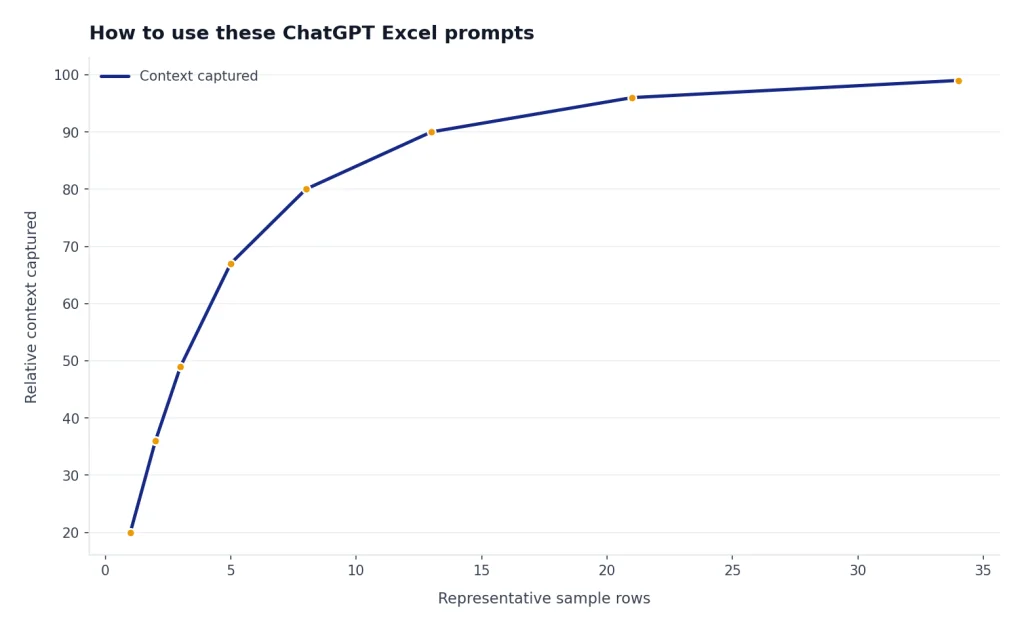
For spreadsheet work, structure matters. OpenAI recommends descriptive column headers, plain-language labels, one row per record, no empty rows or columns, and no critical information stored only inside images.[1] That guidance is more important than prompt wording. A clear table with boring headers usually beats a clever prompt attached to a chaotic workbook.
Use this basic pattern for most Excel prompts:
Role: You are an Excel analyst.
Context: I have a worksheet with these columns: [paste headers].
Sample rows: [paste 5-10 anonymized rows].
Task: [describe the exact result].
Rules: Use formulas compatible with my Excel version. Explain assumptions. Return the formula, a plain-English explanation, and two test cases.
If you are building a larger prompt library for your team, pair these examples with a reusable system for naming, testing, and revising prompts. Our chatgpt prompt generator explains how to turn one-off prompts into a repeatable prompt library.

Formula prompts for complex workbooks
Excel formulas start with an equal sign, and Microsoft’s own formula guidance treats functions, references, operators, and constants as the core parts of a formula.[4] ChatGPT can help by translating business logic into formula logic, explaining inherited formulas, and suggesting cleaner alternatives. It cannot replace formula testing.
Ask for formulas in layers. First, ask ChatGPT to restate the business rule. Next, ask for the formula. Then ask it to create test rows that should pass, fail, and return blanks. This avoids the common mistake of accepting a formula that looks right but mishandles blank cells, duplicate keys, date formats, or error values.
Use this prompt when you need a reliable formula, not just a quick guess:
I need an Excel formula for this rule: [describe rule].
My columns are: [paste headers].
The formula will go in [target column].
Use structured references if the data is formatted as an Excel table. If not, use normal cell references.
Before giving the formula, restate the rule in plain English and list the edge cases you are handling.
After the formula, explain each major part and give three test rows with expected results.
Use ChatGPT heavily for formula explanations. Microsoft also offers Copilot in Excel features that can explain formulas and generate formula rows or columns inside supported Excel environments.[6] ChatGPT is better when you want a detailed conversation about alternatives, documentation, or workbook design. Excel’s built-in tools are better when you want the formula placed directly in the workbook.
For modern formulas, ask ChatGPT to compare readable and compatible versions. Microsoft documents functions such as LET, which assigns names to intermediate calculations inside a formula, and XLOOKUP, which is designed for lookup tasks in supported Excel versions.[8][9] A power-user prompt should ask for both the clean version and the fallback version if your coworkers use older workbooks.
Rewrite this formula for readability:
[paste formula]

Return three versions:
1. A modern Excel version using LET where useful.
2. A compatibility version that avoids newer functions if possible.
3. A commented explanation I can paste into workbook documentation.
Flag any assumptions about blank cells, duplicate matches, text dates, and errors.
Cleanup and transformation prompts
Many Excel problems are not formula problems. They are shape problems. The export has merged headers, totals mixed with records, dates stored as text, names in one field, inconsistent category labels, or multiple tables stacked in one sheet. ChatGPT can help you write a cleanup plan before you touch the file.
Power Query is the better tool when the cleanup needs to repeat. Microsoft describes Power Query as Excel’s way to import or connect to external data, shape it, combine sources, load it, and refresh it later.[7] ChatGPT is useful before and during that workflow because it can convert a messy business description into ordered transformation steps.
I have an Excel export that needs to become an analysis-ready table.
Current problems: [list issues].
Columns: [paste headers].
Sample rows: [paste rows].
Goal table: [describe desired columns].
Create a cleanup plan in the order I should perform it.
For each step, say whether I should use an Excel formula, Power Query, Find and Replace, or manual review.
Do not change the meaning of the original data.
For recurring exports, ask for repeatability. A one-time formula may be fine for a small cleanup. A monthly sales export, HR roster, support-ticket file, or accounting report needs steps that survive next month’s file. If you work across business functions, pair these prompts with domain-specific templates such as ChatGPT Business Prompts for Owners, chatgpt productivity prompts for daily workflow, and chatgpt HR prompts for hiring and onboarding.
Use this prompt to normalize categories without losing control:
I need to standardize category values in Excel.
Here are the raw values: [paste unique values].
Here are the approved categories: [paste approved list].
Create a mapping table with columns: Raw Value, Approved Category, Confidence, Needs Human Review, Notes.
Do not invent a category when the match is ambiguous. Mark it for review instead.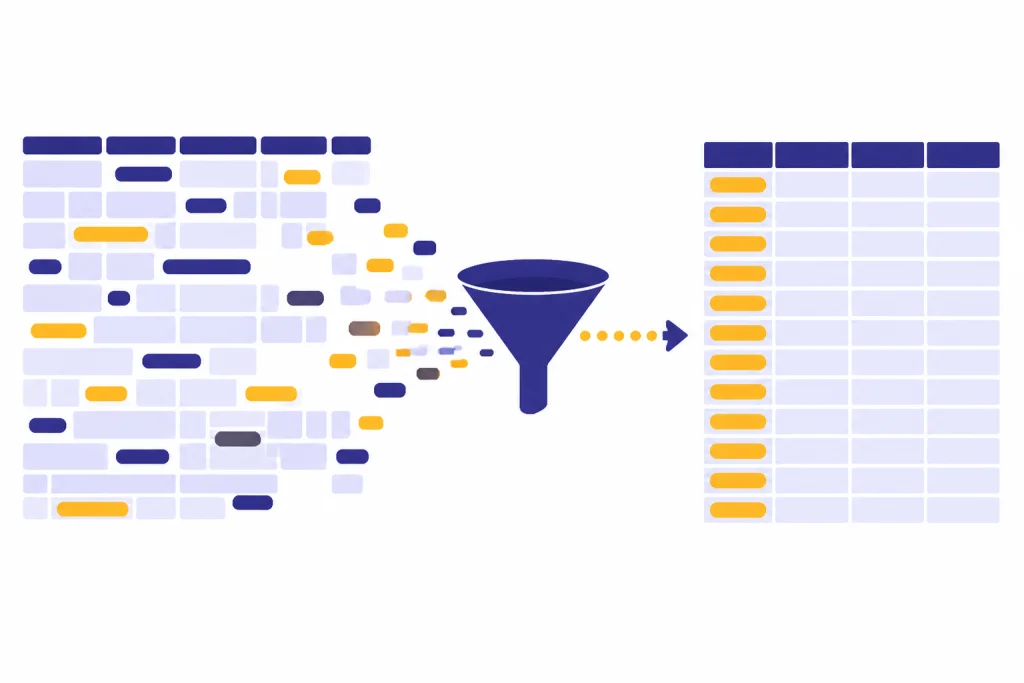
Analysis, chart, and dashboard prompts
ChatGPT is strongest when you ask it to reason about the question before it produces the chart. OpenAI says ChatGPT data analysis can create static and interactive tables and charts from uploaded data, and it can suggest a chart type or follow the chart type you request.[1] That means your prompt should define the decision, not just the visual.
A weak chart prompt says, “Make a chart.” A better prompt says, “Show whether renewal rate changed after the pricing change, and use a chart that makes the before-and-after comparison obvious.” Power users should also ask for caveats. Seasonality, sample size, missing records, and category mix can all make a chart misleading.
Analyze this dataset for a management dashboard.
Business question: [state decision].
Audience: [executive, finance, sales, operations, etc.].
Available columns: [paste headers].
Suggest the best metrics, chart types, filters, and warning notes.
Then give me the Excel layout: title, KPI cards, chart area, slicers, and source-data checks.
Do not recommend a chart unless you explain why it fits the question.
When you upload data, ask ChatGPT to show the assumptions behind its analysis. OpenAI says ChatGPT uses pandas for data analysis and Matplotlib for charts in its data analysis workflow.[1] That is useful because you can ask for a plain-English explanation of the steps and, where available, inspect the analysis behind the answer.
For analytical writing after the spreadsheet work is complete, use a separate prompt. The spreadsheet prompt should calculate and check. The writing prompt should summarize. If the analysis will become an article, report, or landing page, you may also want chatgpt SEO prompts that help you rank or chatgpt social media prompts for every platform for the publishing step.
Quality control and audit prompts
Spreadsheet errors often hide in the quiet places: copied formulas that skip a row, lookup tables with duplicate keys, dates that sort as text, hidden filters, subtotals included in totals, and hard-coded values inside formulas. ChatGPT can help you make an audit checklist, but it needs the workbook context.
Act as a spreadsheet reviewer.
Workbook purpose: [describe].
Sheets: [list sheet names and purpose].
Important formulas: [paste examples].
Known risks: [list].
Create an audit checklist grouped by: structure, formulas, lookups, dates, duplicates, missing values, hidden rows/filters, totals, and documentation.
For each check, tell me the Excel method to perform it and what a failure would look like.
Use a stricter prompt for finance, legal, payroll, compliance, or customer-impacting work. Do not upload confidential data unless your organization allows it. OpenAI says it does not train models on ChatGPT Enterprise, ChatGPT Business, ChatGPT Edu, ChatGPT for Teachers, or API business data by default.[3] That statement does not replace your company’s policies, contractual obligations, or legal review.
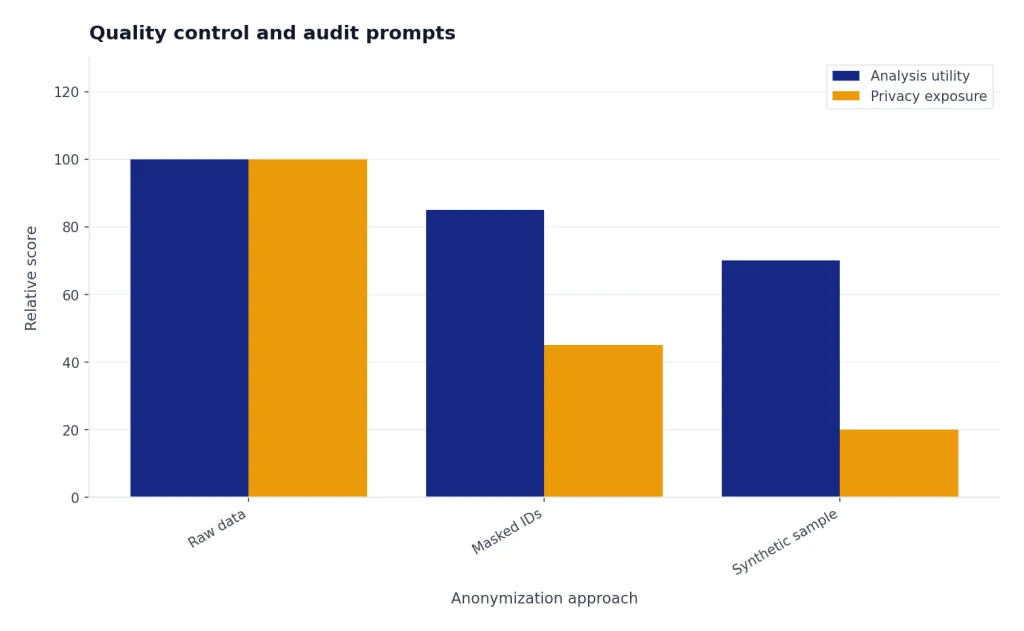
For high-risk workbooks, anonymize first. Replace names, emails, account numbers, addresses, employee IDs, and customer IDs with fake but consistent values. Then ask ChatGPT to review the logic. If you need prompt patterns for sensitive professional use cases, compare this workflow with ChatGPT Legal Prompts and ChatGPT Customer Service Prompts and Templates.
Use this prompt before sending a workbook to another team:
Review this workbook handoff plan.
Audience: [team or role].
Workbook purpose: [purpose].
Tabs included: [tabs].
Inputs the user may change: [inputs].
Outputs they should not edit: [outputs].
Create a documentation checklist, a change-control note, and a short warning section for common mistakes.
Write it in plain English for non-technical Excel users.
ChatGPT, Excel Copilot, and Power Query compared
Power users should not force every task through ChatGPT. Excel already has strong native features, and Microsoft Copilot in Excel can work inside the spreadsheet interface when it is available in your environment. Microsoft says Copilot in Excel can generate formula columns and rows and provide explanations of suggested formulas.[6] Power Query remains the better choice for repeatable import, cleanup, merge, and refresh workflows.[7]
| Task | Best first choice | Why | Good ChatGPT prompt angle |
|---|---|---|---|
| Explain an inherited formula | ChatGPT or Copilot in Excel | Both can translate formula logic into plain English. | Ask for assumptions, dependencies, and test cases. |
| Create a formula for a new column | Excel Copilot or ChatGPT | Copilot can work in the workbook; ChatGPT can discuss alternatives in more detail. | Ask for modern and compatibility versions. |
| Clean a recurring monthly export | Power Query | Repeatable transformation beats manual formula cleanup. | Ask ChatGPT to draft the transformation plan. |
| Explore an uploaded dataset | ChatGPT data analysis | It can inspect columns, summarize patterns, and suggest charts from the file. | Ask for findings, caveats, and follow-up questions. |
| Build a polished dashboard | Excel plus ChatGPT | Excel handles the workbook; ChatGPT helps plan layout, metrics, and narrative. | Ask for KPI cards, chart choices, filters, and QA checks. |
| Prepare training material | ChatGPT | It can turn workbook logic into documentation and exercises. | Ask for beginner, intermediate, and expert explanations. |
The practical rule is simple. Use ChatGPT to think, explain, plan, and check. Use Excel to calculate. Use Power Query to repeat transformations. Use Copilot in Excel when you want AI assistance inside the workbook interface. If you are new to file-based analysis in ChatGPT, our chatgpt tutorial code interpreter gives a deeper walkthrough of analysis workflows.
Copy-paste ChatGPT Excel prompt library
Use the table below as a working library. Replace the bracketed text before you send the prompt. For private or regulated work, paste anonymized examples instead of live records.
| Use case | Copy-paste prompt |
|---|---|
| Formula from business rule | Act as an Excel formula expert. Convert this business rule into an Excel formula: [rule]. My columns are [headers]. The formula goes in [cell or column]. Return the formula, explanation, edge cases, and test rows. |
| Formula debugging | Debug this Excel formula: [formula]. Expected result: [expected]. Actual result: [actual]. Explain likely causes, then give a corrected formula and a short test plan. |
| Lookup design | I need to match records between two tables. Table A columns: [headers]. Table B columns: [headers]. Matching rule: [rule]. Recommend the safest lookup approach and explain how to handle duplicates, missing matches, and partial matches. |
| LET rewrite | Rewrite this long formula using LET where useful: [formula]. Preserve the result. Use clear internal names. Explain whether the rewrite improves readability, performance, or both. |
| Error handling | Add appropriate error handling to this formula: [formula]. Tell me which errors should return blank, which should return a message, and which should remain visible because they indicate a real data problem. |
| Data cleanup plan | Create a step-by-step cleanup plan for this export. Problems: [issues]. Headers: [headers]. Sample rows: [rows]. Mark each step as Excel formula, Power Query, or manual review. |
| Category mapping | Map these raw values to approved categories. Raw values: [values]. Approved categories: [categories]. Return a mapping table with confidence and a human-review flag. |
| Date cleanup | These date values are inconsistent: [examples]. Diagnose the likely formats and create a safe cleanup plan. Include checks to confirm that no dates were shifted or misread. |
| Duplicate detection | Help me identify duplicates. A duplicate means [definition]. Columns available: [headers]. Recommend formulas or steps to flag exact duplicates, likely duplicates, and records that need human review. |
| Pivot table planning | Design a pivot table for this business question: [question]. Columns: [headers]. Recommend rows, columns, values, filters, and slicers. Add warnings about fields that should not be aggregated. |
| Dashboard layout | Design an Excel dashboard for [audience] to monitor [business process]. Available fields: [fields]. Return KPI cards, charts, filters, source-data checks, and a clean sheet layout. |
| Chart selection | Choose the best chart for this question: [question]. Data fields: [fields]. Compare at least three chart options and explain which one best supports the decision. |
| Scenario model | Help me design a scenario model. Decision: [decision]. Inputs users can change: [inputs]. Outputs needed: [outputs]. Create the workbook structure, formulas needed, and validation checks. |
| Forecast sanity check | Review this forecast approach: [method]. Data available: [fields and date range]. Identify assumptions, risks, missing variables, and simple Excel checks that would make the forecast more defensible. |
| Workbook audit | Create an audit checklist for this workbook. Purpose: [purpose]. Key formulas: [examples]. Known risks: [risks]. Group checks by formulas, links, hidden data, totals, dates, and documentation. |
| Documentation | Write documentation for this workbook in plain English. Audience: [audience]. Tabs: [tabs]. Inputs: [inputs]. Outputs: [outputs]. Include how to update it and what not to edit. |
| Training exercise | Create a short Excel training exercise using this concept: [concept]. Include sample data, tasks, hints, expected answers, and common mistakes. |
| Executive summary | Summarize these spreadsheet findings for executives. Findings: [paste]. Audience cares about [goals]. Write a concise summary with decisions, risks, and next steps. |
For students and self-study, adapt the training prompts with ChatGPT Student Prompts for Better Grades or ChatGPT Learning Prompts for Self-Study. For workplace reporting, combine the dashboard and executive-summary prompts with ChatGPT Sales Prompts for Closers when the spreadsheet supports a revenue workflow.
Frequently asked questions
Can ChatGPT create Excel formulas?
Yes. ChatGPT can draft formulas, explain formulas, and suggest alternatives when you provide the business rule, column names, and sample rows. You should still test the result in Excel because small workbook details can change the correct formula.
Can I upload an Excel file to ChatGPT?
OpenAI says ChatGPT data analysis can work with Excel files and other structured formats when file analysis is available in your plan.[1] If you cannot upload a workbook, paste a small anonymized sample with headers and representative rows.
Is ChatGPT better than Excel Copilot?
They serve different workflows. ChatGPT is useful for discussion, debugging, documentation, and analysis planning. Copilot in Excel is useful when you want help inside the Excel interface, including supported formula-generation workflows.[6]
Should I use ChatGPT or Power Query for cleanup?
Use ChatGPT to design and review the cleanup process. Use Power Query when the cleanup must be repeatable, refreshed, or applied to recurring exports. Microsoft describes Power Query as a way to connect, transform, combine, load, and refresh data in Excel.[7]
How do I make ChatGPT Excel prompts more accurate?
Include headers, sample rows, the desired output, Excel version constraints, and edge cases. Ask ChatGPT to explain assumptions before it gives the final formula. Then test the output against rows where you already know the answer.
Can I paste confidential spreadsheet data into ChatGPT?
Do not paste confidential data unless your organization permits it. Anonymize sensitive values when possible. For business plans, OpenAI says it does not train models on specified business, enterprise, education, teacher, or API data by default, but your organization’s rules still control what you may upload.[3]