

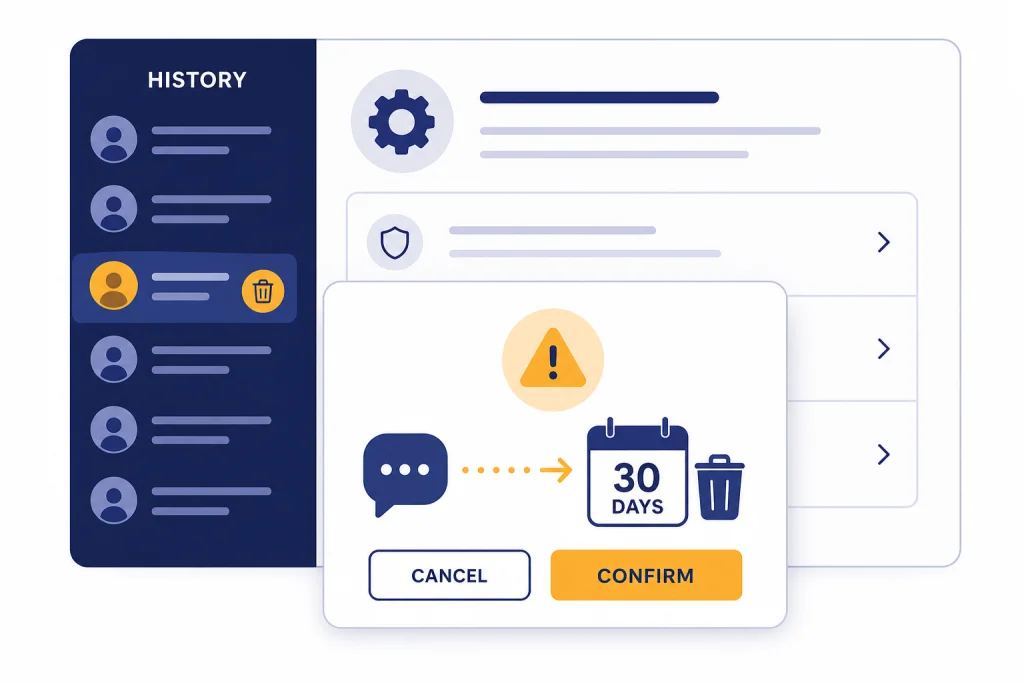
To delete ChatGPT history, open the conversation list, choose the chat you want to remove, select the three-dot or long-press menu, tap Delete, and confirm. On the web, you can also clear every saved conversation from Settings under Data controls. Deleted chats disappear from your visible history right away and are scheduled for permanent deletion from OpenAI systems within 30 days, with limited security, legal, or de-identification exceptions.[1] Export or save anything important first, because OpenAI says deleted chats cannot be recovered through the interface, APIs, or support.[1]
Quick answer
If you only need to remove one conversation, use the conversation menu and choose Delete. If you want a clean slate, use Settings > Data controls and choose the option to delete all chats. If you want to hide conversations without losing them, archive them instead. OpenAI’s help page says archived chats stay in your account under normal retention settings, while deleted chats are removed from view immediately and scheduled for permanent deletion within 30 days, unless an exception applies.[1]
The most important rule is simple: do not delete first and think later. If a chat contains work notes, research, prompts, code, recipes, writing drafts, or anything you may need again, export it or save a copy before deletion. You can also use how to save a ChatGPT conversation or save ChatGPT conversations as PDF if you want a local copy of a specific thread rather than a full account export.
Deleting history is not the same as deleting your OpenAI account. It removes selected conversations from your chat history. Account deletion is a broader action that prevents access to OpenAI services with that account and is permanent; OpenAI says account data is deleted within 30 days except where longer retention is required or permitted by law.[8]
Before you delete anything
Before you delete ChatGPT history, decide whether you need a backup. A deleted chat is not recoverable from the ChatGPT interface, the API, or OpenAI support.[1] That matters if the conversation includes tax notes, client drafts, travel plans, study material, custom instructions you refined inside the thread, or generated code you have not copied elsewhere.
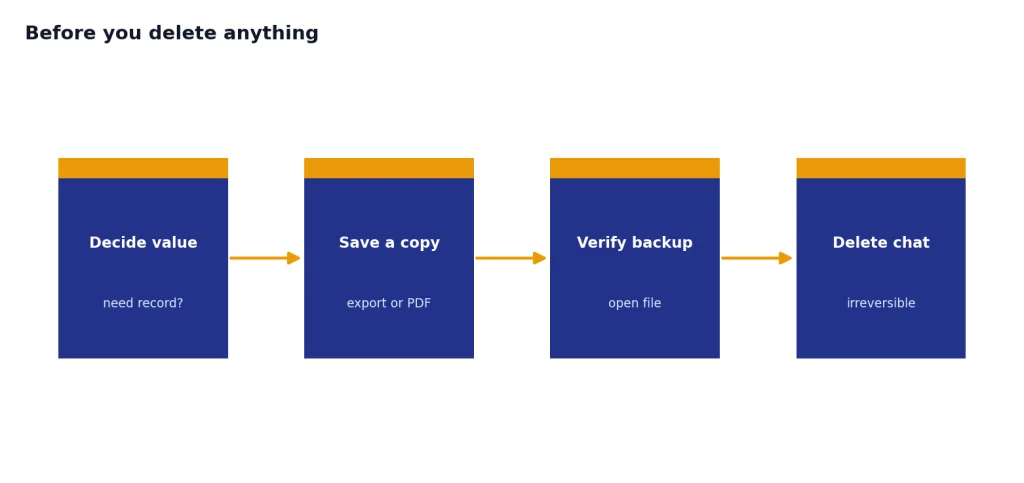
For a full export, OpenAI’s data export instructions say to sign in, open Settings, choose Data Controls, select Export, confirm the export, and download the zip file from the email OpenAI sends. OpenAI says the email link expires after 24 hours, and troubleshooting guidance says exports can take up to 7 days to arrive.[5] If you only need one or two chats, a manual copy, a PDF, or a shared link may be faster. See how to export your ChatGPT data for a broader walkthrough.
Use this checklist before you delete:
- Save any answer you still need.
- Copy prompts you may reuse.
- Download files or images you generated or uploaded, if they matter to you.
- Export your account data if you want a broad backup.
- Check archived chats if you think a conversation is missing rather than deleted.
- Make sure you are signed in to the right account or workspace.
If your goal is only to stop future conversations from being used to improve OpenAI’s models, deletion is not the only control. OpenAI’s Data Controls FAQ says signed-in users can open Settings > Data Controls and turn off “Improve the model for everyone”; the conversations still appear in chat history, but OpenAI says they will not be used to train ChatGPT.[6]
Delete one ChatGPT conversation on the web
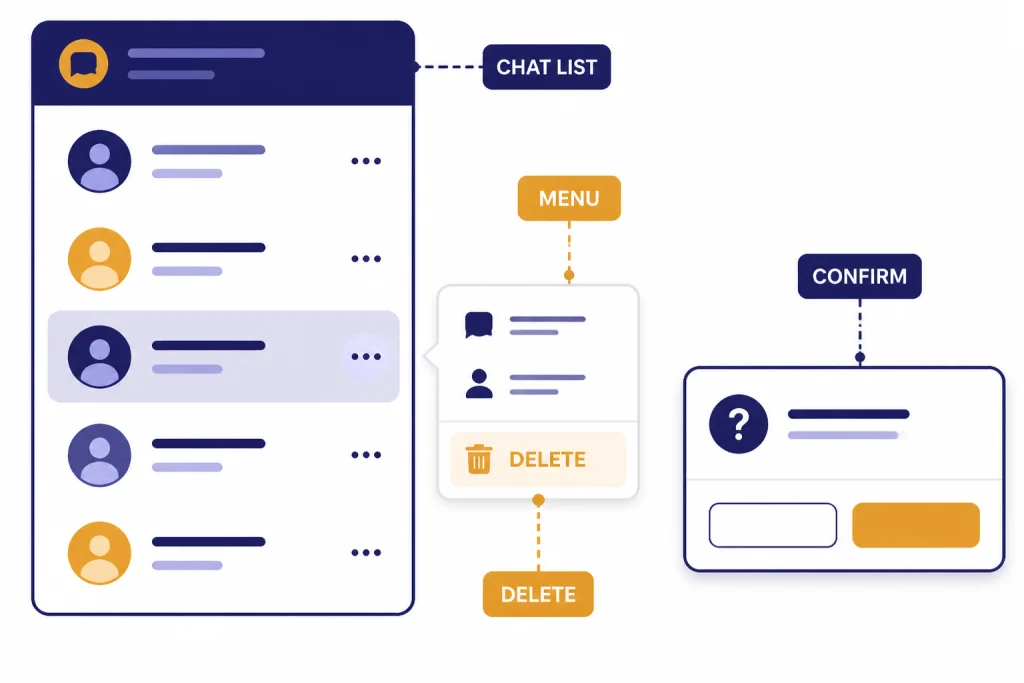
Use this method when you want to remove a single thread from the ChatGPT sidebar on a desktop browser or web app. OpenAI’s official instructions are short: go to the chat history sidebar, hover over the conversation, open the three-dot menu next to the chat title, select Delete, and confirm when prompted.[1]
Step-by-step web instructions
- Open ChatGPT in your browser and sign in.
- Look at the conversation list in the sidebar.
- Find the chat you want to delete.
- Hover over the chat title.
- Select the three-dot menu next to the title.
- Choose Delete.
- Confirm the deletion in the prompt.
The chat should disappear from the sidebar immediately. That does not mean every backend copy has vanished at that exact second. OpenAI says deleted chats are scheduled for permanent deletion from its systems within 30 days, unless the chat has already been de-identified and disconnected from the account or OpenAI must keep it for security or legal reasons.[1]
If you accidentally choose Archive instead of Delete, the conversation is hidden but not removed. You can manage archived chats from Settings > Data controls. OpenAI says that screen lets you unarchive a chat or delete an archived chat.[1]
Delete ChatGPT history on iPhone and Android
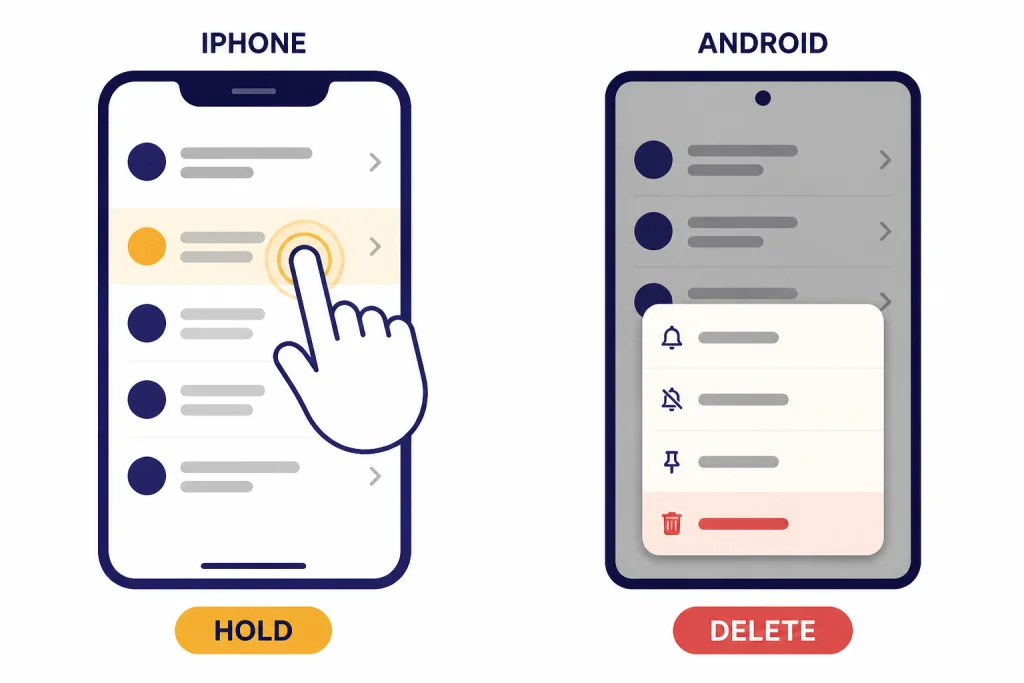
The mobile apps use a long-press flow for deleting a single conversation from history. The exact menu icon may differ slightly by app version, but the official iOS and Android help pages describe the same basic pattern: open the menu, find the chat, press and hold the conversation title, then tap Delete.[3][4] If you are still setting up the app, start with how to download the ChatGPT app on any device.
| Device | Where to start | Delete action | Important note |
|---|---|---|---|
| iPhone or iPad | Open the ChatGPT app and tap the menu icon in the top-left corner. | Find the chat, press and hold the conversation title, then tap Delete. | OpenAI says deleted iOS conversations cannot be recovered.[3] |
| Android phone or tablet | Open the menu from the top-left corner. | Find the chat, press and hold the title, then tap the red Delete option. | OpenAI says Android deletions are irreversible.[4] |
Because ChatGPT history syncs across devices where you are signed in, deleting a conversation on one device should remove it from the history list for that account elsewhere. OpenAI’s iOS history page says conversation history syncs across signed-in devices and deleted chats cannot be restored.[9] If a deleted mobile chat still appears on another device, refresh the page, restart the app, or sign out and back in.
For device-specific setup help, use ChatGPT on iPhone, ChatGPT on Android, ChatGPT on Mac, or ChatGPT on Windows.
Delete all ChatGPT chats at once
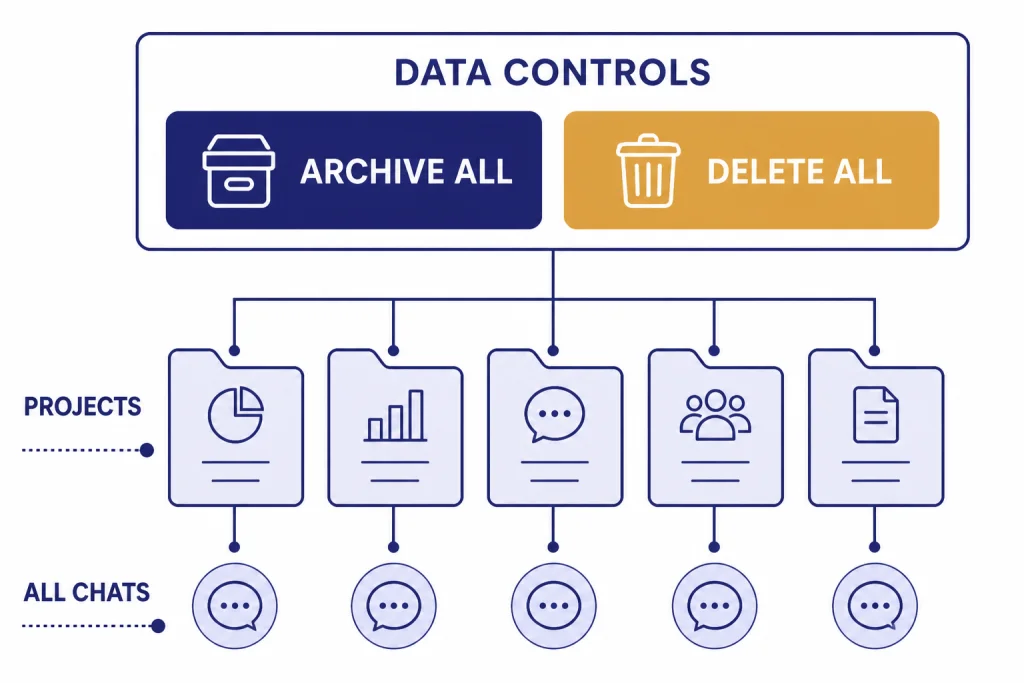
If your goal is to clear your whole visible ChatGPT history, use the all-chats option in Data controls. OpenAI says Settings > Data controls includes options to archive all chats or delete all chats at one time, and those actions apply to all conversations, including conversations inside projects.[1]
Step-by-step all-history deletion
- Sign in to ChatGPT.
- Open your profile or account menu.
- Select Settings.
- Open Data controls.
- Choose Delete all chats.
- Read the confirmation prompt.
- Confirm only if you are ready to permanently delete the conversations.
This is the fastest way to remove old threads from the sidebar, but it is also the easiest way to delete something you meant to keep. If you need a record first, request a data export or save specific conversations. OpenAI says a ChatGPT data export includes chat history and other relevant account data in a zip file, delivered by email.[5]
Do not use Delete all chats to fix ordinary clutter if you still rely on old conversations. Archive all chats may be a better reset button because it clears the active list without destroying the conversations. You can later manage archived chats in Data controls.[1]
Archive, delete, export, or use Temporary Chat
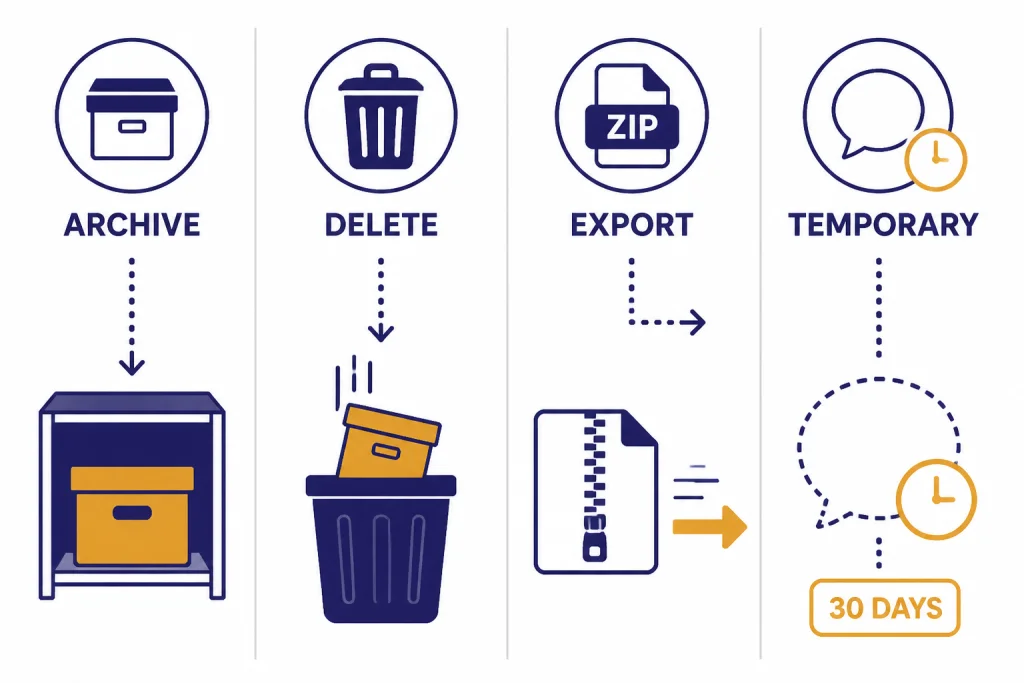
ChatGPT gives you several ways to manage history. They solve different problems. Delete is for removing conversations. Archive is for hiding them. Export is for keeping a copy outside ChatGPT. Temporary Chat is for starting a conversation that does not appear in your history.
| Action | Best for | What happens to the chat | Can you undo it? |
|---|---|---|---|
| Delete one chat | Removing a specific thread | It disappears from visible history and is scheduled for deletion from OpenAI systems within 30 days, subject to exceptions.[1] | No. OpenAI says deleted chats are not recoverable.[1] |
| Delete all chats | Clearing the whole account history view | All conversations, including project conversations, are affected.[1] | No. Treat it as permanent. |
| Archive | Cleaning the sidebar without losing conversations | Archived chats stay in the account under standard retention settings.[1] | Yes. You can unarchive. |
| Export | Keeping a copy before cleanup | OpenAI sends an export link by email; the link expires after 24 hours.[5] | Not applicable. It creates a copy. |
| Temporary Chat | Conversations you do not want in history | Temporary Chats do not appear in history and may be kept for safety for up to 30 days.[7] | No visible history is created. |
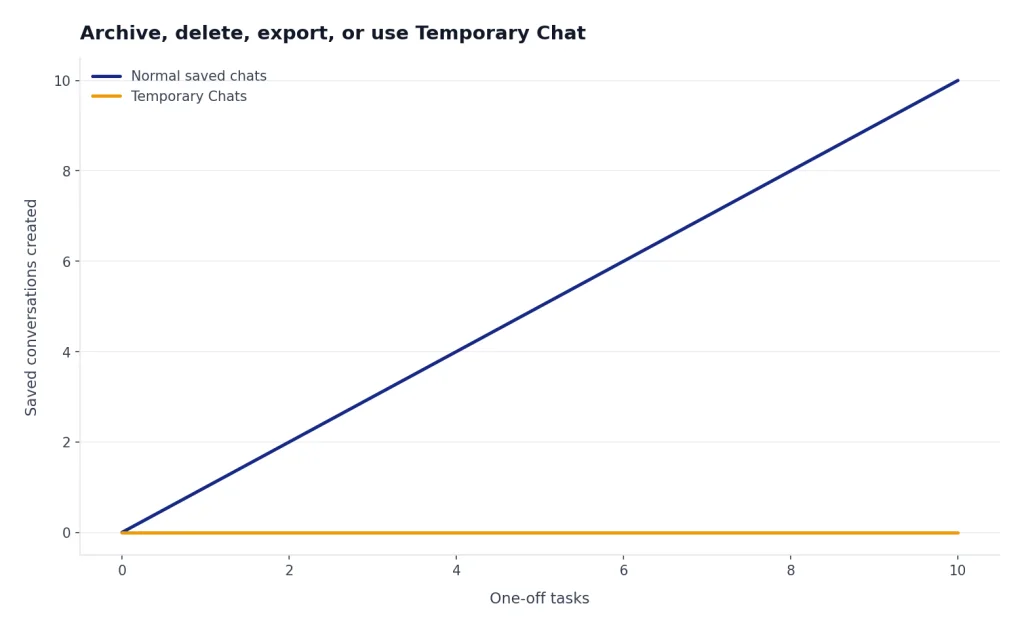
Temporary Chat is useful when you want to ask something without adding another saved conversation to the sidebar. OpenAI says Temporary Chats do not appear in history, ChatGPT does not remember what you discuss in them, and they are not used to improve OpenAI’s models.[7] It is not a substitute for legal confidentiality, a secure records system, or careful handling of sensitive information. It is a practical way to avoid building up saved history for one-off tasks.
Export is best when your priority is control over your own copy. If you plan to share a thread before deleting it, read how to share a ChatGPT conversation first. If the conversation contains private information, sharing may create a separate access issue even if you later delete your local history.
What deleting history does not remove
Deleting ChatGPT history is powerful, but it is not a universal privacy eraser. It removes conversations from your account history and schedules them for backend deletion under OpenAI’s retention rules. It does not necessarily remove every related item in every place where it may exist.
Saved files may be separate
OpenAI’s chat and file retention page says files uploaded during a conversation are stored in your Library for use across chats, and chats and files are managed separately. It also says deleting a chat does not delete files saved to your Library; you can view and delete files from the Library.[2] If you uploaded sensitive documents, check the file Library after deleting the conversation.
Connected app data may require chat deletion
OpenAI’s delete-and-archive help page says that if a conversation used connected app data, archiving keeps the conversation and referenced connected app data in the account. To remove both the conversation and any connected app data retained within it, OpenAI says you must delete the conversation.[1] Disconnecting an app stops future access, but it does not delete past conversations that used that app’s data.[1]
Training controls are separate from deletion
Turning off model improvement is not the same as deleting old chats. OpenAI says signed-in users can turn off “Improve the model for everyone” in Data Controls, and conversations will still appear in chat history but will not be used to train ChatGPT.[6] Use deletion when you want to remove a conversation. Use the training control when you want to change how future or retained conversations are used.
Other people may still have copies
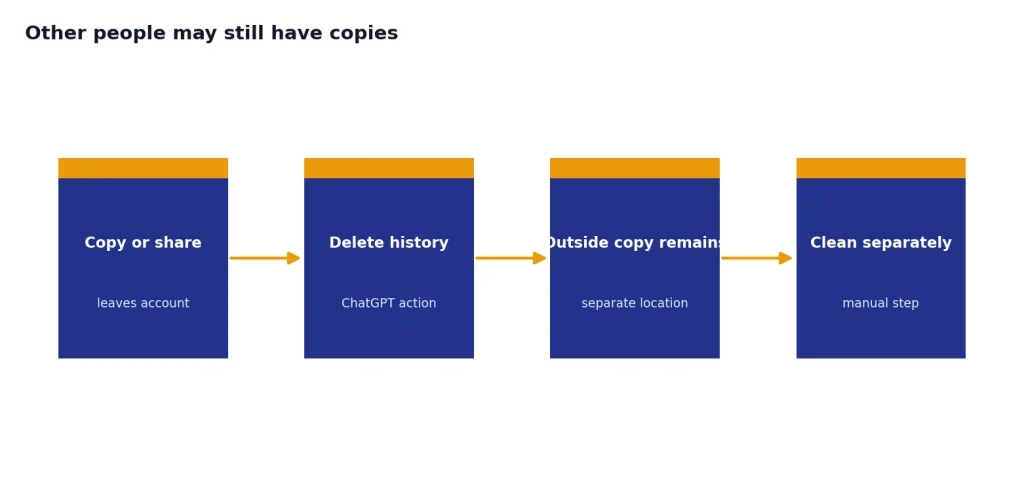
If you copied a response into an email, exported your data, saved a PDF, pasted a conversation into a document, or shared a link, deleting ChatGPT history will not automatically delete those outside copies. Clean those up separately. For school or publishing work, also review the citation trail; our guides to citing ChatGPT in MLA, Harvard style, and Chicago style can help if you are keeping a quoted or referenced record.
Troubleshooting missing or stubborn chats
If your ChatGPT history looks wrong, do not assume every missing conversation was deleted. OpenAI recommends checking that you are signed in to the correct account or workspace, checking Archived Chats in Settings > Data controls, refreshing the page, signing out and back in, checking the OpenAI status page for incidents, and requesting a data export to confirm which chats are still stored in the account.[1]
A chat disappeared from the sidebar
Check Archived Chats first. Archiving hides a conversation from the main list but does not delete it. If you find the chat in the archive, you can unarchive it or delete it from there.[1]
A deleted chat still appears on another device
Refresh the browser tab or restart the mobile app. Then confirm you are signed in to the same account. Sync delays, cached views, or multiple accounts can make history appear inconsistent for a short time.
You deleted the wrong chat
There is no reliable undo path. OpenAI says deleted chats cannot be recovered through the UI, APIs, or support.[1] Your best chance is an outside copy: a PDF, browser printout, shared note, exported data from before deletion, or material you copied into another app.
You cannot find the delete option
Update the app, widen the browser window so the sidebar is visible, and look for the conversation menu next to the chat title. On mobile, press and hold the conversation title in the history list. If you cannot access your account at all, start with how to log in to ChatGPT.
Frequently asked questions
Can I recover deleted ChatGPT history?
No. OpenAI says that once a chat is deleted, it cannot be recovered through the ChatGPT interface, APIs, or support.[1] If you need a record, export or save the conversation before deleting it.
How long does OpenAI keep deleted chats?
OpenAI says deleted chats are removed from your account immediately and scheduled for permanent deletion from OpenAI systems within 30 days, unless de-identification, security, or legal exceptions apply.[2] That means the chat may vanish from your sidebar before backend deletion is complete.
Does deleting a ChatGPT chat delete uploaded files?
Not always. OpenAI says chats and files are managed separately and that deleting a chat does not delete files saved to your Library.[2] After deleting sensitive conversations, check your Library and remove files there if needed.
Is archiving the same as deleting ChatGPT history?
No. Archiving hides a chat from the main sidebar but keeps it in your account. OpenAI says archived chats remain under standard retention settings, while deleted chats are scheduled for permanent deletion.[1]
Can I delete all ChatGPT conversations at once?
Yes. OpenAI says Settings > Data controls includes options to archive all chats or delete all chats at one time.[1] Use Delete all chats only after saving or exporting anything important.
Do Temporary Chats show up in my history?
No. OpenAI says Temporary Chats do not appear in history, are not remembered by ChatGPT, and are not used to improve OpenAI’s models.[7] OpenAI also says it may keep a copy for safety purposes for up to 30 days.[7]