

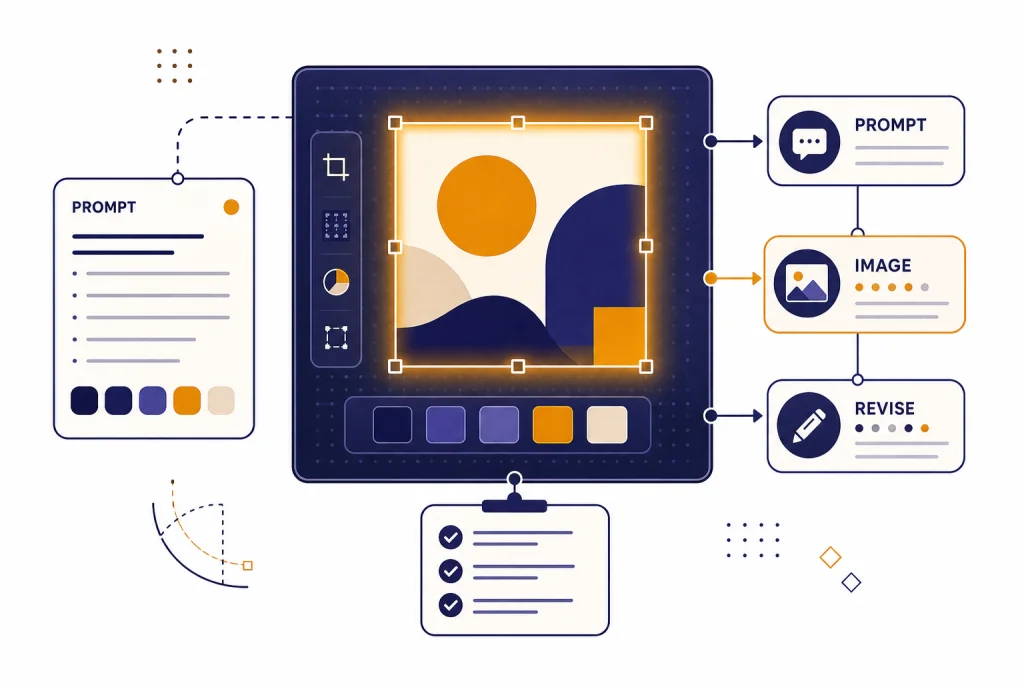
ChatGPT image generation works best when you treat it like a visual production assistant, not a slot machine. A strong prompt gives ChatGPT the job, subject, composition, style, format, constraints, and revision target. The real gains come after the first output, when you ask for focused edits instead of starting over. This chatgpt tutorial image generation guide shows a repeatable workflow for concept art, thumbnails, product visuals, diagrams, social posts, and reference images. It also explains when to use the built-in image tool, when to upload a reference, how to revise without muddying the result, and how to avoid policy, copyright, and quality problems before you publish.
What ChatGPT image generation can do
ChatGPT can create images from a written request and can help you refine that request before generation. OpenAI introduced native image generation in GPT-4o on March 25, 2025, and described it as built into ChatGPT rather than bolted on as a separate image-only workflow.[1] Third-party coverage on the same launch date also reported the rollout of GPT-4o image generation for ChatGPT users, which corroborates the timing of the release.[5]
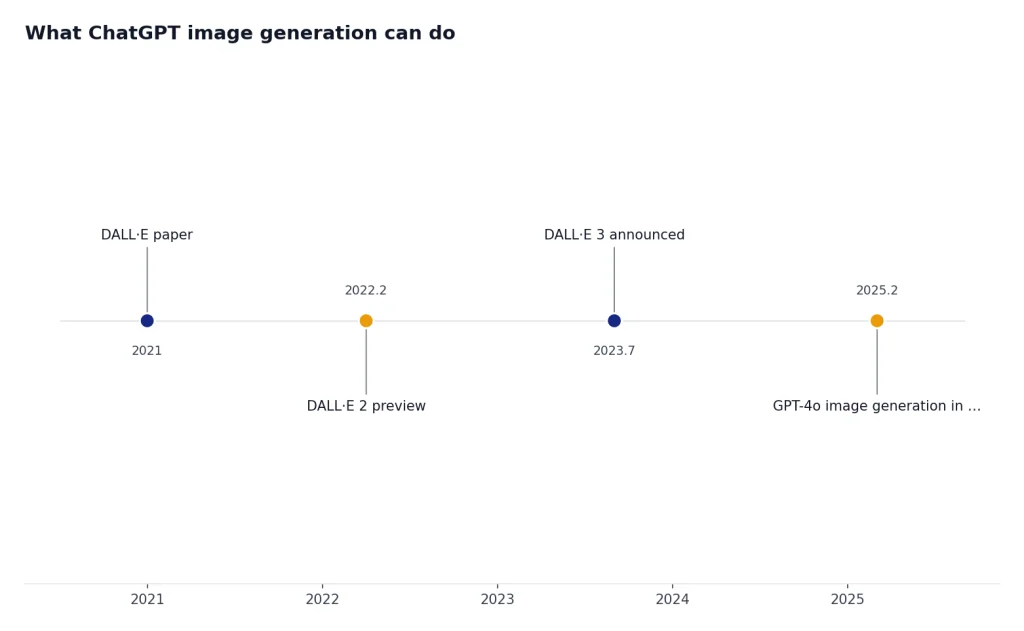
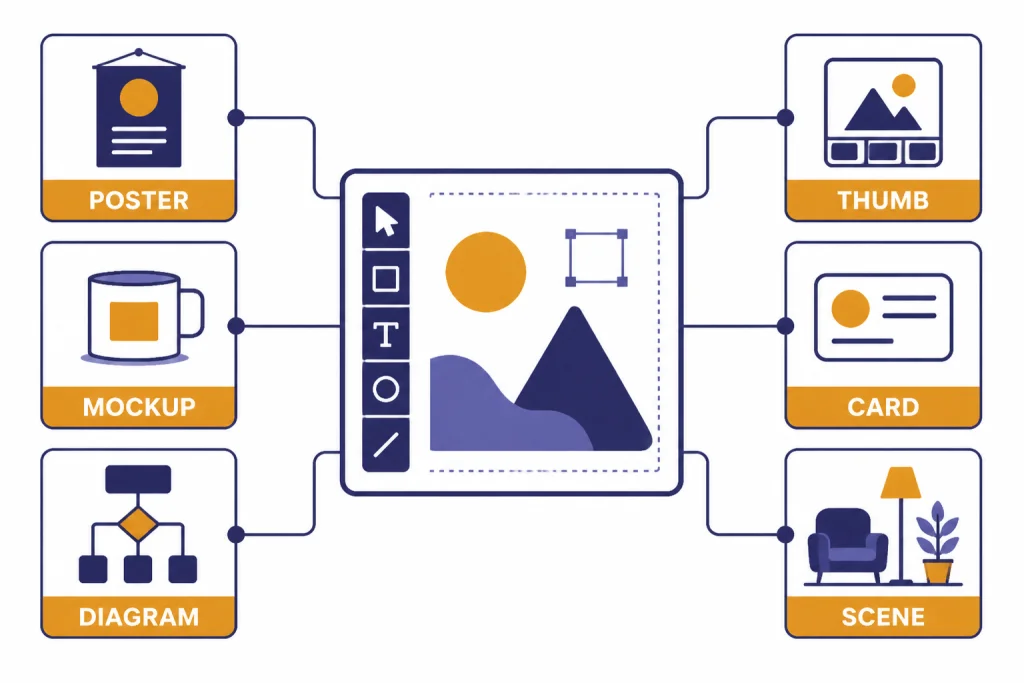
For practical users, that matters because ChatGPT can reason through the brief before it draws. You can ask for a logo-free event poster, a recipe card layout, a product mockup, a classroom diagram, a storyboard frame, or a thumbnail concept. You can also ask ChatGPT to turn a rough idea into a more precise image prompt before it generates anything.
As of April 13, 2026, OpenAI’s Help Center described ChatGPT Images as available on Free, Go, Plus, Edu, and Pro plans, with web and iOS/Android support and a note that the desktop app was not supported for that image experience.[2] Availability can change, so treat the interface labels in your own account as the source of truth.
Do not think of image generation as one prompt equals one finished asset. Think of it as a loop: brief, generate, inspect, revise, export. That loop is similar to workflows in document drafting with Canvas, data analysis with ChatGPT, and prompt engineering techniques because the quality improves when you give constraints and then iterate.
The prompt framework that controls results
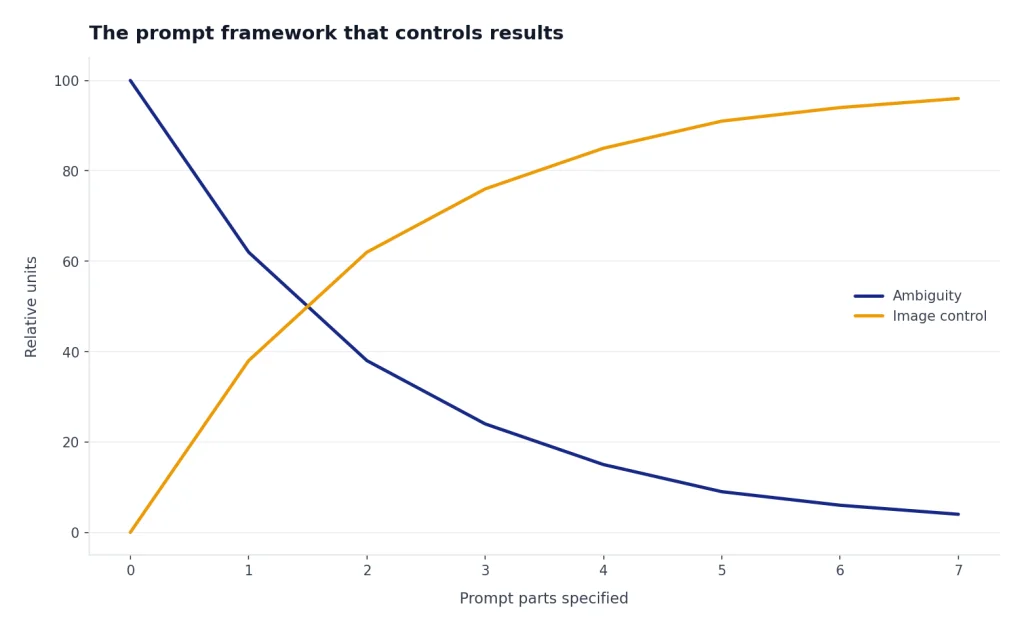
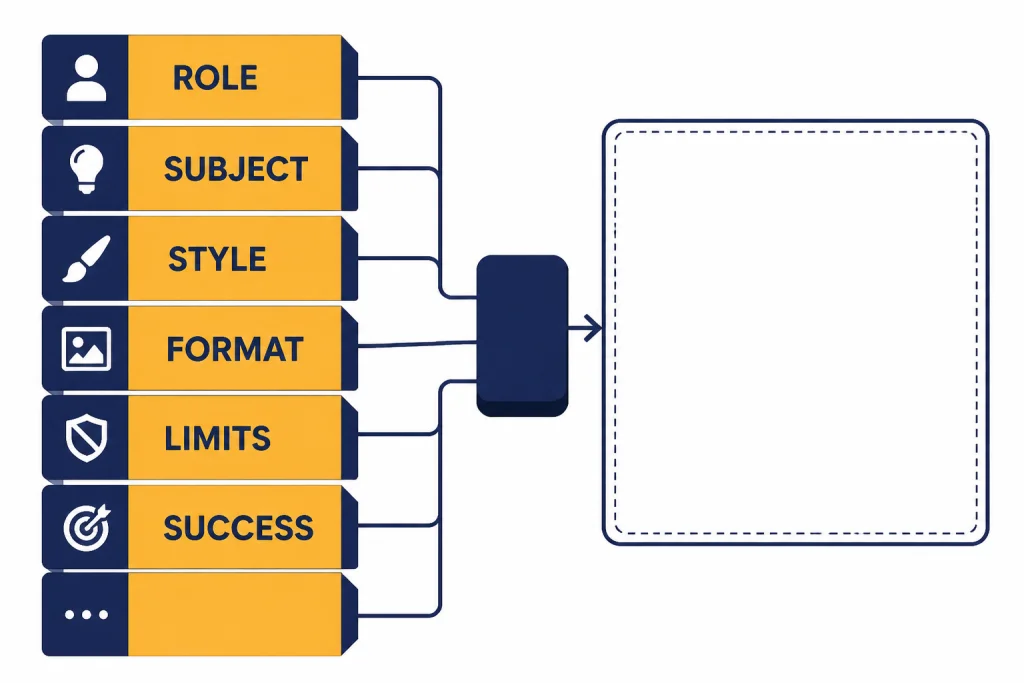
A reliable ChatGPT image prompt has seven parts: role, subject, composition, visual style, technical format, constraints, and success criteria. You do not need all seven for every image. You do need enough detail to remove ambiguity.
| Prompt part | What it controls | Example phrase |
|---|---|---|
| Role | The job the image must do | Create a header illustration for a beginner tutorial. |
| Subject | The main object, scene, or concept | A clean desk with a sketch pad, color chips, and image prompt cards. |
| Composition | Layout, camera angle, spacing, and focal point | Centered composition with empty space on the right for a headline. |
| Style | Medium, mood, era, and visual language | Flat editorial vector style, minimal shadows, crisp geometric shapes. |
| Format | Aspect ratio, background, output purpose, and transparency needs | Wide 16:9 banner, white background, no text. |
| Constraints | What to avoid | No logos, no brand names, no faces, no small unreadable text. |
| Success criteria | How you will judge the result | It should communicate “controlled image workflow” at a glance. |
Here is a reusable beginner prompt:
Create an image for [purpose]. The main subject is [subject]. Use [composition]. Use [style]. Make it [format]. Avoid [constraints]. The image should feel [mood] and clearly communicate [success criteria].For example:
Create an image for a blog section about editing AI images. The main subject is a generated product photo on a simple editor canvas. Use a left-to-right layout with a selection outline around one object and a small revision panel beside it. Use flat editorial vector style with clean shapes. Make it a wide 16:9 image on a white background. Avoid logos, faces, brand names, and decorative clutter. The image should feel practical and clearly communicate targeted image revision.The most common mistake is writing only the subject. “Make a podcast cover” gives ChatGPT too much freedom. “Make a square podcast cover with a bold microphone silhouette, warm studio lighting, large empty space for title text, no people, no logos, modern editorial style” gives it a production brief.
If you already use advanced prompt engineering techniques, the same principle applies here. The model needs context, constraints, and an evaluation target. The difference is that visual prompts also need composition, surface, lighting, and export intent.
Step-by-step workflow for better images
Use this workflow when quality matters. It reduces random generations and helps you keep the best parts of an image while fixing weak parts.
Start with a creative brief
Before generating, ask ChatGPT to interview you. This is useful when you do not know the exact visual style yet.
I want to create an image for [goal]. Ask me up to five practical questions that will help define the subject, audience, style, format, and constraints. After I answer, turn my answers into one polished image prompt.This turns vague intent into a clean brief. It also prevents you from wasting generations on missing details such as aspect ratio, audience, and background.
Generate controlled variations
Do not ask for unlimited creative options. Ask for a small set of distinct directions in text first. Then choose one to generate.
Give me three distinct visual directions for this image: one clean editorial, one cinematic, and one playful geometric. Keep the same subject and format. Do not generate yet.Once you select a direction, ask ChatGPT to generate the image. This step is especially useful for marketing assets, YouTube thumbnails, and educational graphics. If you build video or channel assets, pair this workflow with our guide to ChatGPT for YouTubers and the tutorial on making videos with AI.
Inspect before revising
After the first image, write down what works and what fails. Separate the critique into content, composition, style, and technical issues. Then revise one layer at a time.
Keep the same composition and color palette. Change only the background from a busy office to a plain white studio surface. Do not change the main object.This is better than “make it cleaner,” because “cleaner” can change the whole image. Good revision prompts preserve what you like and target what you dislike.
Editing and reference images
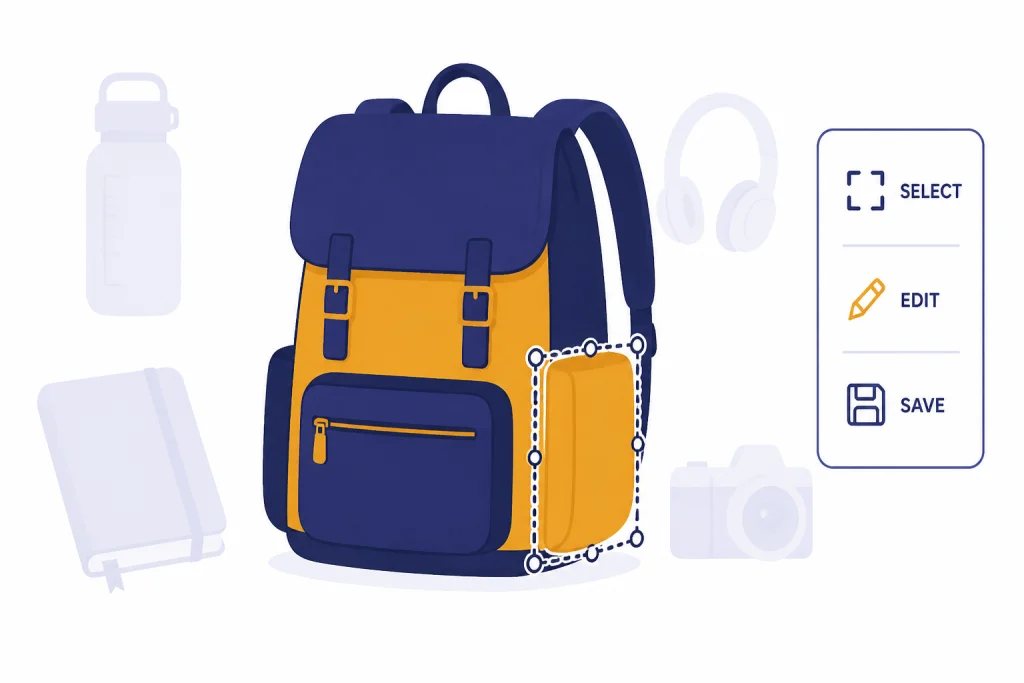
ChatGPT image editing is strongest when you tell it exactly what to preserve. OpenAI’s Help Center says you can upload an existing image and describe the changes you want ChatGPT to make.[3] It also describes a selection-based editing flow where you choose an area and then describe the change.[3]
Use uploaded references for structure, not for copying protected style or someone’s identity. A reference can show layout, product angle, material, pose, or color relationship. Your prompt should state what to use and what to ignore.
Use the uploaded image only as a layout reference. Keep the same left-to-right composition and amount of empty space. Do not copy the exact design, logo, text, people, or brand style. Create a new original image with a similar information hierarchy.For edits, use a narrow instruction:
Edit only the selected area. Replace the blue notebook with a blank amber notebook. Keep the desk, lighting, shadows, camera angle, and all other objects unchanged.If the edit changes too much, ask ChatGPT to restore the stable elements. Say what must remain identical. “Keep everything else the same” is good, but concrete nouns are better: “Keep the cup, cable, keyboard, background, and shadows unchanged.”
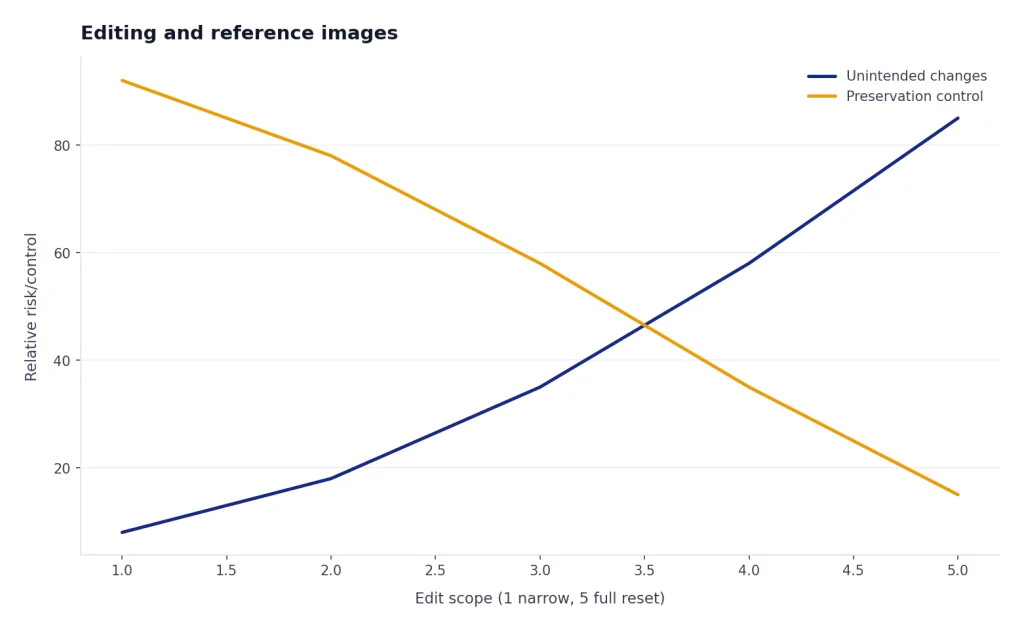
Use image editing for product mockups, composition cleanup, object removal, background changes, color swaps, and transparent-background assets. Use a fresh generation when the subject, layout, or visual style needs a full reset.
Use-case recipes you can copy
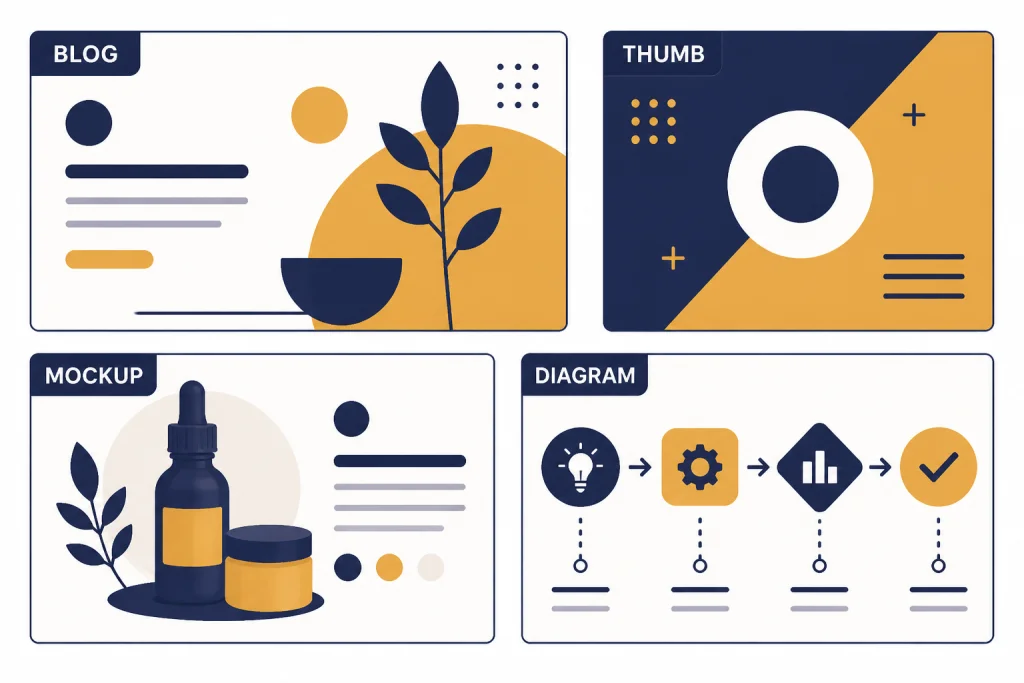
The best prompt depends on the asset. A tutorial diagram needs clarity. A social image needs contrast. A product concept needs material detail. Use these recipes as starting points, then revise for your audience.
Blog featured image
Create a wide 16:9 featured image for an article about [topic]. Show [main metaphor] as the central object. Use a clean editorial vector style, strong negative space, no logos, no faces, no readable body text. Make the image feel useful, modern, and calm.YouTube thumbnail concept
Create a bold YouTube thumbnail concept for . Use one clear focal object, high contrast, simple background, and room for a short title. Avoid clutter, small text, logos, and realistic faces. Make the composition readable on a phone screen.Product mockup
Create a clean product mockup for [product]. Show the product at a three-quarter angle on a plain studio surface. Emphasize material, shape, scale, and realistic shadows. Use neutral lighting. Do not include brand marks or text unless I provide it.Educational diagram
Create a simple educational diagram explaining [concept]. Use labeled boxes, arrows, and a left-to-right flow. Limit labels to short all-caps phrases. Use a clean white background. Avoid decorative icons that do not explain the concept.For written assets that accompany images, use writing workflows in ChatGPT. For SEO graphics and article images, connect this image process to our SEO workflow tutorial. If you want to store reusable image prompt patterns, build a library with a ChatGPT prompt generator.
Quality control checklist
Never publish the first image without inspection. AI images can look polished while hiding visual errors. Use this checklist before export.
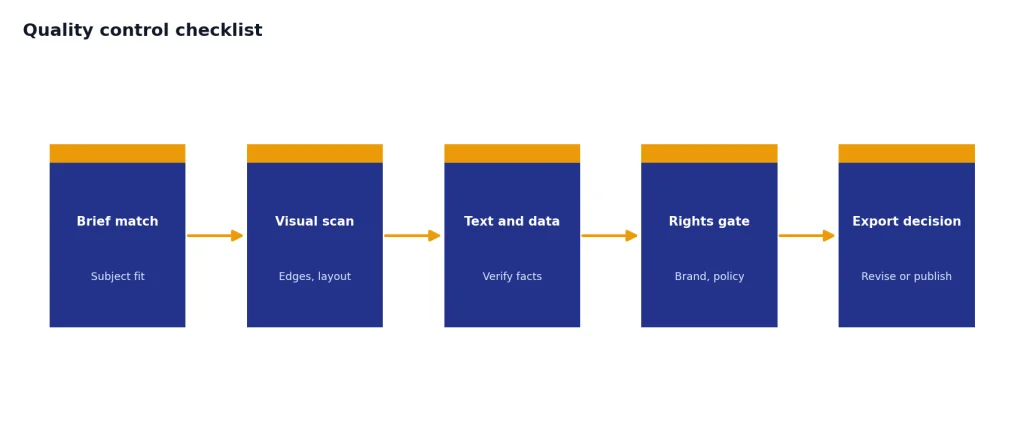
- Subject accuracy: Does the main object match the brief?
- Composition: Is the focal point clear at small sizes?
- Text: Is any visible text accurate, readable, and necessary?
- Hands and faces: If people appear, are proportions and expressions acceptable?
- Edges: Are objects cropped awkwardly or fused together?
- Brand safety: Are there accidental logos, trademarks, or lookalike marks?
- Policy risk: Could the image mislead, impersonate, or depict sensitive content?
- File purpose: Does the image fit the intended crop, background, and placement?
For commercial work, add a human review step. Check product details, medical or legal implications, claims shown in the image, and anything that could be mistaken for a real photograph. If the image represents data, verify the numbers separately. Do not let a generated infographic invent facts.
When an image is close but not ready, write a revision prompt that names the defect and the fix:
The composition is good, but the labels are too small and the arrows are unclear. Keep the same layout. Enlarge the three labels, simplify the arrows, and remove the decorative background shapes.For complex diagrams, you may get better results by asking ChatGPT to draft the diagram structure in text first. Then generate the image from that structure. This mirrors the planning-first approach in deep research projects and academic research workflows.
Limits, safety, and rights
ChatGPT image generation has real limits. It can misunderstand spatial relationships, over-interpret vague style words, create strange text, and alter elements you asked it to preserve. OpenAI said DALL·E 3 was built natively on ChatGPT so users could use ChatGPT as a brainstorming partner and prompt refiner, but that does not remove the need for review.[4]
Be careful with living artists, copyrighted characters, public figures, private people, brands, medical images, political persuasion, and anything that could be deceptive. OpenAI states that prompts can be blocked when they appear to violate policy, encourage harmful or illegal content, threaten platform security, or try to circumvent safeguards.[6]
For most professional work, use style descriptors instead of artist names. Say “flat mid-century editorial shapes, limited color palette, subtle paper texture” rather than asking for a living artist’s style. Use “a generic superhero-inspired mascot” instead of a named copyrighted character. Use “a realistic but fictional executive portrait” instead of a real person unless you have a legitimate and permitted use.
Also keep privacy in mind when uploading reference images. Do not upload sensitive documents, private photos, or confidential product designs unless your organization permits it. If your image workflow uses files, research, or business data, review our related tutorials on PDF reading and summarizing, custom GPTs, and ChatGPT memory.
The safest professional rule is simple: use ChatGPT to generate original visual drafts, then inspect them like you would inspect a junior designer’s first pass. Approve the concept, check the details, revise deliberately, and document any source materials you supplied.
Frequently asked questions
What is the best prompt for ChatGPT image generation?
The best prompt states the purpose, subject, composition, style, format, constraints, and success criteria. A weak prompt says “make a poster.” A stronger prompt says who the poster is for, what should be centered, what style to use, what to avoid, and how the finished image should feel.
Can ChatGPT edit an image I upload?
Yes. OpenAI’s Help Center says you can upload an existing image and describe the changes you want ChatGPT to make.[3] For best results, tell it what to change and what to preserve.
Why does ChatGPT change parts of the image I wanted to keep?
Image models may regenerate surrounding details when they apply an edit. Reduce that risk by using narrow prompts, selection tools when available, and explicit preservation language. Name the exact objects, colors, camera angle, and background elements that must stay the same.
Should I ask for a style by naming an artist?
For professional work, it is usually better to describe visual traits instead of naming a living artist. Use medium, era, color, lighting, texture, and composition terms. This gives you more control and avoids unnecessary rights and ethics issues.
Can ChatGPT make images with readable text?
It can, but you should keep text short and inspect it carefully. Use large labels, simple words, and clear placement. For important copy, generate the image without text and add final typography in a design tool.
Is ChatGPT image generation enough for final brand assets?
It is often enough for concepts, drafts, thumbnails, mockups, and internal visuals. For final brand assets, use human review and check trademarks, accessibility, file quality, and factual accuracy. Treat AI output as a strong draft, not automatic approval.