

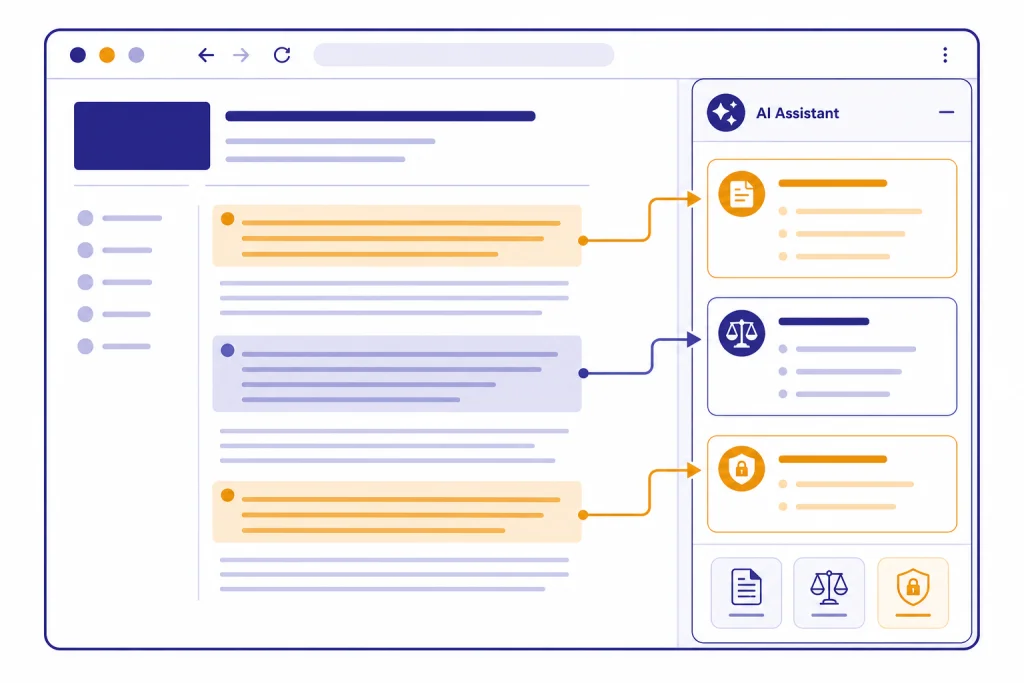
ChatGPT Atlas is OpenAI’s browser for using ChatGPT directly inside your web workflow. This chatgpt tutorial atlas guide shows you how to set it up, ask questions about the page you are viewing, compare information across tabs, use Agent mode carefully, and adjust privacy controls before you rely on it for research or work. Atlas is most useful when the page itself is the context: a product page, a long article, a document, a booking flow, a dashboard, or several sources you need to synthesize. Treat it like a browser with an AI side panel, not like a replacement for judgment, source checking, or account security.
What ChatGPT Atlas is
ChatGPT Atlas is OpenAI’s web browser with ChatGPT built into the browsing window. OpenAI introduced Atlas on October 21, 2025, and described it as a browser where ChatGPT can help you in the page you are already viewing.[1]
At launch, OpenAI said Atlas was available worldwide on macOS for Free, Plus, Pro, and Go users. It also said Atlas was available in beta for Business users and, when enabled by an administrator, for Enterprise and Edu users.[1] OpenAI’s Help Center describes Atlas as a Mac browser built on Chromium.[2]
The practical difference is simple. In a normal browser, you copy text, switch to ChatGPT, paste it, ask a question, then return to the page. In Atlas, you keep the page open and ask ChatGPT about that page from the side panel. That makes Atlas useful for reading dense pages, filling gaps in a buying decision, turning source material into notes, and checking whether a page says what you think it says.
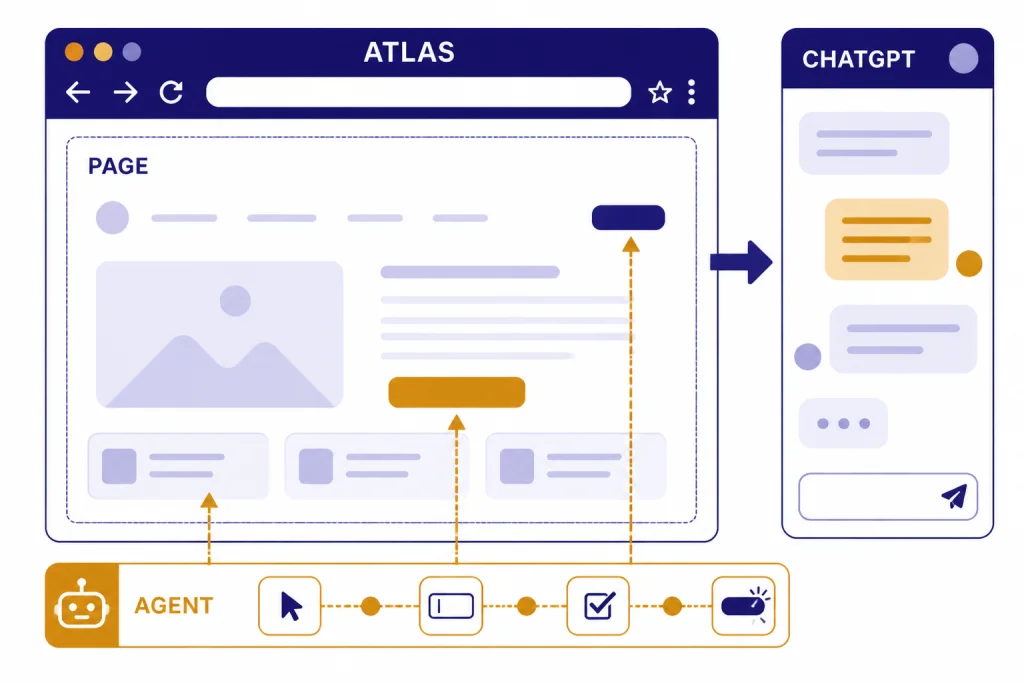
Atlas also includes Agent mode. OpenAI says Agent mode in Atlas can take actions in the browser, use sites you are signed in to in logged-in mode, and work in your current browsing session.[3] That power is useful, but it changes the risk profile. Use it for bounded tasks. Watch it closely on anything involving accounts, payments, private data, or professional obligations.
If you are new to ChatGPT itself, start with what is ChatGPT before making Atlas your main browser. If you already know the basics and want a broader weekly plan, pair this article with Master ChatGPT in 7 Days.
Setup checklist before you browse
Do the setup once, then refine it after a few sessions. Atlas can import browser data, personalize responses, and read page content for on-page help. Those features are convenient. They also deserve deliberate choices.
Confirm device support
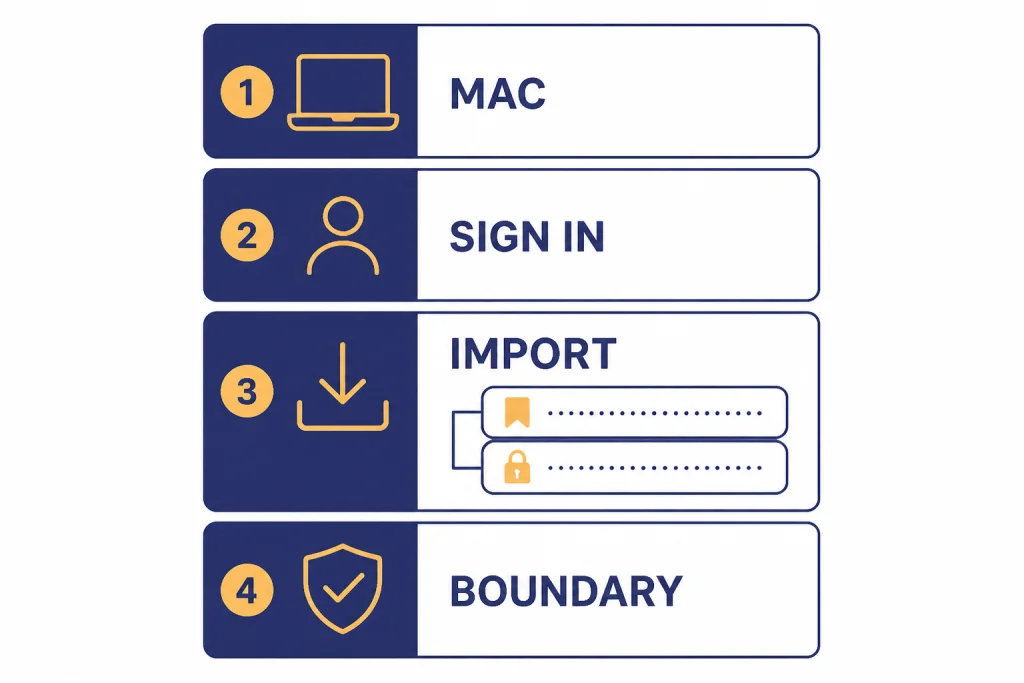
OpenAI’s Help Center says ChatGPT Atlas supports Macs with Apple silicon, meaning M-series chips, running macOS 14.2 or later.[4] OpenAI’s Enterprise Help Center repeats the same Apple silicon and macOS 14.2 or later requirement.[5] If you are on Windows, iOS, or Android, OpenAI’s launch post said those experiences were coming soon, but this tutorial focuses on the Mac version available for this article’s publication date.[1]
Install and sign in
- Download the Atlas installer from OpenAI’s Atlas page.
- Open the installer file.
- Drag Atlas into Applications.
- Open Atlas from Applications or Spotlight.
- Sign in with the ChatGPT account you want tied to your browsing workflow.
OpenAI’s setup instructions also describe importing bookmarks, saved passwords, and browsing history from a current browser during onboarding.[4] Importing can save time, but do not treat it as mandatory. A clean Atlas profile can be better if you plan to use it only for research, writing, or work tasks.
Decide whether to import data
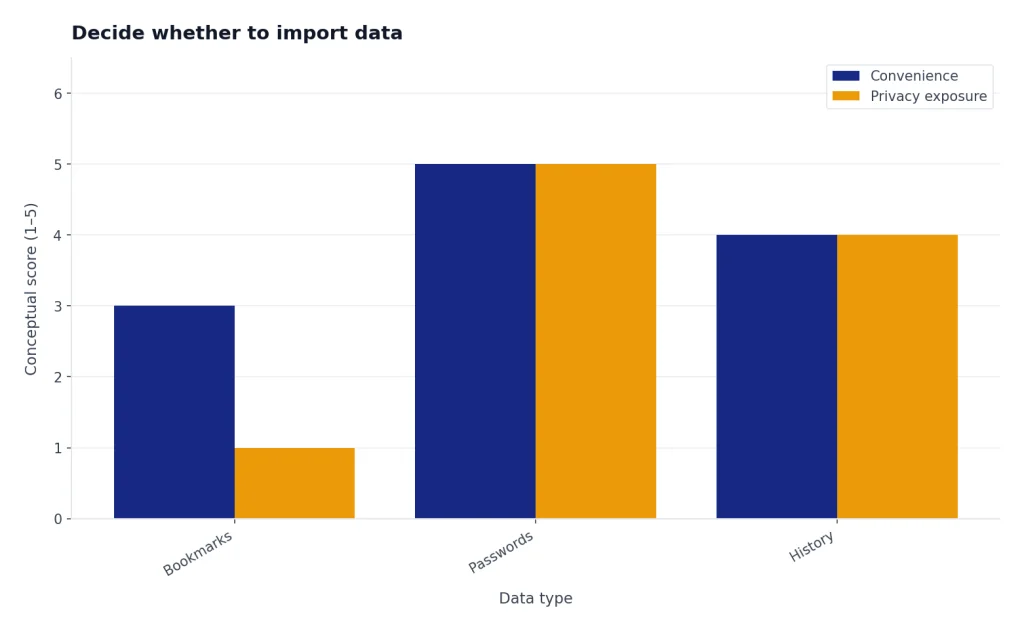
Atlas can bring in browser data so your work continues where it left off. OpenAI’s setup article says you can import bookmarks from Safari, Chrome, Firefox, or an HTML export file.[2] It also says importing from Chrome can bring over saved passwords and browsing history with Keychain access.[2]
Use this rule: import bookmarks freely, import passwords only if you intend to make Atlas a daily browser, and import history only if you want ChatGPT-assisted browsing to reflect your old browsing context. For a cautious first test, import bookmarks only.
Set a first-use boundary
Before you start, choose what Atlas is allowed to help with during your first week. A good beginner boundary is: public pages, non-sensitive accounts, no purchases, no medical portals, no financial institutions, and no employer-confidential pages. You can loosen the boundary later after you understand the controls.
If you work with files more than web pages, you may want this guide to ChatGPT PDF reading or the ChatGPT data analysis workflow instead. Atlas shines when the browser page is the main object of work.
Use the Ask ChatGPT sidebar on a page
The Ask ChatGPT sidebar is the core Atlas habit. OpenAI describes it as a compact place to ask questions while you browse, with the page still visible beside the conversation.[3] Use it when you need help understanding the current page, extracting details, drafting a response, or turning a page into structured notes.
Step 1: Open a page worth analyzing
Start with a page that has enough substance. A government guidance page, documentation page, research abstract, pricing page, help article, product page, or long news explainer is better than a thin landing page. Atlas can only help with what it can access and what the page actually contains.
Step 2: Open Ask ChatGPT
Select Ask ChatGPT at the top right of the browser to open the side panel. OpenAI’s Help Center says the panel includes quick options for chat, Agent mode, a message box, and a microphone button.[3] You can type or speak, but typed prompts are easier to audit and reuse.
Step 3: Ask page-grounded questions
Use prompts that force ChatGPT to stay close to the page. Good Atlas prompts include:
- “Summarize this page in five bullets. Separate facts from interpretation.”
- “List every requirement this page gives. Do not add requirements from outside knowledge.”
- “Find the section that explains refunds and restate it in plain English.”
- “Extract the deadlines, eligibility rules, and exceptions into a table.”
- “What would a careful reader still need to verify after reading this page?”
The best prompts include a constraint. Ask for “only from this page,” “quote the heading where you found it,” or “mark anything uncertain.” This reduces confident but unsupported answers. For reusable prompt patterns, see our prompt engineering techniques guide.
Step 4: Turn the answer into an action
Do not stop at a summary. Ask ChatGPT to convert the page into a next step: a checklist, email draft, comparison grid, meeting brief, or list of questions for a vendor. Atlas is strongest when it turns page context into usable work product.
Example follow-up prompt: “Based only on this page, make a checklist I can use before I call support. Put unknowns in a separate section.” That prompt keeps the model anchored and gives you a practical output.
Research across multiple tabs
Atlas is useful for research because your sources are already open in the browser. The mistake is asking for a final answer too early. Build a source set first, then ask ChatGPT to compare it.
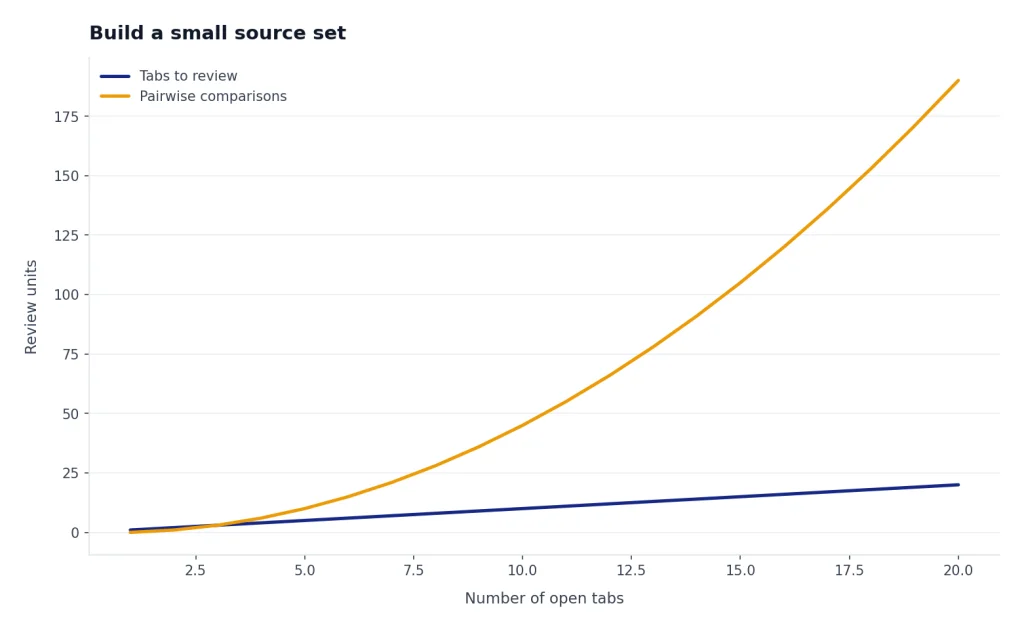
Build a small source set
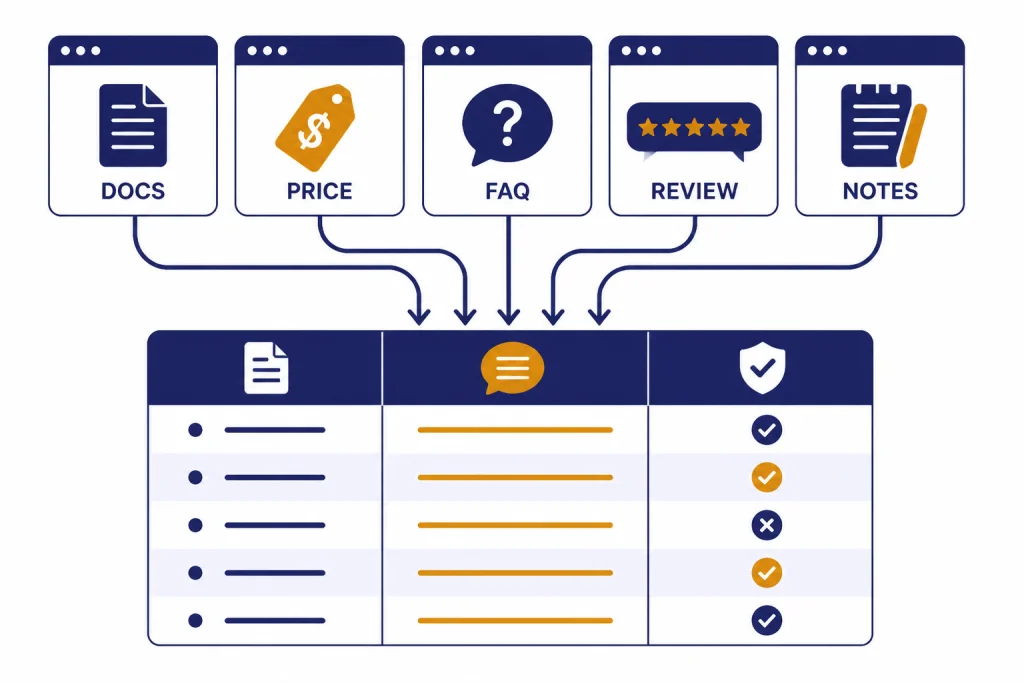
Open several tabs that represent different source types. For example, if you are researching software, open the official documentation, pricing page, release notes, a support article, and one independent review. If you are researching a policy, open the primary agency page, FAQ, statute or rule text, and a reputable explainer.
Keep the first pass small. Three to five useful tabs beat twenty weak tabs. Your goal is not to impress ChatGPT with volume. Your goal is to give it enough context to identify agreement, disagreement, missing details, and source quality.
Ask for a source map before a conclusion
Use a prompt like this:
Review the open tabs I am using for this topic. Make a source map with one row per tab: source type, what it is useful for, what it should not be used for, and any claims I should verify elsewhere.
This is better than “What is the answer?” because it makes ChatGPT inspect the research base. You can then close weak tabs, add missing sources, and ask for a synthesis.
Ask for disagreement explicitly
When sources disagree, ask Atlas to preserve the disagreement. Use: “List the points where these tabs disagree. For each point, say which source is more authoritative and why.” This is especially useful for product research, legal-adjacent topics, health information, and breaking news.
For larger projects, Atlas may not be the right tool by itself. Use our deep research tutorial when you need a more formal research run, and use the academic research workflow when citations, papers, and source hierarchy matter.
Use Agent mode without giving up control
Agent mode is different from asking questions. In Atlas, OpenAI says Agent mode lets ChatGPT take actions in the browser, including navigating, clicking, and completing multi-step flows.[3] That means you should use it with clearer instructions and tighter supervision than you use for normal chat.
Start with safe tasks
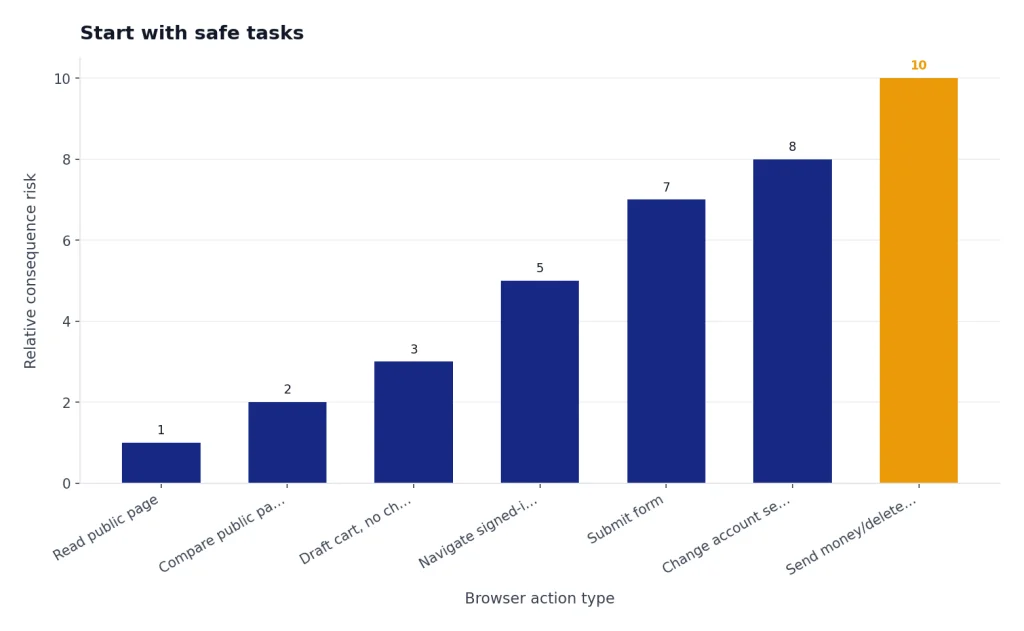
Good first tasks include comparing public product pages, finding open appointment times without booking them, collecting event details, drafting a cart without checking out, or navigating a support site to find the right form. Avoid tasks where a wrong click could send money, disclose private data, delete records, publish content, or change account settings.
Use a control prompt
Before starting Agent mode, give instructions that limit scope. Example:
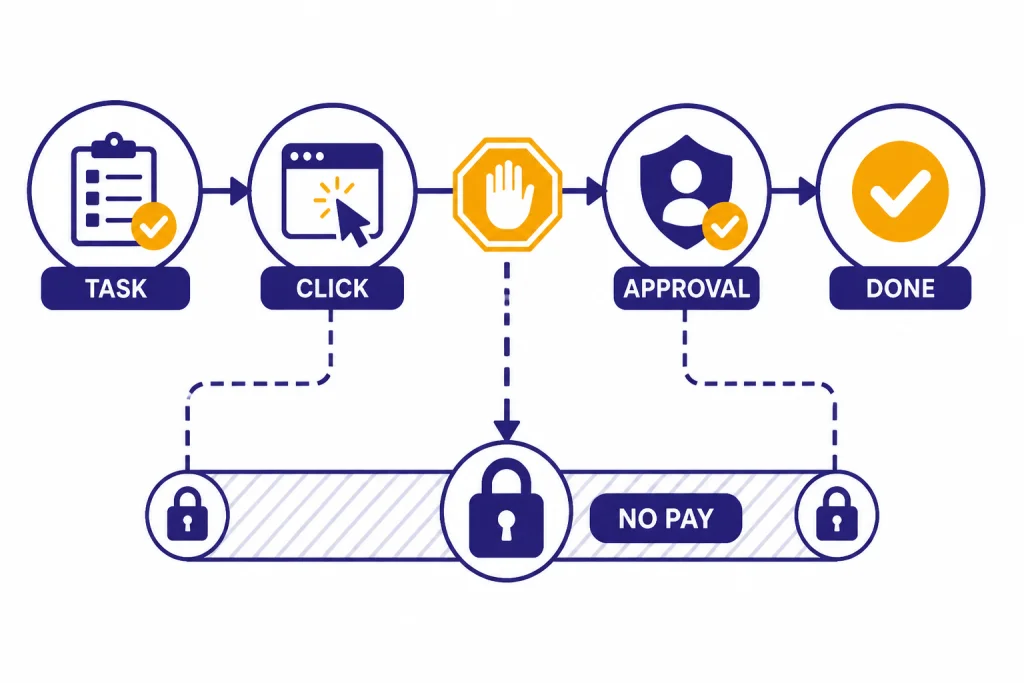
Use Agent mode to compare the three plans on these pages. Do not sign in, buy, submit, download, install, or change settings. Stop and ask me before any form submission. Report back with a table and links to the pages you used.
This prompt does three things. It defines the task, names forbidden actions, and creates approval checkpoints. That is the pattern to reuse.
Choose logged-out mode when possible
OpenAI says Atlas Agent can run in logged-out mode, where it does not use pre-existing cookies and is not logged in to online accounts without your specific approval.[3] Use logged-out mode for exploratory tasks. Use logged-in mode only when the task genuinely requires account context.
Know the built-in limits
OpenAI says Atlas Agent cannot run code in the browser, download files, install extensions, access other apps on your computer, or access your file system.[3] Those limits are helpful, but they do not remove the need to supervise. A browser action can still matter even when it does not touch your file system.
If you want a broader look at autonomous workflows, read our Agent Mode tutorial. If you need ChatGPT to work inside a generated document rather than a live website, this Canvas guide is a better fit.
Privacy settings to review
Atlas has privacy controls that are specific to browsing. Review them before using the browser for serious work.
Page visibility
OpenAI’s Web Browsing Settings article says Atlas lets you control where ChatGPT can read page content for on-page help and summaries.[6] When page visibility is disabled for a site, ChatGPT will not read that page content, and the site will not create new Browser memories.[6]
Use this for banking, health, legal, employer, school, and personal account pages. If you would not paste the page into ChatGPT, consider disabling page visibility for that site.
Browser memories
OpenAI says Browser memories are separate from ChatGPT memories and are controlled independently.[7] Browser memories can help personalize suggestions based on browsing activity, but they are not required for basic page summaries or one-off research.
For a conservative setup, leave Browser memories off while you test Atlas. Turn them on only if you want ChatGPT to learn recurring browsing preferences, such as the sites you rely on for recipes, research, shopping, or planning.
Training and diagnostics controls
OpenAI says the “Include web browsing” training toggle is off by default and is separate from the main ChatGPT training setting.[7] OpenAI also says Business and Enterprise content is not used for training.[7]
OpenAI’s Data Controls article also describes a separate “Help improve browsing & search” setting for diagnostic logs, which it says is independent from the web browsing training control.[7] Review both settings. They do different things.
Incognito
OpenAI says Atlas Incognito browsing is not linked to your ChatGPT account and is not saved in browser history, but it also says Incognito does not make you invisible to ChatGPT or the rest of the internet.[7] Treat Incognito as a local privacy mode, not as anonymity.
If privacy is the priority, use a layered approach: disable page visibility for sensitive sites, avoid Agent mode on sensitive accounts, use logged-out Agent sessions for exploration, and clear browsing data when you no longer need it.
Atlas vs ChatGPT search, deep research, and normal browsing
Atlas is not the best tool for every web task. Use it when live page context matters. Use other tools when you need a different kind of workflow.
| Task | Best tool | Why | Watch out for |
|---|---|---|---|
| Summarize the page open in front of you | Atlas Ask ChatGPT sidebar | The page is already available beside the chat | Ask it to stay grounded in the page |
| Find a quick current fact | ChatGPT search | Search is faster than opening several tabs manually | Verify important claims with primary sources |
| Run a broad research project | Deep research | It is built for multi-source investigation and synthesis | Still review source quality before publishing |
| Compare several pages you selected | Atlas | You control the source set and can inspect tabs directly | Do not let weak tabs drive the conclusion |
| Complete a bounded website task | Atlas Agent mode | It can navigate and act in the browser | Use approval checkpoints and avoid sensitive actions |
| Write or edit a document | Canvas | The document is the workspace, not the web page | Keep source notes separate from draft language |
Use Atlas when you want ChatGPT beside the page. Use ChatGPT search when you want a fast answer. Use deep research when you need a more complete source hunt. Use normal browsing when privacy, simplicity, or site compatibility matters more than AI assistance.
For SEO work, Atlas can help compare live search results, competitor pages, and documentation, but the planning workflow belongs in our ChatGPT SEO tutorial. For spreadsheets or numerical cleanup, switch to ChatGPT Excel workflows or Code Interpreter-style analysis in the Code Interpreter tutorial.
Troubleshooting common Atlas problems
ChatGPT cannot read the page
Check page visibility first. OpenAI says disabled page visibility prevents ChatGPT from reading that site’s page content for assistance.[6] Also check whether the page requires a login, blocks automation, loads content in a way the sidebar cannot inspect, or contains private account data you should not expose.
The answer sounds too general
Rewrite the prompt to force page grounding. Say: “Use only the current page,” “quote the section heading,” “list what the page does not say,” or “separate page facts from your own explanation.” If the answer still sounds generic, ask ChatGPT to identify the exact page elements it used.
Agent mode is doing too much
Stop the task and restart with narrower instructions. Name the allowed sites, the allowed actions, and the point where it must ask you. Do not rely on a broad instruction like “be careful.” Use concrete limits: no sign-ins, no submissions, no downloads, no purchases, and no account changes.
You imported too much data
If Atlas feels too entangled with your old browser, reduce what it can use. Review Browser memories, page visibility, data controls, and browsing history. You can also reserve Atlas for research and keep another browser for banking, health, work admin, and personal accounts.
You are on a managed account
OpenAI says Enterprise access to Atlas is off by default and can be enabled by workspace owners in workspace settings.[5] If features are missing, your administrator may control access, Agent mode, or data settings. Ask your workspace owner before troubleshooting your personal device.
Frequently asked questions
Is ChatGPT Atlas just ChatGPT inside a browser?
Not exactly. It is a browser built around ChatGPT, with a side panel that can use the current page as context. It also includes Agent mode for browser actions, which is different from ordinary chat.
Can I use Atlas on Windows?
For this article’s publication date, this tutorial covers the Mac version. OpenAI’s launch post said Windows, iOS, and Android experiences were coming soon.[1] Check OpenAI’s current Atlas download page before assuming your platform is supported.
Does Atlas remember every page I visit?
No. OpenAI says Browser memories are a separate feature that users can control, and it distinguishes them from cookies and ChatGPT memories.[7] You can use page visibility and memory settings to limit what ChatGPT can use from browsing.
When should I use Agent mode?
Use Agent mode for bounded browser tasks that need clicking, navigating, or collecting information across pages. Avoid it for financial transactions, sensitive accounts, irreversible changes, or anything where a wrong action has serious consequences. Give it explicit stop points.
Is Atlas better than Chrome or Safari?
Atlas is better when you want ChatGPT involved in the page you are browsing. Chrome or Safari may be better when you want maximum familiarity, a clean separation from AI tools, or a browser you already trust for sensitive accounts. Many users will use Atlas as a research browser rather than a total replacement.
What is the safest beginner workflow?
Start with public pages, keep Browser memories off, disable page visibility on sensitive sites, and use the Ask ChatGPT sidebar before trying Agent mode. When you do use Agent mode, use logged-out mode where possible and require approval before submissions or account actions.