

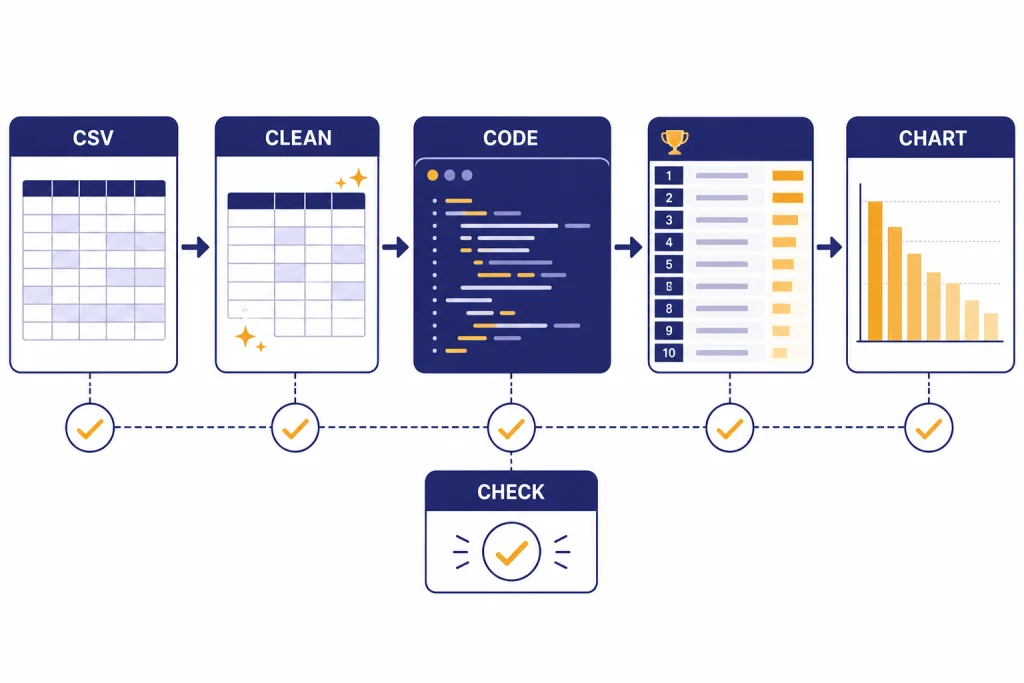
This ChatGPT tutorial data analysis guide shows a practical workflow you can reuse with spreadsheets, CSV files, PDFs, and JSON data. ChatGPT can inspect uploaded files, create interactive tables, generate charts, write and run analysis code, and summarize findings in plain English.[1] The best results come from treating ChatGPT like a junior analyst with a calculator: give it clean data, define the business question, ask it to show its assumptions, review the generated code or calculations, and export only the outputs you have checked. Use this tutorial for sales reports, survey exports, operations data, content inventories, finance logs, and research datasets.
What ChatGPT data analysis does
ChatGPT data analysis is the file-and-code workflow inside ChatGPT. You upload a dataset, ask a question in natural language, and ChatGPT can inspect the file, write code, run that code, read the result, and explain the answer. OpenAI says ChatGPT uses pandas for analysis and Matplotlib for charts, and you can review the work through the View Analysis link that appears after many data-analysis responses.[1]
This makes ChatGPT useful for work that sits between spreadsheet formulas and a full business-intelligence project. It can summarize trends, clean messy columns, group records, join related files, calculate statistics, build charts, and explain what changed. It is not a replacement for data governance, accounting controls, regulated reporting, or an analyst who understands the business context.
For deeper code-first work, pair this article with our Code Interpreter mastery guide. If your source file is an Excel workbook, keep our Excel formulas and pivot tables tutorial open as a companion.
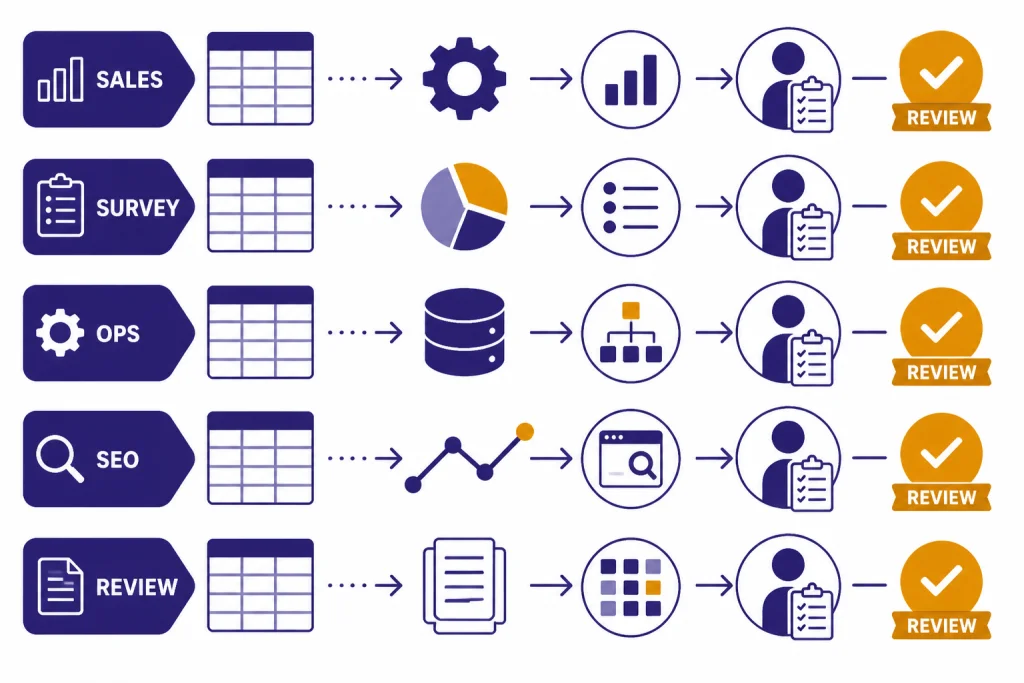
| Use case | Good ChatGPT task | Human check required |
|---|---|---|
| Sales reporting | Group revenue by region, month, product, or rep. | Confirm definitions of revenue, refunds, tax, and closed dates. |
| Survey analysis | Summarize ratings, themes, and outlier comments. | Check sample bias and whether categories make sense. |
| Operations | Find delays, bottlenecks, repeated exceptions, and missing fields. | Confirm that timestamps and status names match the real workflow. |
| SEO or content inventory | Cluster pages, compare traffic, and flag refresh candidates. | Review strategic priority, search intent, and seasonality. |
| Research notes | Extract tables, compare documents, and prepare a structured summary. | Verify citations and source quality separately. |
Step 1: Define the question before you upload
Start with the decision you need to make. Do not begin with “analyze this.” That prompt often produces a generic summary. A stronger prompt names the dataset, the audience, the metric, the comparison, and the output format.
Use this structure:
You are helping me analyze [dataset type] for [audience].
The main decision is [decision].
Focus on [metric or outcome].
Compare by [dimension or time period].
Flag missing data, outliers, and assumptions before giving conclusions.
Return: executive summary, key table, chart recommendation, and next questions.
Example:
You are helping me analyze a monthly ecommerce sales export for the leadership team.
The main decision is which product categories deserve more ad budget next quarter.
Focus on net revenue, refund rate, gross margin, and repeat-purchase behavior.
Compare by month, category, and acquisition channel.
Flag missing data, outliers, and assumptions before giving conclusions.
Return: executive summary, key table, chart recommendation, and next questions.
If your project involves source documents as well as structured data, use our PDF reading and summarizing tutorial for the document side and this guide for the tabular side. For larger research projects, the Deep Research project tutorial explains how to separate source discovery from data analysis.
Step 2: Prepare the file
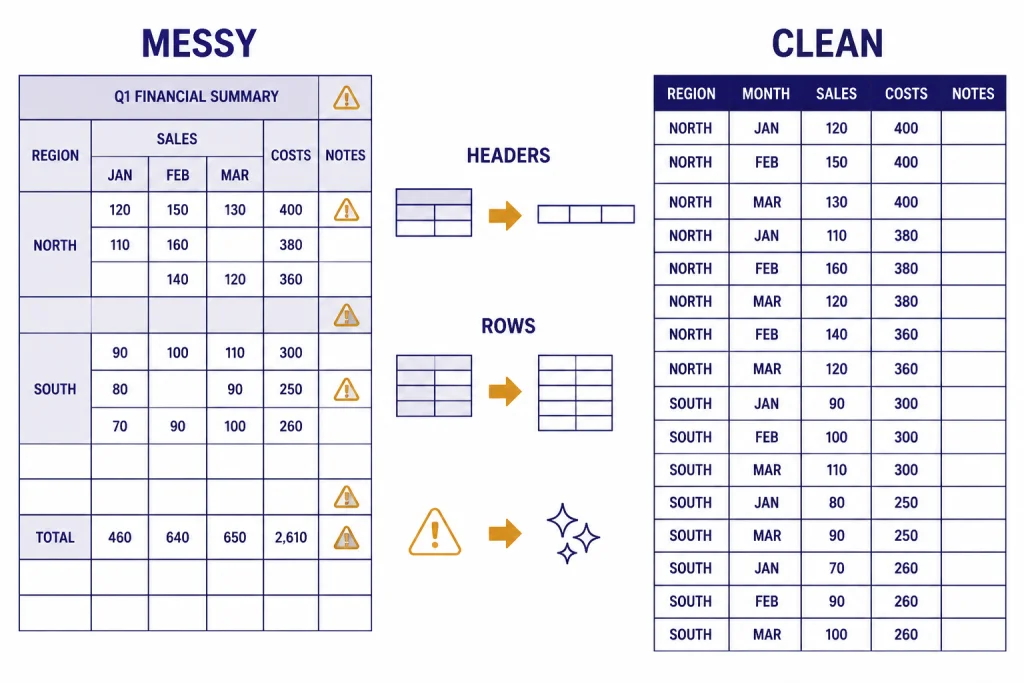
ChatGPT can analyze Excel, CSV, PDF, and JSON files, and OpenAI also lists Google Drive, Microsoft OneDrive Personal, and Microsoft OneDrive including SharePoint as upload sources for current file versions.[1] For spreadsheets, OpenAI recommends descriptive column headers in the first row, plain-language headers, and one row per record.[1] Those simple rules matter more than clever prompting.
Before uploading, make a copy of the file. Keep the original untouched. Remove columns that contain information ChatGPT does not need. Replace sensitive identifiers with stable pseudonyms when possible. For example, use customer_001 instead of a customer name if the analysis only needs retention behavior.
| File issue | Why it hurts analysis | Fix before upload |
|---|---|---|
| Merged header cells | Code may misread the real column names. | Use one header row with one label per column. |
| Multiple tables on one sheet | Rows can be interpreted as one combined dataset. | Move each table to its own file or sheet. |
| Blank rows and columns | They can break range detection and summaries. | Delete empty separators. |
| Numbers stored as text | Totals and averages may fail or require conversion. | Standardize currency, percentages, and dates. |
| Critical data inside images | Structured analysis may miss it. | Convert the information into columns. |
| Unclear abbreviations | The model may guess wrong. | Rename fields with plain English labels. |
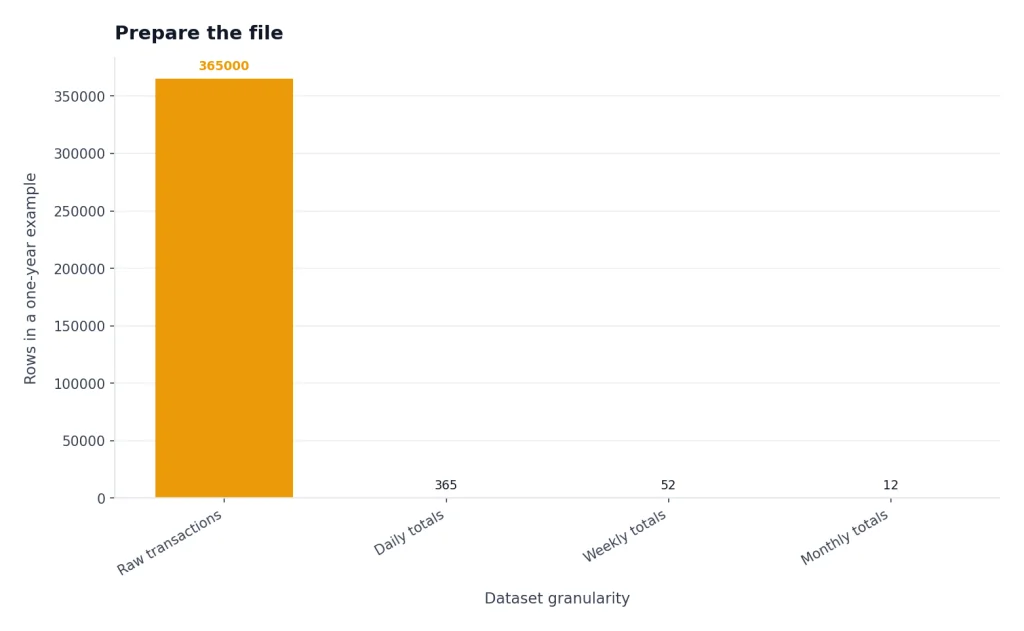
Size also matters. OpenAI lists a hard limit of 512 MB per file for files uploaded to a GPT or ChatGPT conversation, and says CSV files or spreadsheets cannot exceed approximately 50 MB depending on row size.[2] The data-analysis help page repeats the 512 MB per-file limit and the approximately 50 MB spreadsheet or CSV guidance.[1] If your file is larger, aggregate it first or split it by time period.
Step 3: Upload and inspect the dataset
After upload, do not ask for conclusions immediately. Ask ChatGPT to inspect the schema first. OpenAI says ChatGPT begins structured-data analysis by examining the first few rows to understand the schema and value types.[1] You should make that inspection explicit so you can catch problems early.
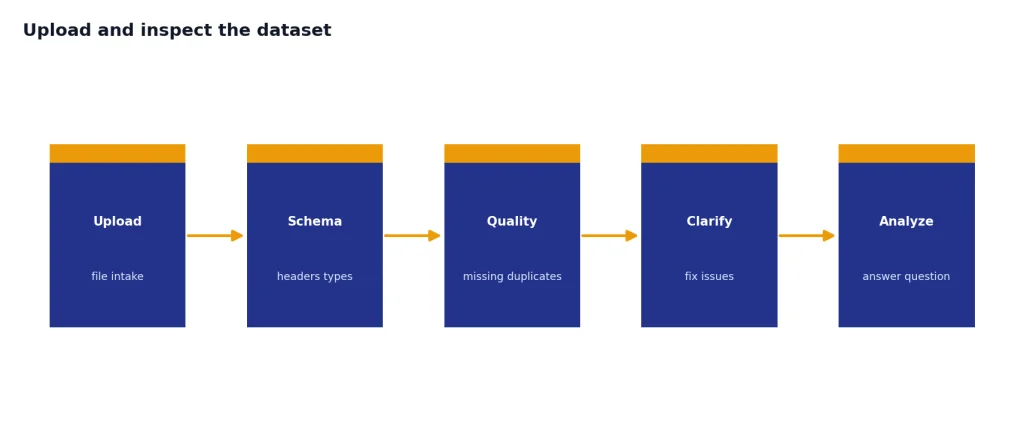
Inspect this file before analyzing it.
Return:
- File names and sheets detected
- Row count and column count for each table
- Column names and inferred data types
- Missing values by column
- Duplicate rows or likely duplicate IDs
- Date range, if a date column exists
- Any columns that look misformatted
Do not draw conclusions yet.
Read the inspection output like a preflight checklist. If ChatGPT says a revenue column is text, ask it to convert the field and show examples of values it could not convert. If it finds duplicate IDs, ask whether the duplicates are true duplicates or multiple events for the same entity. If a date range looks wrong, search for accidental future dates, two-digit years, or mixed date formats.
For recurring projects, save your inspection prompt in a reusable library. Our ChatGPT prompt generator guide can help you turn these checks into a repeatable prompt set.
Step 4: Clean the data with an audit trail
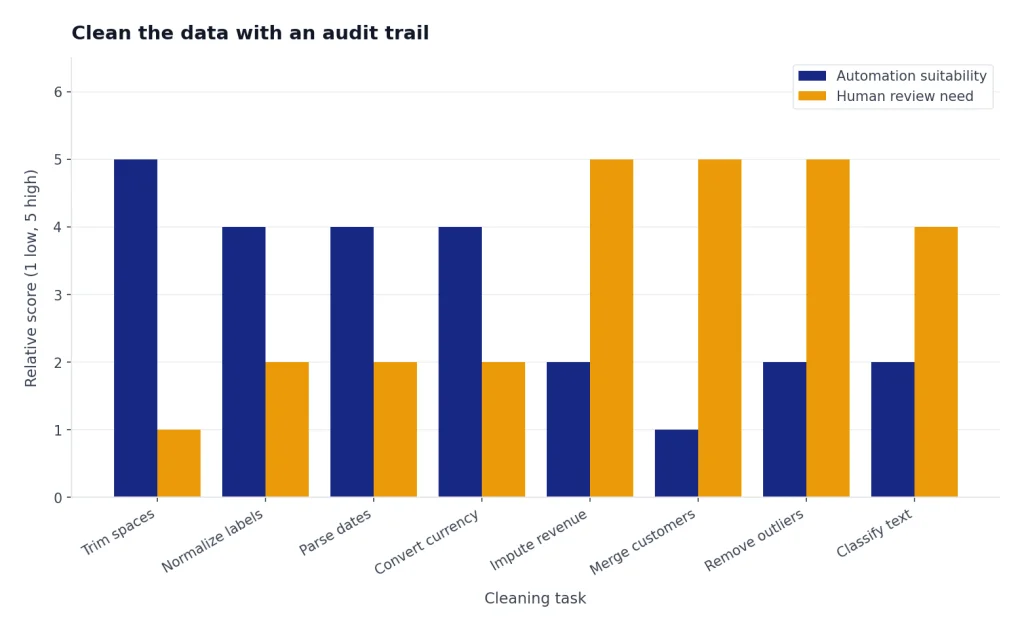
Data cleaning is where ChatGPT becomes most useful and most risky. It can standardize values quickly, but it can also make assumptions that change your answer. Require an audit trail before you accept the cleaned dataset.
Use this prompt:
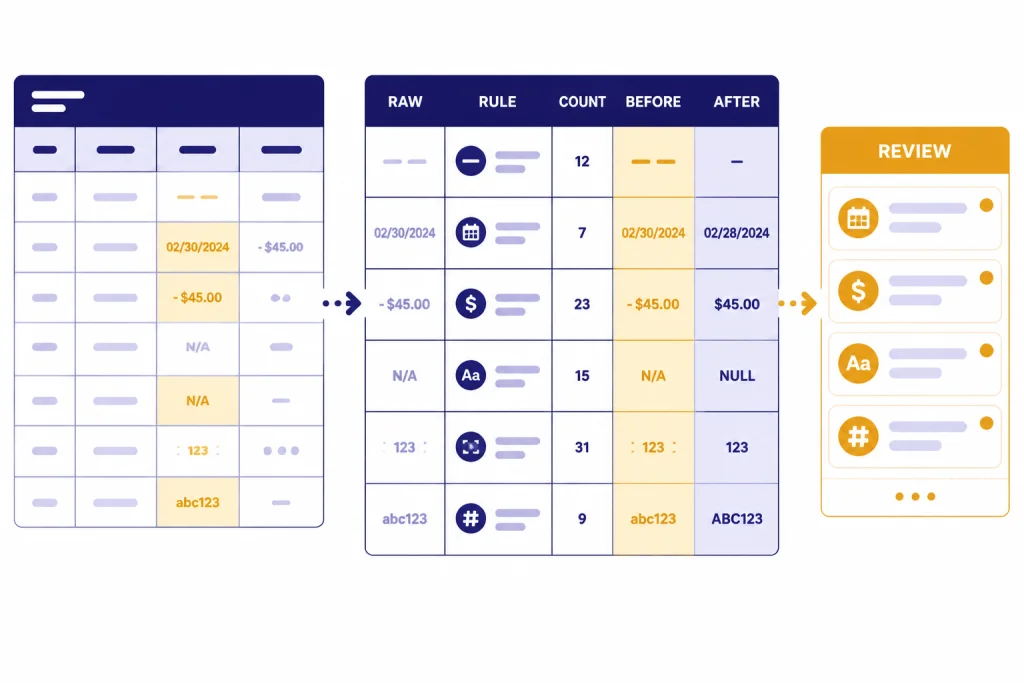
Clean this dataset for analysis, but do not overwrite the original file silently.
Create a cleaning log with:
- Each column changed
- The rule applied
- Number of affected rows
- Examples before and after
- Rows that need human review
Then create a cleaned version for analysis.
Good cleaning tasks include trimming spaces, normalizing category labels, parsing dates, converting currency strings to numbers, splitting combined fields, and marking missing values. Riskier tasks include imputing missing revenue, merging customer records, removing outliers, or classifying free-text comments. For those, ask ChatGPT to create a “review needed” table instead of making the final decision.
When the file contains business rules, define them in plain English. For example: “A churned account is one with no paid invoice in the last full calendar quarter.” If you let ChatGPT infer the rule, it may choose a plausible definition that does not match your company’s reporting standard.
If you are working in a team, use a shared workspace for the explanation and a separate source-of-truth file for final data. Our Canvas tutorial is useful when you need ChatGPT to help draft the written analysis alongside the cleaned tables.
Step 5: Run the analysis and verify the answer
Now ask the question you actually care about. Keep the prompt narrow. A good analysis prompt asks for a specific comparison, the calculation method, and a validation check.
Using the cleaned dataset, answer this question:
Which acquisition channels produced the strongest gross-margin growth by month?
Use net revenue minus cost as gross margin.
Exclude rows marked as test orders.
Show the calculation method, a ranked table, and any segments where low sample size makes the result unreliable.
Then run one validation check to confirm the totals.
Ask ChatGPT to show the calculation before the narrative. The narrative is easier to read, but the table is easier to audit. If a number looks surprising, ask ChatGPT to trace it back to rows, filters, and formulas. You can also ask it to produce a small reconciliation table: original total, excluded total, analyzed total, and difference.
OpenAI describes the under-the-hood workflow as accessing uploaded data in a code execution environment, writing Python code, executing it, examining results, and integrating those results into the chat response.[1] Treat that as a reason to inspect the analysis rather than a reason to trust it blindly. Code can contain wrong assumptions even when it runs correctly.
Verification prompts
- “Show the exact filter logic used for this table.”
- “Recalculate the same metric a different way and compare the result.”
- “List the rows that contribute most to this outlier.”
- “What assumptions did you make that could change the conclusion?”
- “Create a reconciliation table from raw rows to final answer.”
For high-stakes analysis, reproduce the final numbers in Excel, SQL, Python, or your business-intelligence tool. If you plan to automate the workflow through an API, review OpenAI API pricing separately because ChatGPT plan behavior and API usage are different products.
Step 6: Visualize the results
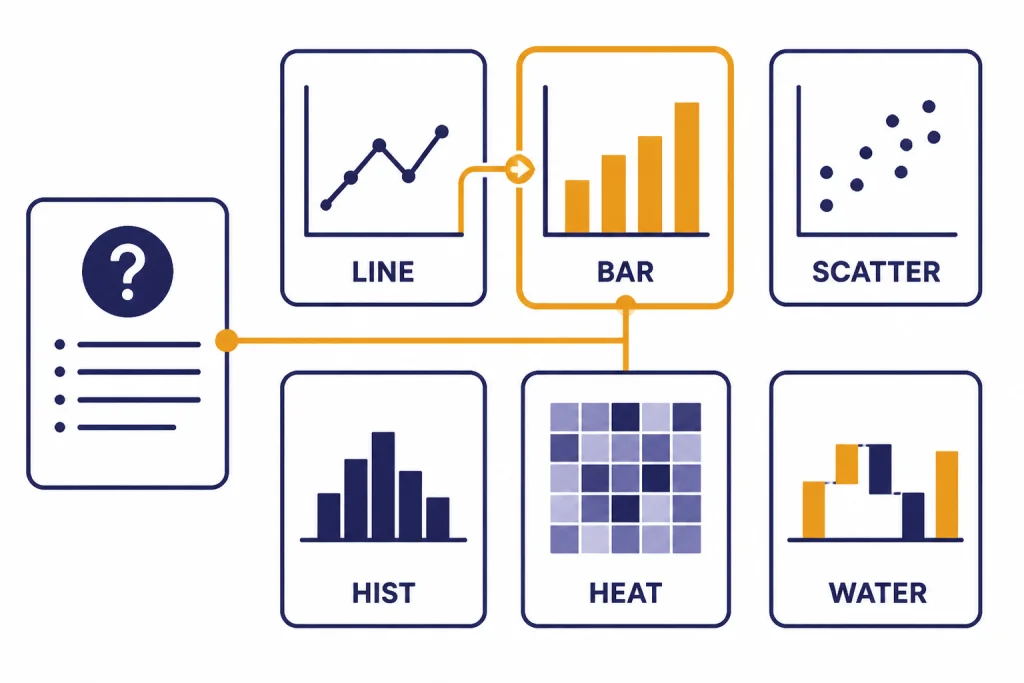
Ask for charts only after the metric is correct. OpenAI lists line graphs, bar charts, pie charts, histograms, scatter plots, box plots, heat maps, area charts, radar charts, treemaps, bubble charts, and waterfall charts among supported chart types, and says bar, pie, scatter, and line charts are interactive in most cases.[3]
Choose the chart by the question:
| Question | Best chart | Why |
|---|---|---|
| How did a metric change over time? | Line chart | Shows direction, seasonality, and turning points. |
| Which category is largest? | Bar chart | Makes category ranking easy to compare. |
| How are two measures related? | Scatter plot | Shows clusters, outliers, and correlation patterns. |
| How is a metric distributed? | Histogram or box plot | Reveals skew, spread, and unusual values. |
| Where do two dimensions intersect? | Heat map | Highlights concentration across a grid. |
| What explains a starting-to-ending change? | Waterfall chart | Breaks movement into additive drivers. |
Use a prompt that gives design rules, not just chart type:
Create a bar chart of gross margin by acquisition channel.
Sort bars from highest to lowest.
Use clear labels, no 3D effects, and a title that states the takeaway.
Add a note if any channel has too few orders to compare fairly.
Then explain what the chart shows in three bullets.
OpenAI says chart controls can include downloading, expanding, color edits, and toggling interactivity, and that downloaded charts are PNG by default.[3] For presentations, ask ChatGPT to export the chart and also provide a short caption that states the insight without overstating causation.
Step 7: Export and reuse the work
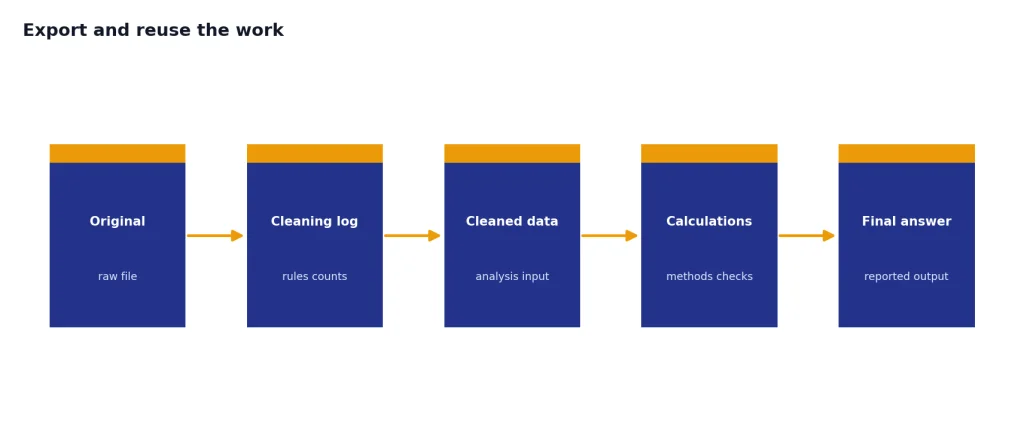
A good ChatGPT analysis session should leave you with more than a chat transcript. Ask for reusable artifacts: cleaned data, a calculation summary, chart files, assumptions, caveats, and a prompt you can use next month.
Package this analysis for reuse.
Return:
- Final executive summary
- Cleaned dataset export
- Cleaning log
- Metric definitions
- Chart files or chart specifications
- Validation checks performed
- Limitations and assumptions
- A reusable prompt for next month's file
For recurring reports, create a custom GPT only after the workflow is stable. The instructions should define the file format, required checks, metric definitions, and final report format. If you go that route, our custom GPT tutorial explains how to package repeated instructions without burying them in every prompt.
Do not let convenience erase accountability. Save the original file, the cleaned file, and the cleaning log. If a stakeholder challenges the result later, you need to show how the numbers moved from raw data to final answer.
Limits, privacy, and risk checks
ChatGPT data analysis has practical limits. OpenAI says up to 10 files can be uploaded to a given conversation, and up to 20 files can be attached to a GPT as Knowledge when Code Interpreter is enabled at the GPT level.[1] OpenAI’s File Uploads FAQ also lists a 2M-token cap for text and document files, says that cap does not apply to spreadsheets, and lists a 20 MB limit for images.[2]
OpenAI also says users can upload up to 80 files every 3 hours, while Free users are limited to 3 file uploads per day, and notes that limits may be lowered during peak hours.[2] Treat these as operating limits, not planning guarantees. If you need predictable production behavior, do not build a business process that depends on manually uploading many files into a chat.
Privacy depends on your account type and settings. OpenAI says ChatGPT Business, ChatGPT Enterprise, ChatGPT Edu, and API offerings do not use provided inputs and outputs to train models by default.[4] OpenAI’s business-data page also says organization data from ChatGPT Enterprise, ChatGPT Business, ChatGPT Edu, ChatGPT for Healthcare, ChatGPT for Teachers, and the API platform is not used for training by default.[5] For personal plans, check Data Controls before uploading sensitive files.
Use this risk checklist before uploading any dataset:
- Remove personal data that is not required for the analysis.
- Replace names, emails, and account numbers with pseudonymous IDs when possible.
- Confirm that your organization allows the upload.
- Check whether the dataset contains regulated data.
- Keep raw, cleaned, and final files separate.
- Validate final numbers outside ChatGPT before making high-stakes decisions.
If you use Memory in ChatGPT, understand how it may affect future conversations. Our ChatGPT memory tutorial explains when personalization helps and when it should stay off.
Prompt library for data analysis
Use these prompts as building blocks. Adapt the bracketed parts to your file and business question.
Initial inspection
Inspect the uploaded dataset and summarize its structure. Identify tables, sheets, columns, inferred data types, missing values, duplicates, date ranges, and possible formatting problems. Do not analyze trends yet.Data dictionary
Create a data dictionary with column name, inferred meaning, data type, example values, missing-value rate, and questions for me. Flag any ambiguous field names.Cleaning plan
Propose a cleaning plan before changing the data. Separate safe transformations from transformations that need human approval. Wait for confirmation before applying risky changes.Outlier review
Find outliers in [metric]. For each outlier, show the row identifier, value, likely reason, impact on the overall result, and whether you recommend keeping, excluding, or reviewing it manually.Executive summary
Write an executive summary for a non-technical audience. Include the main finding, supporting numbers, caveats, and recommended next action. Do not imply causation unless the data supports it.For better prompts in general, read our prompt engineering techniques guide. For a broader learning plan, see Master ChatGPT in 7 Days.
Frequently asked questions
Can ChatGPT analyze Excel files?
Yes. OpenAI lists Excel files as a supported format for ChatGPT data analysis.[1] You will get better results when the workbook has plain headers, one table per sheet, consistent date formats, and no important data hidden in images.
Is ChatGPT data analysis the same as Code Interpreter?
OpenAI’s File Uploads FAQ describes Advanced Data Analysis as formerly known as Code Interpreter.[2] In everyday use, people often use these names loosely for the same file-and-code analysis workflow inside ChatGPT.
Can ChatGPT make charts from my data?
Yes. ChatGPT can create static and interactive tables and charts from uploaded data.[1] The safest workflow is to verify the underlying calculation first, then ask for a chart that communicates the result clearly.
What file size can ChatGPT analyze?
OpenAI lists 512 MB per file, with CSV files or spreadsheets limited to approximately 50 MB depending on row size.[1] The File Uploads FAQ repeats the 512 MB hard limit and the approximately 50 MB spreadsheet or CSV guidance.[2] Large files should be split, sampled, or aggregated before upload.
Can I trust ChatGPT’s data analysis?
You can trust it as a fast assistant, not as an unchecked authority. Ask for the calculation method, inspect the generated analysis, review assumptions, and reproduce important numbers outside ChatGPT before using them in decisions.
Should I upload confidential data to ChatGPT?
Only upload confidential data if your organization allows it and your account settings fit the sensitivity of the data. OpenAI says business and enterprise offerings do not use provided inputs and outputs for model training by default, but personal-plan users should review Data Controls before uploading sensitive files.[4]