

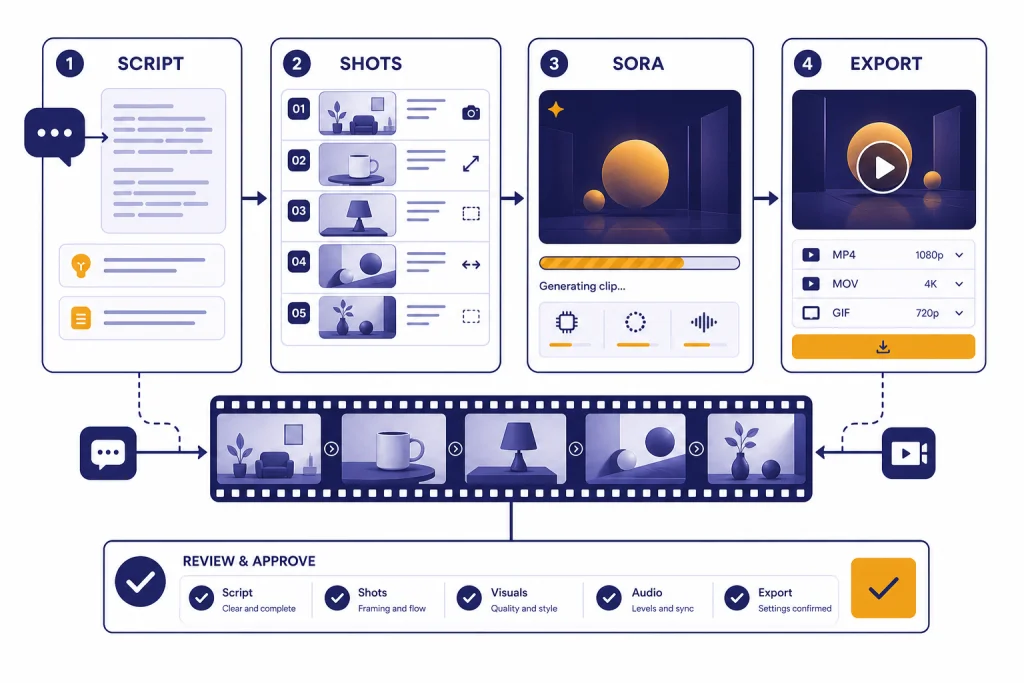
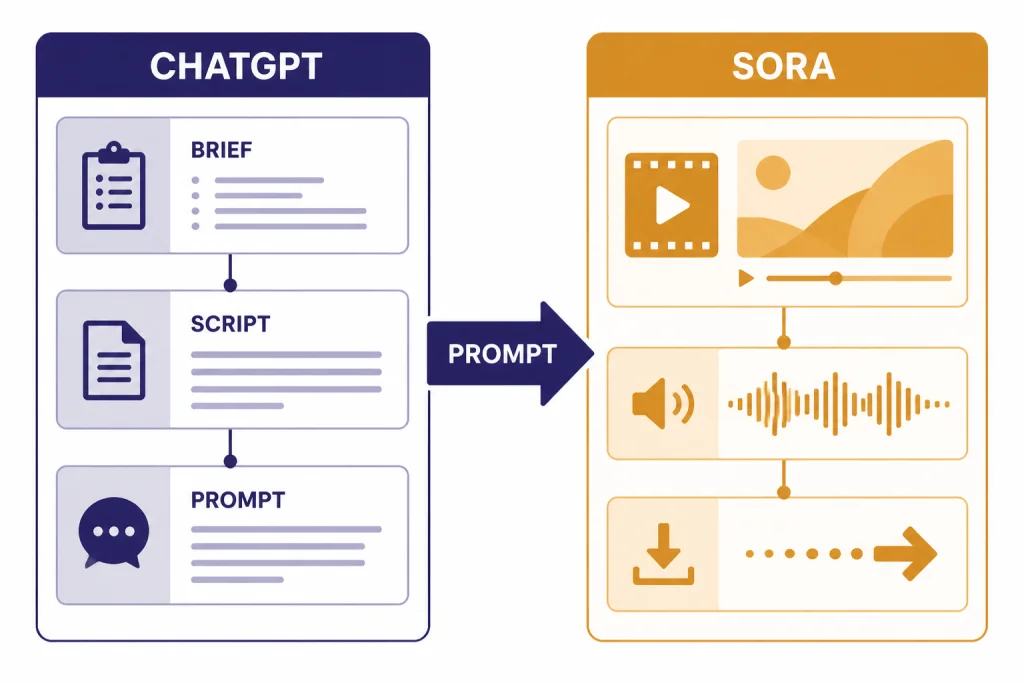
This ChatGPT tutorial video workflow shows you how to use ChatGPT as the planning, scripting, and prompt-building assistant for AI video, then use Sora to generate the actual clips. ChatGPT is best for the parts that require language: concept selection, audience fit, shot lists, narration, captions, and revision notes. Sora is the OpenAI video tool that turns text or image prompts into short generated videos with synchronized audio in Sora 2.[1] The cleanest beginner workflow is simple: write the brief in ChatGPT, convert it into a structured Sora prompt, generate a short clip, revise one variable at a time, then export only after you have checked accuracy, rights, and disclosure.
What ChatGPT can and cannot do for video
ChatGPT can help you make better AI videos, but it is not the same thing as a video editor. Use ChatGPT to design the idea before you generate anything. Ask it for the target audience, message, hook, sequence of shots, narration, on-screen text, captions, and revision checklist. That work prevents vague prompts and wasted generations.
Sora is the OpenAI product built for short AI video creation. OpenAI released Sora 2 on September 30, 2025 as a video and audio generation model with more realistic physics, stronger control, and synchronized dialogue and sound effects compared with the earlier Sora system.[1] The Sora app and Sora web experience use your existing OpenAI account, so the practical workflow feels connected to ChatGPT even when the actual rendering happens in Sora.[2]
The important distinction is this: ChatGPT is your production assistant. Sora is the camera. If you already use ChatGPT for writing, research, or creative planning, this workflow will feel familiar. If you are new, start with what is ChatGPT before you build a full video workflow.
Choose the right AI video workflow
Do not start by asking for a full video. Start by choosing the type of video you need. A product teaser, YouTube intro, explainer clip, social ad, and training scene all need different structure. ChatGPT can help you decide the format before you spend time generating clips.
As of this publication date, OpenAI describes Sora as a tool for short clips. The Sora app can create a 10-second vertical video by default, and Sora can start from text or a photo depending on the workflow and access available to your account.[2] OpenAI’s Sora 1 web help page describes the older web editor as supporting videos up to 20 seconds, plus storyboard controls, remixing, blending, looping, sharing, and MP4 downloads.[3] Treat these as short-form building blocks, not as a replacement for a full nonlinear editor.
| Goal | Use ChatGPT for | Use Sora for | Best output |
|---|---|---|---|
| Social clip | Hook, shot idea, caption options | One visual scene with motion | Short vertical post |
| YouTube intro | Channel tone, opening line, visual concept | Atmospheric opener or B-roll | Intro clip to edit into a longer video |
| Explainer | Step order, analogy, narration | Simple visual metaphor | One scene per concept |
| Ad creative | Audience, offer angle, variant prompts | Several concept variations | Testable ad assets |
| Training video | Scenario, script, compliance checklist | Illustrative scene, not factual proof | Supplemental visual example |
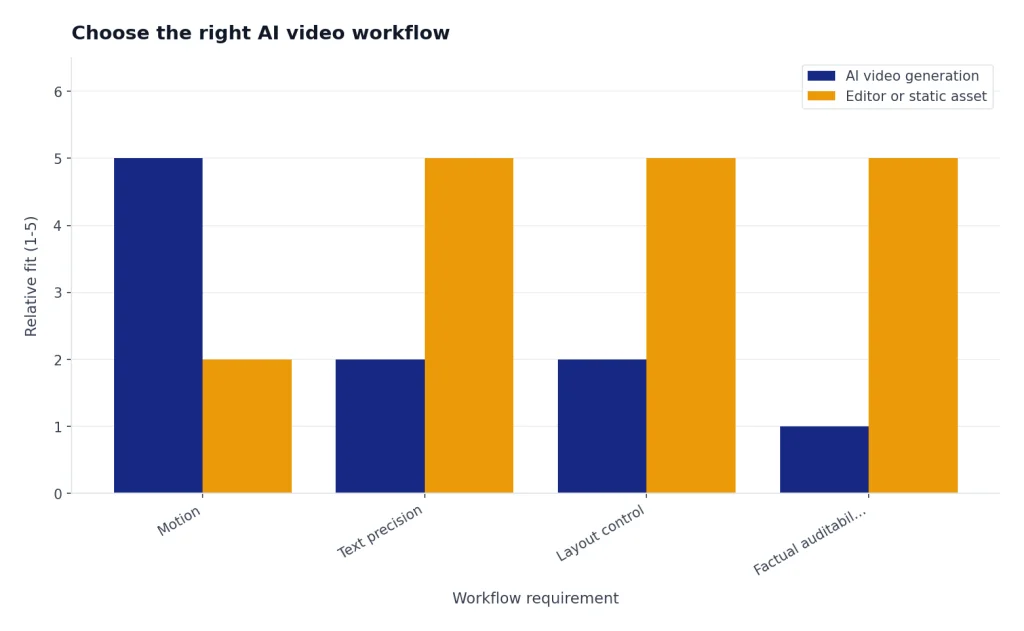
If your final project needs charts, screenshots, exact product UI, or legal precision, use AI video as a supporting asset. For static visuals that need clearer text or layout control, pair this workflow with ChatGPT image generation instead.
Step 1: Plan the video in ChatGPT
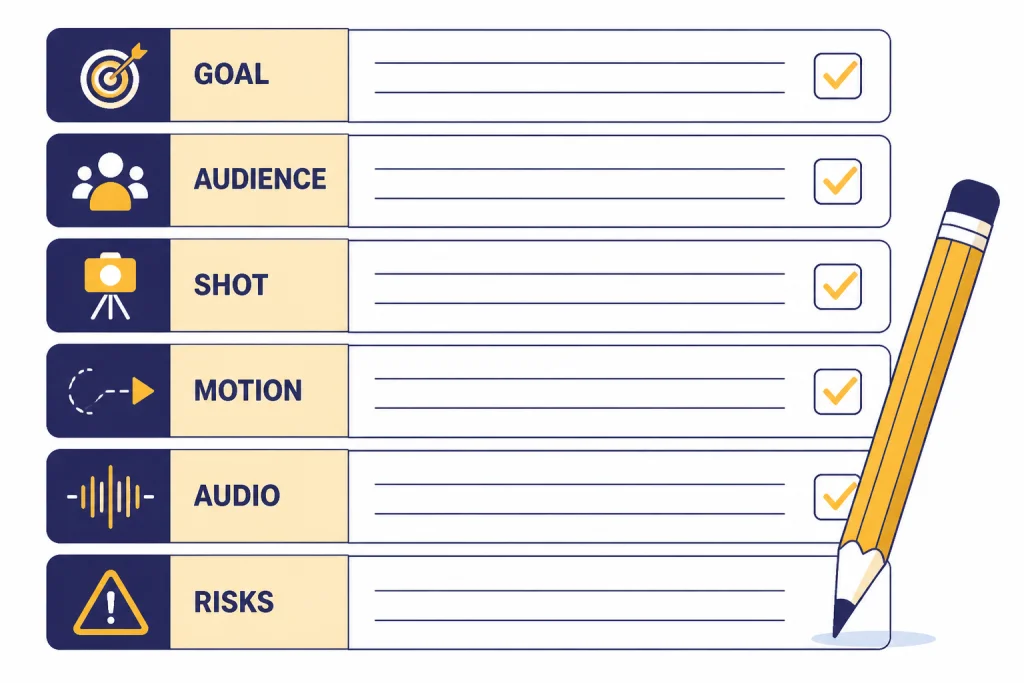
Open ChatGPT and define the job before you mention Sora. A good video brief has a purpose, audience, setting, desired emotion, length target, aspect ratio, key visual action, and one measurable success criterion. This keeps the model from drifting into generic cinematic language.
Use this planning prompt:
I want to make a short AI video. Interview me one question at a time until you have enough information to produce a video brief. Ask about audience, goal, platform, length, aspect ratio, setting, visual style, main action, narration, on-screen text, and what must not appear. Then summarize the brief in a table.Answer the questions plainly. Do not try to sound like a director yet. If you know the platform, say it. If you know the buyer persona, say it. If the video is for YouTube, you may also want ChatGPT for YouTubers for titles, hooks, and retention-focused script work.
Then ask ChatGPT to create a shot list. Keep it short. One Sora generation should usually focus on one scene, one camera idea, and one main action. You can stitch or edit clips later in a separate editor. A compact shot list also makes it easier to identify what went wrong after a generation.
Turn this brief into a 5-shot production plan. For each shot, give me: purpose, visual subject, setting, camera framing, motion, audio idea, and what to check after generation. Keep each shot simple enough for one AI video prompt.If the concept depends on facts, ask ChatGPT to separate factual claims from visual mood. Use a research workflow before you generate. For heavier fact-checking, use deep research in ChatGPT or a lighter academic research workflow, depending on the project.
Step 2: Turn the plan into a Sora prompt
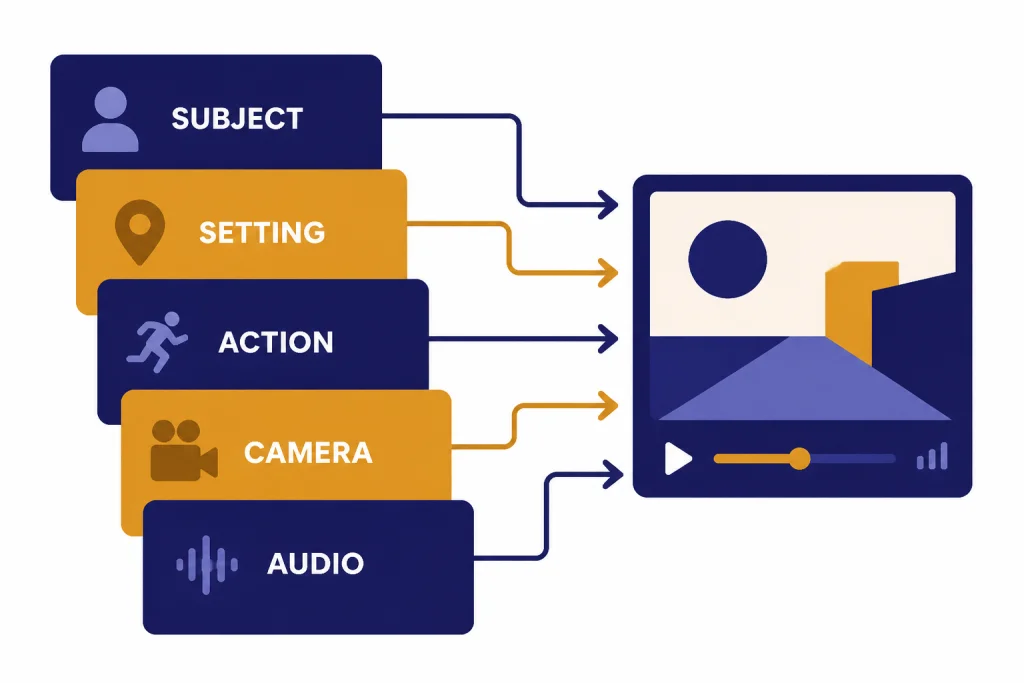
A strong Sora prompt reads like a compact production note. It says what appears in the frame, where it is, what moves, how the camera behaves, what the audio should feel like, and what to avoid. OpenAI’s Sora guidance recommends describing subject, setting, motion, camera style, pacing, and audio, and it notes that concise, specific directions tend to produce more reliable results.[2]
Use this conversion prompt in ChatGPT:
Convert Shot 1 into a Sora prompt. Use this structure: subject, setting, action, camera, lighting, style, audio, duration, aspect ratio, negative constraints. Keep it specific and avoid impossible physics. Give me three variants: realistic, stylized, and minimalist.For example, a weak prompt says, “Make a cool video about productivity.” A stronger prompt says, “A quiet desk at sunrise, a closed notebook opens by itself, sticky notes arrange into three neat columns, slow overhead camera push-in, soft room tone, gentle paper sounds, clean realistic style, no logos, no readable brand names.” The second prompt gives the video model objects, motion, camera direction, and constraints.
Build prompts from layers. Start with the subject and setting. Add one action. Add camera movement only if needed. Add audio last. If you need dialogue, write the exact line and keep it short. Sora 2 can generate synchronized audio, including dialogue and sound effects, but complicated scenes with many speakers are harder to control.[1]
If you often reuse a house style, save a prompt pattern. You can store repeatable structures in a custom GPT, then feed it a new brief each time. See custom GPT building if you want a reusable video prompt assistant.
Step 3: Generate and revise the video
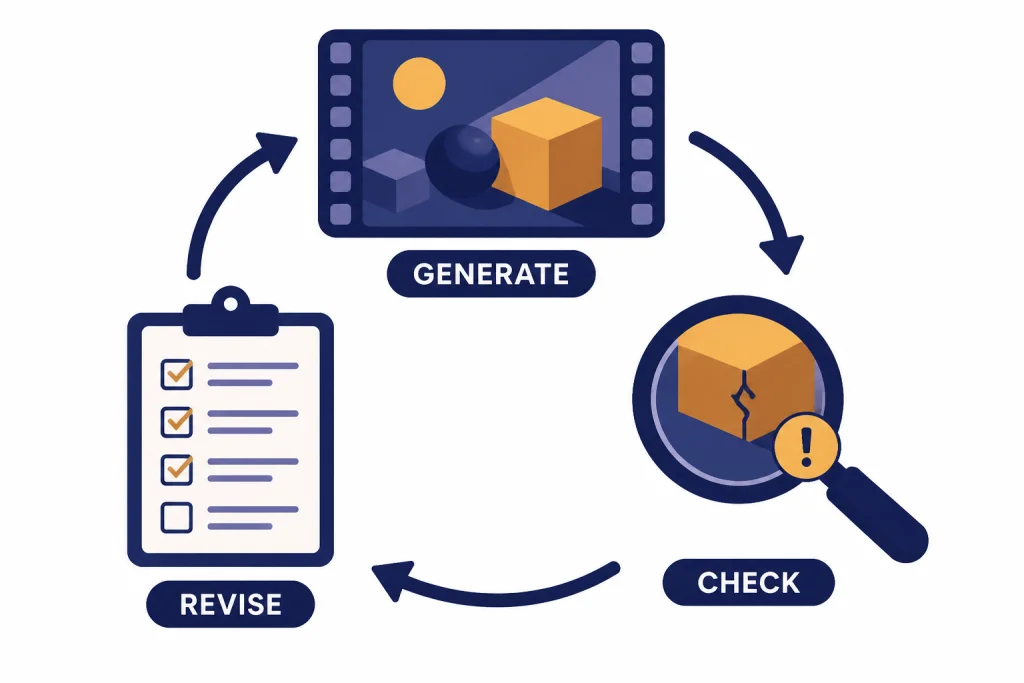
Open Sora, start a new generation, and paste your prompt. In the Sora app workflow, OpenAI says you can tap the plus button, choose whether to start from scratch or upload an image, describe the scene, generate a preview, then iterate by changing the prompt, applying a different style, or using Remix to branch from a result.[2]
Revise one variable at a time. If you change the camera, subject, lighting, and audio all at once, you will not know what fixed the problem. Use ChatGPT as a revision analyst after each generation. Describe what worked and what failed, then ask for a narrower prompt.
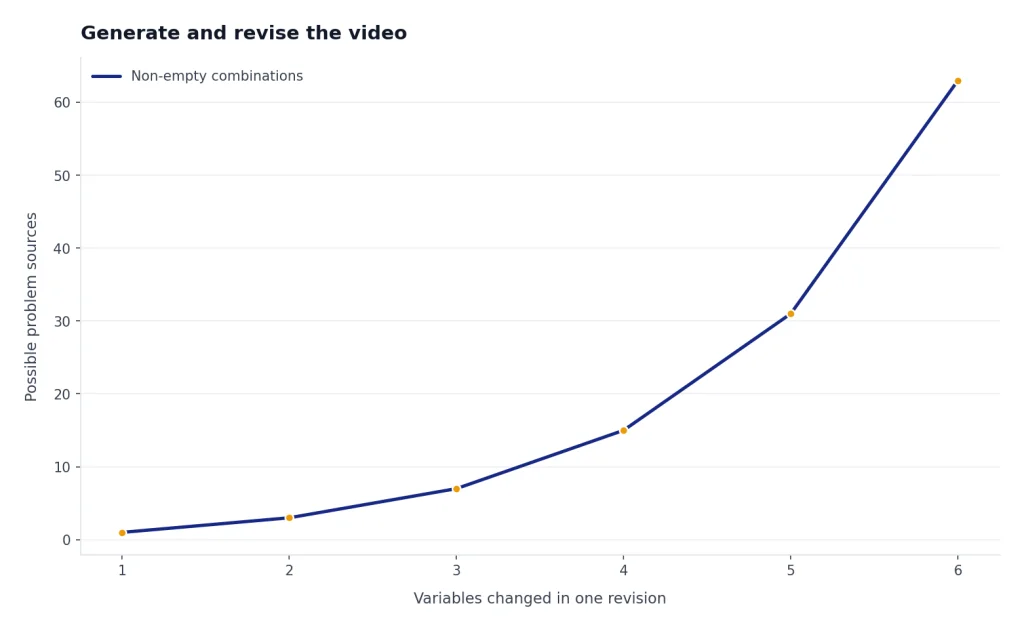
The generated clip has good lighting, but the camera moves too fast and the object motion looks unrealistic. Rewrite the prompt to keep the same subject and setting, slow the camera, simplify the physical action, and remove any ambiguous wording. Give me one revised prompt and a short checklist for judging the next output.OpenAI notes that Sora 2 can struggle with scenes that contain many people speaking at once, complex collisions, or very rapid camera moves. Its suggested fixes are shorter prompts, simpler motion, fewer characters, and more explicit camera instructions.[2] That is also the best practical advice for beginners. Simpler prompts give you more usable clips.
Plan limits and output options can vary by account type and product surface. OpenAI’s Sora billing help states that ChatGPT Plus and ChatGPT Business users have unlimited images and video, up to 5-second videos at 720p or 10-second videos at 480p, and up to 2 concurrent generations; ChatGPT Pro users have faster generations, up to 1080p and 20-second videos, up to 5 concurrent generations, and watermark-free downloads for eligible videos.[4] Check your own Sora interface before promising a client a specific resolution or turnaround time.
Step 4: Add script, voice, captions, and assets
Most finished AI videos need more than generated footage. They need structure. Use ChatGPT to write the narration, caption set, title, description, and cut notes. If the video is for a brand, give ChatGPT the brand voice rules and ask for three caption tones: direct, educational, and story-driven.
Use this script prompt:
Write a 35-second narration for this video concept. Use short spoken sentences. Match the shot list below. Mark where each shot should appear. Include optional on-screen text for each shot, limited to 6 words per screen. Avoid claims that are not supported by the brief.If you need spoken delivery, build the voice script separately from the Sora visual prompt. That gives you more control. You can also use ChatGPT to rewrite narration for a different pace, reading level, or audience. For a deeper audio workflow, use ChatGPT voice mode to rehearse tone and timing before recording or generating voice assets.
For captions, ask ChatGPT for platform-specific versions. A LinkedIn caption should not read like a TikTok caption. A YouTube description should include context, not just a slogan. If the video supports a campaign, connect this workflow to ChatGPT marketing planning so the clip has a clear job in the funnel.
For longer edits, move the exported clips into a video editor. Use ChatGPT to create an edit decision list: clip order, transition notes, caption timing, B-roll purpose, and quality-control checks. If you are writing a companion article or landing page, ChatGPT writing workflows can keep the message consistent across formats.
Step 5: Check safety, rights, and disclosure
AI video can create realistic scenes, so your review process matters. Do not generate or publish a person’s likeness without permission. OpenAI’s Sora safety materials describe consent-based likeness controls for characters and say users control who can use their character and can revoke access.[5] OpenAI also says Sora videos include provenance signals, with C2PA metadata and visible watermarking practices described in its Sora safety materials.[5]
Before publishing, run a final review in ChatGPT. Paste your script, describe the visuals, and ask for a risk checklist. You are not asking ChatGPT to make the legal decision for you. You are using it to catch issues you might miss.
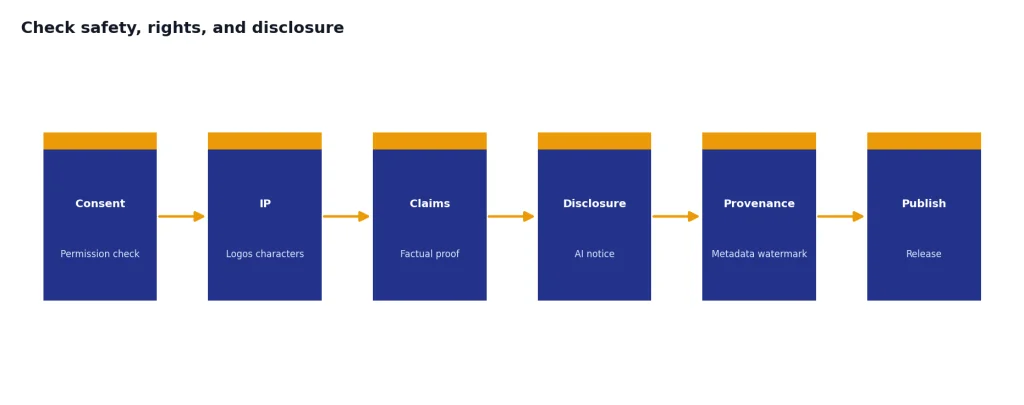
Review this AI video plan before publication. Flag possible issues with likeness consent, misleading claims, copyrighted characters, brand logos, medical or financial advice, safety-sensitive content, and missing AI disclosure. Give me a pass/fix table.If your video includes charts, data, product claims, medical advice, financial claims, or legal claims, verify them outside the video model. Video generation is not a source of truth. If you need to analyze data before creating the video, use ChatGPT data analysis or Code Interpreter workflows first.
Example prompts you can copy
Use these as starting points. Replace the bracketed details with your own project information.
Video brief prompt
Create a video brief for a [platform] video about [topic]. The audience is [audience]. The goal is [goal]. The tone should be [tone]. Give me: one-sentence concept, visual metaphor, 5-shot outline, narration angle, on-screen text ideas, and risks to avoid.Sora prompt builder
Turn this shot into a Sora prompt: [paste shot]. Include subject, setting, action, camera, lighting, style, audio, pacing, aspect ratio, duration, and negative constraints. Keep the motion simple and make the output easy to edit into a larger video.Revision prompt
Here is what happened in the generated clip: [describe result]. Here is what I wanted: [describe target]. Diagnose the likely prompt problem. Rewrite the prompt with fewer moving parts and clearer camera direction. Do not change the concept unless necessary.Caption and publish prompt
Write platform captions for this AI-generated video. Give me versions for YouTube Shorts, TikTok, Instagram Reels, LinkedIn, and X. Include a clear AI disclosure where appropriate. Keep the hook specific and avoid exaggerated claims.If your prompts still feel inconsistent, study prompt engineering techniques and then build a saved video prompt template in Canvas.
Common mistakes to avoid
- Asking for too much in one clip. One subject, one action, and one camera idea usually beat a crowded scene.
- Using abstract adjectives instead of visual direction. “Premium” is vague. “Matte black desk, soft side light, slow slider shot” is usable.
- Skipping the brief. If ChatGPT does not know the audience and goal, it will produce generic prompts.
- Changing every variable during revision. Keep what worked. Change the specific failure.
- Depending on generated text inside the video. Add important titles and captions in an editor when accuracy matters.
- Publishing without rights review. Check likeness, logos, copyrighted characters, claims, and disclosure before release.
The best beginner habit is to keep a generation log. Save the prompt, result, problem, revision, and final verdict. After a few projects, you will know which directions work for your style.
Frequently asked questions
Can ChatGPT make videos by itself?
ChatGPT is best used to plan, script, and prompt the video. The video generation step happens in Sora, OpenAI’s video tool. Think of ChatGPT as the producer and Sora as the generator.
Do I need Sora to follow this tutorial?
You need Sora or another video generator to render the final clips. You can still use the ChatGPT parts of this tutorial to write scripts, shot lists, captions, and prompts for other AI video tools.
What is the best first video to make?
Start with a single-scene visual metaphor. A product concept, simple explainer, or atmospheric intro is easier than a multi-character dialogue scene. Simple motion gives you a better chance of a usable first output.
Can I use AI video for client work?
Yes, but you need a clear review process. Confirm the client’s rights to any uploaded assets, avoid unauthorized likenesses, check platform disclosure rules, and verify all factual claims outside the video model.
How do I get better Sora results?
Use fewer moving parts, clearer camera instructions, and more concrete nouns. Revise one variable at a time. Ask ChatGPT to diagnose each failed generation before you run the next one.
Should I generate a whole long video with AI?
Usually no. Generate short clips, then assemble them in an editor with human review. This gives you more control over pacing, captions, accuracy, and brand safety.