

The official OpenAI Discord is a real public community server for people who want to discuss ChatGPT, Codex, OpenAI models, and product updates with other users. As of May 2026, that conversation includes current OpenAI surfaces such as GPT-5.5 and GPT-5.5 Pro for chat, GPT-image-2 for image generation, and Sora-2 Pro for video. OpenAI’s Help Center says access starts with an invite link and then an OpenAI Discord verification step.[1] The safest way to join is to begin from OpenAI’s Help Center or from Discord’s official server listing, not from a random social post or direct message.[1][2]
What OpenAI Discord is
OpenAI Discord is the company’s official Discord server. Discord’s server listing describes it as the official OpenAI server and says it is a place to connect around ChatGPT, Codex, and other OpenAI models.[2] The OpenAI Developer Community guidelines also point ChatGPT product discussion to the official Discord rather than to the developer forum.[4]
That distinction matters because OpenAI runs several official community surfaces. Discord is the fastest and most conversational option. It is useful for release chatter, prompt and workflow ideas, community events, showcase posts, and informal peer help. It is not the same as the OpenAI Forum, which is a more curated community and events space, and it is not the same as the OpenAI Developer Community, which is focused on developers building with the API and platform tools.[6][5]
The key rule: reach the server through an OpenAI-owned page or Discord’s verified listing first. That reduces the chance of joining a copycat server with a similar name, icon, or invite code.
How to join OpenAI Discord
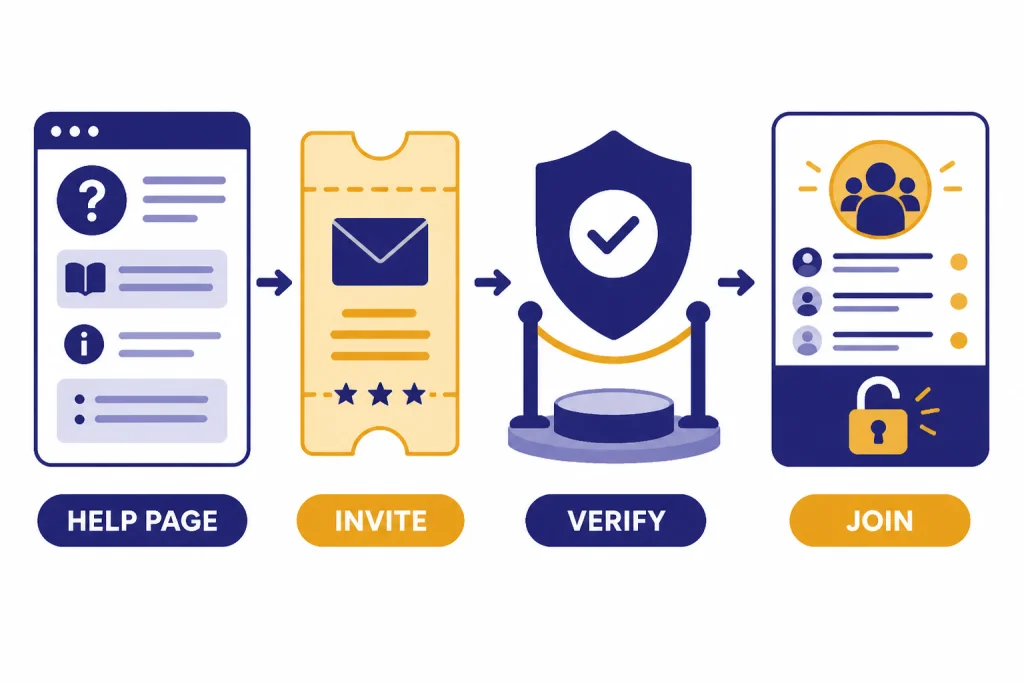
OpenAI’s Help Center keeps the official process short: get the invite, then complete the required verification before you can access the server.[1] The public invite resolves to the OpenAI invite page on Discord.[3] Here is the practical version of the flow, including the checks that help you avoid fake invites.
Step 1: Start from an official OpenAI page
Use the OpenAI Help Center article about Discord access, Discord’s official OpenAI server listing, or the OpenAI Developer Community guidelines page, which points ChatGPT discussion to the official Discord.[1][2][4] Avoid private messages, “exclusive invite” posts, shortened links, or pages that ask you to pay for access.
Before you click through, check the destination. The official invite should open on discord.com/invite/openai or on Discord’s official server listing for OpenAI at discord.com/servers/openai-974519864045756446.[2][3] If the page uses a look-alike domain, asks for your OpenAI password outside an OpenAI-owned login flow, or promises staff support in exchange for payment, leave.
Step 2: Open the invite
After you open the invite, Discord should show an invite or server listing for OpenAI. If you are signed in, you can accept the invite. If not, Discord will ask you to sign in or create a Discord account. On mobile, the link may hand off from the browser to the Discord app; if that fails, try copying the invite into the desktop app or opening it in a regular browser window.
Step 3: Complete verification
OpenAI’s Help Center says verification is required before you can access the server.[1] The exact screens can change, but expect some combination of Discord’s normal account checks, a rules or server-guide screen, and an OpenAI-related verification step. Read each screen before clicking through. If a verification page opens outside Discord, make sure the URL is an OpenAI-owned or Discord-owned domain before entering any account information.
Common failure points are mundane: your Discord email is not verified, Discord wants phone verification, the app has not refreshed your new role, a VPN or browser privacy extension blocks the verification handoff, cookies are disabled, the invite opened in the wrong Discord account, or you are rate-limited after repeated attempts. Do not solve those problems by sending your password, API key, billing details, or identity documents to someone in a direct message. If the flow breaks, try a clean browser session, the desktop app, a verified Discord account, or the official Help Center path again.
Step 4: Read the server structure before posting
Once inside, start with the onboarding areas: the rules screen, server guide, announcements, and any channel-selection or role-selection prompts. Channel names can change, but the areas to look for are usually easy to recognize: rules and welcome information, announcements, ChatGPT discussion, Codex discussion, API or developer help, image/video generation, prompts or workflows, project showcases, events, and support-resource pointers. Read pinned messages before posting; they often explain what belongs in that channel.
Step 5: Use the right official channel for the right problem
Discord is good for community conversation. It is not the best route for billing, login, account access, or anything that requires private handling. OpenAI’s support article says support requests should start from the chat bubble on help.openai.com.[7] If you are working through API issues, use Discord for quick orientation and the Developer Community for searchable, code-focused discussion.[4][5]
What you will find inside
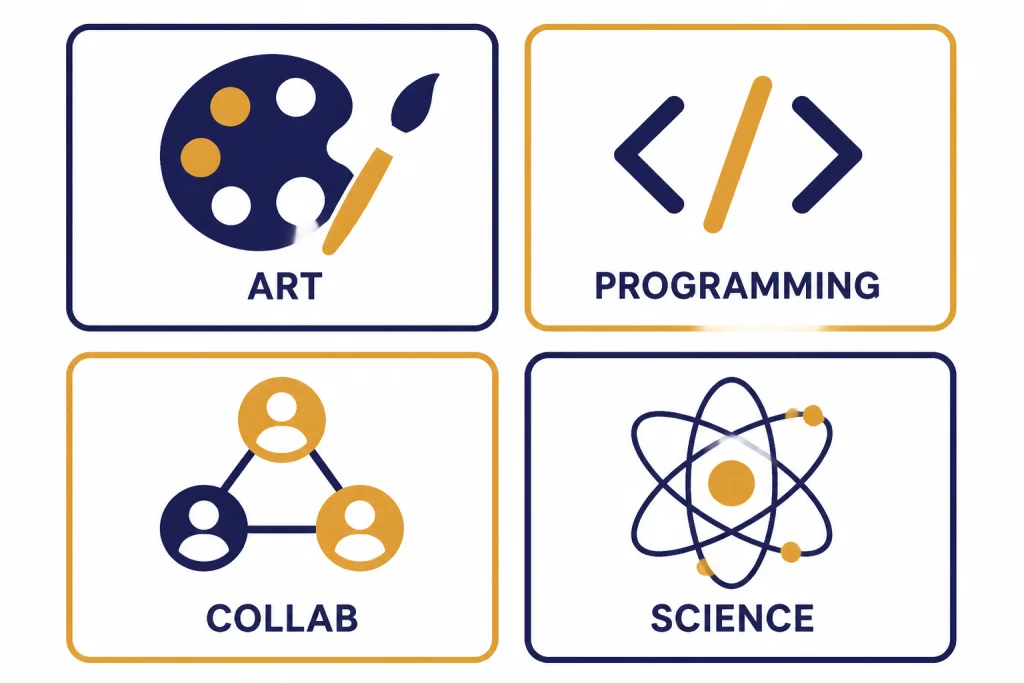
Discord’s public server page labels OpenAI as an English-language server and places it in categories such as Art, Programming, Collaboration, and Science & Tech.[2] That broad category mix is a good clue: the server is not only for developers and not only for casual ChatGPT users.
Expect the useful parts of the server to fall into a few practical buckets:
- Announcements and news: places to follow high-level product and community updates.
- Rules and onboarding: the first stop for posting limits, conduct expectations, and channel guidance.
- ChatGPT and model discussion: informal conversation about prompts, workflows, and current OpenAI models.
- Codex and developer areas: peer discussion for coding workflows, API questions, and builder problems.
- Creative channels: image, video, art, and showcase-style discussion around tools such as GPT-image-2 and Sora-2 Pro.
- Events and community resources: pointers to livestreams, community calls, demos, or replay resources when available.
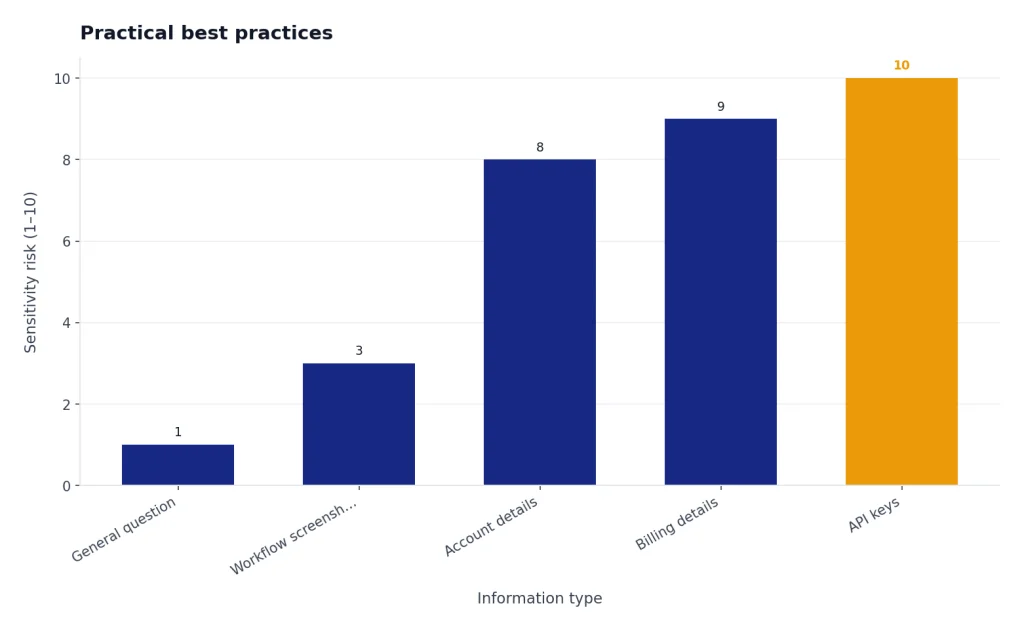
Use those areas for public, non-sensitive questions. Do not post payment details, login screenshots, API keys, private workspace data, or anything you would not want indexed, copied, or seen by strangers. For account-specific support, OpenAI points users to help.openai.com instead.[7]
Discord can also be a quick orientation layer. For example, you might see people discussing a prompt pattern in Discord, then test a cleaner version in OpenAI Playground. If the conversation turns into a build, OpenAI Agents SDK is a better next read. If you are debugging failed API calls, start with a focused resource such as OpenAI API Errors before asking the community.
Discord vs other OpenAI communities
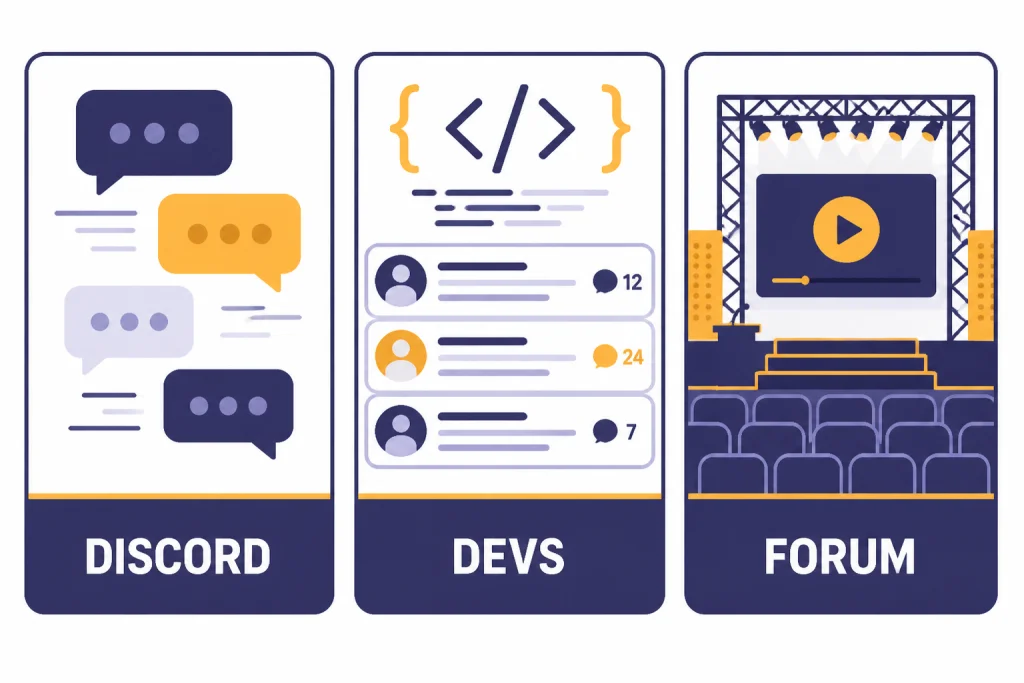
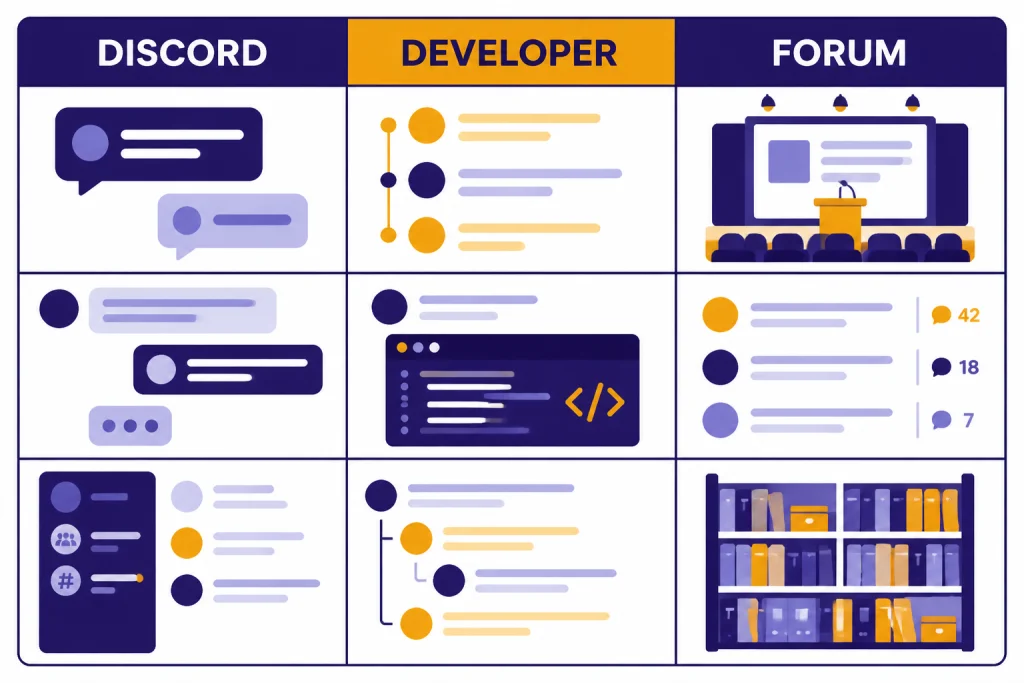
People often search for the Discord when they really need the right OpenAI community for a specific task. The three main options are Discord, the OpenAI Developer Community, and the OpenAI Forum. They overlap, but they are not interchangeable.
| Community | Best for | Official signal | Less ideal for |
|---|---|---|---|
| OpenAI Discord | Real-time ChatGPT and product conversation, casual peer help, community pulse, events chatter, showcases | OpenAI’s Help Center provides the invite path, and Discord lists the OpenAI server as official.[1][2] | Private support, billing, login recovery, formal account cases, long technical threads |
| OpenAI Developer Community | API questions, platform discussion, code-level troubleshooting, build feedback | OpenAI describes it as a place for developers building with the API and platform.[5] | General ChatGPT product discussion, which its guidelines redirect to Discord.[4] |
| OpenAI Forum | Broader expert community, livestreams, replays, public resources, more curated learning | OpenAI says anyone can join as a guest to watch livestreams, explore replays, and access learning resources.[6] | Fast chat, loose back-and-forth, instant crowd feedback |
A simple rule works well: use Discord when you want speed, the Developer Community when you want technical depth from builders, and the OpenAI Forum when you want a more curated or event-oriented experience.[4][5][6]
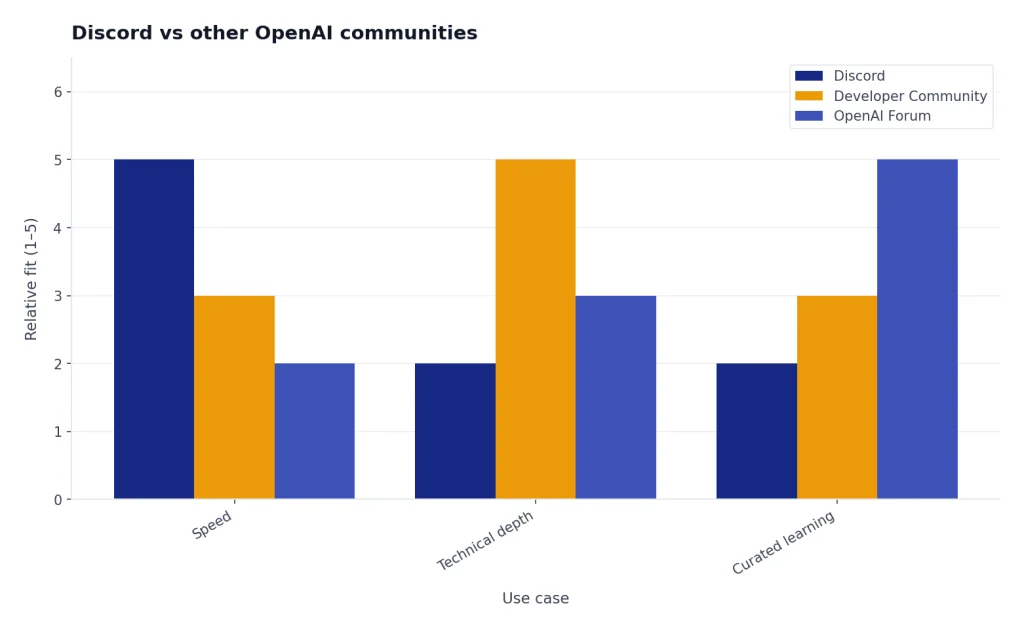
This split prevents frustration. A platform integration question posted in a general chat channel may get guesses instead of durable answers. A ChatGPT usage question posted in the Developer Community may be redirected because the guidelines say that kind of discussion belongs in Discord.[4] For broader context, see how OpenAI evolved in OpenAI History, how to read service incidents on the OpenAI status page, and how enterprise deployments differ in Azure OpenAI Service vs OpenAI API.
Rules, safety, and best practices
The first safety check is legitimacy. OpenAI’s Help Center is the cleanest source for the invite path, and Discord’s server listing identifies the OpenAI server as official.[1][2] The second safety check is behavior inside the server: community spaces are public or semi-public, and they are not secure support desks.
OpenAI’s communications guidance says users should rely on official channels and should not share account details with accounts asking for sensitive information.[8] Apply that same rule on Discord. A real community discussion should never require your password, full payment details, recovery codes, API keys, private workspace exports, or one-time login codes.
Before you post, read the rules or server guide. Common Discord rules usually cover harassment, spam, impersonation, self-promotion, unsafe content, off-topic posting, and sharing private information. If there is a channel-specific pinned message, treat it as part of the rules for that channel.
Practical best practices
- Join only from OpenAI’s Help Center, an OpenAI-owned community page, or Discord’s official OpenAI listing.[1][2]
- Confirm the invite domain is discord.com and the invite path is the official OpenAI invite, not a shortened or look-alike URL.[3]
- Complete Discord email or phone verification if prompted; many access failures come from incomplete Discord account checks.
- Read the server guide, rules, channel descriptions, and pinned posts before posting.
- Ask specific, non-sensitive questions. “How do I structure a prompt for a support triage workflow?” is safer and more answerable than posting a full customer transcript.
- Search before asking. The Developer Community guidelines recommend searching first, and the same habit works well in Discord.[4]
- Use OpenAI support for account, billing, and login issues instead of public chat.[7]
- Do not trust unsolicited DMs offering staff escalation, paid verification, free credits, account recovery, or private model access.
One more mindset helps: official community does not always mean official support. The Developer Community guidelines say that site is not a support channel and that not every post is seen by OpenAI staff.[4] Discord can be useful and lively, but you should not assume every question will receive a staff answer or that moderators can resolve private account cases.
When Discord is not the right channel
A good joining guide should also tell you when not to use Discord. These are the common cases where another official route is better.
Account or billing problems
If your issue involves subscriptions, payments, login failures, workspace access, invoices, or suspicious account activity, start with OpenAI support through help.openai.com.[7] Community members may point you to general documentation, but they cannot securely resolve an account-specific case.
Deep API troubleshooting
If you are building with the platform, the Developer Community is a better home for code-level questions, error patterns, and product feedback tied to the API.[5] Discord can help you sense whether others are seeing the same issue, but forum threads are easier to search and reference later. Before posting, it may also help to review OpenAI API pricing, OpenAI Batch API, or the Vision API, depending on the problem.
Structured learning or events
If you want livestreams, event replays, and a more curated knowledge layer, the OpenAI Forum is a better fit. OpenAI says anyone can join the Forum as a guest for those public resources.[6]
Company background research
If your goal is understanding OpenAI as a company rather than chatting with community members, use reference material instead of Discord. For example, start with OpenAI’s CTO and leadership team, who owns OpenAI, OpenAI Jobs, or OpenAI News.
Used well, Discord complements those resources. It is where you can listen to the community pulse, not where you should send private support cases or treat every comment as an official answer.
Frequently asked questions
Is there an official OpenAI Discord server?
Yes. OpenAI’s Help Center has a dedicated article for Discord access, and Discord’s own server listing identifies the OpenAI server as official.[1][2] The OpenAI Developer Community guidelines also point ChatGPT discussion to the official Discord.[4]
How do I join OpenAI Discord?
Start from OpenAI’s Help Center article or Discord’s official OpenAI listing, open the invite, and complete the required verification step.[1][2] The invite destination is OpenAI’s Discord invite page.[3] If the flow changes, the Help Center article is the safest page to check first.
Do I need to verify before I can post?
Yes. OpenAI’s Help Center says you must complete verification to access the server.[1] The exact screens can vary, but common blockers include an unverified Discord email, phone-verification prompts, app handoff issues, disabled cookies, VPN or extension interference, or opening the invite while signed in to the wrong Discord account.
Is OpenAI Discord the same as the OpenAI Developer Community?
No. The Developer Community is for developers building with the OpenAI API and platform, while its guidelines redirect ChatGPT product discussion to the official Discord.[4][5] If your question is technical and code-focused, the Developer Community is usually the better place.
Is OpenAI Discord the same as the OpenAI Forum?
No. The OpenAI Forum is a separate official community experience focused on experts, public resources, livestreams, and event replays, and anyone can join it as a guest.[6] Discord is the faster, more conversational option.
Can Discord help me with billing or account access?
It may help you find general documentation, but it is not the right place for sensitive account support. OpenAI’s support article says users should contact support through the chat bubble on help.openai.com.[7] For anything private, account-specific, or billing-related, use that route instead of posting in public or replying to direct messages.