


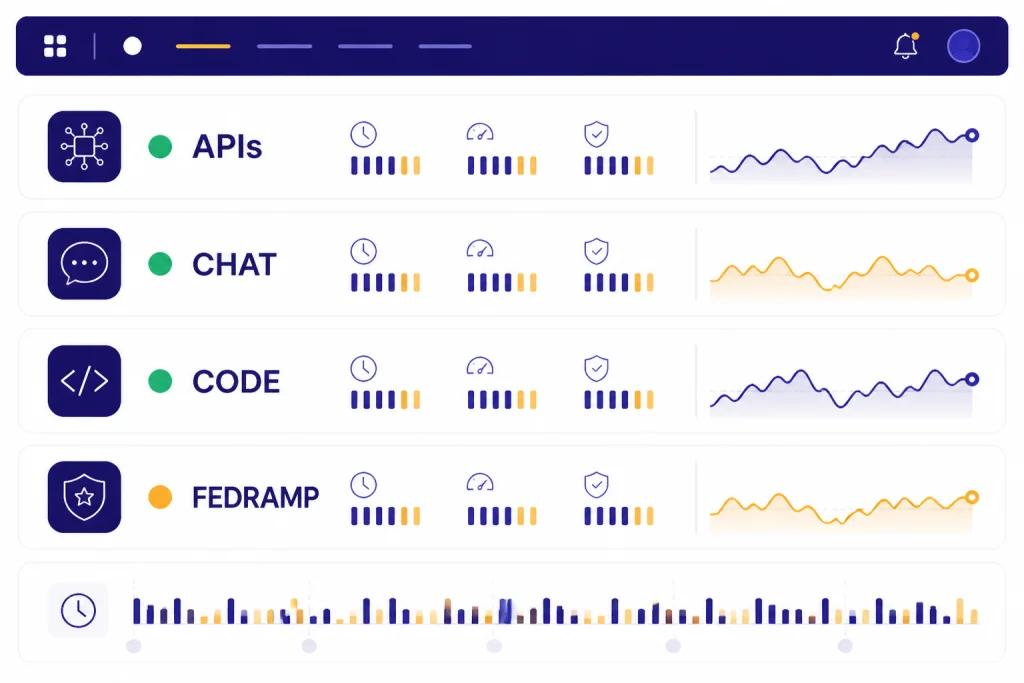
The OpenAI status page is the fastest public place to check whether ChatGPT, the API, Codex, or other OpenAI systems are having a wider outage. It shows current incidents, links to incident history, and a summary of service areas such as APIs, ChatGPT, Codex, and FedRAMP.[1] It also carries an important disclaimer: availability metrics are reported at an aggregate level across tiers, models, and error types, so your own experience can differ based on the plan and features you use.[1] That makes the page useful, but not complete. For readers who want a practical answer, this guide explains what the openai status page tells you, what it does not tell you, and what to check next when something breaks.
What the OpenAI status page shows
The public status page is built for fast triage. You open it and look for two things: whether OpenAI reports an active incident, and which product area is affected. OpenAI’s public page shows separate service groupings for APIs, ChatGPT, Codex, and FedRAMP, along with a history view for past incidents.[1][2] If you want the short version, the page answers one immediate question well: is this just me, or is OpenAI already tracking a broader problem.
The page also includes a “Subscribe to updates” option, and OpenAI’s Help Center says related notifications for status changes can be received by people who subscribe from that page.[1][6] That is useful if your team depends on OpenAI services during working hours and you do not want to keep refreshing the site manually.
The most important fine print is easy to miss. OpenAI says the availability metrics on the page are aggregated across all tiers, models, and error types, and that individual customer availability may vary depending on subscription tier and the specific model or API feature in use.[1] In plain English, a green status page does not guarantee that your exact workflow is healthy.
| Tool | Who it is for | What it tells you best | Access |
|---|---|---|---|
| OpenAI status page | Anyone | Live public incidents, affected product area, incident history, and broad service state.[1][2] | Public.[1] |
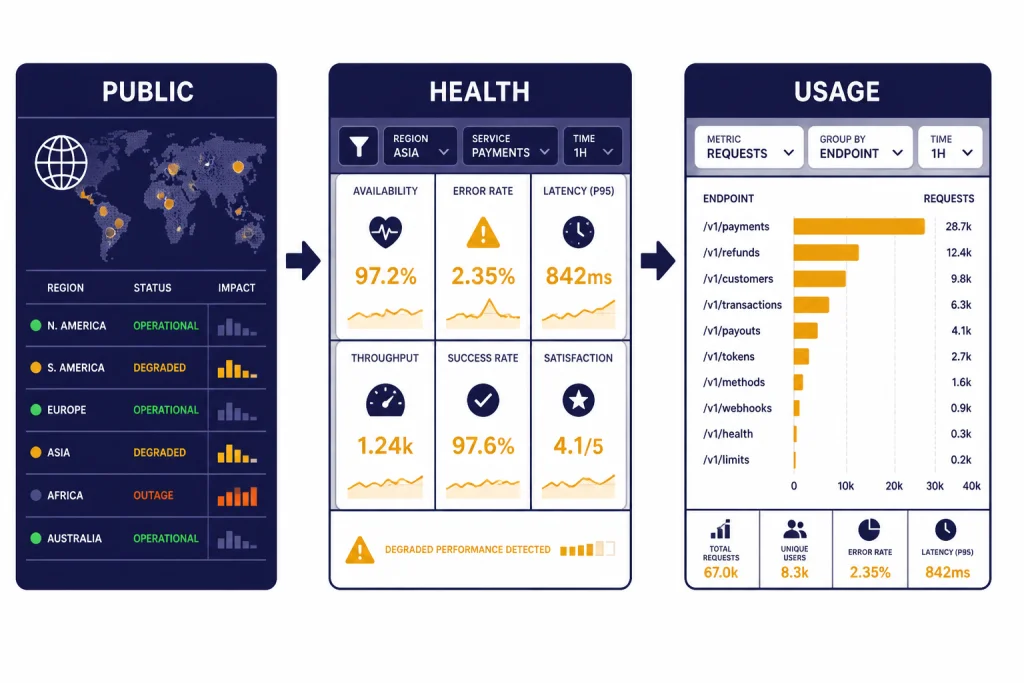
| Service Health dashboard | API teams that need deeper debugging | Model-, tier-, and project-level service analysis for troubleshooting API errors and latency.[7] | OpenAI says it is currently available only to Enterprise API customers.[7] |
| Usage dashboard | Org owners and permitted users | Cost, usage, and traffic patterns that help explain whether a spike is tied to your own requests or workload mix.[8] | OpenAI says only organization owners or users with Usage Dashboard permission can access it.[8] |
That distinction matters if you are comparing the public page with your own logs. A consumer checking ChatGPT may only need the openai status page breakdown in principle, but a developer running production traffic often needs the public page plus OpenAI API Errors, openai api pricing, and sometimes azure openai service vs openai api to understand where responsibility actually sits.
How to read an incident update
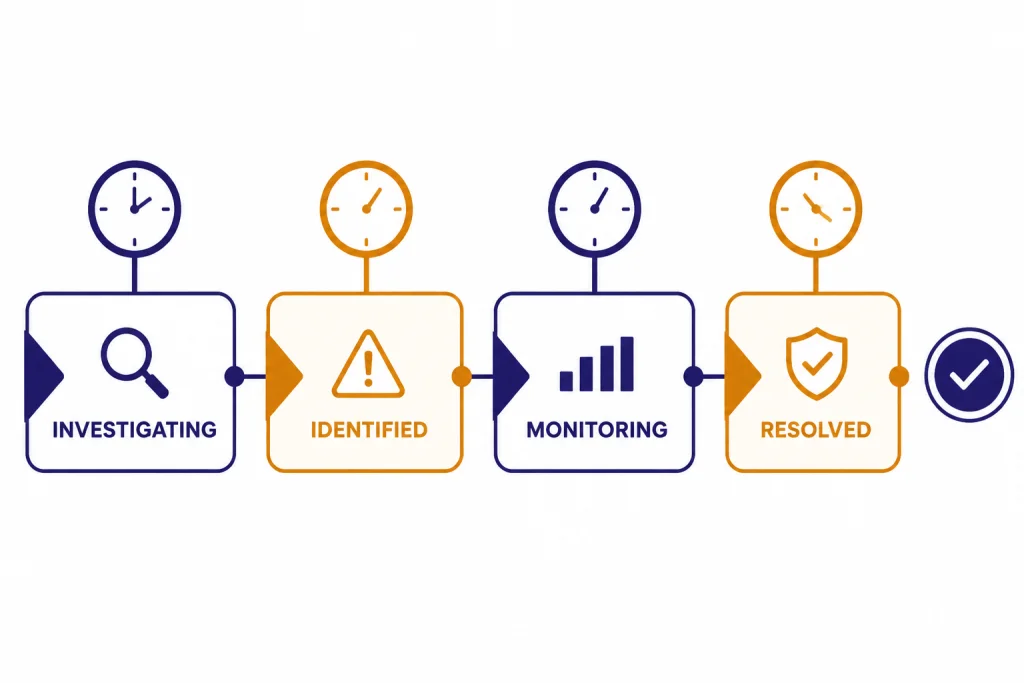
When OpenAI posts an incident, the useful signal is not just the headline. It is the sequence of updates. A typical incident page shows a progression such as Investigating, Identified, Monitoring, and Resolved.[3][4] That sequence tells you how confident OpenAI is about the cause and whether a fix is already in place.

A concrete example helps. On April 14, 2026, OpenAI posted an incident titled “Elevated 401 errors for API endpoints.” The incident page shows the issue moved from identification of intermittent 401s caused by timeouts, to mitigation, to monitoring, and then to resolution on April 14, 2026.[3] On April 6, 2026, OpenAI also logged a separate incident where the GET /v1/responses endpoint was down and unable to serve requests before later reporting full recovery.[4]
Those examples show why the incident timeline matters more than the badge color alone. “Investigating” means you should expect uncertainty. “Identified” usually means OpenAI has narrowed the fault domain. “Monitoring” means a change has been rolled out but OpenAI is still watching recovery. “Resolved” means the issue is considered closed, but your own retries, client caches, or stuck sessions may still need cleanup.[3][4]
If you follow OpenAI News, you already know product rollouts can change how traffic is distributed across models and tools. Incident pages give you the operational side of that story. They are the closest thing to a public maintenance log that OpenAI offers on an ongoing basis.[2]
What to do when ChatGPT seems down
If ChatGPT is slow, stuck on an endless spinner, or throwing a generic error, OpenAI’s own Help Center repeatedly points users to the status page before deeper troubleshooting.[5][9] That is the right first move because it prevents wasted effort. If the platform is having a real incident, clearing cookies or switching browsers will not fix the root cause.
- Check the public status page for a current ChatGPT incident.[1][5]
- If nothing is posted, refresh the chat or app session and try a new conversation.[5]
- Disable VPNs, proxies, or browser extensions that can interfere with loading or websockets.[5][9]
- Try an incognito window, a different browser, device, or network.[5][9]
- If the issue persists across devices and networks while the status page still looks normal, collect details and contact support.[5]
This sequence matters because many ChatGPT failures are local even when they feel global. OpenAI’s troubleshooting guidance lists browser cache, extensions, VPNs, secure DNS tools, and network configuration as common causes for errors like “Something went wrong,” websocket failures, or a chat that never finishes loading.[5][9]
For everyday users, the clean rule is simple. If the status page reports an active ChatGPT issue, wait. If it does not, test another network and browser before assuming OpenAI is down. That saves time and avoids false alarms in team chats.
If you use paid ChatGPT plans, it also helps to separate service health from account or billing questions. A plan issue is not always a platform outage. Readers comparing plan value can look at chatgpt plus price in 2026, while those tracing account access problems may want OpenAI History for broader company context and product change timelines.

What API developers should check next
For API users, the public status page is only step one. OpenAI’s API troubleshooting guidance says meaningful investigation requires filtering by model, service tier, and project in the Service Health dashboard.[7] OpenAI also says the Service Health dashboard is currently limited to Enterprise API customers.[7]
That is an important distinction for smaller teams. If you do not have Enterprise API access, you may only have the public status page plus your own logs. In that case, compare timestamps from your failures against the public incident history, then check whether the failing requests share a model, endpoint, region, or deployment path.[2][3][4]
OpenAI’s guidance also says the Usage dashboard helps explain whether latency changed because your own traffic, tokens, or usage patterns changed.[7][8] That is why a normal-looking status page can still line up with a bad day in your application. Your prompt size may have grown. Your project mix may have shifted. Your timeout setting may be too aggressive. Or your upstream network may be dropping requests before they reach OpenAI at all.[7]
In practice, an API team should work through four layers in order:
- Public incident check on the OpenAI status page.[1][2]
- Your request logs, keyed by endpoint, model, and error class.
- Service Health filters for model, tier, and project, if your organization has access.[7]
- Usage trends to see whether traffic shape changed around the same time.[8]
That approach is more reliable than staring at one dashboard in isolation. It also pairs well with our guides to openai playground, openai agents sdk, and openai agent builder if your failures are tied to a specific workflow rather than the base API itself.
Limits of the status page
The public status page is useful, but it is not a complete observability tool. OpenAI explicitly says the reported availability is aggregated and that individual customer availability can vary by subscription tier and specific feature use.[1] That means three common gaps show up in real life.

- Feature-specific failures may not look dramatic on the public page. A narrow problem with one model, one endpoint, or one region can still hurt your workflow before it becomes a broad public incident.[3][4]
- Your own network can mimic an OpenAI outage. OpenAI’s network troubleshooting guidance says VPNs, proxies, filtering tools, and blocked domains can break ChatGPT access even when the platform itself is healthy.[9]
- Public health is not the same as customer health. Enterprise API customers may need the deeper Service Health view to troubleshoot what the public page smooths over.[7]
So the right way to use the openai status page is as a front door, not a final answer. It is excellent for confirming widespread incidents, checking whether OpenAI has acknowledged a problem, and reviewing recent history.[1][2] It is weaker at answering whether your exact organization, model mix, or corporate network is the cause.
That balance is normal. Public status pages are meant to communicate, not to replace internal telemetry. If you keep that in mind, the page becomes much more useful.
For broader company context, you can also read openai’s cto and leadership team, openai and microsoft, and who owns openai? ownership structure explained. Those pieces will not help you fix an outage, but they do explain how OpenAI’s products, infrastructure relationships, and governance fit together.
Frequently asked questions
Is the OpenAI status page public?
Yes. The main status page and the incident history page are publicly accessible.[1][2] You do not need an API key or ChatGPT subscription just to see whether OpenAI has posted an outage.
Does a green status page mean OpenAI is definitely not the problem?
No. OpenAI says its availability metrics are aggregated across tiers, models, and error types, and that individual customer availability may vary.[1] A local network problem, a model-specific issue, or a narrow endpoint failure can still affect you.
What should I do first if ChatGPT is failing?
Check the status page first, then try a refresh, another browser, and another network if no public incident is listed.[5][9] OpenAI’s own help articles recommend that order because many apparent outages are actually local browser or network issues.[5]
What if the API is failing but the status page looks normal?
Compare your request logs with the incident history, then use Service Health and Usage dashboards if your organization has access.[2][7][8] OpenAI says Service Health is currently only available to Enterprise API customers.[7]
Can I subscribe to OpenAI outage updates?
Yes. The public page includes a subscribe option, and OpenAI’s Help Center says people can receive related notifications for status changes by subscribing from the page.[1][6]
Where can I see older OpenAI incidents?
Use the history view linked from the main status page.[1][2] It lists past incidents by date and lets you open individual incident pages for the timeline and affected components.