

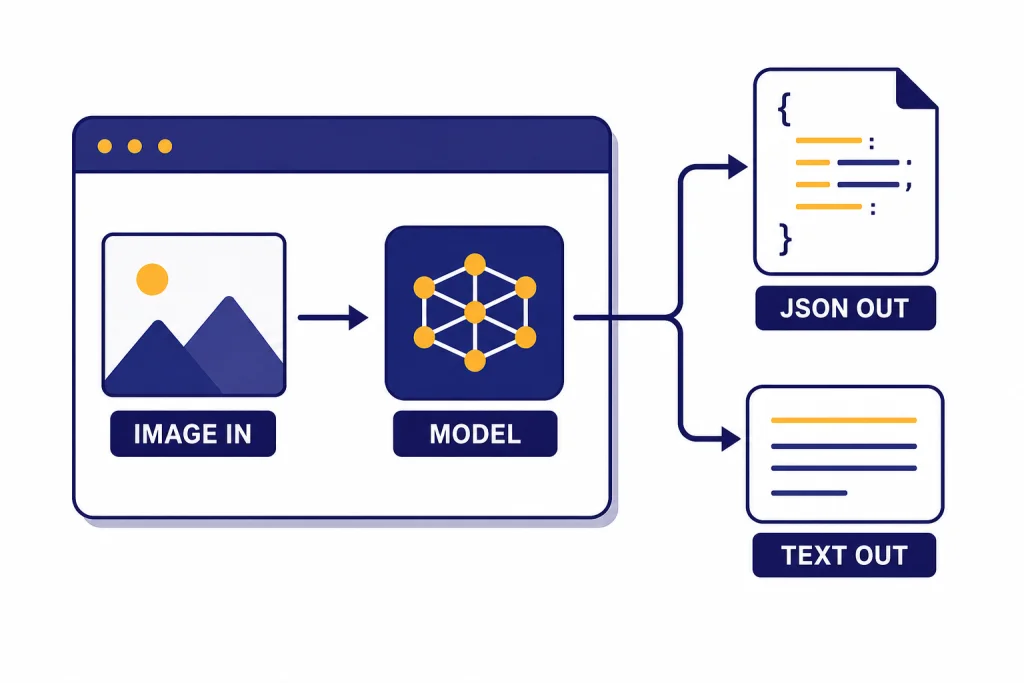
The OpenAI vision API lets developers send images to multimodal models for description, OCR-style extraction, classification, inspection, comparison, and visual reasoning. In current OpenAI documentation, vision is not a separate standalone endpoint. It is image input handled through the Responses API, with the older Chat Completions path still documented for compatibility.[1][2] The practical decision is simple: use the Responses API for new vision work, choose a vision-capable model, pass each image as an `input_image`, and control cost with image size and `detail` settings. This guide shows the request shape, supported formats, pricing logic, output controls, and production safeguards you need before shipping image understanding in an application.
What the vision API is
The phrase vision API usually means OpenAI image understanding: sending one or more images to a model and asking for a text or JSON answer. OpenAI’s image and vision guide describes vision as the ability for a model to see and understand images, including visible text, objects, shapes, colors, and textures.[1]
For new applications, the center of gravity is the OpenAI Responses API. The Responses API reference says it supports text and image inputs and can generate text or JSON outputs, while also supporting tools such as file search, web search, computer use, and function calling.[2] That makes it the better default for workflows that begin with an image but end with a database update, a moderation decision, a support ticket, or a structured extraction result.
Do not confuse image understanding with image generation. Vision reads images. Image generation creates or edits images. OpenAI’s own guide separates these use cases: the Responses API can analyze image inputs and generate outputs, while the Images API is focused on generated image output.[1] If your app needs to create images, start with our DALL-E API guide. If your app needs to inspect invoices, screenshots, forms, charts, product photos, damaged packages, or UI states, this vision API guide is the right path.
How image input works in the Responses API
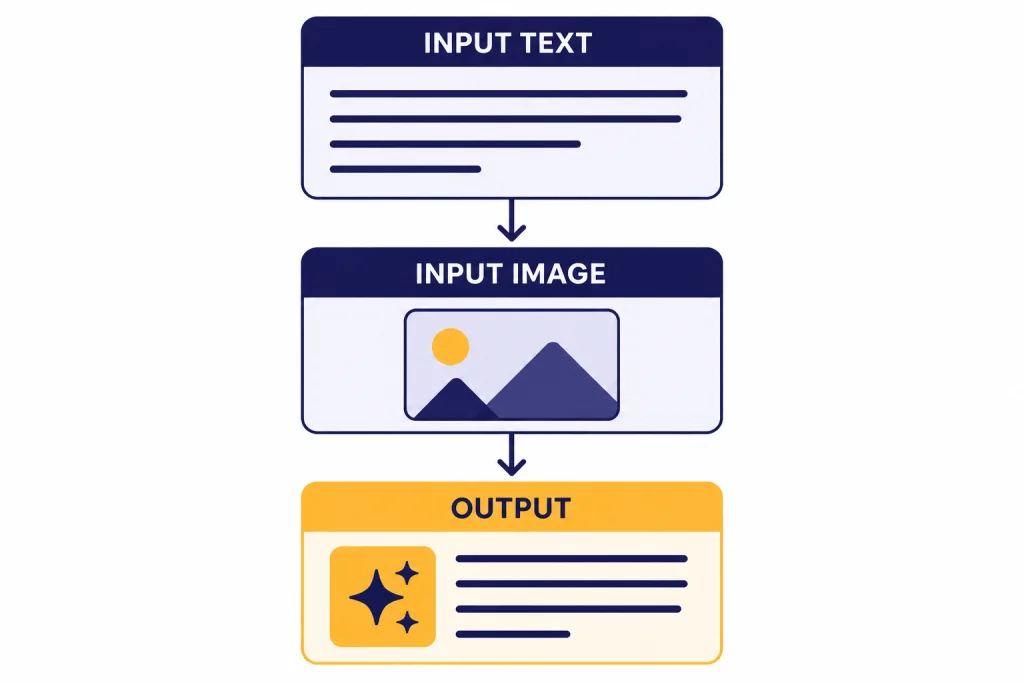
A vision request is a normal Responses API request with mixed content. The user message contains an `input_text` item and one or more `input_image` items. OpenAI documents three ways to provide image input: a fully qualified image URL, a Base64-encoded data URL, or a file ID created with the Files API.[1]
Use hosted URLs when the image already lives in object storage and the URL can be fetched securely. Use file IDs when you want OpenAI to reference an uploaded file. Use Base64 only when the image is small enough and you do not want to manage temporary hosting. Base64 payloads are convenient, but they enlarge request bodies and can make logs harder to inspect.

import OpenAI from 'openai';

const client = new OpenAI();

const response = await client.responses.create({
  model: 'gpt-4.1-mini',
  input: [
    {
      role: 'user',
      content: [
        {
          type: 'input_text',
          text: 'Extract the invoice number, date, vendor name, and total. Return concise JSON.'
        },
        {
          type: 'input_image',
          image_url: 'https://example.com/invoices/invoice-1042.jpg',
          detail: 'high'
        }
      ]
    }
  ]
});

console.log(response.output_text);
The model name in that example is `gpt-4.1-mini`, which OpenAI lists as a supported model family member with image input in its model comparison documentation.[4] You can swap it for another vision-capable model when you need a different quality, latency, or cost profile.
Formats, limits, and detail settings
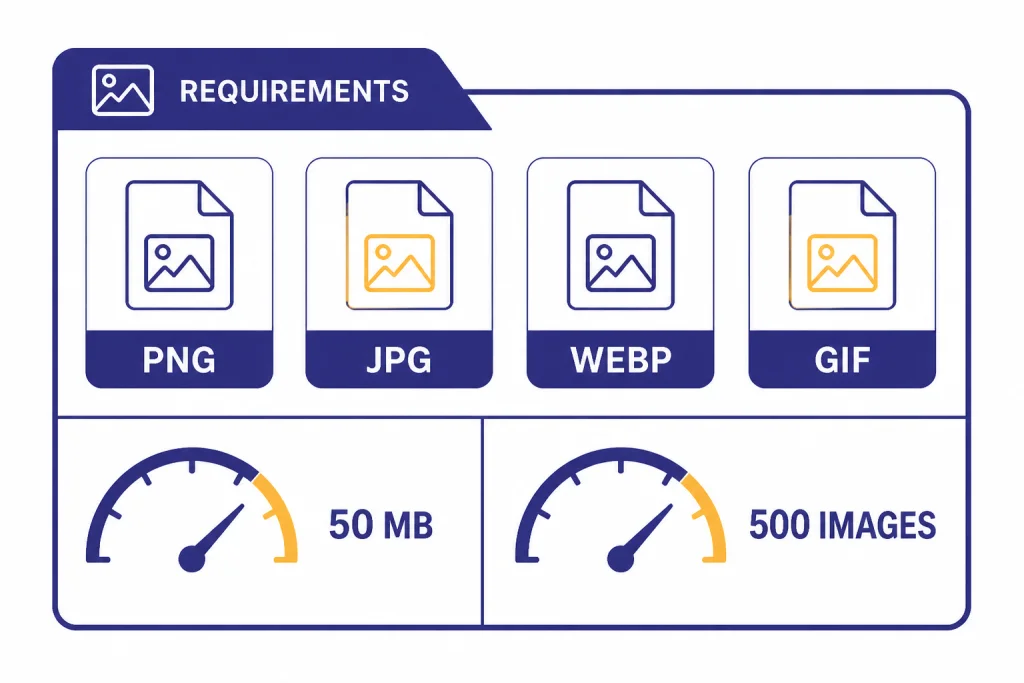
OpenAI’s image input requirements list PNG, JPEG, WEBP, and non-animated GIF as supported file types.[1] The same requirements list a total payload limit of up to 50 MB per request and up to 500 individual image inputs per request.[1] The images should not include watermarks or logos, should not contain NSFW content, and should be clear enough for a human to understand.[1]
The `detail` parameter is the main quality and cost control. OpenAI documents three options: `low`, `high`, and `auto`; if you omit the parameter, the default is `auto`.[2] Low detail is useful for broad classification, color checks, dominant-object detection, and routing. High detail is better for small text, fine-grained product inspection, screenshots, tables, forms, and visual differences.
For `detail: “low”`, OpenAI says the model receives a low-resolution 512 px by 512 px version of the image and processes it with a fixed token budget for many models.[1] That can be much cheaper and faster, but it can miss small text or subtle visual defects. For `detail: “high”`, the model gets a more detailed representation and the number of image tokens depends on image dimensions and tiling rules.[1]
| Setting | Best use | Tradeoff |
|---|---|---|
low | Fast classification, broad scene description, dominant colors, obvious objects | May miss small text and fine visual details |
high | Receipts, forms, screenshots, diagrams, product inspection, detail-sensitive OCR-style tasks | Uses more image tokens and can cost more |
auto | General apps where you want the model to choose the detail level | Less predictable for cost forecasting |
Which model to use for vision
Start with the cheapest model that passes your evaluation set. OpenAI’s model comparison page lists image input as a supported feature for several current model families, including `gpt-5`, `gpt-4.1`, and smaller variants such as `gpt-4.1-mini`.[4] The right choice depends less on the word “vision” and more on the downstream task.
Use a smaller model for routing, tagging, duplicate detection, simple extraction, and first-pass triage. Move to a stronger model when the image includes dense tables, ambiguous screenshots, multi-step reasoning, visual instructions, or high-value decisions. If your workflow combines image understanding with long context, compare model context windows separately in our context window comparison.
| Use case | Good starting point | Why |
|---|---|---|
| Classify product photos | gpt-4.1-mini | Often enough for labels, categories, and visible attributes |
| Extract fields from receipts | gpt-4.1-mini or stronger | Depends on print quality, layout, and how strict the schema is |
| Inspect screenshots | gpt-4.1 | UI text, small controls, and layout relationships can need more precision |
| Reason across several images | gpt-5 or a strong reasoning-capable model | Use when the task needs comparison, inference, or multi-step judgment |
Model availability and pricing change over time, so treat this table as a selection pattern, not a permanent ranking. For a broader model-by-model comparison, use our GPT models comparison alongside OpenAI’s model page.
Vision API pricing and token costs
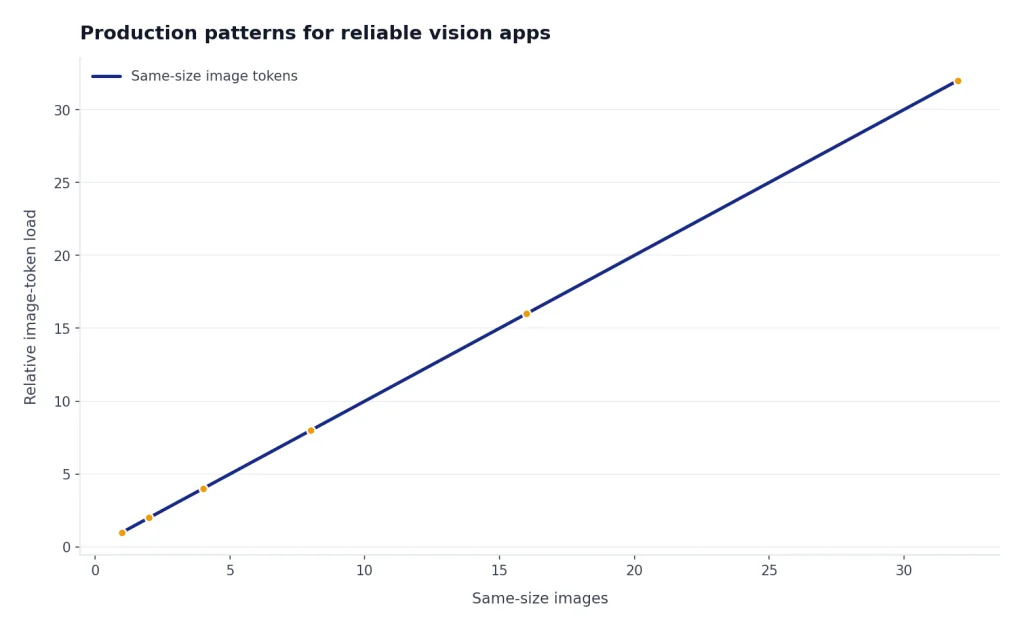
Vision inputs are metered as tokens. OpenAI states that image inputs are charged in tokens just like text inputs, and that the conversion from image to token usage varies by model.[1] This means your bill depends on the model, the number of images, image dimensions, the detail setting, and the length of the model’s answer.
For many `gpt-4o`, `gpt-4.1`, and similar models, OpenAI documents a high-detail tiling method: the image is scaled, divided into 512 px squares, and charged using a base-token amount plus tile-token amounts.[1] For `gpt-4o`, OpenAI’s example says a 1024 px by 1024 px image in high detail costs 765 image tokens, and at the listed standard input rate of $2.50 per 1 million tokens the image portion is about $0.0019.[1][3]
For `gpt-4.1-mini`, `gpt-4.1-nano`, `gpt-5-mini`, `gpt-5-nano`, and `o4-mini`, OpenAI documents a patch-based method using 32 px by 32 px patches, capped at 1,536 patches before applying a model multiplier.[1] That is why the same image can have a different token count across model families.
| Model | Input price | Output price | Notes |
|---|---|---|---|
gpt-5 | $1.25 per 1M tokens | $10.00 per 1M tokens | Listed on OpenAI pricing and corroborated on OpenAI’s GPT-5 developer announcement.[3][12] |
gpt-4.1 | $2.00 per 1M tokens | $8.00 per 1M tokens | Listed on OpenAI pricing.[3] |
gpt-4.1-mini | $0.40 per 1M tokens | $1.60 per 1M tokens | Listed on OpenAI pricing and corroborated on OpenAI’s GPT-4.1 launch post.[3][11] |
gpt-4.1-nano | $0.10 per 1M tokens | $0.40 per 1M tokens | Listed on OpenAI pricing.[3] |
gpt-4o | $2.50 per 1M tokens | $10.00 per 1M tokens | Listed on OpenAI pricing and on OpenAI’s GPT-4o model page.[3][13] |
gpt-4o-mini | $0.15 per 1M tokens | $0.60 per 1M tokens | Listed on OpenAI pricing.[3] |
For budgeting, calculate image cost and text cost separately. Count image tokens from the vision rules, add prompt text tokens, then add expected output tokens. If you need a quick estimate, use our OpenAI API cost calculator and compare against the full OpenAI API pricing table before deploying.

Structured outputs and tools for image understanding
Most production vision apps should not ask for loose prose. Use structured output when the result must feed another system. OpenAI’s Structured Outputs guide says the feature ensures model responses adhere to a JSON Schema you supply, with benefits such as type safety and programmatically detectable refusals.[8] That is useful for invoice fields, warranty claims, inspection checklists, and moderation labels.
const response = await client.responses.create({
  model: 'gpt-4.1-mini',
  input: [
    {
      role: 'user',
      content: [
        { type: 'input_text', text: 'Read this package label.' },
        { type: 'input_image', image_url: 'https://example.com/label.jpg', detail: 'high' }
      ]
    }
  ],
  text: {
    format: {
      type: 'json_schema',
      name: 'package_label',
      schema: {
        type: 'object',
        additionalProperties: false,
        properties: {
          sku: { type: 'string' },
          lot_code: { type: 'string' },
          expiration_date: { type: 'string' },
          confidence: { type: 'number' }
        },
        required: ['sku', 'lot_code', 'expiration_date', 'confidence']
      }
    }
  }
});
Use structured outputs with the OpenAI API when the model’s job is to return data. Use function calling in the OpenAI API when the model should choose an action after seeing an image. OpenAI’s function calling guide describes a multi-step flow where the model receives available tools, emits a tool call, your application executes it, and the model receives the tool result before producing a final response.[9]
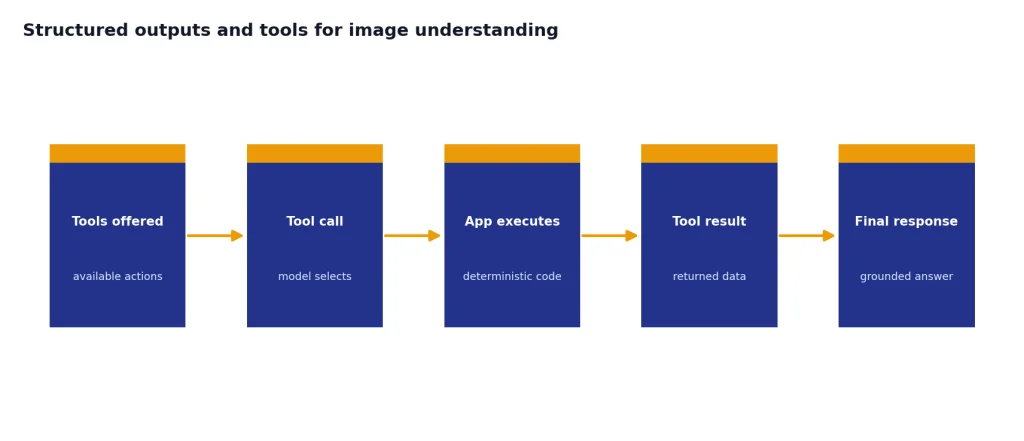
Example: a returns-processing app can inspect a product photo, classify the defect, and then call `create_return_authorization` only when the image meets policy. A support app can read a screenshot, identify the likely error state, and call `open_ticket` with a structured payload. Keep the vision model responsible for interpretation. Keep irreversible actions behind deterministic application code.
Production patterns for reliable vision apps
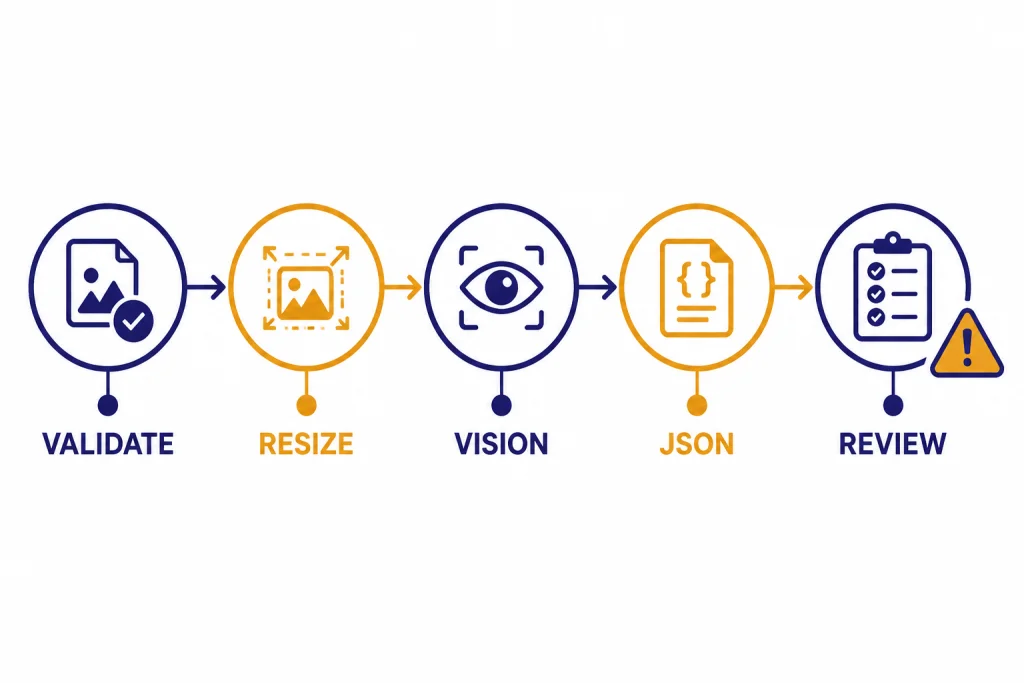
Production vision work is mostly pipeline design. Start by validating the file type and size before calling the API. Resize or compress images when the task does not need full detail. Choose `detail: “low”` for first-pass classification, then escalate to `detail: “high”` only when the result is uncertain or the task needs small text.
- Normalize images before sending. Rotate upright, crop irrelevant borders, and improve contrast when you control the capture process.
- Separate detection from decisioning. Ask the model to extract visible evidence, then let your system apply business rules.
- Store the prompt and model version used for each decision. This improves debugging when behavior changes.
- Use confidence fields carefully. Treat them as model-reported signals, not calibrated probabilities.
- Retry transient failures. Follow the same backoff and error-handling approach you use for other OpenAI API calls.
Rate limits matter more for vision than many teams expect because images count toward token limits. OpenAI states that rate limits are measured across requests per minute, requests per day, tokens per minute, tokens per day, and images per minute, and that limits vary by model and organization.[6] If your app runs large offline image jobs, use the OpenAI Batch API. OpenAI says Batch offers a 50% discount compared with synchronous APIs, a separate pool of higher rate limits, and a 24-hour completion target.[7]
For user-facing apps, combine vision with streaming responses from the OpenAI API when the generated answer is long. For internal back-office jobs, batch the work and design for delayed completion. For high-volume systems, read our OpenAI API best practices for production and keep a separate runbook for OpenAI API errors.
Common limitations and safety checks
Vision models are useful, but they are not deterministic computer vision systems. OpenAI’s documented limitations include specialized medical images, non-Latin text, small text, rotation, visual elements that vary by color or line style, precise spatial reasoning, and occasional incorrect descriptions or captions.[1] OpenAI also notes that counting objects may be approximate.[1]
Design your app around those limitations. Do not use the vision API as the only authority for medical diagnosis, safety-critical inspection, legal identity verification, or high-stakes financial decisions. If the output affects a person’s access to money, housing, employment, healthcare, or essential services, add human review and a clear appeal path.
For OCR-style tasks, ask for fields with evidence. For counting, ask the model to return “uncertain” when objects overlap or are partially occluded. For charts, ask it to extract the visible title, axis labels, and trend, but do not assume exact numeric readings unless the numbers are printed clearly. For screenshots, include the task context because the same UI element can mean different things in different workflows.
API access is also separate from ChatGPT subscriptions. OpenAI’s billing help page says ChatGPT and the API platform operate as separate platforms with separate billing systems.[10] If you are deciding whether to use ChatGPT Plus or the API, read Does ChatGPT Plus include API access? before budgeting.
Frequently asked questions
Is there a separate OpenAI Vision API endpoint?
Not as a separate modern product surface for new work. OpenAI documents image understanding through image inputs in the Responses API, while also documenting Chat Completions examples for compatibility.[1][2] Use the Responses API unless you have an existing Chat Completions integration you are maintaining.
Can the vision API read text from images?
Yes. OpenAI says vision-capable models can understand text in images.[1] For small text, screenshots, tables, and receipts, use clear images and consider `detail: “high”` so the model receives enough visual detail.
How many images can I send in one request?
OpenAI’s image input requirements list up to 500 individual image inputs per request and up to 50 MB total payload size per request.[1] Even when a request is allowed, many-image prompts can become expensive and harder to reason about. For large jobs, split the task or use batch processing.
What is the cheapest way to use the vision API?
Use the smallest model that passes your evaluation set, compress unnecessary image resolution, and use `detail: “low”` for broad classification. For offline workloads, OpenAI says the Batch API provides a 50% cost discount compared with synchronous APIs.[7] Always test against your own images because cost and accuracy depend on the workload.
Can I get JSON back from an image request?
Yes. Use Structured Outputs when you need the model’s answer to follow a JSON Schema. OpenAI documents Structured Outputs as a way to make responses adhere to a schema you define.[8] This is usually better than asking for “valid JSON” in plain text.
Does ChatGPT Plus include vision API access?
No. OpenAI says ChatGPT and API billing are managed separately.[10] A ChatGPT subscription can include image features inside ChatGPT, but API usage requires an API account, billing setup, and API key.