

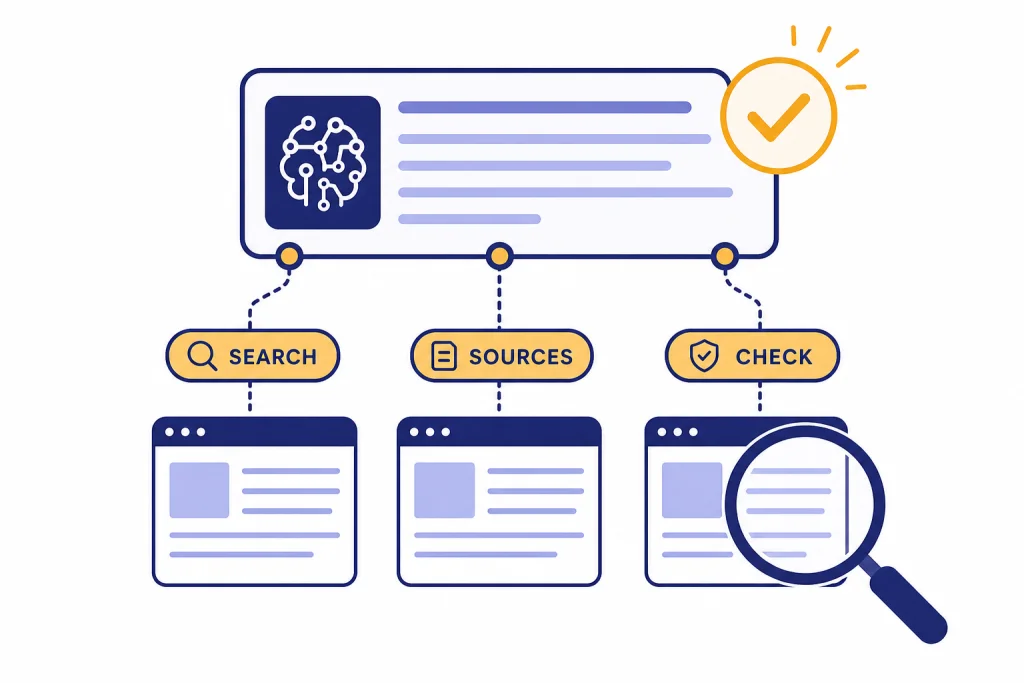
ChatGPT web browsing is now best understood as ChatGPT Search: a built-in way for ChatGPT to search the internet, read current sources, and answer with citations. Use it when the answer may depend on recent facts, live data, local context, or source-backed research. It is not the same as a traditional browser, and it is not a guarantee that every answer is correct. The strength is synthesis. ChatGPT can turn several web results into a direct answer, then let you inspect the cited pages. The weakness is control. You still need to check sources, ask for dates, and verify high-stakes claims before acting.
What ChatGPT web browsing means now
People still call it “ChatGPT web browsing,” but OpenAI’s current user-facing name is ChatGPT Search. It lets ChatGPT search the web for timely information, then include links to relevant web sources in the answer. OpenAI says ChatGPT Search is available to ChatGPT Free, Plus, Team, Edu, and Enterprise users, and that logged-out Free users also have access.[1]
The feature launched as ChatGPT Search on October 31, 2024, after OpenAI’s earlier SearchGPT prototype. OpenAI later said it became available to everyone in regions where ChatGPT is available on February 5, 2025, with no signup required.[2]
The important distinction is simple. ChatGPT Search is not a blank browser tab. It does not show a long list of blue links and leave all synthesis to you. It searches, reads snippets or pages that are available to it, writes a consolidated answer, and attaches citations. If you want the fuller search-product walkthrough, see our separate ChatGPT Search guide.
OpenAI also has a newer browser product, ChatGPT Atlas. Atlas is a browser with ChatGPT built in, while ChatGPT Search is a search feature inside ChatGPT. OpenAI introduced Atlas on October 21, 2025, and described it as a browser that lets ChatGPT help in the window where you are browsing.[6] If you are comparing browser-level AI features, start with our ChatGPT Atlas for Windows overview after reading this guide.
When to use web browsing
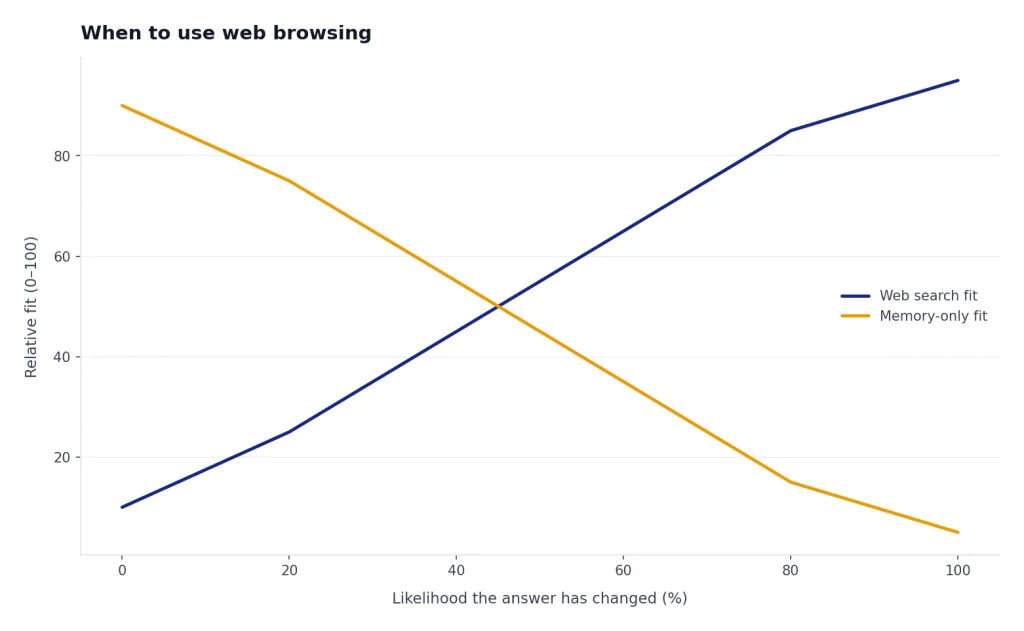
Use ChatGPT web browsing when the answer may have changed, when you need citations, or when you want ChatGPT to compare several sources. That includes news, product availability, laws, software documentation, sports, public-company information, travel details, academic papers, and local recommendations. OpenAI describes ChatGPT Search as useful for timely categories such as sports scores, news, stock quotes, weather, maps, and similar current information.[2]
Do not use web browsing as a substitute for professional advice. It can help you gather sources about a medical, legal, tax, or financial topic, but it should not be the only basis for a decision. Ask it to cite primary sources when possible. Then read those sources yourself.
For ordinary evergreen questions, browsing may be unnecessary. If you ask “What is a large language model?” or “How do I outline a blog post?”, a standard ChatGPT answer may be enough. For a beginner foundation, our What is ChatGPT? explainer covers the broader product without focusing on web search.
Browsing also helps when you need a fresh second opinion on ChatGPT’s own answer. If a response sounds plausible but unsourced, ask: “Search the web and verify this with current sources.” ChatGPT can regenerate with search and add citations when the search tool is used.[1]
How to search the web in ChatGPT
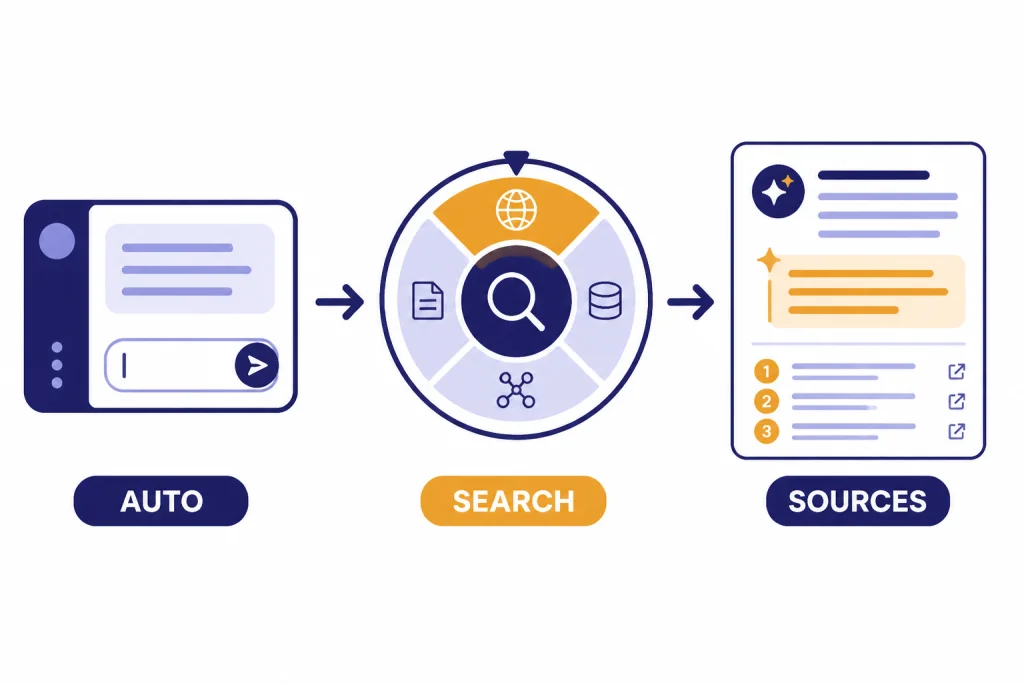
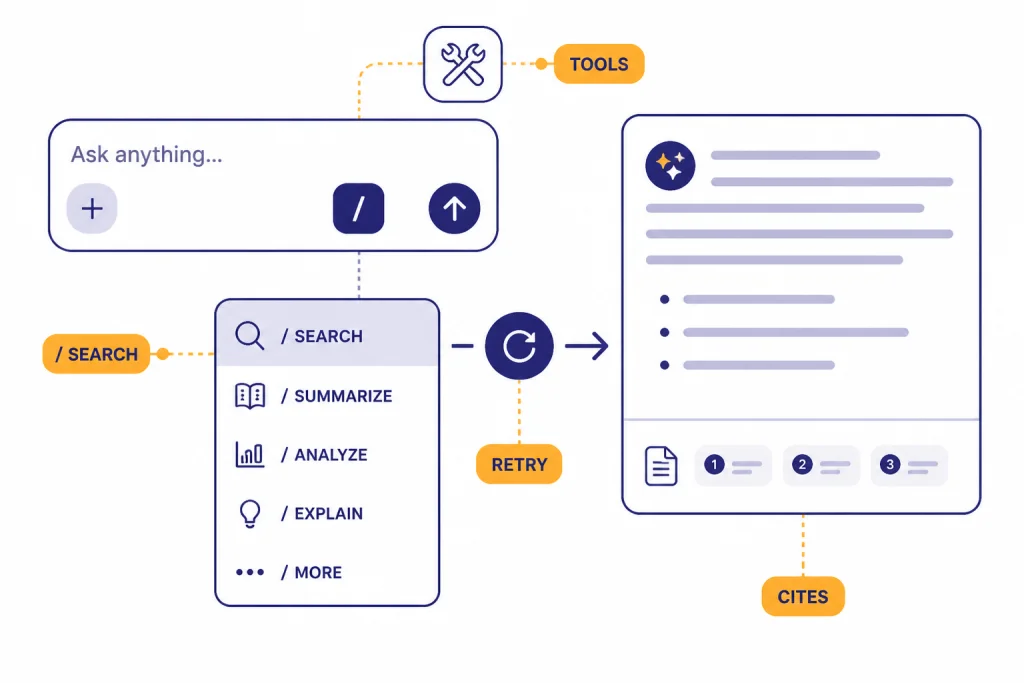
ChatGPT may search automatically when your question would benefit from web information. You can also choose Search manually from the tools menu, use the slash shortcut, or regenerate an answer with web search. OpenAI’s Help Center says users can select “View all tools,” choose the Search icon, and enter a query; it also says typing “/” can open the shortcut menu where Search can be selected.[1]
Use the Search tool when you need sources
The most reliable habit is to ask for browsing explicitly. Write “Search the web” or “Use current sources” in your prompt. This removes ambiguity. It also signals that you expect citations, not a memory-only answer.
Example prompt: “Search the web for the current rules on carry-on battery packs for U.S. flights. Prioritize official airline, TSA, or FAA sources. Summarize the answer and cite each source.”
Inspect citations before you trust the answer
OpenAI says ChatGPT responses that use search contain inline citations. On desktop web, you can hover over a citation to learn more and click it to open the source. When available, the Sources button under the answer opens a panel with cited sources and other relevant links.[1]
Use those citations. Check whether the cited page actually supports the claim. Look for publication dates, update dates, author credentials, and whether the source is primary or secondary. If ChatGPT gives a confident answer but the cited page is weak, ask it to search again and use better sources.
Search is available through ChatGPT on the web and in the desktop and mobile apps, according to OpenAI.[1] For app-specific setup, see our guides to the best ChatGPT app, the ChatGPT Windows app, and the ChatGPT mobile widget.
How ChatGPT turns search results into answers
ChatGPT web browsing has two jobs. First, it has to find relevant web material. Second, it has to synthesize that material into an answer. The second job is where it differs most from a normal search engine.
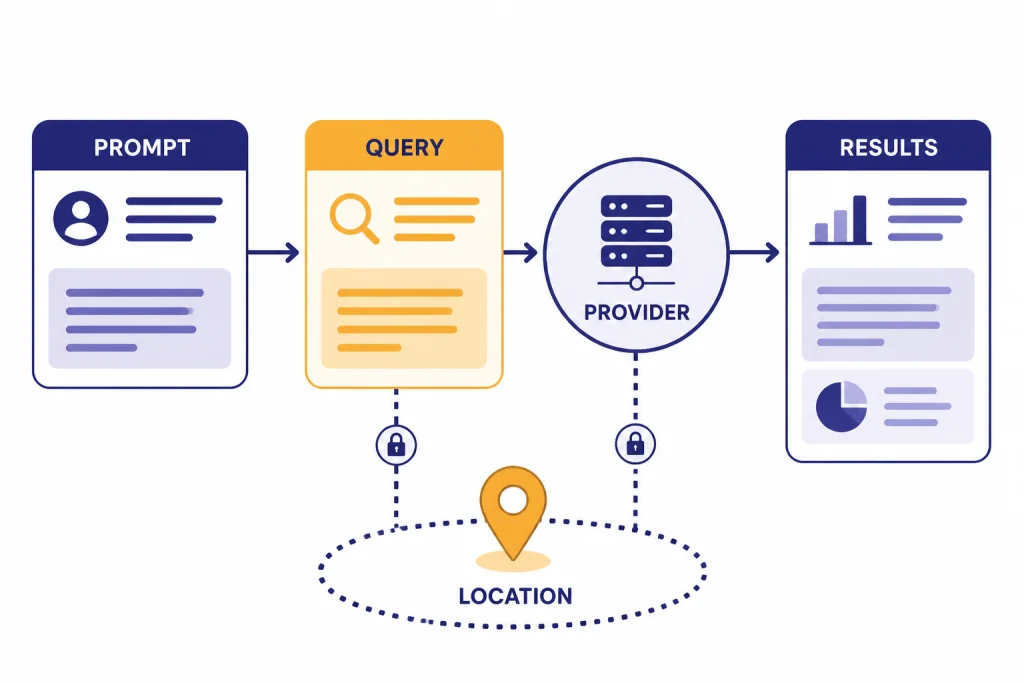
OpenAI says ChatGPT Search may work with third-party search providers. When it does, ChatGPT typically rewrites your prompt into one or more targeted search queries, sends those queries to providers, reviews results, and may send more specific follow-up queries.[1] That means your exact prompt is not always the exact search query sent outward.
This rewrite step is useful when your prompt is conversational. If you ask “What changed with the new IRS mileage rate?”, ChatGPT may translate that into a narrower query about the current tax year, the IRS standard mileage rate, and the official IRS page. That can improve retrieval, but it can also introduce errors if the rewritten query misses your intent.
For better results, add constraints. Say which country, date range, industry, or source type matters. Ask for primary sources first. Ask ChatGPT to separate facts from interpretation. You can also ask it to show its search strategy in plain language, without asking for hidden reasoning.
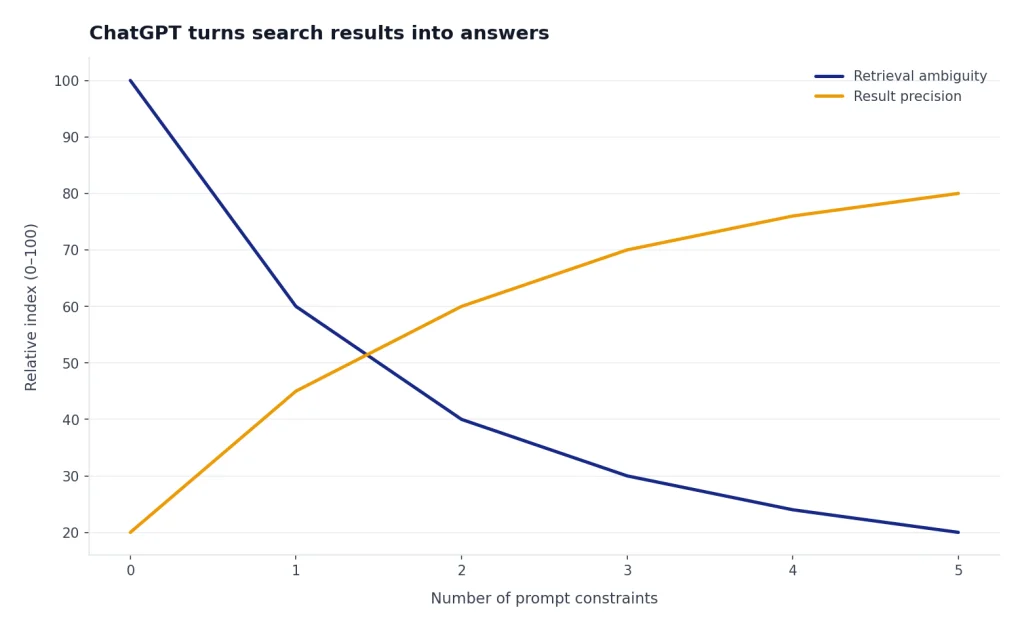
Search works well with other ChatGPT features. If you are researching a topic and then want to analyze your own documents, use search for public context and ChatGPT file upload for your private files. If the task starts with a photo or screenshot, pair search with ChatGPT Vision or our ChatGPT image search guide.
Privacy, location, and data controls
Search changes what information may leave ChatGPT. OpenAI says ChatGPT Search can rewrite your prompt into targeted queries and send those queries to search providers when it uses them.[1] Do not put private personal data, confidential business information, unreleased code names, or sensitive client facts into a web search prompt unless your organization has approved that use.
Location matters too. OpenAI says precise location is optional for ChatGPT Search. It also says ChatGPT may use your IP address to estimate a general location, such as country, state, or city, to improve local results. OpenAI says the IP address itself is not shared with third-party search providers for those purposes.[1]
Memory can also affect search. OpenAI says ChatGPT can use memories to inform search queries when ChatGPT searches the web using third-party search providers.[4] If you use ChatGPT Memory, this can make local or personalized searches more useful. It can also surprise you if a saved preference changes the results. Review memory settings if search answers feel overly tailored.
For lower-context searches, use a fresh chat and avoid unnecessary personal details. For sensitive work, ask ChatGPT to draft search terms you can run yourself in a browser. You can then paste public results back into ChatGPT if your data policy allows it.
ChatGPT web browsing vs. other tools
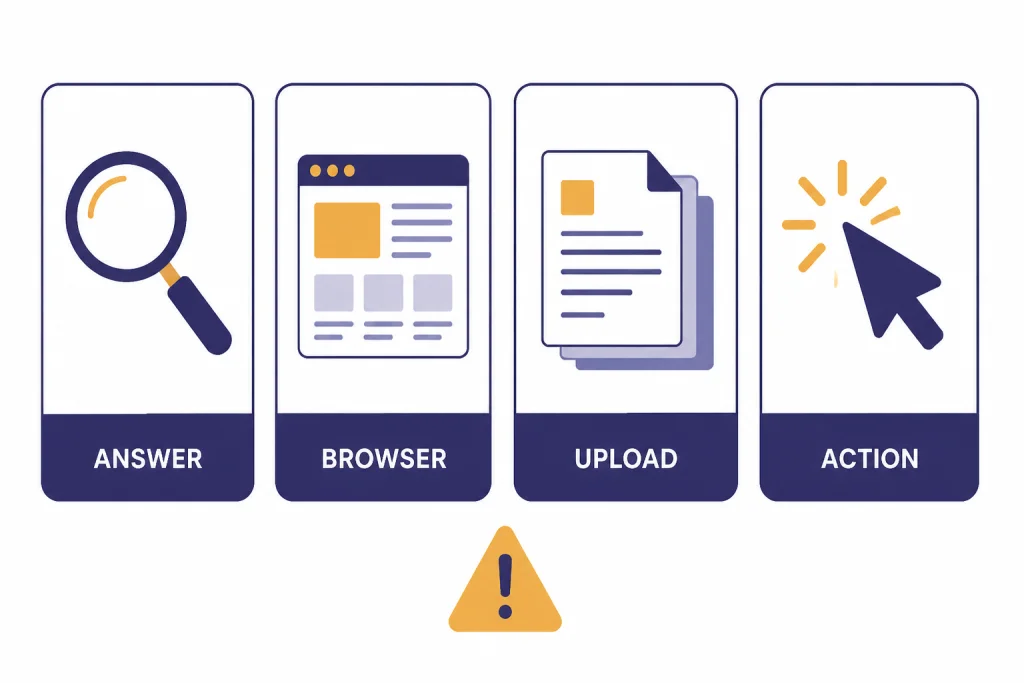
ChatGPT web browsing is one tool among several. The right choice depends on whether you need a sourced answer, a normal web page, a private document analysis, or an action carried out on a website.
| Tool | Best for | What you get | Main caution |
|---|---|---|---|
| ChatGPT Search | Current facts and cited summaries | A synthesized answer with source links | Sources still need checking |
| Traditional search engine | Manual research and broad link discovery | A ranked list of pages | You do the synthesis yourself |
| ChatGPT Atlas | Using ChatGPT while browsing pages | Browser-level help in a web workflow | Different privacy and browser settings apply |
| File upload | Your own PDFs, spreadsheets, and documents | Analysis of files you provide | It does not replace current web lookup |
| Operator-style agents | Multi-step website tasks | Assistance with actions, not just answers | Requires more supervision |
OpenAI says Atlas is a browser built with ChatGPT at its core and that agent mode in Atlas can help with tasks while you browse.[6] That is different from simply asking ChatGPT Search a question. For task automation, compare it with our ChatGPT Operator guide. For scheduled follow-ups after a search, see ChatGPT Tasks.
The older term “browsing” can also create confusion because ChatGPT once had plugin-era browsing. OpenAI’s 2023 plugins post now carries a note that plugins have been deprecated, and it described the old browsing plugin as operating through an isolated service with a ChatGPT-User user-agent that honored robots.txt.[5] Current ChatGPT Search is the relevant feature for most users.
Limits and failure modes
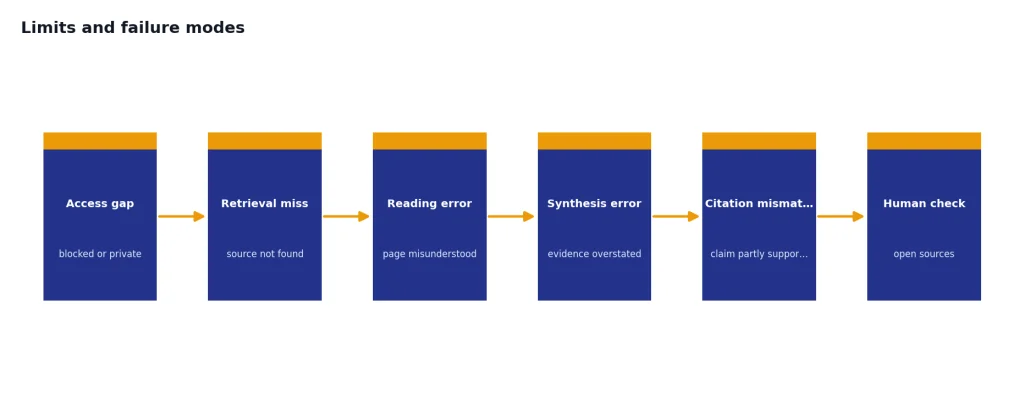
ChatGPT web browsing is useful, but it is not magic. It can miss sources, misunderstand a page, overstate weak evidence, or cite a page that only partly supports the sentence. Search answers can also reflect the limits of what the system can access. Some sites block crawlers. Some pages require logins. Some current information appears first in PDFs, databases, social posts, or local government pages that are hard to parse.
Website owners also have some control over whether OpenAI search systems can surface their pages. OpenAI’s crawler documentation says OAI-SearchBot is used to surface websites in ChatGPT search features, and that sites opted out of OAI-SearchBot will not be shown in ChatGPT search answers, though they can still appear as navigational links.[3]
OpenAI also says robots.txt updates can take about 24 hours for its systems to adjust.[3] That delay matters for publishers, but it also matters for users. A page may be live on the web before it becomes visible through a particular AI search path.
The practical fix is verification. For anything important, ask ChatGPT to cite primary sources, quote the exact passage briefly, and give the publication or update date. Then open the sources. If the topic is technical, legal, medical, or financial, compare multiple authoritative sources before acting.
Search also counts against usage limits. OpenAI says search queries in ChatGPT are subject to the usage limit of your ChatGPT plan.[1] If you hit limits often, read our guide on legitimate ways to handle ChatGPT message limits.
Prompt examples for better web answers
Good web-browsing prompts are specific. They define the source type, time period, location, and output format. They also tell ChatGPT what to do when sources disagree.
For current facts
“Search the web for the current eligibility rules for this program. Use official government sources first. Give me the answer, the date each source was updated if visible, and a short note on anything uncertain.”
For product research
“Search current reviews and manufacturer pages for these three models. Make a table with price, warranty, known problems, and who should buy each one. Separate manufacturer claims from reviewer findings.”
For local planning
“Search for restaurants near downtown Denver that are open after 9 p.m. on Friday. Check hours from the restaurant site or a current listing. Tell me which results may need a phone confirmation.”
For source comparison
“Find the strongest arguments on both sides of this policy debate. Use primary sources, reputable news coverage, and at least one expert analysis. Label facts, claims, and opinions separately.”
If you will reuse a format often, save your preference in ChatGPT Custom Instructions. If the result is something you want to send to another person, review our ChatGPT Shareable Links guide before sharing a conversation that may contain personal or work details.
Frequently asked questions
Is ChatGPT web browsing the same as ChatGPT Search?
For most users, yes. The common phrase “ChatGPT web browsing” now usually refers to ChatGPT Search, the built-in feature that searches the web and answers with citations. OpenAI’s current help documentation uses the term ChatGPT Search for this feature.[1]
Can ChatGPT browse every website?
No. Some pages are blocked, require login, change too quickly, or are not available through the search path ChatGPT uses. OpenAI also documents crawler controls for publishers, including OAI-SearchBot for search visibility.[3]
Does ChatGPT always search the web automatically?
No. OpenAI says ChatGPT will automatically search when your question might benefit from web information, but you can also select Search manually.[1] If you need current sources, say so directly in your prompt.
Are ChatGPT web citations reliable?
They are useful, but they are not proof by themselves. Open each citation and confirm that the page supports the claim. For important work, ask for primary sources and compare more than one source.
Can I use ChatGPT web browsing without logging in?
OpenAI says ChatGPT Search became available to everyone in regions where ChatGPT is available, with no signup required, on February 5, 2025.[2] Availability can still vary by region, product surface, policy, and account state.
Does ChatGPT web browsing work offline?
No. Web browsing requires internet access because it searches current online sources. For what ChatGPT can and cannot do without a live connection, read our ChatGPT offline reality check.