

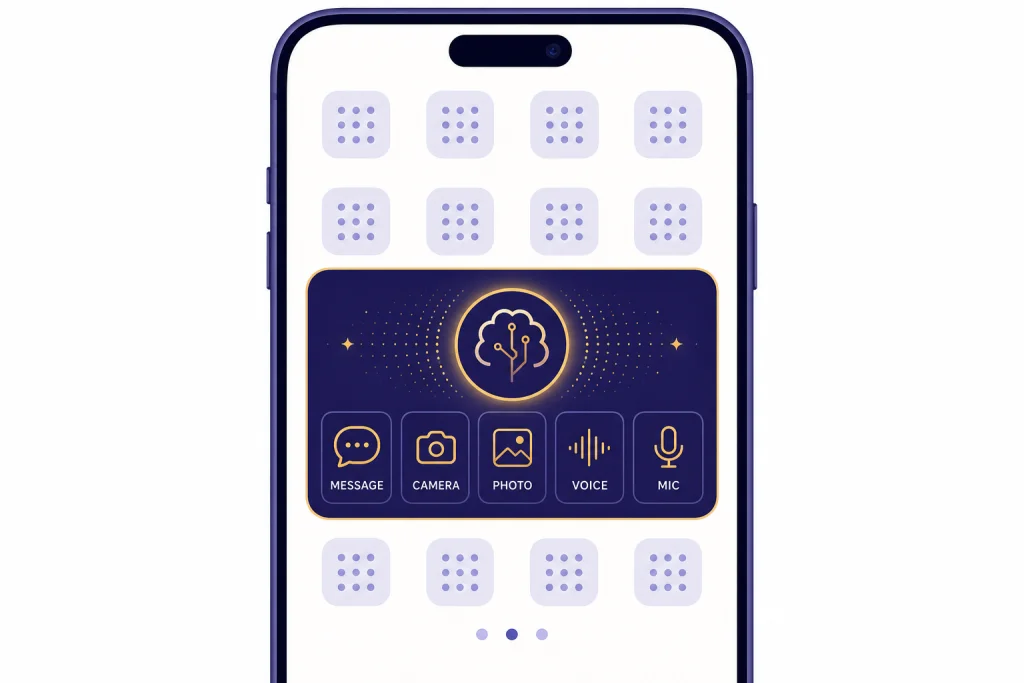
The ChatGPT mobile widget is the fastest way to start common ChatGPT actions from your phone’s Home Screen, Today View, or other supported widget areas. On iPhone, OpenAI’s release notes document an iOS widget with shortcuts for Message ChatGPT, camera, photo, voice, and microphone actions.[1] On Android, the setup depends more on your launcher, but Android’s widget system lets supported apps place widgets on the Home Screen.[4] This guide shows how to install the official app, add the widget on iPhone and Android, choose the right shortcut layout, and fix the common cases where the widget does not appear.
What the ChatGPT mobile widget does
The ChatGPT mobile widget is not a separate version of ChatGPT. It is a shortcut panel that launches specific parts of the official mobile app faster than tapping the app icon and then choosing a mode. OpenAI’s release notes for February 21, 2025 identify an iOS widget and show shortcuts for Message ChatGPT, camera, photo, voice, and microphone actions.[1]
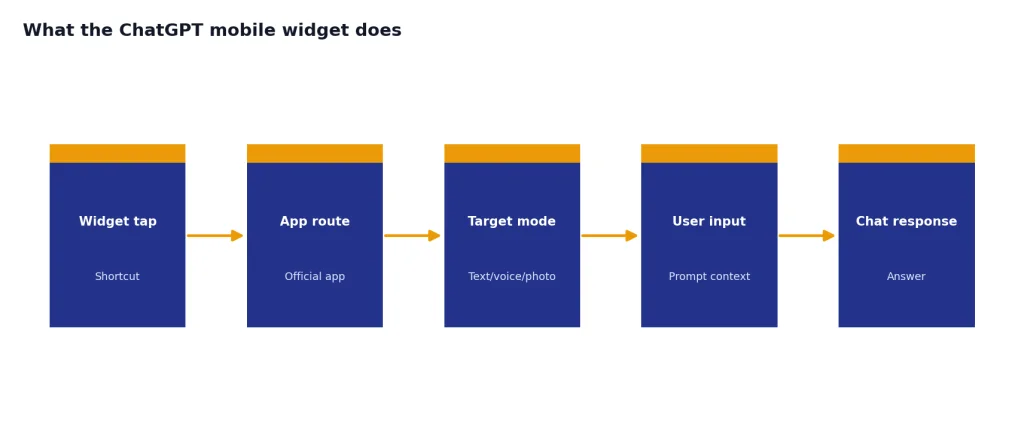
That means the widget is best for quick starts. Use it when you already know what you want to do: dictate a prompt, start a voice conversation, ask about a photo, or open a fresh text chat. It does not replace the full app. You still need the app for conversation history, settings, file workflows, projects, account management, and deeper feature controls.
The widget also differs from mobile web. If you want the most reliable phone experience, install the official app rather than relying on a browser tab. OpenAI says the official iOS app is available through the App Store, and the official Android app is available through Google Play.[2][3] For a broader app comparison, see our guide to the best ChatGPT app.
Before you add the widget
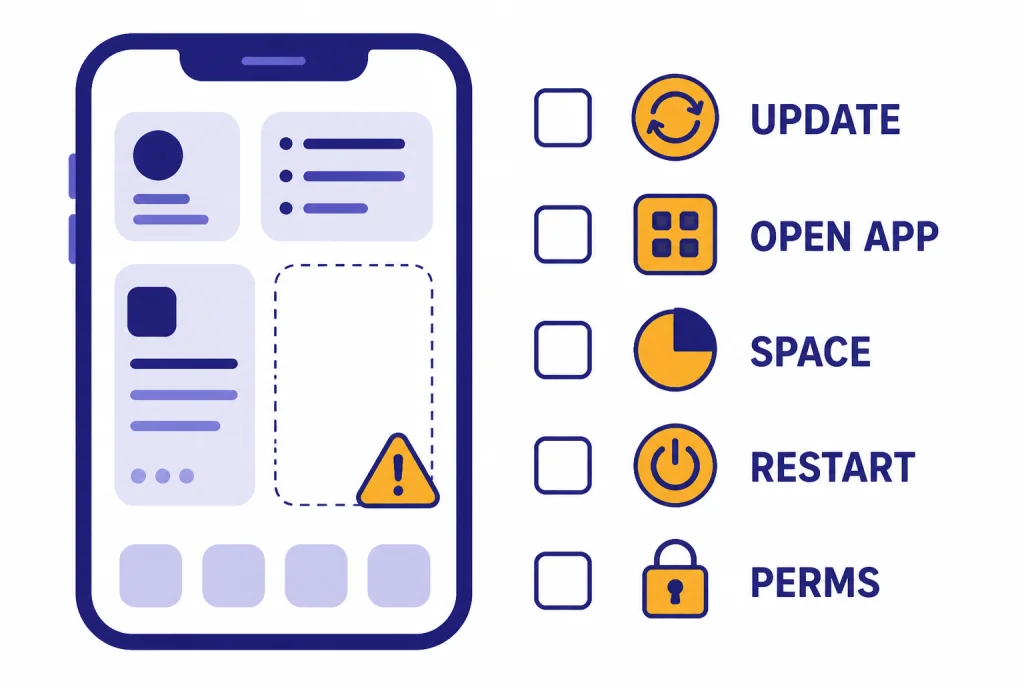
Start with the basics. A missing widget is often not a ChatGPT problem. It is usually caused by an outdated app, the wrong app, a launcher that has not refreshed its widget list, or a phone screen that does not have enough space for the widget size you selected.
- Install the official app. On iPhone, OpenAI tells users to search the App Store for “openai chatgpt” or use its direct App Store link.[2] On Android, OpenAI gives the same advice for Google Play and says to confirm the app is published by OpenAI.[3]
- Open the app once. Sign in, allow the app to finish loading, and start or view a chat. Some phones do not refresh newly installed widgets until the app has been opened at least once.
- Update the app. Widget availability can change by app version. OpenAI says it regularly updates the ChatGPT mobile apps.[2][3]
- Check your screen space. Android widgets can require a specific grid size. Reports of the Android ChatGPT widget describe a 4 x 2 widget, so a crowded Home Screen may block placement.[6]
- Know your platform. iPhone and Android expose widgets differently. iPhone uses Apple’s widget gallery. Android uses the launcher’s widget picker.
If you only need a plain app launcher, you may not need the widget. Put the ChatGPT app icon on your first Home Screen instead. If you use voice or photo prompts often, the widget is more useful because it can reduce the path to those modes.
How to add the ChatGPT widget on iPhone
On iPhone, add the widget from Apple’s standard widget interface. Apple says widgets can appear on the Home Screen, Lock Screen, or Today View, but the exact locations available for a third-party app depend on the widget types the app provides.[5]
Add it to the Home Screen
- Install or update the official ChatGPT app from the App Store.
- Open ChatGPT and sign in.
- Go to the iPhone Home Screen where you want the widget.
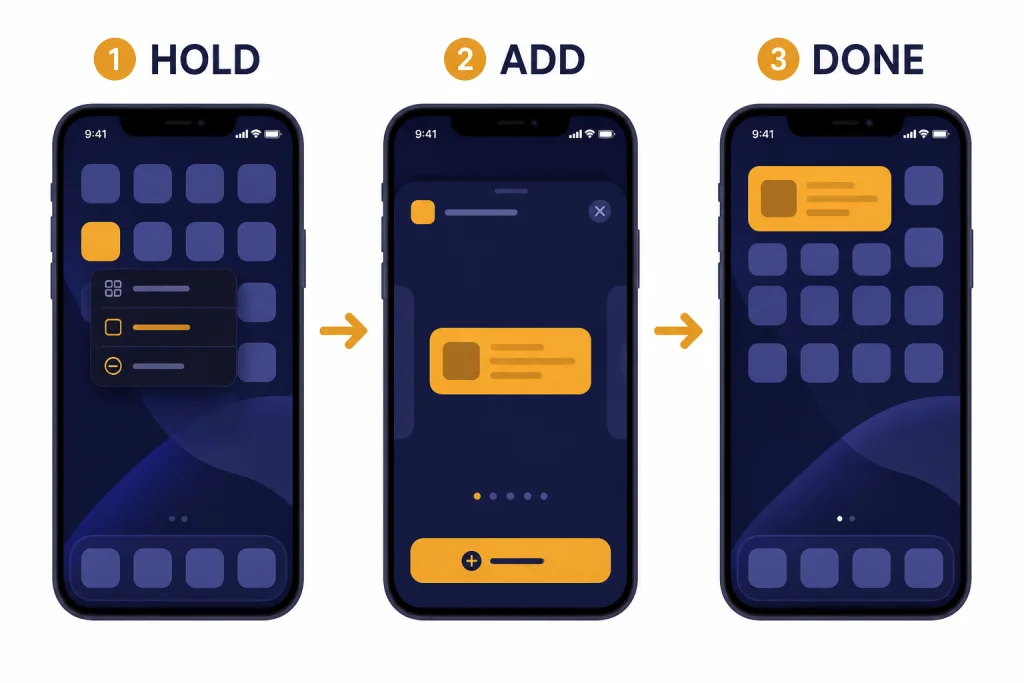
- Touch and hold an empty area until the icons start to jiggle.
- Tap Edit, then tap Add Widget. Apple’s current support instructions use this flow for adding Home Screen widgets.[5]
- Search for ChatGPT in the widget gallery.
- Choose the available ChatGPT widget size or layout.
- Tap Add Widget, move it where you want it, then tap Done.
Add it to Today View
Today View is useful if you want ChatGPT one swipe away without putting it on your main Home Screen. Apple says you can swipe right from the Home Screen or Lock Screen to reach Today View, then add widgets from there.[5] Use the same search-and-add process, then place ChatGPT near the top if you use it often.
Check the Lock Screen, but do not assume it is available
Apple supports Lock Screen widgets on iPhone, and Apple’s support page says to touch and hold the Lock Screen, tap Customize, then tap Add Widgets.[5] If ChatGPT appears there, add the shortcut you want. If it does not appear, use the Home Screen or Today View instead. A widget can be available in one iPhone location but not another.
For users who rely on Apple system integrations, the widget is only one entry point. We cover broader iPhone-level ChatGPT behavior in our guide to ChatGPT and Apple Intelligence.
How to add the ChatGPT widget on Android
Android widget setup varies by phone maker and launcher, but the core pattern is consistent. Google’s Android Help says to touch and hold an empty space on the Home Screen, tap Widgets, find the app, touch and hold the widget, then slide it where you want it.[4]
- Install or update the official ChatGPT Android app from Google Play.
- Open ChatGPT and sign in.
- Return to the Android Home Screen.
- Touch and hold an empty area.
- Tap Widgets.
- Find ChatGPT in the widget list.
- Touch and hold the ChatGPT widget.
- Drag it to an open area and release it.
- If resize handles appear, adjust the widget, then tap outside it.
Android reports from 2024 described the ChatGPT widget as a 4 x 2 Home Screen widget with shortcuts for text, image, voice, and conversation mode.[6] OpenAI has not published an official Android widget support article that lists every Android widget action, so treat the widget layout on your phone as the source of truth.
If you use a custom launcher, the steps may differ. Look for the launcher’s widget picker rather than the app drawer. If ChatGPT still does not appear, switch temporarily to the phone’s default launcher to test whether the widget is available there.
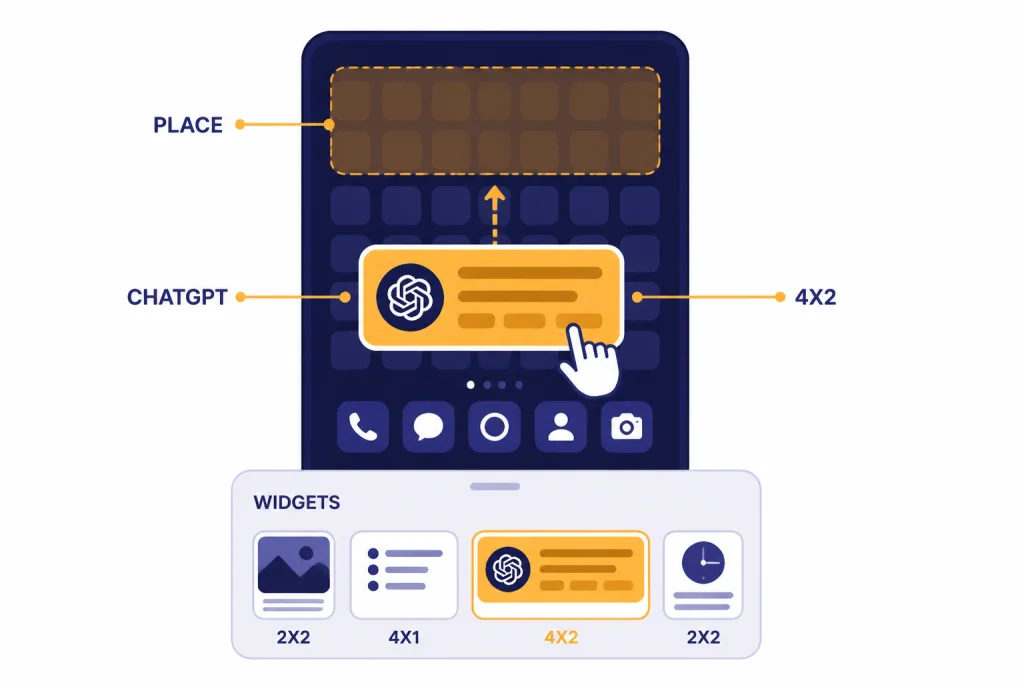
Which shortcut should you use
The best ChatGPT mobile widget setup depends on what you do most often. Text is the safest default. Voice is better for hands-busy moments. Camera and photo shortcuts are best when your prompt starts with visual context.
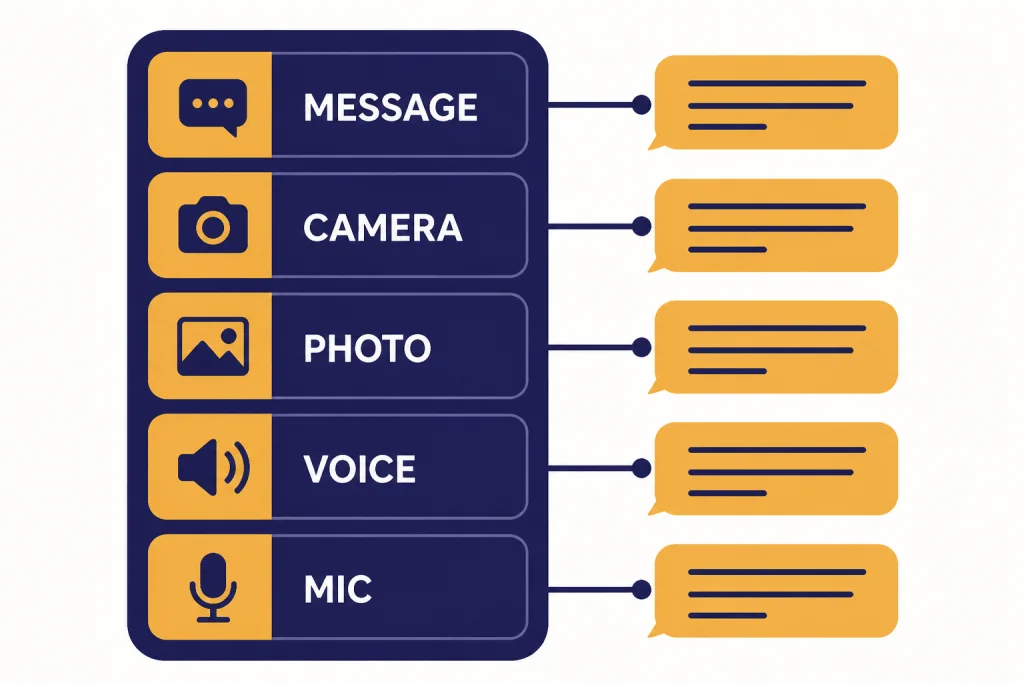
| Widget action | Best use | What to expect | Related guide |
|---|---|---|---|
| Message | Quick text prompts, rewrites, summaries, brainstorming | Opens a chat composer so you can type immediately | ChatGPT Custom Instructions |
| Microphone | Dictating a prompt without typing | Uses speech input, then sends or prepares the transcript depending on app settings | ChatGPT audio transcription |
| Voice | Back-and-forth spoken conversation | Starts a voice session when your account and app support it | ChatGPT Voice Mode |
| Camera | Asking about something in front of you | Opens the camera flow so an image can become part of the prompt | ChatGPT Vision |
| Photo | Using an existing image from your library | Starts an image-based prompt with a saved picture | ChatGPT Image Search |
If you do research on the go, keep the message shortcut visible and ask for current information only when you are prepared to verify the result. For a deeper look at real-time answers, see our guide to ChatGPT Search. If your mobile prompts often include documents, the widget will get you into the app quickly, but the file workflow itself is covered in our ChatGPT file upload guide.
Do not overload your Home Screen. A widget is useful only if you can find it without thinking. If you use ChatGPT a few times per week, place it in Today View or a secondary Android panel. If you use it many times per day, place it near your keyboard, notes, browser, or camera apps.
Troubleshooting missing or broken widgets
If the ChatGPT mobile widget does not appear, work through the simple causes first. Most fixes take less than a minute.
The widget does not appear on iPhone
- Update ChatGPT. Open the App Store and update the app.
- Open the app after updating. Sign in and let the app finish loading.
- Restart the iPhone. This can refresh the widget gallery.
- Check the right widget location. Look on the Home Screen and Today View before assuming Lock Screen support is available.
- Confirm the official app. OpenAI says to verify that the app is published by OpenAI.[2]
The widget does not appear on Android
- Update from Google Play. Avoid sideloaded copies for troubleshooting.
- Open ChatGPT once. Some launchers refresh widget lists after first launch.
- Try the default launcher. Custom launchers sometimes hide or delay new widgets.
- Make room. If the available ChatGPT widget is a 4 x 2 layout, it needs a large enough grid area.[6]
- Restart the phone. This can refresh the launcher and widget picker.
The widget opens the wrong mode
Remove the widget and add it again. If the widget offers sizes or configurable actions, choose the layout again during setup. On iPhone, Apple notes that some widgets offer different configurations and can be edited from the quick actions menu.[5] On Android, Google says widgets can be resized when handles appear after you touch and hold the widget.[4]
Voice or camera does not work from the widget
Check app permissions. Voice actions need microphone access. Camera actions need camera access. Photo actions may need photo library access. If permissions look correct, open the same feature inside the full ChatGPT app. If it fails there too, the issue is not the widget.
If you expect ChatGPT to work with no network connection, adjust that expectation. The official mobile app is a cloud service. We explain the limits in how to use ChatGPT offline.
Privacy and account notes
A widget is an entry point into the app. It does not make your phone’s lock screen, Home Screen, or launcher private by itself. If you place a voice, camera, or message shortcut where someone else can tap it, your phone’s normal unlock and app protections matter.
Use your phone’s built-in app lock, Face ID, Touch ID, passcode, or Android screen lock settings if other people handle your device. Also review ChatGPT’s own settings for data controls, memory, and chat history. If personalization matters more than launch speed, read our ChatGPT Memory guide before building a widget-heavy workflow.
Be careful with visual prompts. A camera shortcut can make it easy to send receipts, IDs, whiteboards, medical documents, or workplace screens into a chat. The same rule applies to file prompts and screenshots. If the content is sensitive, pause before sending it.
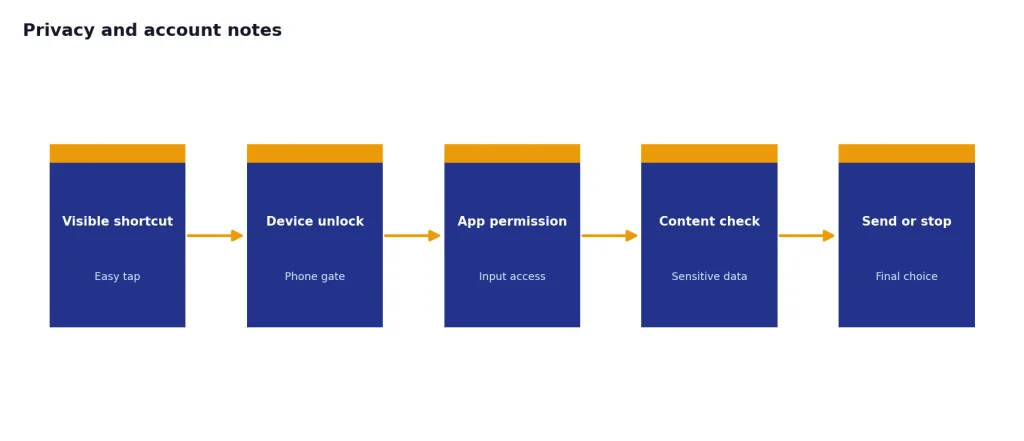
For shared outputs, the widget does not change how conversations are shared. If you plan to send a conversation to someone else, use the app’s sharing controls and review the visible content first. Our ChatGPT Shareable Links guide explains that workflow.
Frequently asked questions
Is there an official ChatGPT mobile widget?
Yes, OpenAI’s ChatGPT release notes document an iOS widget and show shortcuts for Message ChatGPT, camera, photo, voice, and microphone actions.[1] Android widget availability depends on the installed app version and launcher. OpenAI has not published an official Android widget support article that lists every Android widget action.
Why can’t I find the ChatGPT widget on my phone?
Update the official ChatGPT app, open it once, then restart your phone if the widget still does not appear. On iPhone, check Home Screen and Today View as well as Lock Screen. On Android, try the default launcher and make sure there is enough open space on the Home Screen.
Does the widget work without opening ChatGPT?
No. The widget launches a ChatGPT app action. It can shorten the path to text, voice, microphone, camera, or photo input, but the app still handles the chat.
Can I use the ChatGPT widget without logging in?
You should expect the best widget experience after signing in to the official app. Some ChatGPT experiences may be available without an account in certain contexts, but mobile app features are account-dependent. See our guide to using ChatGPT without logging in for the broader account picture.
Is the widget better than the ChatGPT app icon?
Use the app icon if you usually browse existing chats, change settings, or work inside projects. Use the widget if you often start the same kind of prompt, such as voice, camera, photo, or a new text message. Many users benefit from both: the app icon in the dock and the widget on a secondary screen.
Can I put the ChatGPT widget on my iPhone Lock Screen?
Apple supports Lock Screen widgets, but each app controls which widget placements it offers.[5] If ChatGPT appears when you customize the Lock Screen, you can add it there. If it does not, use the Home Screen or Today View instead.