

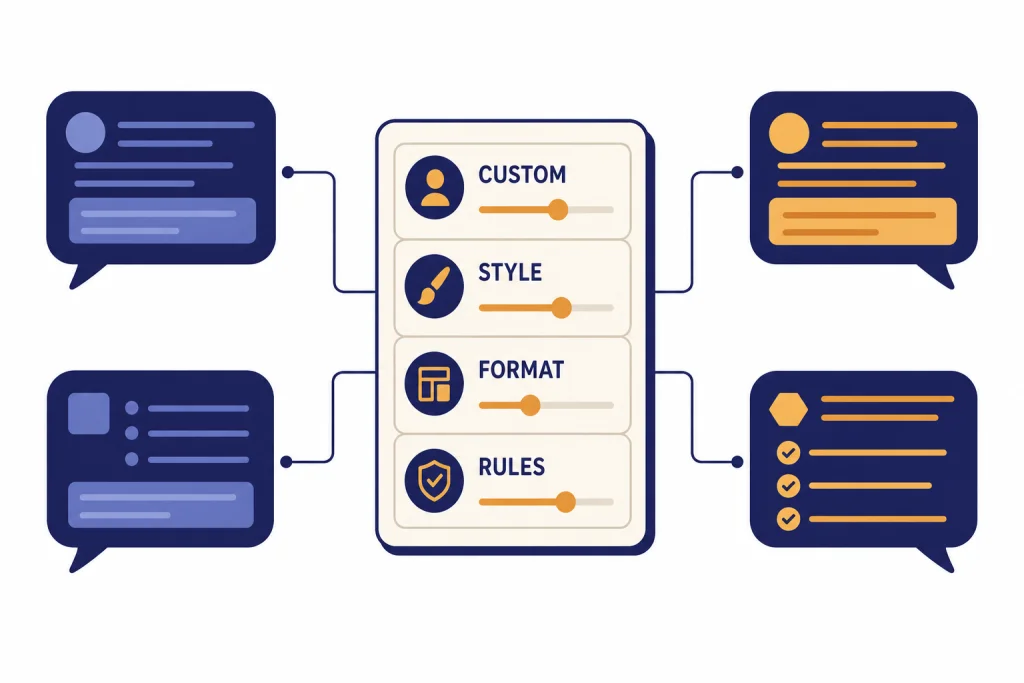
ChatGPT custom instructions let you set standing preferences that ChatGPT should consider when it answers you. Instead of repeating “be concise,” “use American English,” “ask before making assumptions,” or “format code with comments” in every chat, you can put those rules in your personalization settings once. OpenAI says custom instructions are available on all plans across Web, Desktop, iOS, and Android, with longer text fields capped at 1,500 characters.[1] They work best for stable preferences, writing style, role context, recurring constraints, and default formatting. They are not a replacement for memory, project instructions, Custom GPTs, or careful prompts inside a specific conversation.
What ChatGPT custom instructions do
ChatGPT custom instructions are account-level directions that tell ChatGPT how to adapt its replies. You can use them to define who you are, what context matters, how you want answers formatted, and which habits you want ChatGPT to avoid. OpenAI introduced the feature on July 20, 2023, describing it as a way to reduce the friction of starting every conversation from scratch.[2]
The feature is most useful when the instruction should apply across many chats. A teacher can state the grade level they usually teach. A developer can state preferred languages, testing style, and code-commenting rules. A founder can ask for concise tradeoffs and implementation steps. A student can ask for Socratic hints before full answers.
Custom instructions do not guarantee that every response will follow every preference. ChatGPT still weighs the current prompt, the conversation context, tool results, safety rules, and other personalization settings. Treat them as defaults, not commands that override everything else.
A good mental model is simple: custom instructions are the background brief. Your prompt is the immediate assignment. If the assignment conflicts with the background brief, the assignment usually needs to be explicit.
How to turn custom instructions on
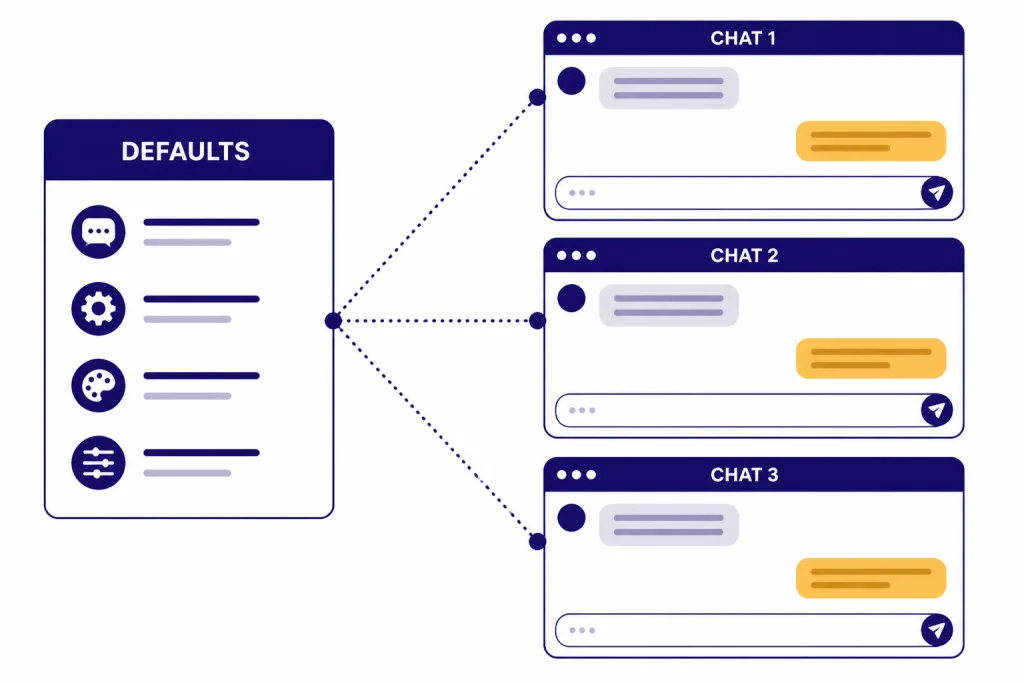
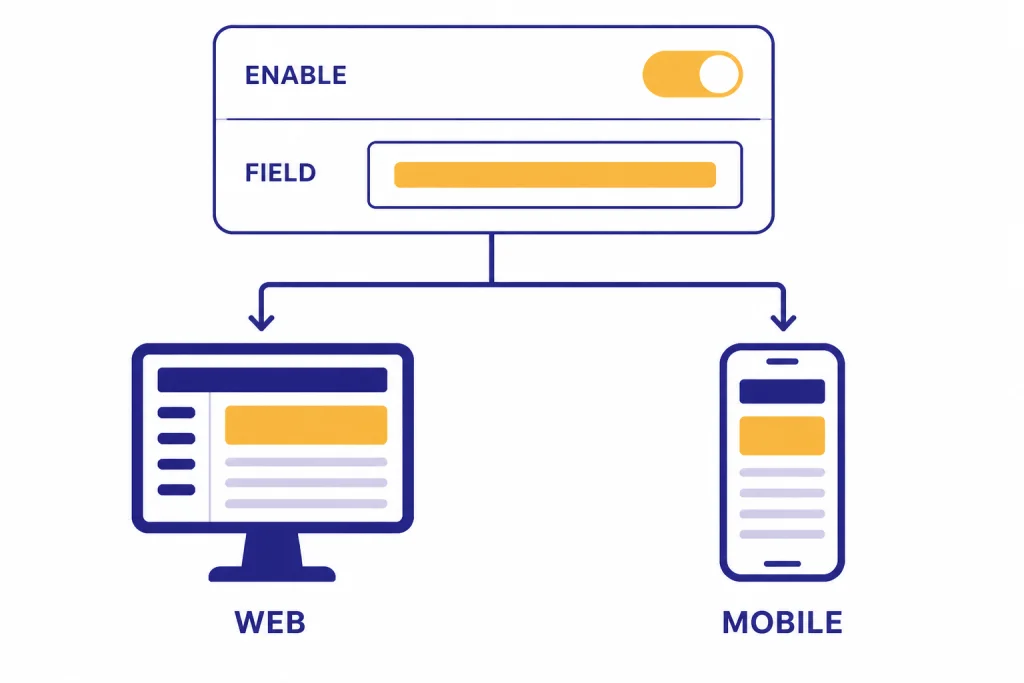
On Web and Desktop, open Settings, choose Personalization, turn on Enable customization, and enter your instructions in the Custom Instructions field. On iOS and Android, open Settings, choose Customize ChatGPT, turn on Enable customization, and enter the instructions there.[1]
OpenAI’s current Help Center copy says updates to custom instructions are applied immediately to all chats, including existing conversations.[1] Some older indexed OpenAI Help Center copies described the behavior as applying to new chats going forward.[8] The practical advice is to start a new chat after a major edit if you want a clean test.
- Write a short version first. Long, dense instructions are easier to ignore or misread.
- Test them with three routine prompts you actually use.
- Edit the instructions after you see what ChatGPT overdoes or misses.
- Keep sensitive details out unless you are comfortable having them used in future ChatGPT interactions.
You can disable the feature from the same settings area by turning Enable customization off. OpenAI also says you can edit or delete custom instructions at any time for future conversations.[1]
What to write in custom instructions
The best ChatGPT custom instructions are specific, stable, and easy to apply. Do not paste a full operating manual. Use short rules that describe your recurring needs.
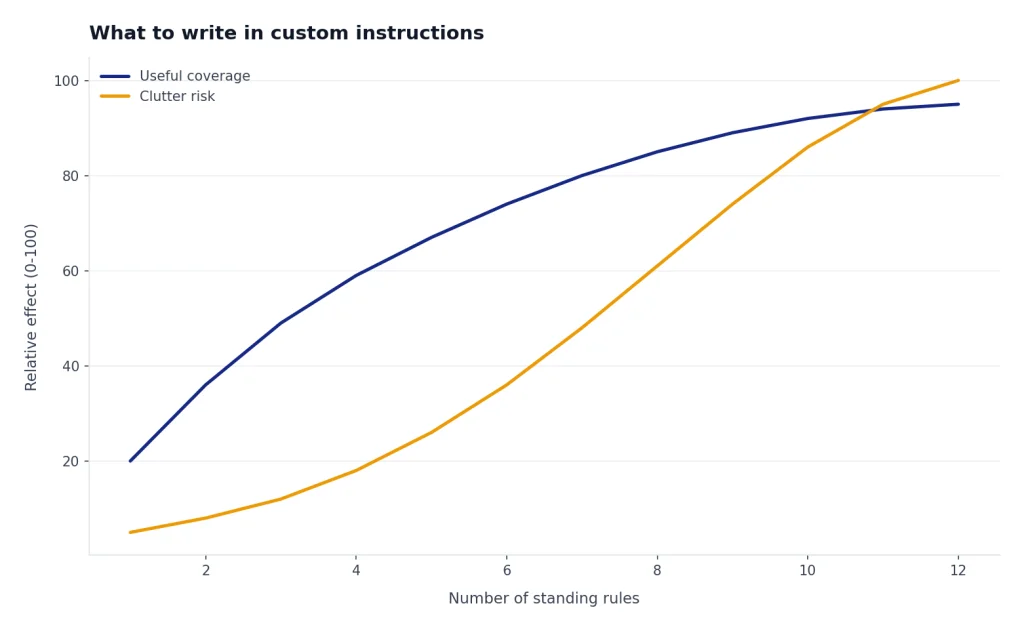
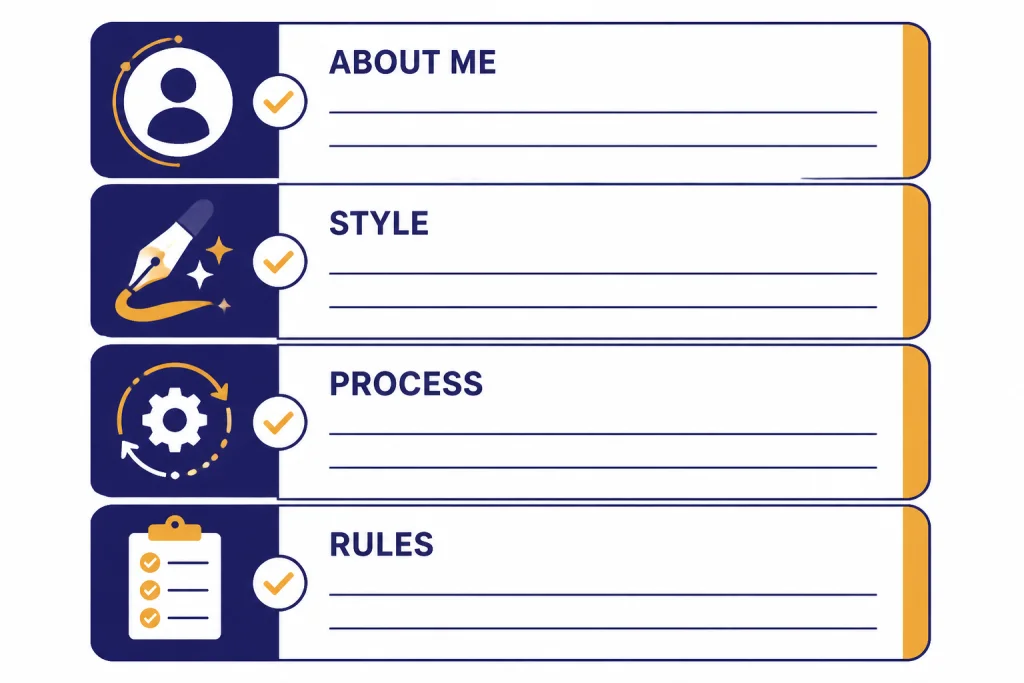
Start with four buckets: your context, response style, default process, and hard boundaries. If you use ChatGPT for several unrelated tasks, keep the global instructions broad and put project-specific details in ChatGPT Projects or in the prompt itself.
| Instruction type | Good use | Weak use |
|---|---|---|
| Context | “I manage a small U.S. ecommerce store.” | “Know everything about my business.” |
| Tone | “Use direct American English. Avoid hype.” | “Sound smart.” |
| Format | “Use tables for comparisons with three or more options.” | “Make answers nice.” |
| Process | “Ask one clarifying question if the request is ambiguous.” | “Always ask many questions first.” |
| Boundaries | “Flag uncertainty instead of guessing.” | “Never be wrong.” |
Use verbs that ChatGPT can act on: “ask,” “summarize,” “compare,” “cite,” “avoid,” “use,” “default to,” and “show.” Avoid vague personality labels unless you define them. “Be concise” is useful. “Be strategic” is weaker unless you explain what strategic output looks like.
Here is a practical starter template:
About me:
- I am a [role] working on [common task].
- Assume I prefer [region, language, unit system, or skill level] unless I say otherwise.

How I want responses:
- Start with the answer.
- Use short paragraphs and practical examples.
- Use a table when comparing several options.
- Ask one clarifying question when the request is under-specified.

Rules:
- Do not invent facts. Say when you are unsure.
- Separate recommendations from facts.
- Keep drafts in a tone that is [tone].
If you work heavily with files, images, translation, or web research, keep those feature-specific defaults short. For example, you might tell ChatGPT to summarize uploaded files before analyzing them, or to preserve formatting when using ChatGPT Translate. For current information, custom instructions can say when you prefer web verification, but the actual browsing behavior depends on the tools available in your chat. See our guide to ChatGPT Search and ChatGPT web browsing for that workflow.
Examples you can adapt
Use these examples as patterns, not as scripts to paste blindly. The right version depends on what you ask ChatGPT to do most often.
For concise everyday answers
Answer directly first. Keep most replies under 300 words unless I ask for depth. Use bullets for steps. If there is a tradeoff, show the best option and one reasonable alternative.For writing and editing
Use American English. Prefer short sentences. Cut filler, hype, and vague claims. When editing, preserve my meaning and show a brief note explaining the main changes.For coding help
Assume I want maintainable code. Explain the approach before the code if the task is complex. Include edge cases and a small test example when useful. Do not switch languages unless I ask.For learning
Teach step by step. Start with intuition, then give the formal explanation. Ask me one check-for-understanding question before giving the full solution to practice problems.For business planning
Frame recommendations as options with pros, cons, cost drivers, and risks. Separate assumptions from facts. End with the next three practical actions.If you use ChatGPT on mobile, keep instructions even tighter. Short rules make voice and quick-entry workflows easier. Our best ChatGPT app guide covers where those settings live across devices, and our ChatGPT mobile widget setup guide is useful if you often start chats from your phone.
Custom instructions vs. memory, Projects, and GPTs
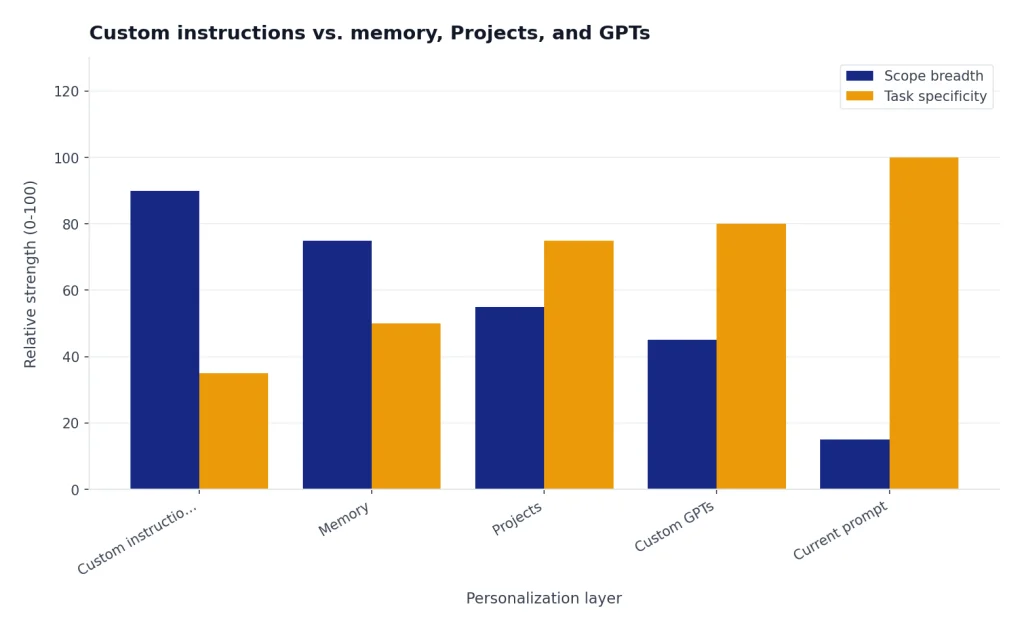
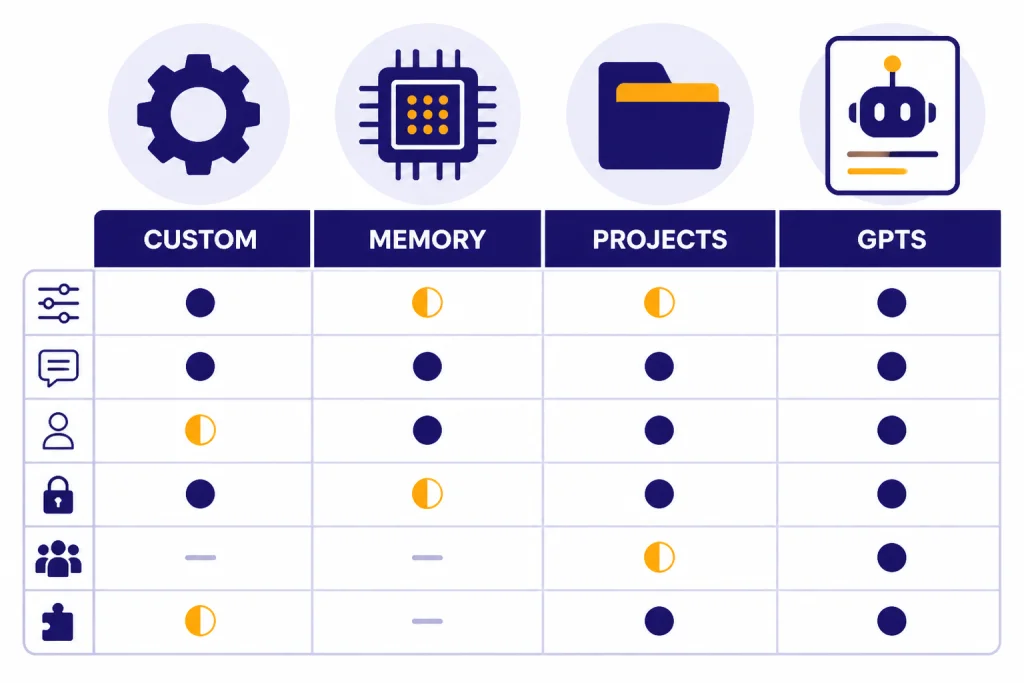
Custom instructions are only one layer of ChatGPT personalization. They are best for stable defaults. Memory is better for facts ChatGPT learns over time. Projects are better for a defined body of work. Custom GPTs are better for a specialized assistant with its own instructions, knowledge, and tools.
OpenAI says saved memories work similarly to custom instructions, except the models update them automatically instead of requiring users to manage them manually.[3] That distinction matters. If you want exact wording, put it in custom instructions. If you want ChatGPT to remember evolving preferences, use ChatGPT Memory.
Projects add a separate workspace layer. OpenAI says project instructions apply only inside that project and override global custom instructions.[4] Use ChatGPT Projects when the instructions belong to one client, course, codebase, research effort, or writing series.
Custom GPTs are different again. OpenAI describes GPTs as versions of ChatGPT configured for a specific purpose, with instructions, knowledge, capabilities, apps, or actions.[5] OpenAI also says GPT conversations do not use saved memory, custom instructions, or previous conversations.[5] If you want a reusable assistant that other people can use, look at Custom GPTs and our GPT Store review.
| Personalization layer | Best for | Scope | Main limitation |
|---|---|---|---|
| Custom instructions | Stable personal defaults | Your general ChatGPT experience | Can be too broad for specialized work |
| Memory | Preferences and facts that evolve | Future chats when memory is enabled | May not preserve exact wording |
| Projects | Work tied to a topic, client, course, or file set | Chats inside that project | Requires organizing work into a project |
| Custom GPTs | Reusable task-specific assistants | Inside that GPT | Does not use your normal custom instructions |
| Conversation prompt | One-off requirements | Current chat or message | You must repeat it when needed |
OpenAI has not published an official, universal priority order for every possible conflict among custom instructions, memory, project instructions, personalities, tools, and in-chat prompts. In practice, put the most specific instruction closest to the task. Use global custom instructions for defaults, project instructions for project rules, and the current prompt for immediate exceptions.
Privacy, data, and sharing
Do not put secrets, passwords, private keys, medical record numbers, or confidential client details in custom instructions. They are designed to be reused, so they should contain only information you are comfortable applying broadly.
OpenAI says custom instructions are included in ChatGPT data exports and are deleted within 30 days when you delete the OpenAI account tied to them.[1] OpenAI also says previous versions of instructions may continue to appear in earlier chat history, and removing those older references requires clearing the relevant conversations.[1]
For model training controls, OpenAI’s Data Controls FAQ says signed-in users can turn off Improve the model for everyone under Settings → Data Controls, and that conversations still appear in chat history but are not used to train ChatGPT after the setting is off.[6]
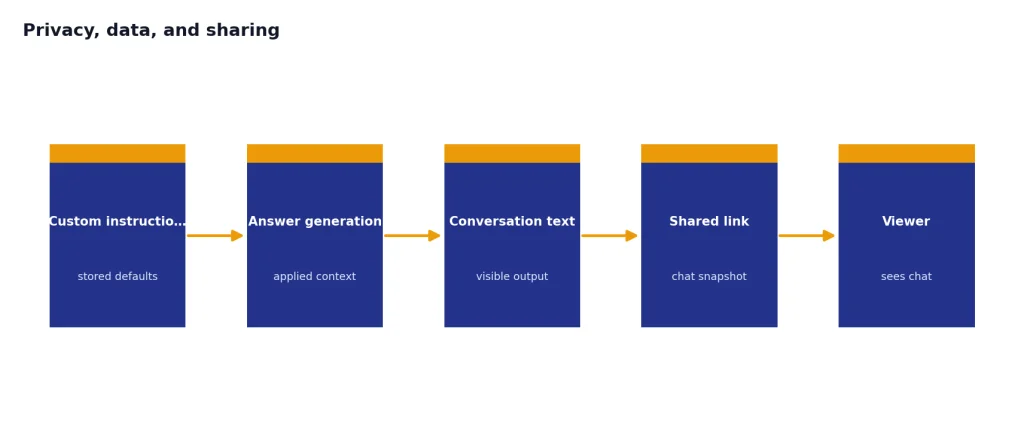
OpenAI says your custom instructions are not shared with viewers of shared links.[1] That does not mean every conversation is safe to share. If a reply reveals your preferences or private context because ChatGPT used them while answering, that content may still appear in the conversation snapshot. Read our ChatGPT Shareable Links guide before sharing work that includes personal or business context.
Be especially cautious with third-party integrations. OpenAI’s custom instructions Help Center page says that if you use third-party plug-ins, the model may provide relevant information from your instructions to plug-in developers.[1] The same general caution applies when using connected tools, apps, or custom assistants that send relevant parts of a request outside ChatGPT.
Troubleshooting when instructions do not work
If ChatGPT ignores your custom instructions, do not assume the feature is broken. Most problems come from vague instructions, conflicting directions, an overloaded instruction field, or a task-specific prompt that pulls the answer in another direction.
- Start a new chat. This removes old conversation context that may be competing with your updated instructions.
- Shorten the instruction. Turn paragraphs into bullets. Delete anything that does not apply to most chats.
- Make the rule testable. Replace “be professional” with “use direct American English and avoid slang.”
- Remove conflicts. Do not say “be concise” and “explain every detail” unless you define when each applies.
- Use the prompt for exceptions. If one task needs a different style, say that in the message.
- Check whether you are inside a Project or GPT. Project instructions can override global custom instructions, and GPTs do not use normal custom instructions.[4][5]
When you use feature-heavy chats, custom instructions can shape the output but not replace the feature workflow. For uploaded documents, see ChatGPT File Upload. For image understanding, see ChatGPT Vision. For voice habits and spoken responses, see our ChatGPT voice mode review.
Also remember that ChatGPT personalities may interact with custom instructions. OpenAI says a selected personality works alongside saved memories and custom instructions, and that instructions in a conversation can adjust or obscure a personality’s behavior.[7] If tone feels inconsistent, check both your custom instructions and your base style setting.
Frequently asked questions
Are ChatGPT custom instructions free?
Yes. OpenAI says custom instructions are available on all plans on Web, Desktop, iOS, and Android.[1] Availability can still vary by account, workspace policy, region, or app version, so update the app and check Personalization settings if you do not see it.
What is the character limit for ChatGPT custom instructions?
OpenAI says the longer form text fields have a 1,500 character limit.[1] That is enough for a focused default brief, but not enough for a full style guide. Put large reference material in a Project, uploaded file, or Custom GPT knowledge source instead.
Do custom instructions work in Custom GPTs?
No. OpenAI says GPTs do not use saved memory, custom instructions, or previous conversations, and each conversation starts fresh.[5] Configure the GPT’s own instructions if you want a Custom GPT to follow a specific style or process.
Should I use custom instructions or memory?
Use custom instructions for stable rules you want to control manually. Use memory for preferences and facts that may evolve as you chat. OpenAI says saved memories are part of the context ChatGPT uses to generate responses, similar to custom instructions, but they are updated automatically rather than manually managed.[3]
Can people see my custom instructions when I share a chat?
OpenAI says custom instructions are not shared with shared link viewers.[1] Still, the conversation itself may reveal details that came from your instructions if ChatGPT used them in an answer. Review the chat before sending a shared link.
What should I avoid putting in custom instructions?
Avoid secrets, credentials, private client information, medical identifiers, and anything that should not influence many future chats. Also avoid long lists of rigid rules. The more crowded the instructions become, the harder they are to follow consistently.