

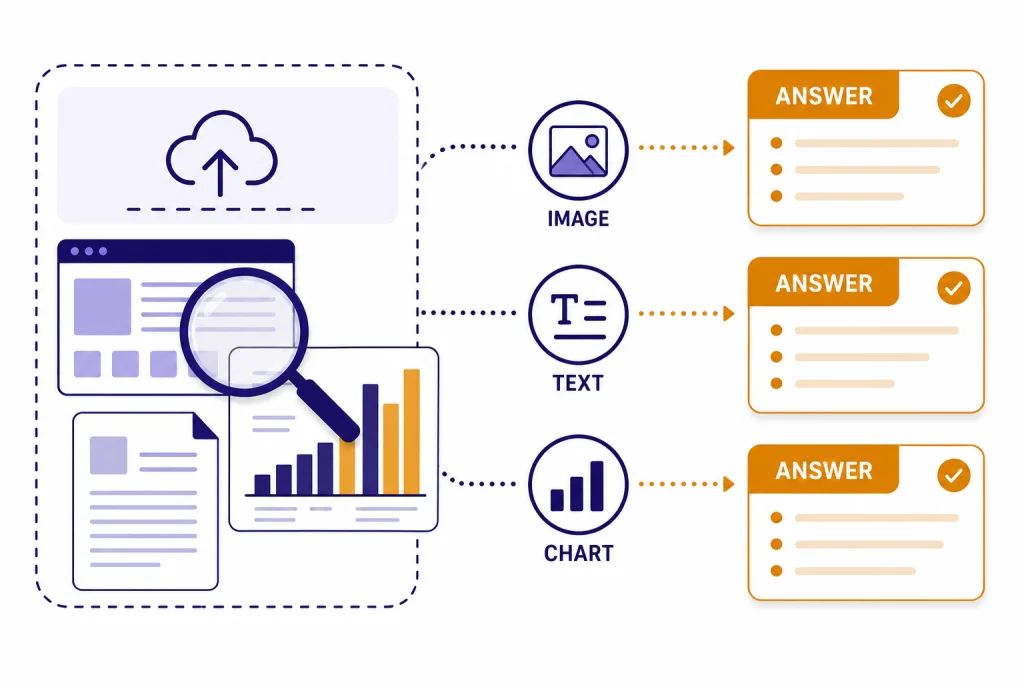
ChatGPT Vision is the image-understanding side of ChatGPT. You upload a photo, screenshot, chart, diagram, or document image, then ask ChatGPT to describe it, extract text, compare details, explain what is shown, or reason through a visual problem. It is useful for everyday analysis, design review, troubleshooting, study help, and turning messy visual information into structured notes. It is not a substitute for professional judgment in medical, legal, safety, or identity-sensitive situations. The best results come from clear images, focused questions, and follow-up prompts that ask ChatGPT to verify assumptions instead of guessing.
What ChatGPT Vision means
ChatGPT Vision is not a separate app. It is the common name for ChatGPT’s ability to understand image inputs. OpenAI describes image inputs as a way for ChatGPT to understand and interpret images that you add to conversations.[1] In practical terms, you can show ChatGPT visual material and continue the conversation in plain English.
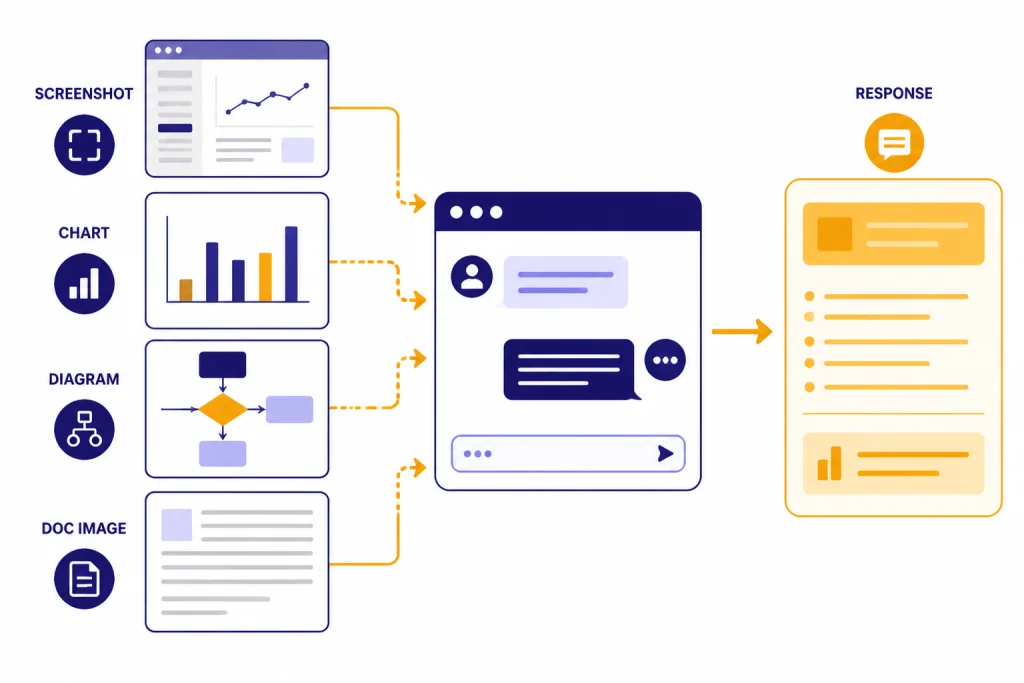
OpenAI’s capability overview says ChatGPT can analyze uploaded images, diagrams, screenshots, and charts, and can help with questions about what is shown, content extraction, and visual interpretation.[2] That makes it different from older text-only workflows. You do not have to describe every visual detail yourself. You can upload the source image and ask ChatGPT to inspect it.
The term can cause confusion because people also use “vision” to mean image generation, reverse image lookup, or video analysis. This article focuses on image analysis: uploading an image so ChatGPT can read, describe, compare, or reason about it. If your goal is to search the web for visually similar pictures, read our ChatGPT image search guide. If your goal is moving footage, see whether ChatGPT can analyze video.
OpenAI first announced voice and image capabilities for ChatGPT on September 25, 2023, with images available across platforms for Plus and Enterprise users during the initial rollout.[6] The current help documentation says image inputs are available on web and mobile platforms, including iOS and Android, and that all ChatGPT models can accept image inputs.[1] Availability can still depend on plan, workspace settings, regional rollout, and temporary capacity limits.
How to upload and ask about an image
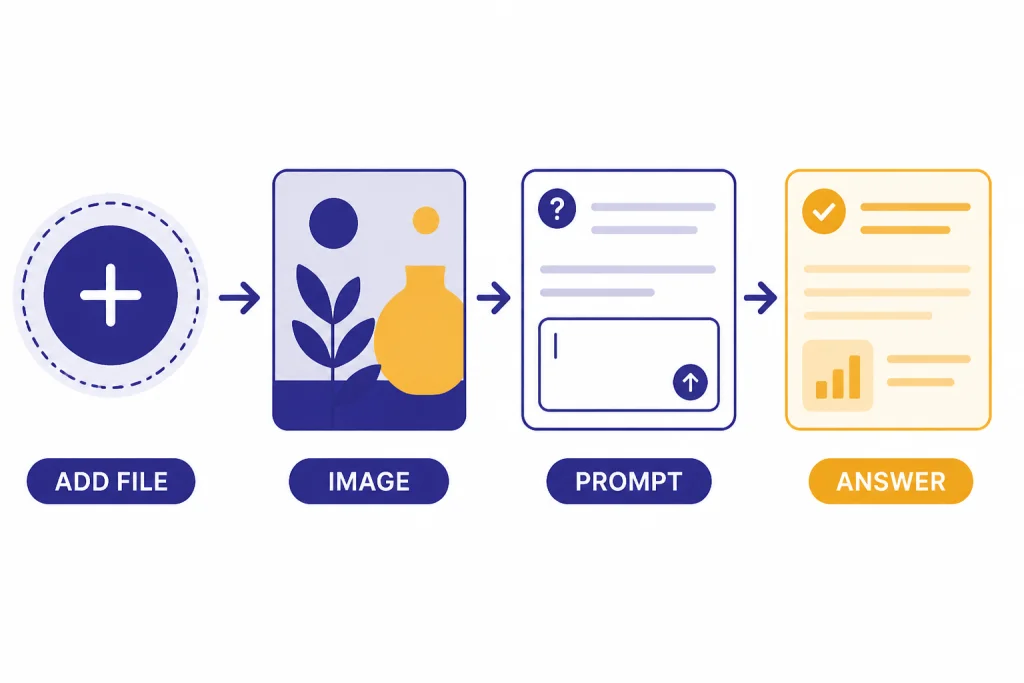
Start with the image, then add a specific instruction. OpenAI’s image input FAQ says you can tap the plus icon in the prompt area and choose “Add photos & files,” drag an image into the text area, or paste an image copied to your clipboard.[1] On mobile, the same idea applies: choose a photo or take a new one, then ask your question.
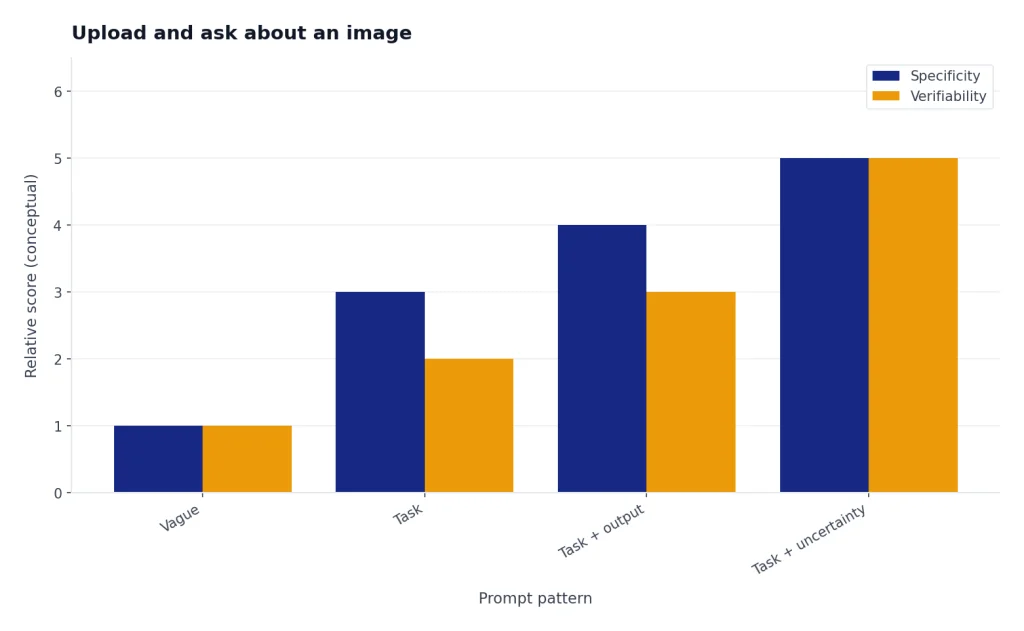
A weak prompt is “What is this?” A stronger prompt gives ChatGPT a job: “Summarize the chart in three bullet points,” “Extract the error message and suggest likely causes,” or “Compare these two product photos and list visible differences.” The image provides the evidence. Your prompt provides the goal.
You can also add more images later in the same thread to deepen or shift the discussion, according to OpenAI’s image input guidance.[1] That is useful when comparing before-and-after screenshots, checking a sequence of UI states, or asking ChatGPT to find differences between two diagrams.
If the important part is small, mark it before uploading. OpenAI recommends using a photo editing or markup tool to draw attention to specific areas when you want ChatGPT to focus on them.[1] A red box around an error code, a circle around a chart legend, or a crop of the relevant panel often improves the answer.
For desktop-heavy workflows, the right app matters. If you regularly inspect screenshots from software, compare web pages, or move files from your operating system into ChatGPT, our ChatGPT Windows app setup guide and best ChatGPT app comparison can help you choose the smoothest upload path.
Best use cases and prompt patterns
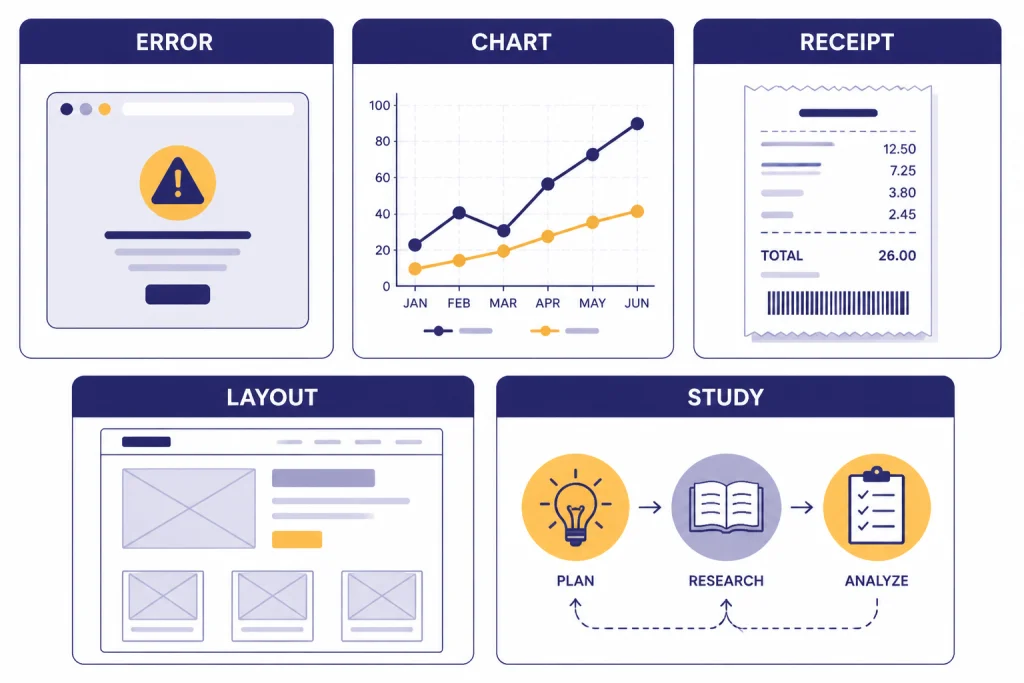
ChatGPT Vision works best when the image contains information that a human could reasonably inspect and explain. It can help turn a visual mess into a useful answer. It is especially helpful when the image combines text, layout, labels, and context.
Analyze screenshots
Screenshots are one of the strongest use cases. You can upload an app screen, error dialog, settings page, checkout flow, or analytics dashboard and ask ChatGPT to explain what is happening. Try: “Identify the likely problem in this screenshot. Quote any visible error text. Then give me three fixes ranked from easiest to hardest.”
Read charts and diagrams
Charts work when labels are readable and the visual encoding is not too subtle. Ask ChatGPT to summarize the trend, identify the outlier, explain the axes, or turn the chart into a table. For more current, source-backed answers that depend on live data rather than the pixels alone, pair the workflow with ChatGPT Search or ChatGPT web browsing.
Extract text from photos
ChatGPT can extract visible text from many images, such as signs, receipts, whiteboards, labels, and slides. Ask for a clean transcription first. Then ask a second question about what the text means. This two-step workflow reduces confusion between reading the text and interpreting it.
Review design and layout
Design review works well because ChatGPT can discuss layout, hierarchy, spacing, and visible inconsistencies. Upload a landing page screenshot and ask: “Evaluate the visual hierarchy. List the three elements a viewer will notice first. Then suggest changes that do not require new copy.” If you move from review into drafting or rewriting, ChatGPT Canvas is a better workspace for long-form edits.
Translate text in an image
Vision can help with simple signs, menus, labels, and screenshots. It is not equally reliable for every script or layout. For translation workflows that start from clean text rather than an image, use our ChatGPT Translate guide.
| Image task | Prompt pattern | Best follow-up |
|---|---|---|
| Screenshot troubleshooting | “Identify the visible error and likely cause.” | “Give me fixes in order of risk.” |
| Chart explanation | “Summarize the trend and name the outlier.” | “Turn the visible data into a table if possible.” |
| Receipt or label reading | “Transcribe the text exactly as shown.” | “Group the extracted items by category.” |
| Design critique | “Evaluate hierarchy, spacing, and clarity.” | “Suggest three changes that keep the same content.” |
| Study help | “Explain this diagram step by step.” | “Quiz me on the concept using the image.” |
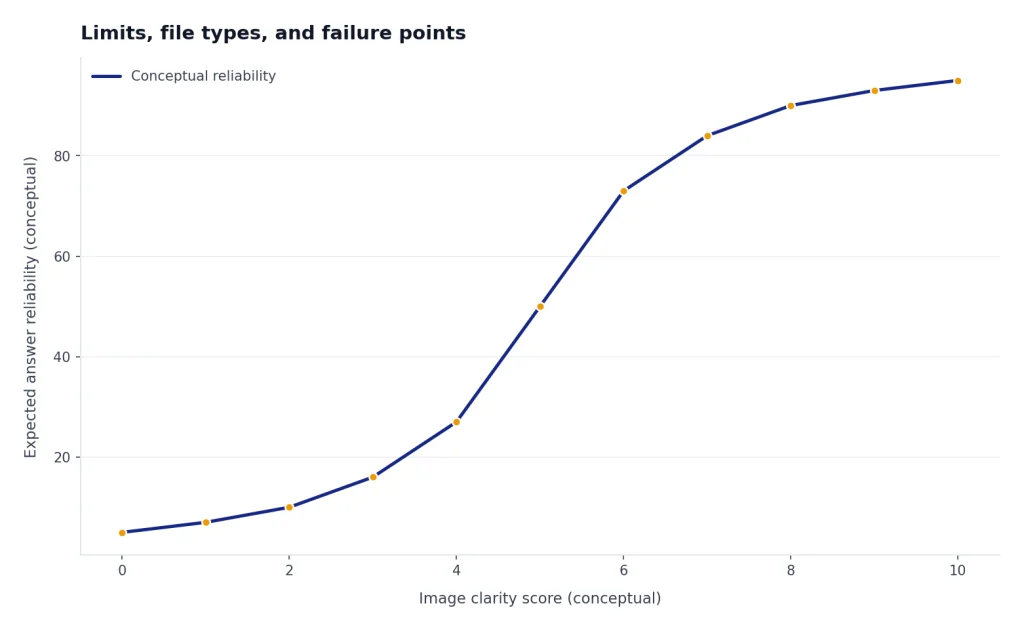
Limits, file types, and failure points
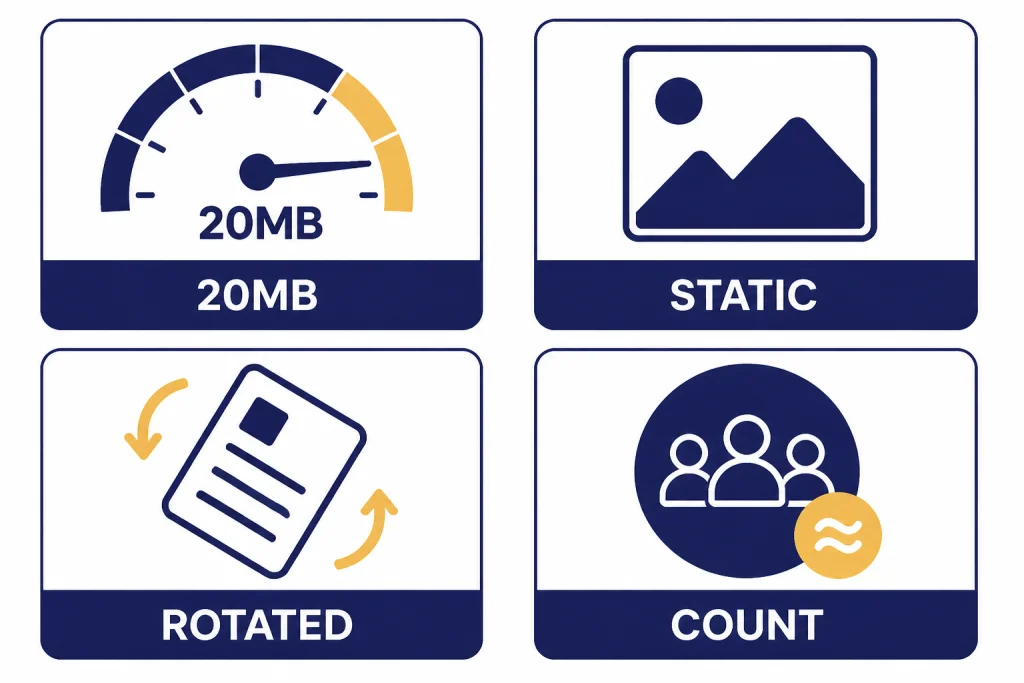
ChatGPT Vision is useful, but it is not a precise measuring instrument. OpenAI says supported image input file types include PNG, JPEG, JPG, and non-animated GIF.[1] OpenAI also says image inputs support static images only, not videos.[1] If you need an audio workflow instead, use ChatGPT transcription or ChatGPT Whisper transcription.
OpenAI lists a 20MB size limit per image in its image input FAQ.[1] Its broader file uploads FAQ also lists a 20MB limit for images, a 512MB hard limit for files uploaded to a GPT or ChatGPT conversation, and an upload rate of up to 80 files every 3 hours, with Free users limited to 3 file uploads per day.[3] These limits can change or be lowered during peak hours, so treat them as product limits rather than a promise of constant throughput.[3]
Quality matters more than size. OpenAI says ambiguous or unclear images may produce less accurate results.[1] The same FAQ says ChatGPT may struggle with specialized medical images, non-Latin text, rotated or upside-down text, visually subtle chart elements, precise spatial localization, panoramic or fisheye images, metadata, resizing effects, and exact object counts.[1]
Those limitations should shape your prompts. Do not ask ChatGPT to “count every item exactly” in a crowded shelf photo. Ask it to estimate and explain uncertainty. Do not ask it to diagnose a CT scan. Ask a qualified medical professional. Do not rely on it to identify a person in a photo. Use it for general, non-identifying description when appropriate.
PDFs are a special case. OpenAI’s file upload FAQ says ChatGPT Enterprise supports Visual Retrieval for PDF files, while other plans and document files support text-based retrieval, meaning ChatGPT extracts digital text and discards images.[3] If the visual layout inside a PDF matters, screenshots of the relevant pages may work better than uploading the PDF alone.
Privacy and sensitive images
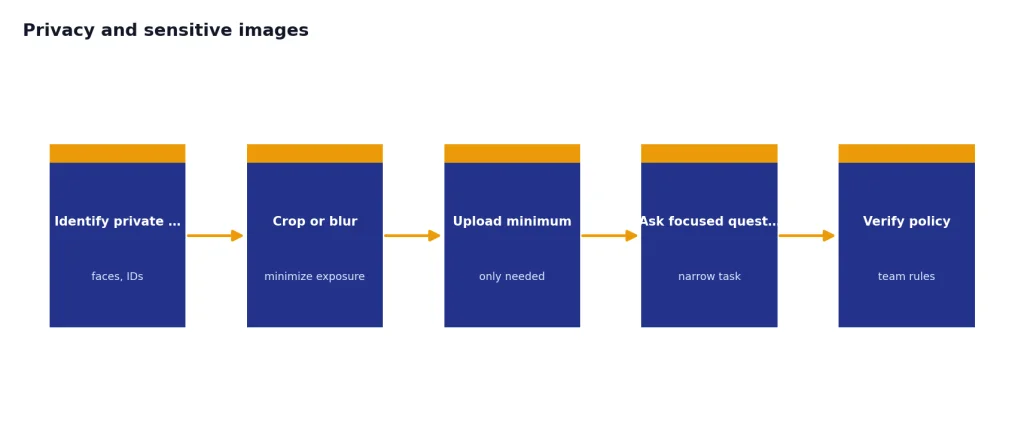
Images can contain more private information than plain text. A single photo may include faces, names, addresses, medical details, location clues, workplace screens, customer records, or documents visible in the background. Before uploading, crop the image and blur anything ChatGPT does not need to answer your question.
OpenAI says that when people use services for individuals such as ChatGPT, Sora, or Operator, it may use their content to train models, and users can opt out through the privacy portal or ChatGPT data controls.[4] OpenAI also says Temporary Chat will not appear in history, use or create memories, or be used to train models.[4]
Business plans have different defaults. OpenAI says it does not train on inputs or outputs from business products by default, including ChatGPT Team, ChatGPT Enterprise, and the API.[4] Its business data page also says data from ChatGPT Enterprise, ChatGPT Business, ChatGPT Edu, ChatGPT for Healthcare, ChatGPT for Teachers, and the API platform is not used for training or improving models by default.[5]
For personal accounts, assume uploaded images are sensitive unless you know otherwise. For teams, follow your organization’s policy. Do not upload confidential client files, unreleased product images, student records, patient information, credentials, or private IDs unless your account type, consent, and compliance process allow it. If ChatGPT’s memory is on, remember that privacy is not only about the image. It is also about what you reveal in the surrounding conversation.
ChatGPT Vision vs. related ChatGPT features
ChatGPT Vision overlaps with several features, but the job is different. Vision analyzes what is already in an image. Image generation creates or edits an image. File upload analyzes documents and data files. Search looks up information on the web. Voice mode handles spoken interaction. Picking the right feature prevents weak results.
| Feature | Best for | Not ideal for | Related guide |
|---|---|---|---|
| ChatGPT Vision | Photos, screenshots, diagrams, charts, visual text | Exact measurement, medical image diagnosis, person identification | This guide |
| File upload | PDFs, spreadsheets, documents, structured files | Visual layouts inside non-Enterprise PDFs when images are discarded | ChatGPT file upload |
| Search | Current facts, source-backed answers, live web information | Inspecting private images that are not online | real-time ChatGPT answers |
| Voice mode | Hands-free conversation about what you uploaded | High-accuracy transcription of long recordings | ChatGPT voice mode review |
| Image search | Finding similar images or possible web sources | Private screenshot analysis without web lookup | reverse image lookup with ChatGPT |
One common mistake is using Vision when you need Search. If you upload a chart from a news story, Vision can describe the chart, but it cannot prove the chart is current unless you ask ChatGPT to search the web. Another mistake is using file upload when the layout matters. If the visual arrangement is the evidence, upload an image or screenshot of the page.
Practical checklist for better results
Use ChatGPT Vision like a visual analyst, not a magic scanner. The model can inspect and reason, but it still needs a clear target and a reasonable task. A small amount of preparation usually improves the answer more than a longer prompt.
- Crop first. Keep the relevant area and remove private background details.
- Improve readability. Enlarge small text before upload when text is central to the task.
- Mark the target. Use a circle, arrow, or box if only one part matters.
- Ask for uncertainty. Add “state what you are unsure about” when accuracy matters.
- Separate extraction from interpretation. First ask for a transcription or description, then ask for analysis.
- Verify high-stakes output. Do not rely on Vision alone for medical, legal, safety, financial, or identity decisions.
- Use follow-ups. Ask ChatGPT to compare, revise, or check its answer against a second image.
A good final prompt looks like this: “Analyze this dashboard screenshot. First list the visible metrics exactly as shown. Then summarize the main trend in plain English. If any text is too small or ambiguous, say so instead of guessing.” This prompt gives ChatGPT a role, an order of operations, and a rule for uncertainty.
If you use Vision often for recurring work, save your preferred instructions. ChatGPT Custom Instructions can tell ChatGPT to always ask clarifying questions, preserve table structure, or flag uncertainty when analyzing images. For multi-step work across many related images, ChatGPT Projects can keep the visual context and notes organized.
Frequently asked questions
Can ChatGPT analyze images?
Yes. OpenAI says ChatGPT can understand and interpret images added to conversations as image inputs.[1] It can help with photos, screenshots, diagrams, charts, and other visual material, but accuracy depends on image quality and task difficulty.
What image formats does ChatGPT Vision support?
OpenAI’s image input FAQ lists PNG, JPEG, JPG, and non-animated GIF as supported image input types.[1] If an upload fails, try converting the image to PNG or JPEG and reducing its file size.
Can ChatGPT Vision analyze video?
OpenAI’s image input FAQ says image inputs do not support videos and currently process static images only.[1] A practical workaround is to upload selected still frames, but that is not the same as full video understanding.
Can ChatGPT read text from an image?
Often, yes. It can extract visible text from clear images, screenshots, signs, and simple documents. OpenAI warns that performance can be worse with non-Latin alphabets, rotated text, small text, and unclear images.[1]
Is ChatGPT Vision safe for medical images?
No for diagnosis or treatment decisions. OpenAI specifically says the model is not suitable for interpreting specialized medical images such as CT scans and should not be used for medical advice.[1] Use a qualified clinician for medical interpretation.
Does ChatGPT use uploaded images for training?
It depends on the service and settings. OpenAI says it may use content from individual services such as ChatGPT to train models unless users opt out, while business offerings such as ChatGPT Team, ChatGPT Enterprise, and the API are not used for training by default.[4]