

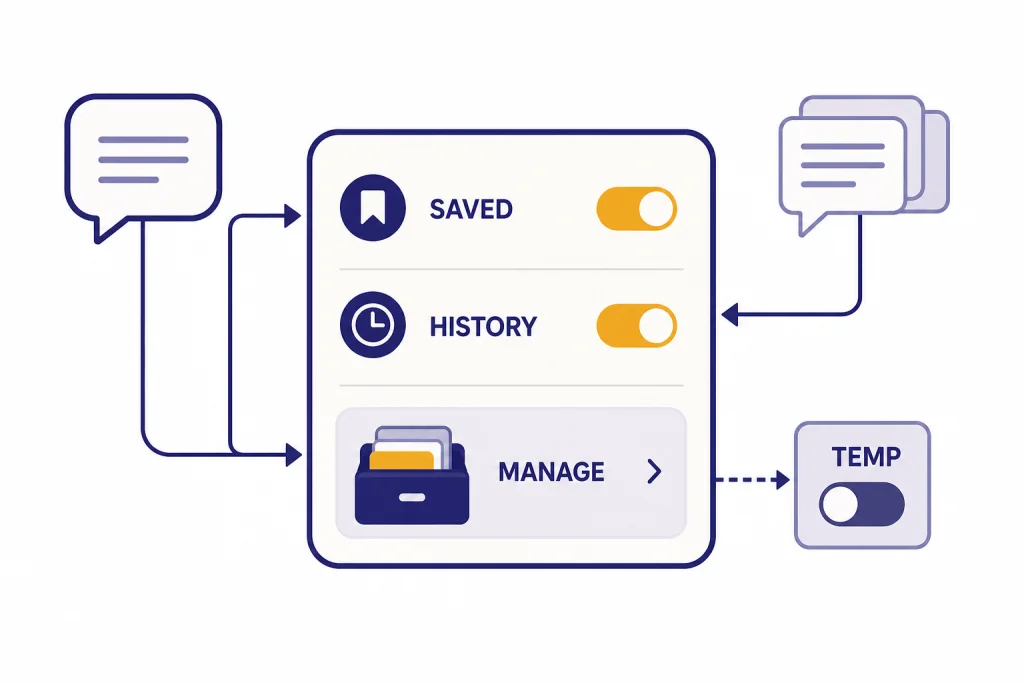
ChatGPT Memory lets ChatGPT reuse useful details from earlier conversations so you do not have to repeat your preferences, background, or recurring instructions every time. It works through saved memories and, where available, chat history reference. Saved memories are persistent notes that ChatGPT can keep until you delete them. Chat history reference is looser: ChatGPT may draw on relevant past conversations, but it does not preserve every detail. You can inspect what ChatGPT remembers, ask it to forget something, delete saved memories in settings, turn memory off, or use Temporary Chat when you want a blank slate.[1]
What ChatGPT Memory does
ChatGPT Memory is a personalization feature. It helps ChatGPT adapt future answers based on details you have shared before. Those details might include your preferred writing style, your job role, your family context, your coding stack, dietary preferences, or recurring project constraints.
OpenAI first announced memory controls for ChatGPT on February 13, 2024. It later expanded the feature: memory became available to ChatGPT Free, Plus, Team, and Enterprise users on September 5, 2024, and OpenAI announced broader memory that could reference past conversations for Plus and Pro users on April 10, 2025.[2]
The important point is that memory is not the same as the current chat window. Normal context helps ChatGPT follow the conversation you are having right now. Memory can affect future chats after the original conversation is over. That makes it useful for stable preferences, but risky for information you do not want reused.
A simple example: if you repeatedly ask for lesson plans and tell ChatGPT that you teach fifth grade, memory can help it start future education prompts with the right age range. If you tell it that you prefer concise answers with tables, it may format later replies that way. If you use ChatGPT Search, OpenAI says ChatGPT may also use relevant memories or recent-chat details to rewrite search queries in a more personalized way.[1]
Memory is best treated as a convenience layer, not a private notebook or a source of truth. You should review it periodically, delete stale facts, and avoid storing sensitive material unless you have a clear reason.
Saved memories vs. chat history
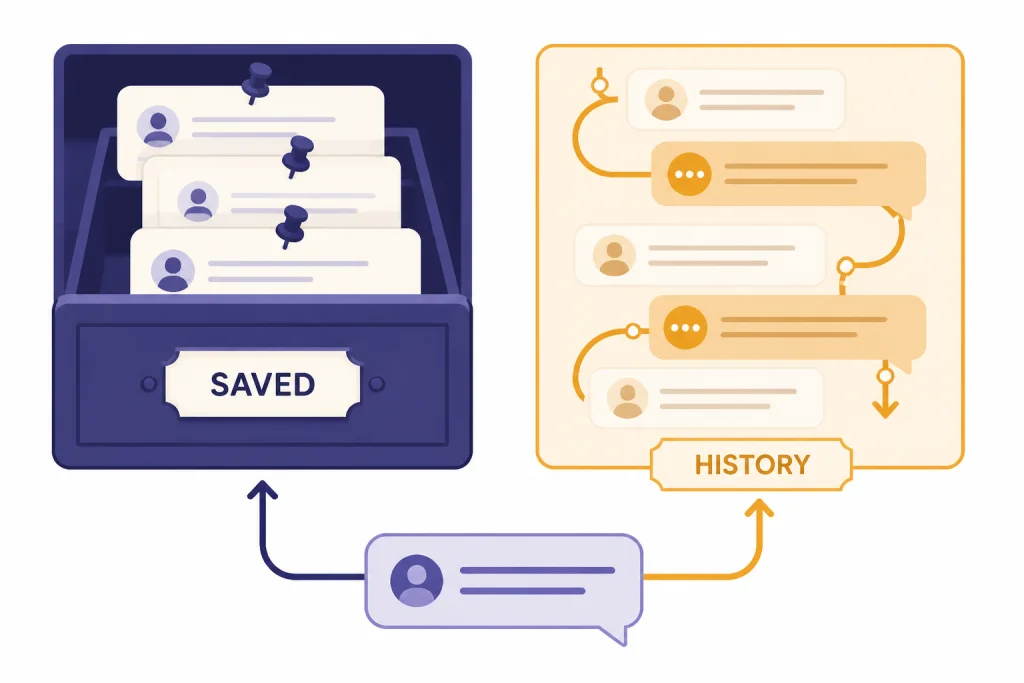
ChatGPT Memory has two main mechanisms: saved memories and reference chat history.[1] They feel similar in daily use, but they behave differently.
Saved memories are explicit, persistent details. You can ask ChatGPT to remember them, or ChatGPT may save useful details automatically when memory is on. OpenAI describes these as separate from your chat history, so deleting a chat does not necessarily delete a saved memory created from that chat.[1]
Reference chat history lets ChatGPT draw on relevant information from past conversations, even if that information was not saved as a formal memory. OpenAI says ChatGPT does not retain every detail from past chats, so saved memories are better for information you want kept top-of-mind.[1]
OpenAI’s public materials are not perfectly aligned on plan availability. The OpenAI announcement says Free users started receiving lightweight memory improvements on June 3, 2025, while an OpenAI Help Center article says Free accounts are limited to saved memories and that saved memories plus chat history are available to Plus and Pro accounts.[2][3] Treat your own Settings page as the final authority, because OpenAI also notes that settings can vary by plan.[1]
| Feature | Saved memories | Reference chat history |
|---|---|---|
| Best for | Stable facts and preferences you want reused | Broader personalization from prior conversations |
| How it is created | You ask ChatGPT to remember something, or it saves a useful detail when enabled | ChatGPT uses relevant past chats when the setting is enabled |
| How long it lasts | Until you delete it or clear saved memories | Changes over time as ChatGPT updates what is useful |
| Where to manage it | Settings > Personalization > Manage memories | Settings > Personalization, plus deleting or archiving chats |
| Deletion caveat | Deleting the original chat does not remove the saved memory | Deleting or archiving a chat can stop ChatGPT from referencing it unless a saved memory already exists |
The distinction matters when you want to remove something. If ChatGPT saved a memory from a conversation, removing only the conversation may not be enough. OpenAI says you should delete both the saved memory and the chat where you shared or referenced the information if you want to fully remove it from future use.[1]
How to manage ChatGPT Memory
You manage memory from two places: the chat itself and Settings. The chat route is faster for quick changes. The Settings route is better for review and cleanup.
Ask what ChatGPT remembers
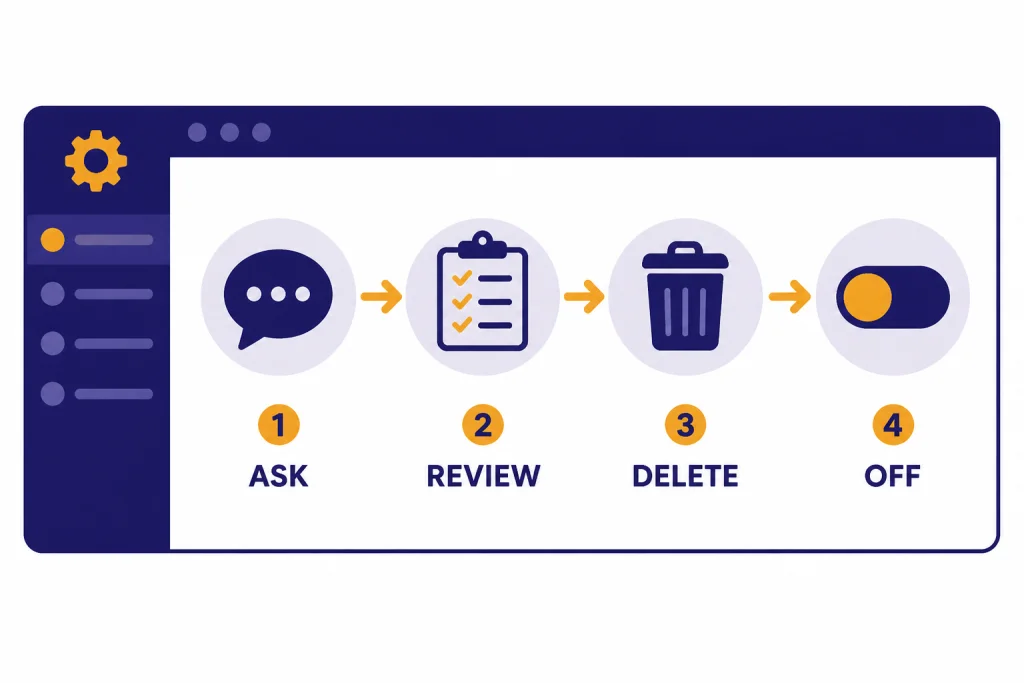
The simplest audit is to ask directly: What do you remember about me? OpenAI recommends this as a way to see what ChatGPT remembers.[3] The answer may summarize saved memories and other personalization signals, depending on your settings and plan.
Add a memory on purpose
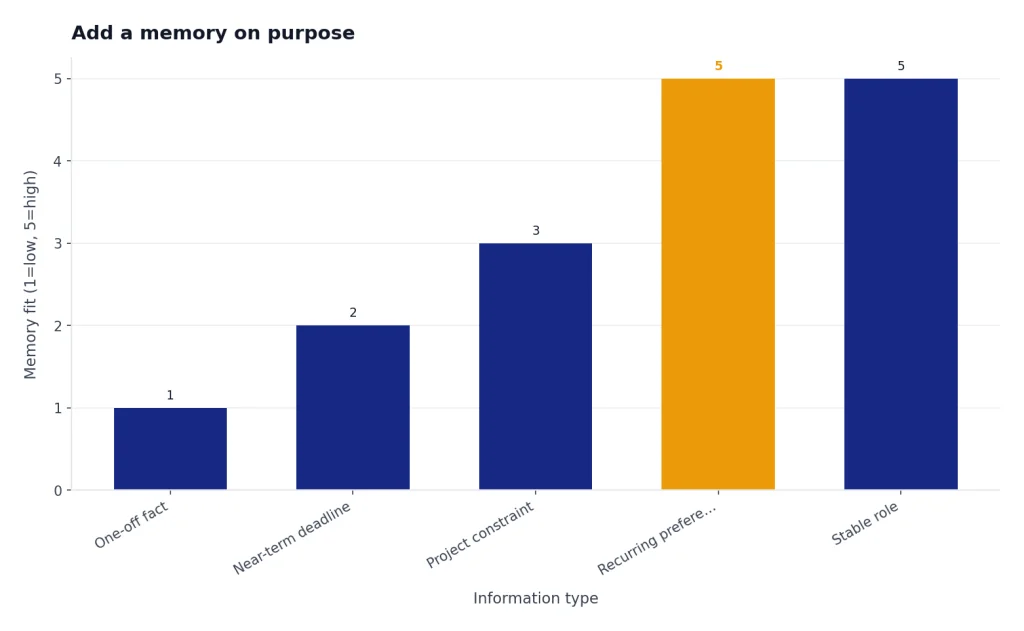
Use direct language. For example: Remember that I prefer Python examples unless I ask for another language. This is better than hoping ChatGPT infers the preference from repeated use.
Good memories are short and durable. Store preferences, roles, constraints, and stable context. Do not store one-off facts that will expire quickly, such as a temporary trip itinerary or a deadline that will pass next week.
Delete one memory
You can tell ChatGPT to forget a specific saved memory, or you can go to Settings > Personalization > Manage memories and remove it there. OpenAI says turning saved memory off does not delete memories that already exist, and deleting a chat does not remove a saved memory created from that conversation.[1]
Turn memory off
OpenAI says you can turn memory controls off in Settings > Personalization. It also says turning off Reference saved memories turns off Reference chat history. If Reference saved memories remains on, you may still be able to turn Reference chat history off separately, depending on your plan and interface.[1]
Use Temporary Chat for a blank slate
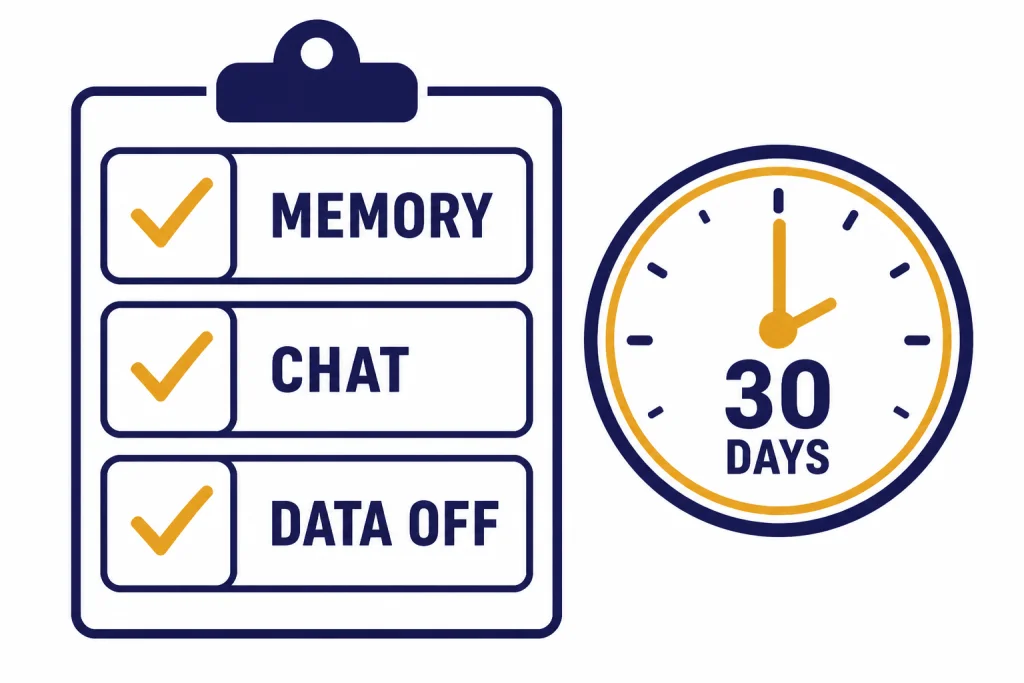
Temporary Chat is the cleanest option when you want one conversation not to use or update memory. OpenAI says Temporary Chats do not appear in history, do not use or create memories, and are not used to improve OpenAI’s models. OpenAI may keep a copy for safety purposes for up to 30 days.[4]
When to use Memory, Custom Instructions, Projects, or Temporary Chat
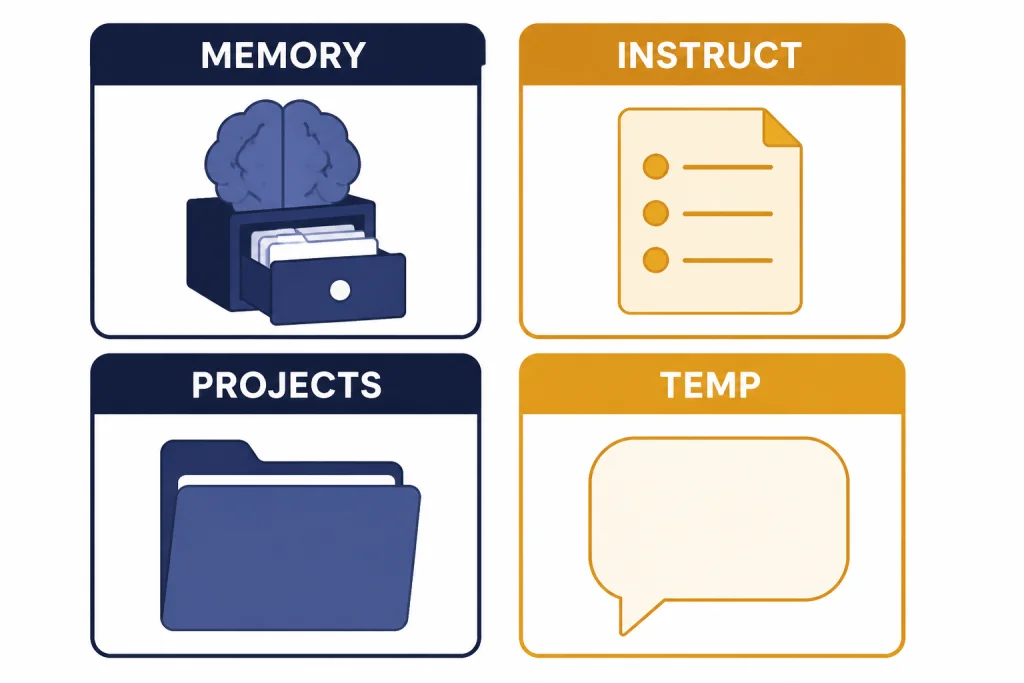
Memory is only one personalization tool. ChatGPT also has Custom Instructions, Projects, and Temporary Chat. Use the tool that matches the job.
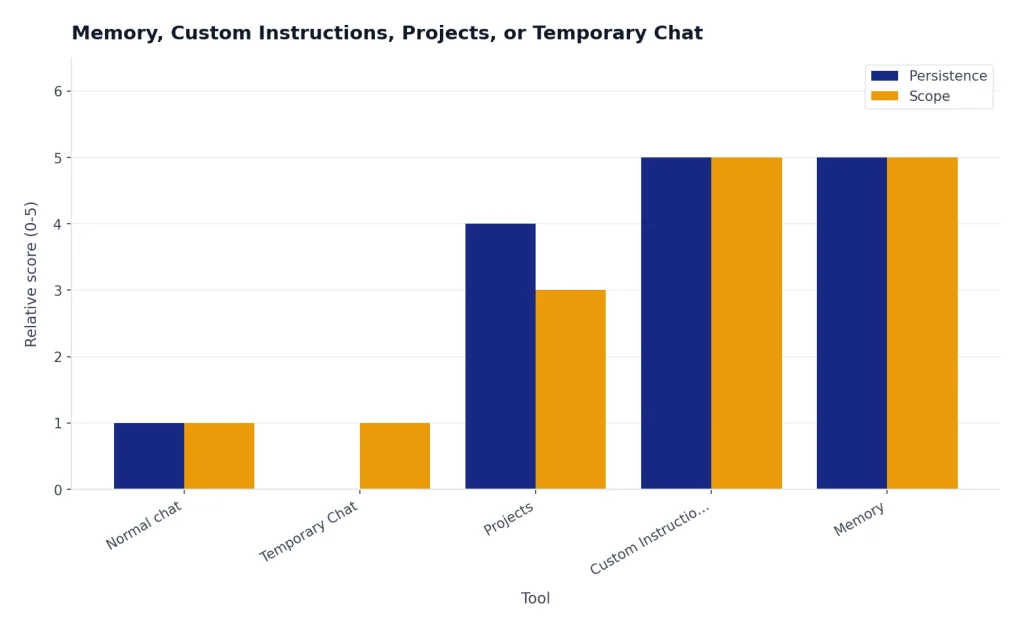
Use memory for personal facts and recurring preferences that can evolve naturally. Use ChatGPT Custom Instructions for explicit standing directions you want ChatGPT to follow across conversations. OpenAI says Custom Instructions are for direct guidance about what you want ChatGPT to know and how you want it to respond, while memory can capture relevant details shared through conversations.[7]
Use ChatGPT Projects when the context belongs to a specific workstream instead of your whole account. A project is a better container for a client engagement, research folder, long-running writing assignment, or class. Memory is account-level personalization; project context should stay project-specific.
Use Temporary Chat for sensitive, experimental, or off-topic conversations. It is also useful when memory is causing ChatGPT to over-personalize an answer.
| Need | Best tool | Example | Why |
|---|---|---|---|
| Persistent personal preference | Memory | “I prefer recipes without shellfish.” | It should apply across many future chats. |
| Global response rule | Custom Instructions | “Use concise answers and include assumptions.” | It is an instruction, not a remembered fact. |
| Workstream context | Projects | “All chats and files for the Q3 launch plan.” | The context belongs in one workspace, not everywhere. |
| Private or throwaway chat | Temporary Chat | “Brainstorm a medical question I do not want remembered.” | It should not use or create memory. |
| Single conversation context | Normal chat | “Use the outline above for this draft.” | The detail only matters in the current thread. |
Custom Instructions also have a fixed text field. OpenAI’s Help Center lists a 1,500-character limit for the longer custom-instruction fields.[6] Memory does not work like a field you fully author yourself. It is more like a managed set of notes that ChatGPT can update, combine, or remove when asked.[1]
If you are building repeatable workflows, combine tools carefully. For example, keep your writing style in Custom Instructions, your stable professional role in memory, and the documents for a specific assignment in ChatGPT File Upload or a project. For advanced examples, see our memory power-user tutorial.
Privacy, data controls, and limits
Memory changes the privacy posture of a ChatGPT account because useful details can carry forward into future chats. That is the point of the feature. It is also why you should treat memory as something to curate.
Training controls are separate from memory controls
Memory settings control whether ChatGPT uses or creates memory. Data Controls control whether your conversations help improve OpenAI’s models. OpenAI says signed-in users can turn off “Improve the model for everyone” in Settings > Data Controls, and that conversations can still appear in chat history even when they are not used for training.[5]
OpenAI says it may use content you share with ChatGPT, including past chats, saved memories, and memories from those chats, to improve models if “Improve the model for everyone” is on. It also says ChatGPT Business, Enterprise, and Edu customer content is not used for training by default.[1]
Deletion can require more than one step
If the information exists as a saved memory and also appears in a chat, delete both if you want a full cleanup. OpenAI says that to fully remove something ChatGPT remembers, you need to delete saved memories in Settings and delete the chats where you shared or referenced the information.[1]
For chat-history reference, OpenAI says turning the setting off deletes the information ChatGPT remembered from past chats, and that information is deleted from its systems within 30 days.[1] Temporary Chats follow a separate path: OpenAI says they may be retained for safety purposes for up to 30 days and are not used for model training.[4]
Sensitive information deserves extra caution
OpenAI says memory raises privacy and safety considerations and that it has trained ChatGPT not to proactively remember sensitive information in saved memories, such as health details, unless you explicitly ask it to.[1] That is helpful, but it is not a substitute for judgment. Do not ask ChatGPT to remember passwords, government ID numbers, confidential legal strategy, protected health details, or anything you would not want surfaced in a future session.
Not every ChatGPT surface behaves the same way
Memory behavior can depend on the plan, model, app, and workspace. OpenAI says some models may not support chat history for all users.[1] It also says GPTs do not use saved memory, custom instructions, or previous conversations, and that interactions with custom GPTs are stateless regardless of whether memory is turned on.[8]
This matters if you use specialized features such as ChatGPT Web Browsing, ChatGPT Vision, or ChatGPT Tasks. Memory may personalize the main ChatGPT experience, but each feature can have its own boundaries. When accuracy or privacy matters, check the visible controls before you start.
Practical memory prompts
The best memory prompts are explicit. They tell ChatGPT exactly what should persist and what should not. Here are practical examples you can adapt.
For writing preferences
Remember that I prefer short paragraphs, plain language, and no rhetorical questions in headings.For coding help
Remember that my default stack is TypeScript, React, Node.js, and PostgreSQL unless I say otherwise.For food and travel preferences
Remember that I do not eat pork and prefer restaurants with quiet seating.For reviewing memory
List what you remember about me. Group it into work, writing style, personal preferences, and anything that may be outdated.For deleting memory
Forget that I work at my previous company. Do not use that employer as context in future answers.Be precise with delete requests. “Forget my old job” may work, but “Forget that I work at Acme Corp” is safer. Then ask ChatGPT what it remembers so you can confirm the cleanup.
Use negative instructions sparingly. If you tell ChatGPT to remember many things you do not like, those details may still influence future answers. For highly sensitive or temporary material, use Temporary Chat instead.
Troubleshooting ChatGPT Memory
Memory can feel opaque when ChatGPT refers to something you did not expect. Work through the problem in order.
- Ask what it used. Try:
What memory or prior context influenced that answer? - Check saved memories. Open Settings > Personalization > Manage memories and delete anything stale.
- Check chat-history reference. If available, turn Reference chat history off when you do not want broad personalization.
- Start a Temporary Chat. If the answer improves, memory or prior context was probably part of the issue.
- Move stable rules to Custom Instructions. If ChatGPT keeps misreading a preference, write it as an explicit instruction instead of relying on inferred memory.
Also remember that memory is not a database. ChatGPT can forget details, merge memories, or apply a remembered preference in the wrong situation. For facts that must be exact, provide the fact again in the current chat.
If you use multiple devices, check the same account settings in the ChatGPT web app and your mobile or desktop app. The control names may vary slightly by plan and interface, but OpenAI’s Help Center points users to Settings > Personalization for memory controls.[1] For app-specific setup, our best ChatGPT app guide can help you choose the right client.
Frequently asked questions
Does ChatGPT Memory remember everything I say?
No. OpenAI says ChatGPT does not retain every detail from past chats, and that saved memories are better for anything you want it to always keep in mind.[1] You should still avoid sharing information you would not want remembered when memory is enabled.
How do I see what ChatGPT remembers?
Ask ChatGPT, “What do you remember about me?” OpenAI lists that as a direct way to check remembered information.[3] You can also review saved memories through Settings > Personalization > Manage memories.
Does deleting a chat delete its memory?
Not necessarily. OpenAI says deleting a chat does not remove saved memory from that conversation.[1] To fully remove something, delete the saved memory and delete the chat where you shared or referenced the information.
Is Temporary Chat the same as turning memory off?
No. Temporary Chat is a per-conversation blank slate. OpenAI says Temporary Chats do not appear in history, do not use or create memories, are not used to improve models, and may be kept for safety purposes for up to 30 days.[4] Turning memory off changes the broader account setting.
Should I use memory or Custom Instructions?
Use Custom Instructions for explicit standing directions about how ChatGPT should respond. Use memory for details that naturally come up in conversation and should help future chats.[7] If a rule is important, put it in Custom Instructions rather than hoping memory infers it.
Do custom GPTs use ChatGPT Memory?
OpenAI says GPTs do not use saved memory, custom instructions, or previous conversations.[8] That means a custom GPT conversation may not behave like your main ChatGPT chat, even when memory is enabled on your account.