

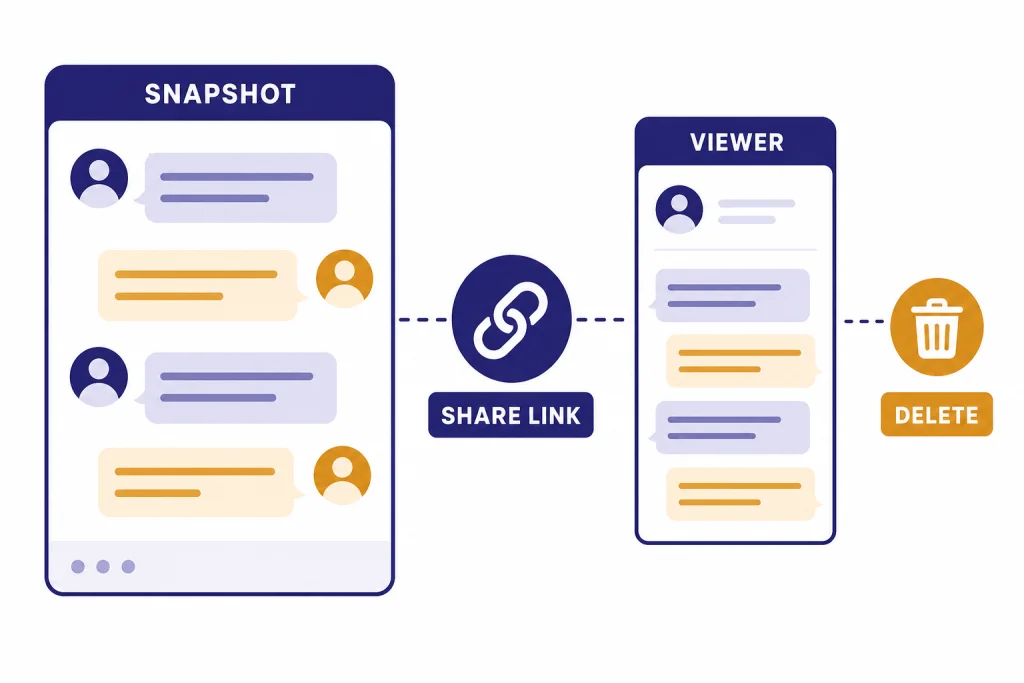
ChatGPT shareable links let you turn a conversation into a URL that other people can open. They are useful when you need to show a prompt, preserve an answer, hand off research, or give a teammate context without sending screenshots. The important rule is simple: a shared link is not a private invitation system. For personal ChatGPT accounts, anyone with the link can view the linked conversation, and OpenAI says shared links do not offer granular permissions or expiration dates.[1] Use them for non-sensitive conversations, review the whole thread before sharing, and delete links when they are no longer needed.
What ChatGPT shareable links are
ChatGPT shareable links are public-by-link snapshots of ChatGPT conversations. OpenAI describes the feature as a way to generate a unique URL for a conversation so it can be shared with friends, colleagues, and collaborators.[1] In practice, it works like a lightweight read-only handoff. Instead of copying text into an email or taking screenshots, you can send one link that opens the conversation view.
The feature is best for context. A link can show the prompt you used, the model’s response, and the surrounding thread that led to that answer. That makes it more useful than pasting a final paragraph into Slack, because the recipient can see how the result was produced.
Shared links are not the same as collaboration inside a document. They do not make the recipient a co-owner of your chat. They also do not give you per-person access controls in personal ChatGPT. If you need a private knowledge workspace, organize the source conversation first with ChatGPT Projects, then share only the clean thread that others actually need.
What a shared link includes
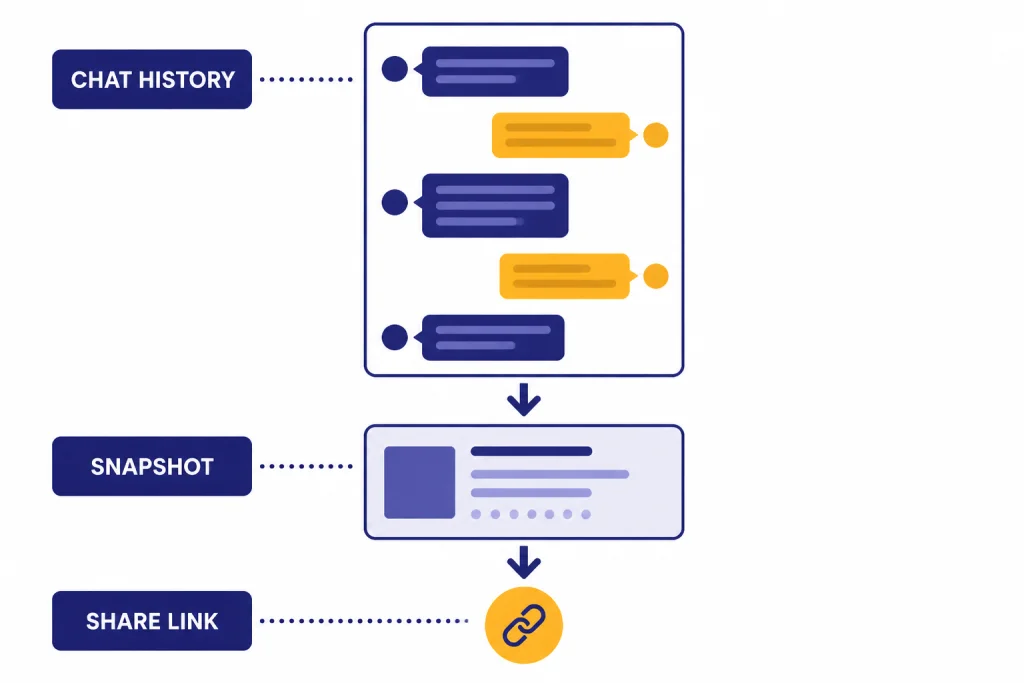
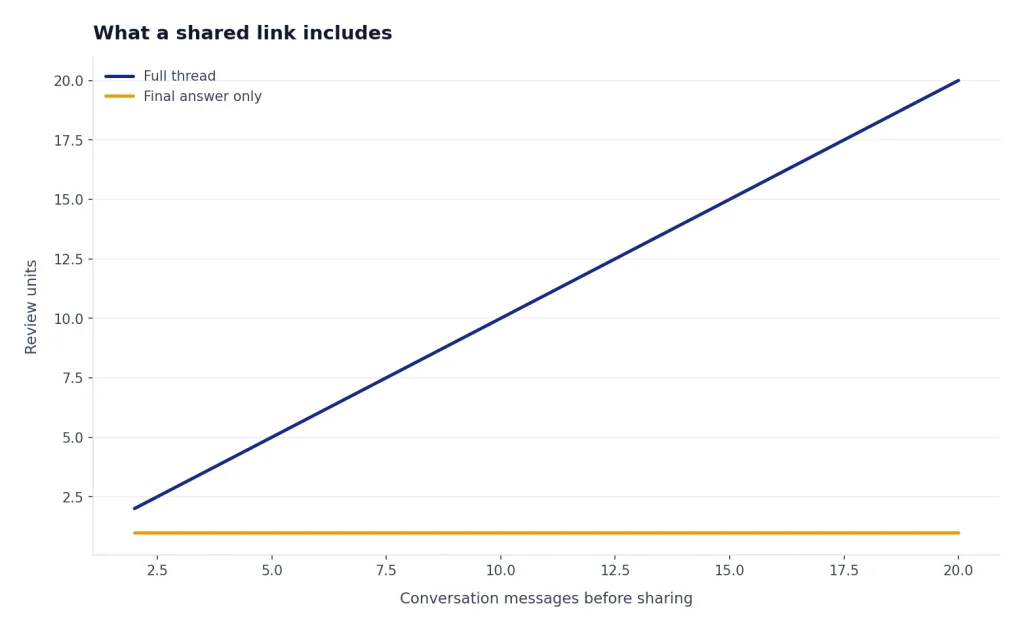
A shared link includes the conversation up to the point when the link is created. OpenAI calls it a snapshot of the entire conversation up to that moment, not just the last answer.[1] This detail matters. If the thread contains earlier brainstorming, uploaded-file discussion, client names, passwords, draft strategy, or personal notes, those earlier messages may be visible too.
Before you create a link, scroll through the full conversation. Treat the share preview as a final review step, not a formality. If the useful answer sits at the end of a messy thread, start a new chat, paste only the necessary context, ask ChatGPT to restate the final result, and share that cleaner conversation instead.
Shared links also behave differently from live documents. For personal ChatGPT, the link reflects the state of the conversation at the time you shared it. If you keep chatting afterward, do not assume recipients will see the later additions unless you update or create a new share from the same conversation. Enterprise workspaces are an exception, discussed below.
| Item | Usually included in a personal shared link | What to check before sharing |
|---|---|---|
| Prompts and replies | The thread up to the share point.[1] | Remove side comments, private context, and unnecessary background. |
| Your account identity | OpenAI says shared links do not include your name or other personal information.[1] | Do not rely on that if you typed identifying details inside the chat. |
| Future messages | Personal shared chats do not update with later messages by default.[6] | Update the link or make a fresh one if the answer changes. |
| Access permissions | Anyone with the link can view it in personal ChatGPT.[1] | Do not share sensitive information. |
How to create a ChatGPT shared link
OpenAI says shared links are available on chatgpt.com and in the iOS and Android apps.[1] A separate OpenAI settings article says Shared Links is generally available on web and iOS, with Android coming soon.[3] Because those official help pages conflict, check your own app if you do not see the share control on Android.
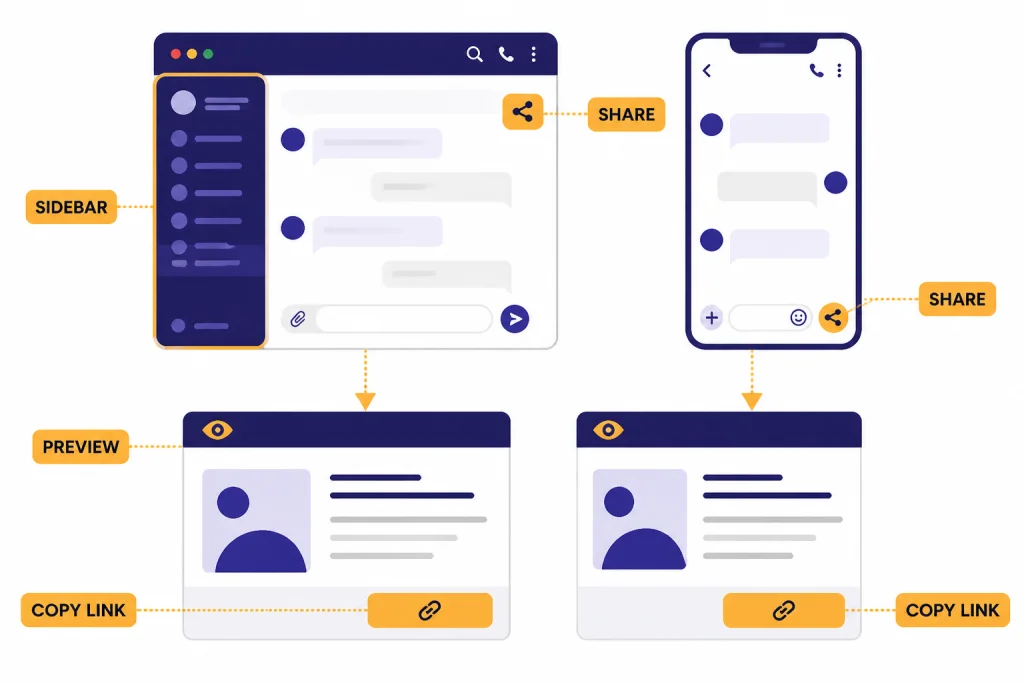
- On the web: open the conversation, use the share button near the top of the chat screen or share from the sidebar, preview the conversation, then copy the link.[1]
- On mobile: open the conversation and look for the share icon or menu button near the top of the chat.[2]
- Before sending: read the preview, confirm the thread does not contain sensitive details, then paste the link into your email, document, chat app, or task tracker.
The share flow is strongest when the conversation is already clean. If you are using file analysis, image prompts, or web research, remember that the recipient may not get every underlying artifact. For file-heavy work, see our ChatGPT file upload guide and consider exporting or summarizing the source material separately.
Privacy and security rules
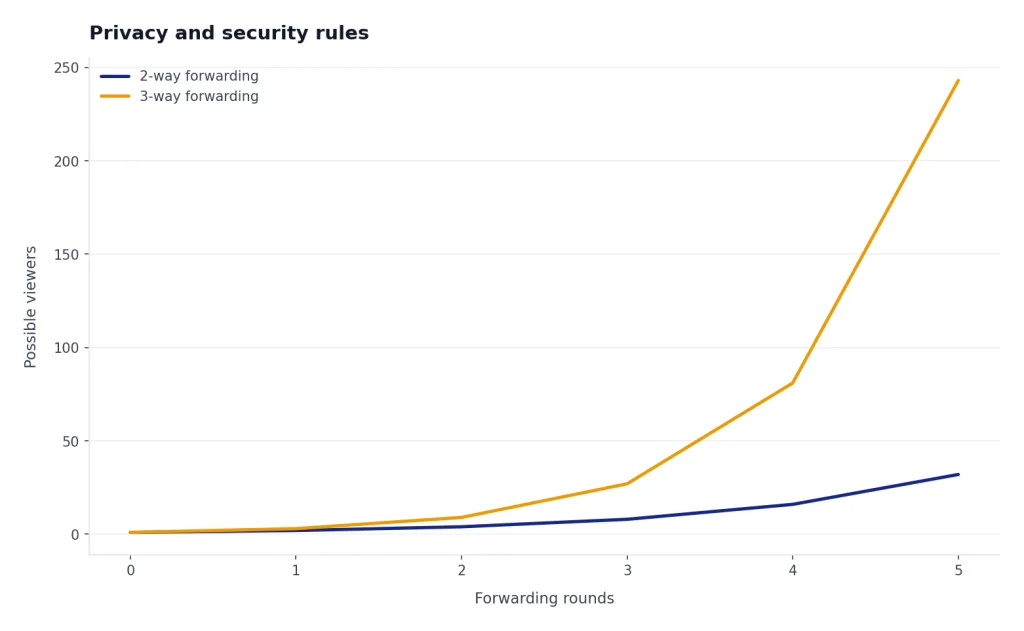
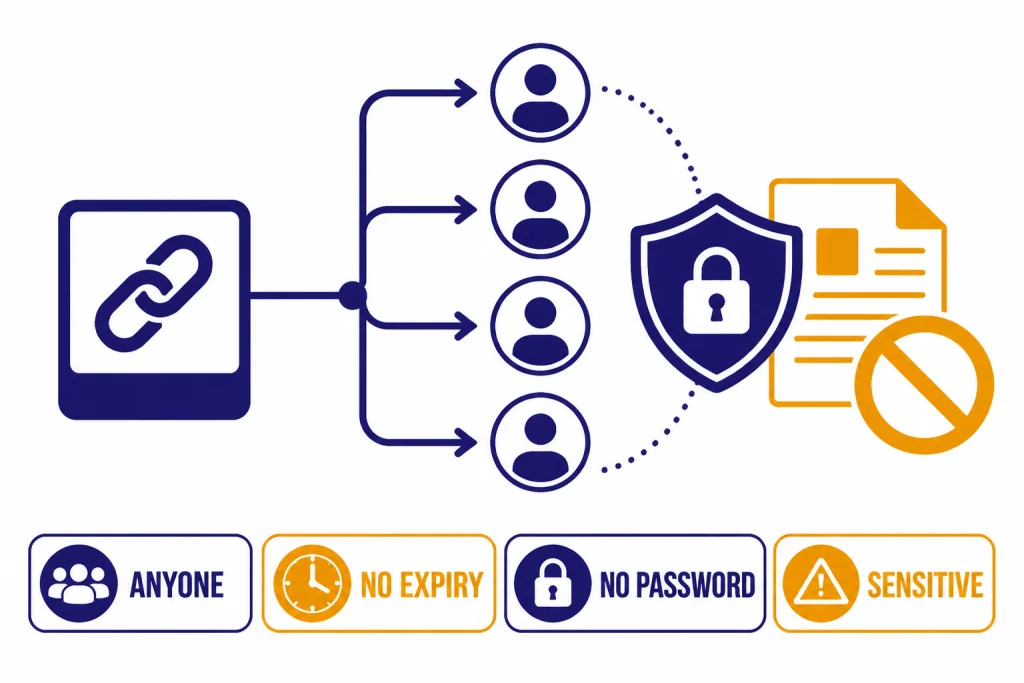
The main privacy rule is that personal shared links are accessible to anyone who has the URL. OpenAI says it does not currently provide granular permissions for shared links, and it does not currently offer an expiration-date setting.[1] That makes shared links convenient, but it also makes them easy to forward beyond the audience you intended.
OpenAI says the authentic URL pattern for ChatGPT shared links starts with https://chatgpt.com/share/.[1] That is useful for spotting obvious fakes, but it is not a complete security check. A legitimate-looking link can still lead to content you do not want to open at work, and a link from an unknown sender can still be risky.
Use a simple rule for sensitive material: if you would not put it in a public forum, do not put it in a shared-link conversation. That includes medical history, legal strategy, private business data, employee records, unpublished financials, access tokens, personal addresses, and confidential customer information. If a chat depends on personal preferences, review how ChatGPT Memory and ChatGPT Custom Instructions may have shaped the exchange before you share the result.
Also remember that deleting your link later may not erase every copy. OpenAI says that if a viewer imported or copied the conversation into their own chat history, deleting your shared link will not remove that copy from the viewer’s history.[1] Share links as if someone could keep the content.
How to manage, update, or delete links
You can reopen the share dialog for a conversation to modify a previously created shared link. OpenAI’s update guidance says to open the same chat, use the share icon or menu, then adjust the link from the modal; it also says you can delete the link from that modal if you no longer want to share it.[2]
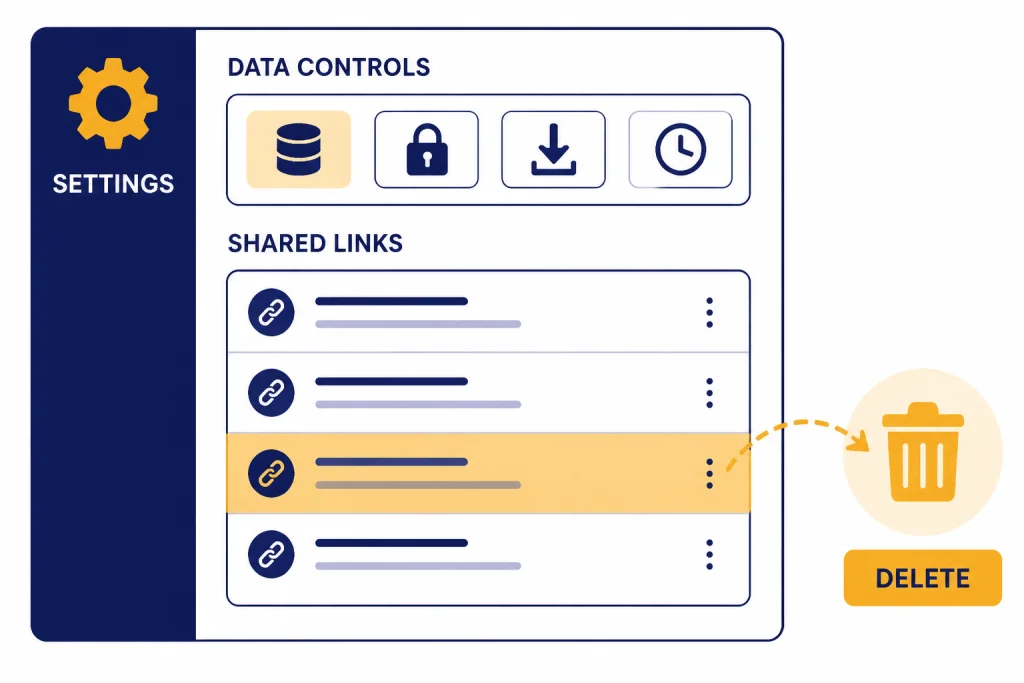
You can also manage shared conversations from settings. OpenAI’s help article points users to Settings, then Data Controls, then Manage under Shared conversations or Shared links.[3] The wording may vary slightly by interface, workspace, and platform, but the setting belongs in the data-control area.
- To remove one shared link: use the trash or delete control for that shared conversation.
- To remove a conversation entirely: delete the original chat. OpenAI says deleting the original conversation deletes the shared link too.[1]
- To audit what you have shared: open the shared-links management area and review the list periodically.
- To export records: OpenAI says ChatGPT data exports include shared conversation link data in a
shared_conversationsfile with fields such as ID, conversation ID, title, and anonymity setting.[4]
Disabling chat history or training controls is not the same as deleting old shared links. OpenAI’s FAQ says existing shared links are not deleted when Chat History & Training is disabled, and that the share button is disabled for conversations after that setting is turned off.[1] If your goal is to remove access, delete the link or delete the underlying conversation.
Business and Enterprise differences
ChatGPT Business and ChatGPT Enterprise treat shared links more like workspace sharing than public web sharing. OpenAI says Business shared links let users share a conversation with other members of the same workspace, and people outside that workspace cannot see the shared chat.[5] Enterprise shared links are also limited to members of the user’s workspace.[6]
The content rules differ too. OpenAI says Business users can share most conversations, but chats containing image files uploaded by users are not currently supported; chats with images created by ChatGPT can be shared.[5] For Enterprise, OpenAI says users can share chats that use Advanced Data Analysis or browsing, but uploaded files are not accessible through the shared link, and chats with images are not shareable.[6]
| Plan context | Who can open the link | Notable behavior |
|---|---|---|
| Personal ChatGPT | Anyone with the link can view the linked conversation.[1] | No granular permissions or expiration-date setting.[1] |
| ChatGPT Business | Members of the same workspace can view it; outsiders are blocked.[5] | If a viewer continues the chat, a new private conversation is created in their workspace.[5] |
| ChatGPT Enterprise | Members of the same workspace can view it; outsiders cannot access it.[6] | Enterprise shared chats continue to show future messages after sharing, unlike non-enterprise shared chats.[6] |
For teams, shared links are helpful but not a substitute for a documentation system. Use them to show how an answer was reached, then move durable decisions into your project tracker, knowledge base, or brief. If a conversation depends on current sources, pair the link with a clean summary from ChatGPT Search or ChatGPT web browsing so readers know which claims came from the web.
Best uses and bad uses
Use ChatGPT shareable links when transparency matters. They are good for showing a prompt pattern, giving a colleague the reasoning path behind a draft, sharing a troubleshooting exchange, or preserving an example answer for a tutorial. They are also useful when someone asks, “What exactly did you ask ChatGPT?” A link answers that better than a copied paragraph.
Avoid shared links when the conversation contains information you do not control. Do not share client files, private internal numbers, personal documents, private photos, or anything covered by a confidentiality agreement. If the chat began with rough private notes and ended with a polished public answer, create a new sanitized conversation and share that instead.
Shared links also do not solve login or access questions. Some viewers may need ChatGPT access to interact further with a copied conversation, and workspace links may require the right account. If your recipient is new to ChatGPT, send a short exported summary as a backup and point them to our guide on using ChatGPT without logging in or our overview of the best ChatGPT app for their device.
A good sharing workflow is simple. First, decide whether the conversation should be shared at all. Next, remove or recreate anything sensitive. Then create the link, test it in a separate browser session if needed, and send it with a short note explaining why the recipient is receiving it. Finally, revisit your shared-link list and remove stale links after the handoff is complete.
Frequently asked questions
Can anyone see my ChatGPT shared link?
For personal ChatGPT, yes, anyone who has the link can view the linked conversation.[1] Do not treat the URL as a private access control. Business and Enterprise workspaces have different rules that limit access to workspace members.[5][6]
Does a shared link include my whole conversation?
It includes the conversation up to the point when you create the link.[1] That can include earlier prompts and replies that are no longer relevant to the final answer. Always review the whole thread before sharing.
Can I set a password or expiration date for a shared link?
OpenAI says personal shared links do not currently have granular permissions, and it does not currently offer an expiration-date setting.[1] If you need the link to stop working, delete or invalidate it manually. For sensitive access control, use a workspace or document system built for permissions.
What happens if I delete the original chat?
OpenAI says deleting the original ChatGPT conversation also deletes the shared link, so the content is no longer accessible through that link.[1] This does not remove copies that other people may have imported or saved. Assume anything shared can be retained by the recipient.
Can someone continue my shared conversation?
OpenAI says the old option to continue a conversation from a shared link has been deprecated across ChatGPT plans.[1] If a recipient replies to a shared conversation, it creates a copy in that person’s own history rather than continuing your original thread.[1]
Are shared links included in my ChatGPT data export?
Yes. OpenAI says exports include shared conversation link data in a shared_conversations file with fields such as ID, conversation ID, title, and anonymity setting.[4] Use that export if you need a record of shared conversation metadata.