

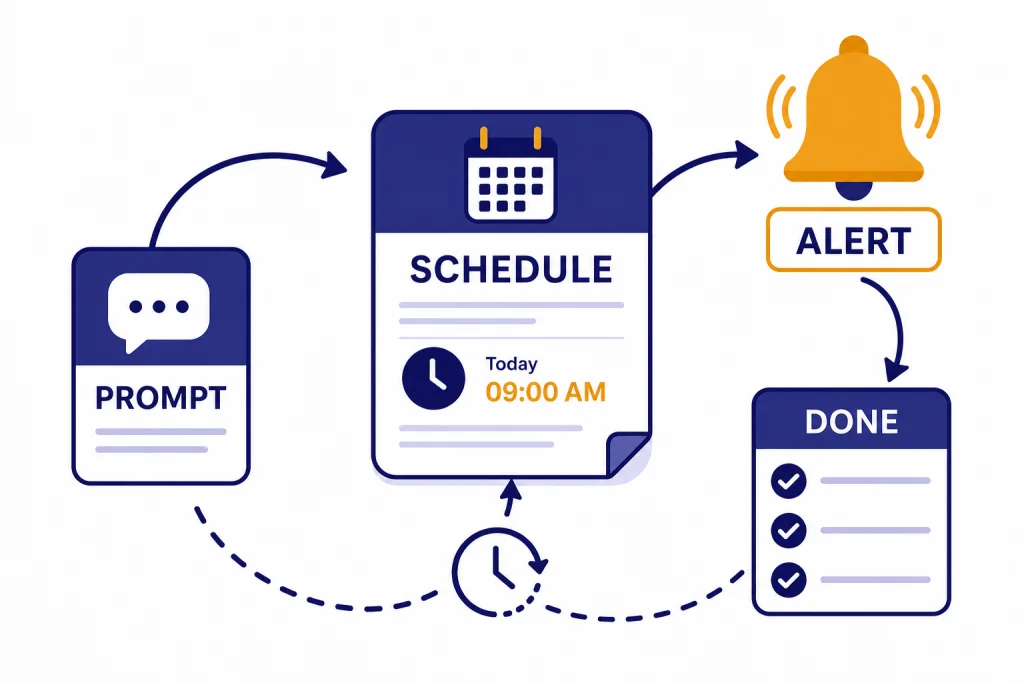
ChatGPT Tasks lets you schedule ChatGPT to do something later instead of waiting for you to open a new chat. You can use it for one-time reminders, recurring check-ins, scheduled research prompts, habit nudges, and routine briefings. The feature is not a full project manager or workflow automation platform. It works best when the task is clear, time-based, and safe to deliver as a notification or short generated response. This guide explains what ChatGPT Tasks can do, how to create and manage tasks, where the limits are, and when a regular reminders app, calendar, or automation tool is still the better choice.
What ChatGPT Tasks does
ChatGPT Tasks turns a prompt into a scheduled action. Instead of asking ChatGPT for a news summary every morning, you can ask it to send that summary every weekday at a set time. Instead of asking for a language drill whenever you remember, you can schedule a short practice session. OpenAI describes Tasks as a way to let ChatGPT run automated prompts and proactively reach out to you.[1]
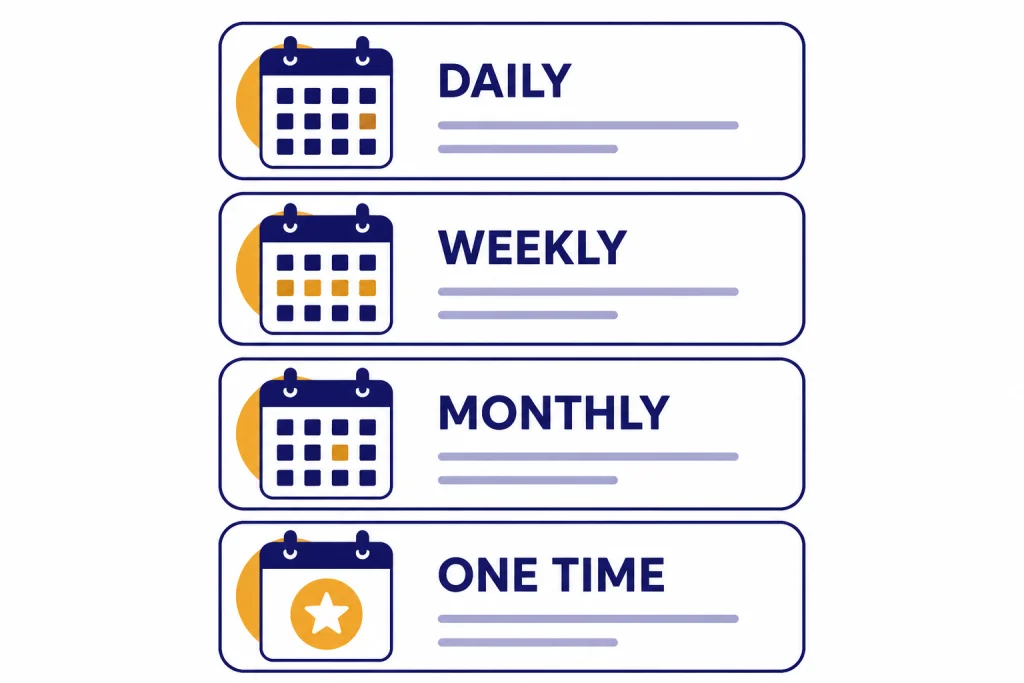
The key difference is timing. A normal ChatGPT message runs when you send it. A Task runs later. It can be one-time, like a birthday reminder, or recurring, like a daily planning prompt. OpenAI’s release notes introduced scheduled tasks on January 14, 2025, as a beta feature for one-time reminders and recurring actions.[2][3]
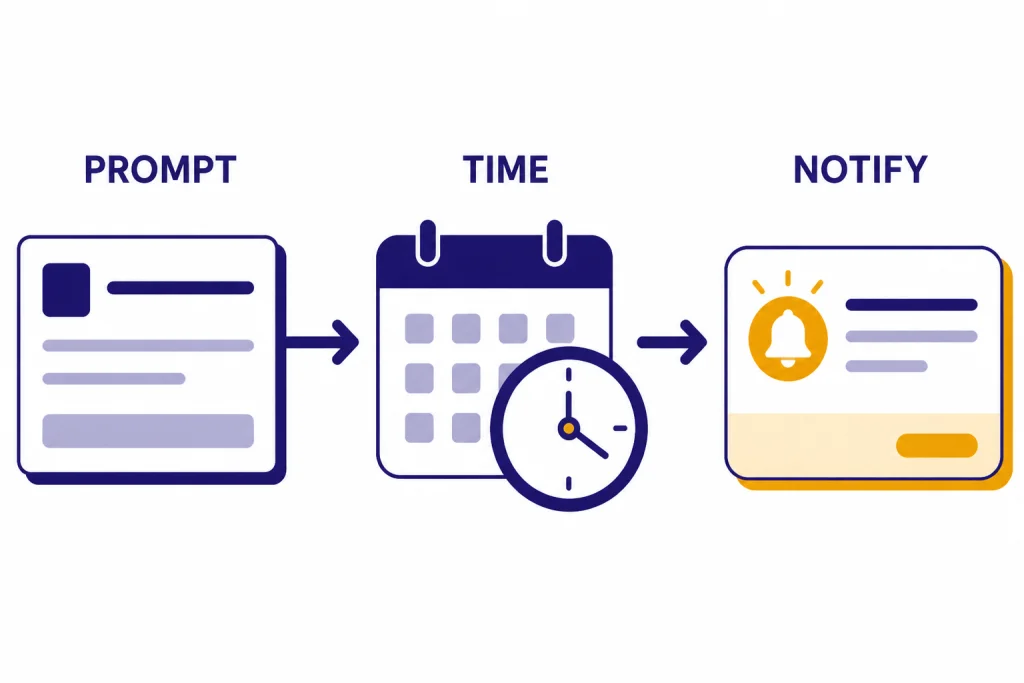
A Task usually has three parts: the instruction, the schedule, and the notification path. The instruction tells ChatGPT what to do. The schedule tells it when to run. The notification tells you the task completed, usually through push notification or email depending on your settings. OpenAI says Tasks can run whether or not you are online.[1]
Think of Tasks as scheduled prompts, not as a replacement for every productivity system. They are strongest when ChatGPT must generate something useful at a predictable time. They are weaker when you need strict deadlines, shared accountability, audit trails, attachments, or guaranteed delivery. For larger workspaces, ChatGPT Projects is a better organizing feature, while Tasks is better for timed prompts.
Availability, limits, and supported apps
OpenAI’s help page says Tasks are supported on ChatGPT Web, iOS, Android, and macOS. It also says Windows app support is planned, and that the Tasks page for viewing and managing all tasks is currently available on ChatGPT Web.[1] If you rely on desktop notifications, check both ChatGPT notification settings and your browser or operating system permissions.
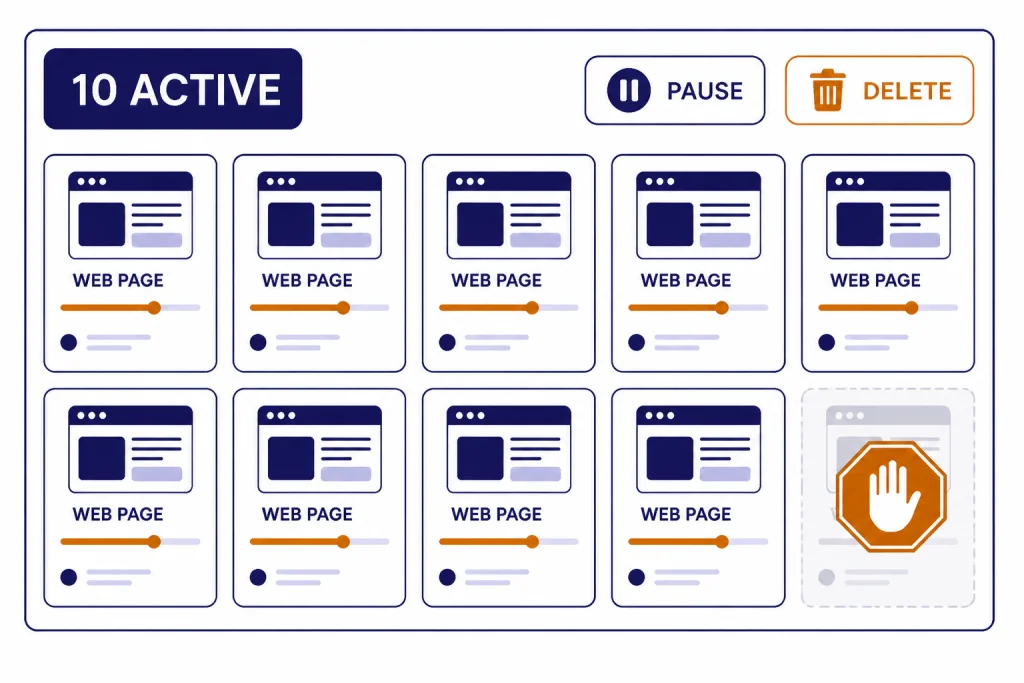
The most important usage limit is the active task cap. OpenAI says ChatGPT has a limit of 10 active tasks at any time. If you hit that cap, you need to pause, delete, or let an existing task finish before creating another one.[1][4]
OpenAI also says Tasks are supported by ChatGPT models except Pro models, and that your plan’s usage limits apply to tasks.[1] That means a scheduled task is not a separate unlimited background allowance. It still belongs to your ChatGPT account and plan environment. If you often run into caps, read our guide to legitimate ways to handle ChatGPT message limits.
Tasks do not support every ChatGPT tool. OpenAI lists voice chats, file uploads, and GPTs as unsupported with Tasks.[1] If your workflow depends on uploading spreadsheets, PDFs, or images at run time, use normal chat and review our ChatGPT file upload guide instead. If you want spoken back-and-forth practice, Tasks can remind you to practice, but it is not a scheduled voice session.
| Area | What OpenAI documents | Practical meaning |
|---|---|---|
| Supported apps | Web, iOS, Android, macOS | Create tasks across major ChatGPT clients. |
| Windows app | Planned support | Use ChatGPT Web if the Windows app does not show Tasks. |
| Task management page | Available on ChatGPT Web | Use the web app for the cleanest edit, pause, and delete controls. |
| Active task limit | 10 active tasks | Reserve tasks for recurring items that deserve a slot. |
| Unsupported tools | Voice chats, file uploads, GPTs | Do not build a Task around live voice, uploaded files, or Custom GPT behavior. |
If you are choosing which device to use, start with the official ChatGPT app you already trust. Our best ChatGPT app comparison covers Mac, iPhone, and Android options, and our ChatGPT Windows app setup guide explains the Windows desktop experience.
How to create a ChatGPT Task
The simplest way to create a Task is to ask ChatGPT in plain English. OpenAI gives examples such as asking for an AI news briefing each afternoon, daily French practice, or a reminder about a family birthday.[1] You do not need a special template, but clear prompts reduce mistakes.
- Open ChatGPT on a supported app or on the web.
- Start a new chat or continue a relevant conversation.
- Write what you want ChatGPT to do and when it should happen.
- Review the confirmation card that ChatGPT creates.
- Turn on push or email notifications if ChatGPT asks for permission.
- Test with a low-stakes reminder before relying on it for important work.
A good Task prompt is specific about the output and the schedule. “Remind me to submit the expense report Friday at 3 PM” is better than “remind me about expenses.” “Every Monday at 8 AM, send a five-bullet plan for my weekly review” is better than “help me plan my week.” The first version tells ChatGPT exactly what to do, when to do it, and what shape the result should have.
You can also create Tasks from suggested task cards if they appear in your account. OpenAI says first-time setup may show suggested tasks or a “Try your own” option.[1] These suggestions are useful for learning the pattern, but your own prompt should still include the schedule.
Prompt patterns to copy
Use these as starting points. Replace the bracketed text with your own details.
Remind me to [specific action] on [date] at [time].

Every weekday at [time], send me a short briefing about [topic] with [format].

Every [day] at [time], ask me [habit question] and give me one practical next step.

On the first day of each month at [time], remind me to review [area] and include a checklist.
If the task depends on fresh information, keep the output narrow. A scheduled market, weather, or news prompt can be useful, but it should ask for a summary, not an irreversible action. For real-time web answers, understand how ChatGPT Search and ChatGPT web browsing behave before you depend on a scheduled briefing.
Examples that work well
ChatGPT Tasks works best when the instruction is repeatable and the result can fit in a notification or short response. The feature is not only for “remind me” prompts. It can produce a fresh answer on a schedule, provided the task does not require unsupported tools or manual confirmation.
Personal reminders
Use Tasks for reminders that benefit from wording, context, or a checklist. A calendar can say “passport.” ChatGPT can say “Check passport expiration, renewal rules, and travel dates before booking.” That extra instruction makes the reminder more actionable.
Daily or weekly briefings
A recurring briefing is one of the best uses for Tasks. You can ask for a five-bullet update about a topic, a daily vocabulary drill, a weekly meal-planning nudge, or a Monday planning checklist. Keep the format stable so the result is easy to scan.
Learning and habit loops
Tasks can prompt you to practice without forcing you into a separate app. For example, schedule “Every evening at 7 PM, give me one Spanish sentence to translate and one correction after I answer.” If you want ChatGPT to remember preferences across chats, combine this with ChatGPT Memory or with ChatGPT Custom Instructions.
Light monitoring prompts
You can ask for recurring checks on topics you already review manually, such as industry news, product updates, or public information. Use caution. A scheduled answer is still AI-generated. For decisions involving money, health, legal obligations, or safety, verify the result before acting.
Here are practical examples that fit the feature well:
- “Every Friday at 4 PM, ask me three questions for a weekly work review.”
- “Every morning at 8 AM, send a five-item checklist for my writing session.”
- “On the last weekday of each month, remind me to download invoices and reconcile expenses.”
- “Every Tuesday evening, give me a 10-minute beginner guitar practice plan.”
- “Every Sunday at 6 PM, summarize the next week’s meal prep tasks in bullet points.”
How to manage, edit, pause, and delete tasks
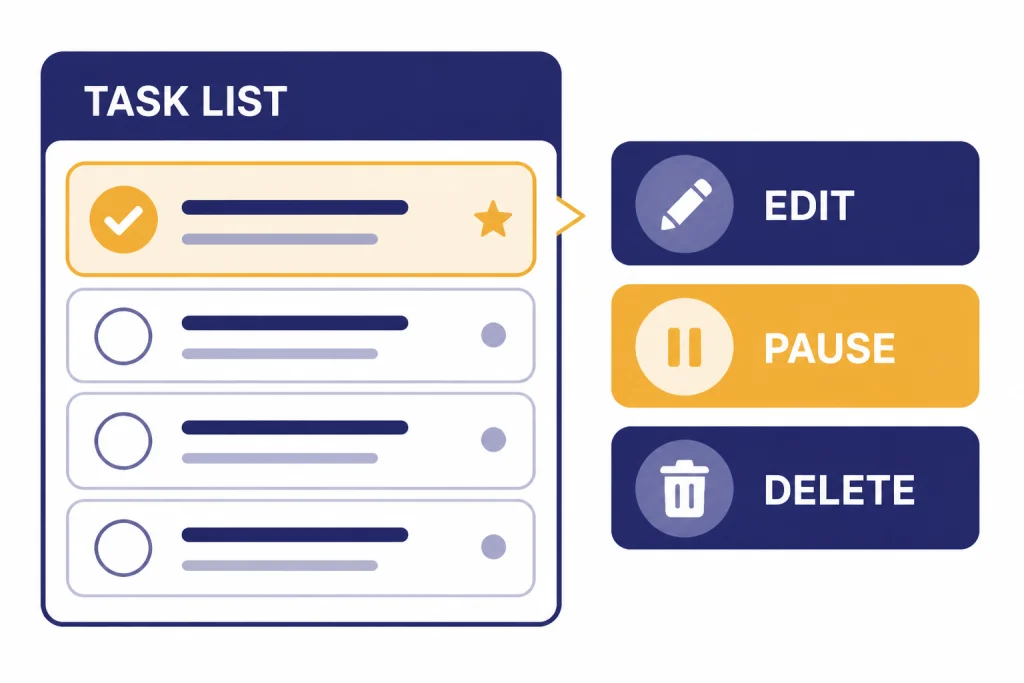
OpenAI says you can view and manage tasks from Settings, then Notifications, then Manage tasks. You can also open the full task list from an individual task by using the task’s three-dot menu and choosing Manage tasks.[1] In practice, the web interface is the best place to review everything at once.
To update a Task, open the task menu or Tasks page, then edit the name, instructions, or schedule. OpenAI says you can also update the schedule by following up with a schedule in the conversation where the task was created.[1] This is useful when the task is close but not quite right.
- Edit when the prompt is good but the time, title, or wording needs improvement.
- Pause when you want to keep the task but stop notifications temporarily.
- Delete when the task is obsolete or taking one of your active task slots.
- Replace when the task has grown too broad and should be split into a clearer prompt.
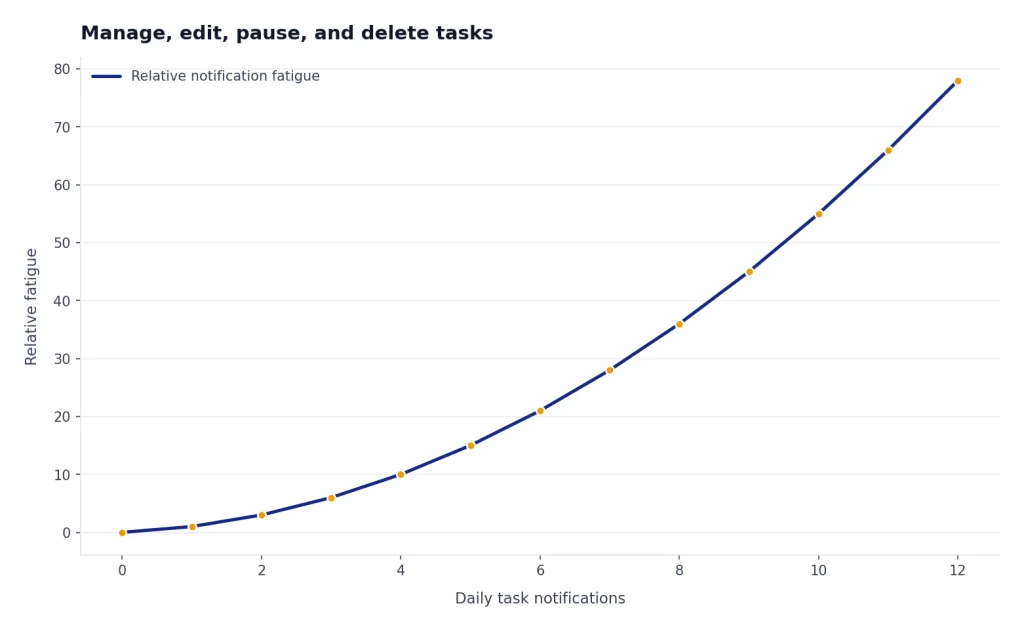
Review your active task list every few weeks. The 10-task cap means old recurring prompts can crowd out better ones.[1][4] A monthly cleanup also reduces notification fatigue. If you are using ChatGPT on mobile, our ChatGPT mobile widget setup guide can help you make access faster without turning every small reminder into a scheduled Task.
If a Task stops being useful, do not keep tuning it forever. Delete it and write a narrower prompt. The most reliable Tasks usually have one job, one schedule, and one expected output.
ChatGPT Tasks vs. other options
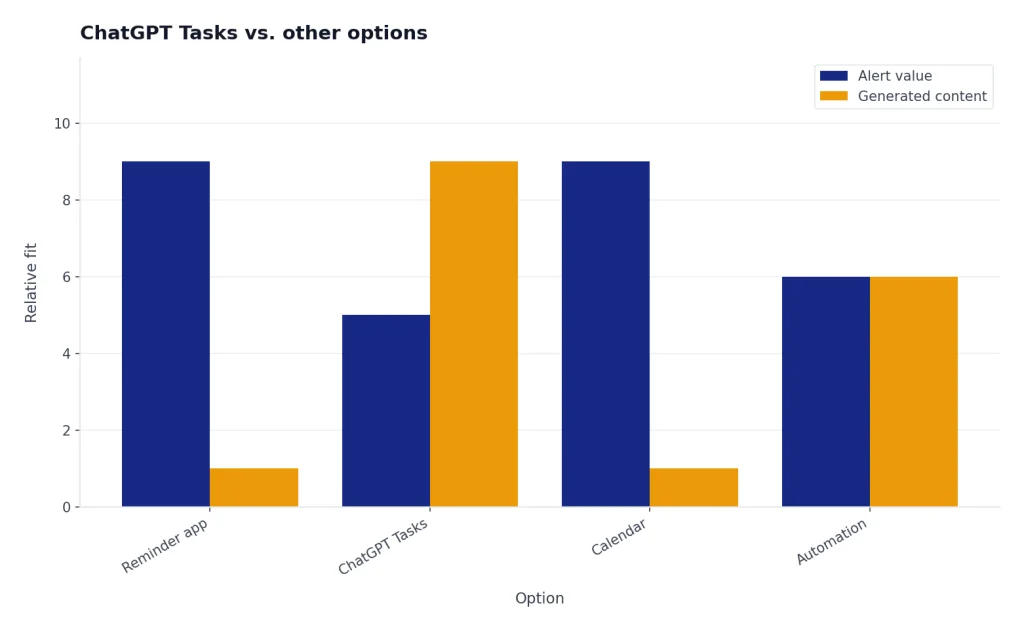
ChatGPT Tasks sits between a reminder app and a full automation platform. It can remind you, but it can also generate text at the scheduled time. It can feel agent-like, but it is not the same as a computer-use feature that clicks through websites or completes multi-step browser work. For that category, see our guide to ChatGPT Operator.
| Option | Best for | Weak spot | Use it when |
|---|---|---|---|
| ChatGPT Tasks | Scheduled prompts, generated reminders, recurring briefings | Limited active task count and unsupported tools | You want ChatGPT to write or summarize something at a set time. |
| Calendar app | Meetings, deadlines, shared events | Does not generate a custom answer | The event must be dependable and visible to other people. |
| Reminders app | Simple to-dos and location-free nudges | Little reasoning or formatting | You only need a short alert. |
| Automation tools | Multi-app workflows and conditional logic | More setup and maintenance | You need app-to-app actions, records, or branching logic. |
| ChatGPT Agent or computer-use tools | Browser tasks and multi-step web actions | Requires more supervision and safety judgment | You need AI to operate software, not just send a scheduled response. |
Use a normal reminders app for medication, school pickup, bill deadlines, travel alarms, or anything where reliability matters more than wording. Use ChatGPT Tasks for reminders that benefit from reasoning, formatting, or a fresh generated response. Use automation software when the result must move data between apps.
The line is simple: if the main value is the alert, use a reminder. If the main value is the generated content inside the alert, use ChatGPT Tasks.
Privacy, reliability, and safe use
Do not put sensitive personal, medical, legal, or financial details into a scheduled Task unless you are comfortable storing that information in ChatGPT. A Task is still part of your ChatGPT account environment. If your organization has compliance requirements, OpenAI says Tasks are included in the Compliance API for Enterprise customers.[1]
OpenAI has not published an official reliability rate for ChatGPT Tasks. Treat the feature as helpful but not guaranteed. For high-stakes reminders, keep a second reminder in your calendar or operating-system reminders app. That is especially important for flights, medication, school events, tax deadlines, contract dates, and anything involving money.
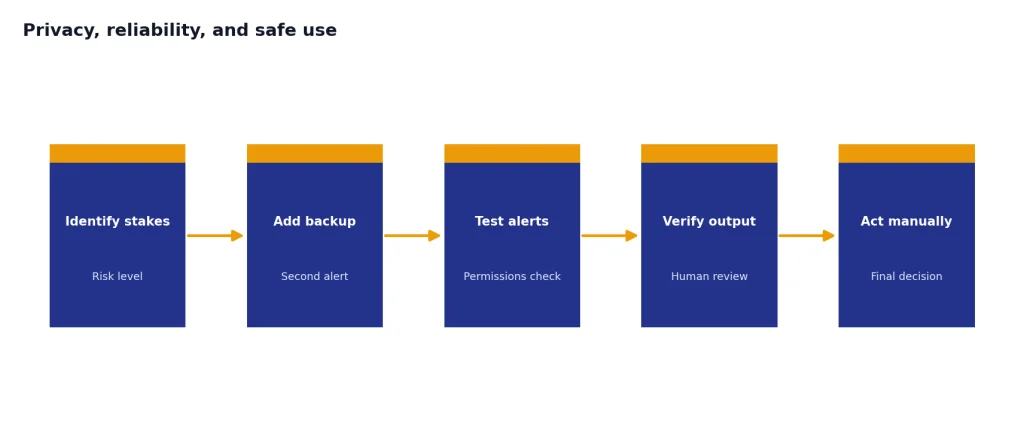
Notification setup matters. OpenAI says users can receive push notifications or emails when a task completes, and that desktop notifications may also require browser permissions.[1] If you do not receive a test notification, fix that before creating important recurring Tasks.
Be careful with Tasks that ask ChatGPT to “watch” something. A recurring scheduled check can be useful, but it does not replace a monitored alerting system. For example, a daily AI news summary is reasonable. A Task that must catch a critical security incident is not.
Also avoid overly broad recurring prompts. “Every morning, tell me everything important I need to know” invites noisy output. “Every weekday at 8 AM, send five bullets about AI product releases from the past day and note uncertainty” is narrower and easier to judge.
Finally, do not confuse Tasks with memory. A Task can run on a schedule. Memory helps ChatGPT retain useful preferences across conversations. They can work together, but they solve different problems. If you want recurring prompts to reflect your preferences, make sure you understand how ChatGPT Memory works before relying on it.
Frequently asked questions
What is ChatGPT Tasks?
ChatGPT Tasks is a scheduling feature that lets ChatGPT run a prompt later and notify you when it completes. It can handle one-time reminders and recurring prompts. It is best for short generated outputs, not complex project management.
How many ChatGPT Tasks can I have?
OpenAI says ChatGPT has a limit of 10 active tasks at any time.[1][4] If you reach the limit, pause or delete an active task, or wait for a one-time task to complete.
Can ChatGPT Tasks run while I am offline?
Yes. OpenAI says Tasks execute regardless of whether the user is currently online.[1] You still need working notification permissions if you want to receive the result promptly.
Can I use file uploads or Custom GPTs with Tasks?
No, not according to OpenAI’s current help page. OpenAI lists file uploads and GPTs as unsupported with Tasks, along with voice chats.[1] Use a normal ChatGPT conversation when the job depends on uploaded files or a Custom GPT.
Are ChatGPT Tasks better than a reminders app?
They are better when you want ChatGPT to generate useful text at the scheduled time. They are not better for critical reminders where reliability, shared calendars, or system-level alerts matter most. For important deadlines, use a calendar or reminders app as the backup.
Why do I not see Tasks in ChatGPT?
You may be using an unsupported app surface, an account without access, or a model or chat mode that does not support Tasks. OpenAI documents support on Web, iOS, Android, and macOS, with Windows app support planned.[1] Try ChatGPT Web and check the Tasks page from your profile or notification settings.