

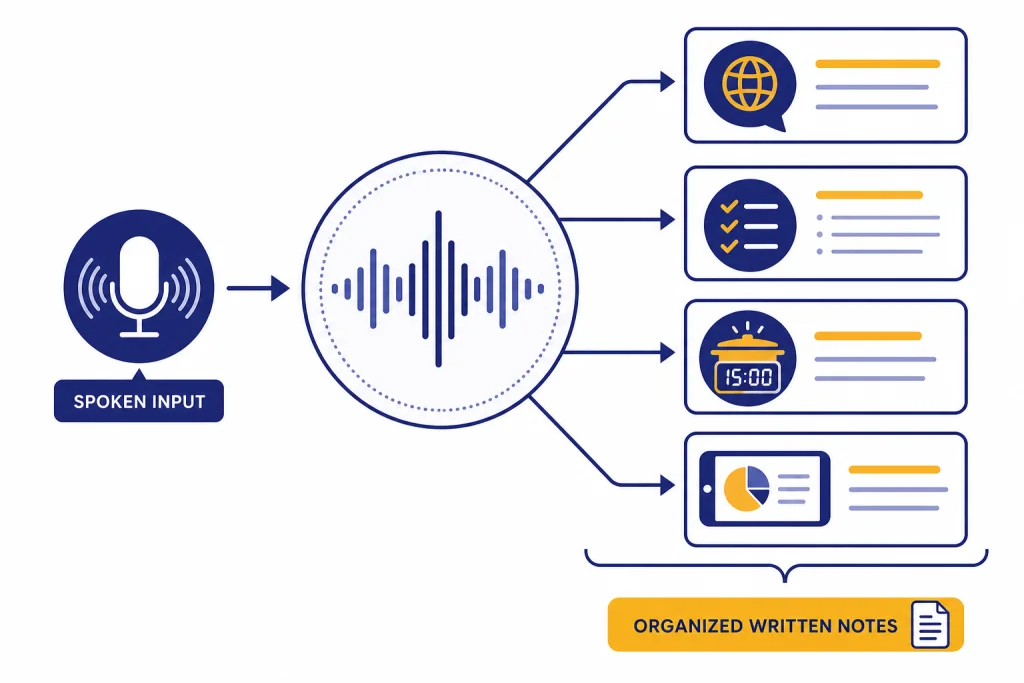
ChatGPT Voice Mode turns a normal chat into a spoken back-and-forth. The best use cases are tasks where talking is faster than typing: practicing a language, rehearsing an interview, planning a trip, cooking from a recipe, getting unstuck on a problem, or walking through something on your phone screen. This chatgpt tutorial voice guide shows how to start, steer, and end voice sessions without wasting time. It also explains when to use voice, when to switch back to text, and how to protect privacy when audio, video, or screen sharing enters the conversation.
What ChatGPT Voice Mode does
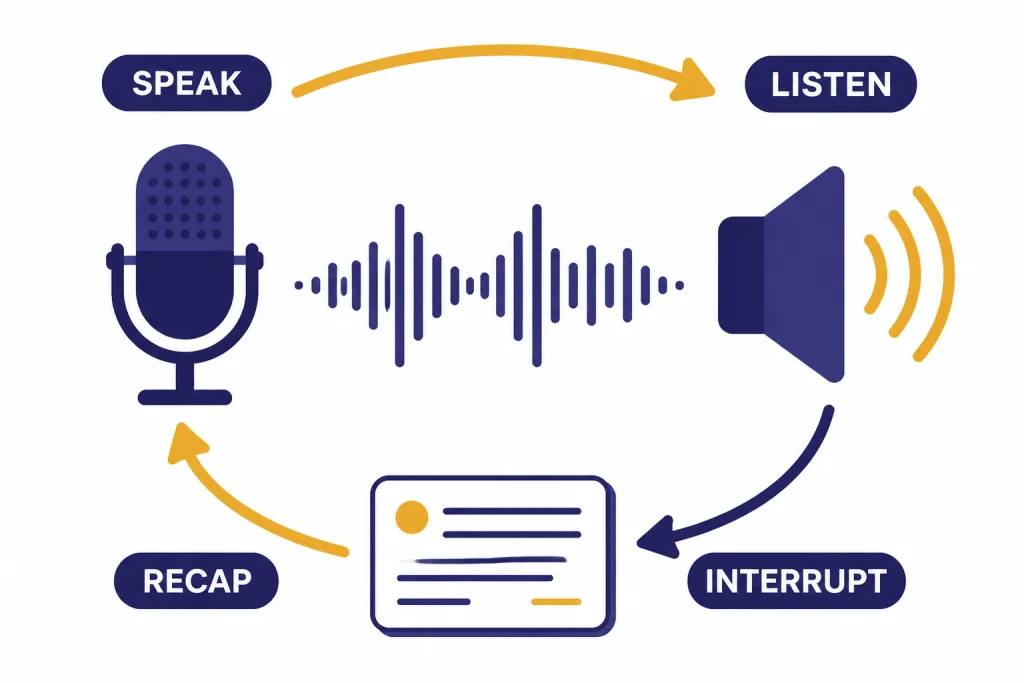
ChatGPT Voice Mode lets you speak to ChatGPT and hear spoken replies. OpenAI describes voice conversations as spoken conversations powered by natively multimodal models, available to logged-in users in the mobile apps and on desktop web at ChatGPT.com.[1] That changes the work style. You can interrupt, clarify, ask follow-up questions, and keep momentum while your hands are busy.
Voice is not just text-to-speech on top of a normal prompt. GPT-4o was introduced as a model that can reason across audio, vision, and text in real time, and OpenAI said it can respond to audio inputs in as little as 232 milliseconds, with an average of 320 milliseconds.[3] In practice, the value is not the number itself. The value is the conversational rhythm. You can treat ChatGPT more like a coach, tutor, rehearsal partner, or troubleshooting assistant.
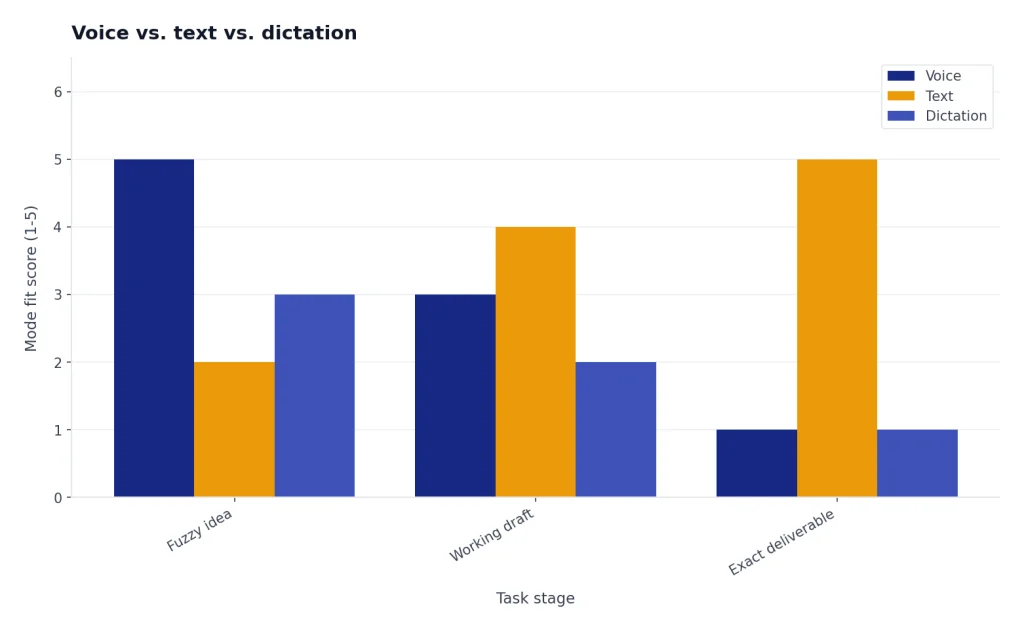
Voice Mode also pairs well with other ChatGPT workflows. Use voice to think out loud, then switch to text when you need a polished result. For example, you can brainstorm an outline by voice and refine it later with our writing workflow tutorial. You can talk through a spreadsheet problem, then move to the more structured steps in the Excel formulas and pivot tables guide. Voice is strongest at discovery, coaching, and iteration. Text is stronger for final deliverables.
Set up Voice Mode before your first session
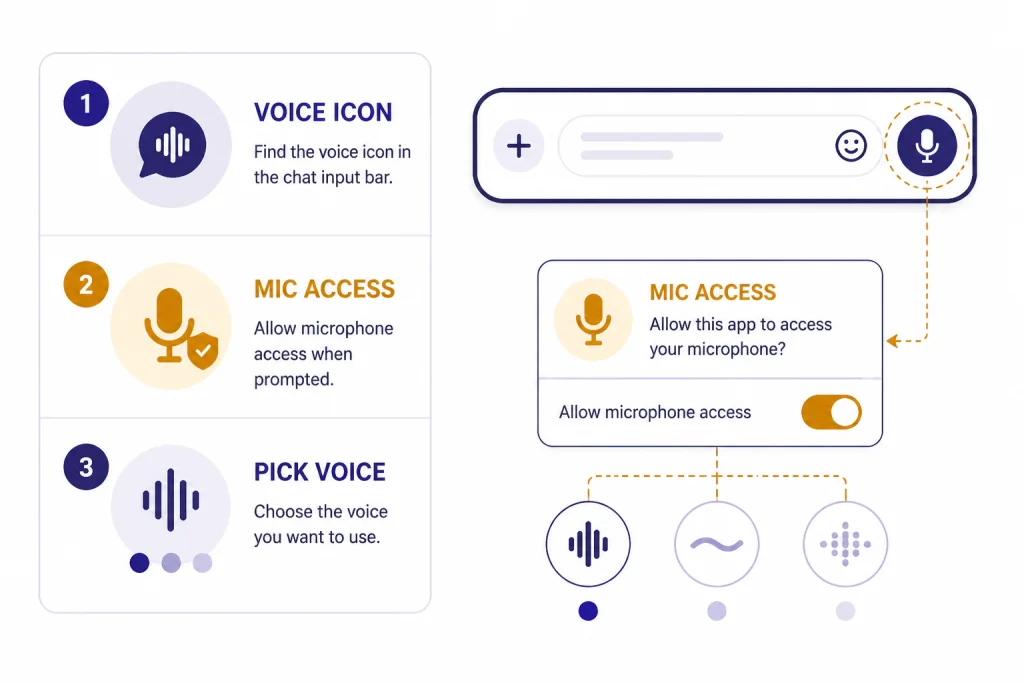
Start with a clean setup. Open ChatGPT, choose the voice icon, grant microphone permission if prompted, and pick a voice. OpenAI’s Voice Mode FAQ says users can change the selected voice later in settings or from the customization menu inside voice mode.[1] The official ChatGPT voice feature page summarizes the basic flow as tapping the voice icon, selecting a voice, and starting to talk.[6]
OpenAI lists nine output voices for ChatGPT Voice Mode: Arbor, Breeze, Cove, Ember, Juniper, Maple, Sol, Spruce, and Vale.[1] A Coursera overview also lists nine current ChatGPT Voice Mode voices and describes their different conversational styles.[7] Do not overthink the choice. Pick a calmer voice for tutoring or planning. Pick a more energetic voice for rehearsal, brainstorming, or motivation. If one voice feels distracting after a few minutes, change it.
- Open a new chat for the task. This keeps the transcript easier to review later.
- Tap or click the voice icon. On web, OpenAI says the voice icon appears on the right side of the prompt window.[1]
- Allow microphone access. Browser or mobile permission is required before ChatGPT can hear you.[1]
- State the job before details. Say, “Act as my interview coach,” or “Help me talk through this recipe.”
- Set the response style. Ask for short answers, one question at a time, or a coaching tone.
- End with a written recap. Ask ChatGPT to summarize decisions, next steps, or vocabulary from the session.
For longer projects, connect voice to a saved workflow. If you want ChatGPT to remember stable preferences, read the memory power-user tips. If you need a reusable assistant with the same voice-session instructions each time, build a custom assistant using the Custom GPT tutorial.
Best use cases for ChatGPT Voice Mode
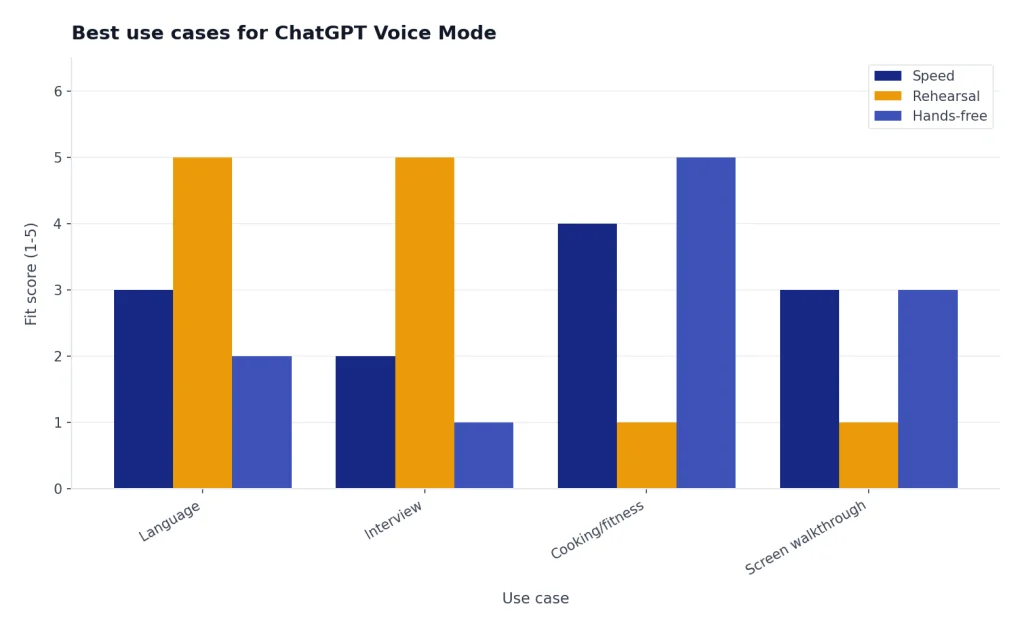
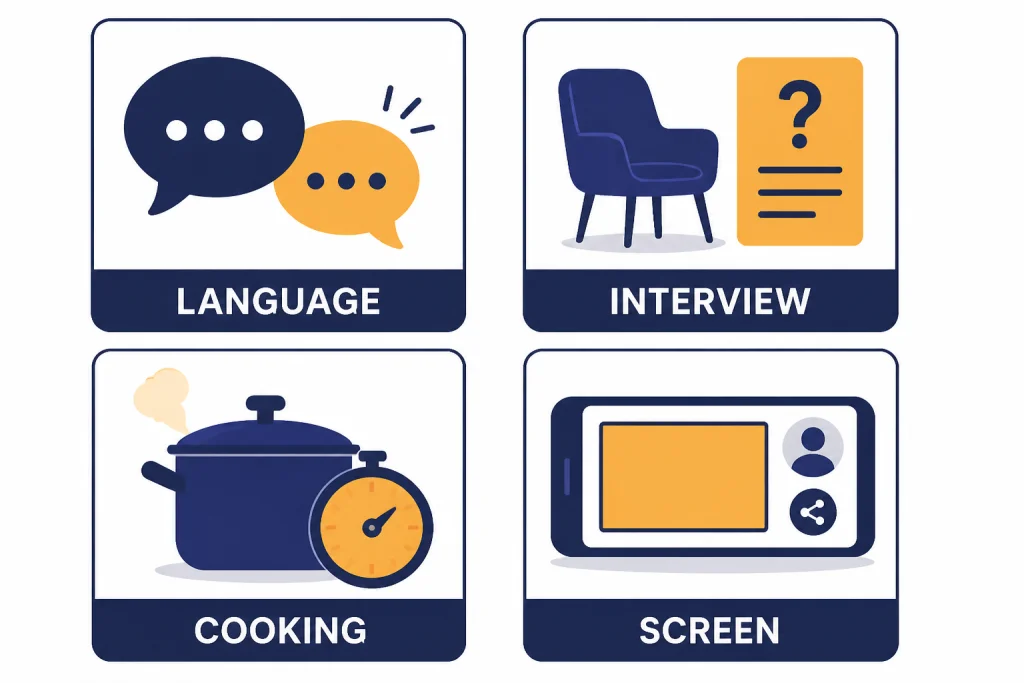
The best voice use case has one of three traits. You need speed, you need rehearsal, or you need hands-free help. If the task needs exact citations, complex formatting, or careful comparison, use voice for planning and text for execution.
Language practice
Voice Mode is useful for pronunciation practice, listening comprehension, role-play, and quick correction. Start with a narrow instruction: “Speak with me in beginner Spanish. Ask one question at a time. Correct only major mistakes, then continue.” You can also ask ChatGPT to slow down, repeat a phrase, or explain a grammar pattern in English before switching back.
For serious translation work, do not rely only on a spoken session. Use voice to rehearse tone and meaning, then use the structured checks in our translation workflow or a saved set of translation prompts.
Interview and presentation rehearsal
Voice Mode can play the interviewer, the skeptical client, the panel moderator, or the audience member who asks hard questions. Ask for realistic follow-ups. Then ask for feedback on clarity, structure, filler words, confidence, and missing evidence. Keep the instruction short enough to say naturally: “Run a mock product-manager interview. Ask one question at a time. After each answer, give direct feedback and a stronger version.”
Hands-free cooking, fitness, and household tasks
Voice works well when your hands are occupied. In the kitchen, ask for substitutions, timing, doneness checks, or a step-by-step sequence. For workouts, ask ChatGPT to count rest periods, adapt an exercise, or explain form cues. Use common sense with safety. ChatGPT can make mistakes, and OpenAI warns users to check important information because voice conversations may be wrong.[1] For specialized workout or nutrition planning, pair voice with our ChatGPT for Fitness guide.
Screen and camera walkthroughs
For eligible mobile users, Voice Mode can include video, image upload, or screen sharing. OpenAI says video is enabled on iOS and Android mobile apps for subscribers, and that screen sharing and image uploads are enabled on those mobile apps for subscribers.[1] This is powerful for walkthroughs. You can show an app setting, a confusing chart, a broken layout, or a photo of something you need help identifying.
Use the camera or screen only when it adds information. If you are reviewing a webpage, a dataset, or a PDF, the more reliable workflow may be to upload the file or use the relevant text-based tool. See our PDF reading tutorial, data analysis step-by-step guide, and Code Interpreter mastery tutorial for those cases.
Prompt patterns that work well by voice
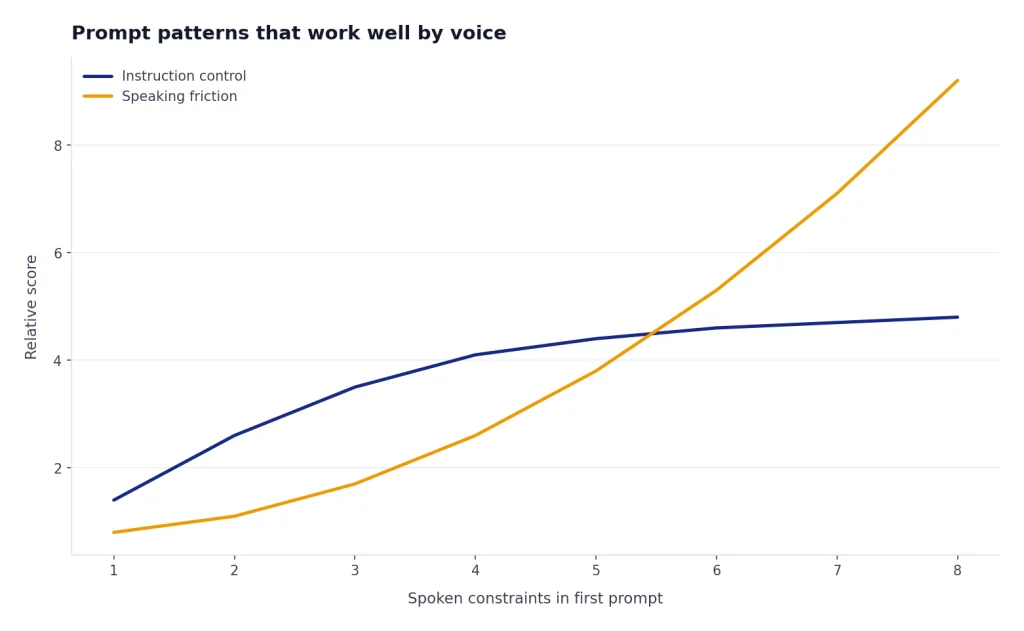
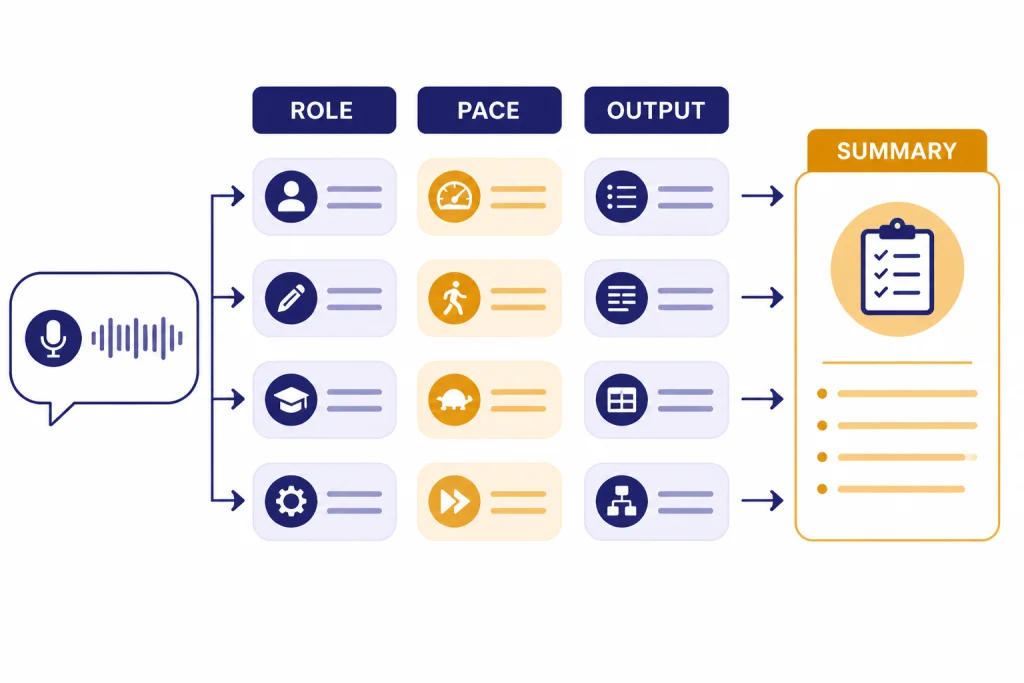
Voice prompts should be shorter than text prompts. You can always add detail after ChatGPT starts. The goal is to define the role, the pacing, and the output. These patterns are easy to say and easy for ChatGPT to follow.
| Use case | Say this first | What to ask at the end |
|---|---|---|
| Language practice | “Practice beginner French with me. Ask one question at a time and correct major mistakes.” | “List the phrases I missed and give me a short drill.” |
| Interview prep | “Act as a hiring manager. Ask realistic follow-up questions and score my answer.” | “Give me a stronger answer in my voice.” |
| Brainstorming | “Help me think through this out loud. Do not solve yet. Ask clarifying questions first.” | “Turn this into a ranked action list.” |
| Cooking | “Walk me through this recipe step by step. Pause after each step until I say continue.” | “Summarize timing changes and substitutions.” |
| Troubleshooting | “Help me diagnose this. Ask one question, wait for my answer, then choose the next check.” | “Create a short checklist I can reuse.” |
The best voice sessions use tight control phrases. Say “pause,” “shorter,” “ask one question,” “give an example,” “switch roles,” or “summarize so far.” These phrases are faster than restarting the prompt. They also reduce rambling.
For advanced prompting, turn the first sentence into a small protocol. Example: “Use coach mode. First ask a diagnostic question, then give one suggestion, then make me try again.” That style comes from the same discipline as written prompting. If you want deeper methods, read our prompt engineering techniques and advanced prompt engineering techniques guides.
Voice vs. text vs. dictation
Voice Mode is for conversation. Text chat is for precision. Dictation is for turning your spoken words into an editable message. OpenAI’s dictation FAQ says pressing the microphone icon records an audio message, sends it to models for transcription, and returns the transcription as text that you can edit before sending.[5] That is different from a live voice conversation.
| Mode | Best for | Weakness | Good ending move |
|---|---|---|---|
| Voice Mode | Coaching, rehearsal, tutoring, hands-free help | Easy to lose exact wording | Ask for a written recap |
| Text chat | Drafts, code, tables, citations, careful review | Slower for rough thinking | Ask for final formatting |
| Dictation | Speaking a message you want to edit | Not a live back-and-forth | Edit before sending |
| Screen sharing in voice | Walking through a visible problem | Privacy risk if sensitive data is visible | Stop sharing and summarize |
Use voice first when the problem is fuzzy. Use text when the result must be exact. For example, talk through a YouTube script idea by voice, then refine the script with our ChatGPT for YouTubers workflow. Discuss a code bug by voice, then paste the relevant snippet into a normal chat and use the coding tutorial for a cleaner debugging loop.
Privacy, limits, and mistakes to watch
Voice can feel informal, so it is easy to overshare. Treat a voice session like any other ChatGPT conversation. Avoid saying private credentials, health details, legal strategy, financial account numbers, or confidential work information unless your plan and organization policies allow it.
OpenAI says Free, Plus, and Pro users may choose to share audio and video clips from voice chats for model training by turning on “Improve the model for everyone” and enabling audio or video recording options; OpenAI also says audio and video clips are not used for training unless the user chooses to share them.[1] OpenAI’s Data Controls FAQ says signed-in users can turn off “Improve the model for everyone” under Settings → Data Controls, and that conversations still appear in history but are not used to train ChatGPT after that setting is off.[4]
Limits can also affect your plan. OpenAI says subscriber voice sessions start with GPT-4o and can fall back to GPT-4o mini after GPT-4o voice minutes are used, while logged-in Free users use GPT-4o mini with a daily limit that OpenAI lists as 2 hours.[1] Video and screen sharing have daily limits for eligible plans, and OpenAI says subscribers lose new video or screen sharing after their GPT-4o voice daily usage limit is reached until the limit resets.[1] If limits interrupt important work, plan shorter sessions and end each one with a text summary.
- Check facts. Voice replies can sound confident even when they are wrong.
- Protect visible data. Before screen sharing, close unrelated tabs and notifications.
- Use headphones in public. Do not broadcast private answers.
- Ask for uncertainty. Say, “Tell me what you are unsure about.”
- Stop and summarize. End every useful session with written notes.
Practical workflow examples
Here are simple voice workflows you can reuse. Each one starts with a spoken setup and ends with a written artifact.
Example 1: Learn a concept while walking
Say: “Teach me the basics of neural networks while I walk. Use plain English. Stop every few minutes and quiz me.” After the session, ask: “Summarize the lesson in bullet points and include three review questions.” If you are new to the underlying terminology, pair this with our beginner explanation of what GPT is.
Example 2: Rehearse a difficult conversation
Say: “Role-play as my manager. I need to ask for a deadline extension. Be fair but skeptical.” Answer naturally. Then ask ChatGPT to switch roles and show a stronger version. Finish with: “Give me a concise script and three phrases to avoid.”
Example 3: Plan content out loud
Say: “Interview me about this article idea. Ask one question at a time. After ten minutes, turn my answers into an outline.” Voice helps you find the raw material. Text helps you edit. For search-focused work, continue with our SEO workflow tutorial.
Example 4: Debug a visible app problem
If screen sharing is available to you, start a voice session and show the screen only after closing private information. Say: “Help me identify why this setting is not working. Ask me to tap one thing at a time.” Then ask ChatGPT to produce a troubleshooting checklist. For deeper automation and multi-step browsing tasks, use the separate Agent Mode tutorial.
Example 5: Turn a rough idea into a task list
Say: “I am going to think out loud for three minutes. Do not interrupt unless I go off track. Then organize my thoughts.” After you finish, ask for owners, deadlines, and risks. If the project becomes research-heavy, move from voice into the structured process in our Deep Research project tutorial.
Frequently asked questions
Is ChatGPT Voice Mode good for beginners?
Yes. Voice Mode is often easier than writing a perfect prompt because you can correct course as you talk. Start with one sentence that defines the role and pacing, such as “Act as my tutor and ask one question at a time.”
Can ChatGPT Voice Mode see my screen?
It can when screen sharing is available for your plan and device. OpenAI says screen sharing and image uploads are enabled on iOS and Android mobile apps for subscribers.[1] Close private apps and notifications before sharing.
Should I use Voice Mode or the microphone dictation button?
Use Voice Mode when you want a live spoken conversation. Use dictation when you want to speak a message, review the transcription, and send it as text. OpenAI’s dictation FAQ describes dictation as recording audio, transcribing it, and returning editable text before sending.[5]
What is the best prompt for Voice Mode?
The best voice prompt is short and procedural. Say who ChatGPT should be, how it should pace the conversation, and what it should produce at the end. Example: “Be my interview coach. Ask one question at a time. After each answer, give direct feedback.”
Does ChatGPT save my voice conversation?
OpenAI says a transcription is added to the text-based conversation after you exit a voice conversation.[1] Review your data controls before using voice for sensitive topics. If you do not want new conversations used for model improvement, turn off the relevant setting in Data Controls.[4]
Can Voice Mode replace written prompting?
No. Voice is better for exploration, coaching, and hands-free help. Written prompting is better for exact instructions, long context, tables, code, and polished deliverables.