

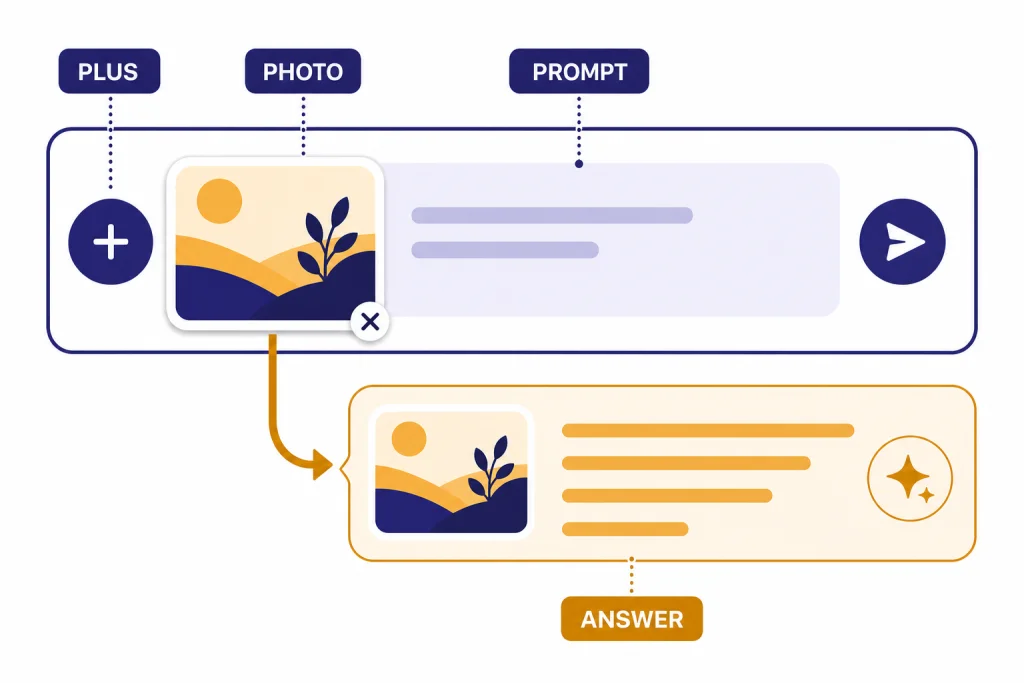
To upload a photo to ChatGPT, open a chat, select the plus button in the message box, choose Add photos & files or Upload file, pick the image, type what you want ChatGPT to do with it, and send. On mobile, the same plus button can let you choose from your photo library, camera, or files, depending on permissions. You can also drag an image into the web chat or paste a copied image into the message box. Use a clear question with the upload, such as “summarize this receipt,” “explain this chart,” or “rewrite the text in this screenshot.”
Quick answer
The fastest method is to open ChatGPT, start or continue a conversation, select the plus icon beside the message box, attach your photo, then send a specific instruction with it. OpenAI’s Image Inputs FAQ says you can add images by tapping the plus icon and choosing Add photos & files, dragging an image into the text area, or pasting an image copied to your clipboard.[1]
If the upload button is missing, check three things first: you are using the right account, your browser or app is current, and your account or workspace has access to image input. OpenAI’s help pages separate image input from image generation and editing. Its Image Inputs FAQ lists image inputs for Plus and ChatGPT Enterprise, while its Images in ChatGPT page says ChatGPT Images 2.0 is available on all tiers.[1][4] If your screen differs, trust the interface you see in your own account.
For a broader image-focused walkthrough, see our separate guide to uploading images to ChatGPT. This article focuses on everyday photo uploads: screenshots, receipts, product photos, homework photos, whiteboards, labels, diagrams, and camera images.
Upload a photo on the web
Use the web method when the photo is already on your computer or when you want to drag and drop a screenshot. It works best for desktop tasks such as reading a chart, extracting text from an image, checking a design, or comparing several screenshots.
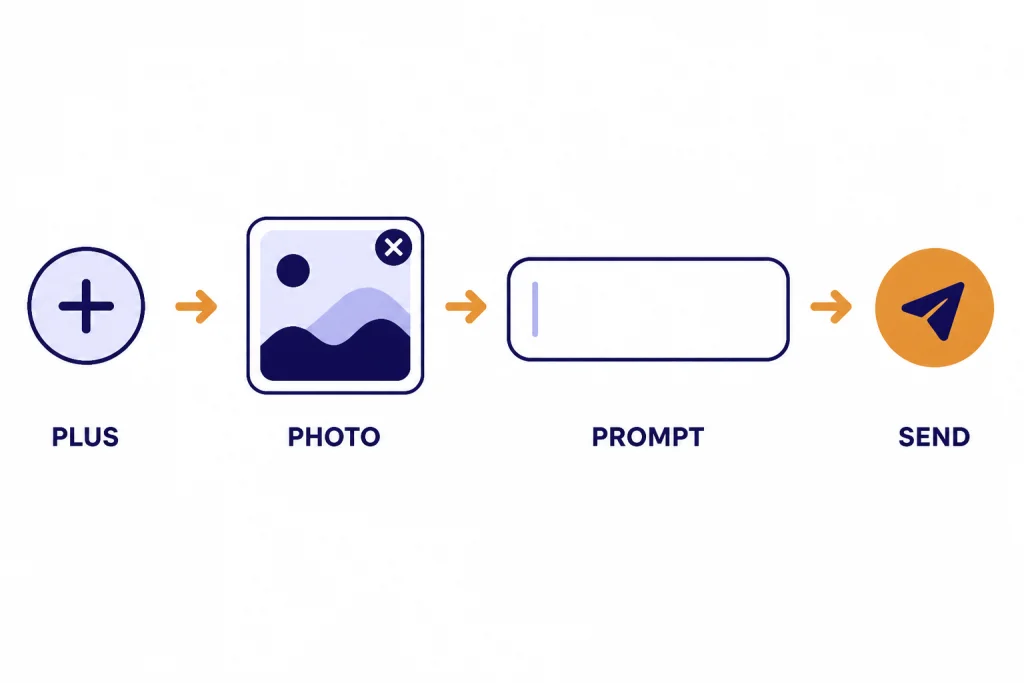
- Go to ChatGPT in a supported browser.
- Open a new chat or choose an existing conversation.
- Select the plus icon in the message box.
- Choose Add photos & files or Upload file, depending on the interface you see.
- Select the photo from your computer.
- Wait for the file card or image preview to appear in the composer.
- Type a clear request.
- Send the message.
You can also drag an image file into the text area or paste an image copied to your clipboard, according to OpenAI’s Image Inputs FAQ.[1] Drag and paste are useful for screenshots because you can capture the screen, paste it, and ask your question without saving a separate file.
Good first prompts are direct. Try “Extract the text from this image and keep the line breaks,” “Tell me what this error message means,” or “Describe the differences between these two product photos.” If you are using a screenshot from another app, crop out private information first.
Upload a photo on iPhone or Android
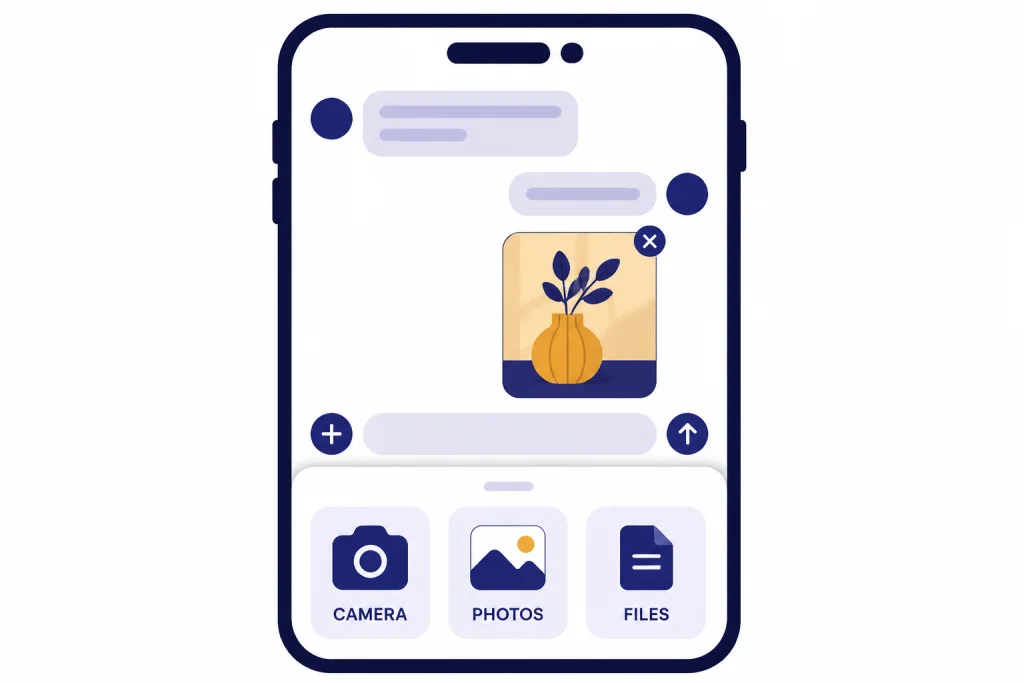
On iPhone or Android, open the ChatGPT app, tap the plus icon near the message field, then choose the option that matches where the photo is stored. The exact labels can vary by app version and operating system, but the choices usually map to a photo library, a camera capture, or a file picker. OpenAI says image inputs are available on web and mobile, including iOS and Android.[1]
- Open the ChatGPT app.
- Start a new chat or open the conversation where you want to add the photo.
- Tap the plus icon beside the message box.
- Choose a photo source, such as Photos, Camera, or Files.
- If prompted, allow ChatGPT access to the photo library, camera, or selected file.
- Attach the photo.
- Add your instruction and send.
If you use ChatGPT often on a phone, it is worth confirming that you installed the official app and that it is updated. Our setup guides cover ChatGPT on iPhone, ChatGPT on Android, and how to download the ChatGPT app without relying on look-alike apps.
Mobile uploads are especially helpful for real-world photos. You can photograph a handwritten note, appliance label, menu, plant, damaged item, receipt, sign, or whiteboard. Ask for the output format you want. For example, “Turn this whiteboard into a clean meeting summary with action items,” is better than “What is this?”
Upload a photo in the desktop apps
The desktop apps can be convenient when you work with local screenshots, camera captures, and files. OpenAI’s macOS help page says the ChatGPT macOS app can start conversations with photos from your computer or new photos you take, and it instructs users to open the prompt window and click the plus icon for photo tools.[2]
On Mac, OpenAI documents three practical routes: select a photo from the Photos library, upload a photo or image from the file system, or use Take Photo with the webcam.[2] The app may ask for photo library or camera permission before these options work.[2] If you deny permission by mistake, open macOS System Settings and review the app’s privacy permissions.
On Windows, the simplest path is often the web app or installed ChatGPT app, depending on your setup. If you mainly use ChatGPT from a Windows laptop or desktop, see our Windows ChatGPT tutorial. If you use a Mac daily, see how to use ChatGPT on Mac for desktop-specific setup notes.
| Device | Best upload path | Best for | Watch for |
|---|---|---|---|
| Web browser | Plus button, drag and drop, or paste | Screenshots, saved images, charts | Browser permissions and account access |
| iPhone | Plus button, Photos, Camera, or Files | Receipts, labels, signs, whiteboards | Photo library and camera permissions |
| Android | Plus button, gallery, camera, or file picker | Real-world photos and screenshots | App version and storage permissions |
| Mac app | Plus button, Photos library, file system, or webcam | Local files and quick camera captures | macOS privacy permissions |
| Windows | Web app or installed ChatGPT app | Screenshots and downloaded images | Missing upload button if the account lacks access |
What ChatGPT can do with a photo
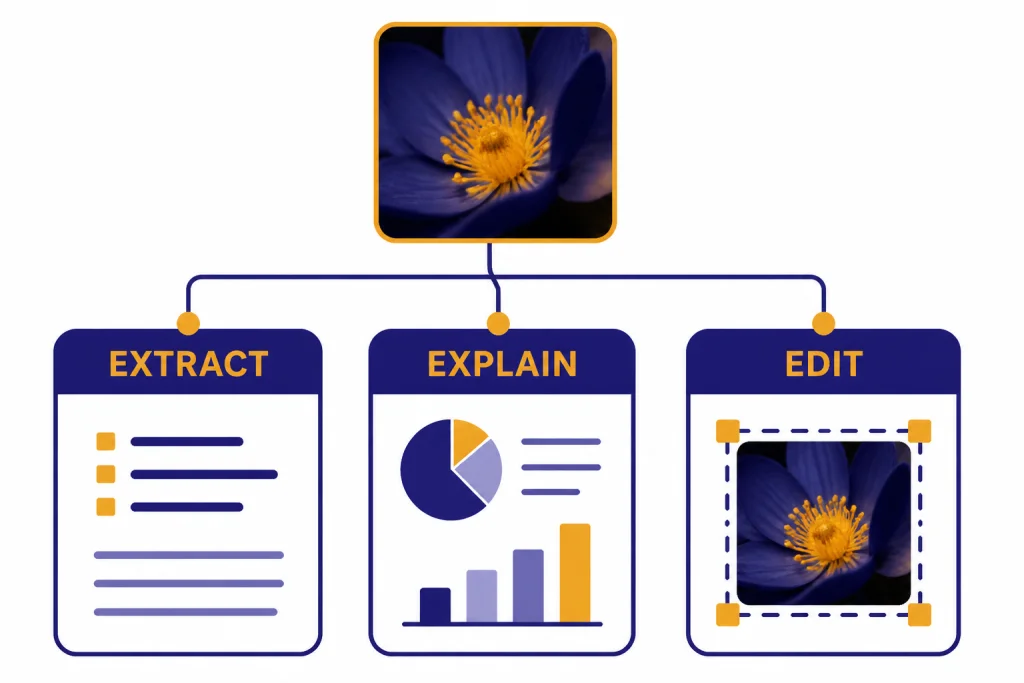
ChatGPT can analyze uploaded images, diagrams, screenshots, and charts, and you can ask it to identify objects, extract content, or help interpret visuals.[1] Treat it as a visual assistant, not as an authority on everything in the image. It can be very useful for first-pass interpretation, cleanup, rewriting, organization, and explanation.
Common photo tasks include:
- Read text from a photo. Ask ChatGPT to transcribe a sign, menu, receipt, handwritten note, package label, or screenshot.
- Explain a chart or diagram. Ask for a plain-English explanation, the trend, the outlier, or the likely takeaway.
- Summarize a whiteboard. Ask for meeting notes, decisions, open questions, and action items.
- Review a design. Ask for layout feedback, accessibility concerns, or clearer wording.
- Compare images. Upload multiple product photos, screenshots, or drafts and ask what changed.
- Prepare follow-up writing. Ask ChatGPT to turn a photo into an email, checklist, report, or caption. For writing style help after the upload, see how to make ChatGPT write like a human.
ChatGPT can also work with image editing and image generation features. OpenAI says ChatGPT Images can create new images and edit existing ones, and that users can upload an existing image and describe the changes they want.[4] That is different from asking ChatGPT to analyze a photo. In analysis mode, the goal is an answer about the image. In editing mode, the goal is a changed image.
Photo requirements and limits
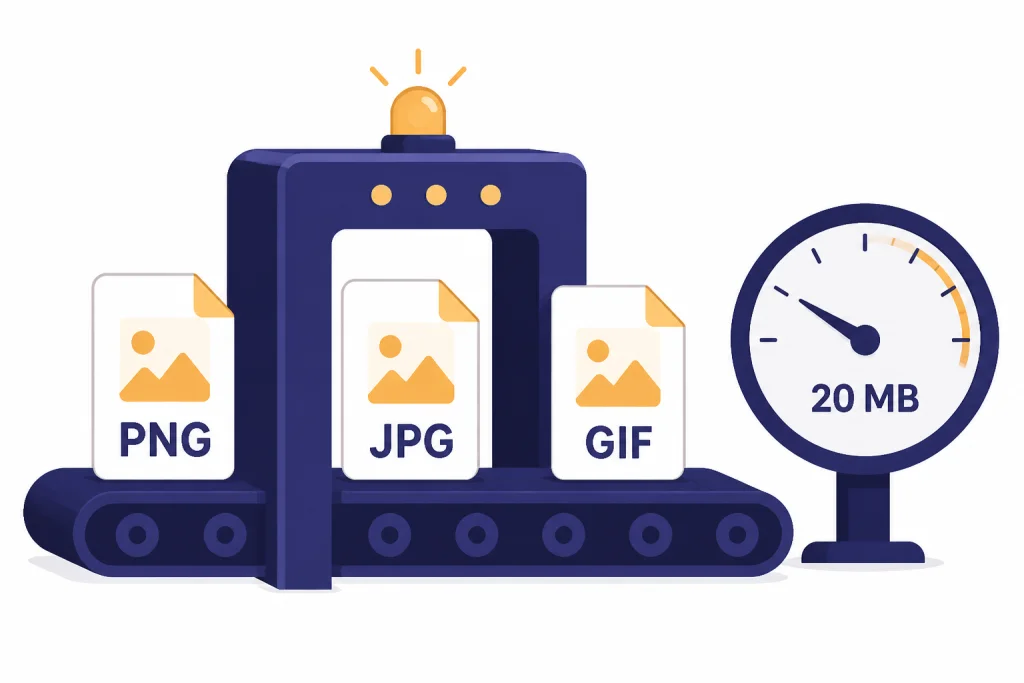
OpenAI’s Image Inputs FAQ lists supported image input formats as PNG, JPEG, JPG, and non-animated GIF.[1] It also says video is not supported for image inputs and that ChatGPT currently processes static images only.[1]
The per-image size limit is 20 MB, according to OpenAI’s Image Inputs FAQ and File Uploads FAQ.[1][3] Independent coverage from Data Studios also describes PNG, JPEG, non-animated GIF support and a 20 MB maximum image size.[7]
File upload quotas can also affect photo uploads. OpenAI’s File Uploads FAQ says users can upload up to 80 files every 3 hours, Free users are limited to 3 file uploads per day, and OpenAI may lower limits during peak hours.[3] If you run into a cap, our related guide explains legitimate ways to handle ChatGPT message and usage limits without trying to evade the system.
OpenAI also states that all files uploaded to a GPT or ChatGPT conversation have a hard limit of 512 MB per file, while images have the smaller 20 MB per-image limit.[3] For photo uploads, the 20 MB image limit is the one that usually matters.
| Requirement | What to use | What to avoid |
|---|---|---|
| File type | PNG, JPG, JPEG, or non-animated GIF | Video files and animated GIFs |
| Image size | 20 MB or smaller | Large raw exports when a compressed image works |
| Text in image | Large, upright, readable text | Rotated, blurry, tiny, or cropped text |
| Image shape | Normal phone, screenshot, scan, or document framing | Panoramic and fisheye images for precise interpretation |
| Task type | Explanation, extraction, summarization, comparison | Specialized medical image diagnosis or high-stakes decisions |
Write better prompts for uploaded photos
A photo upload works best when your prompt tells ChatGPT what to look at, what to ignore, and what output you want. OpenAI recommends annotating an image before upload when you want to draw attention to specific areas.[1] A simple arrow, circle, or crop can reduce ambiguity.
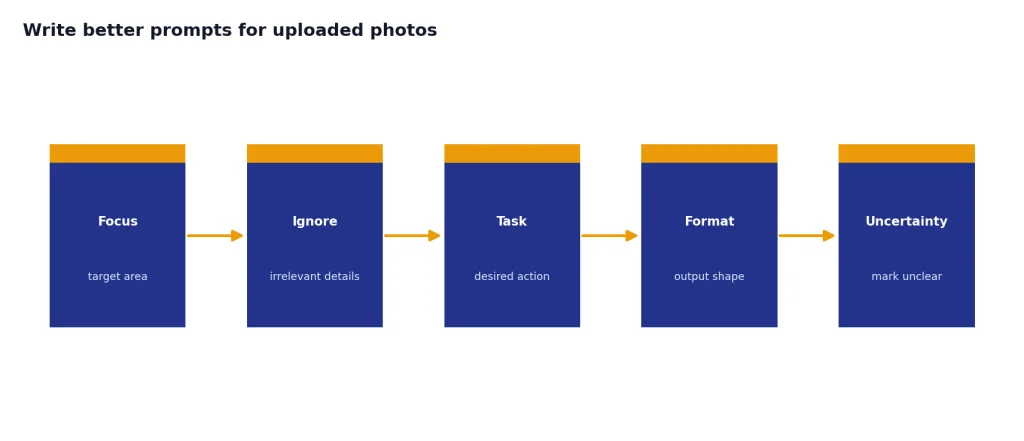
Do not make ChatGPT guess your goal. A blurry receipt, a screenshot full of tabs, or a whiteboard with many sections can support several different tasks. Tell it whether you want transcription, explanation, critique, comparison, editing ideas, or a final deliverable.
| Goal | Weak prompt | Better prompt |
|---|---|---|
| Transcribe text | Read this. | Transcribe all visible text. Keep line breaks. Mark unclear words with [unclear]. |
| Explain a chart | What does this show? | Explain the main trend, identify any outliers, and give me three plain-English takeaways. |
| Summarize a whiteboard | Summarize this. | Turn this whiteboard into meeting notes with decisions, action items, owners, and open questions. |
| Review a design | Is this good? | Review this landing page screenshot for clarity, hierarchy, accessibility, and missing information. |
| Compare photos | Compare these. | Compare these two product photos and list visible differences in condition, color, size, and packaging. |
| Edit an image | Fix this. | Describe the exact edits needed: remove glare, brighten the label, crop to the object, and keep colors natural. |
If the answer will become a document, ask for structure. For example: “Use headings, bullets, and a short conclusion.” If you want a more natural draft after ChatGPT interprets the photo, pair the image task with the principles in our guide to making ChatGPT sound more human.
Privacy and sensitive photos
Photos often contain more private information than people notice. A receipt may show a location and partial payment details. A screenshot may show browser tabs, names, account numbers, messages, or location data. A photo of a desk may reveal documents in the background. Crop or blur anything ChatGPT does not need before you upload it.
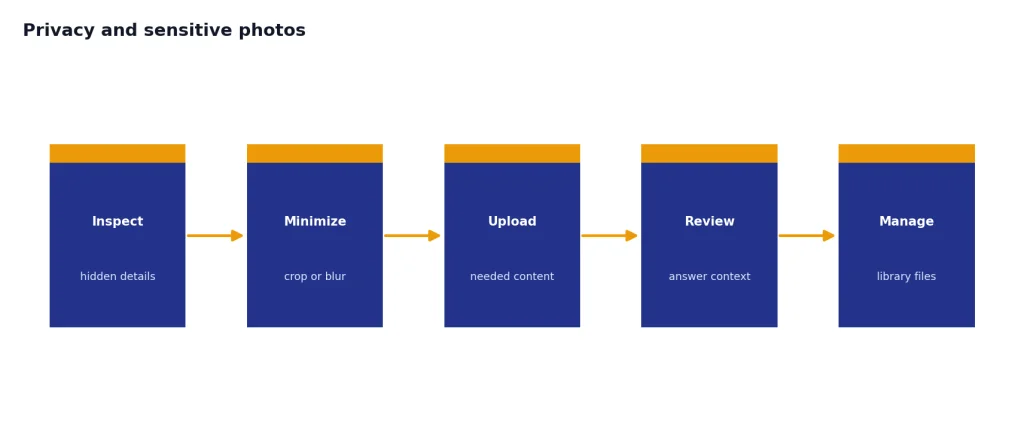
OpenAI’s Data Controls FAQ says signed-in users can turn off “Improve the model for everyone” under Settings and Data Controls, and that conversations still appear in chat history but are not used to train ChatGPT when that setting is off.[5] OpenAI also says Temporary Chats are deleted from its systems after 30 days, are not used to train models, are not saved in history, and do not create memories.[5] Ars Technica’s coverage of OpenAI’s data controls also reported the 30-day retention point when chat history controls were introduced.[8]
File retention is separate from ordinary chat visibility. OpenAI’s Chat and File Retention Policies state that files uploaded during a conversation, including documents and images, are stored in your Library for use across chats, and that deleting a chat does not delete files saved to your Library.[6] If you want a record outside ChatGPT, use our guide to saving a ChatGPT conversation or exporting your ChatGPT data.
Avoid uploading sensitive photos unless you have a clear reason and understand your account settings. Do not upload medical scans for diagnosis, government IDs, private financial statements, confidential workplace files, or photos of other people without permission. OpenAI’s Image Inputs FAQ says the model is not suitable for interpreting specialized medical images such as CT scans and should not be used for medical advice.[1]
Troubleshooting photo uploads
If your photo will not upload, start with the basics. Refresh the page, restart the app, and try the upload again. If you use a browser, try a supported, updated browser with extensions disabled. If you use the app, update it from the official app store.
The plus button is missing
Make sure you are logged in to the right account. Some features depend on account, plan, region, workspace rules, or temporary rollout status. If you are not signed in, see how to use ChatGPT without logging in for what works in a signed-out session and what may require an account.
The file is too large
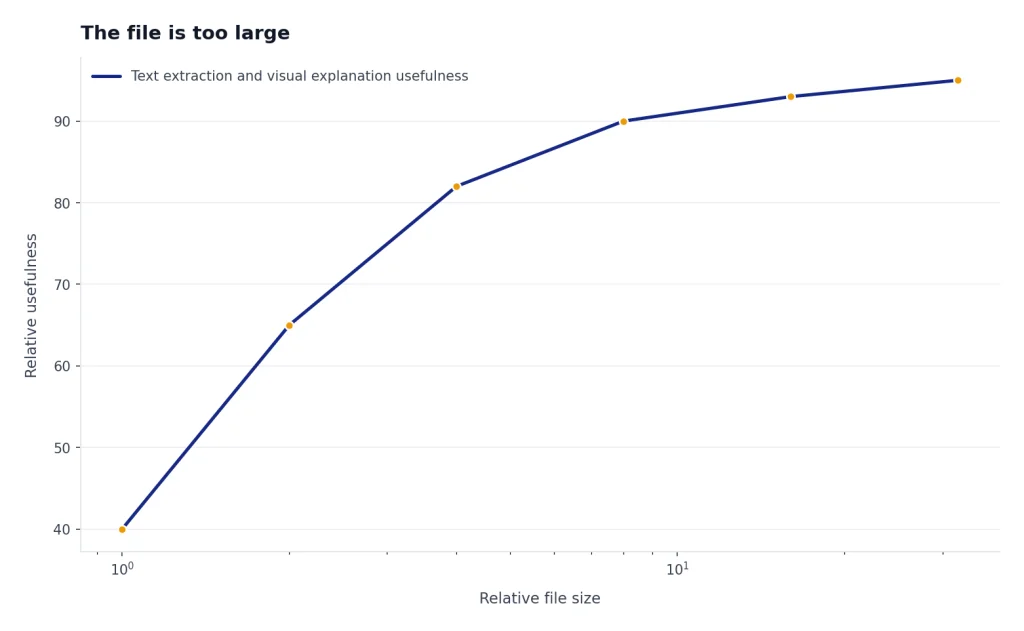
Resize or compress the image. The image input limit is 20 MB per image.[1][3] A phone photo saved at full resolution may exceed what you need for text extraction or visual explanation. Exporting a smaller copy often fixes the issue.
The app cannot access photos or camera
Check system permissions. On mobile, review the ChatGPT app’s access to Photos, Camera, and Files. On Mac, OpenAI says the ChatGPT app needs access to the photo library to use photo selection and camera access to use Take Photo.[2]
ChatGPT reads the image incorrectly
Upload a clearer version. Rotate the image upright, crop irrelevant edges, enlarge small text, improve lighting, and avoid glare. OpenAI lists several limitations for image inputs, including possible issues with rotated text, visual elements that vary by color or line style, precise spatial localization, panoramic or fisheye images, metadata, resizing, counting, and occasional incorrect descriptions.[1]
The upload limit message appears
Wait for the quota to reset, reduce the number of files, or delete unneeded files if storage is the issue. OpenAI says failed upload attempts can sometimes count toward the upload-rate cap and that ChatGPT does not currently provide a way to check how much of your file upload quota remains.[3]
Frequently asked questions
Can I upload a photo to ChatGPT for free?
It depends on the version of ChatGPT and the interface available to your account. OpenAI’s help pages are not perfectly aligned: the Image Inputs FAQ lists image inputs for Plus and ChatGPT Enterprise, while the Images in ChatGPT page says ChatGPT Images 2.0 is available on all tiers.[1][4] If you do not see the upload option, your account may not have access.
Can I take a new photo inside ChatGPT?
Yes, on supported apps and devices. OpenAI’s macOS help page says the Mac app has a Take Photo option that uses the webcam to take a picture and upload it to the conversation.[2] On phones, the plus menu may offer a camera option if the app has permission.
Can ChatGPT read text from a screenshot?
Yes, that is one of the most useful photo upload tasks. Upload the screenshot and ask ChatGPT to extract, summarize, rewrite, or explain the visible text. For best results, crop irrelevant areas and make sure the text is upright and readable.
Can I upload multiple photos at once?
Often, yes, but OpenAI says the number of images you can add depends on factors such as image size and the amount of text accompanying them.[1] If an upload fails, reduce the image count, compress the files, or upload them across separate turns. Tell ChatGPT how the photos relate to each other.
Can ChatGPT analyze a medical photo or scan?
Do not use ChatGPT as a medical authority. OpenAI says the model is not suitable for interpreting specialized medical images such as CT scans and should not be used for medical advice.[1] For health concerns, contact a qualified clinician.
Can I share a ChatGPT conversation that includes a photo?
Sharing behavior can depend on the current ChatGPT interface and account settings. Before sharing, remove private information from the conversation and the uploaded image. For the general process, see how to share a ChatGPT conversation.