

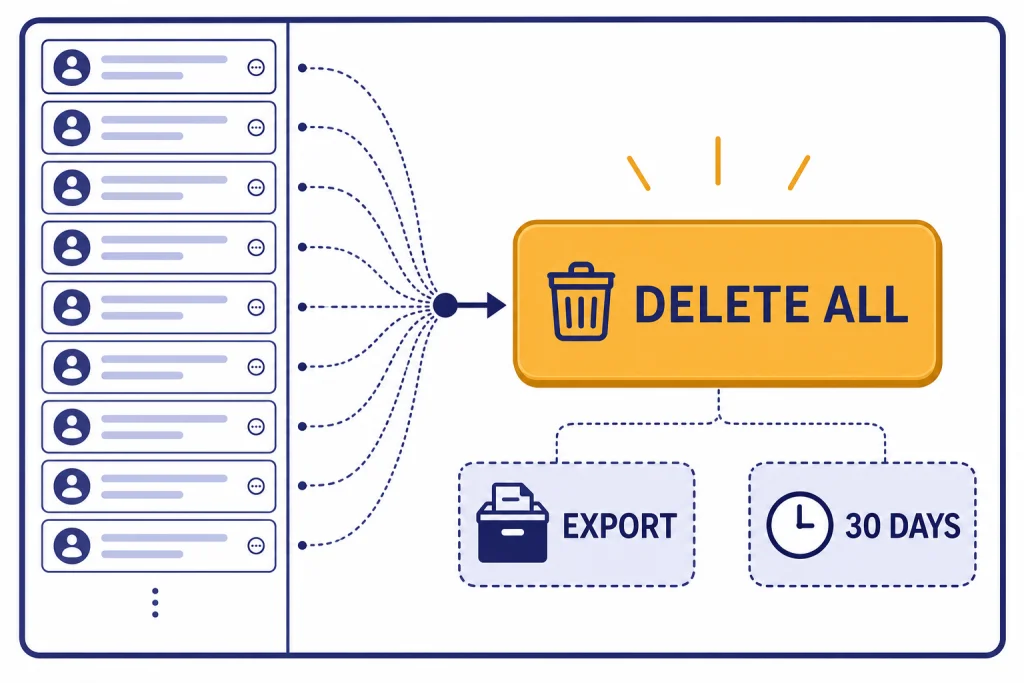
To delete all chats in ChatGPT at once, open ChatGPT, go to Settings, choose Data controls, and use the Delete all chats option. OpenAI says this removes the chats from your visible history right away and schedules them for permanent deletion from its systems within 30 days, unless legal, security, or de-identification exceptions apply.[1] You should export anything important first, because deleted chats cannot be restored through the interface, APIs, or support.[1] If your goal is only to clean up the sidebar, use Archive all chats instead of deleting them.
Quick answer
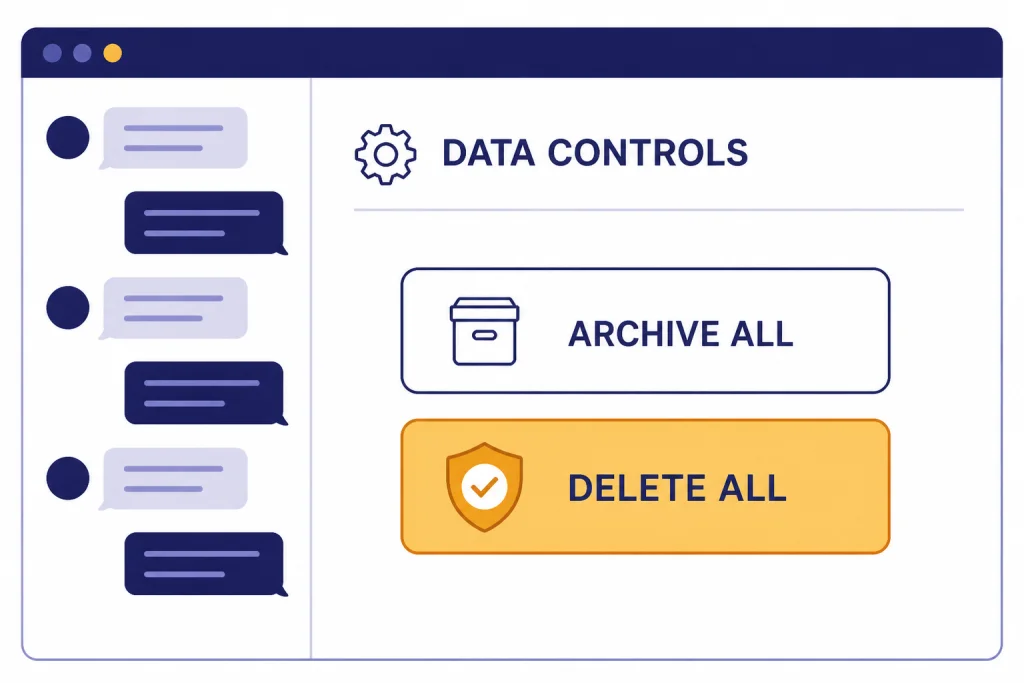
The short version is simple: sign in to ChatGPT, open Settings, go to Data controls, and choose Delete all chats. OpenAI’s Help Center says the Data controls area includes options to archive or delete all chats at one time, and that the action applies to conversations inside projects as well.[1]
Use this option only when you want to remove your entire ChatGPT conversation history from the account view. It is different from deleting one conversation from the sidebar. It is also different from deleting your OpenAI account.
If you are clearing old experiments, drafts, code snippets, or personal notes, pause before you confirm. OpenAI says deleted chats are not recoverable through the ChatGPT UI, APIs, or support.[1] If you might need a record later, export your data first or save specific conversations manually. We have separate walkthroughs for how to export your ChatGPT data, how to save a ChatGPT conversation, and how to save ChatGPT conversations as PDF.
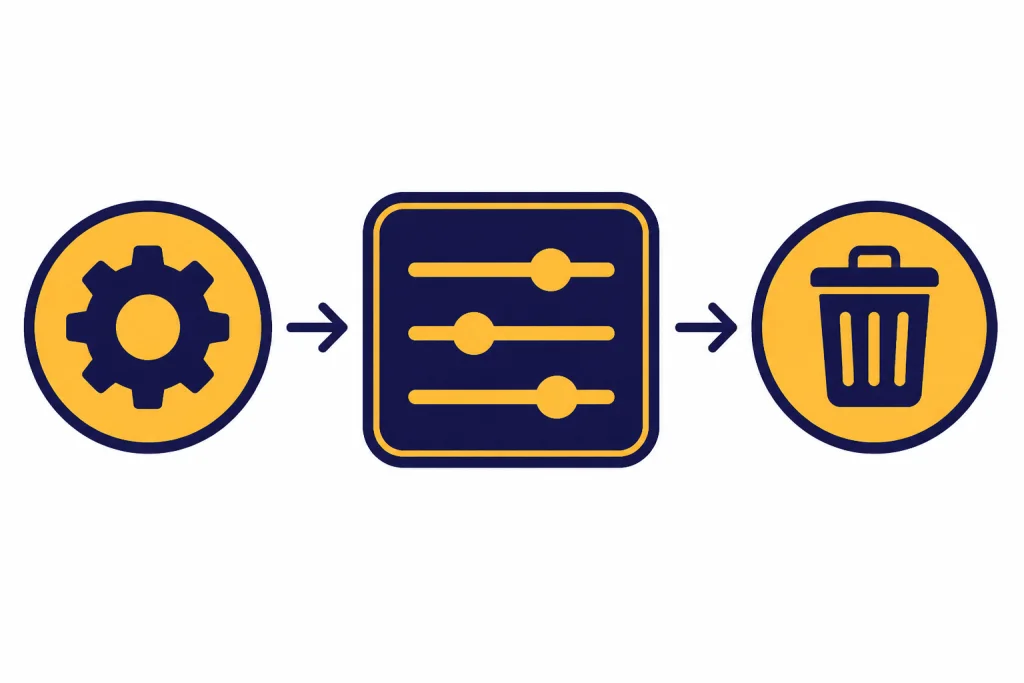
Before you delete all chats
Deleting every chat is fast. Recovering a mistaken deletion is not possible through normal account tools. Treat this as a permanent cleanup step, not a temporary reset.
Check these items before you continue.
- Export your data if you need a backup. OpenAI says a ChatGPT data export includes chat history and other relevant account data, and the emailed download link expires after 24 hours.[4]
- Save important chats separately. An export is useful, but it is not always the easiest format to read. For a single conversation, a PDF or copied text file may be more practical.
- Check projects. OpenAI says Delete all chats applies to all conversations, including those contained within projects.[1]
- Confirm the account. If you use multiple OpenAI accounts, verify the email or workspace before deleting anything.
- Decide whether you only need a clean sidebar. If clutter is the problem, archiving is safer because archived chats stay in your account.
This is also a good moment to review shared conversations. Deleting your own chat history is not the same as retracting text that someone else already copied, screenshotted, or saved from a shared link. If you need to send a conversation to someone before cleaning up, use our guide on how to share a ChatGPT conversation.
Do not rely on deletion as a substitute for careful handling of sensitive data. If a conversation contains passwords, private client information, medical details, or confidential work material, delete it, but also rotate credentials or follow your organization’s data-handling process where appropriate.
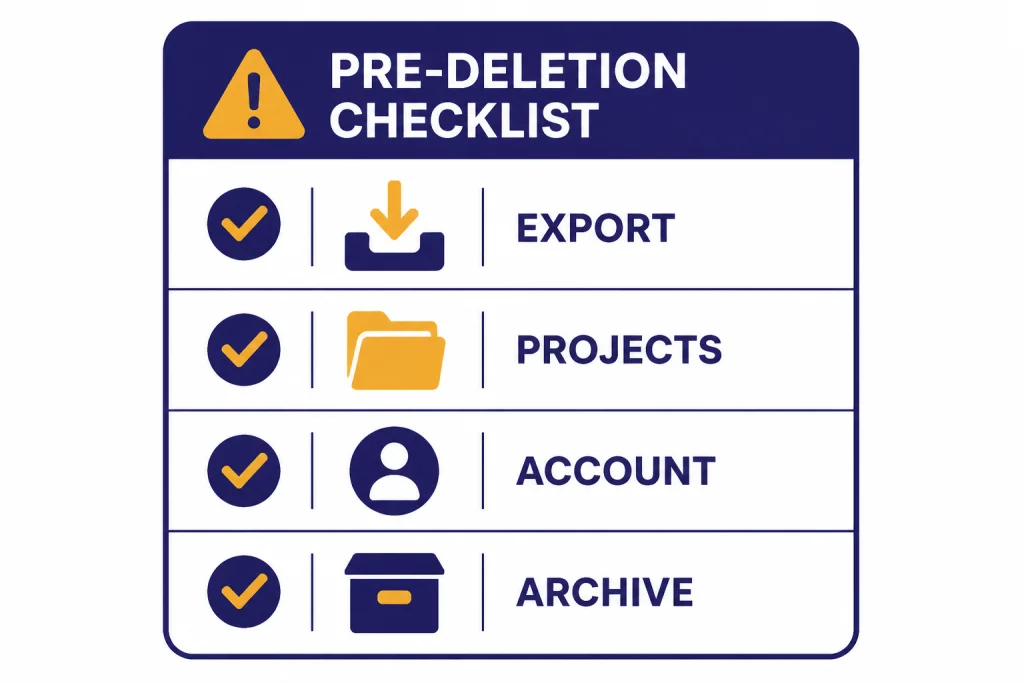
How to delete all chats in ChatGPT on the web
The web app is the clearest place to delete all chats at once. OpenAI documents the bulk-delete control under Settings > Data controls.[1]
Step-by-step instructions
- Open ChatGPT in your browser and sign in to the correct account. If you cannot reach your account, start with our guide on how to log in to ChatGPT.
- Click your profile icon or account menu.
- Select Settings.
- Open Data controls.
- Find the control for Delete all chats.
- Confirm the deletion when ChatGPT asks you to confirm.
- Refresh the page if your sidebar does not update immediately.
After confirmation, your old conversations should disappear from the visible chat history. OpenAI says deleted chats are removed from view immediately and scheduled for permanent deletion from its systems within 30 days, unless exceptions apply.[1]
If you only want to hide old conversations from the left sidebar, choose Archive all chats instead. OpenAI says archived chats remain in your account under the normal retention settings and that archiving does not delete them.[1]
What the button does not do
Delete all chats is not a full privacy reset for every OpenAI-related setting. It does not mean you deleted your account. It does not necessarily remove all files saved elsewhere in your account. OpenAI’s retention policy says files uploaded during conversations are stored in the Library for use across chats and that chats and files are managed separately.[2]
It also does not change how you use ChatGPT after deletion. You can start new chats normally. If you want to use ChatGPT without saving a normal history going forward, consider Temporary Chat or your Data controls settings rather than repeatedly deleting everything after the fact.
What happens after you delete all chats
OpenAI describes deletion in two stages. First, the chats disappear from your visible ChatGPT history. Second, they are scheduled for permanent deletion from OpenAI systems within 30 days, unless the chat has already been de-identified and disassociated from your account or OpenAI must retain it for security or legal obligations.[2]
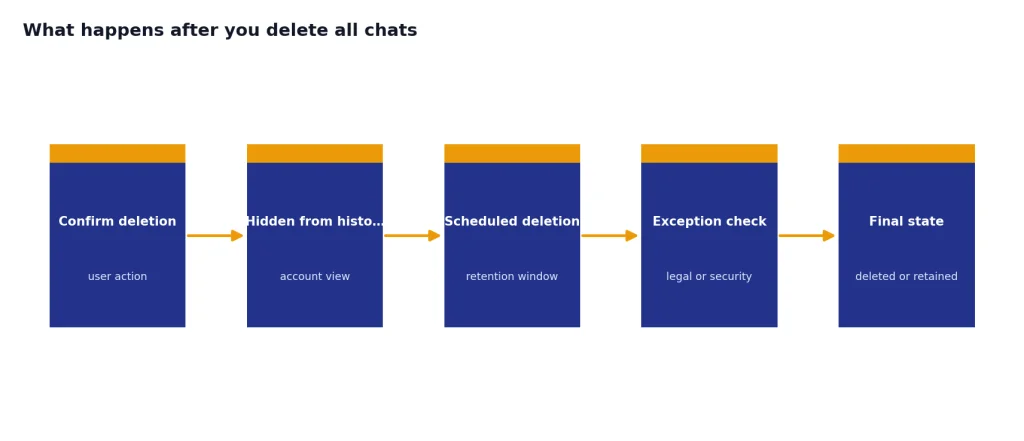
That means the sidebar cleanup is immediate, but the back-end retention process can take longer. The important practical point is that you should not expect a grace period inside the product. OpenAI says once a chat is deleted, it cannot be recovered.[2]
If a deleted conversation contained an uploaded file, do not assume the file is gone from every place it may exist. OpenAI says chats and files are managed separately, and files uploaded during a conversation may remain in your Library until you delete them there.[2] Review your Library after a bulk deletion if uploaded documents, images, spreadsheets, or PDFs are part of your cleanup.
Connected app data needs special care too. OpenAI says that if a conversation used connected app data, deleting the conversation removes the conversation itself and any synced app data retained within that conversation, subject to standard retention and legal obligations.[1] Disconnecting an app prevents future access, but OpenAI says it does not delete past conversations that used that app data.[1]
Archive, export, or delete: which option to choose
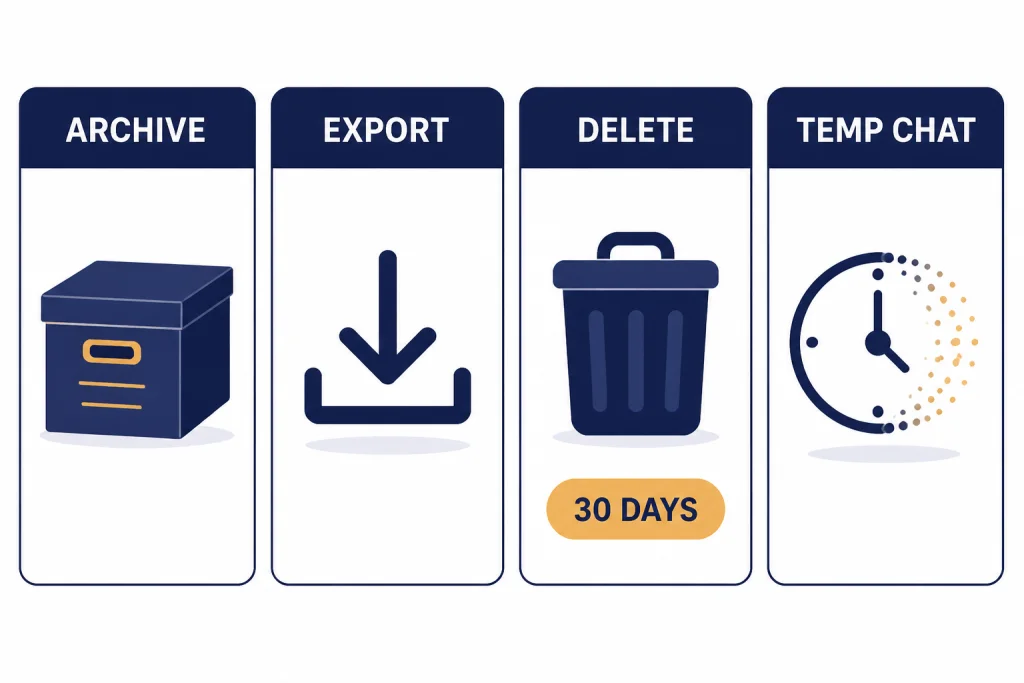
Most people searching for how to delete all chats ChatGPT are trying to solve one of three problems: the sidebar is messy, the account contains old sensitive material, or they want a backup before a reset. Those are different jobs. Pick the option that matches the job.
| Option | Best for | What changes | Can you use the chats later? |
|---|---|---|---|
| Archive all chats | Cleaning up the sidebar without losing history | Moves chats out of the active history view; archived chats remain in the account under standard retention settings.[1] | Yes. You can manage archived chats from Settings > Data controls.[1] |
| Export data | Keeping a copy before deletion | Sends a downloadable zip file that includes chat history and other relevant account data.[4] | Yes, from your downloaded copy. |
| Delete all chats | Removing the full conversation history from the account view | Removes chats from view immediately and schedules deletion from OpenAI systems within 30 days, subject to exceptions.[1] | No. OpenAI says deleted chats cannot be recovered.[1] |
| Temporary Chat | Starting future chats that should not remain in normal history | Temporary chats are automatically deleted from OpenAI systems within 30 days, even without manual deletion.[2] | No, not as normal saved history. |
For most everyday cleanup, archive first and delete only after you know what you no longer need. For privacy cleanup, export only if keeping a local copy is acceptable. A local export can become its own sensitive file, so store it carefully or delete it after you retrieve what you need.
If you are deleting chats because old prompts affect your workflow, make sure the problem is really chat history. Saved memory, custom instructions, project files, and uploaded files can also influence your experience. Our ChatGPT memory tutorial explains how memory differs from ordinary chat history.
What about iPhone and Android
You can delete individual chats in the ChatGPT mobile apps. OpenAI’s iOS instructions say to open the app, open conversation history, press and hold the conversation title, and tap Delete.[5] That is useful for one conversation, but it is not the same as the bulk Delete all chats control.
If you need to clear everything, the most reliable path is to use ChatGPT on the web and follow Settings > Data controls > Delete all chats. OpenAI’s general deletion article identifies Data controls as the place where the all-chat archive and deletion options live.[1] The exact mobile interface can change by app version, device, and account type, so use the web app if the mobile setting is not visible.
Before deleting on any device, export from an account you can still access. OpenAI’s Android export article says you can navigate to Data Controls and select Export Data, and that the downloadable zip file is sent to the registered email address with a link that expires after 24 hours.[6] OpenAI’s general export article also says data export is available on Free, Plus, and Pro plans but not available to logged-out users.[4]
If you mostly use ChatGPT on a phone, our device guides may help after you reset your history: ChatGPT on iPhone, ChatGPT on Android, and how to download the ChatGPT app.
Troubleshooting common problems
You do not see Delete all chats
Make sure you are signed in. OpenAI’s Data Controls article says signed-in users have additional options such as exporting data or deleting the account, while signed-out users have fewer options.[3] If you are signed in and still do not see the control, try the web app, refresh the page, or sign out and back in.
Your chat list is already empty
An empty sidebar does not always mean the chats were deleted. OpenAI recommends checking that you are in the correct account or workspace, checking Archived Chats under Settings > Data controls, refreshing, signing out and back in, and requesting a data export to confirm what is still stored.[1]
You deleted chats by mistake
There is no normal restore button. OpenAI says deleted chats are not retrievable through the UI, APIs, or support.[1] Your only practical recovery path is a backup you made before deletion, such as a data export, a PDF, copied text, screenshots, or a shared copy someone else saved.
You exported data but cannot find the email
Check the email address attached to the account, then check spam, promotions, and security-filtered folders. OpenAI says the export email link expires after 24 hours.[4] If the link has expired, submit a new export request before deleting your chats.
You want to delete one chat, not everything
Use the conversation menu instead. On the web, OpenAI says to go to the chat history sidebar, hover over the conversation, click the three-dot menu, select Delete, and confirm.[1] On iOS, OpenAI says to press and hold the conversation title, then tap Delete.[5]
Privacy steps after clearing chats
Deleting all chats is only one part of account cleanup. After the sidebar is clear, review the settings and storage areas that can still matter.
- Review Archived Chats. If you used Archive all chats earlier, those chats still exist until you delete them.[1]
- Check uploaded files. OpenAI says chats and files are managed separately, so review your Library if you uploaded documents or images.[2]
- Review connected apps. If a chat referenced synced app data, deleting that chat can remove retained synced data inside that conversation, but disconnecting an app by itself does not delete past conversations.[1]
- Use Temporary Chat for future sensitive sessions. OpenAI says Temporary Chats are automatically deleted from its systems within 30 days, even if you do not manually delete them.[2]
- Turn off model improvement if that is your goal. OpenAI’s Data Controls FAQ says signed-in users can turn off “Improve the model for everyone” from Settings > Data Controls on the web.[3]
If you are clearing history because you want a cleaner working setup, rebuild deliberately. Keep one saved prompt library, name important chats clearly, and export before major cleanups. If you use ChatGPT for writing, our guides on making ChatGPT write like a human and making ChatGPT sound more human can help you create reusable instructions instead of keeping dozens of old draft threads.
Frequently asked questions
Can I delete all ChatGPT chats at once?
Yes. OpenAI says Settings > Data controls includes options to archive or delete all chats at one time.[1] Use Delete all chats only if you are sure, because OpenAI says deleted chats cannot be recovered.[1]
Does deleting all chats remove them immediately?
They disappear from your visible chat history immediately. OpenAI says deleted chats are scheduled for permanent deletion from its systems within 30 days, unless legal, security, or de-identification exceptions apply.[1]
Can OpenAI support restore deleted chats?
No. OpenAI says deleted chats are not retrievable through the ChatGPT UI, APIs, or support.[1] If you need a record, export or save the conversation before deleting it.
Is archiving the same as deleting?
No. Archiving hides conversations from the active sidebar but keeps them in your account. OpenAI says archived chats remain under your standard retention settings and that archiving does not delete them.[1]
Should I export my data before deleting all chats?
Yes, if there is any chance you will need the history later. OpenAI says the export includes your chat history and other relevant account data, and the emailed link expires after 24 hours.[4]
Does deleting all chats delete uploaded files?
Not necessarily. OpenAI says chats and files are managed separately, and uploaded files may remain in your Library until you delete them there.[2] Review your Library after clearing chats if files matter.