

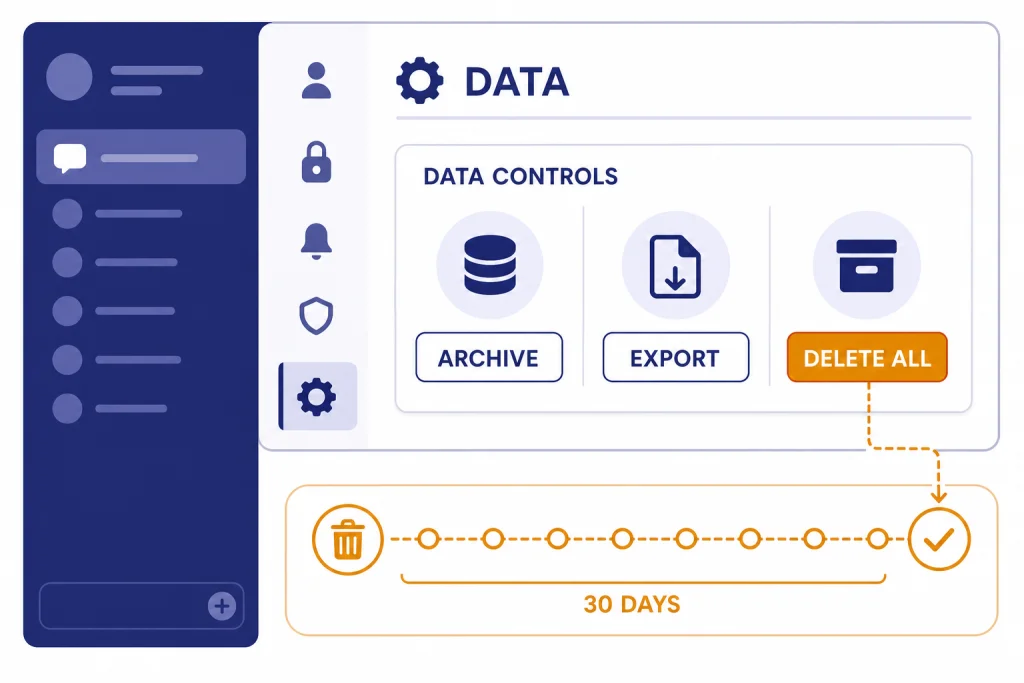
To clear ChatGPT history, open ChatGPT, go to your conversation list, choose the chat you want to remove, select the three-dot or long-press menu, and confirm Delete. To clear everything at once, use Settings > Data Controls > Delete all chats. The exact taps differ on web, iPhone, iPad, Android, Mac, and Windows, but the account-level result is the same: deleted chats disappear from your history view immediately and are scheduled for permanent deletion from OpenAI systems within 30 days, subject to legal, security, and de-identification exceptions.[1][2] Export anything important before you delete it, because deleted chats cannot be restored through the app, API, or support.[1]
Quick answer
If you only need the short version, use these steps.
- Web, Mac, or Windows: open the chat sidebar, hover over the conversation, select the three-dot menu, choose Delete, and confirm.[1]
- iPhone or iPad: open the ChatGPT app, open the conversation or history list, use the conversation menu, tap Delete, and confirm.[3]
- Android: open the side menu, find the conversation in history, press and hold the title, tap Delete, and confirm.[4]
- All chats: open Settings, go to Data Controls, and use Delete all chats.[1]
Deleting a chat is different from signing out, closing the app, clearing your browser cache, or hiding a conversation. It removes the conversation from your ChatGPT history and schedules it for permanent deletion from OpenAI systems within 30 days, except where OpenAI says legal, security, or de-identification exceptions apply.[1][2]
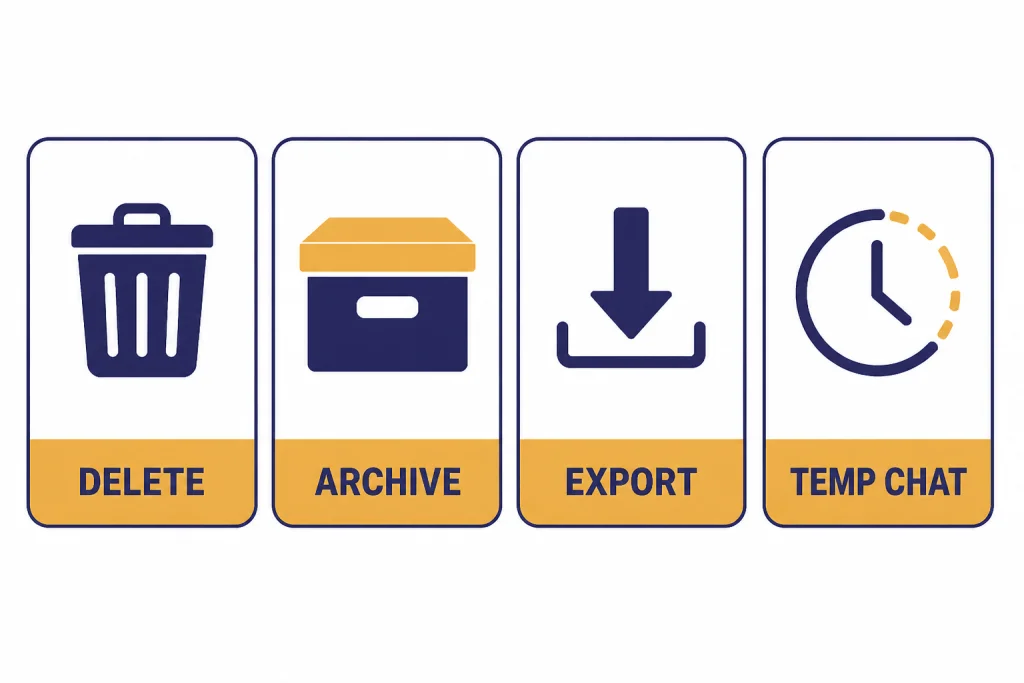
If your goal is to save space in the sidebar, archive may be safer. If your goal is to keep a personal record before cleanup, export first. If your goal is to avoid saving a new conversation in history, use Temporary Chat before you start the conversation, not after.[1][6]
Before you delete: choose the right cleanup option
Most people search for how to clear ChatGPT history when they mean one of several different tasks. The right option depends on whether you want to remove clutter, erase conversations, keep a backup, or prevent future chats from appearing in the sidebar.
OpenAI separates deletion, archive, export, training controls, and Temporary Chat. Deletion is the most permanent of these options. Archive hides a chat from the main sidebar but keeps it in your account. Export gives you a downloadable copy of your ChatGPT data before you remove anything. Temporary Chat starts a conversation that does not appear in history and is retained for up to 30 days for safety purposes, according to OpenAI.[1][6][7]
| Goal | Best option | Where to look | Important caution |
|---|---|---|---|
| Remove one sensitive or unwanted chat | Delete that chat | Conversation menu | Deleted chats cannot be recovered through the UI, API, or support.[1] |
| Hide old chats without losing them | Archive | Conversation menu or Data Controls | Archived chats remain in your account and are not deleted.[1] |
| Clear the whole sidebar | Delete all chats | Settings > Data Controls | This applies broadly to your stored conversations, including conversations in projects.[1] |
| Keep a personal copy first | Export data | Settings > Data Controls > Export | The export download link expires after 24 hours.[7] |
| Start a chat that will not show in history | Temporary Chat | New chat screen | Temporary Chats may still be kept for up to 30 days for safety purposes.[6] |
If you are cleaning up because you plan to share, save, or cite a conversation later, do that first. Our guides on how to save a ChatGPT conversation, saving ChatGPT conversations as PDF, and how to share a ChatGPT conversation cover the safer options before deletion.
How to clear one ChatGPT chat on web, Mac, or Windows
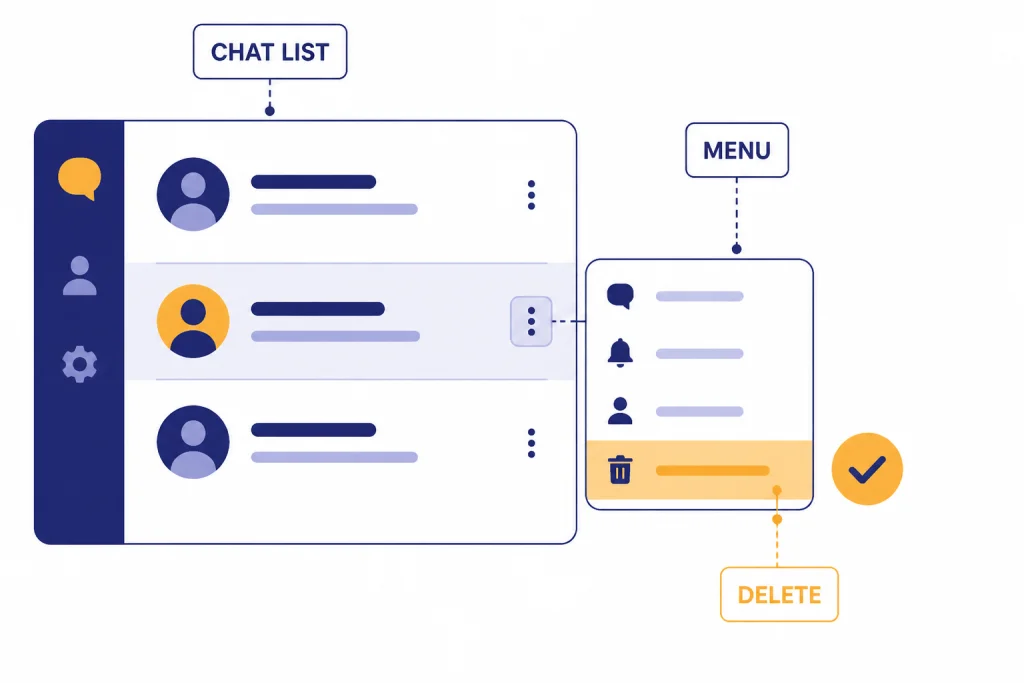
The web app and desktop apps use the same basic idea. You remove a conversation from the history list by opening its conversation menu and confirming deletion. This is the best method when you want to remove one specific chat but keep the rest of your history.
Steps
- Open ChatGPT and sign in to the correct account.
- Open the chat history sidebar.
- Find the conversation you want to remove.
- Hover over the conversation title if you are on web or desktop.
- Select the three-dot menu next to the title.
- Choose Delete.
- Confirm the deletion when prompted.
OpenAI says deleted chats are removed from the history view immediately and scheduled for permanent deletion from OpenAI systems within 30 days, unless an exception applies.[1] The same Help Center article states that deleted chats cannot be recovered through the ChatGPT interface, APIs, or support.[1]
If you use ChatGPT on a desktop app, the key account question is the same: make sure you are signed in to the account whose history you want to clear. If you are unsure which app you installed, see our guide to downloading the ChatGPT app on any device. For device-specific setup, use our walkthroughs for ChatGPT on Mac and ChatGPT on Windows.
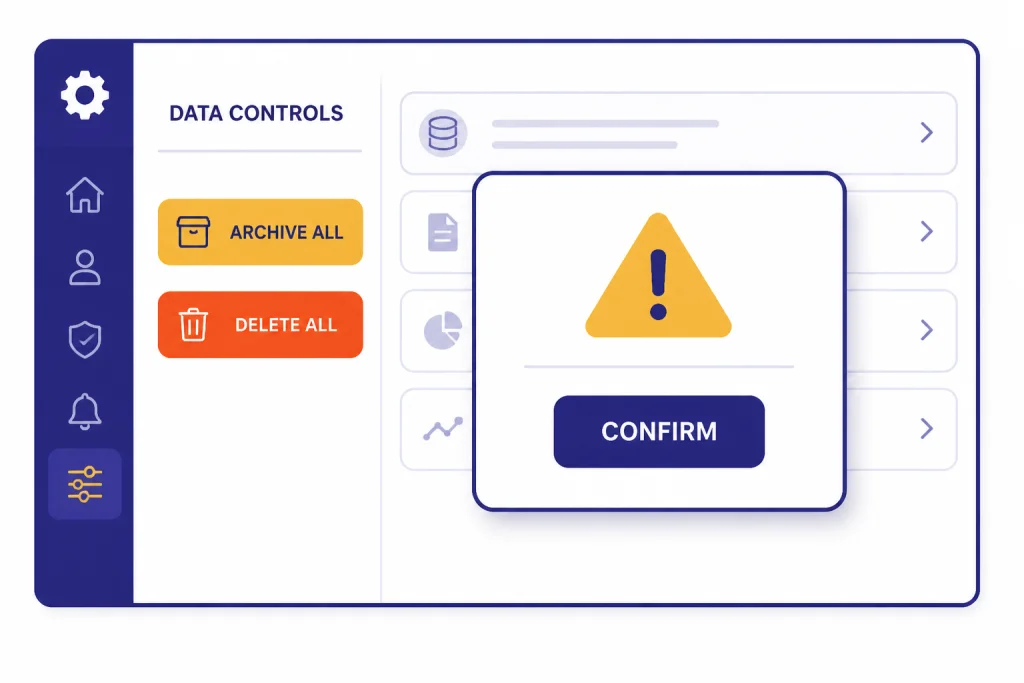
How to clear all ChatGPT history at once
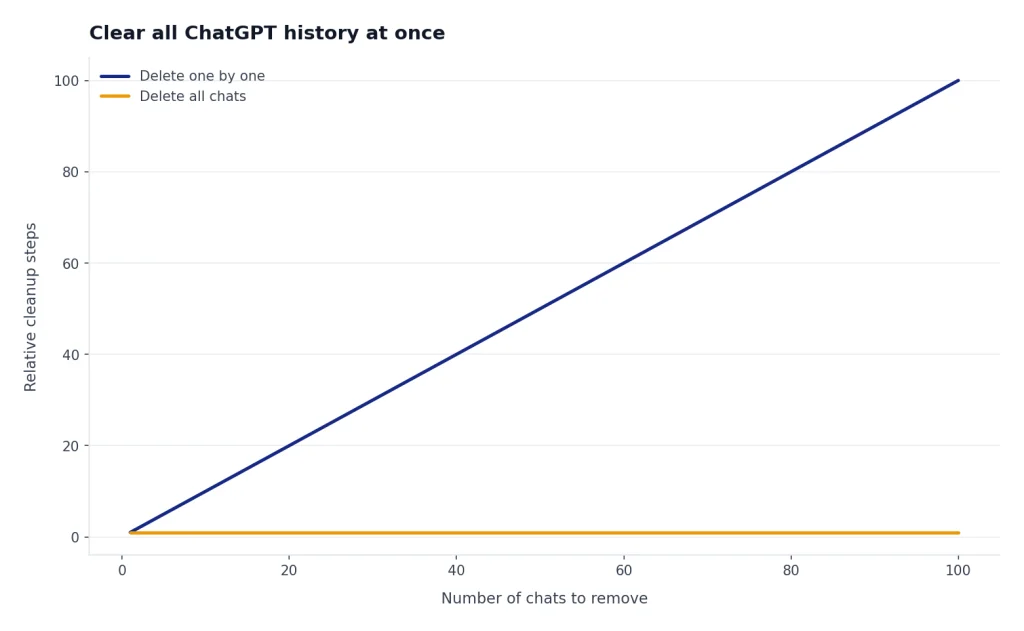
Use Delete all chats when you want a full cleanup, not just a single conversation removal. This is faster than deleting conversations one by one, but it is also easier to regret. Export first if any chat contains work, prompts, research notes, code, study material, or receipts you may need later.
Steps
- Open ChatGPT and sign in.
- Open Settings.
- Go to Data Controls.
- Choose Delete all chats.
- Read the confirmation prompt.
- Confirm only if you are sure.
OpenAI’s current help article says Settings > Data Controls contains options to archive or delete all chats at once, and that these actions apply to conversations inside projects too.[1] If you only want a clean sidebar, Archive all chats is less destructive because archive hides conversations without deleting them.[1]
Before a full wipe, consider exporting your data. OpenAI says ChatGPT data export is available from Settings > Data Controls, sends a download link by email, and includes chat history plus other account data; the download link expires after 24 hours.[7] For a more detailed backup workflow, use our separate guide on how to export your ChatGPT data.
How to clear ChatGPT history on iPhone or iPad
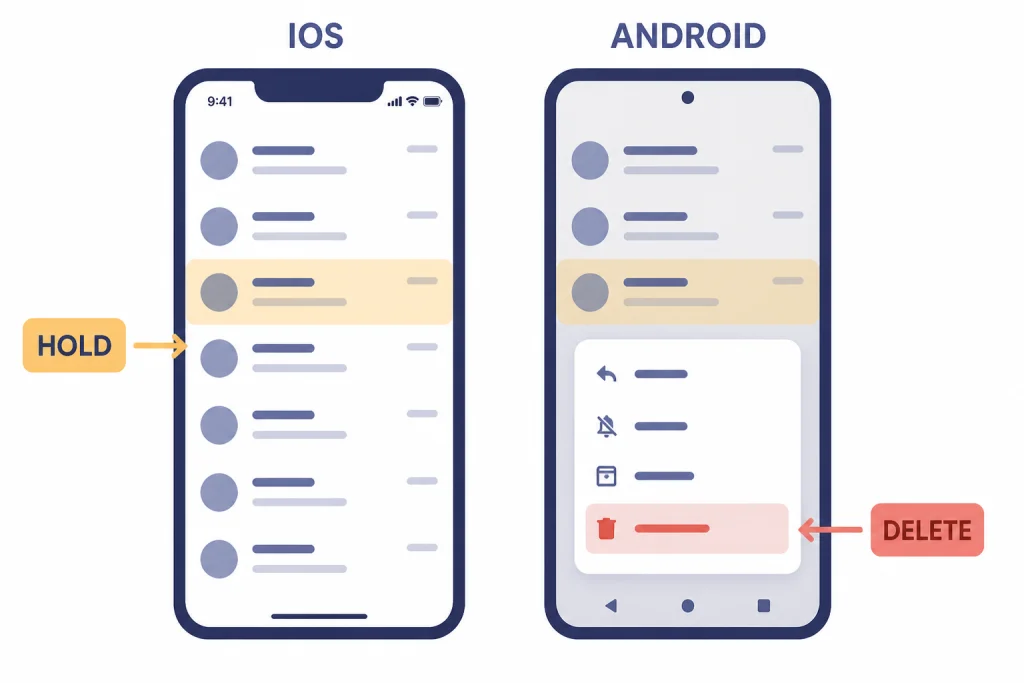
On iPhone and iPad, you can delete a single conversation from inside the ChatGPT app. OpenAI’s iOS FAQ says users can access conversation history from the app menu and delete a conversation through the conversation menu after opening the chat.[3] OpenAI also publishes a separate iOS deletion article that describes opening the menu, finding the chat, pressing and holding the title, and tapping Delete.[3]
Steps
- Open the ChatGPT app on your iPhone or iPad.
- Open the menu or history view.
- Find the conversation you want to delete.
- Open the conversation menu or press and hold the conversation title.
- Tap Delete.
- Confirm the deletion.
If you do not see the same menu labels, update the app and check that you are signed in with the right account. If you use ChatGPT mostly from your phone, our iPhone guide explains setup, voice, images, and everyday navigation in one place: how to use ChatGPT on iPhone like a pro.
Deleting the ChatGPT app from your phone is not the same as deleting your ChatGPT history. App removal affects the local installation. Chat history is tied to your account, so you need to delete conversations inside ChatGPT or use Data Controls while signed in.
How to clear ChatGPT history on Android
On Android, OpenAI’s help article says to open the menu, find the chat in your history, press and hold the conversation title, and then choose the red Delete option.[4] Use this for one conversation at a time.
Steps
- Open the ChatGPT Android app.
- Tap the menu icon in the top-left corner.
- Find the conversation in your history.
- Press and hold the conversation title.
- Tap Delete.
- Confirm if the app asks you to confirm.
If your Android app shows a slightly different layout, look for the history list and the conversation menu. The important control is still the per-chat Delete action. For broader setup help, see our guide to using ChatGPT on Android.
As with iPhone, uninstalling the Android app does not clear account history. It only removes the app from the device. To clear history, delete the chats while signed in or use the Data Controls options available to your account.
What deleting chat history does not clear
Deleting ChatGPT history is useful, but it is not a universal privacy switch. Several related settings and data types behave differently.
It does not automatically change model improvement settings
OpenAI’s Data Controls FAQ says signed-in users can turn off Improve the model for everyone in Settings > Data Controls, and that conversations can still appear in history even when that setting is off.[5] In other words, history visibility and model improvement controls are separate settings.
It does not necessarily remove saved memories by itself
OpenAI’s Memory FAQ says users can review and delete saved memories, clear all saved memories, or turn memory off in settings.[8] If a conversation included personal details and ChatGPT saved a memory from it, check Memory settings separately instead of assuming chat deletion handled everything.
It may not delete files in every context
OpenAI’s chat and file retention article explains that chats and files can have separate retention rules and that files uploaded during a conversation may be managed differently depending on where they are stored.[2] If your goal is to remove uploaded documents or images, review the file or library area as well as the conversation itself. If you work with images often, our guides to uploading a photo to ChatGPT and uploading images to ChatGPT explain where those items appear during use.
It does not delete your OpenAI account
Clearing history removes conversations. It does not close your account, cancel a plan, or remove your login. If you only need to stop someone else from seeing your chats on a shared computer, sign out after you delete or archive the relevant chats. If you are having sign-in problems, start with how to log in to ChatGPT.
Troubleshooting: history will not clear or chats disappeared
If ChatGPT history does not look right after you delete or archive conversations, check the simple causes first. Most issues come from account mismatch, archive confusion, app sync delay, or a temporary service problem.
- Confirm the account. Many people have more than one OpenAI login method. Check the email address, Apple sign-in, Google sign-in, Microsoft sign-in, or workspace.
- Check archived chats. A missing chat may have been archived instead of deleted. OpenAI says archived chats are managed from Settings > Data Controls > Archived Chats.[1]
- Refresh or restart. Close the app or browser tab, reopen ChatGPT, and check again.
- Check another device. If web shows a different list from mobile, sign out and back in on the device that looks stale.
- Use export to verify stored history. OpenAI suggests data export as a way to get a copy of your ChatGPT history and data.[7]
If a deleted chat is gone, treat it as unrecoverable. OpenAI states that deleted chats cannot be retrieved through the UI, APIs, or support.[1] That is why export, PDF saving, or manual copying should come before deletion when a conversation matters.
A simple privacy routine for ChatGPT
A good ChatGPT cleanup routine is simple. Use Temporary Chat for short-lived sensitive questions, export important work before large cleanups, delete conversations that should not remain in your account, and review Memory settings after chats that include personal details.
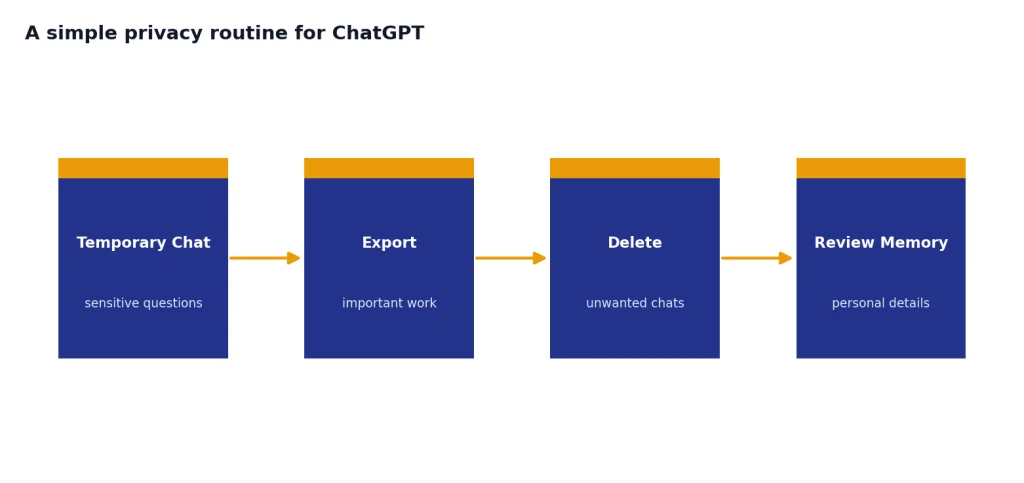
For regular use, separate your goals. Keep useful work chats. Archive reference chats you may need later. Delete chats that contain outdated, private, or accidental information. Use Data Controls when you want to change how your conversations are used beyond the visible history list.
This habit matters most on shared devices. If you use a family computer, a work laptop, or a borrowed phone, clear only what you intend to remove, then sign out. If you use ChatGPT without an account in some situations, read our guide to using ChatGPT without logging in so you understand the tradeoffs.
Do not rely on deletion as a substitute for careful prompting. Avoid pasting passwords, private keys, full medical records, or confidential work material unless you are allowed to use ChatGPT for that information. If a chat is important enough to keep, save it deliberately. If it is sensitive enough to remove, delete it deliberately.
Frequently asked questions
Can I recover deleted ChatGPT chats?
No. OpenAI says deleted chats cannot be recovered through the ChatGPT interface, APIs, or support.[1] If you may need the conversation later, export your data, save the conversation, or make a PDF before deleting it.
Does clearing ChatGPT history delete chats on every device?
Chat history is tied to your account, not just the device in your hand. If you delete a chat while signed in, it should no longer appear in that account’s history view. If another device still shows it, refresh the app, confirm the account, and sign out and back in.
Is archive the same as delete in ChatGPT?
No. Archive removes a chat from the active sidebar but keeps it in your account. OpenAI says archived chats remain under your standard retention settings, while deleted chats are scheduled for permanent deletion from OpenAI systems within 30 days, subject to exceptions.[1]
Should I export ChatGPT data before clearing history?
Yes, if any conversation might matter later. OpenAI’s export process sends a data download link by email, and the link expires after 24 hours.[7] After you confirm that the export worked, you can delete with less risk.
Does Temporary Chat appear in ChatGPT history?
No. OpenAI says Temporary Chats do not appear in history and do not use or create memories.[6] OpenAI also says it may keep a copy for up to 30 days for safety purposes.[6]
Does deleting a chat also delete saved memories?
Do not assume that it does. OpenAI’s Memory FAQ says saved memories can be reviewed and deleted separately in settings.[8] If you shared personal information in a chat, check both the chat and Memory controls.