

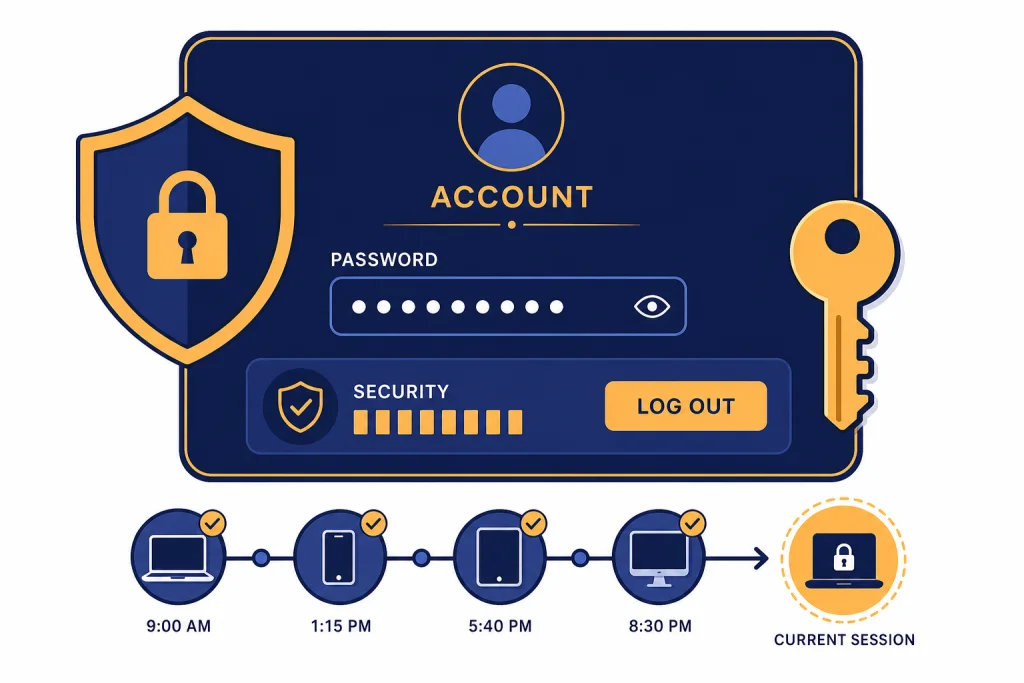
To change your ChatGPT password, sign in, open Settings, go to Account, and add or update your password. If you cannot sign in, use the password reset flow from the ChatGPT login page by choosing Forgot password and following the reset email. The process depends on how you created the account. If you signed up with an email and password, you can reset it through OpenAI. If you used Continue with Google, Continue with Microsoft, Continue with Apple, or an organization SSO login, you usually need to change that provider’s password instead. This guide explains the safest path for each case and what to do after the change.
Quick answer
The fastest way to change a ChatGPT password is inside ChatGPT itself: sign in, open Settings, choose Account, and add or update your password. OpenAI’s help page says the same password applies to your wider OpenAI account, including places where you sign in with that account such as the API Platform and Sora.[1]
If you cannot get into ChatGPT, use the reset route instead. Open a private or incognito browser window, go to the ChatGPT login page, enter your email address or phone number, select Forgot password, and follow the reset instructions sent to you.[1] If you are also having sign-in trouble generally, see our separate guide on how to log in to ChatGPT.
The important detail is your sign-in method. A password reset works for accounts that use an OpenAI email-and-password login. It will not work the same way if your account was created with Google, Microsoft, Apple, or an organization’s single sign-on system.[2]
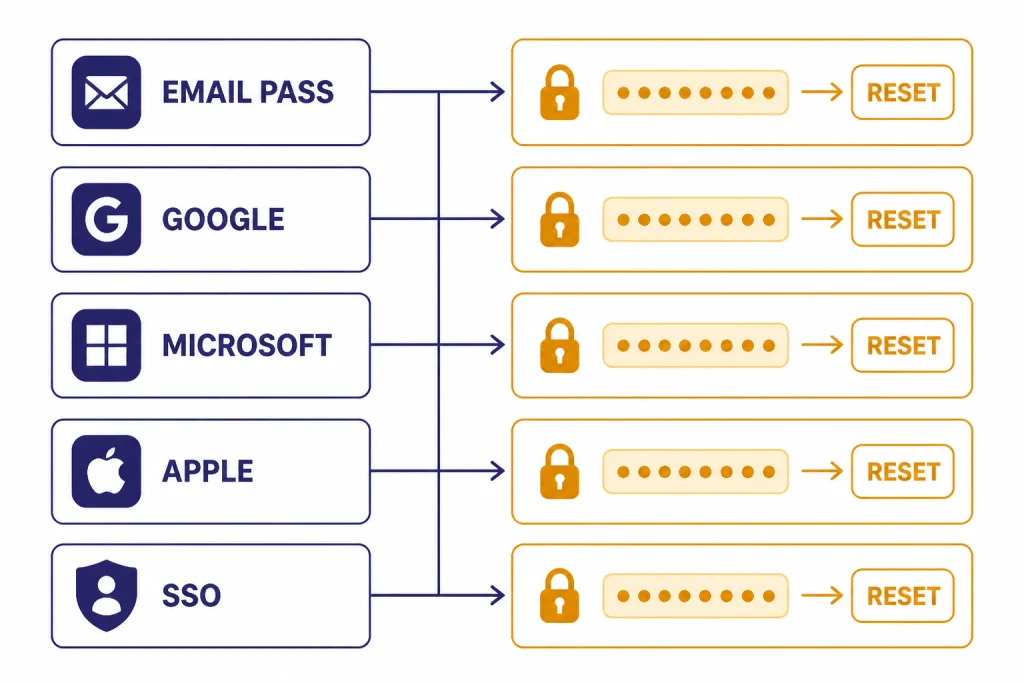
Choose the right password path
Before you start, identify how you normally sign in. This avoids the most common loop: requesting a password reset for an account that never had an OpenAI password in the first place. OpenAI says accounts originally created with Continue with Google, Continue with Microsoft, or Continue with Apple do not have a ChatGPT password to reset; those passwords must be managed at the provider instead.[1]
Use this table to pick the right route.
| Your normal sign-in method | Use this path | What changes | Best next step |
|---|---|---|---|
| Email and OpenAI password | ChatGPT Settings → Account, or Forgot password | Your OpenAI account password changes across OpenAI services.[1] | Update your password manager and sign back in on trusted devices. |
| Continue with Google | Change your Google account password | Your Google login protects access to ChatGPT; the OpenAI reset email route may not apply.[1] | Secure the Google account and check active sessions there. |
| Continue with Microsoft | Change your Microsoft account password | Your Microsoft login controls authentication for that ChatGPT account.[1] | Review Microsoft security settings and recovery methods. |
| Continue with Apple | Change your Apple ID password if needed | OpenAI says Apple sign-in users should continue using Apple; Hide My Email can tie the account to Apple’s private relay address.[2] | Confirm you are using the same Apple ID you used at sign-up. |
| Work or school SSO | Use your organization’s identity provider | Your employer or school controls the password. | Contact your IT admin if you cannot sign in. |
If you are setting up ChatGPT on a new device, confirm that you are using the official app or website before typing a password. Our setup guides for ChatGPT on iPhone, ChatGPT on Android, and ChatGPT on Mac can help you avoid lookalike apps and confusing sign-in screens.
Change your password while signed in
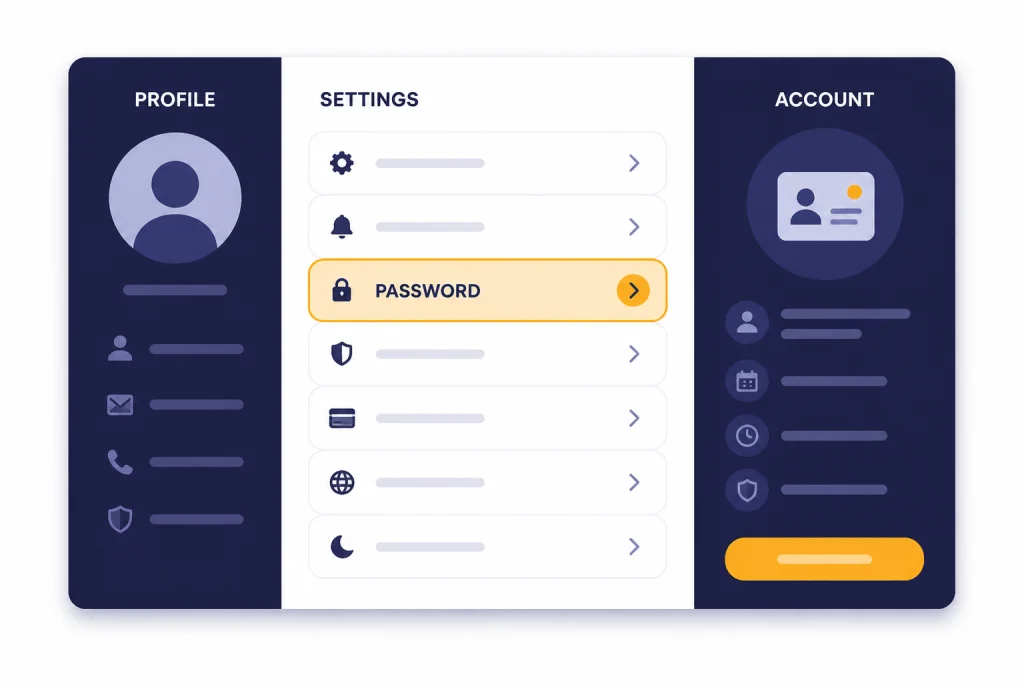
Use this method when you can still access your account and simply want a new password. It is the cleanest route because you do not need to wait for a reset email.
- Open ChatGPT in your browser or app.
- Sign in to the account whose password you want to change.
- Open your profile menu.
- Select Settings.
- Go to Account.
- Add or update your password.
- Save the change, then store the new password in a trusted password manager.
OpenAI documents the signed-in route as Settings → Account → add or update your password.[1] If you do not see that option, you may be signed in with a provider account, you may be in the wrong account, or the interface may be showing different options for your plan or workspace.
After changing it, use the new password anywhere you sign in with that same OpenAI account. OpenAI states that a ChatGPT password change updates the password for the entire OpenAI account, not only the chat interface.[1] If you use developer tools, billing, or another OpenAI service with the same login, plan for a short interruption while you sign back in.
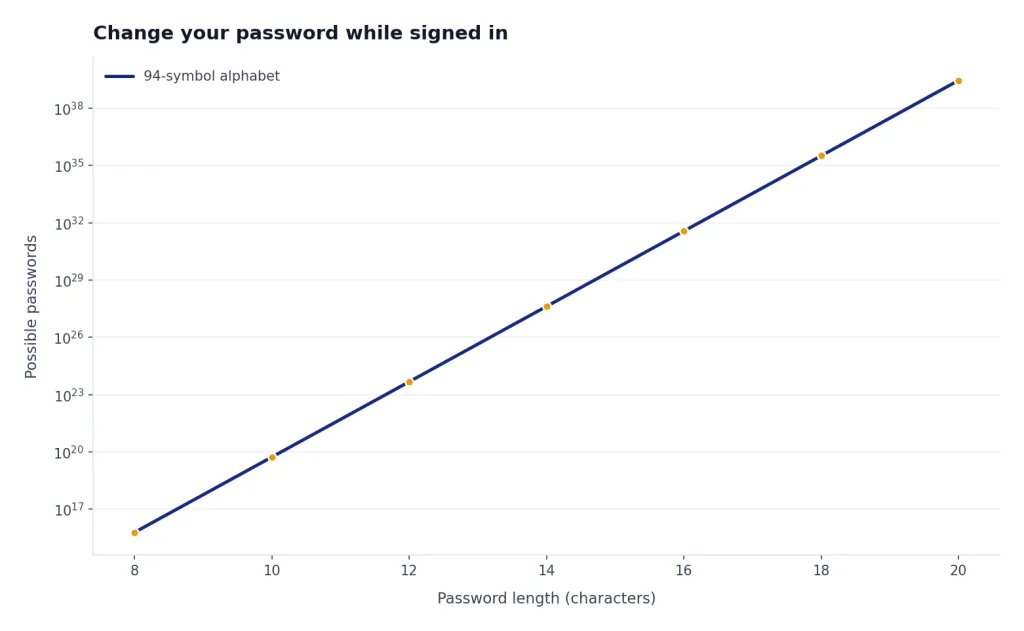
Do not reuse a password from email, banking, school, or work accounts. A unique password limits damage if another site has a breach. A password manager is usually safer than a memorable pattern because it can generate and store a long random password without forcing you to remember it.
Reset your password if you cannot sign in
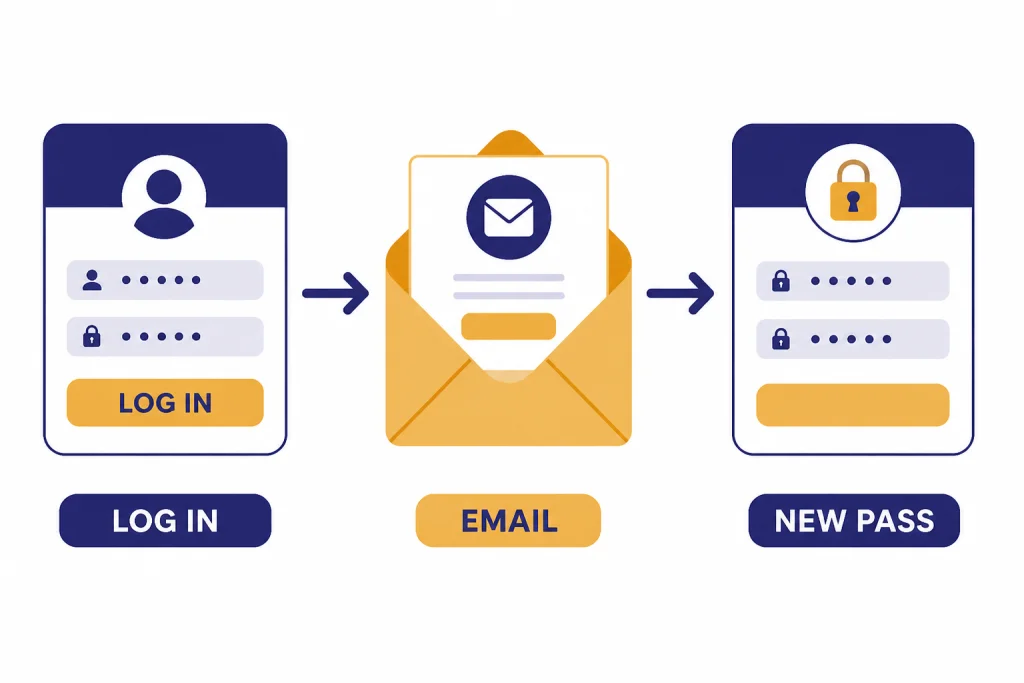
Use the reset method if you forgot your password, suspect someone else changed it, or cannot reach the Settings page. OpenAI tells users to log out or use a private browser window, go to ChatGPT, click Log in, enter the account email address or phone number, choose Forgot password, and follow the reset email.[1]
- Open a private or incognito browser window.
- Go to ChatGPT and choose Log in.
- Enter the email address or phone number tied to the account.
- Continue to the password screen.
- Select Forgot password.
- Open the reset message from OpenAI.
- Create a new password and complete the flow.
- Return to ChatGPT and sign in with the new password.
A private browser window is useful because it avoids stale cookies, saved sessions, and browser extensions that can interfere with login. OpenAI’s login troubleshooting page also recommends checking the authentication method, trying incognito mode, clearing cache and cookies, and using another device or browser when sign-in fails.[6]
If you do not receive the reset email, check spam or junk, confirm that you used the same email address you used when creating the account, and look for typos. OpenAI lists those checks in its password reset guidance.[1] If you used Apple’s Hide My Email, the account may be tied to an Apple private relay address rather than your personal address.[2]
If you need to keep a record of conversations before making account changes, read how to export your ChatGPT data or how to save a ChatGPT conversation. A password reset should not delete chats, but saving important work before major account troubleshooting is a sensible habit.
What to do if you use Google, Microsoft, Apple, or SSO
If you normally click Continue with Google, Continue with Microsoft, or Continue with Apple, do not expect the OpenAI password reset flow to work. OpenAI says users who originally signed up with those social login methods do not have a password to reset, and they should reset the password directly through Google, Microsoft, or Apple if needed.[1]
OpenAI also says that if you initially signed up with SSO or a social login method, you cannot switch later to email and password, except for certain Enterprise cases handled through an organization representative.[2] That means a missing reset email is not always a delivery problem. It can be the expected result for a social-login account.
The reverse case is different. If you originally created an account with email and password, OpenAI says you can later log in using a social login method when the email address matches, and the account can combine both methods.[2] In practice, you should still keep careful track of which button you use. Different sign-in choices can lead to the wrong account, especially if you have multiple email addresses.
For Apple users, check whether you used Hide My Email when you first signed up. OpenAI notes that this can associate the account with an Apple private relay address, so signing in with your visible personal email can open the wrong path or trigger authentication errors.[2]
If you are not sure which method you used, try the sign-in methods you plausibly used at the time you created the account. Start with the email address that receives billing, account, or security messages. If you are new to the service and still choosing a sign-in method, our ChatGPT sign-up guide explains the tradeoffs.
Secure your account after changing the password
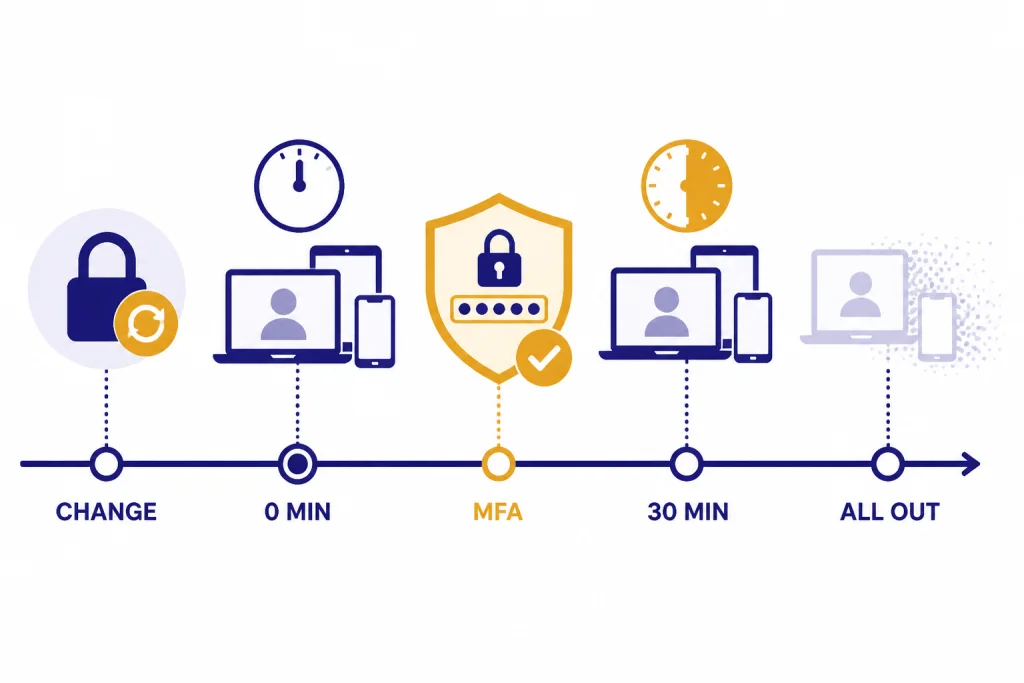
Changing the password is only one part of account security. If you changed it because of suspicious activity, act as if an old session may still be active for a short period. OpenAI says current sessions are logged out within 30 minutes after a password change in the context of unauthorized access.[3] OpenAI’s separate log-out-all-devices article also says it may take up to 30 minutes for other active ChatGPT sessions to be logged out.[4]
- Use Settings → Security → Log out all if you want to remove active ChatGPT sessions across devices.
- Enable multi-factor authentication if it is available for your account.
- Review your email account security, because password reset emails depend on that inbox.
- Update saved passwords on your phone, desktop browser, and password manager.
- Watch for unexpected conversations, billing activity, or account emails after the change.
OpenAI says the Log out all option is available in ChatGPT under Settings → Security, and that the current session is logged out immediately when you use it.[4] This is different from simply closing a browser tab. It is the right step if you signed in on a shared computer or if you think another device still has access.
OpenAI’s MFA help page says multi-factor authentication adds a second verification step during sign-in and applies across OpenAI services once enabled.[5] The same help page says enabling MFA does not automatically log out existing sessions, so use Log out all separately if session removal is your goal.[5]
If you use ChatGPT on several devices, refresh your setup after the change. Our guides for downloading the ChatGPT app, using ChatGPT on Windows, and using ChatGPT without logging in cover the practical differences between signed-in and signed-out use.
Troubleshooting password change problems
You do not see a password option in Settings
You may be signed in through Google, Microsoft, Apple, or SSO. OpenAI says those accounts generally do not have an OpenAI password to reset, and social-login users should keep using the same provider.[1] Sign out, then sign back in using the button you normally use.
The reset email never arrives
Check spam, confirm the email address, and look for typing errors. OpenAI lists those as the first checks when a reset email is missing.[1] If the account was created with Apple Hide My Email, also check the private relay address tied to your Apple ID.[2]
You changed the password but still see another active session
Use Log out all from Settings → Security. OpenAI says other active ChatGPT sessions may take up to 30 minutes to be logged out.[4] If you believe the account was accessed by someone else, change the password first, then use Log out all, then enable MFA.
You may be in the wrong account
This happens when you use a different provider button or email address than the one used at sign-up. OpenAI’s login troubleshooting page warns that different sign-in methods can create separate accounts and subscriptions.[6] Look for old OpenAI emails in your inboxes to identify the right account.
You cannot access the email inbox
Recover the email account first if possible. If the inbox is gone, the reset flow may not be enough because the password email goes there. Use OpenAI Support if you cannot reset the password or access the account; OpenAI directs users to support when reset attempts fail.[1]
Frequently asked questions
Can I change my ChatGPT password from the mobile app?
Yes, if the app exposes the same account settings for your login method. OpenAI’s documented path is Settings → Account → add or update your password.[1] If you do not see the option, use a desktop browser or reset your password from the login screen.
Why does ChatGPT say I do not have a password?
You probably created the account with Continue with Google, Continue with Microsoft, Continue with Apple, or SSO. OpenAI says those users do not have a password to reset through ChatGPT.[1] Change the password through the provider you use to sign in.
Does changing my ChatGPT password log out other devices?
OpenAI says current sessions are logged out within 30 minutes after a password change when addressing unauthorized access.[3] If you want a manual step, use Log out all in Settings → Security. OpenAI says other active ChatGPT sessions may take up to 30 minutes to be logged out after that action.[4]
Does changing my password delete my chats?
No source we retrieved says a normal password change deletes chat history. A password change affects how you sign in, not the stored conversations in the account. If you are worried about important work, export or save it before deeper troubleshooting.
Can I switch from Google login to an OpenAI password?
Usually no. OpenAI says users who initially signed up with SSO or social login cannot switch later to email and password, except for certain Enterprise cases.[2] Keep using the original provider unless OpenAI Support or your organization tells you otherwise.
What should I do if someone else accessed my ChatGPT account?
Change the password immediately if your account uses an OpenAI password. Then use Log out all, secure your email account, and enable MFA. OpenAI recommends changing the password as soon as possible when you see unrecognized activity.[3]