

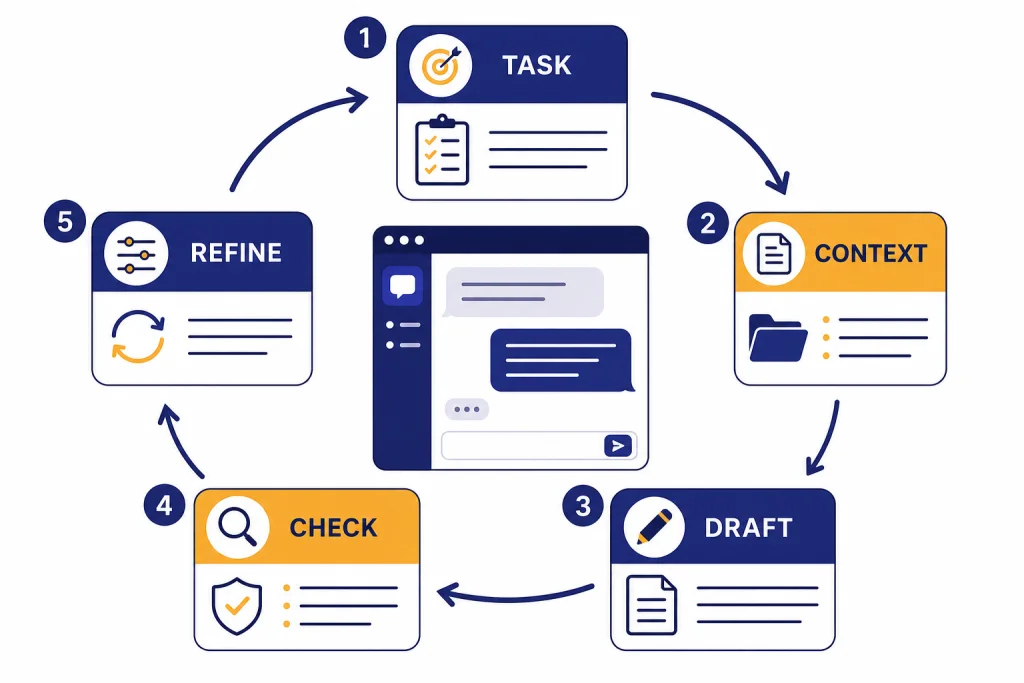
To use ChatGPT, open the official app or web version, type a clear request, add context, ask for a specific format, then review and refine the answer. A beginner should start with ordinary tasks: explain a concept, rewrite an email, plan a trip, summarize a document, analyze a photo, or brainstorm options. The skill is not finding a magic prompt. It is learning a repeatable loop: ask, inspect, correct, and ask again. This guide shows the setup, prompt pattern, feature choices, privacy controls, and workflow habits that make ChatGPT useful without turning every chat into trial and error.
Start with the right setup
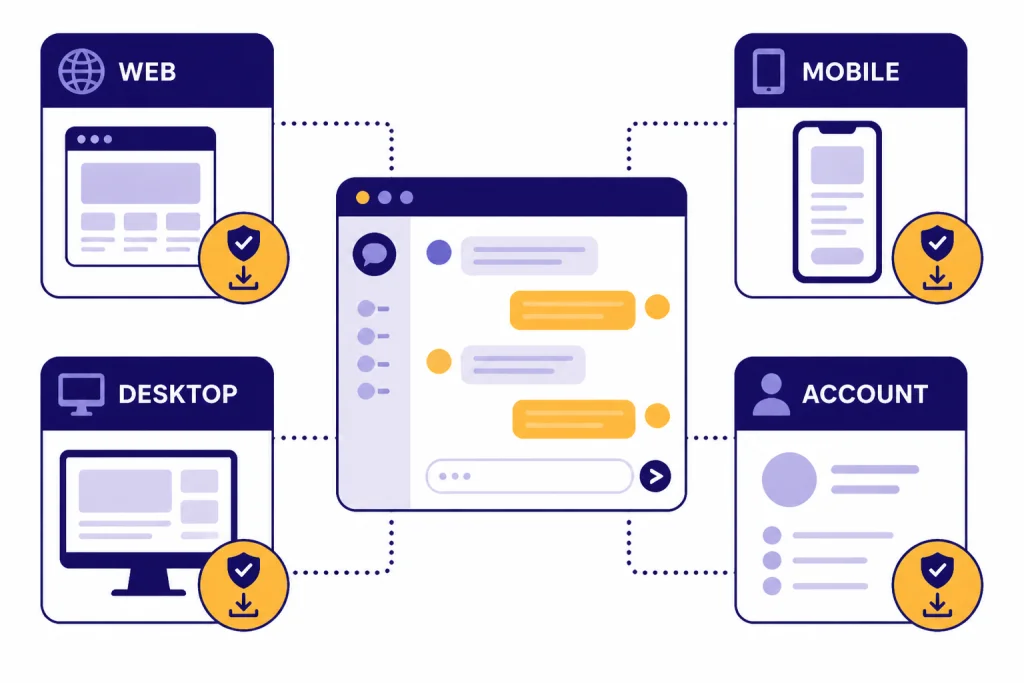
The fastest path is to use the official web app or one of OpenAI’s official apps. OpenAI says ChatGPT is free to use and can be tried before creating an account in supported regions, but logged-out chats are not a good place to keep work because chat history is not saved across sessions. Creating an account unlocks saved history, data export, chat sharing, and personalization through custom instructions.[1]
OpenAI’s download page lists ChatGPT for iOS, Android, macOS, and Windows.[2] If you are on a phone, start with the mobile app because it makes photos and voice easier. If you are on a computer, the web app is enough for most people, and the desktop app is useful when you want faster access while working in other apps. For setup details, use our guides to download the ChatGPT app, log in to ChatGPT, or use ChatGPT without logging in.
Be careful with look-alike apps and browser extensions. OpenAI’s Android guidance tells users to make sure the app they install is published by OpenAI.[3] The same habit applies anywhere you install ChatGPT: start from OpenAI’s own download page or the official app store listing rather than an ad.
Learn the ChatGPT chat loop
If you want a plain-language background before the workflow, start with what ChatGPT is. For practical use, think of ChatGPT as a conversation, not a command line. OpenAI describes ChatGPT as a conversational AI assistant for tasks such as answering questions, drafting and rewriting text, summarizing, creative suggestions, logical reasoning, and translation.[4]
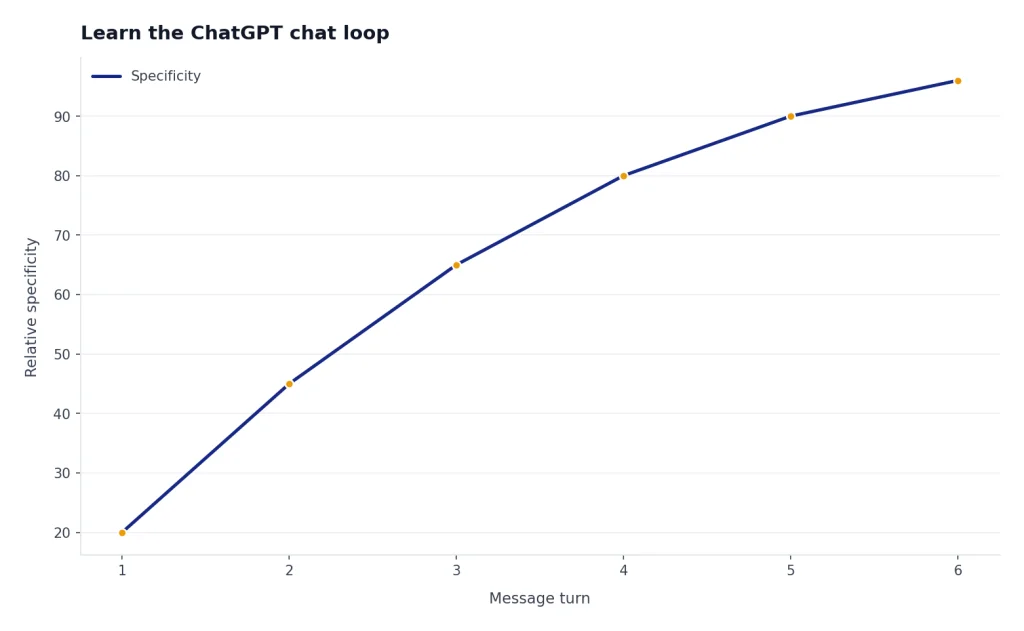
Use the same loop for most tasks: state the outcome, add context, request a format, review the answer, and follow up with corrections. You do not need to get the first prompt perfect. You need to make the next message more specific.
- Ask for a concrete outcome. Say whether you want a summary, draft, plan, comparison, checklist, or critique.
- Add the missing context. Include audience, goal, constraints, tone, deadline, or source material.
- Request the format. Ask for bullets, a table, an email, a script, a rubric, or a step-by-step plan.
- Review the answer. Look for missing assumptions, weak details, unsupported claims, or the wrong tone.
- Follow up. Ask it to shorten, expand, cite, rewrite, compare, or explain its reasoning.
For example, do not stop at “Help me with my resume.” Try: “I am applying for a junior analyst role. Rewrite this resume summary for a hiring manager at a healthcare company. Keep it direct, avoid buzzwords, and make the strongest accomplishment easy to notice.” That prompt gives ChatGPT a job, an audience, a style, and a success standard.
Stay in the same chat while the topic is connected. Start a new chat when the subject changes. This keeps the context clean and makes it easier to find useful conversations later.
Write a useful first prompt
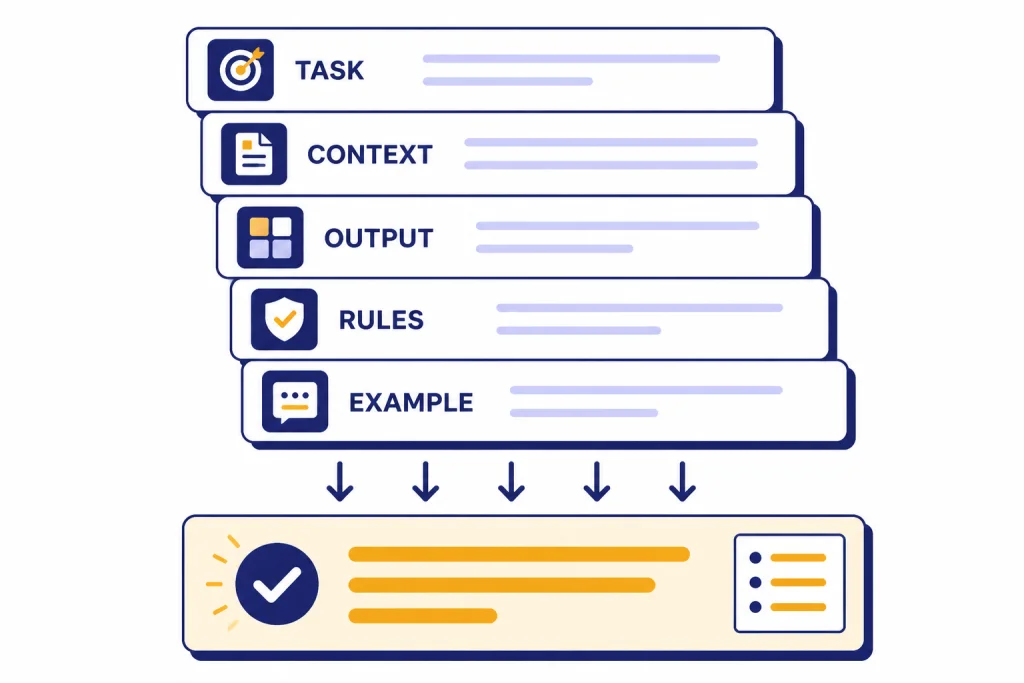
A useful prompt has five parts: task, context, source material, output format, and constraints. You can omit parts that do not apply, but beginners usually get better answers by including more context than feels necessary.
| Weak prompt | Better prompt | Why it works |
|---|---|---|
| Write an email. | Draft a polite email to my landlord asking for a repair update. Keep it firm but not hostile. | It gives the audience, goal, and tone. |
| Explain this topic. | Explain compound interest to a high school student using a simple savings example. | It sets the reader level and requests an example. |
| Make this better. | Rewrite this paragraph for clarity. Keep my meaning, remove repetition, and flag anything that sounds vague. | It defines what “better” means. |
| Plan my trip. | Build a weekend itinerary for a quiet trip with museums, coffee shops, and minimal driving. | It includes preferences and constraints. |
| Summarize this. | Summarize this article for a busy manager. Separate key facts, risks, and recommended next steps. | It specifies the audience and structure. |
Use this copy-ready template when you do not know how to begin:
Task: What I want you to do.
Context: Who this is for and why it matters.
Source material: Paste or describe the material to use.
Output: The format I want back.
Constraints: What to avoid, preserve, or double-check.
If anything is missing, ask follow-up questions before answering.
For writing, do not ask only for “human” text. Tell ChatGPT the audience, the stakes, the level of polish, and what to avoid. If your main goal is better prose, read our guide on how to make ChatGPT write like a human.
Use the right feature for the job
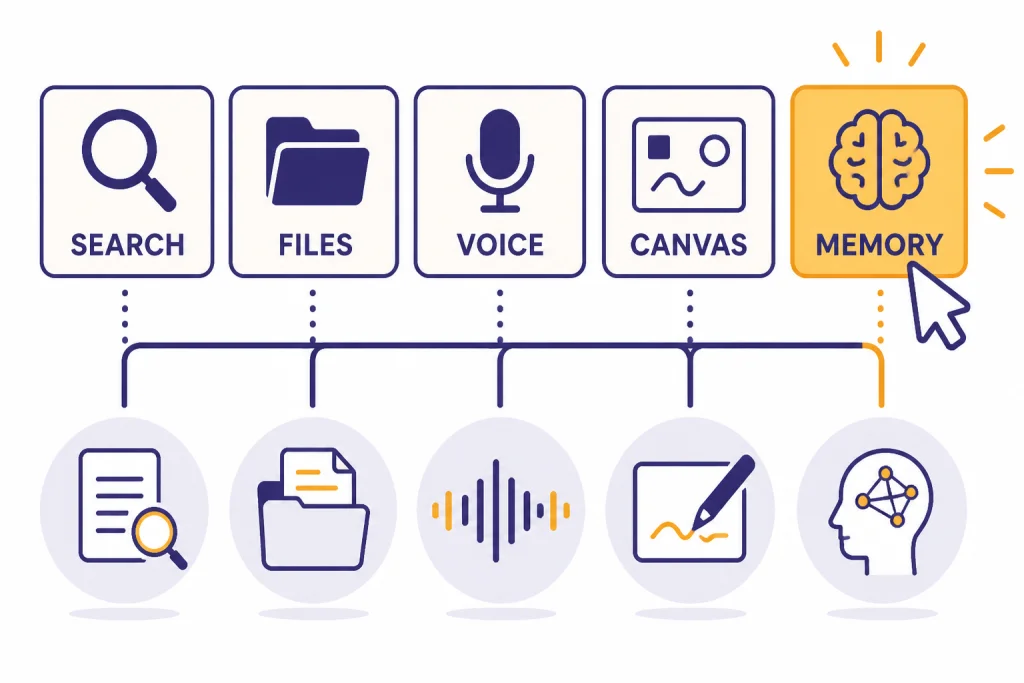
The text box is only the start. OpenAI’s capabilities overview lists tools and modes including Search, Deep research, image input and generation, file uploads, data analysis, voice, Canvas, and Memory, with availability depending on plan and settings.[4] Beginners should choose the tool based on the task, not because it looks advanced.
Use Search when facts may have changed or when you need source-backed answers. OpenAI says Search can help ChatGPT look up current or niche information and provide cited answers, while Data Analysis can help with calculations, visualizations, and structured logic.[5]
Use file and image tools when the source material matters. ChatGPT can analyze uploaded images, screenshots, diagrams, charts, and document files, then summarize, extract information, or answer questions about them.[4] For a focused walkthrough, use our guide to upload images to ChatGPT.
Use Voice when speaking is faster than typing. OpenAI describes voice conversations as spoken conversations where you can ask questions and receive spoken responses, and says they are available to logged-in users on supported ChatGPT surfaces.[6] Our separate guide covers ChatGPT Voice Mode in more detail.
| Your task | Best ChatGPT feature | Good beginner instruction |
|---|---|---|
| Current event, product, policy, or schedule | Search | Find recent sources and summarize what changed. |
| Long PDF, notes, or pasted document | File upload | Extract the main claims, risks, and open questions. |
| Photo, chart, screenshot, or diagram | Image input | Describe what is visible and explain what matters. |
| Spreadsheet or table | Data Analysis | Find patterns, clean the data, and suggest charts. |
| Hands-free brainstorming | Voice | Interview me and turn my answers into a plan. |
| Drafting or editing a longer document | Canvas | Work section by section and keep revisions organized. |
| Recurring preferences | Memory | Remember my preferences only when they will help later. |
If a feature is missing, do not assume you broke something. Features can vary by plan, device, region, and rollout. Use the simplest available path first, then move to a specialized tool only when the task calls for it.
Check answers before you trust them
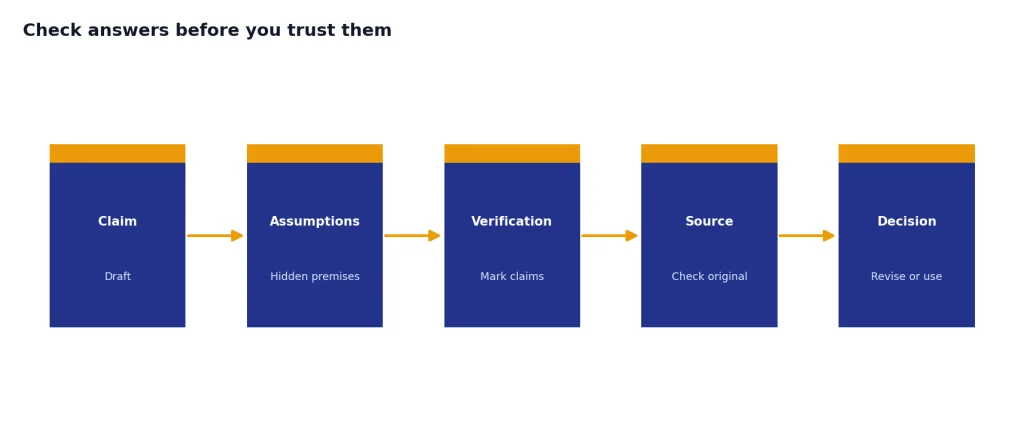
ChatGPT is useful, but it is not an authority by itself. OpenAI says ChatGPT can produce incorrect or misleading outputs and may sound confident even when it is wrong.[5] Treat the answer as a draft, analysis aid, or starting point unless you have verified the important parts.
- For facts: ask for sources, then open the sources yourself.
- For quotes: verify the exact wording in the original source.
- For numbers: ask ChatGPT to show the calculation, then check it independently.
- For decisions: ask for trade-offs, assumptions, and what could change the recommendation.
- For sensitive topics: use ChatGPT to prepare questions, not to replace a qualified professional.
A strong verification prompt is: “List the assumptions behind your answer, mark any claim that needs verification, and tell me what source I should check first.” This turns the answer from a finished-looking paragraph into something you can evaluate.
Do not ask ChatGPT to invent citations, legal language, medical instructions, or statistics. Ask it to help you find what to verify, simplify what you already have, or compare options you can check.
Save, share, and manage your data
If you want reusable work, sign in. OpenAI says creating an account unlocks chat history, data export, shared chats, and personalization controls.[1] For everyday recordkeeping, see our guides to save a ChatGPT conversation, share a ChatGPT conversation, and export your ChatGPT data.
Be careful with shared links. OpenAI says anyone who has access to a shared link can view the linked conversation, and it encourages users not to share sensitive content through that feature.[9] Shared links can be managed or deleted from Data Controls, but a person who already imported a shared conversation may still have their own copy.[9]
For a full account export, OpenAI’s export guide says signed-in users can request an export from Settings > Data Controls, then receive an email to download a zip file that includes chat history in chat.html and other account data. The same guide says export is not available to logged-out users.[8]
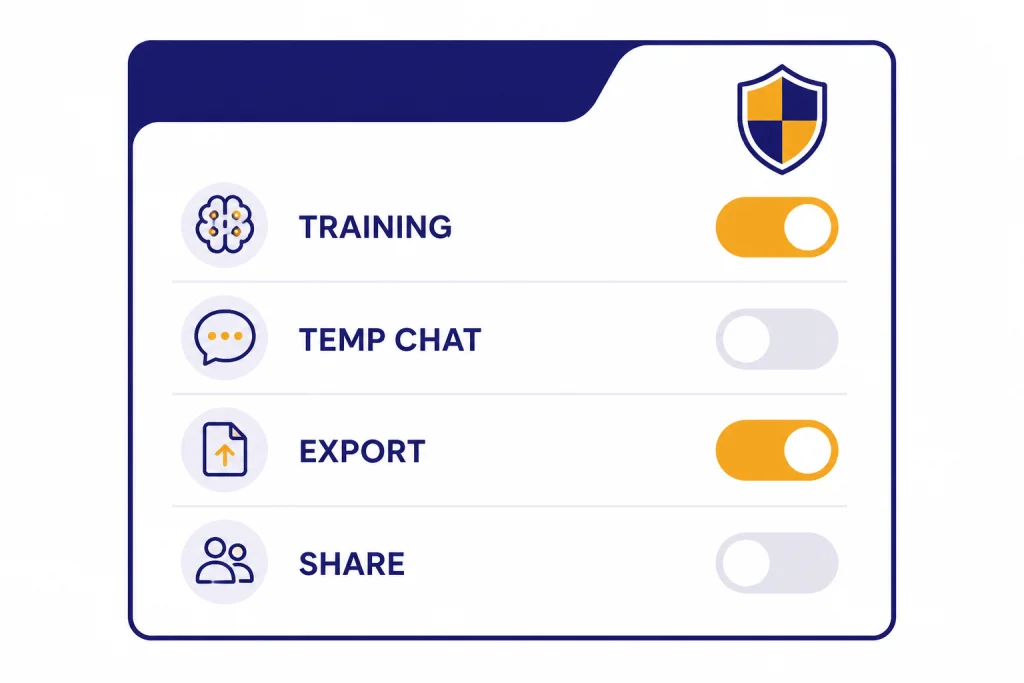
Review Data Controls before you paste anything personal. OpenAI says Data Controls let you choose whether conversations help improve models. It also says Temporary Chats do not appear in history, do not create memories, and are not used to train models.[7]
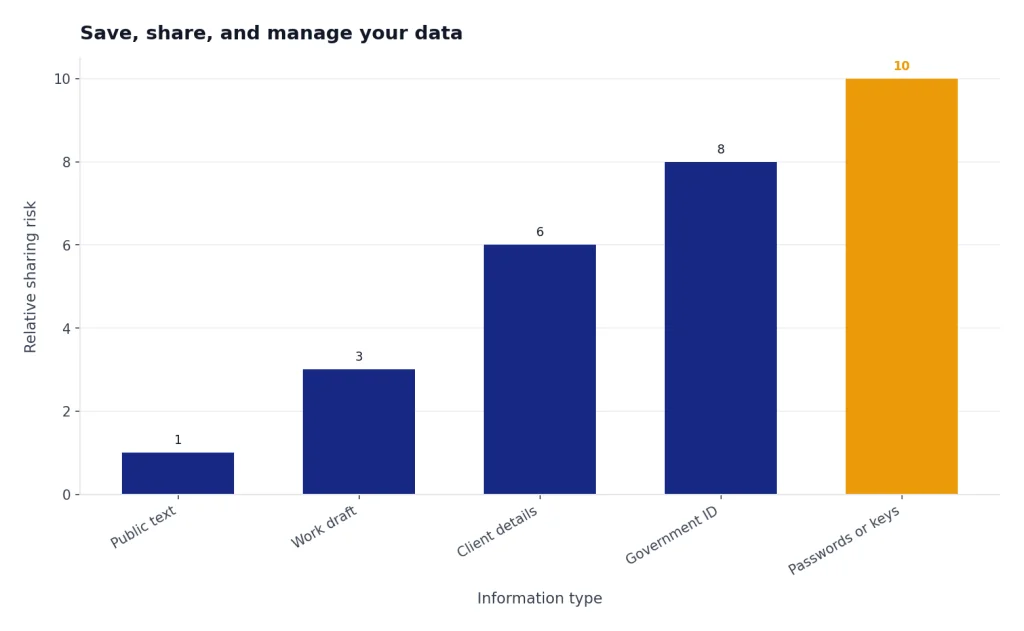
Use a simple privacy rule: do not paste passwords, private keys, government IDs, confidential work files, or anything you would regret sharing with another service. If the task requires sensitive details, remove or mask them first.
Personalize ChatGPT without oversharing
Personalization can make ChatGPT more useful, but it should be intentional. OpenAI says Memory can remember useful details between chats, and users can ask what ChatGPT remembers, delete individual memories, clear saved memories, or turn Memory off. OpenAI also says Temporary Chat will not reference memories or create new ones.[10]
Good things to personalize include your preferred tone, recurring work role, formatting preferences, dietary restrictions for recipe help, learning goals, or the kind of feedback you want. Poor things to store include credentials, private client details, medical identifiers, and anything that would create risk if reused in a future conversation.
You can also personalize within a single chat without making it permanent. Start with a short brief: “For this conversation, act as an editor for a beginner audience. Keep sentences short, flag unsupported claims, and ask before changing the meaning.” That instruction can guide the thread without becoming a standing preference.
Build ChatGPT into a daily workflow
The best beginner use cases are repeatable and low-risk. Use ChatGPT where a rough draft, checklist, explanation, or comparison would help you move faster. Do not begin with your most sensitive or highest-stakes task.
- Planning: turn a messy to-do list into a prioritized plan.
- Writing: draft emails, outlines, captions, summaries, and talking points.
- Learning: ask for plain-English explanations, quizzes, and examples.
- Research prep: generate questions to investigate and terms to search.
- Decision support: compare options, trade-offs, risks, and next steps.
- Practice: rehearse interviews, presentations, language learning, or customer conversations.
A simple workflow is enough: capture the task, ask for a draft, request a critique, revise with your own judgment, and save the useful result. Over time, you will build a library of prompts that match your real work instead of copying generic prompt packs.
Use ChatGPT to reduce blank-page work. Keep responsibility for the final decision, the facts, and the tone. That balance is what makes it useful instead of distracting.
Common beginner mistakes to avoid
Most beginner problems come from vague instructions or misplaced trust. Avoid these habits and ChatGPT becomes much easier to use.
- Asking broad questions with no context. “Help me market my business” is weaker than describing the customer, offer, budget, and channel.
- Accepting the first answer. The first response is often a draft. Ask for revisions.
- Mixing unrelated tasks in one chat. A cluttered thread leads to muddier context.
- Hiding constraints. Tell ChatGPT what must stay the same, what must be avoided, and what success looks like.
- Using it as a source. Ask for sources, but verify them yourself.
- Pasting sensitive information casually. Redact or summarize private details when possible.
- Chasing perfect prompts. A clear follow-up is usually more valuable than a fancy first message.
The beginner goal is not automation. It is leverage. Use ChatGPT to get a starting point, a clearer structure, a second perspective, or a faster draft, then apply your own judgment.
Frequently asked questions
Do I need an account to use ChatGPT?
No, not always. OpenAI says ChatGPT can be tried before creating an account in supported regions, but logged-out use does not give you the same saved history and account controls.[1] If you want to keep conversations, export data, share chats, or personalize the experience, use an account.
What should I ask ChatGPT first?
Start with a task you already understand. Ask it to summarize a note, rewrite an email, explain a concept, or make a checklist. This lets you judge the answer without relying on ChatGPT for facts you cannot verify.
Can I use ChatGPT on my phone and computer?
Yes. OpenAI’s download page lists ChatGPT for iOS, Android, macOS, and Windows.[2] Use the phone app for voice and photos, and use the web or desktop app when you are working with longer text or files.
Can ChatGPT browse the web?
ChatGPT may have Search available, depending on your setup. OpenAI says Search helps with current or niche information and can provide cited answers.[5] Still open the sources yourself when accuracy matters.
Can I upload photos and documents?
Yes, when the relevant feature is available in your plan and settings. OpenAI says ChatGPT can analyze uploaded images and document files, then answer questions, summarize, or extract information from them.[4] Remove private details before uploading sensitive material.
Is ChatGPT always right?
No. OpenAI says ChatGPT can produce incorrect or misleading outputs and may sound confident even when wrong.[5] Use it as a draft, assistant, or research helper, then verify important claims.
How do I keep my chats more private?
Use Data Controls, avoid sharing sensitive information, and be careful with shared links. OpenAI says Data Controls let you choose whether conversations help improve models, and Temporary Chats do not appear in history or create memories.[7] OpenAI also says anyone with access to a shared link can view that linked conversation.[9]