

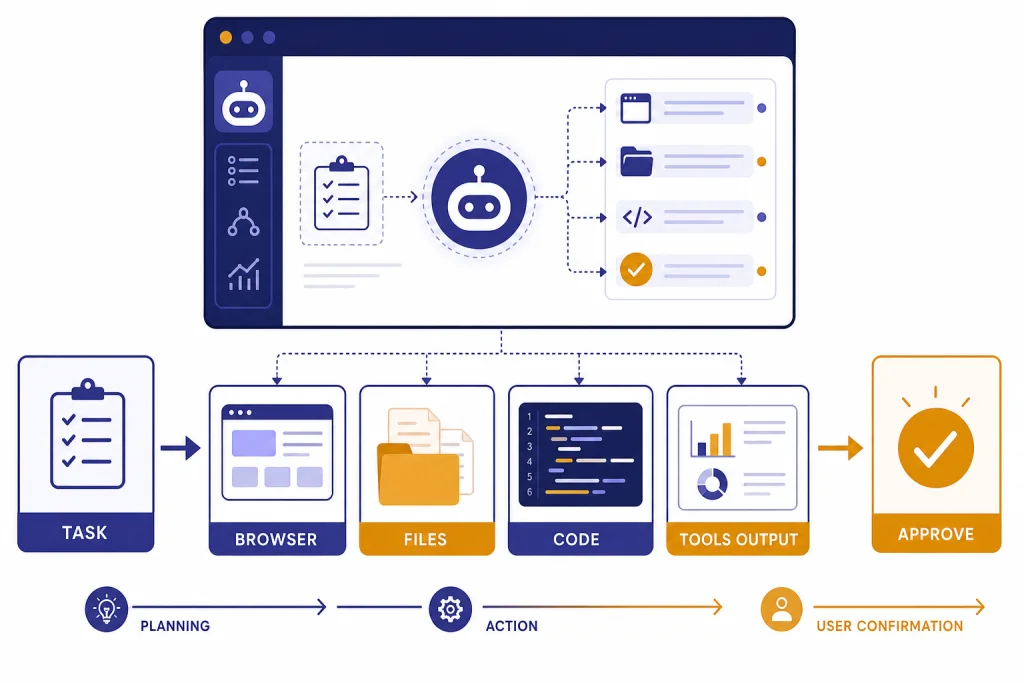
ChatGPT Agent Mode is the paid ChatGPT feature that lets ChatGPT reason through a goal, use tools, browse websites, work with files, and take certain actions for you inside a virtual computer. OpenAI introduced ChatGPT agent on July 17, 2025 as a unified system that combines Operator-style web interaction, deep research-style synthesis, and ChatGPT’s conversational interface.[1] It is useful for multi-step work such as market research, spreadsheet cleanup, travel planning, meeting prep, and report generation. It is not a fully autonomous employee. You still need to give clear instructions, review important steps, approve consequential actions, and avoid giving it unnecessary access to sensitive accounts.
What ChatGPT Agent Mode is
ChatGPT Agent Mode is a mode inside ChatGPT for tasks that require more than a single answer. Instead of only responding with text, the agent can decide which supported tools it needs, take intermediate steps, and return a finished result. OpenAI describes it as a system that can reason, research, and take actions on a user’s behalf, including navigating websites, working with uploaded files, using connected data sources, filling out forms, and editing spreadsheets.[2]
The key difference is that Agent Mode has a working environment. OpenAI says ChatGPT carries out agent tasks using its own virtual computer and can shift between reasoning and action based on the user’s instructions.[1] That makes it different from a normal chat response, where ChatGPT may explain steps but leaves the clicking, copying, filtering, and formatting to you.
Agent Mode also replaces much of what the earlier chatgpt operator experience was designed to do. Operator focused on using websites through a browser. Agent Mode folds that web-control capability into ChatGPT and pairs it with research, analysis, file work, and conversation.[1]
How ChatGPT Agent Mode works
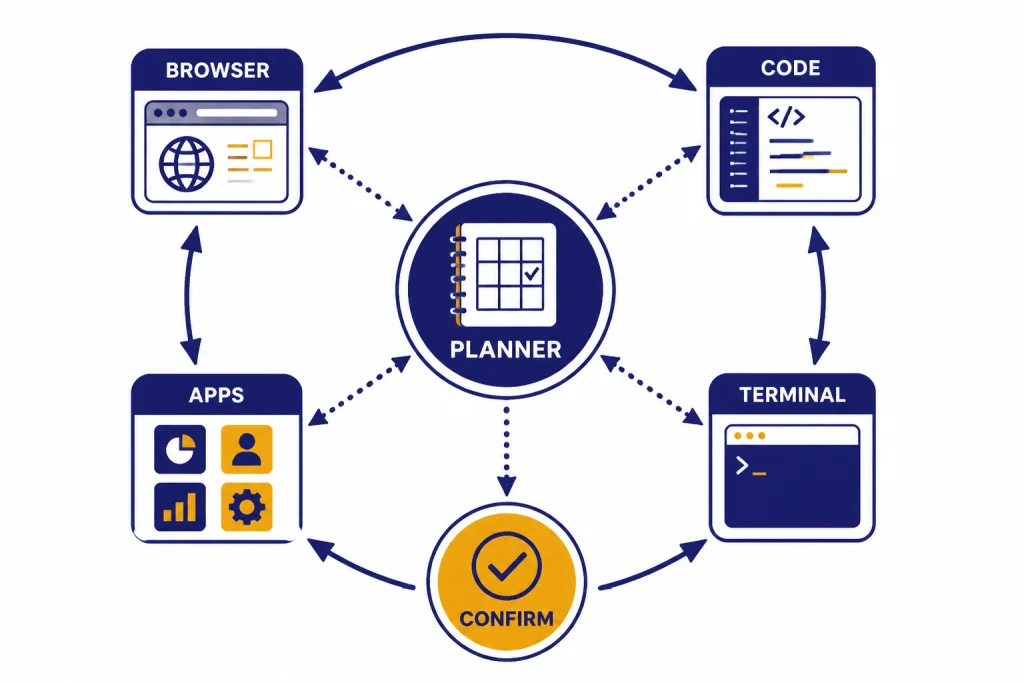
Agent Mode works like a supervised workflow loop. You give it a goal. It plans the task, selects tools, performs steps, pauses when it needs clarification or approval, and then delivers the result. OpenAI says the agent can use a visual browser, code interpreter, apps as data sources, and a terminal for supported commands.[2]
The visual browser is what lets the agent interact with sites. It can view pages, click controls, type into fields, and move through multi-page workflows. The code interpreter is useful when the task involves data cleanup, calculations, charts, or structured files. Apps can provide context from connected services where your account or workspace has enabled access. The terminal gives the agent another controlled way to run supported commands for analysis or artifact generation.[2]
This does not mean the agent should run unsupervised through every account you own. OpenAI says users remain in control because ChatGPT can ask permission before consequential actions, and users can interrupt, take over the browser, or stop tasks.[1] Treat it like a capable assistant using a temporary workstation, not like a background process with unlimited authority.
How to start Agent Mode
To start Agent Mode, choose it from the tools menu in ChatGPT or type /agent in the composer.[2] Then describe the outcome you want, the sources or accounts it may use, and any boundaries it must respect.
A weak prompt is broad and risky: “Check my email and handle everything.” A better prompt is narrow: “Review only the unread emails from the last business day from these three clients. Summarize deadlines, draft suggested replies, and ask before sending anything.” OpenAI specifically warns that vague, open-ended prompts can make it easier for hidden malicious content to mislead an agent.[4]
- State the deliverable. Ask for a table, slide outline, spreadsheet, checklist, email draft, or written report.
- Name the allowed sources. Tell it which websites, files, or connected apps it may use.
- Define approval points. Require confirmation before purchases, messages, bookings, file sharing, account changes, or form submissions.
- Set exclusions. Say what it must not access, change, send, delete, or buy.
- Ask for a traceable summary. Request source links, screenshots, assumptions, and unresolved questions at the end.
If your task starts with a file, use chatgpt file upload first and give the agent explicit instructions about the file’s role. If the task belongs inside a longer workspace, organize it in ChatGPT Projects so related chats, files, and instructions stay together.
Availability, devices, and limits
OpenAI’s Help Center lists Agent Mode as available on Pro, Plus, Business, Enterprise, and Edu plans, and says it is not available on the Free plan.[2] It also lists support for ChatGPT on the web, mobile apps for iOS and Android, and desktop apps for macOS and Windows.[2] If you are comparing device options, see our guides to the chatgpt windows app, ChatGPT Atlas for Windows, and the best ChatGPT app.
Agent Mode has separate monthly message limits. OpenAI’s Help Center lists Plus at 40 messages per month, Pro at 400 messages per month, and Business and Enterprise at 40 messages per month.[2] OpenAI’s launch post also stated that Pro users had 400 messages per month and that other paid users had 40 messages monthly, with flexible credit-based options.[1] Business and Enterprise plans using flexible pricing are listed at 30 credits per agent message.[2]
| Plan or workspace | Agent Mode status | Published monthly limit | Best fit |
|---|---|---|---|
| Free | Not available | Not listed | Use standard ChatGPT features instead |
| Plus | Available | 40 messages per month | Occasional personal and professional tasks |
| Pro | Available | 400 messages per month | Frequent research, analysis, and browser workflows |
| Business | Available | 40 messages per month | Team workflows with admin controls |
| Enterprise | Available | 40 messages per month | Managed workspaces, compliance, and governance |
| Edu | Available | OpenAI lists availability, but the Help Center limit table does not separately list Edu | Education workspaces where enabled by administrators |

Best use cases for ChatGPT Agent Mode
The best Agent Mode tasks have a clear end state, several steps, and low-to-moderate risk. They are too tedious for a normal answer but still safe enough for supervised automation.
Research with a concrete output
Agent Mode can collect information from public websites, compare sources, and turn findings into a memo, brief, table, or deck outline. This is stronger than plain chatgpt search when the task involves several follow-up steps, filtering, and formatting. Ask it to show source links and note weak evidence.
Spreadsheet and file cleanup
Use Agent Mode when you need to normalize columns, identify missing values, create charts, summarize a workbook, or turn raw exports into a usable report. OpenAI’s launch post said the agent can deliver editable slideshows and spreadsheets, and also noted that slideshow generation was still in beta at launch.[1] For heavier data work, our chatgpt tutorial for code interpreter goes deeper on analysis workflows.
Meeting preparation
Agent Mode is useful for preparing a briefing before a meeting. You can ask it to review approved sources, summarize recent company news, list open questions, and draft talking points. If connected apps are enabled, keep the scope tight and do not grant access to more email, calendar, or document data than the task requires.
Forms, bookings, and routine web tasks
Agent Mode can help fill forms, search for appointments, compare travel options, or prepare an order. Use it to narrow choices and draft entries, then approve the final action yourself. OpenAI says the agent is trained to ask for permission before real-world consequences such as making a purchase.[1]
Recurring reports
After a task finishes, OpenAI says you can set it to repeat daily, weekly, or monthly using the Clock icon, and recurring tasks can be managed at chatgpt.com/schedules.[2] For reminders and recurring prompts outside Agent Mode, see ChatGPT Tasks.

When not to use it
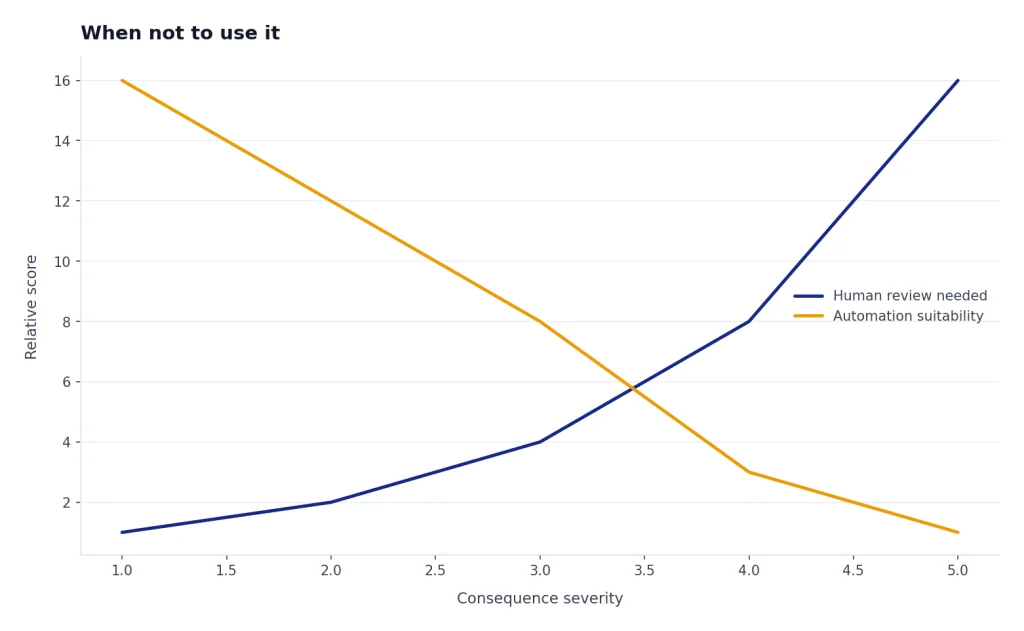
Do not use Agent Mode for tasks where a mistake would be expensive, irreversible, unlawful, or hard to audit. It can still misread a page, choose the wrong option, misunderstand your intent, or be influenced by malicious instructions on a webpage. OpenAI’s launch post states plainly that ChatGPT agent can still make mistakes.[1]
- Do not delegate financial transfers. Use it to organize information, not to move money.
- Do not let it “handle everything” in private inboxes. Ask for summaries or drafts, then review.
- Do not use it for regulated professional decisions. Keep a qualified human responsible for legal, medical, employment, credit, housing, and similar decisions.
- Do not give it broad access to sensitive accounts. Connect only what the current task needs.
- Do not assume browser automation is always correct. Complex interfaces, pop-ups, captchas, changed layouts, and hidden instructions can break a workflow.
OpenAI’s policy page says users must be at least 18 years old to use ChatGPT agent.[5] The same policy page also prohibits using it for deceptive, illegal, harmful, and high-risk activities.[5]
Safety and privacy controls
Agent Mode introduces a different privacy profile because it can see and act in a virtual browser. OpenAI says ChatGPT agent uses screenshots of the virtual browser window to see and interact with web pages, and that chats, agent browsing history, and screenshots remain in conversation history until deleted.[2]
For sensitive logins, use takeover mode. OpenAI says that when a task requires a login, ChatGPT agent pauses and asks you to take control of the virtual browser, and that while you control the browser, no screenshots are captured.[2] After you finish that step, you can return control to the agent.
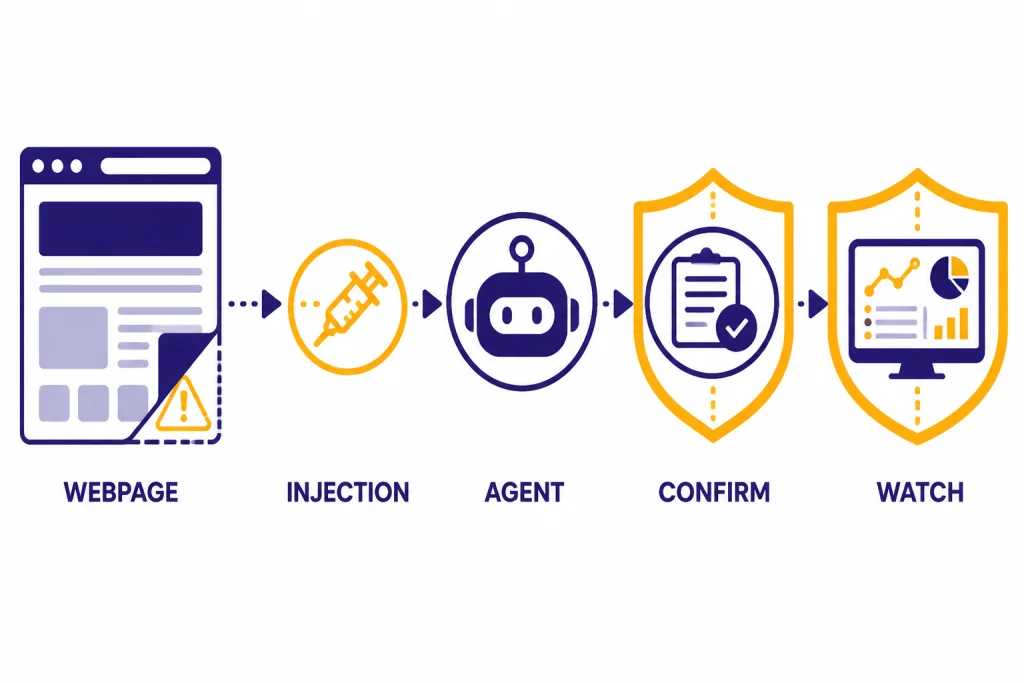
The biggest technical risk is prompt injection. OpenAI defines prompt injections as malicious instructions embedded in content the agent may encounter, such as a webpage, with the goal of overriding intended behavior.[3] OpenAI lists mitigations that include safety training, automated monitors and filters, user confirmations, Watch Mode in sensitive contexts, terminal network restrictions, and disabling ChatGPT memory at launch.[3]
Watch Mode is a supervision layer for sensitive contexts. OpenAI says that when ChatGPT agent uses the visual browser in contexts such as email or banking, Watch Mode is intended to require user supervision and can pause execution when the user becomes inactive or leaves the ChatGPT conversation.[3] OpenAI’s broader prompt-injection guidance also says agents should be given explicit instructions and that users should carefully review confirmations before consequential actions.[4]
If you rely on ChatGPT Memory or ChatGPT Custom Instructions, remember that Agent Mode has its own safety boundaries. Do not place passwords, recovery codes, private keys, or unrestricted account instructions in memory or custom instructions. Keep sensitive inputs inside takeover mode when possible.
Agent Mode vs. other ChatGPT features
Agent Mode is not the right choice for every request. Use the simplest tool that completes the task. If you only need an answer, use standard chat or search. If you need a scheduled reminder, use Tasks. If you need a long workspace for documents, use Projects or Canvas. If you need ChatGPT to operate across web pages and files, Agent Mode becomes more appropriate.
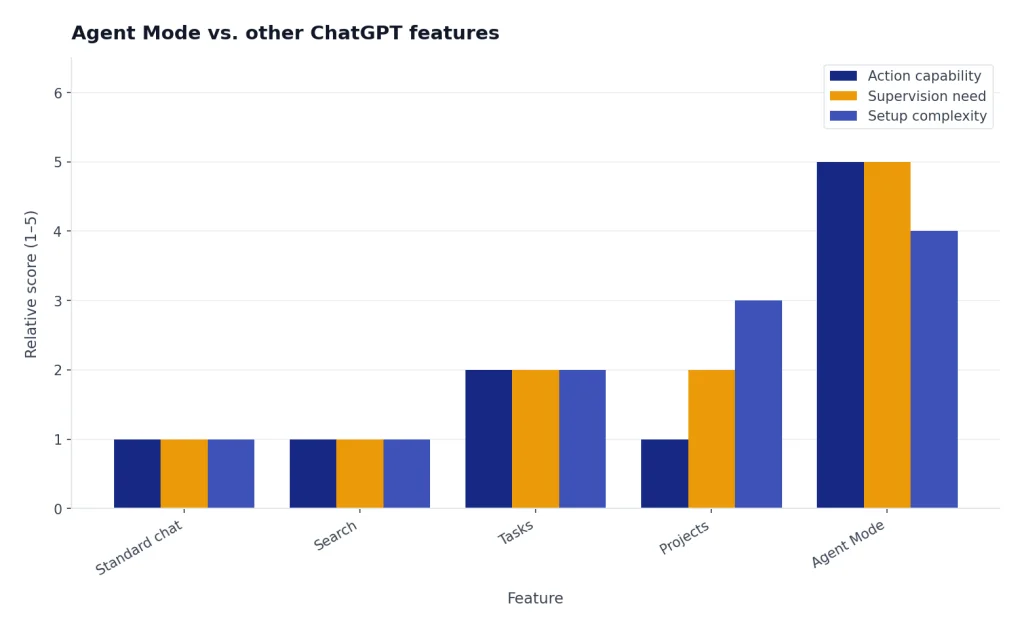
| Feature | What it is best at | Where Agent Mode is stronger | Where the other feature is safer or simpler |
|---|---|---|---|
| Standard ChatGPT | Explaining, drafting, brainstorming, rewriting | Multi-step tasks that need tools and action | Quick answers with no account access |
| ChatGPT Search | Current, source-backed web answers | Research that also needs filtering, files, forms, or deliverables | Simple fact checking and web summaries |
| Deep research | Longer research reports | Research plus web interaction and task completion | Slow, detailed research without action-taking |
| Tasks | Reminders and recurring prompts | Recurring workflows that need browsing or file work | Simple reminders with lower risk |
| Projects | Keeping related chats and files together | Executing work inside a project context | Long-running organization and reference |
| Operator legacy | Browser control | Unified browser, research, code, file, and app workflows | OpenAI says Operator functionality is now integrated into Agent Mode |
If your task is mostly visual, start with chatgpt vision. If it is mostly translation, use chatgpt translate. If it is mostly audio, see our guides to ChatGPT Whisper transcription and whether ChatGPT can transcribe audio. Agent Mode is for workflows, not every input type.
Prompting tips that make Agent Mode better
Good Agent Mode prompting is closer to delegating a task to a junior assistant than asking a chatbot a question. You need to specify the goal, scope, data sources, constraints, and approval rules.
Use Agent Mode to compare these three vendors for a 25-person company.
Allowed sources: the vendors' official pricing pages, public documentation, and the uploaded requirements file.
Deliverable: a table with pricing, key features, security notes, integration fit, and unknowns.
Do not create accounts, contact sales, submit forms, or accept cookies beyond what is required to view pages.
Ask me before using any connected app or entering any private information.
That prompt gives the agent room to work while protecting the user from unwanted actions. It also produces a better audit trail because the agent knows what evidence to collect and what actions are off limits.
- Use verbs that match the task. “Compare,” “extract,” “draft,” “verify,” “format,” and “prepare” are clearer than “look into.”
- Set a stopping condition. Tell it when to stop and ask you.
- Use staged approvals. Ask for a plan first, then let it execute.
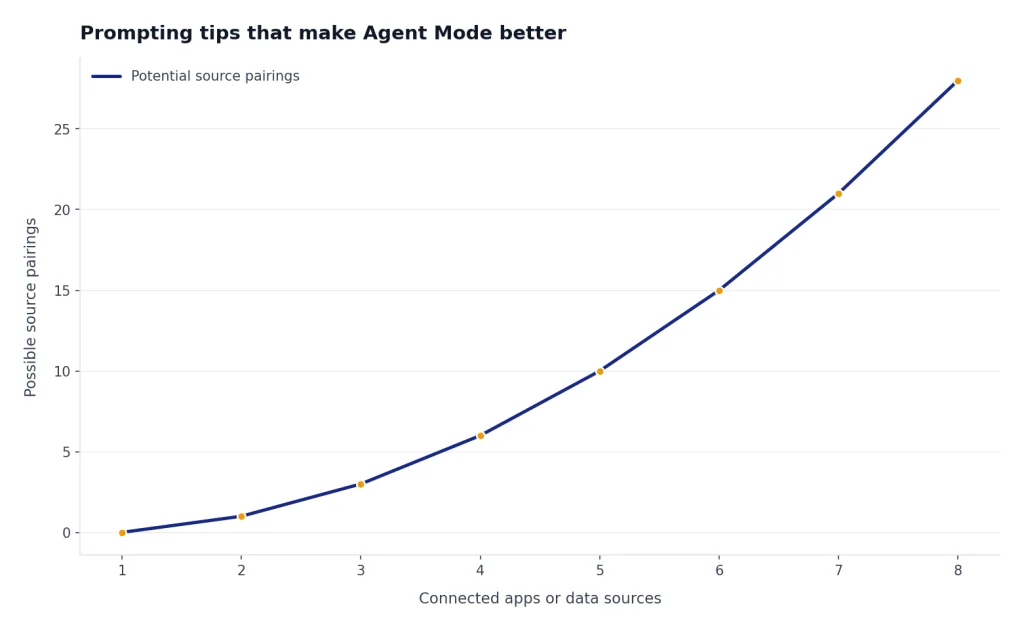
- Limit connected data. Enable only the apps needed for the current job.
- Review the final state. Check submitted forms, shared files, purchases, and messages yourself.
For repeated work, save a reusable template in your notes or a project. For personal preferences that apply across many sessions, use custom instructions carefully and keep sensitive details out of them.
Frequently asked questions
Is ChatGPT Agent Mode available on the Free plan?
No. OpenAI’s Help Center says Agent Mode is currently only available for paid plans.[2] If you use the Free plan, use standard ChatGPT, Search where available, file features where available, and manual workflows instead.
Can ChatGPT Agent Mode make purchases?
It can help with shopping-style workflows, but it should ask for confirmation before actions with real-world consequences. OpenAI says ChatGPT is trained to ask permission before actions such as making a purchase.[1] You should still review item, price, quantity, shipping, return terms, and payment details yourself.
Does Agent Mode replace ChatGPT Search?
No. ChatGPT Search is better for quick web-backed answers. Agent Mode is better when the work requires several steps, browser interaction, file handling, or a finished artifact. Use the simpler tool when you do not need the agent to act.
Can Agent Mode access my email or files?
It can use enabled apps and connected data sources where your plan or workspace allows them. OpenAI says users should enable only the apps needed for the current task and be careful with sensitive data.[2] In a work account, administrators may control which apps are available.
Is ChatGPT Agent Mode safe to leave running?
Do not treat it as something you can ignore during sensitive work. OpenAI says Watch Mode may require active supervision in sensitive contexts and can pause if you become inactive or leave the conversation.[3] Monitor tasks that involve logins, personal data, purchases, messages, or account settings.
What is the best first task to try?
Start with a low-risk research or file organization task. Ask it to compare public information, summarize uploaded files, or draft a report without logging into private accounts. This lets you learn how it plans, asks for clarification, and reports its work before you trust it with more complex workflows.