

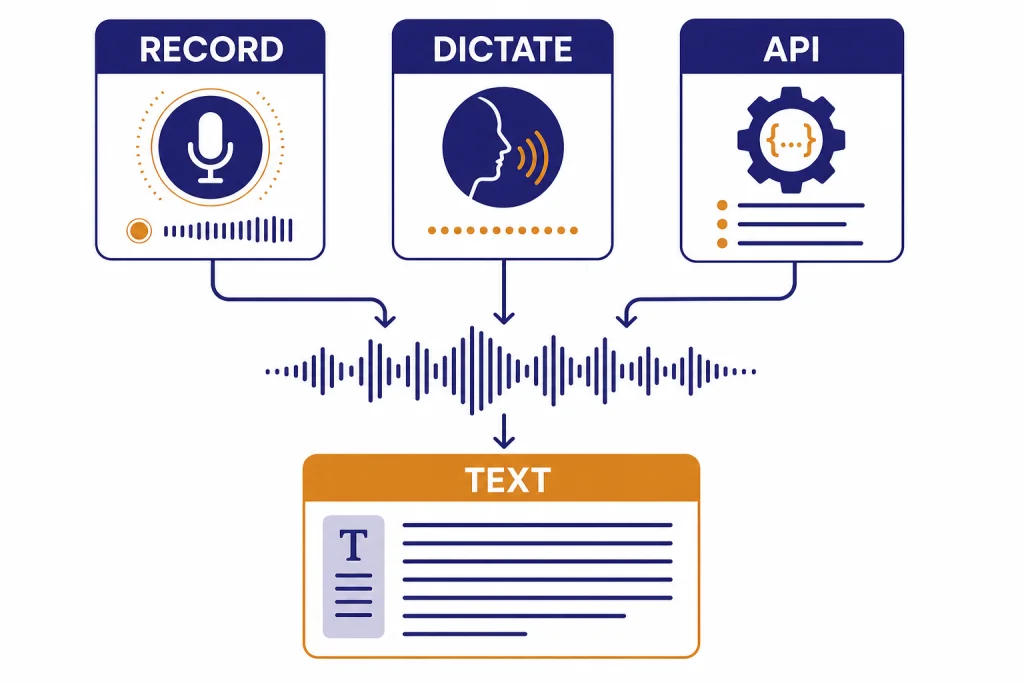
Yes, ChatGPT can transcribe audio, but the right method depends on what you mean by “transcribe.” In ChatGPT itself, Record mode can capture meetings, brainstorms, and voice notes, then create a transcript and structured summary in a canvas for eligible paid workspaces on the macOS desktop app.[1] The microphone dictation button can also turn a spoken message into editable text before you send it.[2] For uploaded audio files, batch transcription, speaker labels, and developer workflows, the OpenAI speech-to-text API is the more dependable route. It supports models such as `gpt-4o-transcribe`, `gpt-4o-mini-transcribe`, and `gpt-4o-transcribe-diarize`.[3]
Quick answer
ChatGPT can transcribe audio in three different ways. Record mode is the closest built-in meeting transcription feature. It records audio, live-transcribes as you speak, and generates notes in a private canvas. OpenAI says Record mode is available for Plus, Pro, Business, Enterprise, and Edu workspaces, and only in the ChatGPT macOS desktop app.[1]
Voice dictation is simpler. You press the microphone icon, speak, and ChatGPT returns the transcription as text that you can edit before sending as a message.[2] It is useful for prompting ChatGPT by voice. It is not built for turning a long meeting recording into a polished transcript.
The API is the best choice when you already have an audio file. OpenAI’s speech-to-text guide lists the `transcriptions` endpoint, the `translations` endpoint, and transcription models including `gpt-4o-transcribe`, `gpt-4o-mini-transcribe`, and `gpt-4o-transcribe-diarize`.[3] If you want a deeper walkthrough of the model family, see our ChatGPT Whisper transcription guide.
The main ways to transcribe audio with ChatGPT
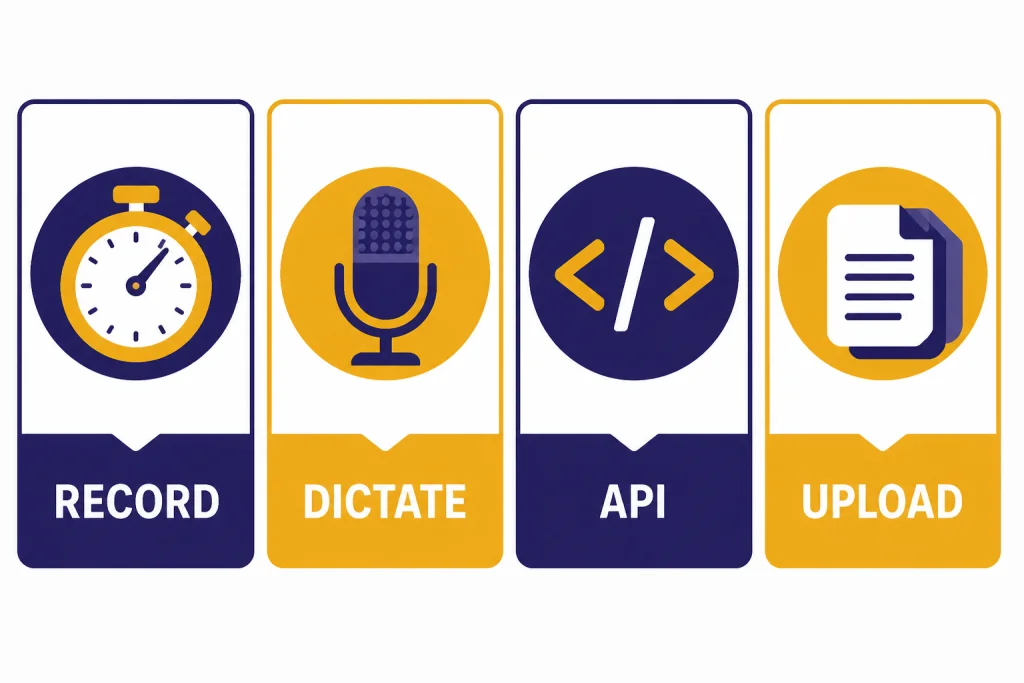
Use this comparison before you start. The word “transcribe” can mean several different things inside the ChatGPT ecosystem.
| Method | Best for | Where it runs | Main limit |
|---|---|---|---|
| ChatGPT Record mode | Meetings, brainstorms, voice notes, action items | ChatGPT macOS desktop app for eligible paid workspaces | Recording sessions are capped at 4 hours, or 240 minutes, per session.[1] |
| Voice dictation | Speaking a prompt instead of typing it | ChatGPT interface with the microphone button | It creates a user message, not a standalone transcript workflow.[2] |
| OpenAI speech-to-text API | Audio files, apps, automation, speaker-aware transcripts | Developer API | Audio file uploads are limited to 25 MB for the speech-to-text API.[3] |
| Generic ChatGPT file upload | Documents, spreadsheets, slides, PDFs | ChatGPT file upload | OpenAI’s file upload FAQ describes common text, spreadsheet, presentation, and document extensions, not a general audio-transcription upload flow.[5] |
For most people, the decision is simple. Use Record mode if you are on the right ChatGPT plan and recording from a Mac. Use dictation if you only want to speak your prompt. Use the API if you have a saved audio file, need repeatable output, or want to build transcription into a product. If your use case involves meeting archives, keep transcripts organized in ChatGPT Projects after you generate them.
How ChatGPT Record mode works
Record mode is the ChatGPT feature designed for live audio capture. OpenAI describes it as a way to transcribe and summarize meetings, brainstorms, and voice notes.[1] It is not just a raw speech-to-text box. It produces a transcript and a structured canvas that can become follow-up emails, project plans, or code scaffolds.[1]
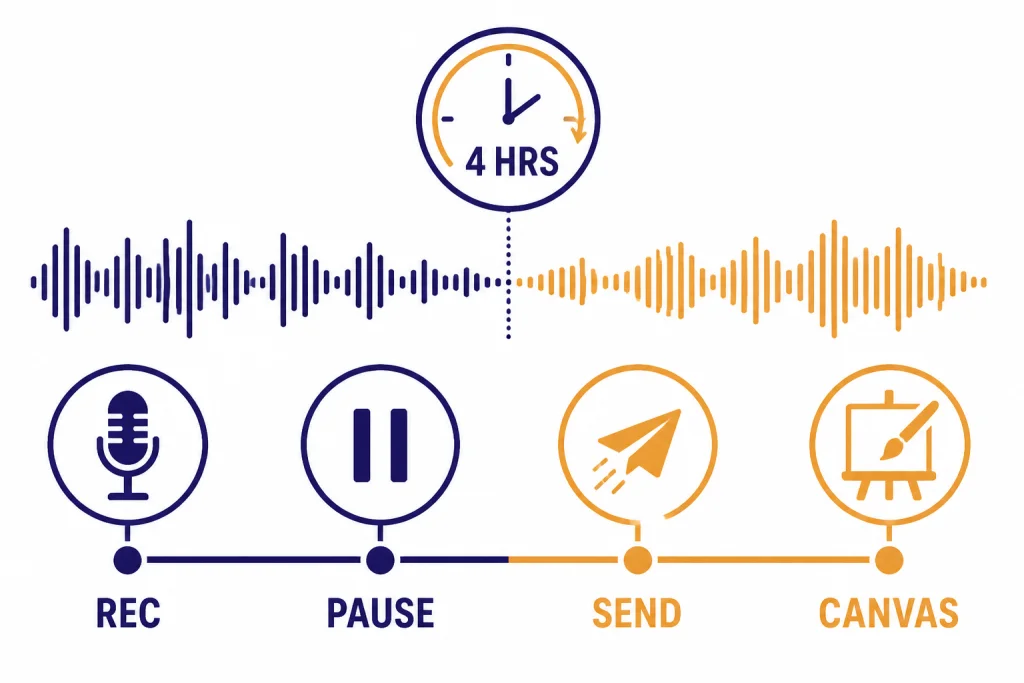
The workflow is direct. You click the Record button at the bottom of a chat, grant microphone or system-audio permissions if prompted, speak naturally, then pause, resume, stop, or send the recording.[1] OpenAI says ChatGPT live-transcribes as you talk, and the timer shows elapsed time.[1] After you select Send, ChatGPT uploads the transcript and opens a private canvas with a structured summary.[1]
Record mode also supports multiple speakers, but that does not mean it will always produce courtroom-grade speaker labels. OpenAI’s help article says Record mode can transcribe from multiple speakers and works best in English today, while accuracy for other languages is improving and can vary.[1] For formal interview transcripts, research calls, or sales-call analytics, the API’s diarization model is usually a better fit.
The most important hard limit is session length. OpenAI says Record meeting sessions are capped at 4 hours, or 240 minutes, per session; sessions that exceed the limit stop automatically and generate notes that are uploaded as a private canvas.[1] OpenAI also says Record mode was included at no extra cost upon launch, but warns that limits and pricing may change.[1]
Record mode pairs well with follow-up features. You can ask ChatGPT to turn a transcript into a decision log, a client email, or a task list. If you often reuse the same meeting-summary style, set your preferences in ChatGPT Custom Instructions. If you need to send a cleaned-up transcript to someone else, review our guide to ChatGPT Shareable Links before sharing a conversation.
Voice dictation is not the same as audio transcription
Voice dictation is the microphone-button feature for speaking to ChatGPT instead of typing. OpenAI says that when you press the microphone icon to record an audio message, the recorded audio is sent to its models for transcription, and the transcription is returned as text that you can edit before sending as a user message.[2]
This is useful when your goal is prompt entry. You might say, “Summarize these notes in a more formal tone,” then edit one word before sending. You might speak a long brainstorming prompt while walking. You might use dictation because ChatGPT’s speech recognition handles names or technical terms better than your phone keyboard.
Do not confuse dictation with a full transcription product. Dictation does not create a separate transcript file. It does not give you timestamped captions. It does not guarantee speaker labels. It also treats the result as a ChatGPT message. If you are trying to transcribe a podcast, lecture, legal interview, or customer call, dictation is the wrong workflow.
Voice dictation also differs from Voice Mode. Voice Mode is for spoken back-and-forth conversation with ChatGPT. Dictation is for converting your speech into text input. For a broader look at the spoken conversation experience, read our ChatGPT Voice Mode review. If you want to translate the transcript after it is created, see ChatGPT Translate.
Can you upload an audio file directly to ChatGPT?
For reliable audio-file transcription, use the OpenAI API rather than assuming ChatGPT’s normal file upload tool will process audio. OpenAI’s ChatGPT file upload FAQ describes support for common text files, spreadsheets, presentations, and documents, and lists limits such as 512 MB per file for files uploaded to a GPT or ChatGPT conversation.[5] That FAQ does not present generic audio upload as the primary ChatGPT transcription path.
This distinction matters because ChatGPT’s document upload and OpenAI’s speech-to-text API are different systems. Document upload is built around reading files such as PDFs, Word documents, slide decks, spreadsheets, and text files. The speech-to-text API is built around audio inputs and transcription outputs.
If you have an MP3 from a recorder, a WAV from a studio, or an M4A voice memo, the API gives you clearer expectations. OpenAI’s speech-to-text documentation says API audio uploads are limited to 25 MB and supports `mp3`, `mp4`, `mpeg`, `mpga`, `m4a`, `wav`, and `webm` input file types.[3]
If you want ChatGPT to analyze content around the transcript, split the workflow. First transcribe the audio with Record mode or the API. Then paste or upload the transcript to ChatGPT for cleanup, summaries, quotes, action items, topic extraction, or translation. Our ChatGPT file upload guide explains the document side of that workflow, and our guide to whether ChatGPT can analyze video covers a related but separate media question.
Use the OpenAI API for audio files and speaker labels
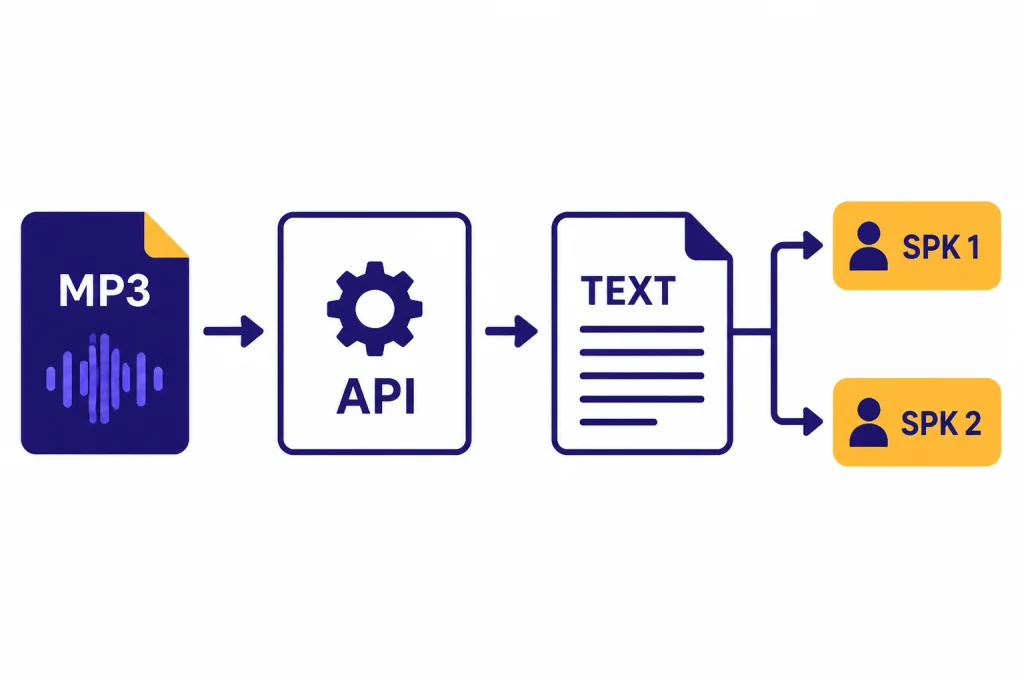
The OpenAI speech-to-text API is the most precise answer to “Can ChatGPT transcribe audio files?” It provides two speech-to-text endpoints: `transcriptions` and `translations`.[3] The transcription endpoint returns text in the source language, while the translation endpoint can translate and transcribe audio into English.[3]
OpenAI’s documentation lists `whisper-1`, `gpt-4o-mini-transcribe`, `gpt-4o-transcribe`, and `gpt-4o-transcribe-diarize` in the speech-to-text context.[3] It also explains that `whisper-1` supports output formats including `json`, `text`, `srt`, `verbose_json`, and `vtt`; `gpt-4o-transcribe` and `gpt-4o-mini-transcribe` support `json` or plain `text`; and `gpt-4o-transcribe-diarize` supports `json`, `text`, and `diarized_json` with speaker segments.[3]
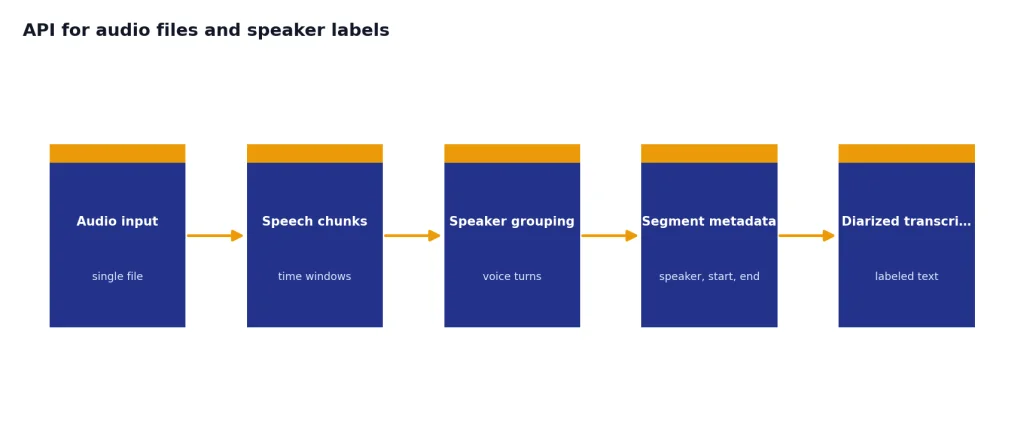
Diarization is the feature you want when the transcript must show who spoke when. OpenAI says `gpt-4o-transcribe-diarize` produces speaker-aware transcripts and can return segments with `speaker`, `start`, and `end` metadata.[3] For audio longer than 30 seconds, OpenAI says `gpt-4o-transcribe-diarize` requires a `chunking_strategy`, with `auto` recommended.[3]
Pricing is separate from ChatGPT subscription pricing. OpenAI’s API pricing page lists `gpt-4o-transcribe` at an estimated $0.006 per minute and `gpt-4o-mini-transcribe` at an estimated $0.003 per minute.[4] If you are building a batch transcription workflow, compare those costs with your expected audio volume. Our OpenAI API pricing guide can help you think through model costs beyond transcription.
curl --request POST
  --url https://api.openai.com/v1/audio/transcriptions
  --header "Authorization: Bearer $OPENAI_API_KEY"
  --header "Content-Type: multipart/form-data"
  --form [email protected]
  --form model=gpt-4o-transcribe
  --form response_format=text
Use the API when you need predictable automation. Examples include transcribing weekly calls, adding captions to a course library, creating searchable podcast notes, or turning field interviews into structured research records. ChatGPT can still help after transcription by cleaning up filler words, extracting themes, or converting the transcript into a report.
How accurate is ChatGPT audio transcription?
Accuracy depends on audio quality, language, background noise, accents, microphones, and the model or feature you use. OpenAI warns that ChatGPT may make mistakes in transcriptions and says users should check important information.[1] Treat every generated transcript as a draft until a human reviews names, numbers, dates, quotes, and commitments.
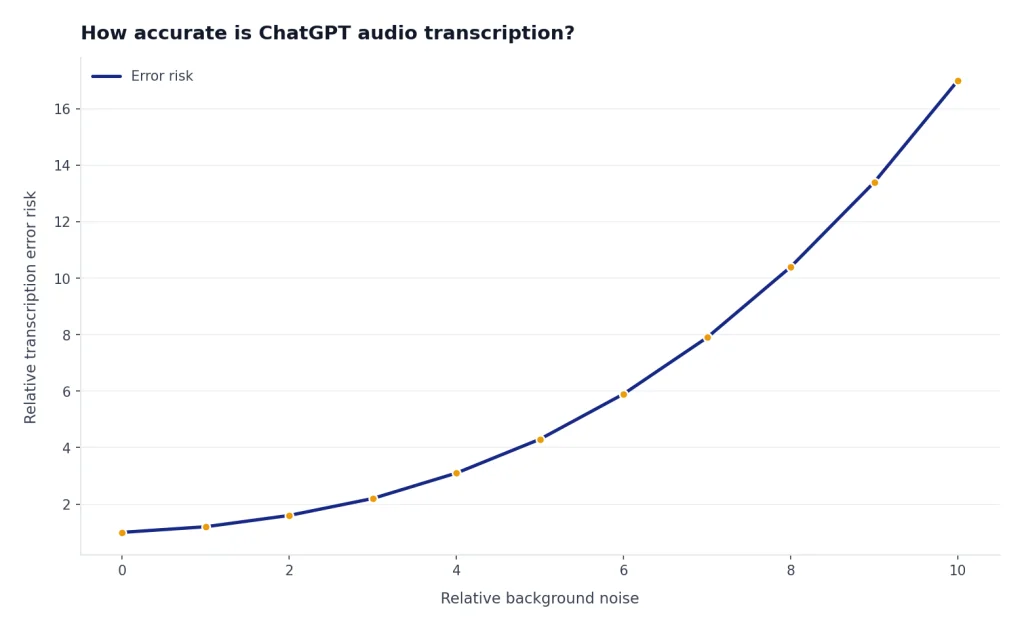
The newer API models are designed to improve on older Whisper models. OpenAI introduced `gpt-4o-transcribe` and `gpt-4o-mini-transcribe` on March 20, 2025, and said they improve word error rate, language recognition, and accuracy compared with original Whisper models.[6] OpenAI also said the models are intended to reduce misrecognitions in challenging conditions such as accents, noisy environments, and varying speech speeds.[6]
That does not remove the need for review. Transcription systems can still invent punctuation, miss a low-volume speaker, merge speakers, mishear product names, or normalize informal speech too aggressively. They can also struggle when people talk over one another.
For better results, record close to the speaker, reduce background noise, use a headset or external microphone, avoid recording from laptop speakers when possible, and say proper nouns clearly. OpenAI’s Record mode troubleshooting advice also recommends using a headset and lowering background noise when transcript quality is poor.[1]
After transcription, ask ChatGPT to produce two outputs: a cleaned transcript and an uncertainty list. The uncertainty list should include names, technical terms, timestamps, or sentences that might require human review. This is more reliable than asking ChatGPT to silently “fix everything.”
Privacy, consent, and retention
Audio transcription can create sensitive records. Meeting transcripts often contain business strategy, medical details, student records, client names, financial information, or personal remarks. Before you record other people, get appropriate consent and follow local law. OpenAI’s Record mode help article explicitly tells users to check local laws and get the right consents before recording others.[1]
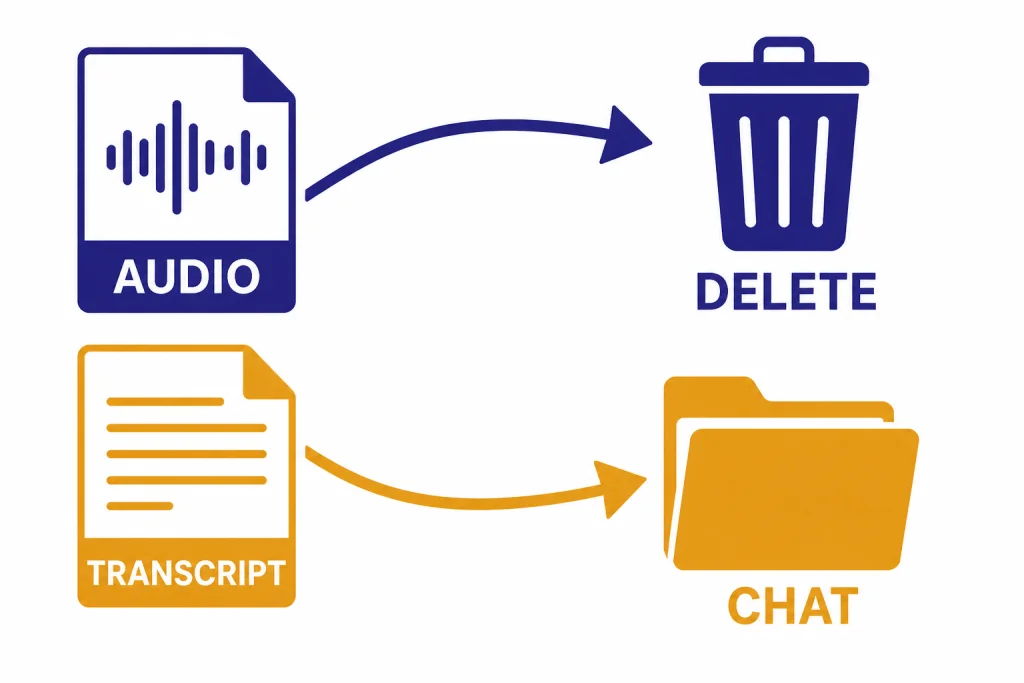
Retention differs by feature. For Record mode, OpenAI says audio recordings are used only for transcription and deleted afterward, while transcripts and canvases follow the same retention settings as other conversations and canvases in the workspace.[1] If a user deletes a conversation, OpenAI says the canvas and transcript are removed from its systems within 30 days unless legally required to retain them.[1]
Dictation is different. OpenAI says audio from dictation is retained for as long as the chat remains in chat history, and when you delete the chat, the associated audio clip is deleted within 30 days unless OpenAI needs to keep it for security or legal reasons or it was previously shared for training and disassociated from your account.[2]
Training rules also vary by plan and settings. OpenAI says Record mode audio recordings are not used to train its models, but for Pro, Plus, or Free users with “Improve the model for everyone” enabled, transcripts and canvases from Record mode may be used for training.[1] OpenAI says Business, Enterprise, and Edu workspace content is excluded from model training by default, including Record mode transcripts and canvases.[1]
If the transcript is sensitive, avoid sharing it broadly. Store it in a controlled project, delete raw drafts you do not need, and redact information before using it for examples. If you want ChatGPT to remember preferences but not sensitive meeting details, review how ChatGPT Memory works before relying on it.
A practical workflow for clean transcripts
The best workflow separates capture, transcription, review, and reuse. Do not try to solve every step in one prompt.
- Pick the capture method. Use Record mode for live meetings on a supported Mac setup. Use a dedicated recorder if you need a backup file. Use the API when a file already exists.
- Improve the recording. Use a headset or external microphone. Reduce background noise. Ask participants to avoid talking over one another.
- Transcribe once. Use Record mode or the API. If you need speakers, choose a speaker-aware workflow rather than trying to infer speakers later.
- Review the transcript. Check names, figures, dates, acronyms, decisions, and direct quotes. Mark unclear sections instead of guessing.
- Ask ChatGPT for structured outputs. Request a summary, decisions, action items, open questions, risks, and follow-up email.
- Store only what you need. Keep the final transcript and summary. Delete stray drafts or sensitive raw material when your policy requires it.
Here is a prompt you can use after you have a transcript:
Clean this transcript without changing meaning. Keep speaker turns. Mark uncertain words in brackets. Then create: 1) a 5-bullet executive summary, 2) decisions made, 3) action items with owner and due date if stated, 4) unresolved questions, and 5) exact quotes worth preserving.
If you transcribe often, create reusable prompt templates. Keep one for internal meetings, one for interviews, one for lectures, and one for sales calls. The transcript is only the first layer. The value comes from turning spoken material into a reliable record you can search, summarize, cite, and act on.
For mobile-heavy workflows, compare the official apps in our guide to the best ChatGPT app. If your transcript needs current facts added after the meeting, combine it with ChatGPT Search rather than asking ChatGPT to rely only on the meeting text.
Frequently asked questions
Can ChatGPT transcribe an MP3 file?
ChatGPT’s built-in Record mode is for live recording, not a general MP3 upload workflow. For an existing MP3 file, use the OpenAI speech-to-text API, which lists `mp3` among supported input formats and has a 25 MB audio upload limit.[3] After you get the transcript, you can paste it into ChatGPT for cleanup or summarization.
Does ChatGPT transcribe meetings?
Yes, with Record mode on supported accounts and platforms. OpenAI says Record mode can transcribe and summarize meetings, brainstorms, and voice notes, then save the summary as a canvas.[1] Always get consent before recording other people.
Can ChatGPT identify different speakers?
Record mode can transcribe multiple speakers, according to OpenAI.[1] For explicit speaker-aware output with segment metadata, use `gpt-4o-transcribe-diarize` through the API and request `diarized_json`.[3] This is the better approach for interviews and calls where speaker turns matter.
Is ChatGPT transcription free?
OpenAI says Record mode was included at no extra cost upon launch, but also says limits and pricing are subject to change.[1] API transcription is billed separately; OpenAI lists `gpt-4o-transcribe` at an estimated $0.006 per minute and `gpt-4o-mini-transcribe` at an estimated $0.003 per minute.[4] Check current pricing before processing a large audio library.
Can ChatGPT translate audio while transcribing it?
The OpenAI speech-to-text API includes a translations endpoint that can translate and transcribe audio into English.[3] In ChatGPT, a practical workflow is to transcribe first and then ask ChatGPT to translate the transcript. That also lets you review the source transcript before translation.
Should I use Record mode or the API?
Use Record mode when you want an easy meeting-notes workflow inside ChatGPT and you meet the plan and platform requirements. Use the API when you have existing audio files, need automation, want speaker-aware output, or need predictable formats such as text or JSON. The API is also the better fit for apps and repeatable business workflows.