

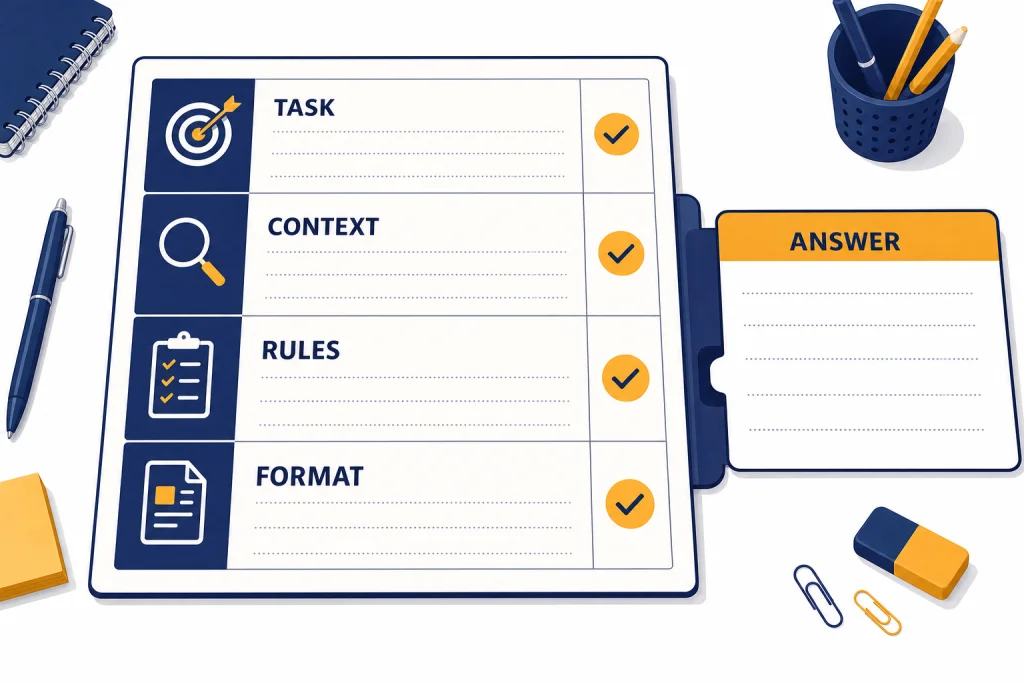
This ChatGPT tutorial for beginners shows you how to use ChatGPT without technical skills, special vocabulary, or a coding background. You will learn what ChatGPT does, how to start a useful chat, how to write a clear prompt, when to use tools like search or file uploads, and how to check answers before you rely on them. The main rule is simple: say what you want, give enough context, ask for a useful format, and improve the answer with follow-up instructions. Treat ChatGPT as a capable assistant, not an authority. It can draft, explain, summarize, brainstorm, compare, and plan, but you still need to review important facts.
What ChatGPT is in plain English
ChatGPT is an AI assistant that responds to instructions in a conversation. OpenAI describes it as useful for everyday tasks such as brainstorming, writing, studying, planning, math, coding, analyzing images and files, and more.[1] If you are brand new, think of it as a message box where you ask for help, read the reply, and then steer the next version.
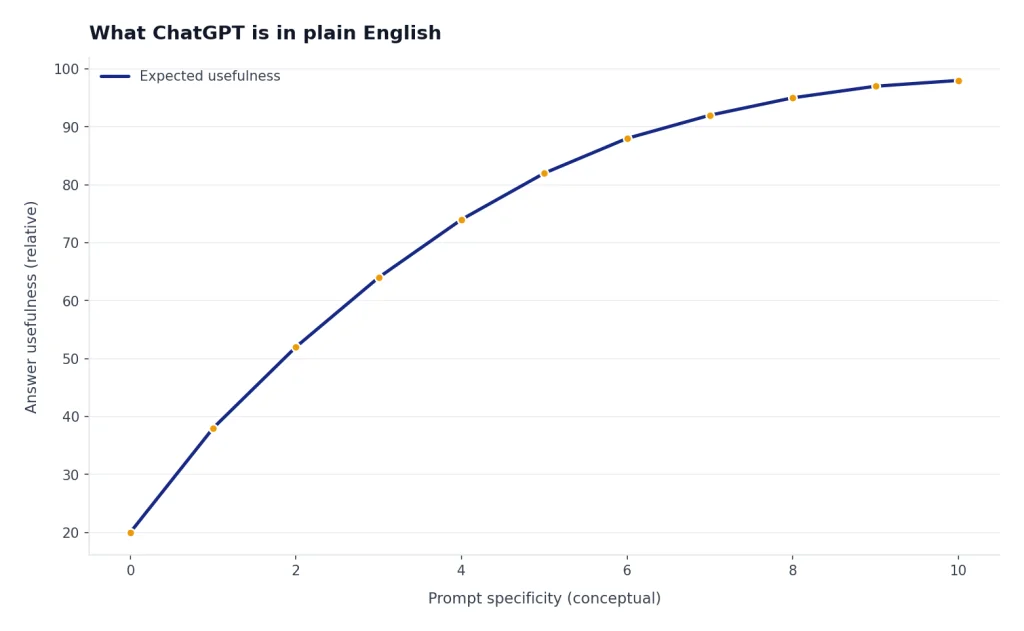
It is not a person, a traditional search engine, or a guaranteed source of truth. It generates responses based on your request and the context you provide. A vague prompt often gets a vague answer. A specific prompt usually gets closer to what you need.
If you want a deeper nontechnical explanation before continuing, read what is ChatGPT? the complete beginner explanation. If you want to understand the term behind the model family, read what is GPT? the generative pre-trained model.
Start your first ChatGPT conversation
You can start at chatgpt.com by typing a prompt into the message box and sending it. OpenAI says ChatGPT can be used before creating an account in supported regions, but saving conversations and using more account features requires signing in or creating an account.[2]
In the current ChatGPT interface, most beginners will use the message box at the bottom of the screen, the paperclip or upload control when files are available, the microphone or voice control when voice is available, and the model or mode selector when their plan exposes multiple options. As of May 2026, you may see product labels such as GPT-5.5, GPT-5.5 Thinking, GPT-5.3 Instant, or other plan-specific choices. Do not worry about mastering the model picker on day one: choose the default option unless you have a reason to change it.
For your first chat, choose something safe and familiar. Ask ChatGPT to explain a topic, rewrite a paragraph, plan a grocery list, summarize a note, or create a checklist. You are learning the conversation pattern, not every feature at once.
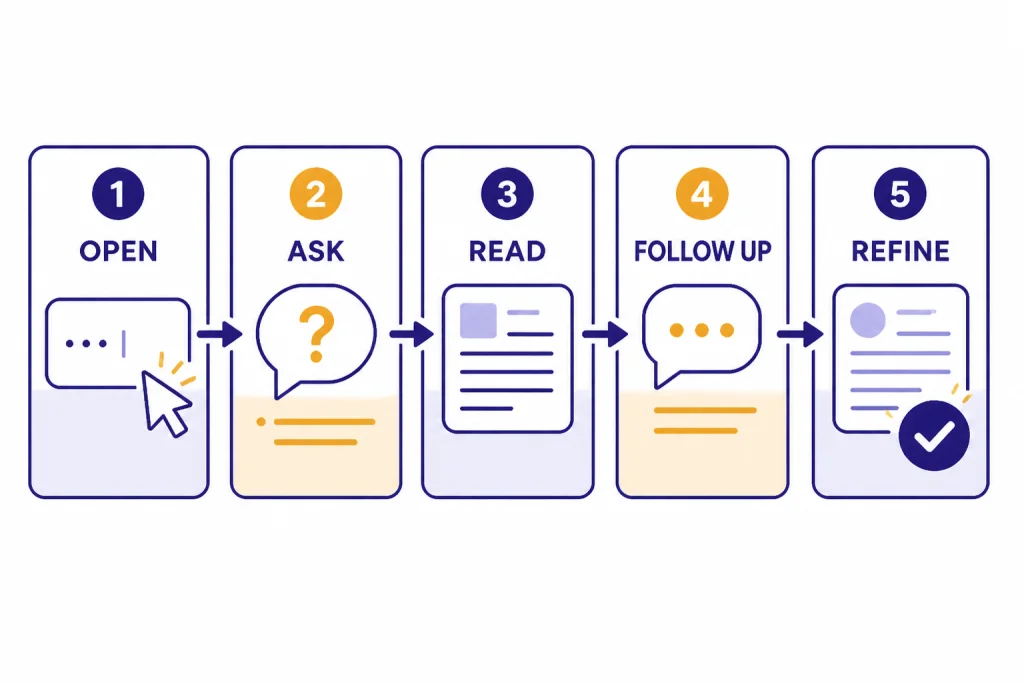
- Open ChatGPT.
- Type one clear request in the message box.
- Read the answer carefully instead of accepting it automatically.
- Ask one follow-up question.
- Tell it exactly what to change.
Here is a safe first prompt:
Explain how ChatGPT works in simple language. Use short sentences. Give me 5 examples of things a beginner can ask you to do.Illustrative follow-up:
Make the answer shorter and focus on examples for someone who works in an office.Illustrative output you might receive:
ChatGPT is a writing and thinking assistant. You type a request, and it replies with a draft, explanation, list, or plan.

Office examples:
1. Rewrite an email so it sounds clearer.
2. Turn meeting notes into action items.
3. Summarize a long document.
4. Draft an agenda.
5. Explain a spreadsheet formula.
After it answers, practice steering the result. Try: “Make it shorter,” “Give me examples for work,” “Explain it like I am in high school,” or “Turn this into a checklist.” This follow-up habit matters more than memorizing prompt tricks.
Use this beginner prompt formula
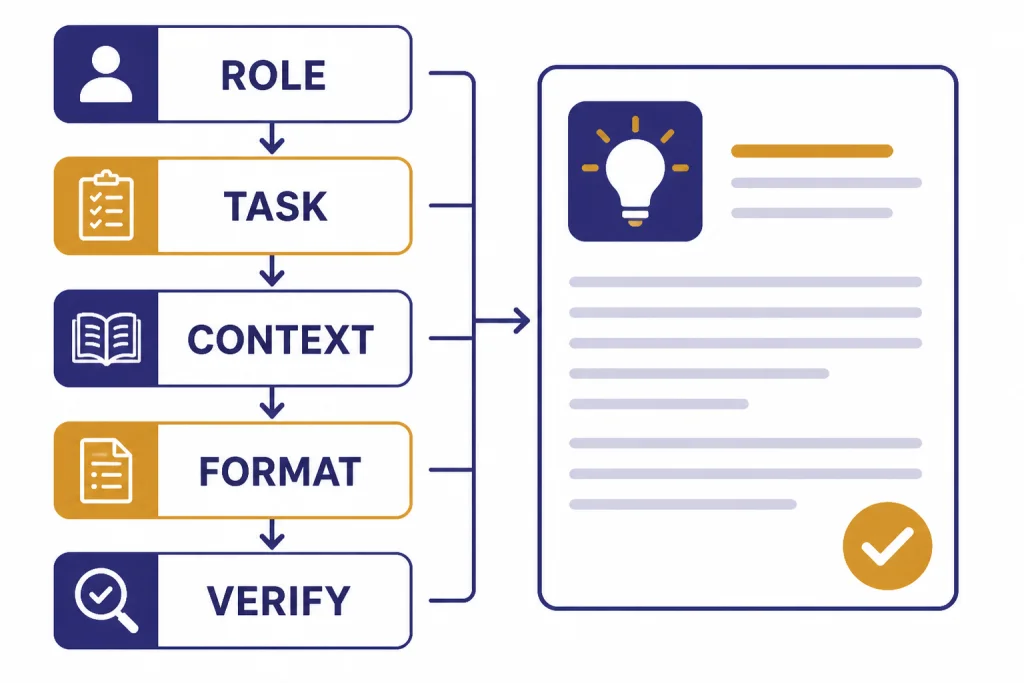
The easiest beginner prompt has four parts: task, context, constraints, and format. You do not need all four every time, but they help ChatGPT understand what a good answer looks like.
| Prompt part | What to write | Beginner example |
|---|---|---|
| Task | Say what you want done. | “Rewrite this email.” |
| Context | Explain the situation. | “I am replying to a client who missed a deadline.” |
| Constraints | Add rules or preferences. | “Keep it polite and under 120 words.” |
| Format | Tell it how to present the result. | “Give me 3 options in a table.” |
Use this reusable template:
Act as a [role]. Help me [task]. Here is the context: [context]. Please follow these rules: [constraints]. Return the answer as [format].Example:
Act as a patient writing coach. Help me improve this paragraph for clarity. Here is the context: it is the opening of a blog post for small business owners. Please keep my meaning, remove jargon, and use short sentences. Return the answer as a revised paragraph plus 3 bullet notes explaining what changed.Illustrative mini-result:
Revised paragraph:
Running a small business is hard enough without confusing marketing advice. This guide shows you simple ways to explain what you sell, who it helps, and why people should care.

What changed:
- Replaced jargon with plain language.
- Split the idea into shorter sentences.
- Made the audience clearer.
This is prompt engineering in its most practical form. You do not need complex frameworks at the beginning. When you are ready to go deeper, read our guide to prompt engineering techniques that actually work.
Try these beginner workflows
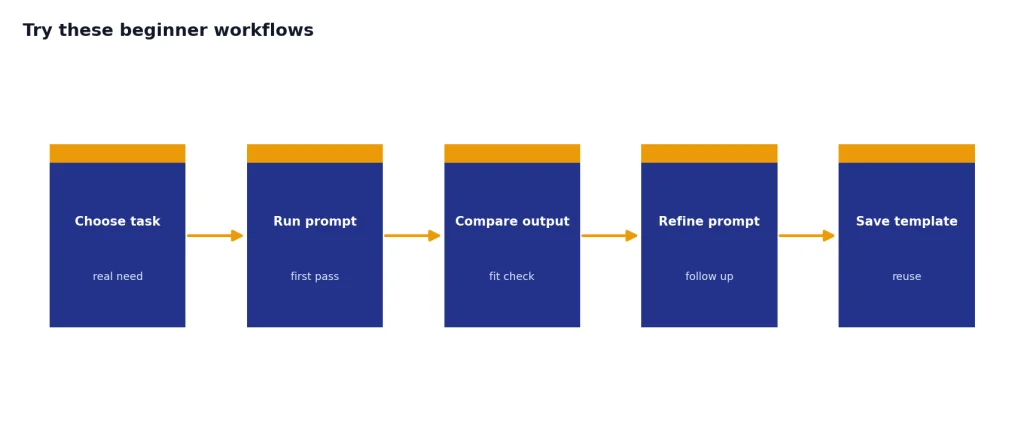
A workflow is a repeatable way to use ChatGPT for a real task. Beginners make faster progress when they practice workflows instead of random prompts. Start with one example below and repeat it until it feels natural.
Workflow 1: Rewrite text
Paste text you already wrote and ask for a revision. This is one of the safest ways to learn because you can compare the original with the result.
Rewrite this message so it sounds clear, warm, and professional. Keep it under 150 words. After the rewrite, list the 3 biggest changes you made.When testing this workflow, a useful habit is to ask for changes separately: first tone, then length, then format. If writing is your main use case, continue with ChatGPT Tutorial: Writing Better Content.
Workflow 2: Explain something you do not understand
Ask for a simple explanation, then ask for examples. The follow-up is where the learning happens.
Explain compound interest in plain English. Then give me a simple example with round numbers. Avoid financial advice.Useful follow-up: “Now quiz me with three beginner questions, but do not give me the answers until I try.”
Workflow 3: Turn messy notes into structure
Paste rough notes and ask ChatGPT to organize them. This is useful for meetings, classes, planning sessions, and personal projects.
Organize these notes into a clean outline. Group similar points, remove duplicates, and create a short action list at the end.Before you paste notes from work, remove private names, account numbers, client secrets, or anything covered by your employer’s policy.
Workflow 4: Learn a spreadsheet task
Describe what you want your spreadsheet to do. Ask ChatGPT to explain the formula and show a tiny example. If spreadsheets are a regular part of your work, use ChatGPT Tutorial: Excel Formulas and Pivot Tables next.
I have a spreadsheet with customer names in column A and purchase dates in column B. I want to count how many purchases happened in March. Explain the formula like I am new to spreadsheets.Workflow 5: Summarize a document
If your plan supports file uploads, you can ask ChatGPT to summarize a document, extract action items, or compare sections. For a full workflow, see ChatGPT Tutorial: PDF Reading and Summarizing.
A good first file prompt is: “Summarize this in 10 bullets, list decisions separately from action items, and quote the section headings you used.” That final instruction makes it easier to check whether the summary matches the document.
Use ChatGPT tools without getting lost
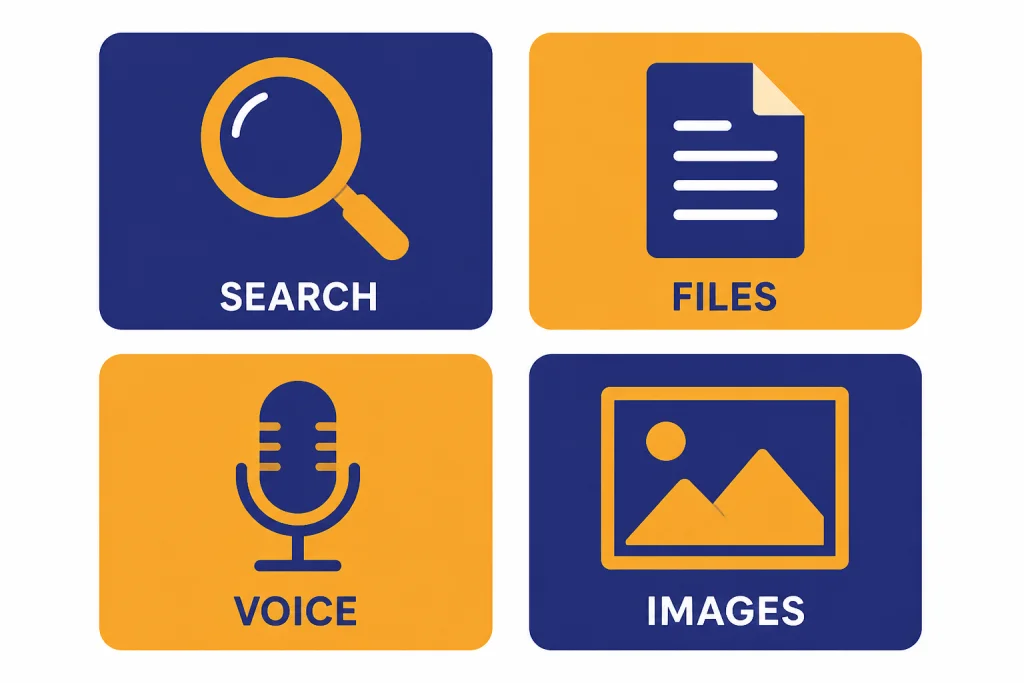
ChatGPT is more than a chat box, but tool access is not identical for every user. Depending on your plan, workspace, region, app version, model choice, and rollout status, you may see search, file uploads, data analysis, voice, image generation, connectors, or fewer options. Some tools are selected automatically by ChatGPT, while others appear as buttons, menu items, or mode choices. Limits for files, images, messages, and voice can also vary.
For beginners, the practical rule is: start with a normal prompt, then use a tool only when the task requires it. If you need current facts, use search. If you need help with a document, upload a safe file. If you need calculations from structured data, use data analysis when available. If you want to speak instead of type, use voice.
| Tool | Use it when | Beginner prompt |
|---|---|---|
| Search | You need current or source-backed information. | “Search the web and summarize the latest official guidance.” |
| File uploads | You want help with a document, spreadsheet, or presentation. | “Summarize this file and list action items.” |
| Voice | You want to talk instead of type. | “Quiz me verbally on these notes.” |
| Images | You want a visual draft, concept, or diagram. | “Create a simple diagram of this process.” |
| Data analysis | You need calculations, charts, or structured data work. | “Analyze this CSV and show the key trends.” |
OpenAI says ChatGPT search can look up information from the web, include inline citations, and provide source links when search is used.[6] Use it when the answer depends on recent events, prices, laws, product details, sports, local information, or anything else that may have changed.
OpenAI’s file upload guidance says ChatGPT can work with documents such as PDFs, spreadsheets, Microsoft Word documents, and presentations, and can help synthesize or analyze information from those files.[7] If you plan to use files often, learn the dedicated ChatGPT Tutorial: Data Analysis Step by Step.
Voice conversations let you speak with ChatGPT and receive spoken responses. OpenAI says voice is available to logged-in users in the ChatGPT mobile apps and on desktop web at ChatGPT.com, subject to availability and limits.[8] For more examples, read ChatGPT Tutorial: Voice Mode Use Cases.
Image generation is best for concepts, drafts, visual directions, diagrams, thumbnails, and creative options. In May 2026, OpenAI’s current image lineup includes gpt-image-2, but what you see inside ChatGPT can depend on your plan and rollout. For a focused walkthrough, use ChatGPT Tutorial: Image Generation Mastery.
Pick the right plan and understand limits
Most beginners should start with the free experience and upgrade only after they know what they use ChatGPT for. OpenAI’s pricing page lists Free, Plus, Pro, Business, and Enterprise plans; it lists Plus at $20 per month and Pro at $200 per month.[3] OpenAI’s Plus help page also describes ChatGPT Plus as a $20-per-month plan with enhanced access to the ChatGPT web app.[4]
| Plan type | Best beginner fit | What to watch |
|---|---|---|
| Free | Learning prompts, casual writing, and basic explanations. | Limits and tool access can appear sooner during heavier use. |
| Plus | Regular personal use for writing, study, files, voice, and creative work. | Still subject to usage limits, model availability, and feature rollouts. |
| Pro | Heavy individual use and demanding workflows. | Usually unnecessary for a new user unless you already know you need higher access. |
| Business or Enterprise | Teams that need workspace controls and admin features. | Usually a company decision, not a beginner decision. |
Limits change over time and may vary by feature, model, demand, plan, workspace, geography, and device. Do not build a beginner habit around exact message counts unless OpenAI shows them in your own account. If you run into caps often, switch to a smaller task, shorten the conversation, wait for the limit to reset, or decide whether a paid plan fits your real usage. For a less frustrating approach, read Manage ChatGPT Usage Limits.
Set privacy, memory, and safety habits
Before you paste sensitive information into ChatGPT, set a few simple rules. Do not paste passwords, private keys, confidential client data, medical records, legal documents, or anything you would not want stored or reviewed under the applicable policy. If you work for a company, follow your employer’s AI policy first.
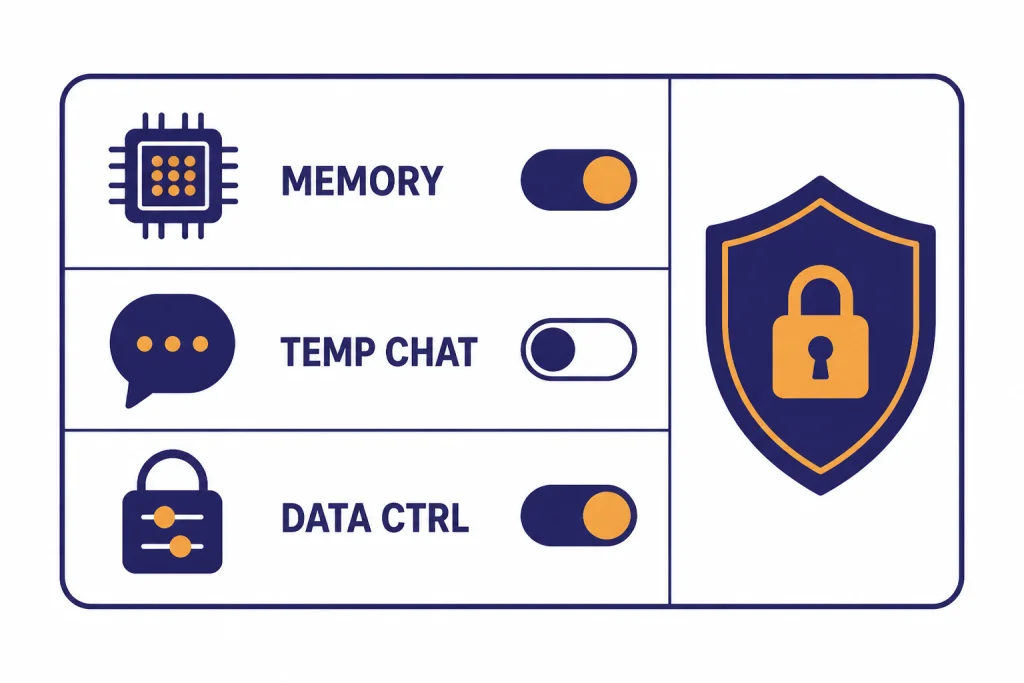
Memory can make ChatGPT more personalized. OpenAI says memory has settings for saved memories and reference chat history, and you can manage or turn off memory in settings.[9] For a deeper walkthrough, see ChatGPT Tutorial: Memory Power-User Tips.
OpenAI’s Data Controls FAQ says users can turn off “Improve the model for everyone,” and that conversations still appear in chat history but are not used to train ChatGPT after that setting is off.[10] Temporary Chats do not appear in history, do not create memories, and are not used to improve OpenAI’s models; OpenAI says it may still keep a copy for up to 30 days for safety purposes.[11]
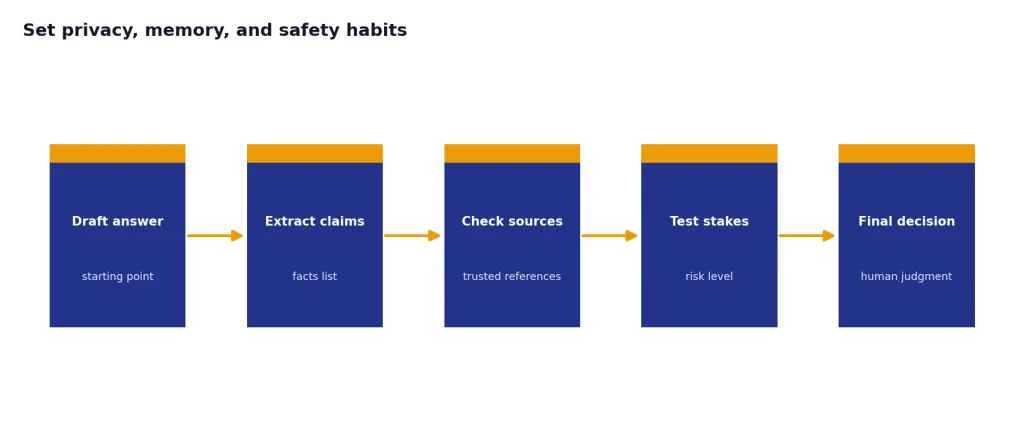
Accuracy is a separate safety issue. OpenAI says ChatGPT can produce incorrect or misleading outputs and may sound confident even when wrong.[5] Use it as a first draft for important work, not the final authority. Verify numbers, quotes, citations, medical details, legal details, financial claims, and anything that could affect a real decision.
Follow a simple 7-day practice plan
You can learn the basics in one week with short daily practice. Keep each session focused. Save prompts that worked. Rewrite prompts that failed. The goal is not to become a prompt engineer; it is to become comfortable asking for useful help and checking the result.
- Day 1: Ask ChatGPT to explain three topics you already know. Check whether the explanations are clear.
- Day 2: Paste a paragraph you wrote and ask for three versions: shorter, warmer, and more professional.
- Day 3: Ask it to make a checklist for a real task you need to finish this week.
- Day 4: Ask it to teach you a concept in steps, then quiz you.
- Day 5: Use search for one current question and inspect the sources before trusting the answer.
- Day 6: Upload a safe, non-sensitive document if your plan supports it, then ask for a summary and action items.
- Day 7: Build your own reusable prompt template for a task you do often.
At the end of the week, pick one use case to improve. Writing, research, spreadsheets, studying, coding, and planning all require different habits. If you want a structured next step, build a reusable library with our ChatGPT Prompt Generator: Build Your Own Library.
Frequently asked questions
Is ChatGPT hard to learn?
No. The basics are simple: type what you want, add context, and ask follow-up questions. The harder part is learning when to trust the answer and when to verify it.
What should I ask ChatGPT first?
Start with a low-risk task such as rewriting a message, explaining a simple topic, creating a checklist, or organizing notes. Avoid starting with sensitive, legal, medical, or financial decisions.
Do I need to pay for ChatGPT as a beginner?
No. Start free if it covers your needs. Consider upgrading only when you regularly need higher limits or expanded tools; OpenAI lists Plus at $20 per month on its pricing page and Plus help article.[3][4]
Can ChatGPT browse the web?
Yes, when search is available and used. OpenAI says ChatGPT search can provide timely answers with inline citations and source links.[6] Use search for current facts instead of relying only on the model’s built-in knowledge.
Can ChatGPT be wrong?
Yes. OpenAI says ChatGPT can generate incorrect or misleading outputs and can sound confident while doing so.[5] Always verify important facts, especially numbers, quotes, citations, legal claims, medical information, and financial information.
What is the best prompt format for beginners?
Use this structure: task, context, constraints, and format. For example: “Help me rewrite this email. It is for a client. Keep it friendly and under 100 words. Give me three versions.”
Should I use memory?
Use memory if you want more personalized answers across conversations. Turn it off or use Temporary Chat when you do not want a conversation to affect future responses. Review saved memories regularly in settings.