

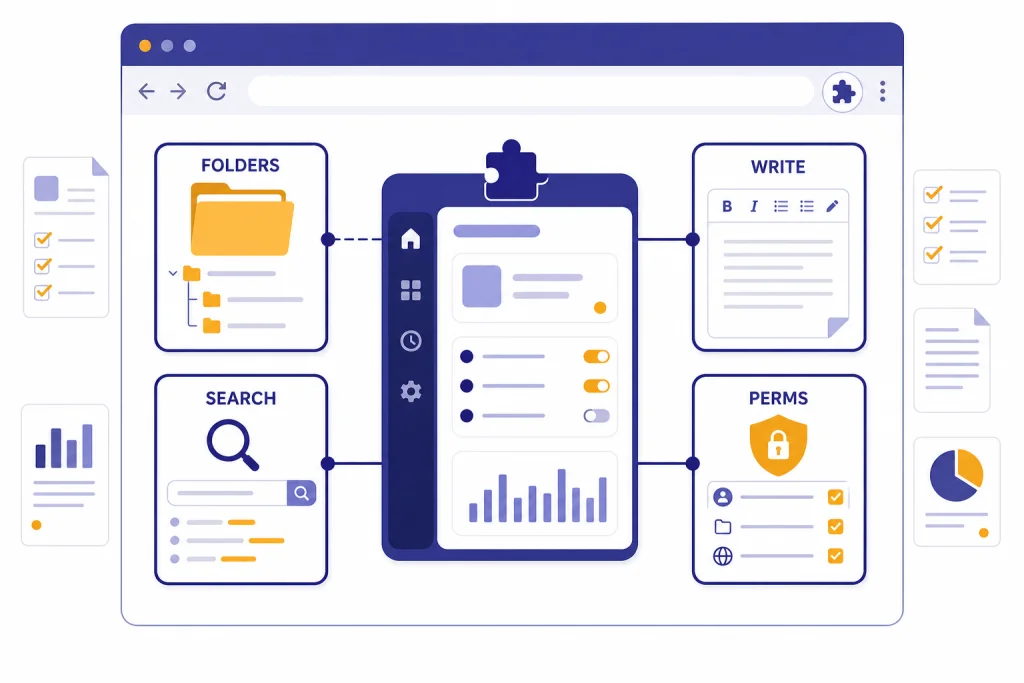
The best ChatGPT Chrome extensions for power users are not all trying to solve the same problem. Some improve the ChatGPT web app with folders, prompt libraries, exports, and search. Others put AI in a sidebar, add AI answers to search results, draft emails, summarize pages, or automate repetitive browser work. This guide focuses on extensions that save time for heavy ChatGPT users while keeping a clear eye on privacy, permissions, and lock-in. Our top overall pick is Superpower ChatGPT for improving the ChatGPT interface. Sider and Merlin are stronger if you want a browser-wide assistant. WebChatGPT and OpenAI’s ChatGPT search extension are better for search-heavy workflows.
Quick picks by workflow
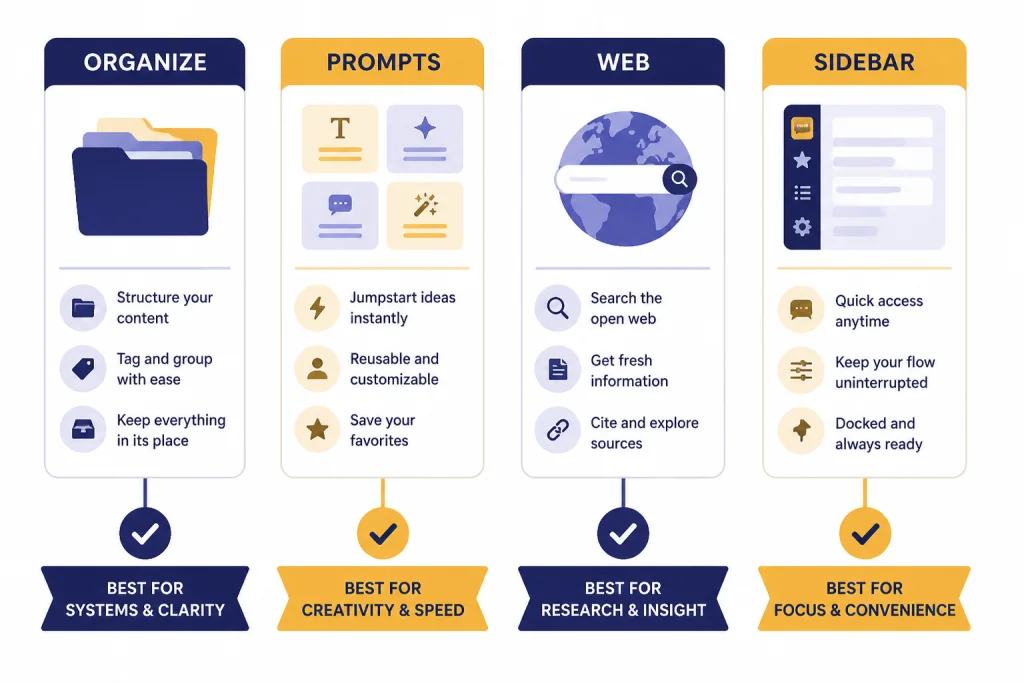
If you use ChatGPT all day, start with the job you need the extension to do. A ChatGPT power-user setup should reduce tab switching, make prior work easier to find, and keep sensitive data out of tools that do not need it. The best extension for organizing chats is not always the best extension for writing in Gmail or summarizing research pages.
| Workflow | Best fit | Why it stands out | Main caution |
|---|---|---|---|
| Organizing the ChatGPT web app | Superpower ChatGPT | Adds folders, search, export, prompt management, notes, image gallery, model switcher, and related workflow tools inside ChatGPT.[1] | It changes the ChatGPT interface, so heavy users should expect occasional UI friction after ChatGPT updates. |
| Reusable prompt templates | AIPRM | Adds curated prompt templates and prompt management for ChatGPT, with a large template catalog aimed at marketing, SEO, email, and sales workflows.[2] | Template libraries can encourage generic outputs if you do not edit the prompt. |
| Web results inside ChatGPT prompts | WebChatGPT | Adds web results, URL extraction, prompt management, and AI search answers beside search results.[3] | Web-grounded output still needs source checking. |
| AI sidebar across the browser | Sider | Places a ChatGPT-style assistant beside pages for reading, writing, translation, search, and file tasks.[4] | Broad page access can increase privacy risk if you enable it everywhere. |
| Research and writing across websites | Merlin | Combines website, video, document, writing, summarizing, translation, and cross-platform AI workflows.[5] | It is broad, so you need discipline to avoid overlapping it with other tools. |
| Browser automation | HARPA AI | Focuses on web automation with ChatGPT, Claude, Gemini, and Grok, and says it keeps data locally and does not store logs.[7] | Automation increases the stakes of permissions and account access. |
| Email and inline writing | Compose AI | Adds inline generation, autocomplete, rephrasing, and email drafting across websites.[8] | Writing extensions often need access where you type. |
| Default search engine replacement | OpenAI ChatGPT search extension | OpenAI’s Chrome Web Store publisher page describes an extension that makes ChatGPT the default search engine in Chrome.[9] | It is narrow by design. It is not a sidebar, organizer, or prompt manager. |
How we chose these extensions
We weighted power-user value over novelty. An extension had to improve a repeated workflow, not just add another chat box. We looked for tools that help with one or more of these tasks: managing long ChatGPT histories, reusing prompts, adding web context, writing in place, summarizing pages, comparing model outputs, or automating browser actions.
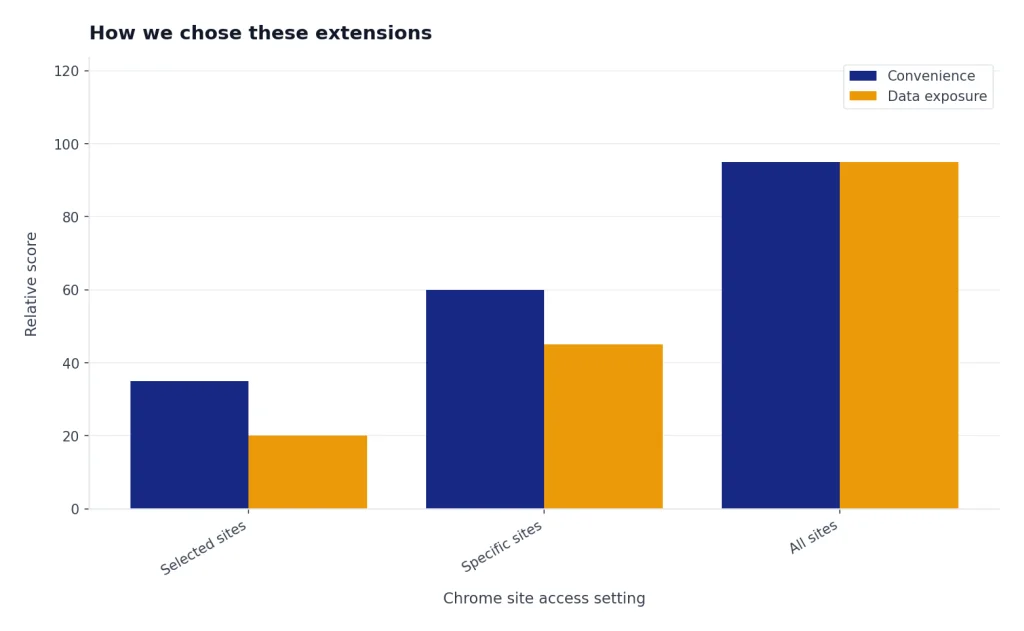
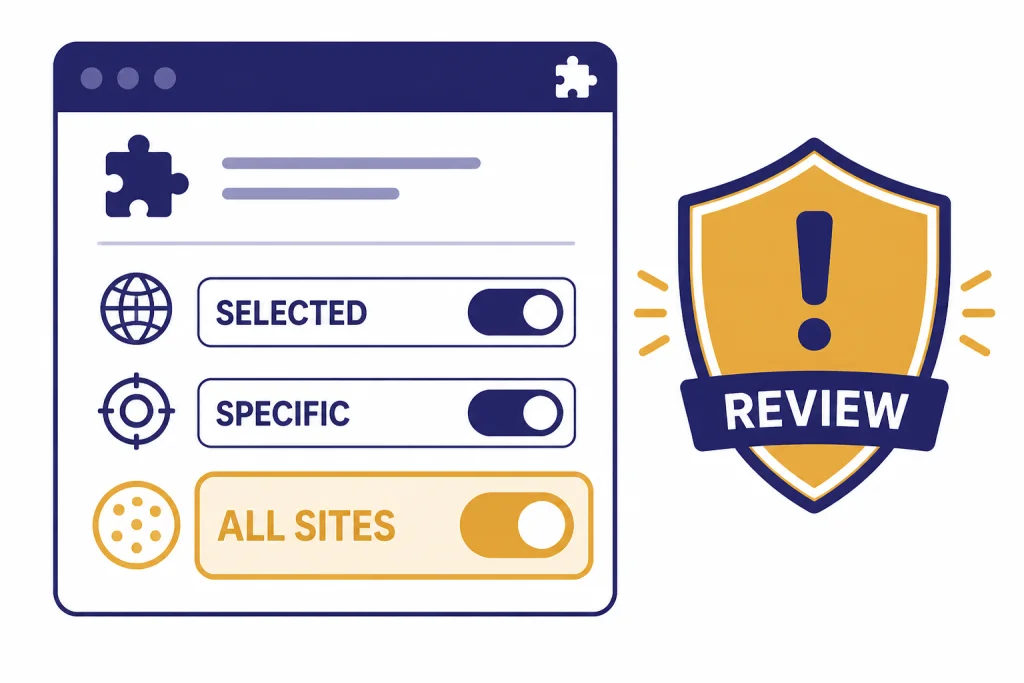
We also treated permissions as part of the review, not as a footnote. Google says Chrome users can change an extension’s site access to selected sites, specific sites, or all sites.[10] Google also warns that a permission covering all data on your computer and the websites you visit can let an app or extension access almost anything.[11] That matters more for AI extensions than for many simple utilities because AI assistants often need page text, typed text, screenshots, or email content to work.
Finally, we favored clear product positioning. A strong extension should tell you what data it needs, where it works, which AI services it connects to, and whether it relies on your own ChatGPT account, its own model access, or both. If your main need is better prompting, compare these picks with our Best ChatGPT Prompt Generator Tools. If your main need is long-document extraction, start with our take on best AI summarizer tools before installing a browser-wide assistant.
The best ChatGPT Chrome extensions for power users
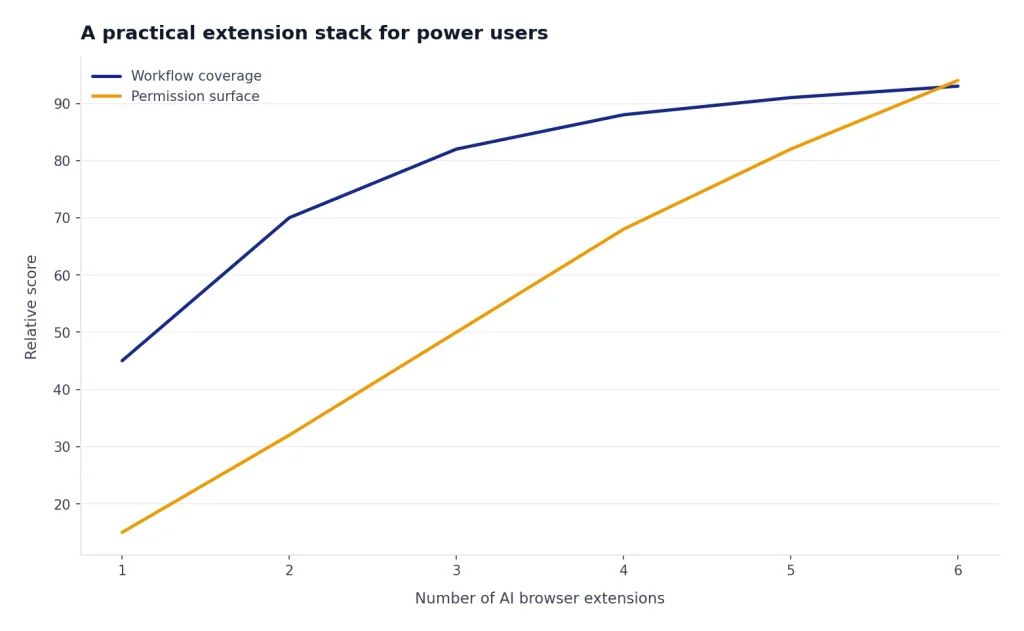
These picks are grouped by use case. Most power users should install fewer extensions, not more. A clean stack usually has one ChatGPT organizer, one browser-wide assistant if needed, and one specialized tool for writing, search, or automation.
Superpower ChatGPT: best for organizing heavy ChatGPT use
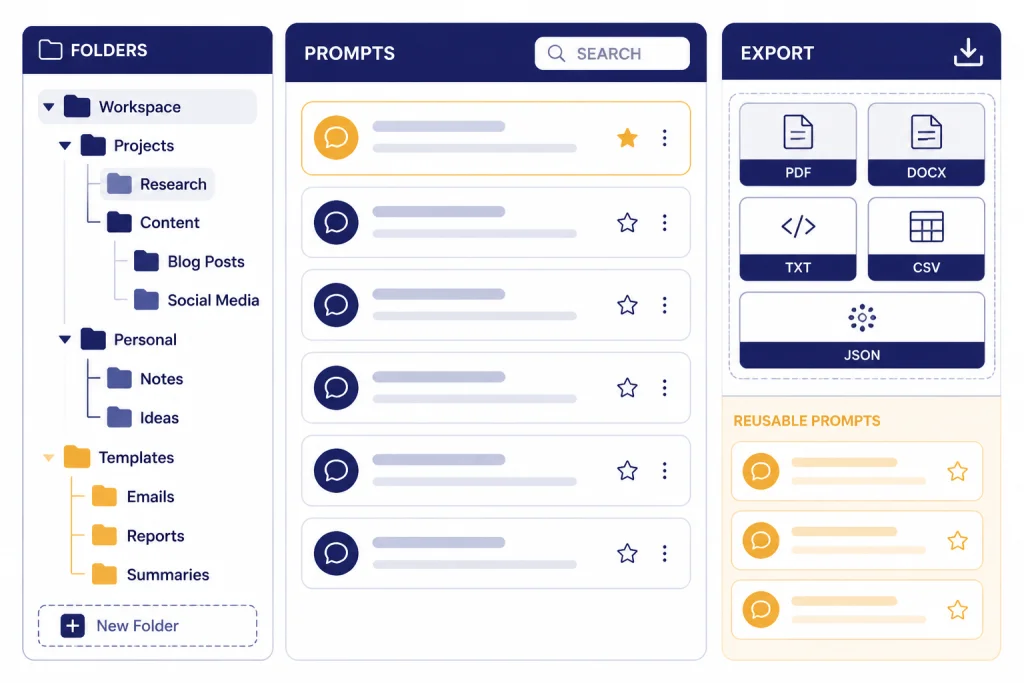
Superpower ChatGPT is the best starting point if your main problem is the ChatGPT web app itself. Its Chrome Web Store listing highlights folders, search, export, a prompt manager, prompt optimizer, minimap, gallery, notes, reference chats, and a model switcher.[1] That mix is useful for consultants, analysts, teachers, developers, and writers who return to old conversations often.
The value is not that any single feature is revolutionary. The value is that the extension turns ChatGPT into a more navigable workspace. Folders help separate client work, research, coding, planning, and personal prompts. Export tools help when you need to move a conversation into a knowledge base. The prompt manager helps if you use repeatable workflows but do not want a full prompt marketplace.
Use Superpower ChatGPT if ChatGPT is already your daily workbench. Skip it if you mostly use ChatGPT through the official desktop or mobile apps. If you are deciding between browser and native app workflows, compare this with Best ChatGPT Desktop Apps and Best ChatGPT Mobile Apps.
AIPRM: best for prompt libraries and repeatable marketing work
AIPRM is built around prompt templates. Its Chrome Web Store listing describes curated prompts, advanced prompt features, and templates for SEO articles, email responses, sales leads, blog titles, and similar business tasks.[2] That makes it useful for teams that want a shared starting point for common output types.
The risk is sameness. A prompt library can speed up first drafts, but it can also produce predictable copy if you accept the template output without adding context, examples, constraints, and review. Treat AIPRM as scaffolding. Pair it with your own brand rules, subject-matter notes, and quality checks.
AIPRM is a stronger fit for marketers than for developers or researchers. If you need writing tools outside the ChatGPT tab, compare it with best AI writing tools compared in 2026. If you need originality checks for AI-assisted drafts, pair your workflow with Best Plagiarism Checkers.
WebChatGPT: best for adding live web context to prompts
WebChatGPT adds web results to prompts, extracts webpage text from URLs, includes prompt management, and can show AI-powered search answers beside search results.[3] It is a practical option when you want ChatGPT to work with current pages, search results, or a specific URL without manually copying page text.
The extension is most useful for quick competitive scans, product comparisons, documentation lookups, and topic research. It is less appropriate for high-stakes claims unless you verify sources directly. Web access can improve freshness, but it does not remove hallucination risk, citation mismatch risk, or weak-source risk.
If your main use case is real-time browsing, also read our webchatgpt review. If you need deeper academic or analyst workflows, see Best AI Research Tools for Academics.
Sider: best all-purpose AI sidebar
Sider is the most natural fit if you want an AI assistant beside almost any page. Its Chrome Web Store listing describes side-by-side use, AI support for search, email, writing, translation, file chat, image chat, and website enhancements.[4] That makes it useful for people who live in the browser and do not want to keep switching between a page and a separate ChatGPT tab.
Sider’s strength is breadth. It can help summarize a page, rewrite selected text, compare answers, or draft a response while the original material stays visible. That is helpful for sales, support, recruiting, research, and operations roles.
The same breadth is the caution. A sidebar assistant may ask for wide page access to deliver its best features. Use Chrome’s site access controls and avoid granting all-site access unless the value clearly outweighs the risk. For a deeper look at this category, see our chatgpt sidebar review.
Merlin: best multi-purpose research and writing layer
Merlin positions itself as a broad research, rewriting, and summarizing extension. Its Chrome Web Store listing describes website, video, document, social writing, translation, file integration, and cross-platform features, with support for models and providers including ChatGPT, Gemini, Anthropic Claude, Mistral, and DeepSeek.[5]
Merlin is a good fit if you want one extension to cover many light-to-medium tasks: summarize a page, ask questions about a document, draft social posts, translate text, or review content. It is less ideal if you prefer single-purpose tools with minimal permissions. Broad assistants can become overlapping command centers unless you define where they fit.
Use Merlin when you value convenience across many page types. Use Superpower ChatGPT instead when your work mostly happens inside ChatGPT. Use HARPA AI instead when automation matters more than everyday writing.
Monica: best for users who want a polished multi-model assistant
Monica is another broad AI assistant. Its Chrome Web Store listing describes chat, search, writing, translation, image creation, video creation, prompt libraries, real-time internet information, and voice support. It also says users do not need a ChatGPT or OpenAI account to use the extension.[6]
Monica is useful when you want a standalone AI assistant that follows you across the browser rather than a thin layer on top of your own ChatGPT account. That can be convenient for users who want one account for multiple model providers and media features.
The trade-off is dependency. If an extension provides its own model access and credits, you need to understand its pricing, limits, privacy policy, and export options. Do not treat it as a neutral pipe to ChatGPT unless the product clearly says that is how your request is handled.
HARPA AI: best for browser automation
HARPA AI is the best fit in this roundup for users who want automation, not only chat. Its Chrome Web Store listing describes web automation with ChatGPT, Claude, Gemini, and Grok, and says HARPA keeps data locally, does not store logs, and relies on AI APIs that do not use your data for training.[7]
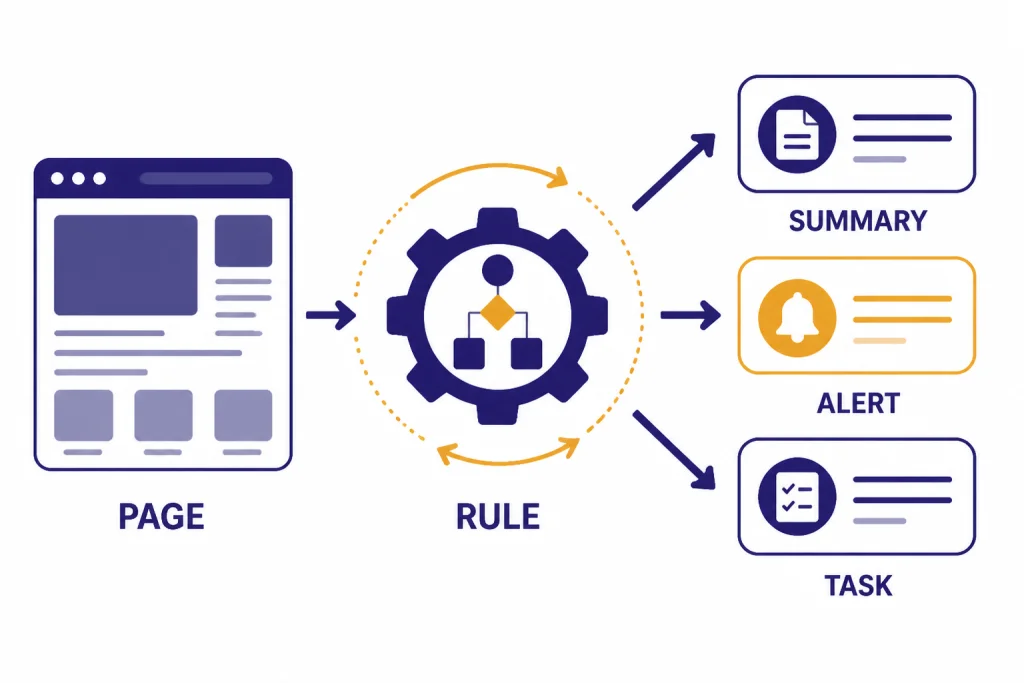
Use HARPA AI for recurring browser tasks: monitoring page changes, extracting page information, summarizing pages, creating workflows, and calling AI while you browse. It is especially useful for operators, researchers, growth teams, and people who repeat the same web checks every week.
Automation raises the bar for trust. Before you let any extension act on pages, review site access, account permissions, and the exact task. If the workflow touches paid accounts, customer data, or internal systems, test on low-risk pages first.
Compose AI: best for inline writing and email drafting
Compose AI is designed for writing where you already work. Its Chrome Web Store listing describes slash-command generation, autocomplete across websites, rephrasing, one-click email replies, and full email generation from short phrases.[8] That makes it a better fit for email, support replies, social messages, and short-form business writing than for long ChatGPT research sessions.
The benefit is speed. You do not need to copy a half-written email into ChatGPT, ask for a rewrite, and paste it back. The extension sits closer to the text field. That matters if writing small messages is a repeated drag on your day.
The caution is typed-text exposure. Any tool that helps you write inside forms may need to read text where you are typing. Avoid using writing extensions in password managers, finance portals, healthcare portals, legal systems, and internal admin tools unless your organization has approved the tool.
OpenAI ChatGPT search extension: best official option for search-first users
OpenAI’s Chrome Web Store publisher page describes an official extension that makes ChatGPT the default search engine in Chrome.[9] OpenAI’s ChatGPT search announcement says ChatGPT search can provide timely answers with links to relevant web sources and that users can download a Chrome extension to search from the browser URL bar.[15]
This is the cleanest option if you only want ChatGPT search in the address bar. It is not a prompt library, sidebar, folder system, writing assistant, or automation layer. That narrower scope is a feature for users who want less browser clutter.
Use it if your main habit is searching the web through the address bar and you want ChatGPT search as the default path. Skip it if you need page summarization, Gmail help, prompt management, or multi-tab research support.
Privacy and permissions checklist
ChatGPT Chrome extensions deserve stricter scrutiny than ordinary visual tweaks. They can sit close to your prompts, page content, email drafts, internal tools, and browsing activity. Google’s Chrome Web Store policies say extensions may be removed when they pose security threats, access data beyond what is needed for their function, abuse the store system, or fail to prioritize user privacy.[12] That policy helps, but it does not replace your own review.
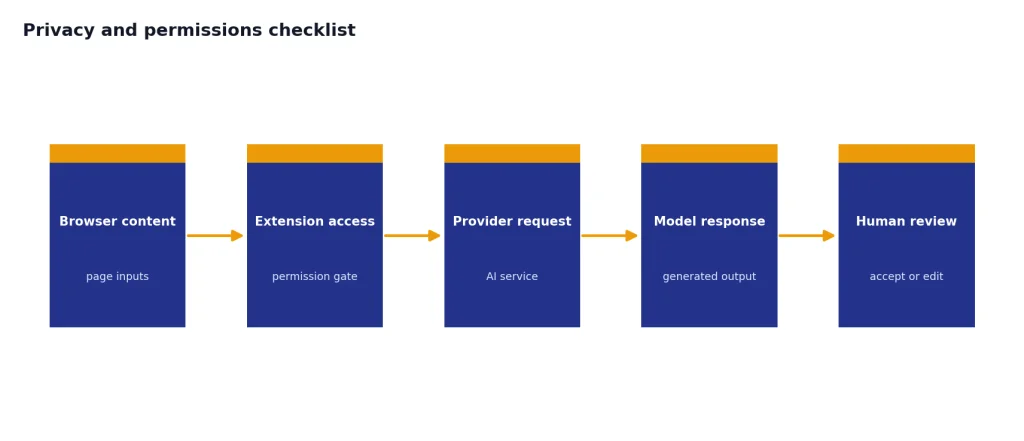
Recent security reporting shows why this matters. Researchers found more than 30 malicious AI-themed Chrome extensions that posed as assistants and targeted more than 300,000 users, according to reports from TechRadar and Tom’s Guide.[13][14] The lesson is not that every AI extension is unsafe. The lesson is that popularity, AI branding, and store availability are not enough.
- Check the publisher. Confirm the developer name, website, support link, and history before installing.
- Read the site access request. Prefer extensions that can run only on selected sites or specific sites.
- Avoid all-site access by default. Grant it only when the extension’s core job truly requires it.
- Review the privacy disclosure. Look for what the extension collects, where it sends data, and whether data is used for training, analytics, or advertising.
- Separate personal and work profiles. Use a different Chrome profile for client, employer, or regulated data.
- Remove stale extensions. If you have not used an extension recently, uninstall it rather than leaving a privileged tool in your browser.
- Watch for clones. Many AI extensions use similar names. Install from the exact listing you intended.
For schools and universities, browser extensions also affect academic integrity workflows. If you are reviewing student work, compare these tools with Best AI Detectors for Teachers and Schools and define a written policy before asking students or staff to install anything.
A practical extension stack for power users
The best setup is usually smaller than the Chrome Web Store makes you think. Start with one core workflow and add only what you miss after a week of real use.
Minimal stack
Install Superpower ChatGPT if you spend most of your AI time inside ChatGPT. Add OpenAI’s ChatGPT search extension only if you want address-bar search. This stack keeps the browser relatively clean and avoids overlapping sidebars.
Research stack
Use WebChatGPT for web context and Sider or Merlin for page-level reading. Keep one of the broad assistants disabled on sites that handle sensitive work. If you need citations, source triage, and document workflows, browser extensions may be only one part of a larger research setup.
Writing stack
Use Compose AI for inline drafting and AIPRM for repeatable prompt structures. This is useful for newsletters, sales emails, support replies, and blog outlines. For resume-specific work, compare this with ai resume builder tools compared.
Automation stack
Use HARPA AI when repeated page actions are the real bottleneck. Keep it out of high-risk pages until you trust the workflow. If you are building internal tools or API workflows instead of browser workflows, a Chrome extension may be less reliable than a dedicated API pipeline with cost tracking from Best OpenAI API Cost Calculator Tools and token planning from OpenAI Token Counter Tools.
When a Chrome extension is the wrong tool
A Chrome extension is not always the safest or most durable way to use ChatGPT. Choose a native app, web app, or API tool when you need stronger control, fewer browser permissions, or repeatable production workflows.
- Use the ChatGPT web app when you only need chat, file uploads, projects, or official product features.
- Use a desktop app when you want system-level shortcuts and fewer browser-side permissions.
- Use a mobile app when voice, camera, and on-the-go usage matter more than page context.
- Use the API when the task is repeatable, measurable, and belongs in a workflow rather than a browser tab.
- Use a specialist tool when the job is image generation, video, translation, coding, or voice rather than general chat.
For adjacent tool categories, see Best AI Image Tools, best AI video tools of 2026, best AI translation tools tested, and best AI coding assistants of 2026. If you are comparing older ChatGPT add-ons with newer extension and app workflows, read Best ChatGPT Plugins.
The practical rule is simple. Install a Chrome extension when it needs the browser page to do its job. Do not install one just because it is easier than opening ChatGPT in another tab.
Frequently asked questions
What is the best ChatGPT Chrome extension overall?
Superpower ChatGPT is the best overall pick for people who already work inside ChatGPT every day. It improves organization, search, exports, prompts, and navigation inside the ChatGPT web app. If you want an assistant across every website instead, Sider or Merlin may be a better fit.
Are ChatGPT Chrome extensions safe?
Some are safe enough for routine use, but you should not treat all of them as safe by default. Review the publisher, permissions, privacy policy, and site access settings before installing. Avoid using broad AI extensions on pages that contain passwords, financial data, health data, legal data, or private company information.
Should I install more than one ChatGPT extension?
Yes, but only if each extension has a distinct job. A good stack might include one ChatGPT organizer and one writing or search extension. Avoid running multiple broad AI sidebars at the same time because they can overlap, slow the browser, and increase privacy exposure.
Which extension is best for prompts?
AIPRM is the strongest fit if you want a large prompt template library. Superpower ChatGPT is better if you want to manage your own prompts as part of a broader ChatGPT workspace. For prompt quality, templates should be edited with your audience, source material, constraints, and examples.
Which extension is best for web browsing with ChatGPT?
WebChatGPT is the most direct pick for adding web results and URL content to ChatGPT prompts. Sider and Merlin are better if you want a sidebar that works across many pages. OpenAI’s ChatGPT search extension is best if you only want ChatGPT search from the Chrome address bar.
Do I still need extensions now that ChatGPT has more built-in features?
Maybe not. If ChatGPT’s built-in search, projects, memory, file tools, and apps cover your workflow, fewer extensions may be better. Extensions are most useful when they add browser context, inline writing, page automation, or organization features that the core app does not provide in the way you need.