

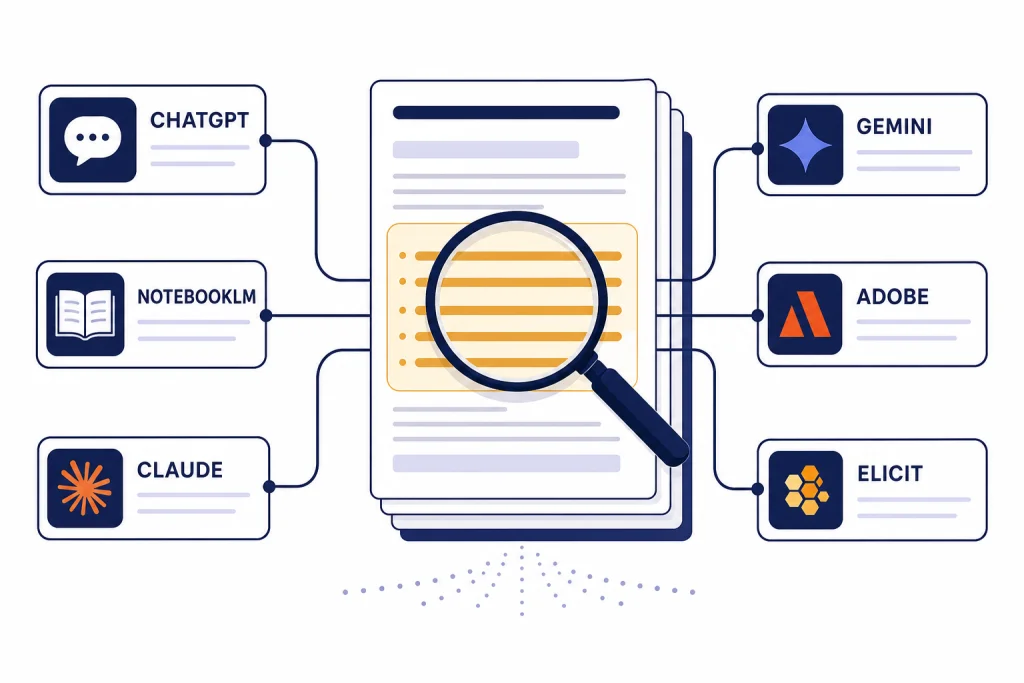
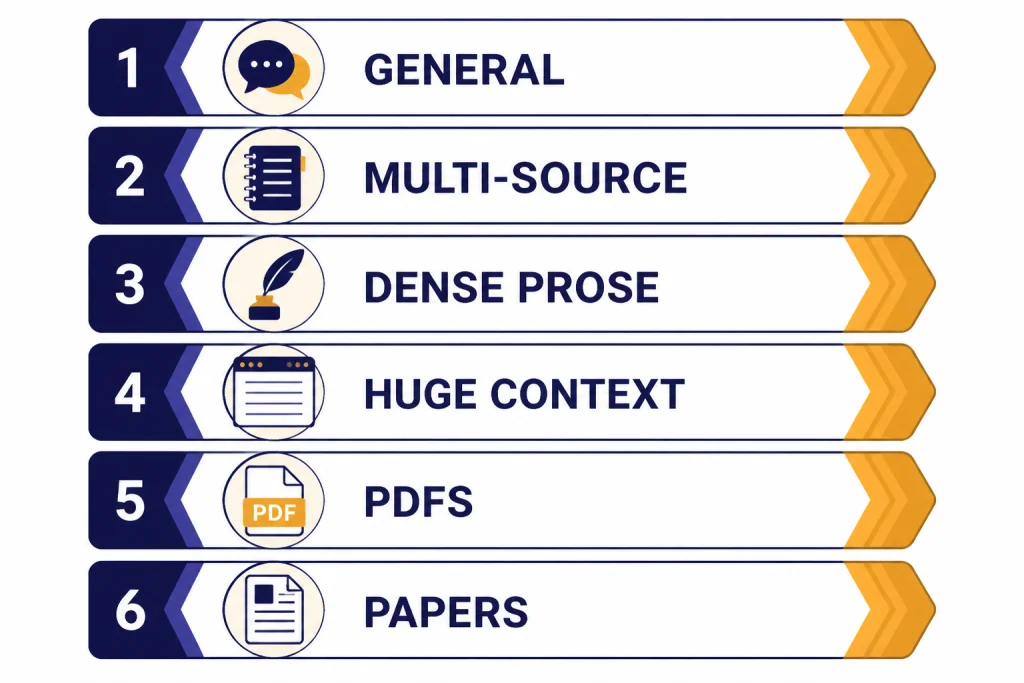
The best AI summarizer tools for long documents are not all built for the same job. ChatGPT is the best general-purpose choice for mixed document work, NotebookLM is the strongest free option for multi-source research, Claude is excellent for careful synthesis of dense prose, Gemini is useful when you need a very large context window, and Adobe Acrobat AI Assistant is the cleanest choice for PDF-heavy workflows. For academic papers, Elicit and Scholarcy are more structured than a normal chatbot. For fast PDF Q&A, ChatPDF is simple and focused. This guide compares the tools by document size, citation quality, price signals, privacy fit, and the kind of summary you need.
Quick picks
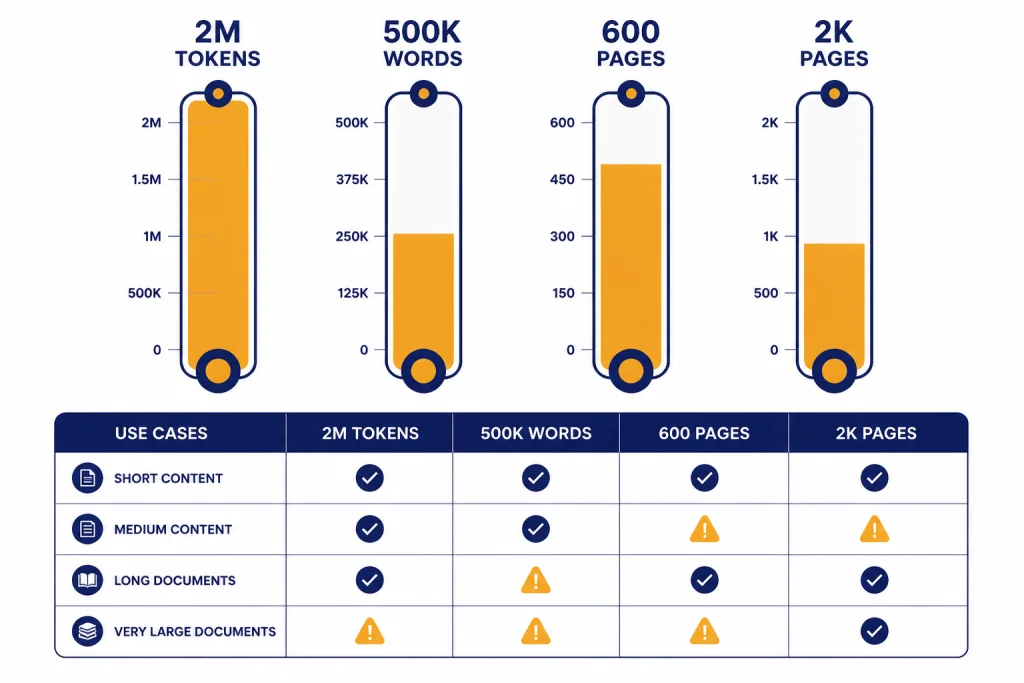
If you only want one tool, start with ChatGPT. It accepts common document formats, supports file analysis, and can summarize, compare, extract, rewrite, and turn a document into a checklist or brief. OpenAI lists a 512MB hard limit per uploaded file, a 2 million-token cap for text and document files, and an upload rate of up to 80 files every 3 hours, although limits may be lower during peak periods.[1] ChatGPT Plus is listed at $20 per month, and file uploads are part of the expanded feature set.[2] For heavier usage, OpenAI describes Pro $100 as 5x higher limits than Plus and Pro $200 as 20x higher limits than Plus.[3]
If you are summarizing many sources for study, policy work, litigation support, market research, or a literature scan, NotebookLM is the best first stop. It is built around source-grounded notebooks rather than one-off prompts. Google’s help page says each source can contain up to 500,000 words or up to 200MB for uploaded files, and it supports PDFs, Microsoft Word files, text, Markdown, Google Docs, Google Slides, web URLs, YouTube URLs, images, and audio files.[6] That makes it more useful than a plain chatbot when the task is “summarize this folder of materials” instead of “summarize this PDF.”
If your document is a dense report, book chapter, deposition transcript, or policy memo, Claude is the best writing-first summarizer. Anthropic’s plan guide lists Free, Pro, Max 5x, and Max 20x tiers at $0, $20, $100, and $200 per month, respectively.[4] Anthropic’s developer documentation also describes a 1 million-token context window for Claude Sonnet on supported API, Amazon Bedrock, and Vertex AI setups, with availability details separate from normal consumer chat plans.[5] In practice, Claude is strongest when you need a balanced memo, a nuanced executive summary, or a critique of the document’s argument.
If you already work inside Google, Gemini and NotebookLM pair well. Gemini Apps can accept up to 10 supported files in the same prompt, and Google says paid Google AI plans include a 1-million-token context window for dense research, textbooks, and industry reports.[7][8] Use Gemini when you want a broad assistant with Google integrations. Use NotebookLM when you want a source workspace.
If your documents are mostly PDFs, Adobe Acrobat AI Assistant and ChatPDF are the most focused options. Adobe is best when you live in Acrobat and need one-click summaries, citation-style grounding, contract review, or PDF-native navigation. ChatPDF is best when you want a simple upload-and-chat interface. Its API documentation lists a 2,000-page or 32MB limit per PDF.[9]
For academic work, start with Elicit if you need to search and synthesize papers, and Scholarcy if you need structured paper flashcards. Elicit’s pricing page says its Basic plan includes unlimited search across more than 138 million papers, 2 automated reports per month, and unlimited summaries across papers.[15] Scholarcy supports PDF, Word, PowerPoint, HTML, XML, LaTeX, and plain-text imports, and it can import up to 64 documents in one batch.[10] For a broader academic workflow, see our Best AI Research Tools for Academics guide.
Comparison table
The best AI summarizer tools depend on the shape of your source material. A 30-page sales deck, a 400-page contract appendix, a 1,000-page public report, and a folder of research papers need different handling. The table below focuses on long-document work, not general chatbot popularity.
| Tool | Best for | Long-document strength | Watch-outs |
|---|---|---|---|
| ChatGPT | General summaries, comparisons, extraction, reports | OpenAI lists 512MB per file and 2 million tokens per text or document file.[1] | Upload quotas can change during peak periods, and ChatGPT does not show remaining upload quota.[1] |
| NotebookLM | Multi-source notebooks, study guides, research briefs | Each source can contain up to 500,000 words or 200MB.[6] | Sources are static copies, so Drive imports must be manually re-synced when originals change.[6] |
| Claude | Dense prose, executive summaries, careful synthesis | Anthropic documents a 1 million-token context window for supported Claude Sonnet API deployments.[5] | Consumer plan usage is capacity-based, and higher tiers cost $100 or $200 per month.[4] |
| Gemini | Google users, broad research, huge-context prompts | Gemini Apps can attach up to 10 supported files in one prompt, and Google AI plans advertise a 1-million-token context window.[7][8] | File and context limits vary by plan, account type, and app surface. |
| Adobe Acrobat AI Assistant | PDF-native summaries, contracts, Acrobat workflows | Adobe lists file requirements of less than 100MB and up to 600 pages for generative AI features.[14] | It is strongest for PDFs, not broad multi-format research spaces. |
| ChatPDF | Fast PDF Q&A and simple PDF summaries | ChatPDF’s API docs list 2,000 pages or 32MB per PDF.[9] | It is narrower than ChatGPT, Claude, Gemini, or NotebookLM. |
| Elicit | Academic literature search and paper synthesis | Basic includes search across more than 138 million papers and 2 automated reports per month.[15] | It is built for research papers, not business PDFs or contracts. |
| Scholarcy | Structured flashcard summaries of papers and chapters | It supports PDF, Word, PowerPoint, HTML, XML, LaTeX, and text imports.[10] | Scanned PDFs need OCR first, and very large or complex files may need splitting.[12] |
| Microsoft 365 Copilot | Work files inside Microsoft 365 | Microsoft says Copilot can summarize uploaded files and supports formats such as DOCX, PDF, PPTX, XLSX, TXT, RTF, Markdown, and HTML across supported experiences.[16] | It is most valuable when your documents already live in OneDrive, SharePoint, Outlook, Teams, or Office apps. |
| Perplexity Pro | Web research plus uploaded-file context | Perplexity says Pro includes increased file and photo uploads and access to models such as GPT-5.2, Claude Sonnet 4.6, and Gemini 3.1 Pro.[18] | It is better for research questions than for carefully structured long-document editing. |
A good rule is simple. Use a document workspace when you have many sources. Use a frontier chatbot when you need reasoning and rewriting. Use a PDF-native tool when the original document structure matters. Use an academic tool when citations, methods, and study design matter more than prose polish.
How to choose a summarizer for long documents
Start with the document type. A born-digital PDF with selectable text is easy. A scanned PDF, photographed book, spreadsheet-heavy annual report, or slide deck with charts is harder. If the tool cannot extract the source text cleanly, the summary will be weak no matter how good the model is. Scholarcy states this plainly: scanned PDFs need OCR before Scholarcy can process them, and very large or complex PDFs may need to be split into smaller files.[12] The same principle applies to every tool in this guide.
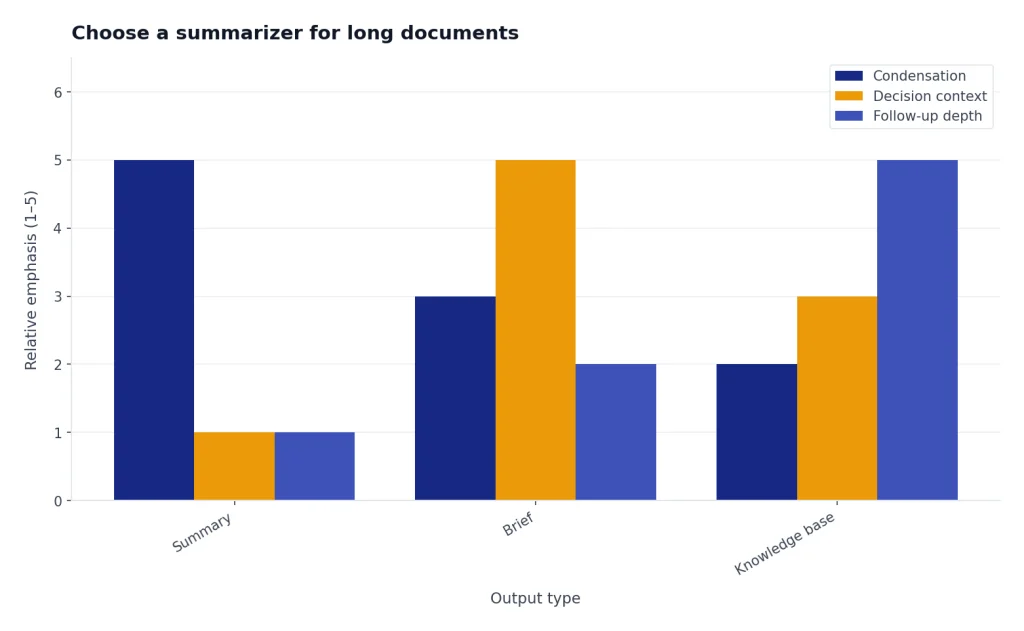
Next, decide whether you need a summary, a brief, or a knowledge base. A summary condenses the document. A brief explains what matters for a decision. A knowledge base lets you ask follow-up questions across many files. ChatGPT, Claude, and Gemini are strong for summaries and briefs. NotebookLM is better when you want a reusable source collection. Microsoft 365 Copilot is better when the knowledge base is your work tenant. If your source set is academic, Elicit and Scholarcy can save time before you move the best papers into a writing workflow.
Then check citation needs. For high-stakes work, the tool should point back to the source. NotebookLM, ChatPDF, Adobe Acrobat AI Assistant, Elicit, Scholarcy, and Perplexity all put more emphasis on source grounding than a normal blank chatbot prompt. ChatGPT, Claude, and Gemini can produce useful source-grounded summaries when the files are uploaded, but you should explicitly ask for page, section, heading, or quote-level evidence. If you are checking whether writing is original after summarization, use a separate plagiarism workflow. We compare those tools in Best Plagiarism Checkers.
Finally, think about cost and lock-in. A $20 chatbot plan can be enough for individuals who summarize a few long PDFs each week.[2] A $100 or $200 plan can make sense for heavy use, but only if you are hitting limits or running repeated workflows.[3][4] A team already paying for Microsoft 365 may prefer Copilot because it works where the files already live. A student may prefer NotebookLM, Elicit, or ChatPDF because the workflow is focused and fast. If your long-document work depends on API calls, pair this guide with our OpenAI Token Counter Tools and OpenAI API Cost Calculator Tools roundups before you automate anything.
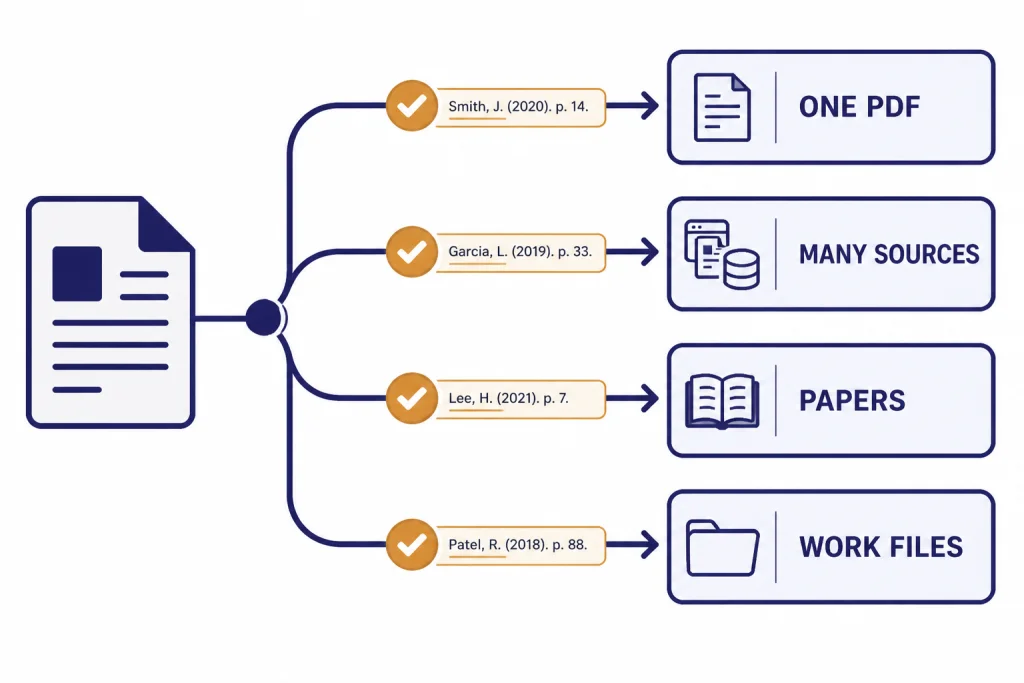
Tool-by-tool notes
ChatGPT
ChatGPT is the best default because it handles the widest range of summarization tasks. It can turn a long PDF into an executive summary, extract action items from a transcript, compare two policy documents, build a table from a report, rewrite a summary for a client, or generate a slide outline. Its file upload limits are also unusually clear for a consumer AI product: OpenAI lists 512MB per file, 2 million tokens per text or document file, and up to 80 file uploads every 3 hours.[1]
The main weakness is that ChatGPT is not automatically a document management system. If you upload a file in a chat, ask for a summary, and return weeks later, you may not have the same clean source workspace you would have in NotebookLM or Microsoft 365. Use Projects for ongoing work, and ask ChatGPT to produce traceable outputs. A useful prompt is: “Summarize this document in 12 bullets. For each bullet, include the page or section that supports it. Then list 5 claims that need human verification.” For prompt help, see Best ChatGPT Prompt Generator Tools.
NotebookLM
NotebookLM is the best long-document summarizer when the real task is synthesis across sources. It supports many input types, and Google’s help page says each source can contain up to 500,000 words or up to 200MB for uploaded files.[6] It is well suited to class readings, policy dossiers, user interview transcripts, legal discovery samples, product research, and internal documentation.
Its most important design choice is source grounding. You build a notebook from selected materials, then ask questions within that source set. That reduces the “generic answer” problem that affects normal chatbots. The trade-off is that NotebookLM is not always the best place to write final prose. Many users will summarize and explore in NotebookLM, then move the result to ChatGPT, Claude, Google Docs, or Word for drafting. If your source set includes foreign-language documents, compare dedicated options in Best AI Translation Tools Tested.
Claude
Claude is the best choice when summary quality means judgment, not compression. It is strong at preserving nuance, identifying tensions in an argument, and turning dense material into readable prose. It is especially useful for long narrative reports, essays, meeting transcripts, strategy memos, and policy documents. Anthropic’s public plan guide lists individual tiers from Free to Max 20x, with the paid tiers at $20, $100, and $200 per month.[4]
Claude’s developer documentation also matters for teams building their own summarization systems. Anthropic describes a 1 million-token context window for Claude Sonnet on supported API and cloud deployments.[5] That is different from saying every consumer chat session gives every user the same practical limit. If your organization is summarizing thousands of pages through an API, confirm model, context, rate limits, and long-context pricing directly before building the workflow.
Gemini
Gemini is a strong option for Google-first users and very large context tasks. Google’s Gemini Apps help page says you can add up to 10 supported files in the same prompt.[7] Google’s AI plans page advertises a 1-million-token context window for dense research, textbooks, and industry reports.[8] That makes Gemini attractive for long PDFs, large source packs, and workflows that touch Google Docs, Gmail, Drive, and other Google services.
The practical caveat is product-surface complexity. Gemini in the app, Gemini in Workspace, Gemini in AI Studio, and Gemini through an API are not identical experiences. A file that works in one place may have different limits or behavior in another. For most readers, Gemini is worth using when you already live in Google tools or when a document is too large for a smaller-context workflow.
Adobe Acrobat AI Assistant
Adobe Acrobat AI Assistant is the best fit for PDF-native work. Adobe says the assistant can produce summaries, answer questions, provide citations, and help generate content from documents; Adobe also said the add-on was available to free Reader and paid Acrobat individual customers for US$4.99 per month.[13] Adobe’s technical requirements list files under 100MB and up to 600 pages for generative AI features.[14]
Use Acrobat AI Assistant when the PDF is the working object. Contracts, tax documents, policy PDFs, manuals, and regulated documents often require navigation, page references, and visual fidelity. A general chatbot can summarize the same text, but Acrobat is more natural when you need to stay inside the document.
ChatPDF
ChatPDF is the simplest tool here. Upload a PDF, ask questions, and get answers tied to the file. Its API documentation says PDFs are limited to 2,000 pages or 32MB per file.[9] That is enough for many textbooks, manuals, filings, and research reports, but it is not a full research workspace.
Choose ChatPDF when you want low-friction PDF Q&A and do not need a broader assistant. Skip it if you already pay for ChatGPT Plus, Claude, Gemini, or Acrobat and your use case is not PDF-specific. ChatPDF is useful as a quick tool, not as the center of a professional document operation.
Elicit and Scholarcy
Elicit and Scholarcy are best for academic source material. Elicit is closer to a research assistant. Its pricing page says Basic includes unlimited search across more than 138 million papers, unlimited summaries across papers, and 2 automated reports per month.[15] Its Pro plan is built for systematic reviews and can screen 5,000 papers.[15] Scholarcy is closer to a structured reading tool. It converts imported papers into summary flashcards, supports a wide range of file formats, and can import up to 64 documents in one go.[10]
Use Elicit to find and compare papers. Use Scholarcy to digest a paper or chapter into a repeatable structure. Use ChatGPT or Claude afterward to turn notes into prose, but do not let any summarizer replace reading the methods, limitations, and results sections for sources you plan to cite. If you are also comparing writing tools, see Best AI Writing Tools Compared in 2026.
Microsoft 365 Copilot and Perplexity Pro
Microsoft 365 Copilot is best for organizations whose long documents already live in Microsoft 365. Microsoft says Copilot can summarize uploaded files, rewrite text, analyze information, and generate content based on shared files.[16] OneDrive also supports summarizing a selected supported file, or up to 5 selected files, from the Copilot button.[17] That makes it useful for business users who want summaries inside OneDrive, SharePoint, Outlook, Word, PowerPoint, and Teams rather than a separate AI workspace.
Perplexity Pro is different. It is a research answer engine that can also use uploaded files. Perplexity says Pro includes increased file and photo uploads, extended access to Perplexity Research, and access to models including GPT-5.2, Claude Sonnet 4.6, and Gemini 3.1 Pro.[18] Perplexity’s plan guide also lists up to 50 file uploads per space.[19] Use it when the document summary needs current web context. Do not use it as your only tool for line-by-line document review.
Long-document workflows that work better than one prompt
The biggest mistake is asking for “a summary” of a long document and accepting the first answer. A better workflow has stages. First, ask for a document map. This should list sections, headings, tables, exhibits, appendices, and any pages the tool could not read. Second, ask for a tiered summary: 5 bullets, 1 page, and 3 pages. Third, ask for extraction: names, dates, obligations, numbers, risks, methods, or claims. Fourth, ask for verification points. Fifth, ask for the final audience-specific version.
For a single long PDF, use this sequence in ChatGPT, Claude, Gemini, Acrobat, or ChatPDF: “Create a section-by-section map of this document. Do not summarize yet.” Then: “Summarize each section in 3 bullets and include the page range.” Then: “List the 10 claims most likely to be misread or oversimplified.” This prevents the model from compressing too early. It also gives you a structure for checking the source.
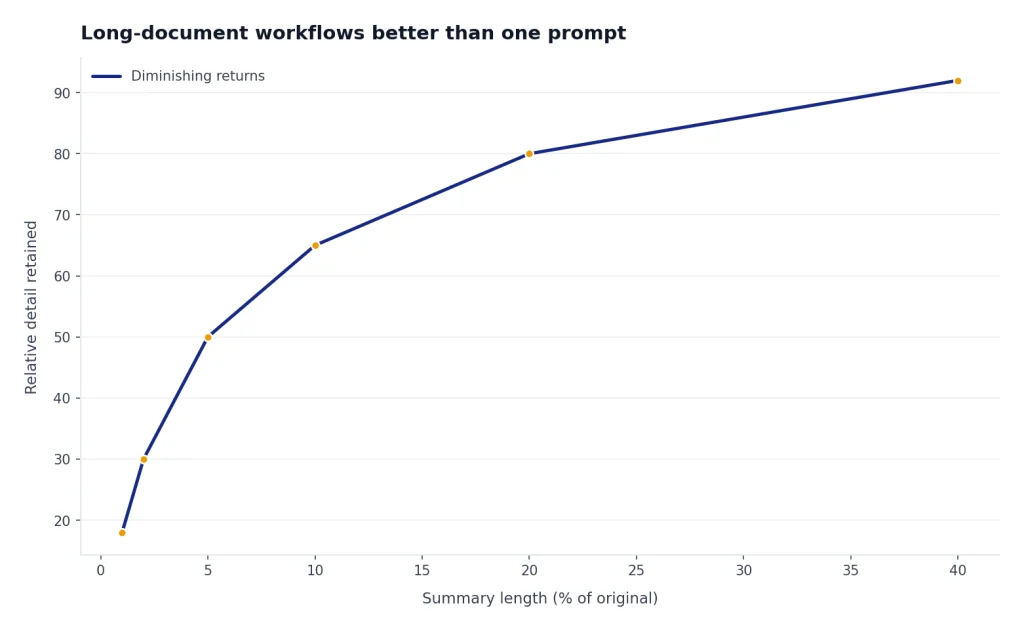
For many files, use NotebookLM, Microsoft 365 Copilot, or a project folder in ChatGPT. Group files by source type before summarizing. For example, put interview transcripts in one set, policies in another, and data reports in a third. Ask for a within-set summary first. Then ask for cross-source synthesis. This is more reliable than dumping every file into one prompt and asking for conclusions.
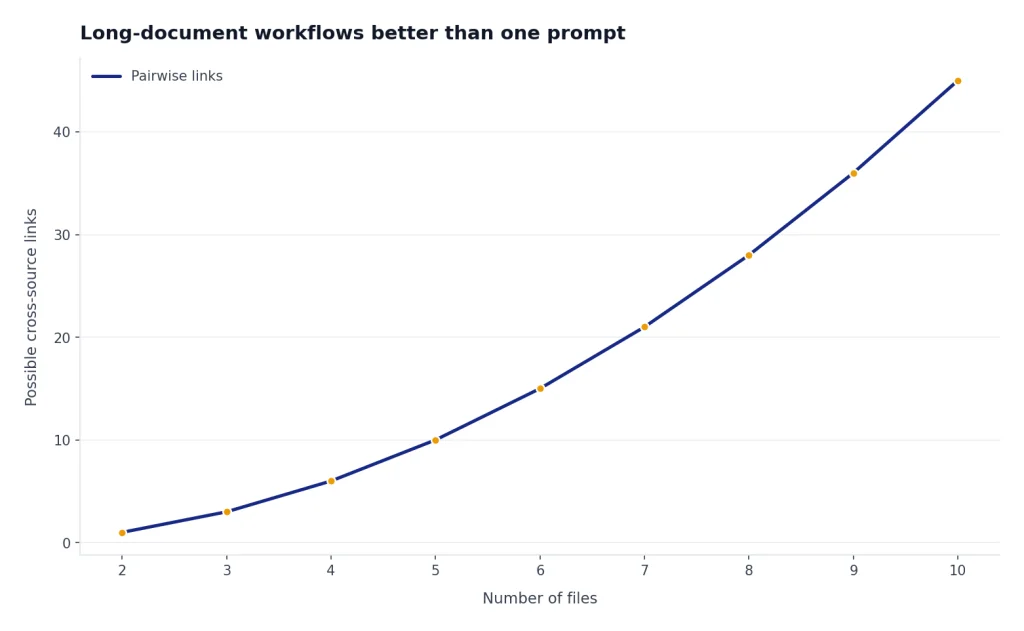
For academic papers, start with Elicit or Scholarcy. Ask for methods, sample, intervention, outcome, limitations, and relevance to your research question. Then move only the strongest papers into a synthesis tool. This keeps weak sources from shaping the final summary. If you need to turn those notes into a paper, pair the workflow with a citation manager and a separate originality check.
For recurring workflows, create templates. A lawyer might use “facts, issues, holdings, deadlines, risks.” A product manager might use “customer problem, evidence, objections, requested features, revenue impact.” A researcher might use “question, methods, population, result, limitation, next source.” Good templates matter more than the tool. For desktop-heavy workflows, our Best ChatGPT Desktop Apps guide may help you choose where to run those templates.
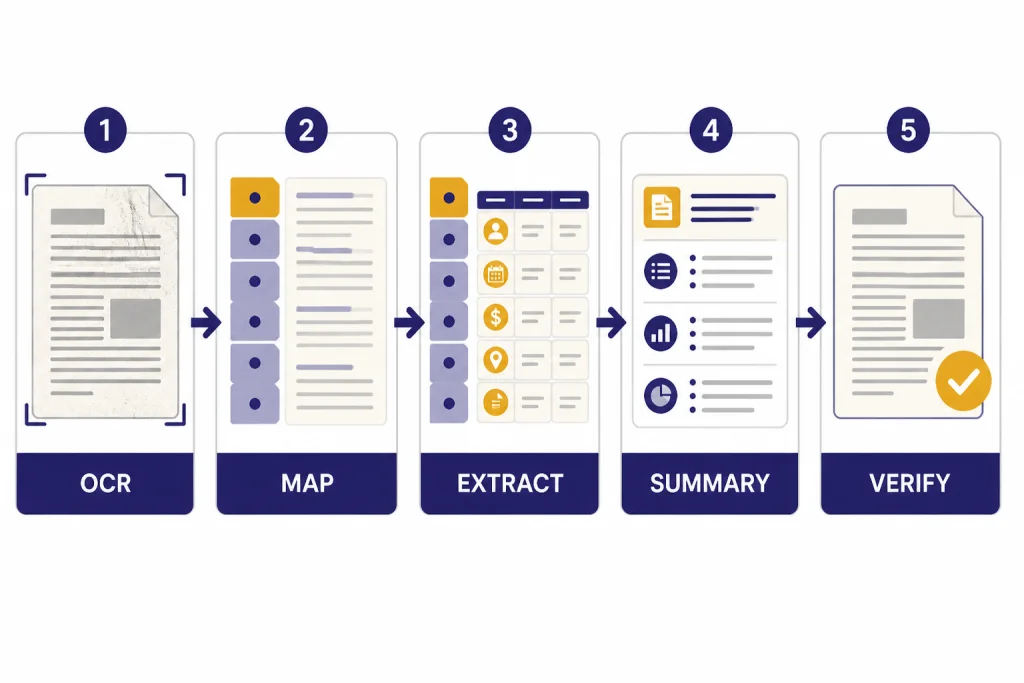
Accuracy, privacy, and review checklist
AI summaries are drafts. They are not substitutes for reading the source when the stakes are high. Long-document summarizers can miss a footnote, flatten a qualification, misread a table, skip an appendix, or overstate a weak claim. This is especially common when the source is scanned, image-heavy, poorly formatted, or full of tables.
Use a simple review checklist. First, confirm the tool read the whole document. Second, ask for page or section references. Third, search the original for the most important claims. Fourth, compare numbers against the source table. Fifth, ask the tool to list uncertainties and missing context. Sixth, keep a human-authored final version for anything legal, financial, medical, academic, or public-facing.
Privacy also matters. Do not upload confidential contracts, medical records, student records, unpublished manuscripts, trade secrets, or client files into a consumer tool unless your organization has approved it. Enterprise versions may offer stronger controls, but you still need to check retention, training, admin access, logging, and data residency. For school settings, AI tools also intersect with authorship and detection policies. Our Best AI Detectors for Teachers and Schools guide covers that side of the workflow.
The bottom line is that the best AI summarizer tools save time at the first-pass stage. They help you find structure, extract important details, and prepare a better reading plan. They do not remove the need to verify. The longer the document, the more important the verification step becomes.
Frequently asked questions
What is the best AI summarizer for long PDFs?
ChatGPT is the best general-purpose choice for long PDFs because it combines file upload, analysis, extraction, rewriting, and follow-up questions. Adobe Acrobat AI Assistant is better if you want to stay inside a PDF reader. ChatPDF is the simplest option if you only need PDF Q&A.
What is the best free AI summarizer for long documents?
NotebookLM is the strongest free starting point for multi-source document summarization. It is especially useful for study, research, and source-grounded notebooks. Free limits and availability can vary, so check the current Google account experience before relying on it for deadline work.
Can AI summarize a 500-page document accurately?
AI can produce a useful first-pass summary of a 500-page document, but accuracy depends on file quality, context limits, retrieval quality, and the prompt. Ask for a section map before asking for conclusions. Always verify the most important claims against the original pages.
Which tool is best for research papers?
Elicit is best when you need to find, compare, and synthesize academic papers. Scholarcy is best when you want structured flashcard-style summaries of individual papers or chapters. For final writing, use a general writing tool only after you have checked the paper’s methods and findings yourself.
Which summarizer gives citations?
NotebookLM, ChatPDF, Adobe Acrobat AI Assistant, Elicit, Scholarcy, Perplexity, and Microsoft 365 Copilot all emphasize source-grounded answers in different ways. ChatGPT, Claude, and Gemini can also cite uploaded source sections when prompted, but you should ask explicitly for page, heading, or section references.
Should I use ChatGPT or a dedicated PDF summarizer?
Use ChatGPT when you need flexible reasoning, rewriting, comparison, or multi-step analysis. Use a dedicated PDF summarizer when you want fast document Q&A, page-linked references, or a side-by-side PDF view. Many people use both: a PDF tool for source navigation and ChatGPT or Claude for final synthesis.