

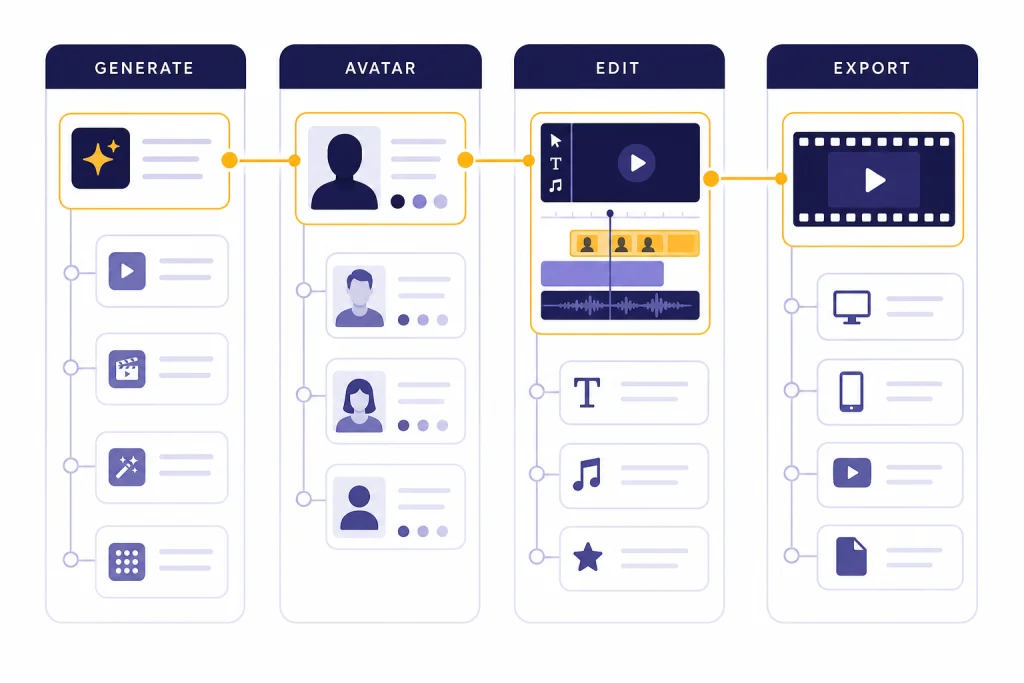
The best AI video tools of 2026 depend on the job. Runway is the strongest all-purpose creative generator for short cinematic clips. Google Veo, especially through Google Vids and related Google products, is the easiest choice for people already working in Google’s ecosystem. Synthesia and HeyGen are better for avatar-led training, sales, and internal communication. Descript and Kapwing are better editors than pure video generators. Adobe Firefly fits designers already paying for Adobe tools, while Pika and Luma Dream Machine are useful for quick creative experiments. This guide ranks the tools by real workflow, not by demo quality alone.
Quick picks
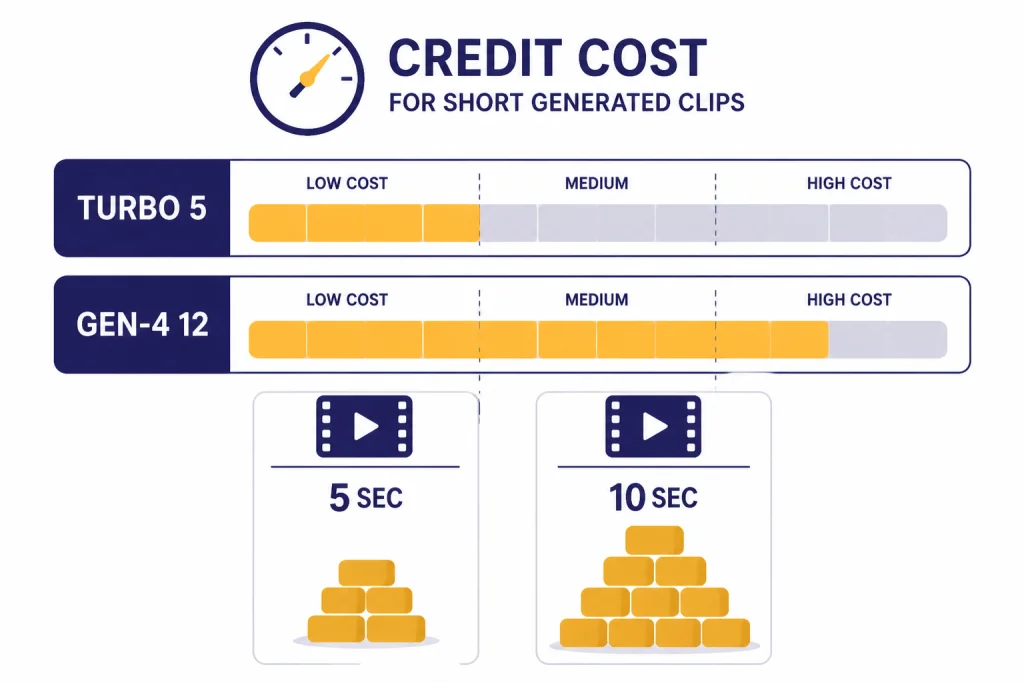
If you want one recommendation, start with Runway for generative video and Descript or Kapwing for editing. Runway’s Gen-4 workflow is built around 5-second and 10-second image-to-video generations, with Gen-4 Turbo priced at 5 credits per second and Gen-4 priced at 12 credits per second in its official help center.[1] That credit structure makes it good for creators who iterate in short shots rather than generate long finished videos in one pass.
If you work in Google Workspace, Google Vids is now a practical option. Google says personal accounts get 10 video generations every month at no cost in Google Vids, and the product uses Veo 3.1 for prompt- or photo-based clip generation.[4] Google also says Veo 3.1 supports vertical video and has 1080p and 4K options in Flow, the Gemini API, and Vertex AI.[3]
- Best overall generative video: Runway.
- Best Google ecosystem option: Google Vids and Veo 3.1.
- Best avatar training platform: Synthesia.
- Best avatar marketing platform: HeyGen.
- Best AI editor for podcasts and talking-head clips: Descript.
- Best browser-based team editor: Kapwing.
- Best Adobe workflow add-on: Adobe Firefly.
- Best quick creative effects tool: Pika.
- Best concept lab for visual experiments: Luma Dream Machine.
If you are choosing an AI stack for a broader content team, pair this guide with our best AI voice tools and voice cloning software and Best AI Image Tools. Video projects usually need all three layers: image, motion, and audio.
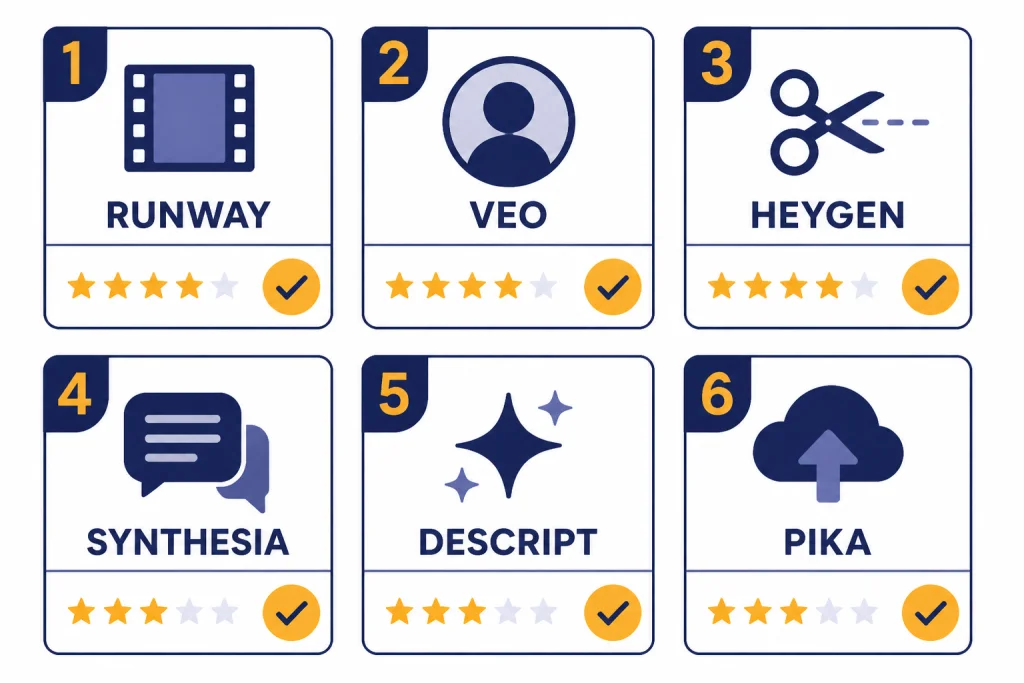
AI video tools compared
The table below focuses on the tool’s best job. It does not assume that one model can replace a full video workflow. Most serious creators still combine a generator, an editor, a voice tool, and a review process.
| Tool | Best use | Key facts | Main caution |
|---|---|---|---|
| Runway | Short cinematic shots, product visuals, VFX-style edits | Gen-4 uses 12 credits per second; Gen-4 Turbo uses 5 credits per second.[1] Standard, Pro, and Unlimited plans include 625, 2,250, and 2,250 monthly credits respectively.[2] | Credits disappear quickly during heavy iteration. |
| Google Vids / Veo 3.1 | Prompt-to-video inside Google’s ecosystem | Google Vids gives personal accounts 10 free video generations per month.[4] Gemini subscriber limits list up to 3 videos per day with Veo 3.1 Fast for Google AI Pro and up to 5 videos per day with Veo 3.1 for Google AI Ultra.[14] | Access and limits vary by product and plan. |
| Synthesia | Training, onboarding, compliance, internal video | Synthesia lists a Starter plan at $29 per month and a Creator plan at $89 per month on its official pricing page.[8] Its language feature page says it supports 160+ languages and accents.[9] | Less useful for cinematic scenes or action-heavy clips. |
| HeyGen | Sales videos, marketing avatars, localized explainers | HeyGen lists a Free plan at $0 per month with 3 videos per month and a Creator plan at $29 per month with 175+ languages and dialects.[7] | Avatar quality and credit behavior should be tested before bulk production. |
| Descript | Podcast video, interviews, screen recordings, captions | Descript lists Creator at $12 per editor per month annually and Pro at $24 per editor per month annually; Pro includes 30 hours of transcription per month and up to 4K video.[10] | It is an editor first, not a high-end text-to-video generator. |
| Kapwing | Social video editing, repurposing, subtitles, team review | Kapwing lists Pro at $16 per month billed annually, with up to 1,000 minutes per month of auto-subtitling.[11] | Generation quality depends on the underlying model selected. |
| Adobe Firefly | Design teams already using Adobe tools | Adobe lists Firefly Standard at US$9.99 per month, Pro at US$19.99 per month, and Premium at US$199.99 per month; the plans page also references 5-second video generation.[12] | Best value usually comes if you already use Adobe’s creative suite. |
| Pika | Fast social experiments and playful effects | Pika lists a Free Basic plan with 80 monthly video credits, Standard at $10 per month with 700 credits, Pro at $35 per month with 2,300 credits, and Fancy at $95 per month.[6] | It is strongest for quick creative clips, not full production management. |
| Luma Dream Machine | Concept visuals, image-to-video exploration, fast iteration | Luma lists a Web Lite plan at $9.99 per month and says 5-second and 10-second modify-video actions cost around 400 and 800 credits respectively.[5] | Credit math can be hard to forecast before a project starts. |
How to choose the right AI video tool
Do not start with the model. Start with the deliverable. A 9:16 product teaser, a 30-minute training module, a talking-head sales video, and a YouTube Shorts batch all need different tools. The best AI video tools solve one clear production bottleneck.
Choose by output type
- Use Runway, Veo, Pika, or Luma when you need generated scenes, stylized motion, or image-to-video clips.
- Use Synthesia or HeyGen when the video depends on a presenter, avatar, script, and localized narration.
- Use Descript or Kapwing when you already have footage and need editing, captions, cleanup, resizing, or repurposing.
- Use Adobe Firefly when video generation is one part of a larger design workflow with brand assets and creative review.
Choose by review burden
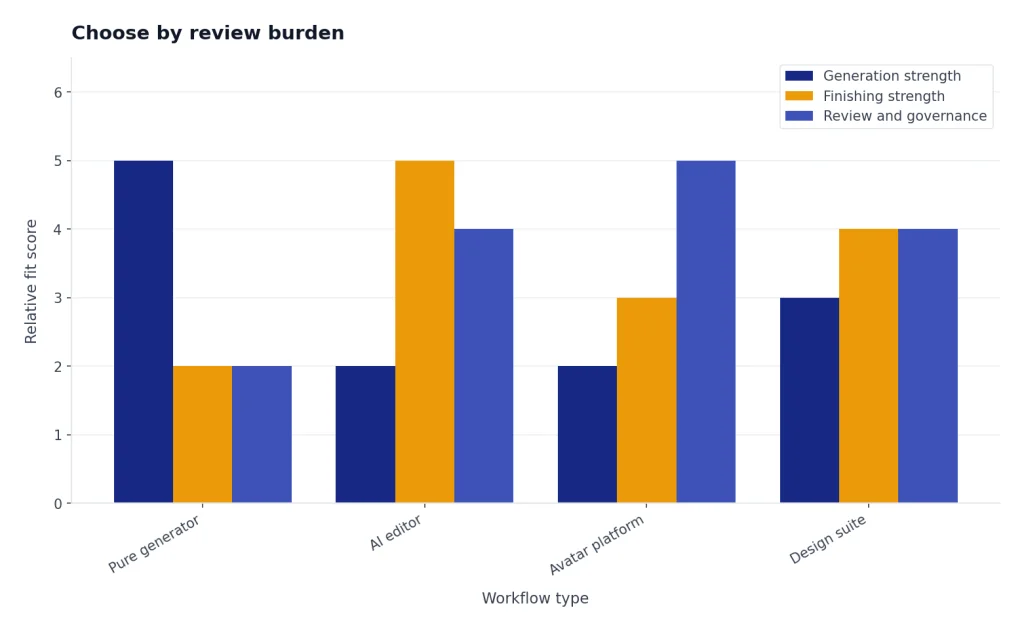
AI video is not a one-click production line. The main cost is failed generations, review time, and revisions. A tool with weaker generation but stronger editing may beat a better model if your team publishes daily. That is why editors such as Descript and Kapwing belong in this list. They help finish videos, not just generate clips.
For teams that script heavily before generating, use a prompt planning tool before spending credits. Our Best ChatGPT Prompt Generator Tools guide is useful for building reusable shot prompts, character descriptions, and style constraints.
Tool-by-tool reviews
Runway
Runway is the best starting point for creators who want to direct short generated shots. Its Gen-4 workflow requires an input image and prompt, then produces 5-second or 10-second videos.[1] That makes it feel closer to a shot builder than a long-form video app. You create a strong still frame, animate it, test motion, then assemble results elsewhere.
The official credit documentation matters. Runway says the Free plan includes a one-time 125-credit deposit, while Standard includes 625 monthly credits and Pro and Unlimited include 2,250 monthly credits.[2] If you use Gen-4 Turbo at 5 credits per second, a 10-second clip costs 50 credits before revisions. If you use Gen-4 at 12 credits per second, a 10-second clip costs 120 credits.[1] That is why Runway rewards disciplined shot planning.
Runway is the tool I would test first for ads, music video fragments, product mood shots, and stylized B-roll. For a direct model matchup, read our Sora vs Runway comparison.
Google Vids and Veo 3.1
Google’s AI video story is strongest when you use the right access point. Google Vids is the mainstream workspace-style product. Google says anyone with a personal Google account can generate 10 video clips per month at no cost in Vids.[4] Veo 3.1 is the model family behind more advanced generation and is also available through Flow, the Gemini API, Vertex AI, Google Vids, and other Google surfaces.[3]
Veo is compelling for people who want quality without building a scattered toolchain. It is also relevant for developers and production teams because Google says Veo 3.1 supports vertical output and 1080p and 4K options in several professional workflows.[3] If you are weighing Google against OpenAI’s video model, see our Sora vs Google Veo breakdown.
Synthesia
Synthesia is not trying to be a cinematic video model. It is a business video platform for presenters, scripts, and localization. The strongest use cases are employee onboarding, compliance refreshers, product walkthroughs, and training updates that would otherwise require filming the same presenter many times.
Synthesia’s official pricing page lists Starter at $29 per month and Creator at $89 per month.[8] Its language feature page says it supports 160+ languages and accents, which is more important than raw visual novelty for global training teams.[9] Choose Synthesia when repeatability and governance matter more than cinematic surprise.
HeyGen
HeyGen overlaps with Synthesia, but its center of gravity is marketing, sales, and creator-style avatar content. The official pricing page lists a Free plan at $0 per month with 3 videos per month, and a Creator plan at $29 per month with unlimited videos, 700+ stock video avatars, voice cloning, and 175+ languages and dialects.[7]
HeyGen is a good test if you need a presenter-style video quickly and want localization built in. Before committing to high volume, test the exact avatar type, export workflow, and revision loop. Avatar platforms can look impressive in demos but still fail on brand tone, lip sync, or edge-case pronunciation.
Descript
Descript belongs on this list because most video work is editing, not generation. It is especially strong for interviews, webinars, podcasts, screen recordings, talking-head clips, captions, and social cutdowns. Descript lists Creator at $12 per editor per month annually and Pro at $24 per editor per month annually; Pro includes 30 hours of transcription per month and up to 4K video.[10]
Use Descript when the source material is real footage or a real conversation. It helps you turn long recordings into structured clips. If your team also publishes written recaps, pair it with a document tool from our Best AI Summarizer Tools for Long Documents guide.
Kapwing
Kapwing is the best fit for browser-based editing, social repurposing, subtitles, and lightweight team review. Its official pricing page lists Pro at $16 per month when billed annually and says Pro includes up to 1,000 minutes per month of auto-subtitling.[11] Kapwing also positions its AI editor around first drafts, trimming, subtitles, translation, B-roll, and resizing.[15]
Kapwing is useful when your bottleneck is not generating one perfect scene. It is useful when you need to turn many assets into publishable short-form videos. That makes it a better operational tool than many pure generators.
Adobe Firefly
Adobe Firefly is best for teams already in Adobe’s design environment. Adobe lists Firefly Standard at US$9.99 per month, Pro at US$19.99 per month, and Premium at US$199.99 per month.[12] The plans page also references 5-second video generation and generative credits.[12]
Firefly is not the first tool I would choose for a creator who only wants AI video. It becomes more attractive when brand assets, image editing, design review, and video generation all need to live in the same creative system.
Pika
Pika is a fast creative playground. Its pricing page lists a Free Basic plan with 80 monthly video credits, Standard at $10 per month with 700 monthly credits, Pro at $35 per month with 2,300 monthly credits, and Fancy at $95 per month.[6] That makes it approachable for creators testing trends, effects, and short social concepts.
Pika is not where I would manage a complex video campaign. It is where I would test visual ideas quickly before rebuilding the best ones in a more controlled workflow.
Luma Dream Machine
Luma Dream Machine is a strong concepting tool for image-to-video exploration and visual iteration. Luma lists a Web Lite plan at $9.99 per month and says 5-second and 10-second modify-video actions cost around 400 and 800 credits, with exact cost depending on added features.[5]
Use Luma when you want to explore motion, atmosphere, and visual direction. It is less ideal when you need predictable cost per approved final asset.
Where OpenAI Sora fits
Sora remains important because it shaped the public idea of AI video. OpenAI’s help center says the Sora Video Editor can generate videos up to 20 seconds long, and lists ChatGPT Pro features such as up to 1080p resolution, up to 20-second duration videos, up to 5 concurrent generations, and watermark-free downloads.[13]
For this roundup, Sora is not the default recommendation for most teams. The reason is workflow risk. If your production process depends on repeatability, shared workspaces, precise budget control, and predictable editing, the safer choice is usually a broader toolchain: Runway or Veo for generation, Descript or Kapwing for editing, and a separate voice or review workflow.
Sora is still worth testing if you are already deep in OpenAI’s ecosystem or you want to compare OpenAI’s visual style against other models. For adjacent research, see OpenAI API Pricing and OpenAI Token Counter Tools if you also build text, image, or video workflows through APIs.
Pricing traps to watch
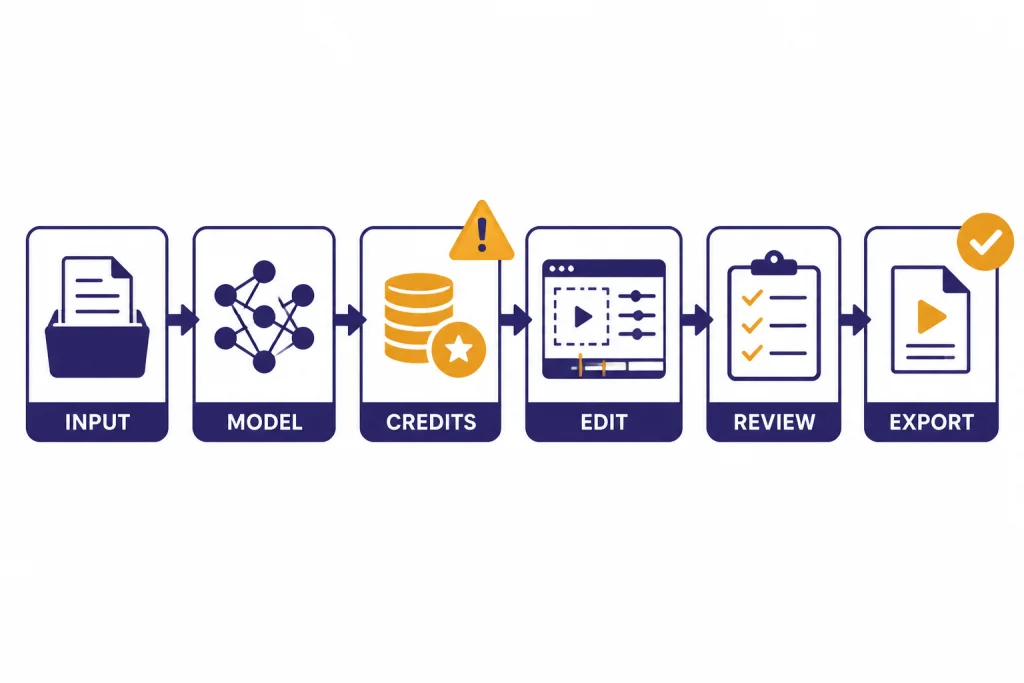
AI video pricing is harder to compare than AI writing or image generation pricing. A monthly plan does not tell you how many usable videos you will publish. You need to estimate failed attempts, draft exports, upscales, subtitles, translation, voice, and human review.
Credits are not finished videos
A credit allowance is only an input budget. Runway’s official documentation shows why: Gen-4 Turbo and Gen-4 have different per-second credit costs, and the final cost depends on duration and model choice.[1] Luma also states that modify-video cost can vary depending on paid features added to the video.[5]
Free plans are for testing, not operations
Free plans are useful for checking output style, interface quality, and export behavior. They are rarely enough for a production calendar. HeyGen’s Free plan lists 3 videos per month, while Pika’s Free Basic plan lists 80 monthly video credits.[7][6] Those numbers are enough to test the tool, not to run a serious campaign.
Exports and watermarks matter
Before you pay, confirm export resolution, watermark rules, commercial use terms, collaboration limits, and whether unused credits roll over. For business use, also check whether the platform gives you enough admin controls for brand assets, approvals, and user access.
If you publish content at scale, you may also need checking tools after generation. See our Best Plagiarism Checkers and Best AI Detectors for Teachers and Schools guides for adjacent review workflows.
Recommended workflows
For social media creators
Use Pika or Luma for idea exploration, Runway for stronger generated shots, then Kapwing for captions, resizing, and publishing formats. Keep each generation short. Build a repeatable prompt template for character, camera, lighting, and motion.
For marketing teams
Use Runway or Veo for product visuals, HeyGen for presenter-led variants, and Kapwing for collaborative review. Keep brand rules in a separate checklist. AI video tools can create polished clips quickly, but they do not know your claims policy, legal limits, or product accuracy rules.
For training and internal communications
Use Synthesia when the output is a reusable training asset with a presenter. Use Descript when the source is a recorded meeting, webinar, or subject-matter expert interview. If the same training content needs to become handouts or short summaries, review our Best AI Writing Tools Compared in 2026 for the text layer.
For developers and product builders
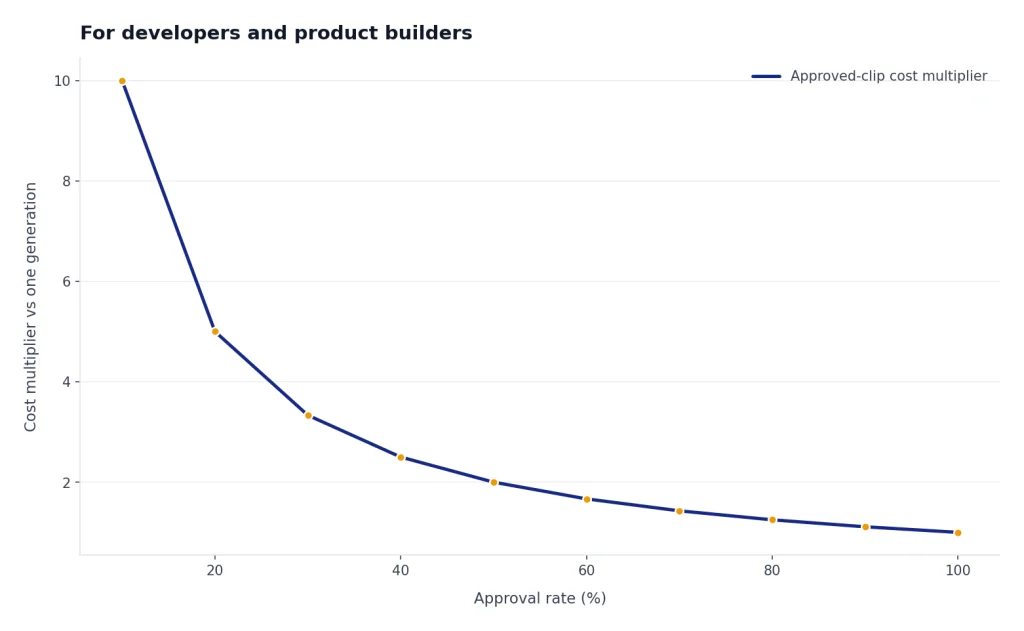
Evaluate the API and cost model separately from the consumer app. A tool that works well in a browser may not be the right choice for a product feature. Track cost per approved clip, not cost per generation. If your project touches OpenAI services, compare video costs alongside Best OpenAI API Cost Calculator Tools.
The practical answer is simple: do not buy one AI video tool and expect it to replace production. Pick a generator for shots, an editor for finishing, and a review process for quality. That stack will outperform any single model demo.
Frequently asked questions
What is the best AI video tool overall in 2026?
Runway is the best overall pick for generative AI video because it gives creators strong shot-level control and a mature creative workflow. It is best for short clips, visual concepts, product shots, and stylized motion. It is not the cheapest tool if you iterate heavily.
What is the best AI video tool for business training?
Synthesia is the best fit for structured business training, onboarding, and internal communication. Its strength is avatar-led delivery, language support, and repeatable presenter videos. HeyGen is also strong if the tone is more sales- or marketing-oriented.
Which AI video tool is best for editing real footage?
Descript is the best choice for editing interviews, podcasts, screen recordings, and talking-head videos. Kapwing is better when the team needs browser-based collaboration, subtitles, resizing, and social publishing formats. Neither should be judged only as a text-to-video generator.
Is Google Veo better than Runway?
It depends on access and workflow. Veo is attractive inside Google products and for teams that want Google’s broader ecosystem. Runway is still easier to recommend for creators who want a dedicated video generation and editing environment.
Are free AI video tools good enough?
Free AI video plans are good for testing style, interface quality, and export behavior. They are usually not enough for production. Expect to pay once you need watermark-free exports, more credits, higher resolution, team review, or reliable monthly output.
Should I use Sora for AI video?
Use Sora if you specifically want to test OpenAI’s video workflow or compare its output with Runway and Veo. For most production teams, Sora should be one option in a broader test set rather than the whole workflow. You still need editing, review, audio, and publishing tools around it.