

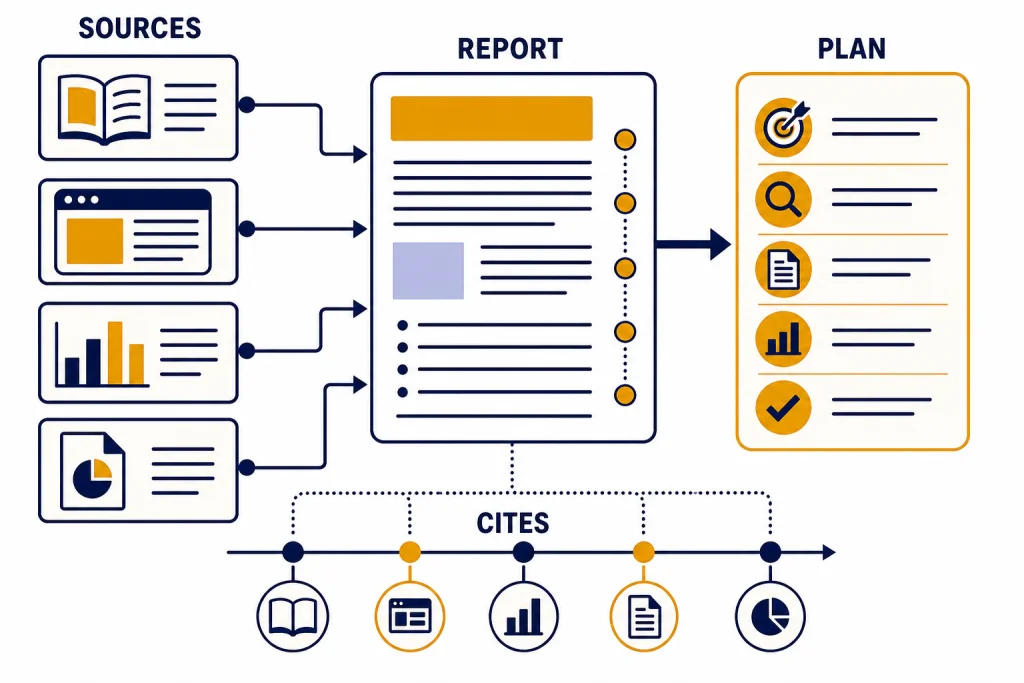
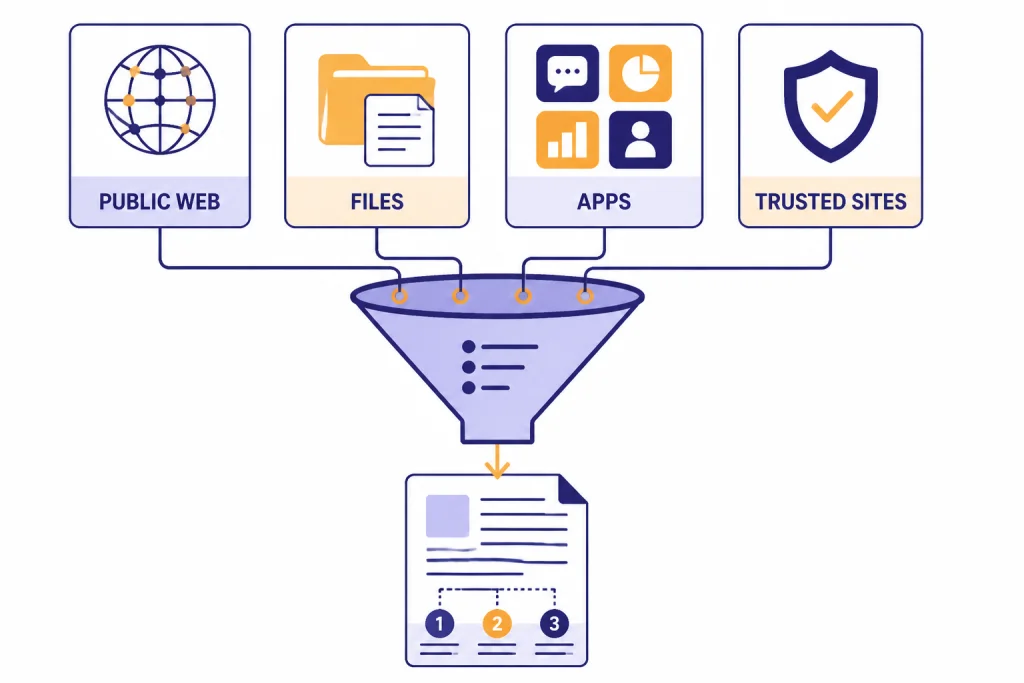
ChatGPT Deep Research is the research mode to use when a normal chat answer or quick web search is not enough. You give ChatGPT a research goal, choose the sources it may use, review a proposed plan, and let it produce a structured report with citations. It can search the public web, read uploaded files, use enabled apps, focus on specific sites, and show the activity behind the final result.[1] This walkthrough explains how to start a task, write a strong prompt, control sources, read the finished report, and decide when Deep Research is worth the wait.
What ChatGPT Deep Research is
ChatGPT Deep Research is a mode for multi-step research. It does more than fetch a single answer. It plans the work, searches across sources, compares evidence, and writes a documented report. OpenAI describes it as a way to plan, research, and synthesize complex questions into a report, with source links or citations so you can verify the work.[1]
The feature originally launched on February 2, 2025 as an agentic capability that could conduct multi-step internet research for complex tasks.[2] OpenAI’s launch post said the original version was powered by a version of OpenAI o3 optimized for web browsing and data analysis.[2] The current Help Center language is more general: Deep Research is powered by OpenAI’s latest models by default, and users may choose a legacy model for a Deep Research task when that option is available.[1]
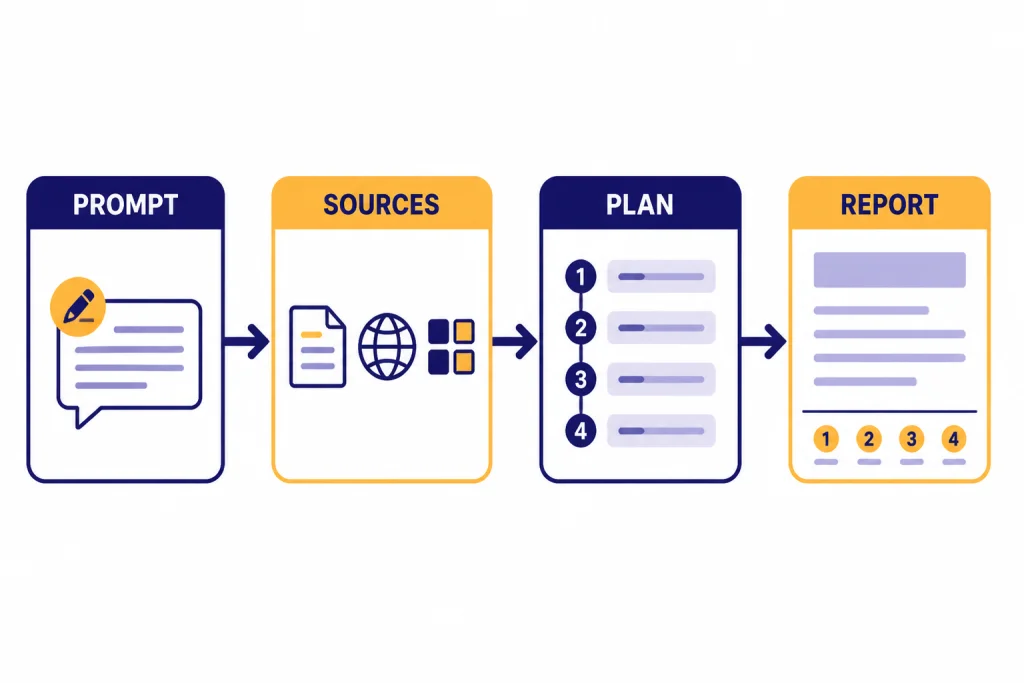
The basic workflow is simple. You describe the outcome. You choose what sources it can use. ChatGPT proposes a research plan. You review or edit the plan. Then it runs and returns a structured report with source links.[1] That planning step is the main difference between Deep Research and a normal prompt. You are not just asking for an answer. You are commissioning a short research process.
When to use it
Use ChatGPT Deep Research when the answer depends on many sources, conflicting claims, or a chain of evidence. Good use cases include vendor comparisons, market scans, policy briefs, literature overviews, legal or regulatory orientation, technical landscape reviews, grant backgrounders, and purchase research where the details matter.
OpenAI’s Help Center draws the line clearly: use Search for quick facts, and use Deep Research for depth and thoroughness.[1] If you only need a current score, a definition, or a link, ChatGPT Search is the faster tool. If you need a reusable brief with citations, Deep Research is the better fit.
It is also useful when you bring your own material. You can upload files, then ask Deep Research to compare those files with public sources or with enabled apps.[1] If your source material is mostly documents, start with ChatGPT file upload so you understand what kinds of files ChatGPT can inspect before you attach them to a research task.
Do not use Deep Research for urgent answers. OpenAI’s launch article said Deep Research may take anywhere from 5 to 30 minutes to complete a task.[2] That time budget is a strength for careful work and a weakness for live decisions. If you are in a meeting and need a quick fact, use standard chat or Search first.
How to start a Deep Research task
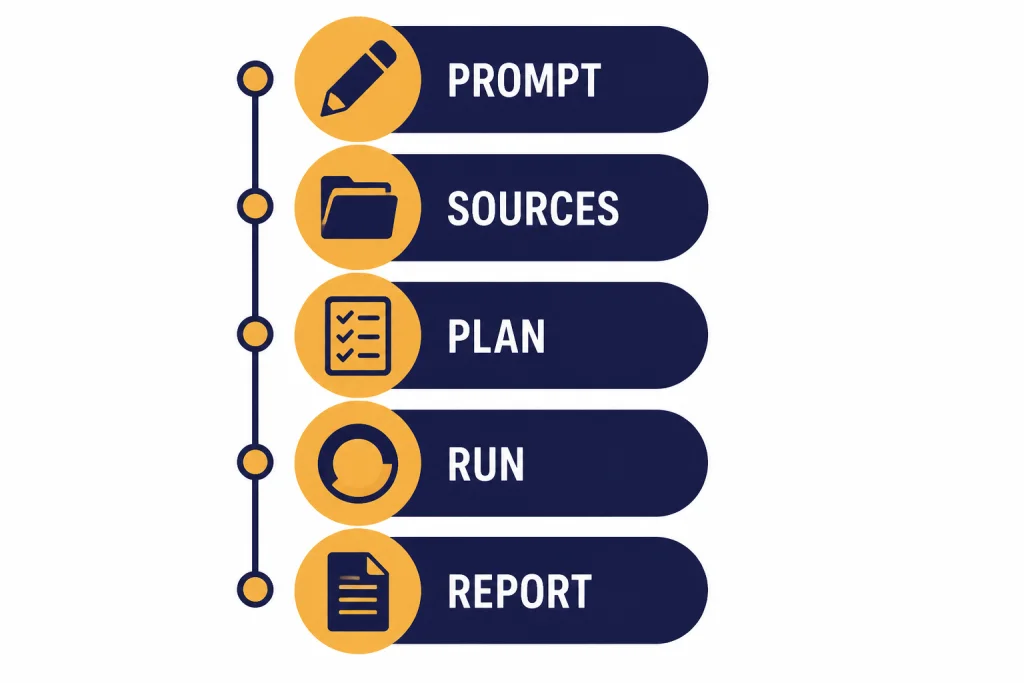
You can start Deep Research from the tools menu, by typing /Deepresearch in a ChatGPT prompt, or from the sidebar when the option is available in your account.[1] The exact placement may vary by app and workspace, but the feature starts from the same idea: choose Deep Research before you send the research request.
- Open a new chat. Use a new conversation for a major research task so the topic stays clean.
- Select Deep Research. Choose it from the tools menu or use the slash command if available.
- Describe the deliverable. Say whether you want a memo, table, buying shortlist, source map, timeline, or executive brief.
- Attach files if needed. Add PDFs, spreadsheets, notes, or requirements documents before the plan is finalized.
- Choose sources. Decide whether to use the public web, specific sites, uploaded files, or connected apps.
- Review the proposed plan. Tighten the scope before it starts. This is where you prevent wasted work.
- Let it run, then review. Watch the activity, interrupt if the direction is wrong, and verify the final citations.
Deep Research can ask clarifying questions and show a proposed plan before it begins.[1] Treat that plan as an outline you can edit. If the plan is vague, the final report will usually be vague too.
How to write a good Deep Research prompt
A strong Deep Research prompt has five parts: the question, the audience, the source boundaries, the output format, and the standard of evidence. You do not need a long prompt. You need a precise one.
Use this prompt structure
Research [topic] for [audience].
Goal: [decision or deliverable].
Use: [public web / uploaded files / named sites / connected apps].
Do not use: [excluded sources or weak source types].
Compare: [criteria that matter].
Output: [format, length, table requirements, citations].
Flag uncertainty and explain where sources disagree.
Here is a practical example:
Research the market for AI meeting-note tools for a 40-person consulting firm.
Goal: produce a vendor shortlist for a buying meeting.
Use public vendor pages, recent documentation, credible reviews, and the uploaded requirements spreadsheet.
Do not rely on anonymous forum comments unless they reveal a recurring support issue.
Compare security controls, integrations, export options, admin controls, pricing transparency, and risks.
Output a 1,500-word brief with a decision table, citation links, and a final recommendation for three buyer profiles.
Ask for disagreement explicitly. Deep Research can synthesize many sources, but it still needs direction on what kind of uncertainty matters. For product work, ask it to separate vendor claims from user reports. For policy work, ask it to separate binding rules from guidance. For academic work, ask it to distinguish peer-reviewed research from commentary.
If you use ChatGPT often for recurring research, save your preferences in ChatGPT Custom Instructions. For example, you can tell ChatGPT that you prefer tables first, citations next to claims, and a short uncertainty section at the end.
How source controls work
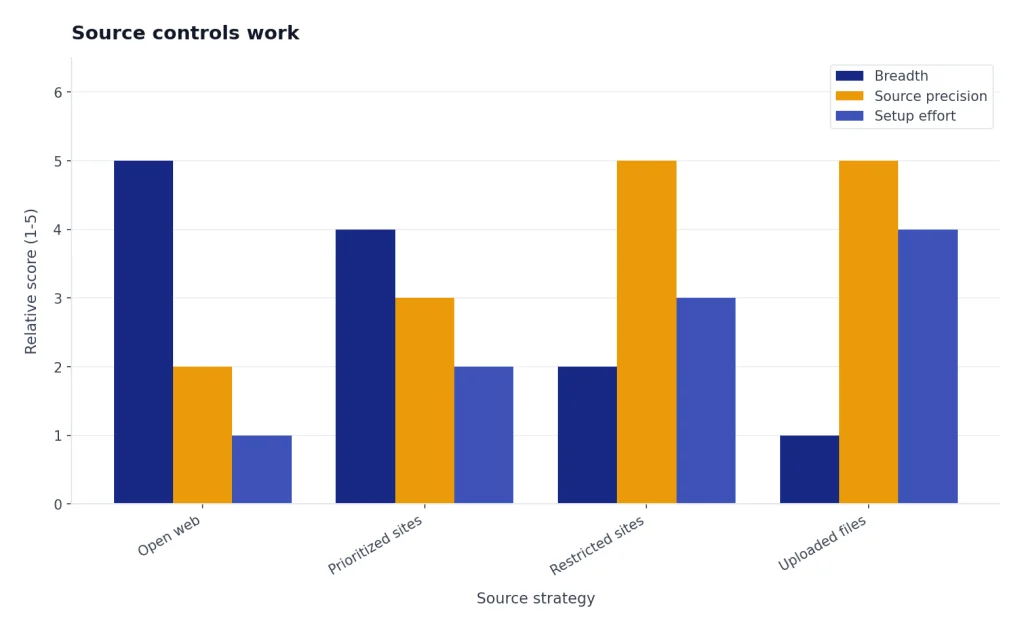
Deep Research gives you more source control than a normal chat. By default, it can use the public web and files you upload.[1] You can also let it use enabled apps and data services, including document stores such as Google Drive or SharePoint and authenticated industry sources such as FactSet, PitchBook, or Scholar Gateway when those are available to your account.[1]
You can also focus the web search on specific websites. OpenAI’s Help Center says users can manage specific sites from the ChatGPT prompt window, restrict research to the entered websites or domains, or prioritize selected sites while still allowing broader web search.[1] This is one of the most important controls in the product. It lets you steer Deep Research toward primary sources instead of letting the open web dominate the report.
Apps add another layer. OpenAI says some apps can be used with Deep Research for complex, multi-source analysis with citations back to originals.[4] Workspace admins may also control app availability, role-based access, action permissions, and sync behavior for Business, Enterprise, and Edu environments.[4] In other words, a personal account and a managed workspace may not see the same source options.
Use narrow source controls when accuracy matters more than breadth. For a medical reimbursement question, restrict the run to official payer pages, government documents, and uploaded policy files. For a company research brief, prioritize SEC filings, investor relations pages, and the company’s documentation. For a technical review, prioritize official documentation and primary repositories. If you need browser-based action rather than research, compare Deep Research with ChatGPT Operator, which is built around computer use rather than report synthesis.
How to review the final report
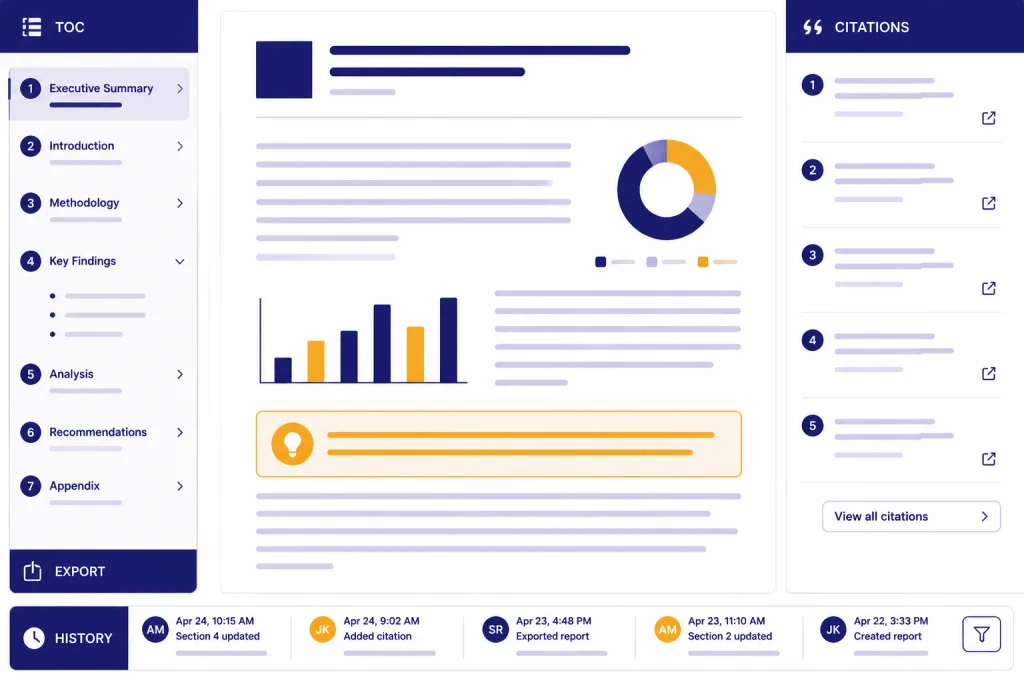
The finished report should not be treated as final truth. Treat it as a research draft with useful citations. OpenAI says completed Deep Research outputs include citations or source links, open in a fullscreen report view, include a table of contents, show sources used, provide an activity history, and can be downloaded in Markdown, Word, and PDF formats.[1]
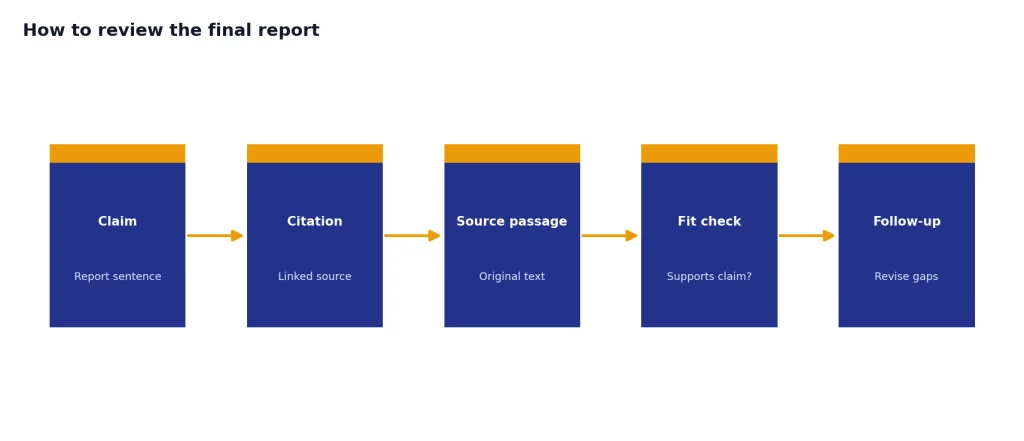
Review in this order. First, read the executive summary and ask whether it answers the prompt. Second, open the citations behind the most important claims. Third, check whether the report used the right source types. Fourth, look for missing counterarguments. Fifth, ask a follow-up prompt that targets the weakest section.
Do not only check the number of citations. Check the fit between each citation and the sentence it supports. A report can cite a real source and still overstate what that source says. This matters most for legal, medical, scientific, financial, and hiring-related work.
When the output is useful, save the conversation inside ChatGPT Projects with the attached source files and follow-up prompts. If you need to send the result to someone else, use ChatGPT Shareable Links only after you have checked for private files, confidential data, and sources you are not allowed to redistribute.
Limits, privacy, and admin controls
Deep Research usage varies by plan. OpenAI’s Help Center says the in-product usage counter shows remaining tasks, and fixed monthly allowances reset every 30 days from the date of first use.[1] OpenAI’s April 24, 2025 update said Free users get 5 Deep Research queries per month, Plus, Team, Enterprise, and Edu users get 25, and Pro users get 250.[2] Because plan rules can change, the counter in ChatGPT is the number to trust before starting a major run.
Privacy follows the broader ChatGPT settings. OpenAI states that Deep Research conversations follow the same data handling and privacy settings as regular ChatGPT conversations.[1] If your task involves sensitive information, check your data controls before uploading files or connecting apps. Also review ChatGPT Memory if you do not want personal context to influence future sessions.
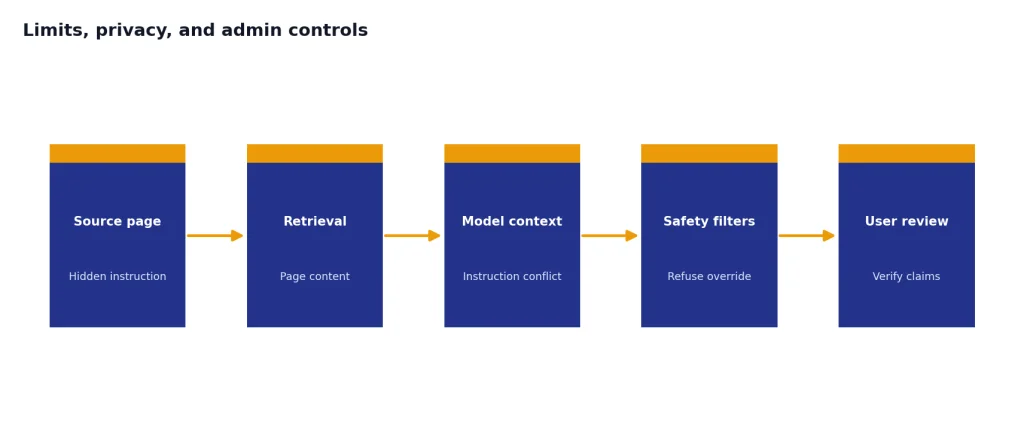
OpenAI’s Deep Research system card highlights risk areas including prompt injections, privacy, the ability to run code, bias, and hallucinations.[3] That matters because Deep Research reads web pages and may encounter malicious or misleading instructions inside source material. OpenAI says it trained the model to resist malicious instructions encountered while searching the internet, but users still need to verify important claims.[3]
In Enterprise and Edu workspaces, admins can control Deep Research access through role-based access control, and Deep Research respects the same app enablement controls as standard ChatGPT.[1] This is useful for organizations that want some teams to use approved internal sources while blocking unapproved apps.
Deep Research vs. Search vs. standard chat
Deep Research is not a replacement for every ChatGPT mode. It is slower, more structured, and more source-heavy. Use it when the cost of a shallow answer is higher than the time cost of waiting.
| Mode | Best for | Source behavior | Typical output | Main drawback |
|---|---|---|---|---|
| Standard chat | Drafting, brainstorming, explaining, rewriting, and reasoning from provided context | May not browse unless a web-capable tool is selected | Conversational answer | Not designed to survey many live sources |
| ChatGPT Search | Quick current facts, links, and short web-backed summaries | Pulls recent web information and returns a shorter answer with links, according to OpenAI’s comparison of Search and Deep Research.[1] | Fast summary | Less depth and less synthesis |
| Deep Research | Complex questions that require aggregation, synthesis, source control, and a reusable report | Can use the web, uploaded files, specific sites, and enabled apps.[1] | Documented report with citations, activity history, and export options.[1] | Can take several minutes and still requires verification |
There is also overlap with other ChatGPT features. If you need to analyze a chart image inside a report, use ChatGPT Vision. If your research starts from a screenshot or product photo, ChatGPT Image Search may help with the first identification step. If your research includes audio interviews, start with ChatGPT Whisper transcription or the broader ChatGPT transcription guide before asking Deep Research to synthesize the transcripts.
Practical workflows
Competitive analysis
Ask Deep Research to compare competitors across public pricing pages, documentation, customer support pages, release notes, and reputable reviews. Tell it to separate confirmed claims from inference. Ask for a table that includes product strengths, weak signals, target customer, evidence quality, and open questions.
Policy or regulatory brief
Restrict sources to official agencies, statutes, regulator guidance, and uploaded internal notes. Ask it to identify effective dates, affected parties, obligations, exceptions, and unresolved interpretation issues. For legal or compliance work, treat the result as an orientation brief, not legal advice.
Literature or technical scan
Give Deep Research a narrow research question and ask for a map of the field. Require it to group sources by method, evidence quality, and limitation. Ask for a section on what the sources do not prove. This reduces the risk of a confident but thin summary.
Buying decision
For expensive purchases, give it your constraints first: budget, region, must-have features, deal breakers, and maintenance concerns. Ask it to produce a shortlist and a rejection list. Deep Research is often better at this than a normal chat because it can read across many product pages and compare details in one report.
Reusable team research
For teams, create a repeatable prompt template and keep the outputs in a project. Pair Deep Research with scheduled reminders from ChatGPT Tasks when a research brief needs regular refreshes, such as monthly competitor tracking or quarterly policy monitoring.
Frequently asked questions
Is ChatGPT Deep Research the same as ChatGPT Search?
No. OpenAI describes Search as better for quick facts and Deep Research as better for depth and thoroughness.[1] Search is the right choice when you need a fast answer with links. Deep Research is the right choice when you need a structured report built from many sources.
Can Deep Research use my uploaded files?
Yes. OpenAI says Deep Research can work with uploaded files, and uploaded files are part of the default source set alongside the public web.[1] You should still remove sensitive material that is not needed for the task.
Can I limit Deep Research to trusted websites?
Yes. OpenAI says you can manage specific sites, restrict research to entered websites or domains, or prioritize selected sites while still allowing broader web search.[1] This is useful for official-source research, compliance work, and technical documentation reviews.
How long does Deep Research take?
OpenAI’s launch post said Deep Research may take 5 to 30 minutes depending on the task.[2] The actual time depends on scope, sources, and complexity. If time is critical, use Search or standard chat first.
Does Deep Research always get facts right?
No. OpenAI’s system card lists hallucinations among the risk areas evaluated for Deep Research.[3] You should verify important claims against the cited sources, especially in high-stakes domains.
Can teams control who uses Deep Research?
Yes, for managed workspaces. OpenAI says Enterprise and Edu admins can control access through role-based access control, and Deep Research respects standard ChatGPT app enablement controls.[1] App availability and connected-source access may differ by workspace.