

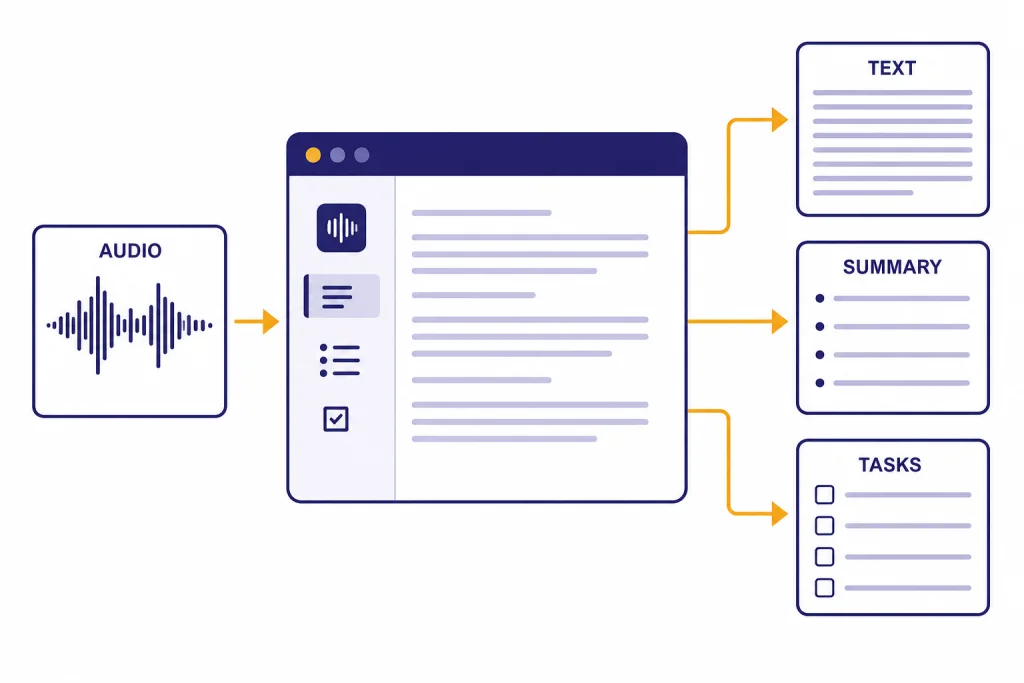
ChatGPT Whisper usually means using OpenAI’s speech-to-text technology with ChatGPT: dictating a message, recording a meeting in the ChatGPT macOS app, uploading or processing audio through the OpenAI API, or running the open-source Whisper model locally. The exact path matters. ChatGPT’s built-in audio tools are easiest for notes, meetings, and spoken prompts. The OpenAI API is better for apps, batch transcription, subtitles, and repeatable workflows. Local Whisper is best when you need offline processing or more control. This guide explains the practical differences, the safest way to use each option, and the prompts that turn raw transcripts into useful summaries, action items, translations, and searchable notes.
What ChatGPT Whisper means
Whisper is OpenAI’s automatic speech recognition system. OpenAI introduced Whisper on September 21, 2022, and described it as an open-source ASR system trained on 680,000 hours of multilingual and multitask supervised data.[1] In plain English, Whisper turns spoken audio into written text. It can also identify language and translate non-English speech into English in supported workflows.
The phrase ChatGPT Whisper is less precise. OpenAI does not label every ChatGPT audio feature as “Whisper” inside the ChatGPT interface. In ChatGPT, you may see record mode, dictation, voice mode, or file-related tools. In the API, you can explicitly choose whisper-1 or newer speech-to-text models. OpenAI has not published an official figure for which internal model powers every ChatGPT audio path.
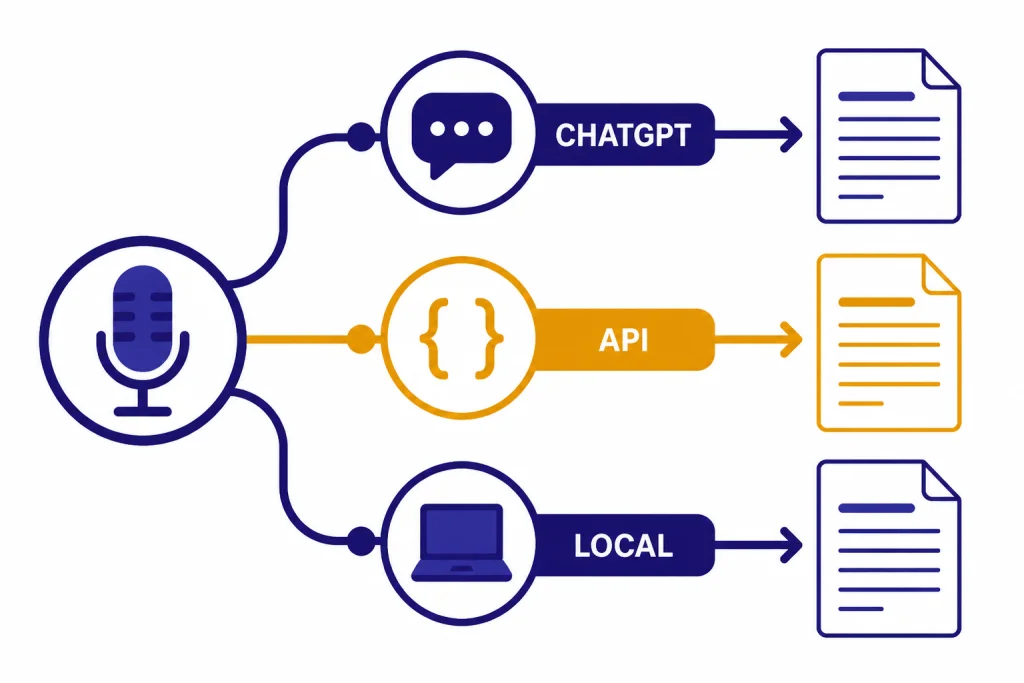
For most readers, the practical question is simple: do you want a transcript inside ChatGPT, or do you want a programmable transcription pipeline? If you want ChatGPT to capture and summarize a meeting, use ChatGPT Record. If you want to speak a prompt instead of typing, use dictation. If you want to build an app, generate captions, process many files, or control output formats, use the OpenAI Audio API. If you need local processing, use the open-source Whisper repository.
The best way to transcribe audio with ChatGPT
Start with the job, not the model name. ChatGPT has several audio-adjacent features, and each one solves a different problem. If your goal is a meeting summary, a raw API transcript may create extra work. If your goal is a legally reviewed transcript with timestamps, a casual ChatGPT summary is not enough.
| Use case | Best option | Why it fits | Watch out for |
|---|---|---|---|
| Meeting notes | ChatGPT Record | Captures, transcribes, and summarizes in one flow | Availability is limited by plan and app |
| Spoken ChatGPT prompt | Voice dictation | Turns your speech into editable text before sending | Not designed for long recordings |
| App or automation | OpenAI Audio API | Programmatic control over models, files, and output | Requires API setup and billing |
| Offline or self-hosted workflow | Open-source Whisper | Runs outside ChatGPT when configured locally | Needs hardware, setup, and maintenance |
| Speaker-labeled meeting transcript | Transcribe diarization model | Designed to associate segments with speakers | Model support differs from classic Whisper |
If you are comparing this guide with broader audio coverage, see our related guide on whether ChatGPT can transcribe audio. If you mainly want spoken conversations with the assistant rather than transcripts, our ChatGPT voice mode review is the better starting point.
How to use ChatGPT Record for meetings and notes
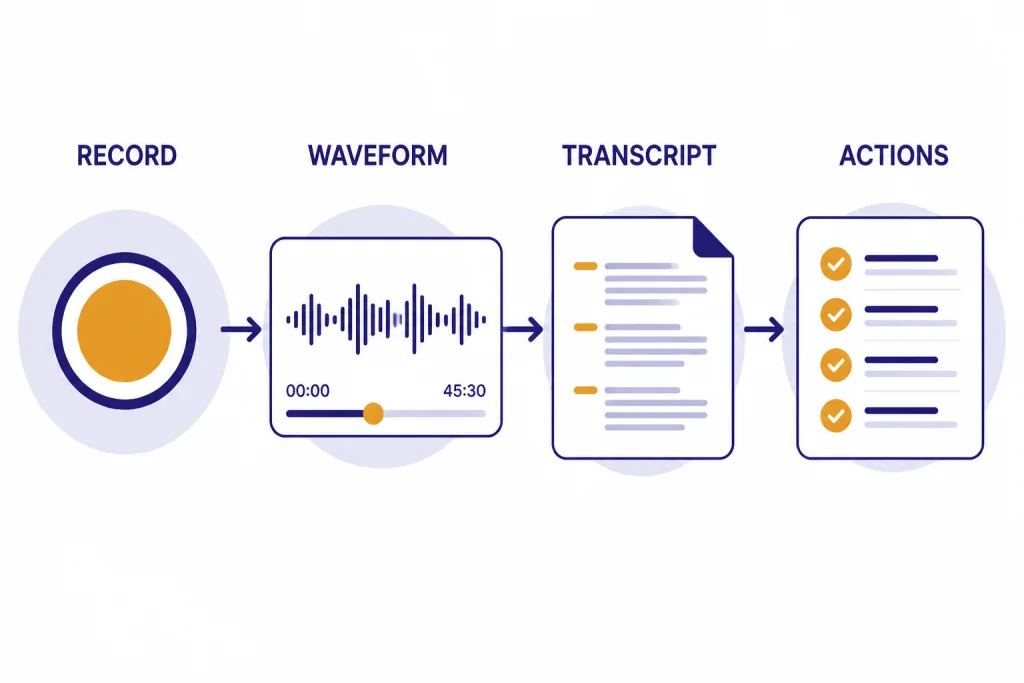
ChatGPT Record is the closest built-in ChatGPT feature to “record this audio and turn it into useful notes.” OpenAI’s help article says Record can transcribe and summarize meetings, brainstorms, and voice notes, and that it is available for Plus, Enterprise, Edu, Business, and Pro workspaces on the macOS desktop app.[2]
- Open the ChatGPT macOS desktop app.
- Start Record from the app’s recording interface.
- Capture the meeting, interview, brainstorm, or voice note.
- Let ChatGPT transcribe the recording and create a summary.
- Ask follow-up questions, such as “turn this into action items,” “draft a client recap,” or “extract decisions and open questions.”
Use Record when the transcript is only the first step. ChatGPT can convert the resulting material into a plan, email, issue list, brief, or structured minutes. That is more useful than copying a raw transcript into a separate chat. If your team organizes work in ChatGPT, you can pair Record with ChatGPT Projects so related meeting notes stay with the right files and conversations.
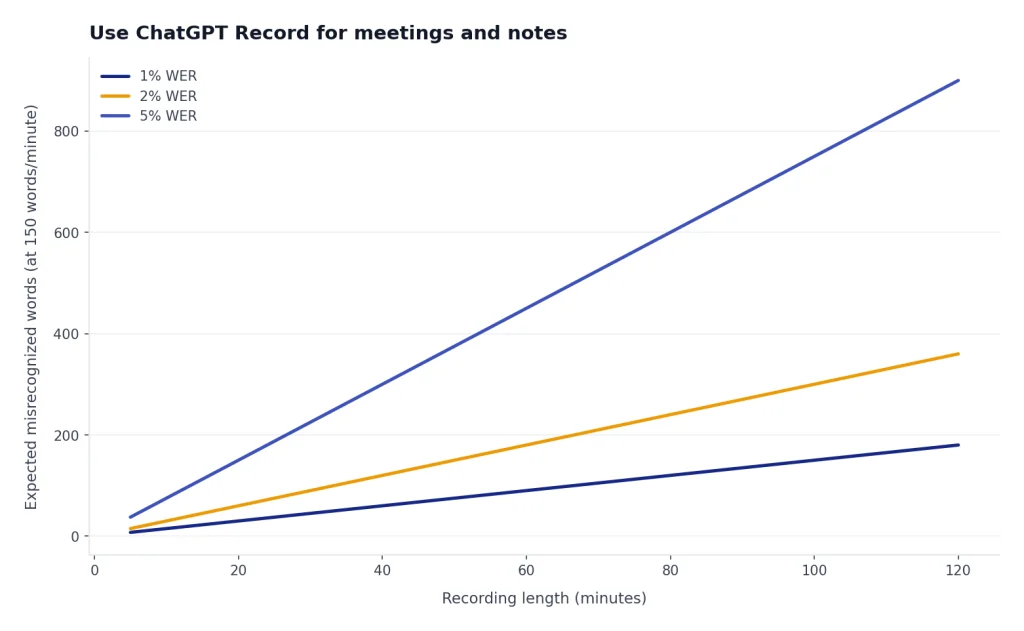
Do not treat Record as a court reporter. OpenAI warns that ChatGPT may make mistakes, including transcription mistakes.[2] For interviews, medical conversations, HR matters, legal discussions, or compliance-sensitive meetings, review the transcript against the source audio before relying on it.
How to use voice dictation in ChatGPT
Voice dictation is the microphone feature for speaking a message to ChatGPT. OpenAI says that when you press the microphone icon, your recorded audio is sent to models for transcription, and the transcription returns as text that you can edit before sending.[3] That edit step matters. It lets you catch names, numbers, and jargon before ChatGPT answers the wrong prompt.
- Open ChatGPT on a supported app or web surface.
- Tap or click the microphone icon in the message bar.
- Speak your prompt clearly.
- Review the transcribed text.
- Edit names, numbers, dates, and technical terms.
- Send the message.
Dictation is best for short prompts, not long-form transcription. It works well when you are walking through an idea, asking a question, or drafting a rough paragraph by voice. It is not the best tool for a long interview, podcast episode, or classroom lecture. For those, use Record, the API, or a local Whisper workflow.
If you use ChatGPT on multiple devices, the app experience matters. Our guide to the best ChatGPT app for Mac, iPhone, and Android explains which official app path makes the most sense by device. Windows users should also see our ChatGPT Windows app setup guide, especially if they want desktop workflows but do not have access to macOS-only Record.
How to use Whisper through the OpenAI API
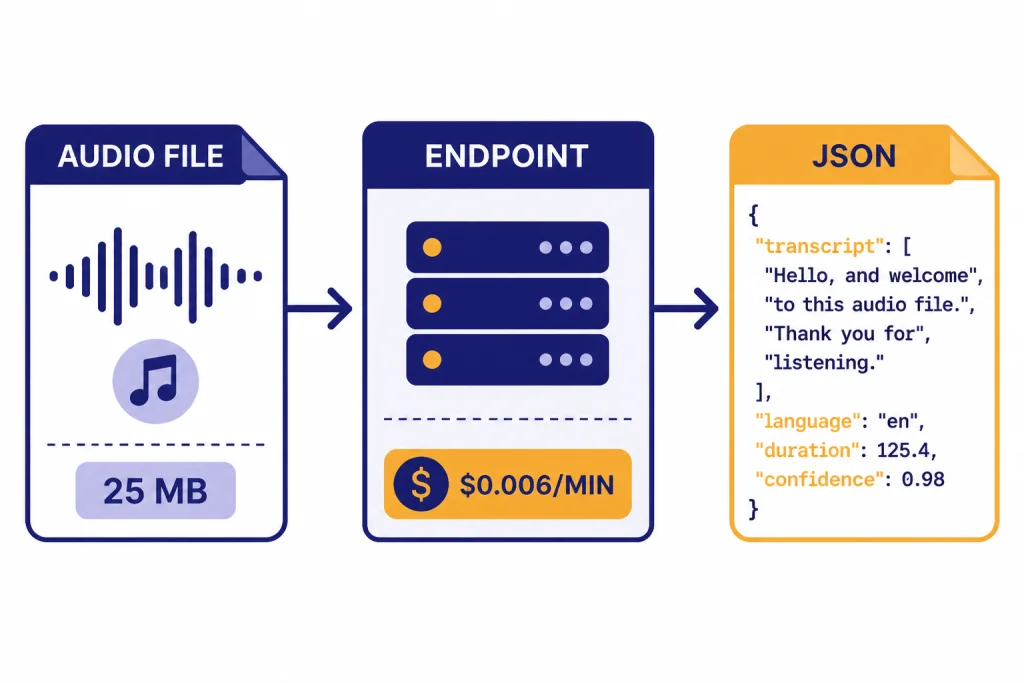
The OpenAI Audio API is the right route when you need repeatable transcription outside the ChatGPT app. OpenAI’s speech-to-text guide lists two endpoints: transcriptions and translations. It also says the transcription endpoint supports whisper-1, gpt-4o-mini-transcribe, gpt-4o-transcribe, and gpt-4o-transcribe-diarize.[4]
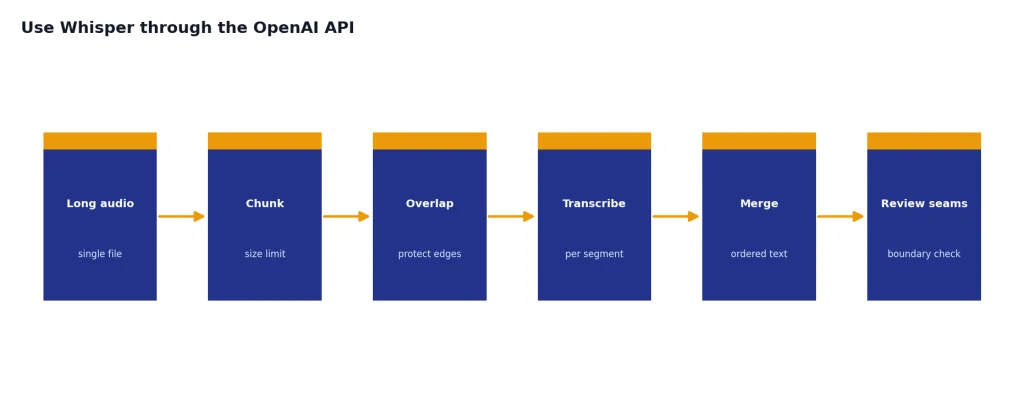
The API reference lists flac, mp3, mp4, mpeg, mpga, m4a, ogg, wav, and webm as accepted file formats for transcription.[5] OpenAI’s speech-to-text guide says file uploads are limited to 25 MB and recommends splitting longer audio into chunks of 25 MB or less.[4]
curl https://api.openai.com/v1/audio/transcriptions
  -H "Authorization: Bearer $OPENAI_API_KEY"
  -H "Content-Type: multipart/form-data"
  -F file="@meeting.mp3"
  -F model="whisper-1"
Choose whisper-1 when you want the classic Whisper API path. Choose a newer transcribe model when quality, language recognition, or speaker labeling matters more than staying with the Whisper name. OpenAI describes gpt-4o-transcribe as offering better word error rate, language recognition, and accuracy compared with original Whisper models.[6]
Pricing depends on the model. OpenAI’s pricing page lists Whisper transcription at $0.006 per minute, gpt-4o-transcribe at an estimated $0.006 per minute, and gpt-4o-mini-transcribe at an estimated $0.003 per minute.[7] If you are building production software, confirm prices on the official pricing page before launch because API prices can change.
Local Whisper vs. API transcription
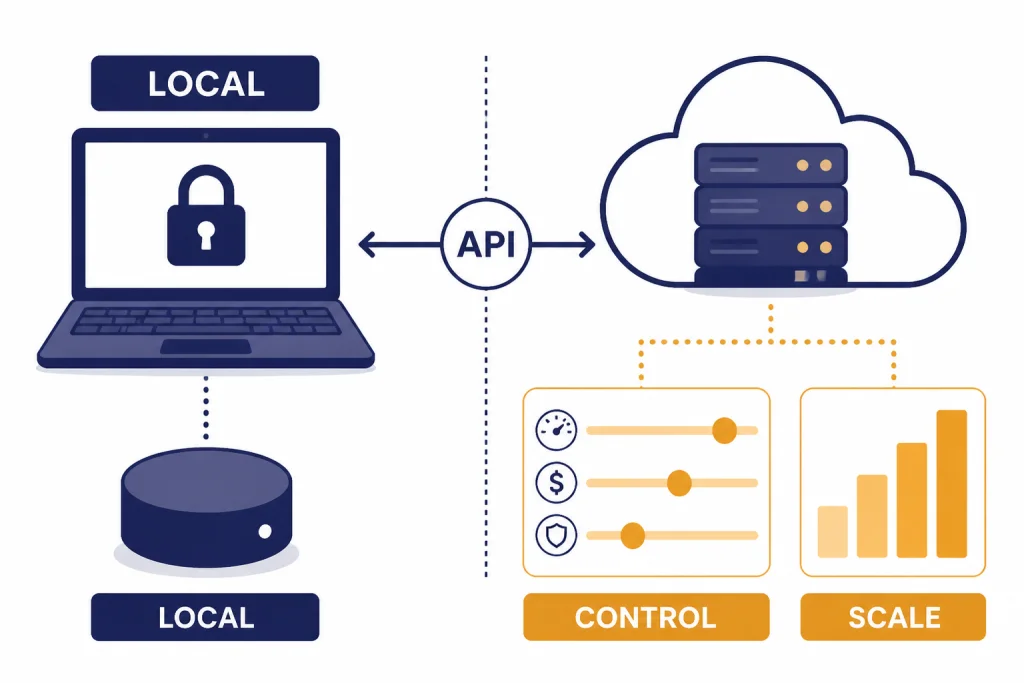
Open-source Whisper is a different workflow from ChatGPT. OpenAI’s GitHub repository says Whisper’s code and model weights are released under the MIT License.[8] That means developers can run the model locally or build their own tooling around it, subject to the license terms.
Local Whisper can be the right choice when audio cannot leave a controlled machine, when you want to avoid per-minute API costs, or when you need to modify a workflow deeply. It is not automatically easier. You need installation, hardware, storage, updates, and your own review process. A managed API is usually faster to deploy and simpler to scale.
| Factor | Local Whisper | OpenAI API |
|---|---|---|
| Setup | Developer setup required | API key and request code required |
| Internet | Can run offline after setup | Requires network access |
| Costs | Hardware and maintenance | Usage-based API billing |
| Model choice | Open-source Whisper models | Whisper and newer transcribe models |
| Best for | Privacy-controlled or custom local workflows | Apps, automation, and scalable transcription |
If you want to work inside ChatGPT after transcription, you can still use local Whisper first. Export the transcript as text, then paste it into ChatGPT or upload it as a document if your plan supports file uploads. Our ChatGPT file upload guide covers the broader upload workflow. If you need translation after transcription, pair the transcript with ChatGPT Translate rather than asking a speech model to solve every downstream task.
How to improve transcript quality
Good transcription starts before you press record. Put the microphone close to the main speaker. Reduce background noise. Avoid overlapping speech. Ask speakers to say names, acronyms, and technical terms clearly. If the audio is poor, ChatGPT can help clean up a transcript, but it cannot reliably recover words that are not audible.
For API workflows, use the language parameter when you know the input language. OpenAI’s API reference says supplying the input language in ISO-639-1 format can improve accuracy and latency.[5] Use a prompt when you need the model to handle unusual vocabulary, product names, people’s names, or formatting conventions. OpenAI’s speech-to-text guide says a prompt can improve transcript quality.[4]
After transcription, use ChatGPT as an editor and analyst. Ask it to preserve the original meaning, mark uncertain passages, and separate cleanup from interpretation. A useful prompt is: “Clean this transcript lightly. Keep the speaker’s meaning. Fix obvious punctuation and paragraph breaks. Mark unclear words with [unclear] instead of guessing.”
For meetings, ask for layers. First request a factual summary. Then ask for decisions, action items, owners, deadlines, risks, and unresolved questions. If you use ChatGPT Memory, be careful with sensitive recurring details from transcripts. For reusable workflows, ChatGPT Custom Instructions can help you keep the same summary format across sessions.
Privacy, retention, and consent
Audio transcription often involves other people’s voices. Treat that as sensitive data. OpenAI’s Record article tells users to check local laws and get the right consents before recording others.[2] Laws differ by location, context, and whether the recording is a private conversation, workplace meeting, customer call, classroom session, or public event.
OpenAI says audio files in Record delete automatically after transcription.[2] Dictation has a different retention statement: OpenAI says dictation audio is retained as long as the chat remains in chat history, and when the chat is deleted, the associated audio clip is deleted within 30 days unless legal, security, or prior training-sharing exceptions apply.[3] Those are not the same retention path, so do not assume every ChatGPT audio feature stores data the same way.
For sensitive work, use the narrowest tool that fits. Do not record people without notice. Do not upload confidential audio to a personal account if your organization requires an enterprise workspace. Do not ask ChatGPT to infer protected traits, medical conclusions, or legal conclusions from a transcript unless you have a clear, compliant reason and human review.
If you plan to share the resulting transcript, use ChatGPT Shareable Links carefully. A transcript can contain names, client details, financial information, or private opinions that were safe in a meeting but unsafe in a public link.
Frequently asked questions
Is Whisper built into ChatGPT?
Whisper is OpenAI’s speech recognition technology, but OpenAI does not label every ChatGPT audio feature as Whisper. ChatGPT includes dictation, voice, and Record workflows, while the API lets you explicitly choose whisper-1 for transcription. If you need the exact model, use the API rather than relying on the ChatGPT interface.
Can ChatGPT transcribe a meeting?
Yes, ChatGPT Record is designed to transcribe and summarize meetings, brainstorms, and voice notes in supported workspaces on the macOS desktop app.[2] Always review important details. Names, numbers, dates, and action items are the easiest places for transcription mistakes to cause real problems.
Can I use Whisper for subtitles?
Yes, the Audio API can be used in subtitle workflows. The API reference lists response formats that include srt and vtt, though model support differs by model.[5] For final publishing, review timing, names, punctuation, and line breaks manually.
How much does Whisper transcription cost?
OpenAI’s pricing page lists Whisper transcription at $0.006 per minute.[7] Prices can change, so production apps should check the official pricing page during planning and again before launch. Local Whisper does not have per-minute API billing, but it does have hardware and maintenance costs.
Does Whisper work offline?
The open-source Whisper repository can be used for local workflows after setup, and OpenAI says the code and model weights are under the MIT License.[8] ChatGPT itself is not an offline transcription app. If you need offline transcription, plan on a local Whisper installation or another local speech-to-text tool.
Is ChatGPT Whisper accurate enough for legal or medical use?
Use caution. OpenAI warns that ChatGPT may make mistakes, including in transcriptions.[2] For legal, medical, financial, or employment-sensitive audio, treat the transcript as a draft that requires human verification against the original recording.