

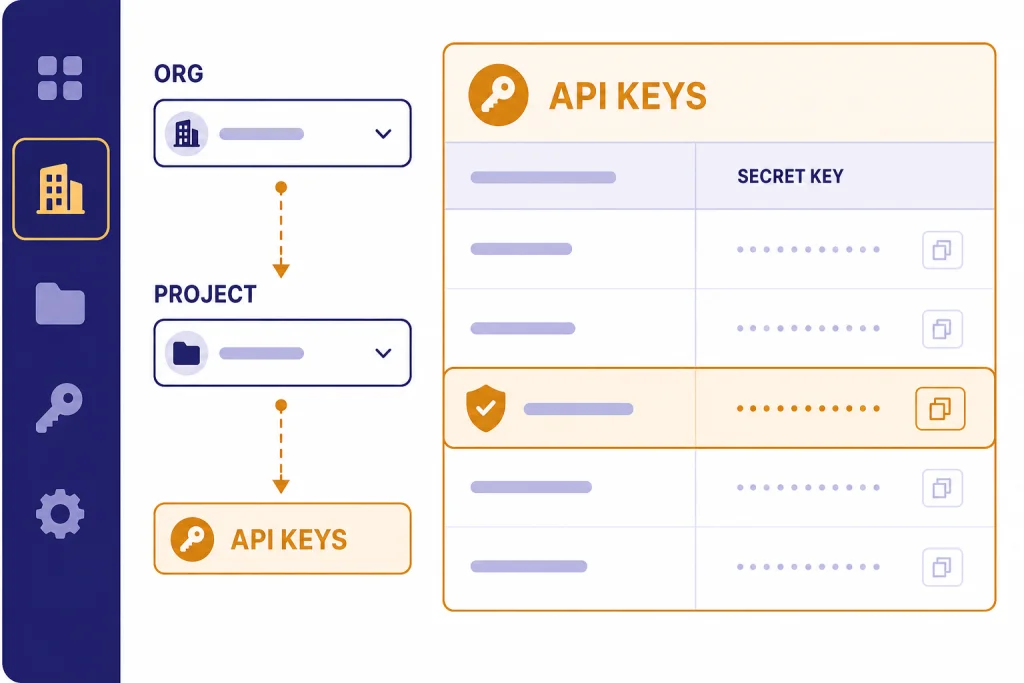
If you need your OpenAI API key, start here: open the OpenAI Platform API keys page, sign in, choose the correct organization and project, then go to Settings → API keys → Create new secret key. In most current OpenAI Platform workspaces, the safest default is a project-scoped user key for server-side development. OpenAI’s help docs are clear on two practical points: the secret key is shown when you create it, and you should store it safely because you may not be able to view the full secret again later.[1][2]
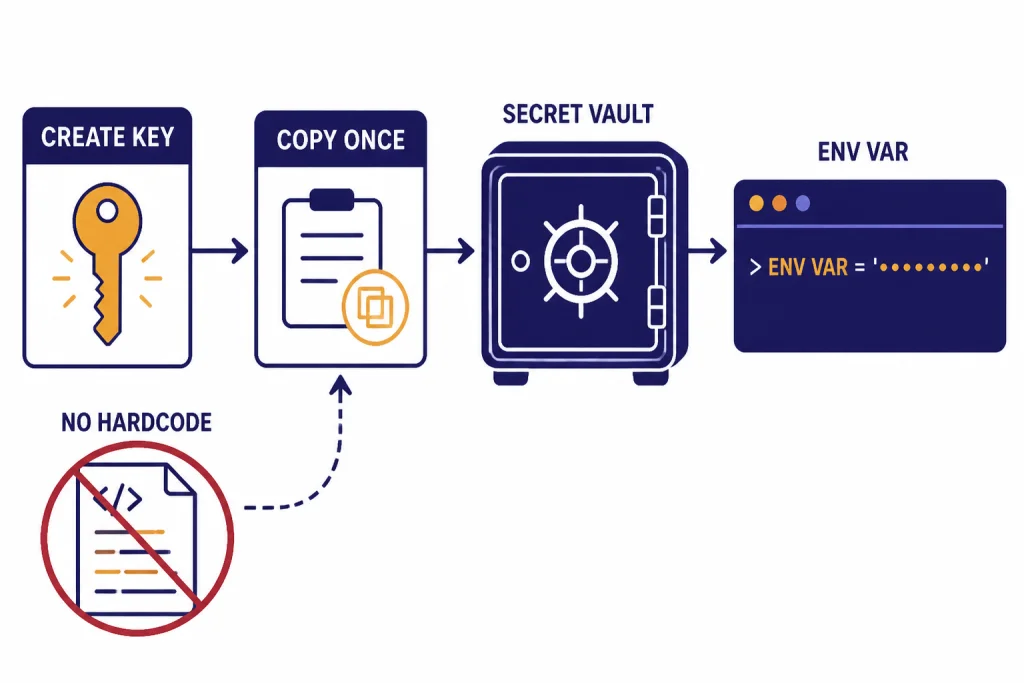
Fast click path: Platform → select organization → select project → Settings → API keys → Create new secret key → copy once → store in a secret manager or environment variable.
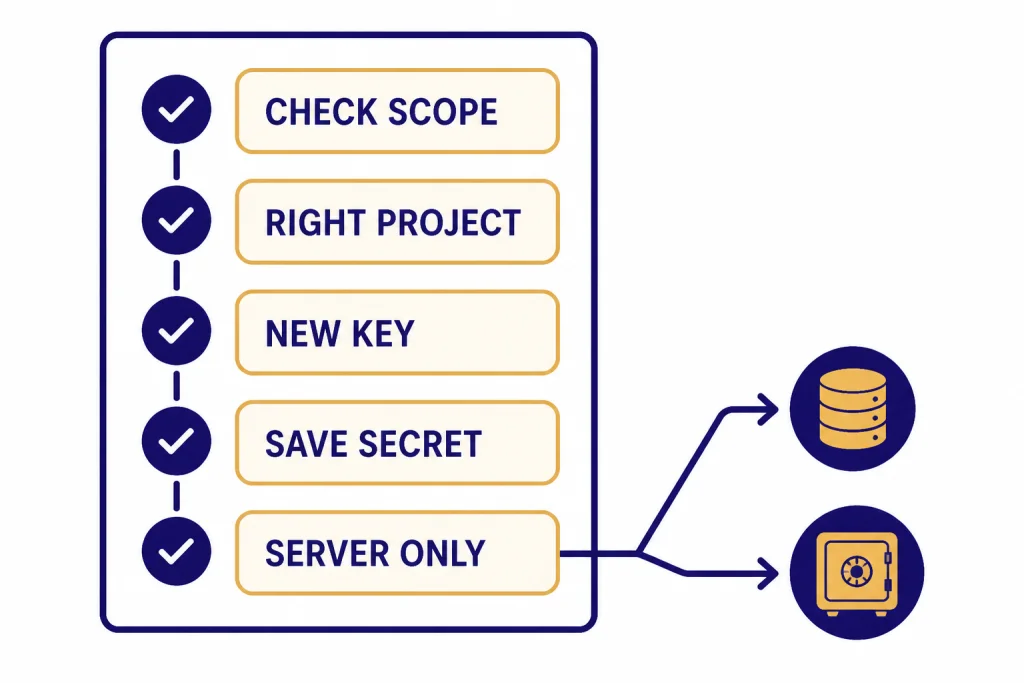
If the interactive checklist does not render, use this quick checklist:
- Are you signed in to the right OpenAI account?
- Did you select the right organization?
- Did you select the project your app will use?
- Are you creating a normal project-scoped user key, not an admin key?
- After creation, did you copy the secret into a password manager, secret manager, or environment variable?
Where your OpenAI API key lives now
For most readers, the answer is not hidden: your API key lives in the API Keys area of the OpenAI Platform. The direct place to try first is platform.openai.com/api-keys. If your workspace uses projects, first switch into the correct organization and project, then open that project’s API key settings. OpenAI’s help article says your secret API key is on the API key page,[1] and the projects documentation explains that keys and access can be managed inside a specific project.[2]
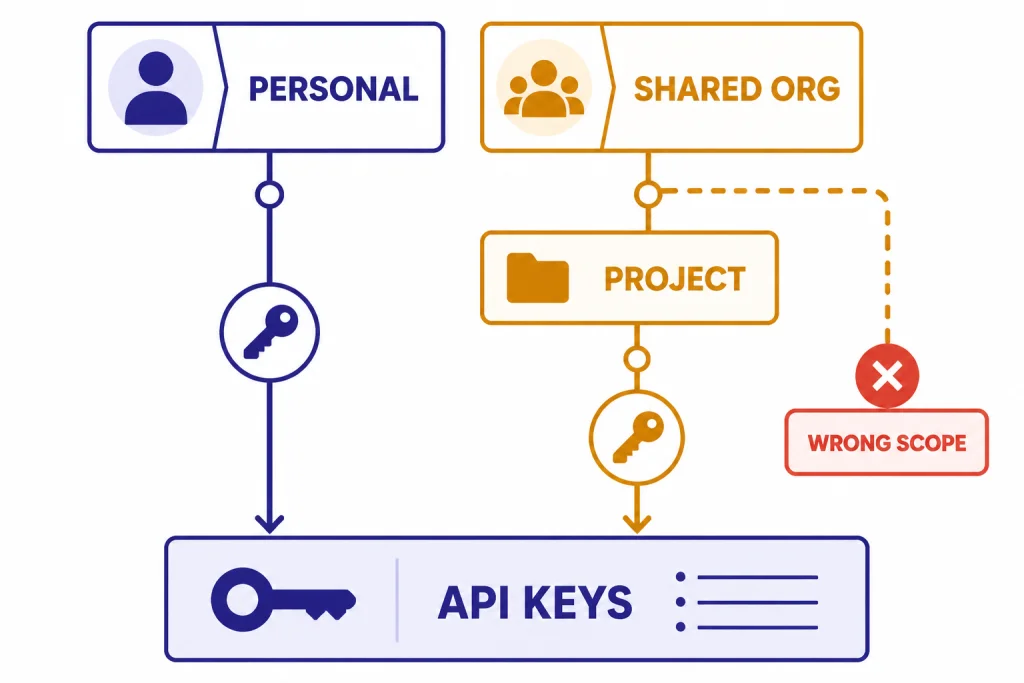
The project selector matters. If you belong to several organizations or projects, a key can look “missing” simply because you are viewing the wrong scope. OpenAI says users can generate personal API keys scoped to a project and its resources, while project owners can also manage project-level API keys and permissions from project settings.[2]
Use this short path before troubleshooting anything else:
- Solo or personal account: sign in to the OpenAI Platform, open the API Keys page, create a new secret key, and store it immediately.
- Team workspace: sign in, choose the right organization, choose the right project, then open Settings → API keys for that project.
- No project listed or no create button: ask an organization or project owner to add you to the right project or create the correct credential for the system.
In practical terms, there are three common reasons people think their key is gone:
- They are signed into the wrong organization or project.[2]
- They created a key before, but did not save the full secret value when it was shown.[2]
- They are expecting ChatGPT web access to include API access, which it does not by default. If that is your situation, read Does ChatGPT Plus Include API Access? or ChatGPT API vs ChatGPT Plus.
If you only need the short answer for where to find your OpenAI API key, it is this: open the OpenAI Platform, switch into the correct organization and project, then open the API Keys page for that scope.[1][2]
How to use the API key checklist tool
The checklist near the top of this page is a navigation aid, not a key generator. Use it to rule out the common failure points in order: wrong account, wrong organization, wrong project, missing permission, or a secret value that was shown once and not saved. If the interactive version is unavailable, the fallback checklist above gives the same sequence.
Use it like this:
- Step 1: Confirm what you are trying to do. If you are making server-side API requests, you need a platform API key, not a ChatGPT subscription login.
- Step 2: Check your scope. Confirm the organization and project before creating or rotating anything. OpenAI’s projects guide explains that access depends on organization role and project membership.[2]
- Step 3: Pick the normal key type. Most developers should create a project-scoped user key. Do not create an admin key for ordinary model calls.
- Step 4: Decide whether you need a fresh key. If you never saved the secret when it was first displayed, generate a new one instead of searching for a value OpenAI may no longer show.[2]
- Step 5: Store it safely. Move the key into an environment variable or secret manager rather than frontend code.[3][4][8]
The checklist is most useful when you are unsure whether the problem is permissions, project scope, or a lost secret. If you already know the exact project and have permission to create keys, you can skip straight to Settings → API keys → Create new secret key. After the key works, the broader API setup topics are covered in OpenAI Responses API, OpenAI API best practices for production, and OpenAI API pricing.
Create, copy, and store a key safely
Once you are on the correct API Keys page, the workflow is simple. OpenAI’s quickstart says to create an API key in the dashboard, store it in a safe location, and export it as an environment variable in your terminal.[3] The authentication docs say the API uses Bearer authentication and that keys should be securely loaded from an environment variable or key management service on the server.[8]
A good workflow looks like this:
- Create the key from the correct project or account scope.[1][2]
- Copy it immediately and save it in a password manager, secrets manager, or another approved internal system.[2][4]
- Set it as an environment variable for local development and deployment.[3][8]
- Reference the variable in your app instead of hard-coding the key into source files.[3][4][8]
export OPENAI_API_KEY='your_api_key_here'That command format matches the environment-variable approach in OpenAI’s quickstart for macOS and Linux environments.[3] On Windows or in a hosted deployment platform, use that platform’s environment-variable or secret-management setting rather than embedding secrets in application code.[3]
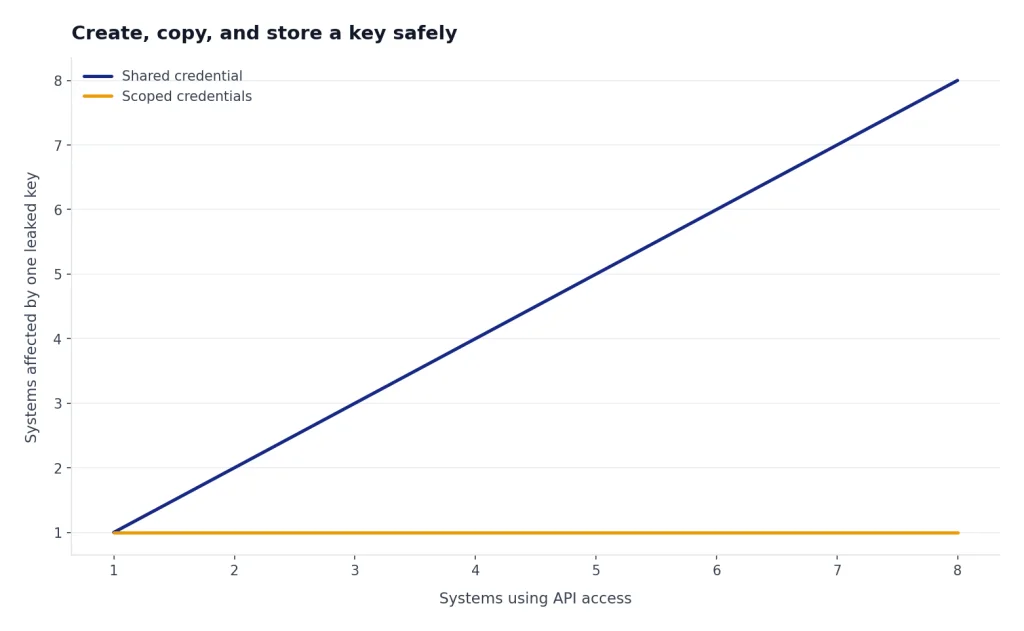
If you are budgeting usage across teams, separate keys are cleaner than shared credentials. OpenAI’s safety guidance says each team member should use a unique API key and that sharing API keys is against the Terms of Use.[4] Unique keys also make incident response easier: if one key leaks, you rotate one credential instead of breaking every deployment at once.
After your key works, you usually do not need to find it again; you need to design requests, control cost, and handle errors. For those next steps, see GPT-5 API, structured outputs with the OpenAI API, streaming responses with the OpenAI API, and the API cost calculator.
When not to use your own secret API key
Do not paste your secret key into browser JavaScript, a mobile app bundle, or any other client-side environment. OpenAI’s help center says not to deploy keys in client-side environments like browsers or mobile apps because malicious users can extract the key and make requests on your behalf.[4] The API authentication docs repeat the same point: your API key is a secret and should not be exposed in client-side code.[8]
If your app runs in a user’s browser, your frontend should call your backend, and your backend should hold the secret. The backend can then attach the Authorization: Bearer ... header safely.[8]
You also should not use your personal key as a shared team credential. OpenAI recommends unique keys per team member, and the projects model is built around scoped access, project membership, and project-level permissions.[2][4] If a key is leaked or mis-scoped, the first symptom may be an authentication or permission failure; our OpenAI API errors guide explains those errors in more detail.
Use your own secret key for server-side development you control. Do not use it as a frontend credential, a team-wide shared password, an admin credential, or a substitute for proper project access.
What to do if you cannot find or lost the key
If you can reach the API Keys page but cannot reveal the full secret value, the likely answer is that you are not supposed to. OpenAI’s projects help article says the secret key is displayed when created and, for security reasons, you will not be able to view it again through your OpenAI account in that flow.[2] In that case, create a new key, update your environment variables, and revoke the old one if it is no longer needed.[2][4]
If you found a key string in an old server config and do not know which account or organization it belongs to, OpenAI provides a practical fallback. Its help article says you can call the /v1/me endpoint with the key as a Bearer token to identify the associated user and organizations.[6]
curl https://api.openai.com/v1/me
  -H "Authorization: Bearer ${OPENAI_API_KEY}"
If the key is leaked, stop testing with it. Revoke it from the relevant API key settings page for its scope and replace it with a fresh credential.[4][6] If your application is already live, rotate the secret in your deployment platform before restarting services so the app comes back with the new credential in place.
If you repeatedly lose track of secrets, the problem is operational, not navigational. Move from ad hoc copy-paste storage to a proper secret manager. That change matters more than memorizing the dashboard menu.
Alternatives to a standard user API key
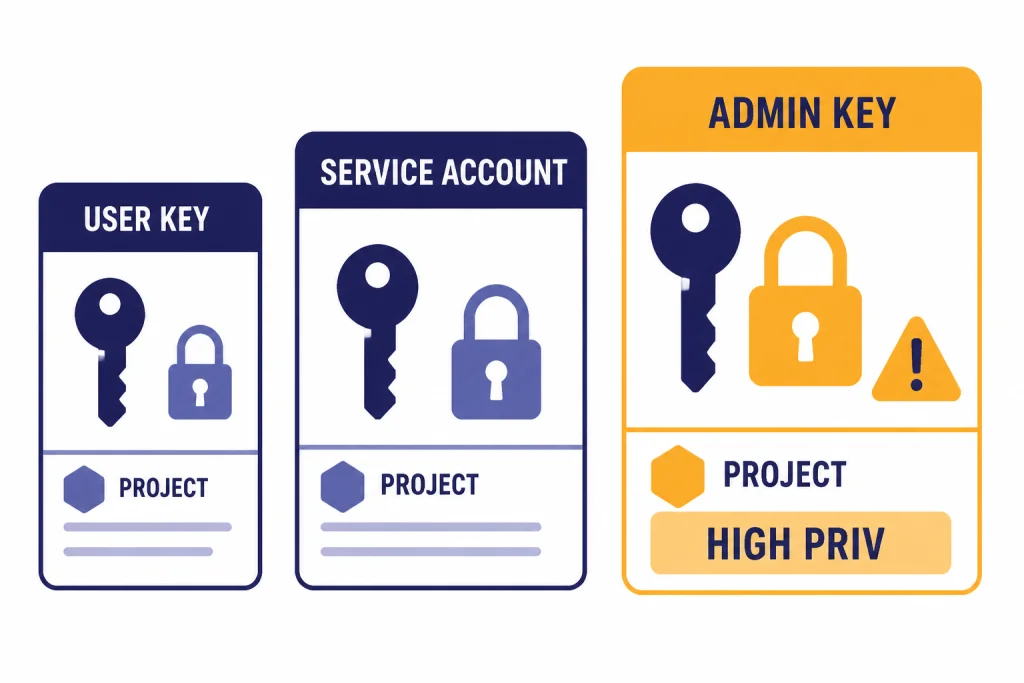
A normal project-scoped user key is the right default for most developers. It is not the only credential type, though. OpenAI’s docs describe project API keys, service-account-based access inside projects, and admin API keys for organization administration.[2][5][7] Picking the wrong one creates unnecessary risk.
| Credential type | Best fit | Where it is managed | What to watch out for |
|---|---|---|---|
| Legacy or personal user key | Older workflows or simple personal development | API Keys area for the account or selected scope.[1] | Prefer project-scoped keys when working in a project-based workspace. |
| Project-scoped user key | Normal day-to-day development and server-side app calls | Project API Keys settings for the relevant project.[2] | This is the usual choice for developers, but it is easy to create it in the wrong project. |
| Service account key | Automation and systems that should not depend on one employee’s login | Project members/settings flow; service accounts are scoped to projects.[2] | Use for backend jobs and automation, not as a casual shared human credential. Store the secret immediately.[2] |
| Admin API key | Organization-level administration such as managing users, projects, and key lifecycles | Organization Admin Keys area and admin endpoints.[7] | Too powerful for normal inference use. Most developers should not create one for app traffic.[7] |
The project API keys reference adds an important detail: the API can list and delete project keys for users, but it does not issue user keys programmatically because users need to authorize themselves to generate keys.[5] That is another reason the dashboard flow still matters even if you automate deployment.
For most teams, the practical split is simple: human developers use their own scoped project keys, backend jobs that should outlive staff changes use service account keys, and organization owners keep admin keys rare and tightly controlled. For related API architecture topics after credential setup, see function calling in OpenAI API explained, OpenAI fine-tuning guide, OpenAI embeddings API, and OpenAI Realtime API.
Frequently asked questions
Is my ChatGPT login the same thing as an OpenAI API key?
No. A ChatGPT login and an OpenAI API key are not interchangeable. API access uses platform credentials managed through the OpenAI Platform, while ChatGPT subscriptions are a separate product layer. If you are unsure which one you need, start with our take on ChatGPT API vs ChatGPT Plus.
Can I view the full API key again after I create it?
Often, no. OpenAI says the secret is displayed when created, and in the relevant project flow you may not be able to view it again later through your account.[2] If you did not save it, generate a new key and update your environment variables.
Where should I store my OpenAI API key?
Store it in an environment variable or a proper secret manager, not in source code and not in client-side scripts. OpenAI’s quickstart and authentication docs both recommend server-side secret handling through environment variables or key management services.[3][8]
What if I belong to more than one organization or project?
Check that you are in the right scope before assuming the key is missing. OpenAI’s projects documentation says access depends on organization roles, project membership, and project settings.[2] Many “missing key” cases are really “wrong project selected” cases.
How can I identify an old key I found in a server?
OpenAI says you can call the /v1/me endpoint with that key as a Bearer token to see the associated user and organizations.[6] That is useful when you inherit a deployment and need to trace ownership before rotating credentials.